概述
动画是提升用户体验的重要手段,能够让界面交互更加流畅自然。HarmonyOS ArkUI 提供了丰富的动画能力,包括属性动画、关键帧动画、手势动画等。本文将从动画基础、animateTo 函数、属性动画、组合动画、高级动画等多个维度,深入讲解 ArkUI 动画的实现方法。
一、动画基础
1.1 动画类型
ArkUI 支持多种动画类型:
| 类型 | 说明 | 适用场景 |
|---|---|---|
| 属性动画 | 通过改变组件属性实现动画 | 位移、缩放、旋转、透明度 |
| 关键帧动画 | 定义多个关键帧实现复杂动画 | 复杂路径、多阶段动画 |
| 手势动画 | 跟随手势操作的动画 | 拖拽、滑动、捏合缩放 |
| 过渡动画 | 组件显隐时的过渡效果 | 页面切换、弹窗显示 |
1.2 动画配置
动画配置对象支持以下属性:
typescript
interface AnimateToOptions {
  duration?: number;        // 动画时长(毫秒)
  curve?: Curve | ICurve;   // 动画曲线
  delay?: number;           // 延迟开始(毫秒)
  iterations?: number;      // 重复次数,-1表示无限
  playMode?: PlayMode;      // 播放模式
  onFinish?: () => void;    // 动画结束回调
}
1.3 动画曲线
| 曲线类型 | 说明 | 效果 |
|---|---|---|
Curve.Linear |
线性曲线 | 匀速运动 |
Curve.Ease |
缓入缓出 | 开始慢,中间快,结束慢 |
Curve.EaseIn |
缓入 | 开始慢,逐渐加速 |
Curve.EaseOut |
缓出 | 开始快,逐渐减速 |
Curve.EaseInOut |
缓入缓出 | 结合 EaseIn 和 EaseOut |
1.4 基础使用示例
typescript
@Entry
@Component
struct BasicAnimation {
  @State width: number = 100;

  build() {
    Column() {
      Button('点击动画')
        .width(this.width)
        .height(40)
        .margin({ bottom: 20 })
        .onClick(() => {
          animateTo({ duration: 500 }, () => {
            this.width = this.width === 100 ? 200 : 100;
          });
        })
    }
    .padding(20)
    .width('100%')
    .height('100%')
    .justifyContent(FlexAlign.Center)
  }
}
二、animateTo 函数
2.1 函数定义
animateTo 是 ArkUI 中最常用的动画函数,用于实现属性动画:
typescript
animateTo(options: AnimateToOptions, event: () => void): void2.2 参数说明
| 参数 | 类型 | 说明 |
|---|---|---|
options |
AnimateToOptions |
动画配置 |
event |
() => void |
状态变更函数 |
2.3 简单动画示例
typescript
@Entry
@Component
struct AnimateToDemo {
  @State count: number = 0;
  @State opacity: number = 1;

  build() {
    Column() {
      Text('计数:' + this.count)
        .fontSize(32)
        .fontWeight(FontWeight.Bold)
        .opacity(this.opacity)
        .margin({ bottom: 20 })

      Button('增加')
        .width(100)
        .height(40)
        .onClick(() => {
          animateTo({ duration: 300, curve: Curve.EaseOut }, () => {
            this.count++;
            this.opacity = 0.5;
          });

          animateTo({ duration: 300, delay: 300 }, () => {
            this.opacity = 1;
          });
        })
    }
    .padding(20)
    .width('100%')
    .height('100%')
    .justifyContent(FlexAlign.Center)
  }
}
三、属性动画
3.1 位置动画
通过 translate 属性实现位移:
typescript
@Entry
@Component
struct PositionAnimation {
  @State offsetX: number = 0;
  @State offsetY: number = 0;

  build() {
    Column() {
      Text('位置动画')
        .fontSize(20)
        .fontWeight(FontWeight.Bold)
        .margin({ bottom: 20 })

      Stack() {
        Text('移动方块')
          .width(100)
          .height(100)
          .backgroundColor('#0A59F7')
          .fontColor('#FFFFFF')
          .textAlign(TextAlign.Center)
          .borderRadius(8)
          .translate({ x: this.offsetX, y: this.offsetY })
      }
      .width('100%')
      .height(200)
      .backgroundColor('#F5F5F5')
      .margin({ bottom: 20 })

      Row() {
        Button('向左')
          .layoutWeight(1)
          .height(40)
          .onClick(() => {
            animateTo({ duration: 300 }, () => {
              this.offsetX -= 50;
            });
          })
        Button('向右')
          .layoutWeight(1)
          .height(40)
          .margin({ left: 8 })
          .onClick(() => {
            animateTo({ duration: 300 }, () => {
              this.offsetX += 50;
            });
          })
        Button('向上')
          .layoutWeight(1)
          .height(40)
          .margin({ left: 8 })
          .onClick(() => {
            animateTo({ duration: 300 }, () => {
              this.offsetY -= 50;
            });
          })
        Button('向下')
          .layoutWeight(1)
          .height(40)
          .margin({ left: 8 })
          .onClick(() => {
            animateTo({ duration: 300 }, () => {
              this.offsetY += 50;
            });
          })
      }
      .width('100%')
    }
    .padding(20)
  }
}
3.2 缩放动画
通过改变宽度和高度实现缩放:
typescript
@Entry
@Component
struct ScaleAnimation {
  @State size: number = 100;

  build() {
    Column() {
      Text('缩放动画')
        .fontSize(20)
        .fontWeight(FontWeight.Bold)
        .margin({ bottom: 20 })

      Text('缩放')
        .width(this.size)
        .height(this.size)
        .backgroundColor('#34C759')
        .fontColor('#FFFFFF')
        .textAlign(TextAlign.Center)
        .borderRadius(8)
        .margin({ bottom: 20 })

      Row() {
        Button('放大')
          .layoutWeight(1)
          .height(40)
          .onClick(() => {
            animateTo({ duration: 300, curve: Curve.EaseOut }, () => {
              this.size = 150;
            });
          })
        Button('缩小')
          .layoutWeight(1)
          .height(40)
          .margin({ left: 8 })
          .onClick(() => {
            animateTo({ duration: 300, curve: Curve.EaseIn }, () => {
              this.size = 80;
            });
          })
      }
      .width('100%')
    }
    .padding(20)
  }
}
3.3 旋转动画
通过 rotate 属性实现旋转:
typescript
@Entry
@Component
struct RotateAnimation {
  @State angle: number = 0;

  build() {
    Column() {
      Text('旋转动画')
        .fontSize(20)
        .fontWeight(FontWeight.Bold)
        .margin({ bottom: 20 })

      Text('旋转')
        .width(100)
        .height(100)
        .backgroundColor('#FF9500')
        .fontColor('#FFFFFF')
        .textAlign(TextAlign.Center)
        .borderRadius(8)
        .rotate({ angle: this.angle })
        .margin({ bottom: 20 })

      Row() {
        Button('顺时针')
          .layoutWeight(1)
          .height(40)
          .onClick(() => {
            animateTo({ duration: 500, curve: Curve.EaseInOut }, () => {
              this.angle += 90;
            });
          })
        Button('逆时针')
          .layoutWeight(1)
          .height(40)
          .margin({ left: 8 })
          .onClick(() => {
            animateTo({ duration: 500, curve: Curve.EaseInOut }, () => {
              this.angle -= 90;
            });
          })
      }
      .width('100%')
    }
    .padding(20)
  }
}
3.4 透明度动画
通过 opacity 属性实现淡入淡出:
typescript
@Entry
@Component
struct OpacityAnimation {
  @State opacity: number = 1;

  build() {
    Column() {
      Text('透明度动画')
        .fontSize(20)
        .fontWeight(FontWeight.Bold)
        .margin({ bottom: 20 })

      Text('淡入淡出')
        .width(200)
        .height(100)
        .backgroundColor('#AF52DE')
        .fontColor('#FFFFFF')
        .textAlign(TextAlign.Center)
        .borderRadius(8)
        .opacity(this.opacity)
        .margin({ bottom: 20 })

      Button(this.opacity === 1 ? '淡出' : '淡入')
        .width(100)
        .height(40)
        .onClick(() => {
          animateTo({ duration: 500 }, () => {
            this.opacity = this.opacity === 1 ? 0.2 : 1;
          });
        })
    }
    .padding(20)
  }
}
四、组合动画
4.1 同时执行多个动画
在一个 animateTo 中改变多个属性:
typescript
@Entry
@Component
struct CombineAnimation {
  @State width: number = 100;
  @State height: number = 100;
  @State opacity: number = 1;
  @State rotate: number = 0;

  build() {
    Column() {
      Text('组合动画')
        .fontSize(20)
        .fontWeight(FontWeight.Bold)
        .margin({ bottom: 20 })

      Text('组合')
        .width(this.width)
        .height(this.height)
        .backgroundColor('#0A59F7')
        .fontColor('#FFFFFF')
        .textAlign(TextAlign.Center)
        .borderRadius(8)
        .opacity(this.opacity)
        .rotate({ angle: this.rotate })
        .margin({ bottom: 20 })

      Button('开始动画')
        .width(120)
        .height(40)
        .onClick(() => {
          animateTo({ duration: 800, curve: Curve.EaseInOut }, () => {
            this.width = 150;
            this.height = 150;
            this.opacity = 0.5;
            this.rotate = 180;
          });

          animateTo({ duration: 800, delay: 800 }, () => {
            this.width = 100;
            this.height = 100;
            this.opacity = 1;
            this.rotate = 360;
          });
        })
    }
    .padding(20)
  }
}
4.2 链式动画
依次执行多个动画:
typescript
@Entry
@Component
struct ChainAnimation {
  @State x: number = 0;
  @State y: number = 0;
  @State scale: number = 1;

  build() {
    Column() {
      Text('链式动画')
        .fontSize(20)
        .fontWeight(FontWeight.Bold)
        .margin({ bottom: 20 })

      Stack() {
        Text('链式移动')
          .width(80)
          .height(80)
          .backgroundColor('#34C759')
          .fontColor('#FFFFFF')
          .textAlign(TextAlign.Center)
          .borderRadius(8)
          .scale({ x: this.scale, y: this.scale })
          .translate({ x: this.x, y: this.y })
      }
      .width('100%')
      .height(250)
      .backgroundColor('#F5F5F5')
      .margin({ bottom: 20 })

      Button('执行链式动画')
        .width(150)
        .height(40)
        .onClick(() => {
          animateTo({ duration: 300 }, () => {
            this.x = 100;
          });

          animateTo({ duration: 300, delay: 300 }, () => {
            this.y = 50;
          });

          animateTo({ duration: 300, delay: 600 }, () => {
            this.scale = 1.5;
          });

          animateTo({ duration: 300, delay: 900 }, () => {
            this.x = 0;
            this.y = 0;
            this.scale = 1;
          });
        })
    }
    .padding(20)
  }
}
4.3 循环动画
通过 iterations 属性实现循环播放:
typescript
@Entry
@Component
struct LoopAnimation {
  @State rotate: number = 0;
  @State isPlaying: boolean = false;

  build() {
    Column() {
      Text('循环动画')
        .fontSize(20)
        .fontWeight(FontWeight.Bold)
        .margin({ bottom: 20 })

      Text('🔄')
        .fontSize(48)
        .rotate({ angle: this.rotate })
        .margin({ bottom: 20 })

      Button(this.isPlaying ? '停止' : '开始')
        .width(100)
        .height(40)
        .onClick(() => {
          if (this.isPlaying) {
            this.isPlaying = false;
            return;
          }

          this.isPlaying = true;
          animateTo({
            duration: 1000,
            iterations: -1,
            curve: Curve.Linear
          }, () => {
            this.rotate += 360;
          });
        })
    }
    .padding(20)
  }
}
五、高级动画
5.1 自定义动画曲线
创建自定义的动画曲线:
typescript
@Entry
@Component
struct CustomCurve {
  @State x: number = 0;

  build() {
    Column() {
      Text('自定义曲线')
        .fontSize(20)
        .fontWeight(FontWeight.Bold)
        .margin({ bottom: 20 })

      Text('自定义')
        .width(80)
        .height(80)
        .backgroundColor('#FF9500')
        .fontColor('#FFFFFF')
        .textAlign(TextAlign.Center)
        .borderRadius(8)
        .translate({ x: this.x })
        .margin({ bottom: 20 })

      Button('执行')
        .width(100)
        .height(40)
        .onClick(() => {
          animateTo({
            duration: 500,
            curve: new CubicBezierCurve(0.25, 0.1, 0.25, 1.0)
          }, () => {
            this.x = this.x === 0 ? 150 : 0;
          });
        })
    }
    .padding(20)
  }
}
5.2 动画结束回调
在动画结束后执行回调函数:
typescript
@Entry
@Component
struct AnimationCallback {
  @State scale: number = 1;
  @State message: string = '点击按钮开始动画';

  build() {
    Column() {
      Text('动画回调')
        .fontSize(20)
        .fontWeight(FontWeight.Bold)
        .margin({ bottom: 20 })

      Text(this.message)
        .fontSize(14)
        .fontColor('#666666')
        .margin({ bottom: 20 })

      Text('结束回调')
        .width(100)
        .height(100)
        .backgroundColor('#AF52DE')
        .fontColor('#FFFFFF')
        .textAlign(TextAlign.Center)
        .borderRadius(8)
        .scale({ x: this.scale, y: this.scale })
        .margin({ bottom: 20 })

      Button('执行')
        .width(100)
        .height(40)
        .onClick(() => {
          this.message = '动画进行中...';
          animateTo({
            duration: 500,
            onFinish: () => {
              this.message = '动画结束!';
            }
          }, () => {
            this.scale = this.scale === 1 ? 1.5 : 1;
          });
        })
    }
    .padding(20)
  }
}
5.3 动画状态管理
管理动画的播放状态:
typescript
@Entry
@Component
struct AnimationState {
  @State isAnimating: boolean = false;
  @State position: number = 0;

  build() {
    Column() {
      Text('动画状态管理')
        .fontSize(20)
        .fontWeight(FontWeight.Bold)
        .margin({ bottom: 20 })

      Text('状态')
        .width(80)
        .height(80)
        .backgroundColor('#5856D6')
        .fontColor('#FFFFFF')
        .textAlign(TextAlign.Center)
        .borderRadius(8)
        .translate({ x: this.position })
        .margin({ bottom: 20 })

      Button(this.isAnimating ? '动画中...' : '开始')
        .width(120)
        .height(40)
        .enabled(!this.isAnimating)
        .onClick(() => {
          this.isAnimating = true;
          animateTo({
            duration: 1000,
            onFinish: () => {
              this.isAnimating = false;
            }
          }, () => {
            this.position = this.position === 0 ? 200 : 0;
          });
        })
    }
    .padding(20)
  }
}
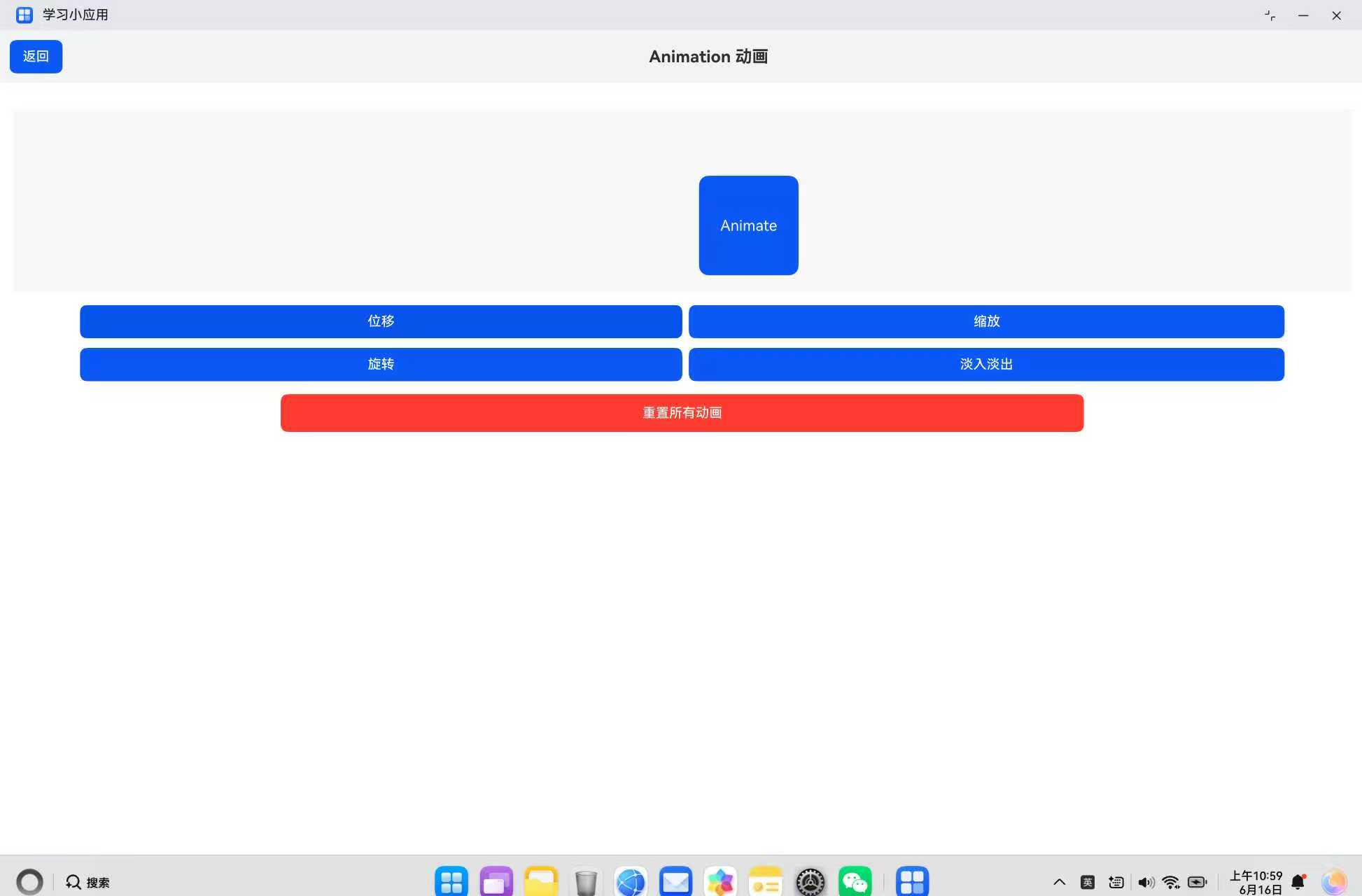
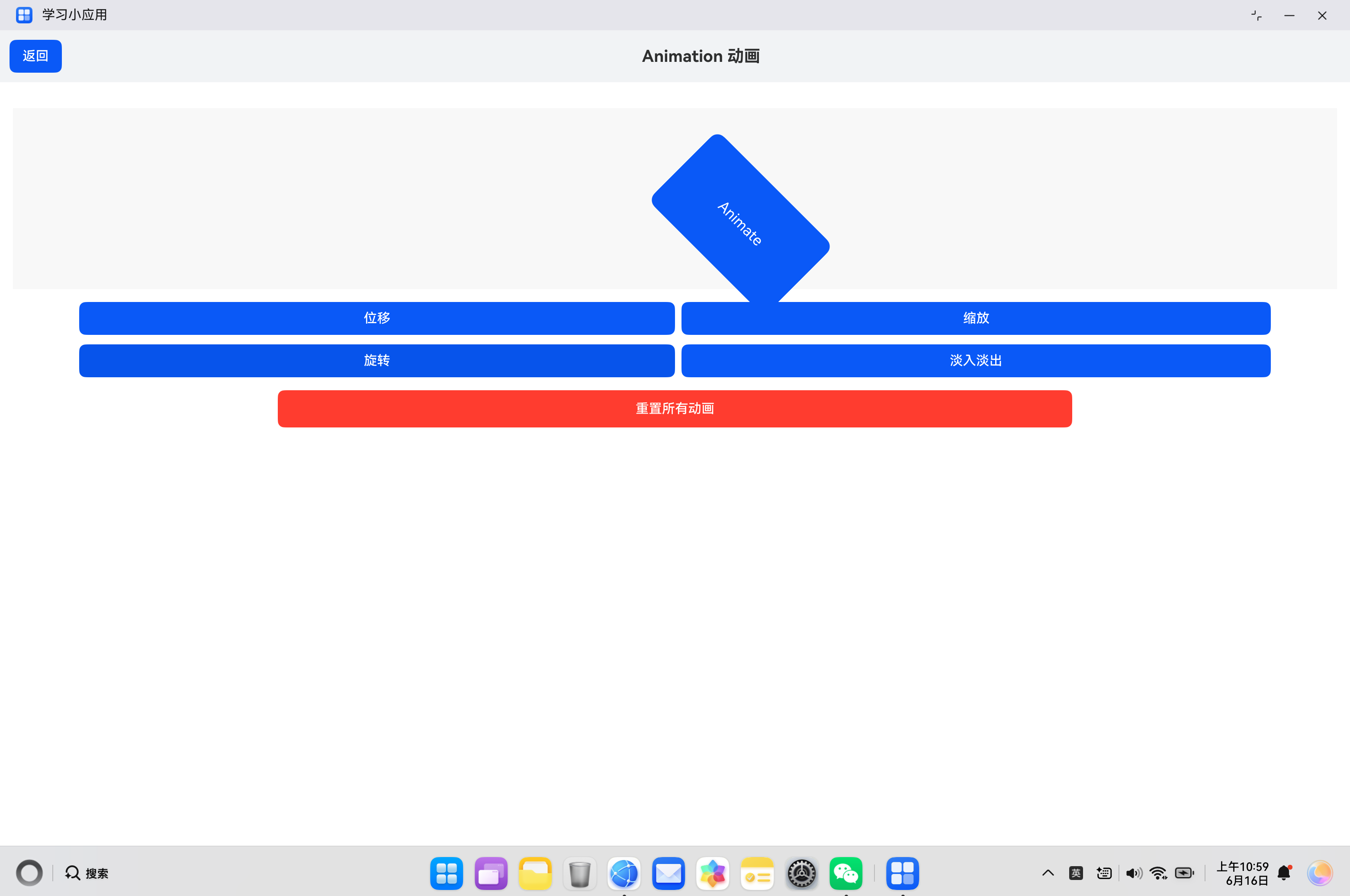
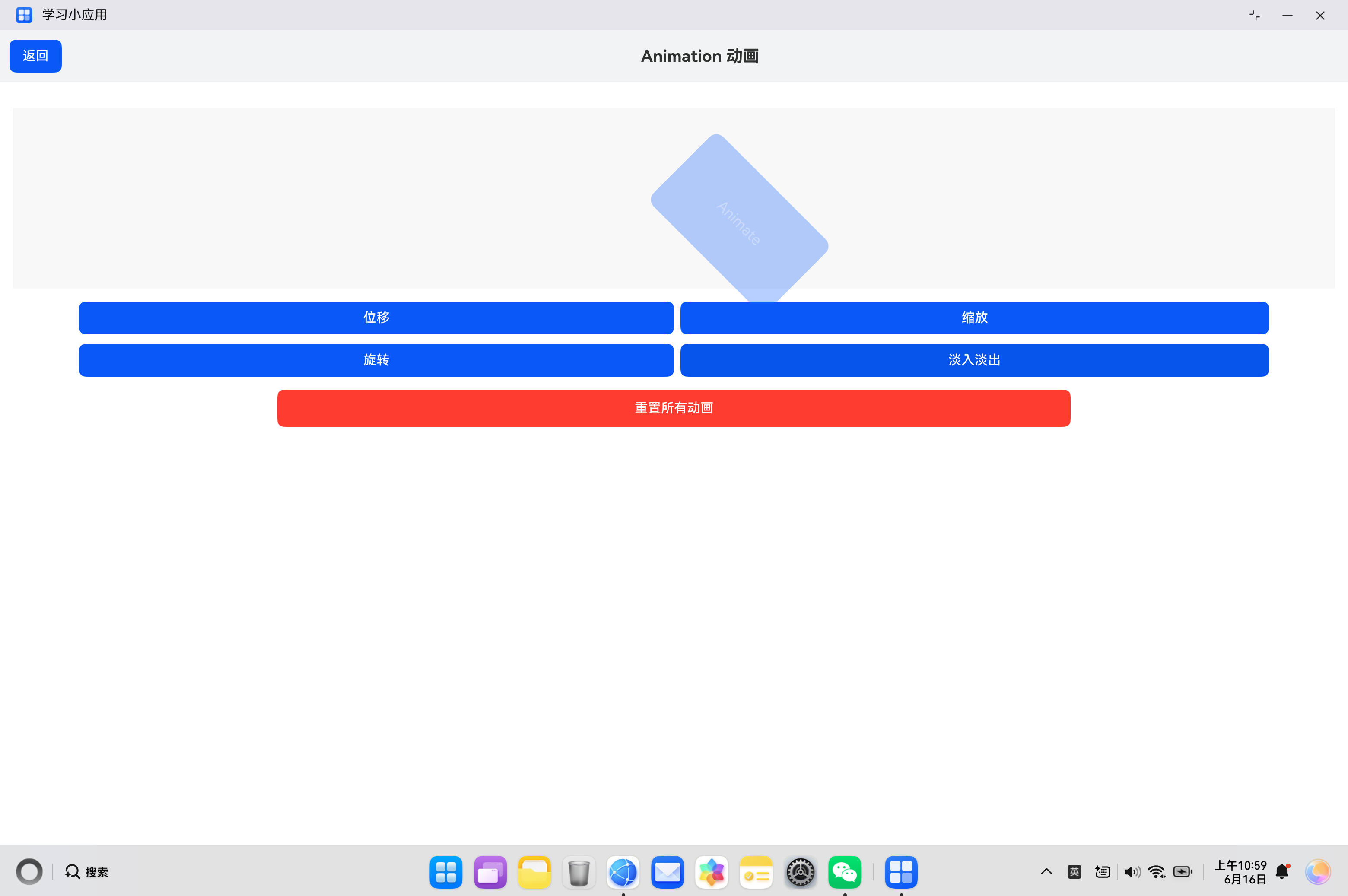
六、实际案例:动画展示页面
6.1 需求分析
构建一个动画展示页面,包含:
- 位移、缩放、旋转、透明度四种基础动画
- 组合动画效果
- 动画控制面板
- 动画状态显示
6.2 代码实现
typescript
import { router } from '@kit.ArkUI';

@Entry
@Component
struct AnimationShowcase {
  @State offsetX: number = 0;
  @State offsetY: number = 0;
  @State boxWidth: number = 120;
  @State boxOpacity: number = 1;
  @State boxRotate: number = 0;
  @State currentAnim: string = '无';

  runAnimation(type: string) {
    this.currentAnim = type;

    switch (type) {
      case '位移':
        animateTo({ duration: 600, curve: Curve.EaseInOut }, () => {
          this.offsetX = this.offsetX === 0 ? 80 : 0;
          this.offsetY = this.offsetY === 0 ? 30 : 0;
        });
        break;

      case '缩放':
        animateTo({ duration: 500, curve: Curve.EaseOut }, () => {
          this.boxWidth = this.boxWidth === 120 ? 200 : 120;
        });
        break;

      case '旋转':
        animateTo({ duration: 800, curve: Curve.EaseInOut }, () => {
          this.boxRotate = this.boxRotate + 45;
        });
        break;

      case '淡入淡出':
        animateTo({ duration: 500 }, () => {
          this.boxOpacity = this.boxOpacity === 1 ? 0.3 : 1;
        });
        break;

      case '组合':
        animateTo({ duration: 800, curve: Curve.EaseInOut }, () => {
          this.offsetX = 50;
          this.boxWidth = 180;
          this.boxRotate = 90;
          this.boxOpacity = 0.7;
        });
        animateTo({ duration: 800, delay: 800 }, () => {
          this.offsetX = 0;
          this.boxWidth = 120;
          this.boxRotate = 0;
          this.boxOpacity = 1;
        });
        break;

      case '重置':
        animateTo({ duration: 400 }, () => {
          this.offsetX = 0;
          this.offsetY = 0;
          this.boxWidth = 120;
          this.boxOpacity = 1;
          this.boxRotate = 0;
        });
        break;
    }
  }

  build() {
    Column() {
      // 顶部标题
      Row() {
        Button('返回')
          .onClick(() => {
            router.back();
          })
        Text('Animation 动画')
          .fontSize(20)
          .fontWeight(FontWeight.Bold)
          .layoutWeight(1)
          .textAlign(TextAlign.Center)
      }
      .width('100%')
      .padding(12)
      .backgroundColor('#F1F3F5')

      // 动画展示区域
      Column() {
        Text('当前动画:' + this.currentAnim)
          .fontSize(14)
          .fontColor('#0A59F7')
          .margin({ top: 16 })

        Stack() {
          Text('Animate')
            .width(this.boxWidth)
            .height(120)
            .borderRadius(12)
            .backgroundColor('#0A59F7')
            .fontColor('#FFFFFF')
            .fontSize(18)
            .textAlign(TextAlign.Center)
            .opacity(this.boxOpacity)
            .rotate({ angle: this.boxRotate })
            .translate({ x: this.offsetX, y: this.offsetY })
        }
        .width('100%')
        .height(220)
        .backgroundColor('#F8F8F8')
        .margin({ top: 12 })

        // 控制按钮
        Row() {
          Button('位移')
            .layoutWeight(1)
            .height(40)
            .onClick(() => {
              this.runAnimation('位移');
            })
          Button('缩放')
            .layoutWeight(1)
            .height(40)
            .margin({ left: 8 })
            .onClick(() => {
              this.runAnimation('缩放');
            })
        }
        .width('90%')
        .margin({ top: 16 })

        Row() {
          Button('旋转')
            .layoutWeight(1)
            .height(40)
            .onClick(() => {
              this.runAnimation('旋转');
            })
          Button('淡入淡出')
            .layoutWeight(1)
            .height(40)
            .margin({ left: 8 })
            .onClick(() => {
              this.runAnimation('淡入淡出');
            })
        }
        .width('90%')
        .margin({ top: 12 })

        Row() {
          Button('组合动画')
            .layoutWeight(1)
            .height(40)
            .backgroundColor('#34C759')
            .fontColor('#FFFFFF')
            .onClick(() => {
              this.runAnimation('组合');
            })
          Button('重置')
            .layoutWeight(1)
            .height(40)
            .margin({ left: 8 })
            .backgroundColor('#FF3B30')
            .fontColor('#FFFFFF')
            .onClick(() => {
              this.runAnimation('重置');
            })
        }
        .width('90%')
        .margin({ top: 12 })
      }
      .width('100%')
      .layoutWeight(1)
      .padding(16)
    }
    .width('100%')
    .height('100%')
    .backgroundColor('#FFFFFF')
  }
}
七、性能优化建议
7.1 避免频繁动画
减少不必要的动画触发:
typescript
// 避免:频繁触发动画
.onChange((value: number) => {
  animateTo({ duration: 100 }, () => {
    this.x = value;
  });
})

// 推荐:使用节流
.onChange((value: number) => {
  if (Date.now() - this.lastTime > 100) {
    animateTo({ duration: 100 }, () => {
      this.x = value;
    });
    this.lastTime = Date.now();
  }
})
7.2 使用合适的动画时长
避免动画过长或过短:
typescript
// 推荐时长范围
duration: 200 - 800 // 毫秒
7.3 简化动画对象
减少动画涉及的组件复杂度:
typescript
// 避免:复杂组件动画
animateTo({ duration: 300 }, () => {
  this.complexComponent.visibility = Visibility.Visible;
})

// 推荐:简化动画对象
animateTo({ duration: 300 }, () => {
  this.opacity = 1;
})
八、常见问题与解决方案
8.1 动画不生效
问题描述 :调用 animateTo 后没有动画效果。
解决方案:
- 检查状态变量是否使用
@State装饰器 - 确认在
animateTo回调中确实修改了状态 - 检查动画时长是否合理
8.2 动画卡顿
问题描述:动画执行时出现卡顿。
解决方案:
- 减少动画涉及的属性数量
- 降低动画时长
- 简化组件结构
8.3 动画冲突
问题描述:多个动画同时执行导致冲突。
解决方案:
- 使用
delay属性错开动画时间 - 合并多个动画到一个
animateTo中 - 使用状态管理控制动画顺序
8.4 动画无法停止
问题描述:循环动画无法停止。
解决方案:
- 使用状态变量控制动画执行
- 在动画结束后重置状态
- 使用
onFinish回调处理
九、总结
动画是提升用户体验的关键,HarmonyOS ArkUI 提供了强大的动画能力。掌握 animateTo 函数和各种动画属性的使用方法,能够创建出流畅、自然的动画效果。
核心要点:
- 通过
animateTo实现属性动画 - 合理选择动画曲线和时长
- 支持位移、缩放、旋转、透明度等多种动画类型
- 可以组合多个动画实现复杂效果
- 通过
onFinish回调处理动画结束逻辑
希望本文能帮助你更好地理解和使用 ArkUI 动画功能,构建出优秀的 HarmonyOS 应用。
参考资料: