09 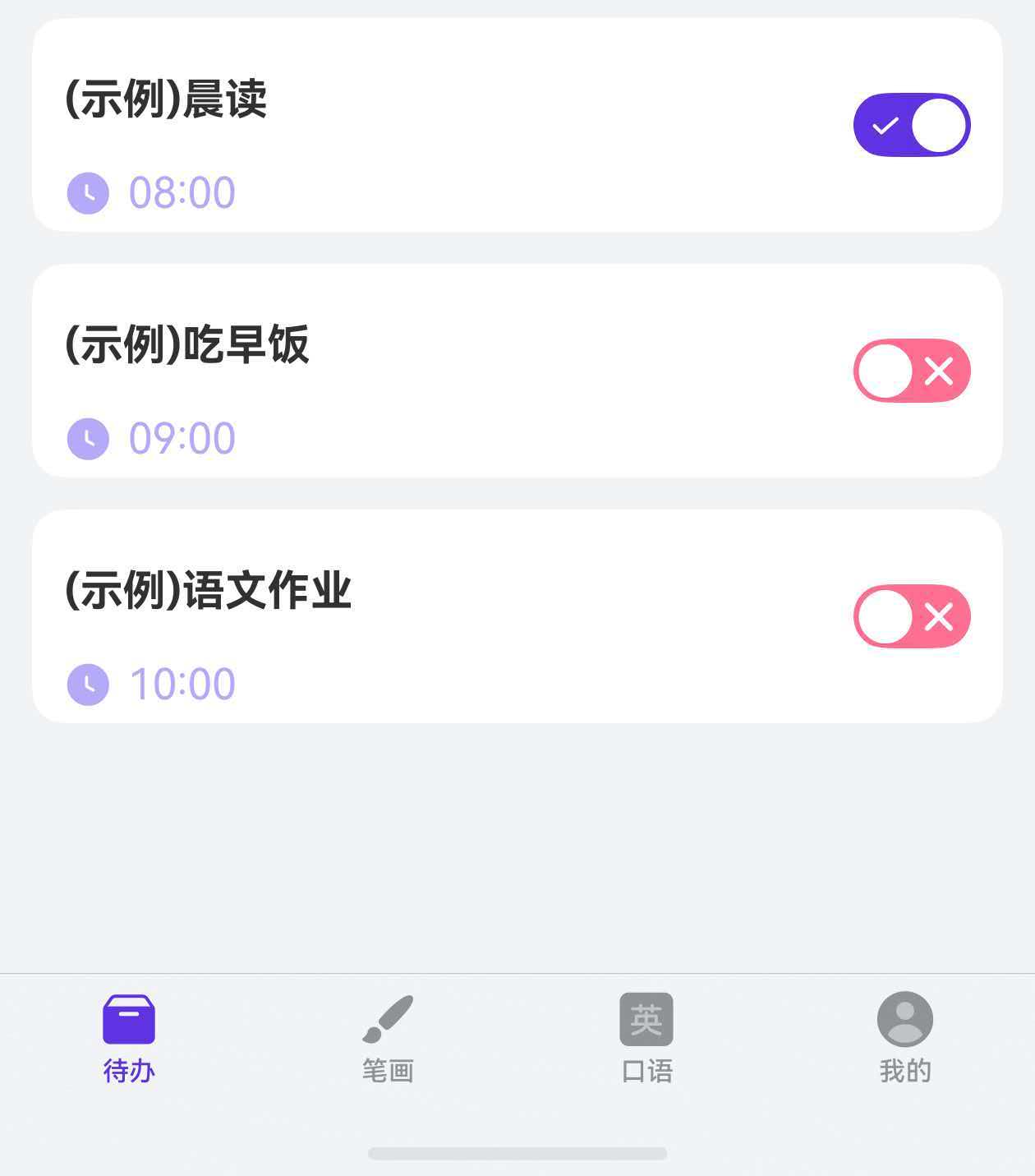
数据持久化只是第一步,将数据以优雅的交互形式呈现给用户才是最终目标。本文将围绕 TodoView.ets,讲解如何使用 ArkUI 的 List + ForEach 渲染待办列表、swipeAction 实现滑动删除、CustomImageToggle 处理完成状态,以及空状态、计时器、诗词阅读等辅助功能的集成。
1. TodoView 组件概览
typescript
@Component
export struct TodoView {
  private pageContext: PageContext = AppStorage.get('pageContext') as PageContext;
  @StorageProp('GlobalInfoModel') globalInfoModel: GlobalInfoModel = AppStorage.get('GlobalInfoModel')!;
  @State arr: TodoItem[] = []
  private todoDb: TodoDatabase = new TodoDatabase(getContext());
  @State isTodoEmpty: boolean = false
  // ... 其他状态
}
核心状态:
@State arr: TodoItem[]:待办事项数组,驱动列表渲染。@StorageProp('GlobalInfoModel'):全局设备信息,获取状态栏高度等参数。todoDb:数据库实例,负责 CRUD 操作。isTodoEmpty:控制空状态与列表状态的切换。
2. 初始化:数据库与示例数据
typescript
async aboutToAppear(): Promise<void> {
  await this.todoDb.initialize();

  let isFirst = PreferencesUtil.getBooleanSync('isFirst', true)
  if (isFirst) {
    this.initDemoTodoList();
  } else {
    this.arr = await this.todoDb.getAllTodos();
  }

  this.getPoem()

  font.registerFont({
    familyName: 'kaiti',
    familySrc: $rawfile('font/kaiti.ttf')
  })
}
初始化流程:
- 初始化数据库 ------
await this.todoDb.initialize()。 - 判断首次启动 ------通过
PreferencesUtil读取标记。 - 首次启动 :调用
initDemoTodoList()添加示例数据。 - 非首次启动:从数据库加载所有待办事项。
- 注册楷体字体 ------
font.registerFont注册自定义字体,供诗词显示使用。
2.1 示例数据
typescript
private initDemoTodoList() {
  this.arr.push({
    id: 1, time: '08:00', content: '(示例)晨读', isCompleted: true, date: '', dayOfWeek: ''
  });
  this.arr.push({
    id: 2, time: '09:00', content: '(示例)吃早饭', isCompleted: false, date: '', dayOfWeek: ''
  });
  this.arr.push({
    id: 3, time: '10:00', content: '(示例)语文作业', isCompleted: false, date: '', dayOfWeek: ''
  });
}
首次用户看到三条示例待办,帮助他们快速理解应用功能。
3. List + ForEach 渲染待办列表
3.1 空状态与列表状态切换
typescript
if (this.isTodoEmpty) {
  this.buildEmptyList()
} else {
  this.buildTodoList()
}
3.2 空状态展示
typescript
@Builder
buildEmptyList() {
  Column({ space: 10 }) {
    Text('当前暂无待办事项')
      .fontColor($r('app.color.color_sub_text'))
      .fontSize(12)
    Button('添加')
      .height(36)
      .fontSize(14)
      .backgroundColor($r('app.color.app_primary'))
      .fontColor($r('app.color.color_card'))
      .borderRadius(25)
      .onClick(() => {
        this.isShowTask = true;
      });
  }
  .backgroundColor($r('app.color.color_card'))
  .layoutWeight(1)
  .justifyContent(FlexAlign.Center)
  .width('100%')
  .margin({ bottom: 40 })
  .borderRadius(12)
}
当列表为空时,显示提示文字和「添加」按钮,引导用户创建第一条待办。
3.3 列表渲染
typescript
@Builder
buildTodoList() {
  List({ space: 12, scroller: this.scrollerForList }) {
    ForEach(this.arr, (item: TodoItem, index: number) => {
      ListItem() {
        Row() {
          Column() {
            Text(item.content)
              .layoutWeight(1)
              .fontWeight(FontWeight.Bold)
            Row({ space: 6 }) {
              Image($r('app.media.ic_time_icon')).width(18);
              Text(item.time)
                .fontColor($r('app.color.color_text_light'));
            };
          }.layoutWeight(1).alignItems(HorizontalAlign.Start);

          CustomImageToggle({
            isOn: item.isCompleted,
            onToggleChange: (value) => {
              // 完成状态切换逻辑
            }
          });
        }
        .width('100%')
        .height('100%');
      }
      .swipeAction({
        end: {
          builder: () => { this.itemEnd(index); },
          actionAreaDistance: 40,
        }
      })
      .height(80)
      .padding({ left: 12, top: 5, bottom: 5, right: 12 })
      .borderRadius(12)
      .backgroundColor($r('app.color.color_card'));
    }, (item: TodoItem) => item.id?.toString());
  }
  .listDirection(Axis.Vertical)
  .scrollBar(BarState.Off)
  .friction(0.6)
  .margin({ bottom: 40 })
  .width('100%')
}
关键组件解析:
List:可滚动列表容器,space: 12设置列表项间距。ForEach:渲染列表数据,第三个参数是键值生成函数(item) => item.id?.toString(),用于高效 diff 更新。ListItem:列表项容器,支持swipeAction滑动操作。scrollerForList:Scroller控制器,支持编程式滚动。
ForEach 键值 :必须为每个列表项提供唯一键值,否则可能导致列表更新异常。本项目使用
item.id?.toString()作为键值。
4. swipeAction:滑动删除
4.1 滑动操作配置
typescript
.swipeAction({
  end: {
    builder: () => { this.itemEnd(index); },
    actionAreaDistance: 40,
  }
})end:向左滑动后显示的操作区域(尾部)。builder:滑动操作区域的 UI 构建器。actionAreaDistance: 40:滑动操作区域的宽度。
4.2 删除按钮构建
typescript
@Builder
itemEnd(index: number) {
  Row() {
    Button('删除')
      .borderRadius(5)
      .backgroundColor($r('app.color.app_primary'))
      .onClick(async () => {
        if (!this.arr[index].date) {
          this.arr.splice(index, 1)
        } else {
          this.todoDb.deleteTodo(this.arr[index].id ?? 0).then((isDelete: boolean) => {
            if (isDelete) {
              this.arr.splice(index, 1)
            }
          })
        }

        if (this.arr.length === 0) {
          this.isTodoEmpty = true
        }
      })
  }.margin({ left: 7 })
}
删除逻辑说明:
- 判断数据来源 :如果
item.date为空,说明是示例数据(未入库),直接从数组移除。 - 数据库中的数据 :先调用
todoDb.deleteTodo()删除,成功后再从数组移除。 - 空列表检测:删除后如果数组为空,切换到空状态视图。
5. CustomImageToggle:完成状态切换
typescript
CustomImageToggle({
  isOn: item.isCompleted,
  onToggleChange: (value) => {
    let currentBonus = PreferencesUtil.getNumberSync(AgentConstant.SP_BONUS, 0)
    if (!value && currentBonus === 0) {
      item.isCompleted = true;
      return;
    }
    item.isCompleted = value;
    PreferencesUtil.putSync(AgentConstant.SP_BONUS, value ? currentBonus + 1 : currentBonus - 1)
    this.todoDb.updateTodo(item.id!!, item)
    this.finishVisible = this.arr.every(item => item.isCompleted === true);
  }
});
完成状态切换涉及积分(bonus)系统:
- 获取当前积分 :从
PreferencesUtil读取SP_BONUS。 - 取消完成的保护逻辑:如果积分为 0,不允许取消完成状态(防止积分变为负数)。
- 更新积分 :完成 +1,取消完成 -1,通过
PreferencesUtil.putSync持久化。 - 更新数据库 :调用
todoDb.updateTodo()保存完成状态。 - 全完成检测 :如果所有待办都已完成,显示庆祝弹窗(
finishVisible = true)。
6. 添加待办:半模态弹窗
typescript
.bindSheet($$this.isShowTask, this.todoAddBuilder(), {
  blurStyle: BlurStyle.Thick,
  dragBar: true,
  title: this.DialogTitle('今日任务', '添加', async () => {
    if (StrUtil.isEmpty(this.value)) {
      ToastUtil.showToast("任务内容不能为空")
      return
    }
    if (StrUtil.isEmpty(this.startTime)) {
      ToastUtil.showToast("开始时间不能为空")
      return
    }
    if (StrUtil.isEmpty(this.stopTime)) {
      ToastUtil.showToast("结束时间不能为空")
      return
    }
    const newTodo: TodoItem = {
      date: DateUtil.getTodayStr('yyyy-MM-dd'),
      dayOfWeek: '周' + DateUtil.getWeekDay(DateUtil.getTodayStr('HH-mm-ss')),
      time: `${this.startTime}-${this.stopTime}`,
      content: this.value,
      isCompleted: false
    };
    const todoId = await this.todoDb.addTodo(newTodo);
    PreferencesUtil.putSync('isFirst', false);
    this.arr = []
    this.arr = await this.todoDb.getAllTodos();
    this.startTime = this.stopTime = ''
    this.isShowTask = false
    this.isTodoEmpty = false
  }),
  height: this.sheetHeight,
  keyboardAvoidMode: SheetKeyboardAvoidMode.TRANSLATE_AND_RESIZE
})
**半模态(bindSheet)**关键点:
$$this.isShowTask:双向绑定显示状态,$$语法允许框架内部修改该值(如用户下滑关闭)。blurStyle: BlurStyle.Thick:背景毛玻璃效果。dragBar: true:显示拖拽条,用户可下滑关闭。keyboardAvoidMode:键盘弹出时的避让模式。
添加待办的表单包含任务名称、开始时间和结束时间,通过 IBestField 和 IBestCell 组件实现输入和时间选择。
6.1 刷新数据的方式
typescript
this.arr = []
this.arr = await this.todoDb.getAllTodos();
先清空数组再重新赋值,确保 @State 能检测到变化并触发 UI 刷新。直接使用 this.arr = await ... 赋值也是可行的,但清空后赋值的模式在某些场景下更可靠。
7. 功能入口:IconText 组件
typescript
Flex({ justifyContent: FlexAlign.SpaceBetween }) {
  IconText({
    icon: $r('app.media.ic_func_stroke'),
    txt: '每日诗词',
    fontColor: $r('app.color.color_function_txt_green'),
    bgColor: $r('app.color.color_function_green'),
    onFuncClick: async () => {
      this.userId = UserInfoManager.getUserInfo()?.unionID ?? ''
      if (StrUtil.isBlank(this.userId)) {
        this.login()
        return
      }
      await this.getPoem();
      if (this.poemInfo) {
        this.pageContext.openPage({
          param: this.poemInfo,
          routerName: 'PoemPage',
          onReturn: async (data) => {
            this.getPoem()
          }
        }, true);
      }
    }
  }).width('45%')

  IconText({
    icon: $r('app.media.ic_func_speak'),
    txt: '练字字帖',
    fontColor: $r('app.color.color_function_txt_purple'),
    bgColor: $r('app.color.color_function_blue'),
    onFuncClick: () => {
      this.pageContext.openPage({ routerName: 'CopyPage' }, true);
    }
  }).width('45%')
}.width('100%')
IconText 是项目封装的图标+文字入口组件,每个功能入口有独立的配色方案。点击「每日诗词」时需要登录验证,而「练字字帖」则直接跳转。
8. TimerComponent:番茄钟计时器
typescript
TimerComponent({
  totalTime: this.settingTime,
  onTimeUp: this.onTimerFinished,
  onTimeChange: this.onTimeChanged,
  controller: this.timerController
}).onClick(() => {
  showDialogTime({
    titleBarAttribute: { titleText: "请选择计时时间" },
    timeAttribute: {
      timeType: TimeDialogType.HMS,
      startHours: 0, startMinutes: 0, startSeconds: 0,
      selectTime: "00-05-00",
      endHours: 23, endMinutes: 59, endSeconds: 59,
    },
    timeConfirmClick: (date) => {
      this.settingTime =
        (Number(date.getHours()) || 0) * 3600 +
        (Number(date.getMinutes()) || 0) * 60 +
        (Number(date.getSeconds()) || 0)
    },
  })
})
计时器默认 25 分钟(番茄钟),点击后弹出时间选择对话框,用户可自定义时长。计时结束时触发 onTimerFinished 播放提醒铃声。
9. 诗词阅读与字体注册
9.1 楷体字体注册
typescript
font.registerFont({
  familyName: 'kaiti',
  familySrc: $rawfile('font/kaiti.ttf')
})
通过 font.registerFont 注册自定义字体文件,注册后可在 Text 组件中使用 .fontFamily('kaiti') 指定字体。
9.2 诗词显示与朗读
typescript
Column({ space: 12 }) {
  Text(this.poem)
    .fontFamily('kaiti')
    .fontWeight(FontWeight.Bold)
    .textAlign(TextAlign.Center)
    .lineSpacing(LengthMetrics.fp(18))
}
.mainCardStyle()
.onClick(() => {
  PoemReader.play(this.poem);
}).fontFamily('kaiti'):使用注册的楷体字体,营造传统文化氛围。PoemReader.play:点击诗词卡片触发朗读,基于 TTS(文本转语音)能力。
10. Scroll 容器配置
typescript
Scroll(this.scroller) {
  Column({ space: 10 }) {
    // 标题行
    // 倒计时 + 诗词
    // 功能入口
    // 待办列表
  }
}
.height('100%')
.width('100%')
.friction(0.6)
.align(Alignment.Top)
.scrollBar(BarState.Off)
.edgeEffect(EdgeEffect.Spring)| 属性 | 说明 |
|---|---|
.friction(0.6) |
滚动摩擦系数,小于 1 更灵敏 |
.scrollBar(BarState.Off) |
隐藏滚动条 |
.edgeEffect(EdgeEffect.Spring) |
边界回弹效果,提升手感 |
11. 总结
| 知识点 | 说明 |
|---|---|
List + ForEach |
可滚动列表渲染,ForEach 需提供唯一键值 |
swipeAction |
滑动操作,end 配置左滑删除 |
CustomImageToggle |
自定义开关组件,处理完成状态与积分联动 |
bindSheet |
半模态弹窗,$$ 双向绑定显示状态 |
PreferencesUtil |
轻量偏好存储,保存积分和首次启动标记 |
font.registerFont |
注册自定义字体,$rawfile 引用 rawfile 资源 |
TimerComponent |
番茄钟计时器,时间选择对话框集成 |
PoemReader.play |
TTS 诗词朗读 |
IconText |
功能入口组件,带图标、文字和配色 |
Scroll + EdgeEffect.Spring |
弹性滚动效果 |
| 空状态切换 | 条件渲染:空列表 vs 数据列表 |
| 数据刷新模式 | 清空数组 → 重新查询赋值,确保 @State 触发更新 |
待办列表看似是一个简单的 CRUD 页面,实则涉及列表渲染、手势交互、状态管理、数据持久化、自定义字体、计时器、TTS 朗读等多个技术点的综合运用。理解这些模式的组合方式,是构建复杂交互页面的基础。