引言
在Flutter开发中,Center是最常用的对齐组件之一,用于将子组件居中显示。而Align组件则提供了更灵活的对齐方式,可以将子组件定位到父组件的任意位置。本文将深入解析Center和Align组件的核心属性和使用技巧,并通过实际案例展示如何在新闻资讯应用中使用对齐组件。
一、Center组件
1.1 基础用法
dart
// 简单居中
Center(
  child: Text("居中内容"),
)

// 带尺寸因子
Center(
  widthFactor: 2,
  heightFactor: 2,
  child: Text("放大2倍"),
)
1.2 核心属性
| 属性 | 类型 | 默认值 | 作用 |
|---|---|---|---|
| widthFactor | double? | null | 宽度因子 |
| heightFactor | double? | null | 高度因子 |
| child | Widget? | - | 子组件 |
1.3 尺寸因子
当widthFactor和heightFactor为null时,Center会填满父组件的空间:
dart
// 填满父组件
Center(
  child: Text("填满父组件"),
)

// 根据子组件尺寸缩放
Center(
  widthFactor: 2,
  heightFactor: 2,
  child: Container(width: 100, height: 50, color: Colors.blue),
)
二、Align组件
2.1 基础用法
dart
// 居中对齐(等同于Center)
Align(
  alignment: Alignment.center,
  child: Text("居中"),
)

// 左上角对齐
Align(
  alignment: Alignment.topLeft,
  child: Text("左上角"),
)
2.2 核心属性
| 属性 | 类型 | 默认值 | 作用 |
|---|---|---|---|
| alignment | AlignmentGeometry | Alignment.center | 对齐方式 |
| widthFactor | double? | null | 宽度因子 |
| heightFactor | double? | null | 高度因子 |
| child | Widget? | - | 子组件 |
2.3 Alignment枚举值
| 值 | 说明 |
|---|---|
| topLeft | 左上角 |
| topCenter | 顶部居中 |
| topRight | 右上角 |
| centerLeft | 左侧居中 |
| center | 居中 |
| centerRight | 右侧居中 |
| bottomLeft | 左下角 |
| bottomCenter | 底部居中 |
| bottomRight | 右下角 |
2.4 自定义对齐位置
通过Alignment构造函数自定义位置:
dart
// 自定义位置
Align(
  alignment: Alignment(0.5, 0.5),
  child: Text("自定义位置"),
)
Alignment的参数范围是-1到1:
- x: -1表示左边缘,1表示右边缘
- y: -1表示上边缘,1表示下边缘
三、Center与Align的关系
3.1 Center是Align的特例
Center组件本质上是Align组件的一个特例:
dart
// Center等同于Align(alignment: Alignment.center)
Center(child: Text("内容"))

// 等同于
Align(alignment: Alignment.center, child: Text("内容"))
3.2 区别对比
| 组件 | 特点 | 适用场景 |
|---|---|---|
| Center | 仅居中对齐 | 简单居中需求 |
| Align | 灵活控制对齐位置 | 非居中对齐 |
四、容器内居中
4.1 Container的alignment属性
Container也支持alignment属性:
dart
// 使用Container的alignment属性
Container(
  width: 200,
  height: 100,
  color: Colors.blue,
  alignment: Alignment.center,
  child: Text("容器居中", style: TextStyle(color: Colors.white)),
)
4.2 三种居中方式对比
dart
// 方式1:Center组件
Center(child: Text("Center居中"))

// 方式2:Align组件
Align(alignment: Alignment.center, child: Text("Align居中"))

// 方式3:Container的alignment属性
Container(alignment: Alignment.center, child: Text("Container居中"))
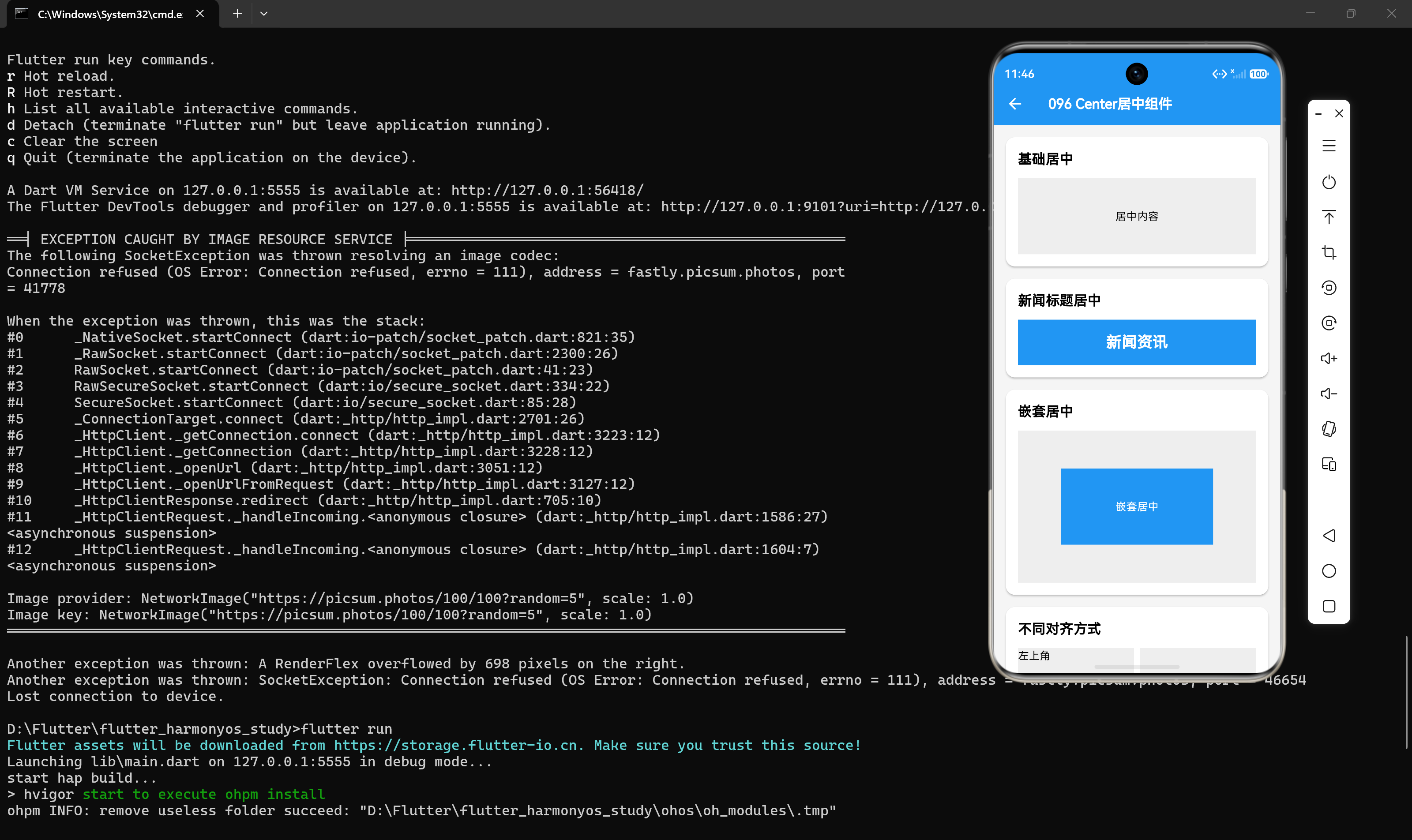
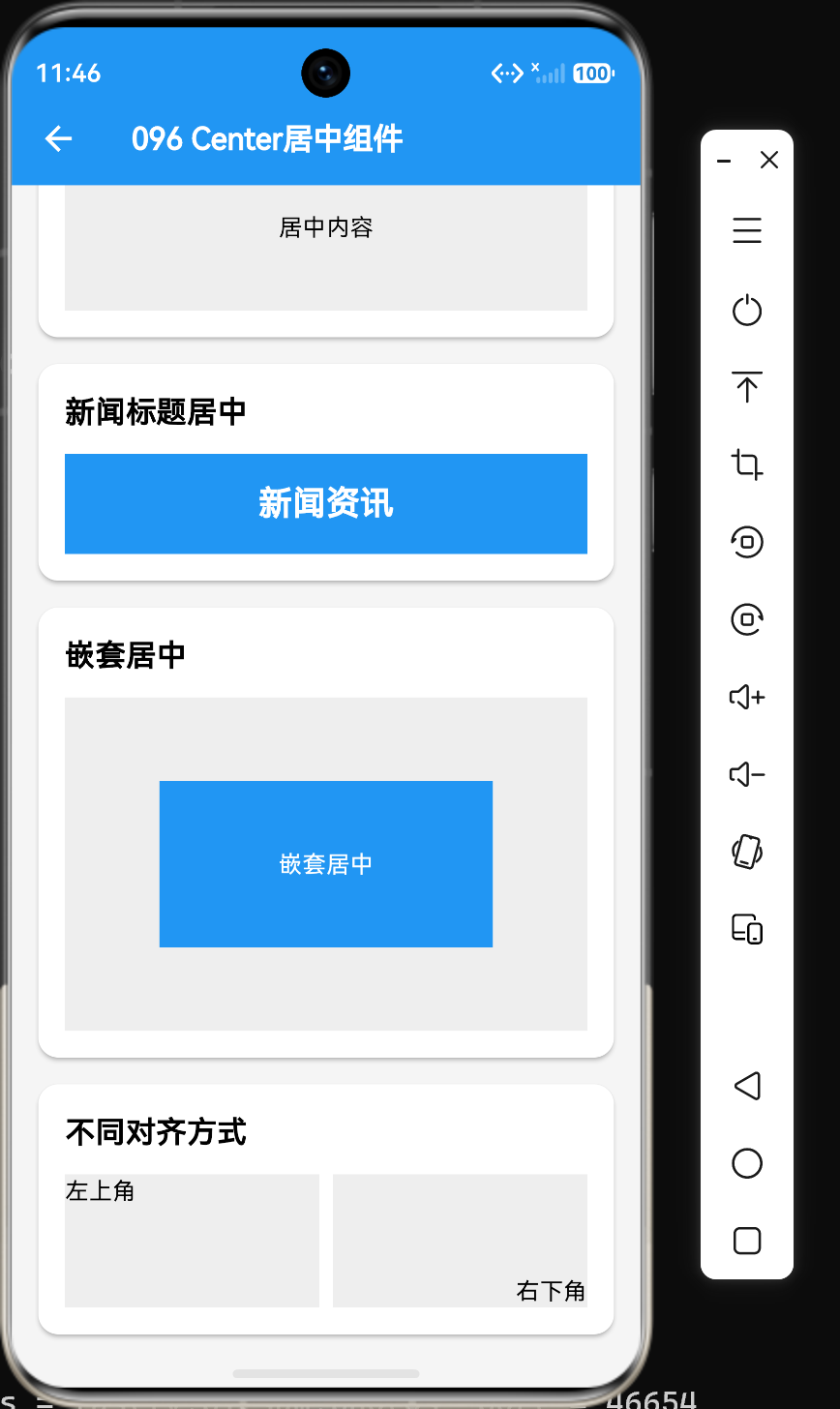
4.3 嵌套居中
dart
Container(
  width: 300,
  height: 200,
  color: Colors.grey,
  child: Center(
    child: Container(
      width: 200,
      height: 100,
      color: Colors.blue,
      child: const Center(child: Text("嵌套居中", style: TextStyle(color: Colors.white))),
    ),
  ),
)
五、新闻资讯应用实战
5.1 新闻标题居中
dart
Container(
  height: 60,
  color: Colors.blue,
  child: const Center(
    child: Text(
      "新闻资讯",
      style: TextStyle(color: Colors.white, fontSize: 20, fontWeight: FontWeight.bold),
    ),
  ),
)
5.2 按钮居中
dart
Center(
  child: ElevatedButton(
    onPressed: () {},
    child: Text("点击按钮"),
  ),
)
5.3 内容区域对齐
dart
Container(
  width: double.infinity,
  height: 100,
  color: Colors.grey[200],
  child: Column(
    children: [
      Align(
        alignment: Alignment.topLeft,
        child: Text("左上角"),
      ),
      Align(
        alignment: Alignment.bottomRight,
        child: Text("右下角"),
      ),
    ],
  ),
)
六、布局实践建议
6.1 选择合适的组件
| 场景 | 推荐组件 |
|---|---|
| 简单居中 | Center |
| 非居中对齐 | Align |
| 需要背景/边距 | Container + alignment |
6.2 避免过度嵌套
dart
// 不良示例
Center(
  child: Center(
    child: Text("内容"),
  ),
)

// 优化后
Center(child: Text("内容"))
6.3 在Row/Column中使用
dart
Row(
  children: [
    Expanded(
      child: Center(child: Text("居中内容")),
    ),
  ],
)
七、性能优化建议
7.1 使用const构造函数
dart
// 优化后
const Center(child: Text("内容"))
7.2 合理使用尺寸因子
dart
// 避免不必要的尺寸缩放
Center(
  // widthFactor: 2, // 仅在需要时使用
  child: Text("内容"),
)
八、总结
通过本文的学习,我们掌握了Center和Align组件的核心用法:
- Center组件:简单居中,是Align的特例
- Align组件:灵活控制对齐位置,支持自定义位置
- Container.alignment:在需要背景和边距时使用
- 嵌套居中:支持多层嵌套
Center和Align是Flutter布局的基础组件,掌握好它们的使用技巧对于构建高质量的UI至关重要。