1. ls指令
语法:ls 选项 目录或文件
功能:查看当前目录下的所有子目录和文件。
对于一个文件来说:文件=文件内容+文件属性(文件名、修改时间、文件类型、文件大小等)。
文件操作=对文件内容的操作或对文件属性的操作。
当前目录为/home/xxl,新建了一个普通文件test.txt两个目录dir1和dir2。
cpp
[xxl@VM-0-2-centos ~]$ pwd
/home/xxl
[xxl@VM-0-2-centos ~]$ ls    //当前目录下没有文件
[xxl@VM-0-2-centos ~]$ mkdir dir1    //创建一个目录dir1
[xxl@VM-0-2-centos ~]$ mkdir dir2    //创建一个目录dir2
[xxl@VM-0-2-centos ~]$ touch test.txt    //创建一个文件test.txt
[xxl@VM-0-2-centos ~]$ ls    //当前目录下能显示的文件有dir1、dir2、test.txt
dir1 dir2 test.txt常用选项:
cpp
-a:列出目录下的所有文件包括隐藏文件
cpp
[xxl@VM-0-2-centos ~]$ ls -a
.  ..  .bash_history  .bash_logout  .bash_profile  .bashrc  .cache  .config  dir1  dir2  test.txt
加入-a选项后多出来**"."** ,".." 以及一些以"."开头的文件。
在Linux中,以**"."开头的文件被称为隐藏文件** ,Linux的任何一个目录下面都有两个隐藏文件"."和".."。
".." :表示当前路径的上级路径,cd ..可以回退到上级路径。
"." :表示当前路径,可以帮助用户定位当前路径下的文件。
cpp
-l:列出文件的详细属性
cpp
[xxl@VM-0-2-centos ~]$ ls -l
total 8
drwxrwxr-x 2 xxl xxl 4096 Jun 24 18:51 dir1
drwxrwxr-x 2 xxl xxl 4096 Jun 24 18:51 dir2
-rw-rw-r-- 1 xxl xxl    0 Jun 24 18:51 test.txt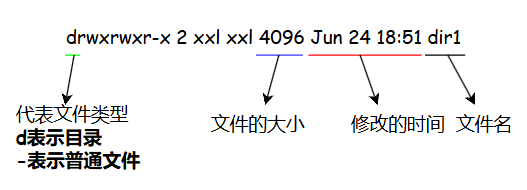
ls -l可以简写为ll,但ls -a不能简写为la。
选项书写的顺序可以随意:
cpp
ls -l
ls -a -l
ls -al
ls -la
ll -a
cpp
-d:将目录像普通文件一样显示当前目录的信息,而不是显示目录里面的文件信息
cpp
[xxl@VM-0-2-centos ~]$ ls -l dir1    //详细显示dir1目录里面的内容
total 0
[xxl@VM-0-2-centos ~]$ ls -dl dir1   //详细显示dir1目录的信息
drwxrwxr-x 2 xxl xxl 4096 Jun 24 18:51 dir1
ls直接加目录名会显示目录里面的内容,加上-d选项可以显示目录本身的信息。
cpp
-F:在每个文件名后附上一个字符表示该文件的类型,"*"表示可执行的普通文件;"/"表示目录;"@"
表示符号链接;"|"表示FIFOs;"="表示套接字(sockets)。
cpp
[xxl@VM-0-2-centos ~]$ ls -F
dir1/  dir2/  test.txt
2. pwd指令
语法:pwd
功能:显示用户当前所在目录。
常用选项:无
当前目录为/home/xxl
cpp
[xxl@VM-0-2-centos ~]$ pwd
/home/xxl
3. cd指令
语法:cd 目录名
功能:改变工作目录,将当前工作目录改变到指定目录下。
常用选项:无
cpp
[xxl@VM-0-2-centos ~]$ ls
dir1  dir2  test.txt
[xxl@VM-0-2-centos ~]$ pwd    //显示当前目录
/home/xxl
[xxl@VM-0-2-centos ~]$ cd dir1    //前往dir1目录
[xxl@VM-0-2-centos dir1]$ pwd     //当前目录
/home/xxl/dir1
[xxl@VM-0-2-centos dir1]$ cd /home    //前往/home目录
[xxl@VM-0-2-centos home]$ pwd     //当前目录
/homeLinux使用"/"作为路径分割符,windows使用"\"作为路径分割符。
单个"/"表示Linux的根目录。一个目录里面可以存放其他目录或普通文件。
Linux的目录结构:多叉树结构。
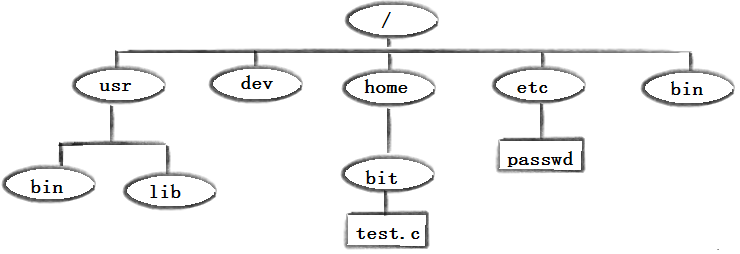
Linux的目录结构是一个多叉树,那么Linux的叶子节点一定是空目录或非目录文件,路径节点一定是非空目录。所以所有的对文件或目录的增删查改本质都是对这颗多叉树的增删查改。
路径的唯一性 :每个节点都可能会有0个或多个子节点,但每一个节点都只有一个父节点,因此在访问路径时能够确保路径的唯一性。
绝对路径:从根目录"/"开始到指定位置,具有唯一性的路径被称之为绝对路径。
相对路径:从当前所处的位置为起始参照位置,来进行特定文件的定位。
cpp
1.绝对路径往往比较长,但是不变,一般在一些固定场景或配置文件中使用。
2.相对路径一般较短,一般命令行输入时比较常用相对路径。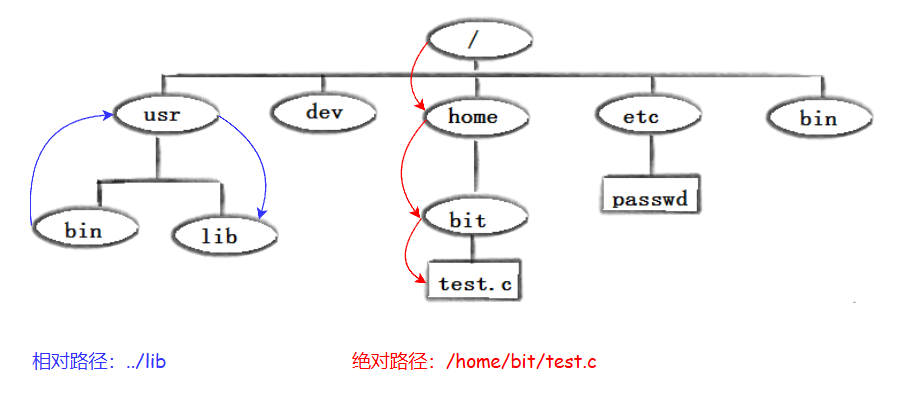
Linux的用户分为两类:超级用户root和其他用户,Centos系统中所有的普通用户,用户账号都会统一放在/home目录里面。
cpp
cd ..:返回上级目录
cd /home/bit/test.c:绝对路径
cd ../lib:相对路径
cd ~:返回家目录
cd -:返回上一次访问的路径
cpp
[xxl@VM-0-2-centos dir2]$ pwd    //当前路径
/home/xxl/dir2
[xxl@VM-0-2-centos dir2]$ cd ~   //返回家目录
[xxl@VM-0-2-centos ~]$ pwd       //当前路径
/home/xxl
[xxl@VM-0-2-centos ~]$ cd -      //返回上一次访问的路径
/home/xxl/dir2
4. whoami指令
语法:whoami
功能:查看当前登入的用户。
常用选项:无
cpp
[xxl@VM-0-2-centos dir2]$ whoami
xxl
5. touch指令
语法:touch 选项 文件
功能:touch选项命令可以改变文档或目录的日期时间。也可以新建一个不存在的文件。
常用选项:
6. tree指令
语法:tree
功能:将目录结构以树状形式显示。
tree需要进行安装才能使用,且必须是需要root用户才能安装。
安装指令:
cpp
yum install -y tree
cpp
[xxl@VM-0-2-centos ~]$ ls    //显示当前目录下的目录或文件
dir1  dir2  test.txt
[xxl@VM-0-2-centos ~]$ tree  //以树状结构显示当前目录下的目录或文件
.
|-- dir1
|-- dir2
`-- test.txt

2 directories, 1 file
7. mkdir指令
语法:mkdir 选项 dirname
功能:在当前目录下创建一个叫"dirname"的目录。
常用选项:
cpp
-p:递归创建一串路径
cpp
[xxl@VM-0-2-centos ~]$ ls
dir1  dir2  test.txt
[xxl@VM-0-2-centos ~]$ mkdir -p d1/d2/d3/d4    //创建一串路径
[xxl@VM-0-2-centos ~]$ tree    //树状显示当前目录里面的内容
.
|-- d1
|   `-- d2
|       `-- d3
|           `-- d4
|-- dir1
|-- dir2
`-- test.txt

6 directories, 1 file
8. rmdir指令和rm指令
rmdir指令是一个与mkdir指令相对应的指令,mkdir是建立目录的指令,而rmdir是删除目录的指令。
语法:rmdir dirname
功能:删除空目录
常用选项:
cpp
-p:递归删除空目录rmdir只能删除空目录,一旦目录里面有其他目录或文件,rmdir就没有用了,很拉胯,带着你的空目录去吃大粪吧。
8.1 rm指令
语法:rm 选项 dirname/dir
功能:删除目录或文件。
常用选项:
cpp
-i:删除前逐一询问确认,如果中间选择了否则中断删除且删除失败
cpp
-r:删除目录及目录下所有的文件
cpp
-f:直接删除,不要问我
cpp
[xxl@VM-0-2-centos ~]$ tree    //展示当前目录内的文件结构
.
|-- d1
|   `-- d2
|       `-- d3
|           `-- d4
|-- dir1
|-- dir2
`-- test.txt

6 directories, 1 file
[xxl@VM-0-2-centos ~]$ rm -r d1    //删除d1及其所有文件
[xxl@VM-0-2-centos ~]$ tree
.
|-- dir1
|-- dir2
`-- test.txt

2 directories, 1 file
[xxl@VM-0-2-centos ~]$ rm test.txt    //删除test.txt
[xxl@VM-0-2-centos ~]$ tree
.
|-- dir1
`-- dir2

2 directories, 0 files
[xxl@VM-0-2-centos ~]$ touch test.txt
windows里面有回收站删除后可以恢复,Linux删除后恢复代价很大,所以一般需要考虑好了再进行删除。
删除目录或文件时超级用户root会进行提示输入y表示确认输入n表示不确认,而普通用户则没有提示。
rm删除当前目录下所有文件和目录的操作:*是一个通配符,能匹配当前目录下所有文件。
cpp
rm * -rf
cpp
[xxl@VM-0-2-centos ~]$ tree    //当前目录下的所有文件和目录
.
|-- dir1
|-- dir2
|-- test.c
`-- test.txt

2 directories, 2 files
[xxl@VM-0-2-centos ~]$ rm * -rf    //一键删除当前目录下所有文件和目录
[xxl@VM-0-2-centos ~]$ tree
.

0 directories, 0 files
9. man指令
Linux的很多指令有很多的参数,我们不可能全部都能记得住,因此我们可以通过查看联机手册获取帮助,Linux里面可以安装一个man手册。
CentOS7.6安装man手册:
cpp
yum install man语法:man 选项 指令
功能 :帮助查看对应指令的详细介绍,按q键退出查看。向上翻按小键盘的上键或enter(回车)键,向下翻按小键盘的下键。或直接用鼠标滚轮翻看。
常用选项:
cpp
-k:根据关键字搜索联机帮助。

num:只在第num章中查找。

-a:将所有章节都显示出来。
man总共有8个章节:
cpp
1   Executable programs or shell commands
2   System calls (functions provided by the kernel)
3   Library calls (functions within program libraries)
4   Special files (usually found in /dev)
5   File formats and conventions eg /etc/passwd
6   Games
7   Miscellaneous (including macro packages and conventions), e.g. man(7), groff(7)
8   System administration commands (usually only for root)
cpp
1 是普通的命令
2 是系统调用,如open,write之类的(通过这个,至少可以很方便的查到调用这个函数,需要加什么头文
件)
3 是库函数,如printf,fread
4 是特殊文件,也就是/dev下的各种设备文件
5 是指文件的格式,比如passwd, 就会说明这个文件中各个字段的含义
6 是给游戏留的,由各个游戏自己定义
7 是附件还有一些变量,比如向environ这种全局变量在这里就有说明
8 是系统管理用的命令,这些命令只能由root使用,如ifconfig
man的使用:
cpp
[root@VM-0-2-centos ~]# man man    //查看man指令的详细信息
[root@VM-0-2-centos ~]# man ls     //查看ls指令的详细信息
[root@VM-0-2-centos ~]# man pwd    //查看pwd的详细信息
[root@VM-0-2-centos ~]# man 1 printf    //在第一章里查看printf指令
10. cp指令
语法:cp 选项 源(文件或目录) 目标(文件或目录)
功能:拷贝文件或目录
说明 :cp指令用于复制文件或目录,如果同时指定两个及以上的文件或目录,且最后的目的地是一个已经存在的目录,那么cp就会把这些目录或文件以原本的名字拷贝到已经存在的目录里面 。如果同时指定多个目录和文件,但最后的目的地是不存在的目录或非目录文件,则会报错误信息。拷贝目录时需要加上-r选项(递归拷贝)。
多个文件或目录的拷贝:
cpp
当前路径下有两个目录文件dir1和dir2和一个普通文件test.txt
cpp
[xxl@VM-0-2-centos ~]$ tree
.
|-- dir1
|-- dir2
`-- test.txt

2 directories, 1 file
[xxl@VM-0-2-centos ~]$ cp -r test.txt dir2 dir1    //将test.txt和dir2递归拷贝到dir1中
[xxl@VM-0-2-centos ~]$ tree    //成功拷贝
.
|-- dir1
|   |-- dir2
|   `-- test.txt
|-- dir2
`-- test.txt

3 directories, 2 files
[xxl@VM-0-2-centos ~]$ cp -r test.txt dir2 dir    //将test.txt和dir2递归拷贝到不存在的目录dir中
cp: target 'dir' is not a directory //返回错误信息常用选项:
cpp
-f:强制进行拷贝,不需要询问。

-i:拷贝之前先询问我的意见。

-r:递归拷贝,通常用于拷贝目录,将目录以及目录里面的文件或子目录进行递归拷贝。单个目录或文件的拷贝:
cpp
[xxl@VM-0-2-centos ~]$ tree    //当前目录下有两个子目录dir1和dir2以及一个普通文件test.txt
.
|-- dir1
|-- dir2
`-- test.txt

2 directories, 1 file
[xxl@VM-0-2-centos ~]$ cp test.txt test.c    //将test.txt拷贝为test.c
[xxl@VM-0-2-centos ~]$ cp -r dir2 dir3    //将dir2拷贝为dir3
[xxl@VM-0-2-centos ~]$ tree
.
|-- dir1
|-- dir2
|-- dir3
|-- test.c
`-- test.txt

3 directories, 2 files
11. mv指令
mv指令是move的缩写,可以用于剪切文件或重命名文件,是Linux系统下常用的命令,经常用来备份文件或目录。
语法:mv 选项 源(文件或目录) 目标(文件或目录)
功能 :剪切+重命名,当目的地是一个存在的目录时,源文件或目录可以有多个,此时mv的操作是将所有的源文件或目录剪切到已经存在的目录里面。
常用选项:
cpp
-f:强制剪切+重命名,不用询问。

-i:操作之前先问问我。mv指令的使用:
单个文件或目录的剪切+重命名
cpp
[xxl@VM-0-2-centos test]$ tree
.
|-- dir1
|-- dir2
`-- test.txt

2 directories, 1 file
[xxl@VM-0-2-centos test]$ mv test.txt log.c    //将test.txt重命名为log.c
[xxl@VM-0-2-centos test]$ tree
.
|-- dir1
|-- dir2
`-- log.c

2 directories, 1 file
[xxl@VM-0-2-centos test]$ mv dir1 dir    //将dir1重命名为dir
[xxl@VM-0-2-centos test]$ tree
.
|-- dir
|-- dir2
`-- log.c

2 directories, 1 file
对多个目录或文件的剪切加重命名
cpp
[xxl@VM-0-2-centos ~]$ tree    //当前目录结构
.
|-- d1
`-- test
    |-- dir
    |-- dir2
    `-- log.c

4 directories, 1 file
[xxl@VM-0-2-centos ~]$ mv test/dir test/dir2 test/log.c d1    //将test目录里面的dir、dir2、log.c剪切到d1中
[xxl@VM-0-2-centos ~]$ tree    //新目录结构
.
|-- d1
|   |-- dir
|   |-- dir2
|   `-- log.c
`-- test

4 directories, 1 file
12. echo指令
语法:echo 内容
功能:打印字符串,echo会将echo后面的内容判定为需要打印的字符串。
echo的使用:
cpp
[xxl@VM-0-2-centos test]$ echo "hello world"    //打印hello world
hello world
[xxl@VM-0-2-centos test]$ ls
dir1  dir2  test.txt
[xxl@VM-0-2-centos test]$ echo test.txt    //打印test.txt
test.txt
[xxl@VM-0-2-centos test]$ echo 'hello Linux'    //打印hello Linux
hello Linux
13. cat指令
语法:cat 选项 文件
功能:打印文件的内容。
常用选项:
cpp
-b:对非空行添加行编号。

-n:对输出结果进行编号。

-s:将连续的多行空行输出为一行空行。
使用echo和追加重定向(>>)将"hello world"连续写入test.txt,并且穿插写入一些空行。
cpp
echo "hello world" >>test.txt
echo "" >>test.txt
cpp
[xxl@VM-0-2-centos test]$ ll
total 8
drwxrwxr-x 2 xxl xxl 4096 Jul  2 17:44 dir1
drwxrwxr-x 2 xxl xxl 4096 Jul  2 17:44 dir2
-rw-rw-r-- 1 xxl xxl    0 Jul  2 19:21 test.txt
[xxl@VM-0-2-centos test]$ echo "hello world" >>test.txt
[xxl@VM-0-2-centos test]$ echo "hello world" >>test.txt
[xxl@VM-0-2-centos test]$ echo "hello world" >>test.txt
[xxl@VM-0-2-centos test]$ echo "hello world" >>test.txt
[xxl@VM-0-2-centos test]$ echo "" >>test.txt
[xxl@VM-0-2-centos test]$ echo "" >>test.txt
[xxl@VM-0-2-centos test]$ echo "" >>test.txt
[xxl@VM-0-2-centos test]$ echo "hello world" >>test.txt
[xxl@VM-0-2-centos test]$ echo "hello world" >>test.txt
[xxl@VM-0-2-centos test]$ echo "hello world" >>test.txt
[xxl@VM-0-2-centos test]$ cat test.txt    //使用cat直接打印test.txt里面的内容
hello world
hello world
hello world
hello world


hello world
hello world
hello world
[xxl@VM-0-2-centos test]$ cat -n test.txt    //对打印的内容进行编号
     1	hello world
     2	hello world
     3	hello world
     4	hello world
     5
     6
     7
     8	hello world
     9	hello world
    10	hello world
[xxl@VM-0-2-centos test]$ cat -b test.txt    //对打印的非空内容进行编号
     1	hello world
     2	hello world
     3	hello world
     4	hello world


     5	hello world
     6	hello world
     7	hello world
[xxl@VM-0-2-centos test]$ cat -sb test.txt    //不打印多行空行,并对非空行进行编号
     1	hello world
     2	hello world
     3	hello world
     4	hello world

     5	hello world
     6	hello world
     7	hello world
14. more指令
语法:more 选项 文件
功能 :打印文件,打印满一屏幕就不再继续打印,可以按回车键向下翻看文件 ,按q退出打印,且more只能向下翻,不能向上翻。
常用选项:
cpp
-n:显示到第n行。

q:退出more。

/+num:可以跳到第num行。
15. less指令
less指令的介绍:
less指令和more指令都可以用于查看大文件,但less的功能要比more强大的多:
1.使用more时只能向下翻,但less既可以向下翻看文件内容也可以向上翻看文件内容。
2.less可以使用pagedown或enter向下翻看文件内容,less可以使用pageup向上翻看文件内容。
3.less也可以向上搜索或向下搜索文件内容。
语法:less 选项 文件
功能:less可以随意浏览文件,既可以向上浏览也可以向下浏览文件,并且less在查看文件的过程中不会加载整个文件的内容。
常用选项:
cpp
-i:忽略搜索时的大小写。

-N:给每一行进行编号。

/+字符串s:向下搜索字符串s。

?+字符串s:向上搜索字符串s。

q:退出浏览。
16. head指令
语法:head 选项 文件
功能:提取文件的前n行到显示器中,默认为前10行。
常用选项:
cpp
-n<行数>:显示前n行。例如显示一个有10000行数据的test.txt文件的前20行。
cpp
[xxl@VM-0-2-centos test]$ ll
total 176
drwxrwxr-x 2 xxl xxl   4096 Jul  2 17:44 dir1
drwxrwxr-x 2 xxl xxl   4096 Jul  2 17:44 dir2
-rw-rw-r-- 1 xxl xxl 168894 Jul  2 19:31 test.txt
[xxl@VM-0-2-centos test]$ head -20 test.txt
hello world 1
hello world 2
hello world 3
hello world 4
hello world 5
hello world 6
hello world 7
hello world 8
hello world 9
hello world 10
hello world 11
hello world 12
hello world 13
hello world 14
hello world 15
hello world 16
hello world 17
hello world 18
hello world 19
hello world 20
17. tail指令
语法:tail 选项 文件
功能:显示文件的末尾n行到显示器中,默认为10行。
常用选项:
cpp
-f:循环读取。

-n<行数>:显示文件的末尾n行。
例如显示一个有10000行数据的test.txt文件的末尾20行。
cpp
[xxl@VM-0-2-centos test]$ tail -20 test.txt
hello world 9981
hello world 9982
hello world 9983
hello world 9984
hello world 9985
hello world 9986
hello world 9987
hello world 9988
hello world 9989
hello world 9990
hello world 9991
hello world 9992
hello world 9993
hello world 9994
hello world 9995
hello world 9996
hello world 9997
hello world 9998
hello world 9999
hello world 10000
18. which指令
语法:which 指令
功能:查看指令所在的路径。
which的使用:ls存储在/usr/bin/ls中
cpp
[xxl@VM-0-2-centos test]$ which ls    //查看ls所在的位置
alias ls='ls --color=auto'
	/usr/bin/ls
[xxl@VM-0-2-centos test]$ which ll    //查看ll所在的位置
alias ll='ls -l --color=auto'
	/usr/bin/ls
[xxl@VM-0-2-centos test]$ which which    //查看which所在的位置
alias which='alias | /usr/bin/which --tty-only --read-alias --show-dot --show-tilde'
	/usr/bin/alias
	/usr/bin/which
[xxl@VM-0-2-centos test]$ which abc
/usr/bin/which: no abc in (/usr/local/bin:/usr/bin:/usr/local/sbin:/usr/sbin:/home/xxl/.local/bin:/home/xxl/bin)
19. alias指令
语法:alias 别名 = 指令
功能:给指令取别名。
alias的使用:将ls -laF取一个别名mycmd
cpp
[xxl@VM-0-2-centos test]$ ls -laF
total 184
drwxrwxr-x 4 xxl xxl   4096 Jul  2 19:31 ./
drwx------ 6 xxl xxl   4096 Jul  2 19:17 ../
drwxrwxr-x 2 xxl xxl   4096 Jul  2 17:44 dir1/
drwxrwxr-x 2 xxl xxl   4096 Jul  2 17:44 dir2/
-rw-rw-r-- 1 xxl xxl 168894 Jul  2 19:31 test.txt
[xxl@VM-0-2-centos test]$ alias mycmd='ls -alF'
[xxl@VM-0-2-centos test]$ mycmd
total 184
drwxrwxr-x 4 xxl xxl   4096 Jul  2 19:31 ./
drwx------ 6 xxl xxl   4096 Jul  2 19:17 ../
drwxrwxr-x 2 xxl xxl   4096 Jul  2 17:44 dir1/
drwxrwxr-x 2 xxl xxl   4096 Jul  2 17:44 dir2/
-rw-rw-r-- 1 xxl xxl 168894 Jul 2 19:31 test.txtalias的特点:重命名是临时的,一旦重启服务器用户重命名的指令就无法使用了。
20. date指令
语法:date +选项
功能:
1.显示具体时间。常用选项:
cpp
%H:显示小时。
%M:显示分钟。
%S:显示秒钟。
%X:相当于%H:%M:%S。
%Y:显示年份。
%m:显示月份。
%d:显示具体几号。
%F:相当于%Y-%m-%d。
+号不能缺少,'**-' '_' ':'**都是分割符,可以随意设置。
cpp
[xxl@VM-0-2-centos test]$ date +%Y-%m-%d_%H:%M:%S
2026-07-23_15:08:07
[xxl@VM-0-2-centos test]$ date +%F_%X
2026-07-23_03:08:21 PM
2.显示时间戳。常用选项:
cpp
时间->时间戳:date +%s。
时间戳->时间:date -d@1784790705。
cpp
[xxl@VM-0-2-centos test]$ date +%s
1784790705
[xxl@VM-0-2-centos test]$ date -d@1784790705
Thu Jul 23 15:11:45 CST 2026
3.设定时间。常用选项:
cpp
date -s:设定当前时间,只有root权限才能设置,其他只能查看。21. cal指令
语法:cal 参数(月份、年份)
功能:打印日历等时间信息,如果只有一个参数则表示年份(1-9999),如果有两个参数则表示月份和年份。
常用选项:
cpp
cal -3:显示系统时间的前一个月,当前月和下一个月的日历。
cal -j:按照第几天的格式显示当前年的日历。
cal -y:显示指定年份的日历。
cpp
[xxl@VM-0-2-centos test]$ cal 5 2026
      May 2026
Su Mo Tu We Th Fr Sa
                1  2
 3  4  5  6  7  8  9
10 11 12 13 14 15 16
17 18 19 20 21 22 23
24 25 26 27 28 29 30
31
22. find指令
语法:find pathname 选项 要查找的文件
功能:在特定目录下查找相关的文件。
常用选项:
cpp
-name:按照文件名查找文件。23. grep指令
语法:grep 选项 要查找的字符串 文件
功能:在指定文件中查找对应的字符串,将含有该字符串的行打印出来。
常用选项:
cpp
grep -v:打印不包含要过滤字符串的行。
grep -n:打印时附带行号。
grep -i:过滤时忽略大小写。
grep -Rn:在指定目录下递归过滤包含选定字符串的文件,并显示文件位置和字符串位置。
使用指令生成一个10000行的文件test.txt,并在该文件中查找含有999字符的行,并按照行号打印出来。
cpp
[xxl@VM-0-2-centos dir1]$ ll
total 168
-rw-rw-r-- 1 xxl xxl 168894 Jul 23 15:57 test.txt
[xxl@VM-0-2-centos dir1]$ grep -ni 999 test.txt
999:hello world 999
1999:hello world 1999
2999:hello world 2999
3999:hello world 3999
4999:hello world 4999
5999:hello world 5999
6999:hello world 6999
7999:hello world 7999
8999:hello world 8999
9990:hello world 9990
9991:hello world 9991
9992:hello world 9992
9993:hello world 9993
9994:hello world 9994
9995:hello world 9995
9996:hello world 9996
9997:hello world 9997
9998:hello world 9998
9999:hello world 9999
在家目录下过滤并打印所有包含9999字符的文件以及文件位置。
cpp
[xxl@VM-0-2-centos dir1]$ grep -Rn 9999 ~
/home/xxl/test/test.c:9999:hello Linux 9999
/home/xxl/test/test.c:19999:hello Linux 19999
/home/xxl/test/test.c:29999:hello Linux 29999
/home/xxl/test/test.c:39999:hello Linux 39999
/home/xxl/test/test.c:49999:hello Linux 49999
/home/xxl/test/test.c:59999:hello Linux 59999
/home/xxl/test/test.c:69999:hello Linux 69999
/home/xxl/test/test.c:79999:hello Linux 79999
/home/xxl/test/test.c:89999:hello Linux 89999
/home/xxl/test/test.c:99990:hello Linux 99990
/home/xxl/test/test.c:99991:hello Linux 99991
/home/xxl/test/test.c:99992:hello Linux 99992
/home/xxl/test/test.c:99993:hello Linux 99993
/home/xxl/test/test.c:99994:hello Linux 99994
/home/xxl/test/test.c:99995:hello Linux 99995
/home/xxl/test/test.c:99996:hello Linux 99996
/home/xxl/test/test.c:99997:hello Linux 99997
/home/xxl/test/test.c:99998:hello Linux 99998
/home/xxl/test/test.c:99999:hello Linux 99999
/home/xxl/test/test.txt:9999:hello world 9999
/home/xxl/test/dir1/test.txt:9999:hello world 9999
24. zip指令
语法:zip 选项 压缩文件.zip 目录或文件
功能:将指定目录或文件压缩成.zip格式。
常用选项:
cpp
-r:递归处理,将指定目录下的所有文件或子目录一并处理。将d1目录下的所有文件递归压缩成d1.zip文件。
cpp
[xxl@VM-0-2-centos test]$ tree
.
|-- d1
|   |-- d2
|   |   |-- d3
|   |   |-- file4.txt
|   |   `-- file5.txt
|   |-- file1.txt
|   |-- file2.txt
|   `-- file3.txt
|-- dir1
|   `-- test.txt
|-- dir2
|-- test.c
`-- test.txt

5 directories, 8 files
[xxl@VM-0-2-centos test]$ zip -r d1.zip d1
  adding: d1/ (stored 0%)
  adding: d1/d2/ (stored 0%)
  adding: d1/d2/file4.txt (stored 0%)
  adding: d1/d2/file5.txt (stored 0%)
  adding: d1/d2/d3/ (stored 0%)
  adding: d1/file2.txt (stored 0%)
  adding: d1/file1.txt (stored 0%)
  adding: d1/file3.txt (stored 0%)
[xxl@VM-0-2-centos test]$ ls
d1  d1.zip  dir1  dir2  test.c  test.txt
25. unzip指令
语法:unzip 选项 指定解压的路径 压缩文件
功能:将压缩文件解压到指定的路径下。
常用选项:
cpp
-d:将文件解压到指定的目录中。将d1.zip压缩文件解压到dir1目录里面。
cpp
[xxl@VM-0-2-centos test]$ unzip -d dir1 d1.zip没有写选项默认解压到当前目录下。
26. tar指令
tar指令是Linux内置的压缩/解压文件的指令。
tar指令常用选项:
cpp
-czf:直接打包一系列文件或目录。
-tzf:预览压缩包内部的文件或目录。
-xzf:解压并解包。
tar xzf 压缩文件 -C 指定目录:将压缩包解压到指定路径下。
将d1目录以及目录下的所有文件或子目录压缩为d1.tgz文件。
cpp
[xxl@VM-0-2-centos test]$ tar czf d1.tgz d1
cpp
[xxl@VM-0-2-centos test]$ tree
.
|-- d1
|   |-- d2
|   |   |-- d3
|   |   |-- file4.txt
|   |   `-- file5.txt
|   |-- file1.txt
|   |-- file2.txt
|   `-- file3.txt
|-- dir1
`-- dir2

5 directories, 5 files
[xxl@VM-0-2-centos test]$ tar czf d1.tgz d1
[xxl@VM-0-2-centos test]$ ls
d1  d1.tgz  dir1  dir2
预览d1.tgz内部的文件或目录。
cpp
[xxl@VM-0-2-centos test]$ tar tzf d1.tgz
cpp
[xxl@VM-0-2-centos test]$ tar tzf d1.tgz
d1/
d1/d2/
d1/d2/file4.txt
d1/d2/file5.txt
d1/d2/d3/
d1/file2.txt
d1/file1.txt
d1/file3.txt
将d1.tgz压缩文件解压到指定目录dir1中。
cpp
[xxl@VM-0-2-centos test]$ tar xzf d1.tgz -C dir1/
cpp
[xxl@VM-0-2-centos test]$ ls    //当前目录以及文件
d1  d1.tgz  dir1  dir2
[xxl@VM-0-2-centos test]$ tar xzf d1.tgz -C dir1/
[xxl@VM-0-2-centos test]$ tree    //查看解压后的目录和文件
.
|-- d1
|   |-- d2
|   |   |-- d3
|   |   |-- file4.txt
|   |   `-- file5.txt
|   |-- file1.txt
|   |-- file2.txt
|   `-- file3.txt
|-- d1.tgz
|-- dir1
|   `-- d1
|       |-- d2
|       |   |-- d3
|       |   |-- file4.txt
|       |   `-- file5.txt
|       |-- file1.txt
|       |-- file2.txt
|       `-- file3.txt
`-- dir2

8 directories, 11 filestgz的全称:.tar.gz 是一种压缩格式。
27. bc指令
类似于计算器。bc进入计算,输入quit退出bc。
cpp
[xxl@VM-0-2-centos test]$ bc    //进入计算
bc 1.06.95
Copyright 1991-1994, 1997, 1998, 2000, 2004, 2006 Free Software Foundation, Inc.
This is free software with ABSOLUTELY NO WARRANTY.
For details type `warranty'.
888*666
591408
999+12315
13314
quit    //退出
bc可以使用管道。
cpp
[xxl@VM-0-2-centos test]$ echo 666*888+456*123 | bc    //通过管道计算
647496
28. uname指令
语法:uname 选项
功能:获取电脑或操作系统相关的信息。
常用选项:
cpp
-a或-all:详细输入所有信息。
-r:查看系统内核相关的信息。
cpp
[xxl@VM-0-2-centos test]$ uname -r
3.10.0-1160.119.1.el7.x86_64

//3.10.0-1160.119.1是操作系统内核的版本
//el是centos的简写
//x86_64对应64位的系统x86_64==x64、x86==x32。
29. 重要的几个热键tablectrl+Rctrl+Cctrl+D
按两下table:具有命令补全和档案补齐的功能。
ctrl+R:搜索历史执行过的指令。
ctrl+C:退出异常程序,让当前的程序停掉。
ctrl+D:回退至上一级,类似exit。
30. history指令
查看历史命令记录,Linux只会记录最新的1000条命令。
31. Linux关机指令shutdown
shutdown指令只有root用户才能使用,并且root用户使用shutdown后,root创建的普通用户也会被关机。
语法:shutdown 选项
常用选项:
-h:在系统的服务停掉后立即关机。
-r:在将系统的服务停掉后重新启动。
-t sec:在-t后面接秒数,指过几秒后关机的意思。
32. 指令的运行原理
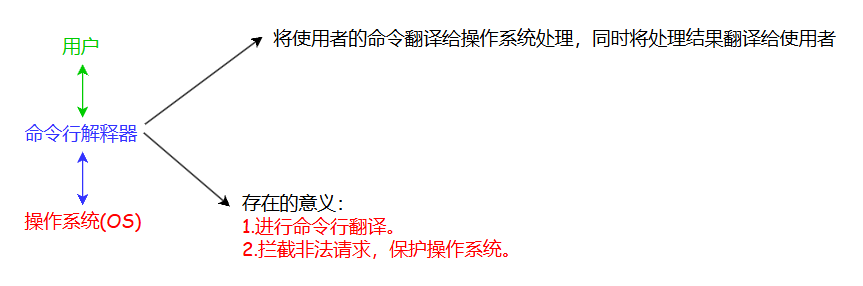
输入指令的过程,本质上就是输入字符串。
所有的指令最终都要在OS(操作系统)内部运行,但是OS使用难度比较高,我们用户不能直接和OS打交道,因此需要一个图形化界面或命令解释器作为中间媒介。
补充知识
1.ctrl+C
可以终止因为程序或指令异常而导致的无法进行指令输入的情况。
2.安装nano
CentOS7.6版本,需要使用root账号。
cpp
yum install -y nano3.绝对路径和相对路径以及Linux的目录结构
cd指令当中有相关介绍。
4.常识:同一目录下不能存在同名文件或目录
原因:在应用角度上存在同名文件会导致无法标识文件的唯一性。
5.输出重定向 ">"
符号:>
功能:将一段本应该显示在显示器上的数据写入到文件中。
使用echo将"hello world"写入到test.txt中,并使用cat打印test.txt里面的内容。
cpp
[xxl@VM-0-2-centos test]$ ll
total 8
drwxrwxr-x 2 xxl xxl 4096 Jul  2 17:44 dir1
drwxrwxr-x 2 xxl xxl 4096 Jul  2 17:44 dir2
-rw-rw-r-- 1 xxl xxl    0 Jul  2 17:44 test.txt    //一开始test.txt的大小为0字节
[xxl@VM-0-2-centos test]$ echo "hello world" >test.txt    //将"hello world"写入到test.txt中
[xxl@VM-0-2-centos test]$ ll
total 12
drwxrwxr-x 2 xxl xxl 4096 Jul  2 17:44 dir1
drwxrwxr-x 2 xxl xxl 4096 Jul  2 17:44 dir2
-rw-rw-r-- 1 xxl xxl   12 Jul  2 18:28 test.txt    //写入"hello world"后大小变为12字节
[xxl@VM-0-2-centos test]$ cat test.txt    //打印test.txt文件里面的内容
hello world输出重定向的特点:向目标文件写入时会进行覆盖写入。
cpp
1.会对文件的内容进行清空。

2.写入新内容。
cpp
[xxl@VM-0-2-centos test]$ ll
total 8
drwxrwxr-x 2 xxl xxl 4096 Jul  2 17:44 dir1
drwxrwxr-x 2 xxl xxl 4096 Jul  2 17:44 dir2
-rw-rw-r-- 1 xxl xxl    0 Jul  2 18:33 test.txt
[xxl@VM-0-2-centos test]$ echo "hello world" >test.txt    //向test.txt写入"hello world"
[xxl@VM-0-2-centos test]$ cat test.txt    //打印test.txt里面的内容
hello world
[xxl@VM-0-2-centos test]$ echo "hello Linux" >test.txt    //向test.txt写入"hello Linux"
[xxl@VM-0-2-centos test]$ cat test.txt    //打印test.txt里面的内容
hello Linux
[xxl@VM-0-2-centos test]$ echo "hello world" >test.txt    //向test.txt写入"hello world"
[xxl@VM-0-2-centos test]$ cat test.txt    //打印test.txt里面的内容
hello world
可以观察到每次写入后文件里面原本的内容被清空了。
5.1 使用输出重定向清空文件
>文件名
cpp
>test.txt6.追加重定向 ">>"
符号:>>
功能:在文件尾写入新内容。
使用echo向test.txt中写入"hello world"、"hello Linux"、"hello",并使用cat打印test.txt的内容
cpp
[xxl@VM-0-2-centos test]$ ll
total 8
drwxrwxr-x 2 xxl xxl 4096 Jul  2 17:44 dir1
drwxrwxr-x 2 xxl xxl 4096 Jul  2 17:44 dir2
-rw-rw-r-- 1 xxl xxl    0 Jul  2 18:46 test.txt
[xxl@VM-0-2-centos test]$ echo "hello world" >>test.txt    //写入"hello world"
[xxl@VM-0-2-centos test]$ cat test.txt
hello world
[xxl@VM-0-2-centos test]$ echo "hello Linux" >>test.txt    //写入"hello Linux"
[xxl@VM-0-2-centos test]$ cat test.txt
hello world
hello Linux
[xxl@VM-0-2-centos test]$ echo "hello" >>test.txt    //写入"hello"
[xxl@VM-0-2-centos test]$ cat test.txt    //打印test.txt里面的内容
hello world
hello Linux
hello追加重定向的特点:
cpp
1.不会清空文件里面原有的数据。

2.向文件的文件尾处写入新数据。
7.创建一个可执行程序
1.创建test.c文件
2.使用nano指令进入test.c文件
cpp
nano test.c3.编辑代码
注意:如果不小心按到了小键盘的数字可以使用ctrl+c继续编辑。
cpp
#include<stdio.h>

int main()
{
    int	i=0;
    for(i;i<10;i++)
    {
        printf("hello : %d\n",i);
    }
    return 0;
}
4.按ctrl+x保存文件按Y和enter退出文件
5.编译test.c,会生成一个a.out的可执行程序
cpp
gcc test.c6.运行a.out可执行程序
cpp
./a.out8.指令的概念
1.指令是什么?
指令和可执行程序都是可以执行的,说明指令就是可执行程序。
2.在执行指令前我们应该做什么?
需要先在系统中查找对应的指令。
指令的存在位置:
cpp
/usr/bin/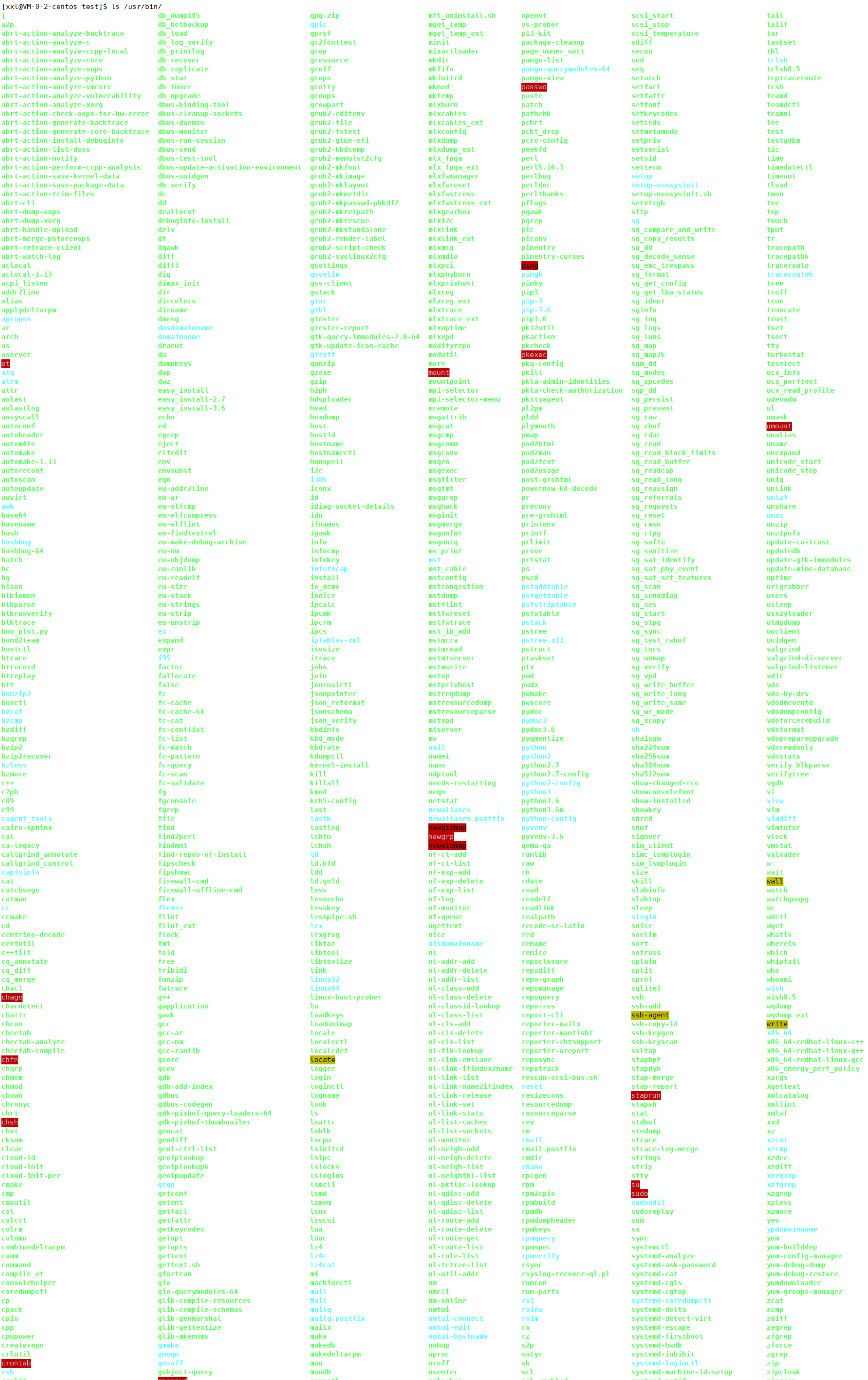
指令的本质就是一个可执行文件。
9.使用命令行脚本生成一个有10000行内容的大文件test.txt
cpp
cnt=1; while [ $cnt -le 10000 ]; do echo "hello world $cnt"; let cnt++; done >test.txt10.Linux下一切皆文件
在Linux中一切都是文件,比如显示器、键盘、普通文件。

11.时间戳
Unix时间戳(英文为Unix epoch, Unix time,POSIX time 或 Unix timestamp)是从1970年1月1日(UTC/GMT的午夜)开始所经过的秒数,不考虑闰秒。
12.find、which、whereis的区别
find:可以查找任意文件。
which:查找指令文件。
whereis:搜索程序、安装包、头文件等。
13.安装zip和unzip安装包
安装需要root权限,可以使用su、su-然后输入密码切换为root用户,安装完后可以使用ctrl+D退回上一级用户。
安装指令:
cpp
yum install -y zip unzip14.查看系统信息的一些指令
df -h:查看系统的磁盘。
lscpu:查看cpu。
lsmem:查看内存。