python-docx 简介
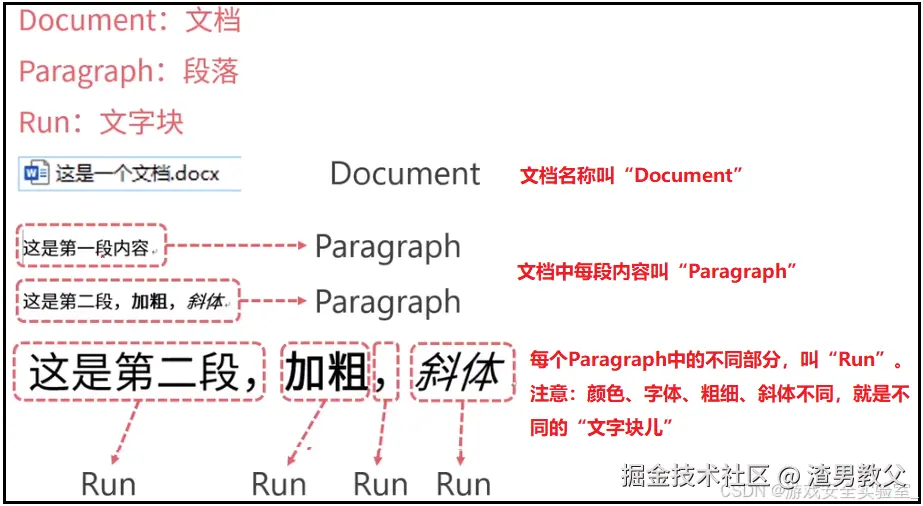
python-docx 是 Python 操作 Word 文档最常用的库。它的处理方式是面向对象的,会把 Word 文档中的各种元素都看作对象:
- Document - 整个 Word 文档
- Paragraph - 文档中的段落
- Run - 段落中的文字块(可以设置不同格式)
这三级结构是最基础的概念。如果文档中有表格,结构会稍微复杂一点:
表格可以看成 Document → Table → Row/Column → Cell 这样的四级结构,跟 Excel 很像。
安装 python-docx
在 PyCharm 的终端里输入:
bash
pip install python-docx看到 Successfully installed 就表示安装成功了。
课程准备
下载课程资源文件:点击下载 word.zip
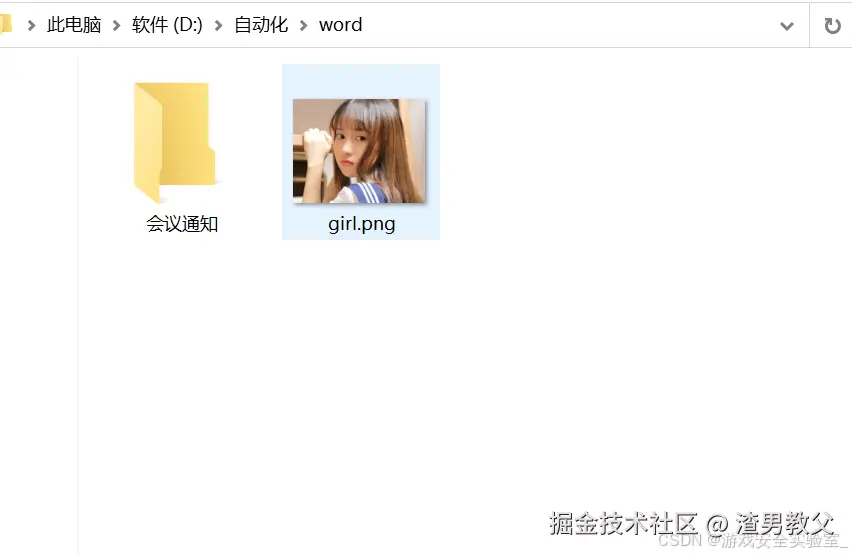
解压后放到 D:\自动化\word 目录下,结构如下:


提前准备好文件夹,方便后面跟着练习。
新建与保存 Word 文档
bash
from docx import Document

# 创建一个空文档
document = Document()

# 保存到指定路径
document.save(r'D:\自动化\word\道德经.docx')
运行后,在 D:\自动化\word 目录下就会多出一个 道德经.docx 文件。因为是空文档,打开里面是空白的。
注意 :安装的是 python-docx,但导入时用 import docx。
写入 Word 文档
下面这段代码演示了往 Word 里写各种内容:
python
from docx import Document
from docx.shared import Inches, Cm  # 英寸和厘米单位

# 打开刚才创建的文档
file_path = r'D:\自动化\word\道德经.docx'
document = Document(file_path)

# 添加文档标题(level=0 是文档标题)
document.add_heading('道德经', 0)

# 添加段落
p = document.add_paragraph('道可道,非常道;名可名,非常名。')

# 在同一段落里追加不同格式的文字
p.add_run('无名,天地之始,').bold = True      # 粗体
p.add_run('有名,')                              # 默认格式
p.add_run('万物之母。').italic = True           # 斜体

# 添加一级标题
document.add_heading('故常无欲,', level=1)

# 添加带样式的段落
document.add_paragraph('以观其妙,', style='Intense Quote')

# 添加项目符号列表
document.add_paragraph('常有欲,以观其徼。', style='List Bullet')

# 添加编号列表
document.add_paragraph('此两者,同出而异名,同谓之玄,玄之又玄,众妙之门。', style='List Number')
document.add_paragraph('所以说,学Python,学得妙。', style='List Number')

# 添加图片(三种方式)
img_path = r'D:\自动化\word\girl.png'
document.add_picture(img_path)                           # 原图大小
document.add_picture(img_path, width=Inches(1.25))       # 指定宽度
document.add_picture(img_path, width=Cm(5), height=Cm(5))  # 指定宽高

# 准备表格数据
records = (
    (1, '李白', '诗仙'),
    (2, '杜甫', '诗圣'),
    (3, '白居易', '香山居士, 与元稹并称元白, 与刘禹锡合称刘白')
)

# 添加表格(1行3列,带网格样式)
table = document.add_table(rows=1, cols=3, style='Table Grid')

# 填充表头
hdr_cells = table.rows[0].cells
hdr_cells[0].text = '序号'
hdr_cells[1].text = '姓名'
hdr_cells[2].text = '描述'

# 动态添加数据行
for id, name, desc in records:
    row_cells = table.add_row().cells
    row_cells[0].text = str(id)
    row_cells[1].text = name
    row_cells[2].text = desc

# 再添加一个表格(另一种填充方式)
document.add_paragraph('再添加一个表格')

records2 = [
    ["姓名", "性别", "家庭地址"],
    ["貂蝉", "女", "河北省"],
    ["杨贵妃", "女", "贵州省"],
    ["西施", "女", "山东省"]
]

# 创建4行3列的表格
table2 = document.add_table(rows=4, cols=3, style='Light List Accent 5')

# 用双重循环填充
for 行索引 in range(4):
    cells = table2.rows[行索引].cells
    for 列索引 in range(3):
        cells[列索引].text = str(records2[行索引][列索引])

# 添加分页符
document.add_page_break()

# 保存文档
document.save(file_path)
写入操作知识点总结
打开/创建文档
python
# 创建空文档
document = Document()

# 打开已有文档
document = Document('exist.docx')
添加标题
python
# level 1-9 对应 标题1-标题9
document.add_heading('一级标题', level=1)
添加段落
python
# 普通段落
p = document.add_paragraph('正文内容')

# 带样式的段落
document.add_paragraph('引用内容', style='Intense Quote')
document.add_paragraph('项目符号', style='List Bullet')
document.add_paragraph('编号列表', style='List Number')
在段落中添加文字块
python
p = document.add_paragraph('开头文字')
p.add_run('粗体文字').bold = True
p.add_run('斜体文字').italic = True
p.add_run('普通文字')
添加图片
python
# 原图大小
document.add_picture('girl.png')

# 指定宽度
document.add_picture('girl.png', width=Inches(1.25))

# 指定宽高
document.add_picture('girl.png', width=Cm(5), height=Cm(5))
添加表格
python
# 创建表格
table = document.add_table(rows=4, cols=3)

# 带样式的表格
table = document.add_table(rows=4, cols=3, style='Table Grid')常用表格样式:
Normal Table- 普通表格Table Grid- 网格线Light Shading Accent 1-6- 浅色底纹Light List Accent 1-6- 浅色列表Light Grid Accent 1-6- 浅色网格
添加分页符
bash
document.add_page_break()读取 Word 文档
python
from docx import Document

doc = Document(r'D:\自动化\word\道德经.docx')

# 读取所有段落文字
print("=== 所有段落内容 ===")
for p in doc.paragraphs:
    print(p.text)

# 读取指定段落的文字块
print("\n=== 第2段的文字块 ===")
for run in doc.paragraphs[1].runs:
    print(run.text)

# 读取所有表格
print("\n=== 所有表格内容 ===")
for 表格 in doc.tables:
    for 行 in 表格.rows:
        row_data = []
        for 单元格 in 行.cells:
            row_data.append(单元格.text)
        print(row_data)

# 另存为新文档
doc.save(r'D:\自动化\word\另存为新文档.docx')注意:
doc.paragraphs获取所有段落(不含表格,但图片和分页符也算段落)段落.runs获取段落的文字块doc.tables获取所有表格
实战一:提取 Word 数据到 Excel
需求描述
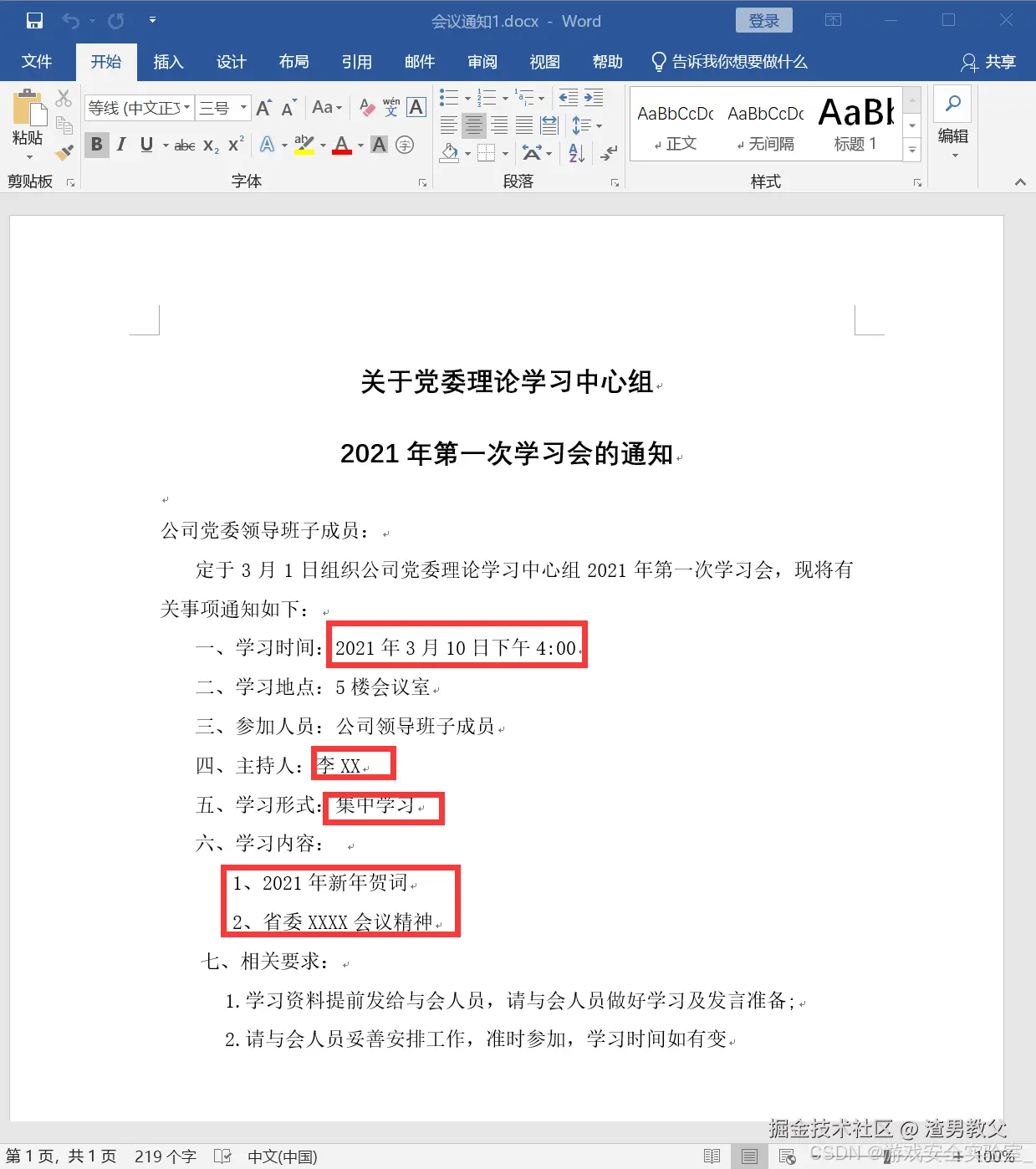
有一个文件夹里有很多会议通知 Word 文件,格式都一样。需要提取里面的学习时间、学习内容、学习形式、主持人,汇总到 Excel 中。
Word 文件格式:
目标 Excel 格式:
代码实现

自动化操作 PDF
用到的库
Python 操作 PDF 主要用两个库:
| 库 | 用途 |
|---|---|
| PyPDF2 | 读取、写入、分割、合并 PDF 文件 |
| pdfplumber | 提取 PDF 中的文字和表格 |
安装命令:
bash
pip install PyPDF2
pip install pdfplumber
拆分 PDF
python
from docx import Document
from openpyxl import load_workbook
import glob

def 提取数据汇总(file_dir):
    """从Word会议通知中提取数据汇总到Excel"""

    # 打开Excel模板
    template = file_dir + r'\汇总模板.xlsx'
    workbook = load_workbook(template)
    sheet = workbook.active

    number = 1  # 序号计数

    # 获取所有docx文件
    docFiles = glob.glob(file_dir + r'\*.docx')

    for file in docFiles:
        doc = Document(file)

        contentList = []  # 学习内容列表
        studyTime = ''    # 学习时间
        studyType = ''    # 学习形式
        host = ''         # 主持人

        # 遍历所有段落,提取信息
        for paragraph in doc.paragraphs:
            text = paragraph.text

            # 提取学习时间
            if '学习时间:' in text:
                studyTime = text.split('学习时间:')[1]

            # 提取主持人
            elif '主持人:' in text:
                host = text.split('主持人:')[1]

            # 提取学习形式
            elif '学习形式:' in text:
                studyType = text.split('学习形式:')[1]

            # 提取学习内容(以数字+顿号开头)
            elif len(text) >= 2 and text[0].isdigit() and text[1] == '、':
                contentList.append(text)

        # 合并学习内容
        content = ' '.join(contentList)

        # 写入Excel
        sheet.append([number, studyTime, content, studyType, host])
        number += 1

    # 保存汇总结果
    workbook.save(file_dir + r'\会议汇总.xlsx')
    print(f"✅ 汇总完成!共处理 {number-1} 个文件")


if __name__ == '__main__':
    提取数据汇总(r'D:\自动化\word\会议通知')
把一个大 PDF 拆成多个小 PDF:
python
import os
from PyPDF2 import PdfFileReader, PdfFileWriter

pdf_path = r"D:\自动化\pdf\二期第1讲.pdf"
out_dir = r"D:\自动化\pdf\拆分"

# 创建输出目录
if not os.path.exists(out_dir):
    os.makedirs(out_dir)

# 读取PDF
pdf_reader = PdfFileReader(pdf_path)

# 获取总页数
pageCount = pdf_reader.getNumPages()
print(f"总页数: {pageCount}")

# 每页拆成一个PDF
for page in range(pageCount):
    pdf_writer = PdfFileWriter()
    pdf_writer.addPage(pdf_reader.getPage(page))

    out_path = os.path.join(out_dir, f"page_{page+1}.pdf")
    with open(out_path, "wb") as out:
        pdf_writer.write(out)

    print(f"已保存: page_{page+1}.pdf")

print("✅ 拆分完成!")
合并 PDF
把多个小 PDF 合并成一个大 PDF:
python
from PyPDF2 import PdfFileReader, PdfFileWriter
import os

pdf_dir = r"D:\自动化\pdf\拆分"
out_path = r"D:\自动化\pdf\merge.pdf"

# 获取所有PDF文件并排序
pdfList = sorted([f for f in os.listdir(pdf_dir) if f.endswith('.pdf')])

pdf_writer = PdfFileWriter()

for pdf_name in pdfList:
    path = os.path.join(pdf_dir, pdf_name)
    pdf_reader = PdfFileReader(path)

    # 把所有页都加到writer里
    for page in range(pdf_reader.getNumPages()):
        pdf_writer.addPage(pdf_reader.getPage(page))

    print(f"已添加: {pdf_name}")

# 保存合并后的文件
with open(out_path, "wb") as out:
    pdf_writer.write(out)

print(f"✅ 合并完成!保存至: {out_path}")
提取文字内容
python
import pdfplumber

pdf_path = r"D:\自动化\pdf\道德经.pdf"

with pdfplumber.open(pdf_path) as pdf:
    # 读取所有页的内容
    for i, page in enumerate(pdf.pages):
        text = page.extract_text()
        print(f"\n=== 第 {i+1} 页 ===")
        print(text)

    # 只读第一页
    # page = pdf.pages[0]
    # print(page.extract_text())
提取表格内容
python
import pdfplumber

pdf_path = r"D:\自动化\pdf\道德经.pdf"

with pdfplumber.open(pdf_path) as pdf:
    page = pdf.pages[1]  # 获取第2页

    # 提取第一个表格
    table = page.extract_table()
    print("第一个表格:")
    for row in table:
        print(row)

    # 提取所有表格
    tables = page.extract_tables()
    print(f"\n共找到 {len(tables)} 个表格")
注意 :提取的表格可能有 None 值,使用时需要清洗数据。
PDF 加密
给 PDF 添加密码:
python
from PyPDF2 import PdfFileReader, PdfFileWriter

pdf_path = r"D:\自动化\pdf\道德经.pdf"
save_path = r"D:\自动化\pdf\加密后.pdf"

pdf_reader = PdfFileReader(pdf_path)
pdf_writer = PdfFileWriter()

# 复制所有页
for page in range(pdf_reader.getNumPages()):
    pdf_writer.addPage(pdf_reader.getPage(page))

# 设置密码
pdf_writer.encrypt("youbafu")

# 保存
with open(save_path, "wb") as out:
    pdf_writer.write(out)

print("✅ 加密完成!密码: youbafu")
PDF 解密
移除 PDF 密码:
python
from PyPDF2 import PdfFileReader, PdfFileWriter

pdf_path = r"D:\自动化\pdf\加密后.pdf"
save_path = r"D:\自动化\pdf\解密后.pdf"

pdf_reader = PdfFileReader(pdf_path)

# 用密码解密
pdf_reader.decrypt('youbafu')

# 复制所有页
pdf_writer = PdfFileWriter()
for page in range(pdf_reader.getNumPages()):
    pdf_writer.addPage(pdf_reader.getPage(page))

# 保存
with open(save_path, "wb") as out:
    pdf_writer.write(out)

print("✅ 解密完成!")
实战二:拆分 PDF 文件(进阶版)
WPS 等软件拆分 PDF 经常要收费,我们自己写代码实现这个功能。
下面的代码可以按指定页数间隔拆分 PDF:
python
import os
from PyPDF2 import PdfFileWriter, PdfFileReader

def 拆分PDF(file_name, file_path, save_dir, step=3):
    """
    拆分PDF为多个小文件

    参数:
        file_name: 拆分后的文件名前缀
        file_path: 原PDF路径
        save_dir: 保存目录
        step: 每多少页拆成一个文件(默认3页)
    """

    # 创建保存目录
    if not os.path.exists(save_dir):
        os.mkdir(save_dir)

    if step < 1:
        print("拆分间隔不能小于1")
        return

    # 读取PDF
    pdf_reader = PdfFileReader(file_path)
    pageCount = pdf_reader.getNumPages()

    print(f"原文件共 {pageCount} 页,每 {step} 页拆分为一个文件\n")

    # 按step间隔拆分
    for page in range(0, pageCount, step):
        pdf_writer = PdfFileWriter()

        # 添加step页到writer
        for index in range(page, page + step):
            if index < pageCount:
                pdf_writer.addPage(pdf_reader.getPage(index))

        # 保存
        part_num = int(page / step) + 1
        child_name = f'{file_name}_{part_num}.pdf'
        save_path = os.path.join(save_dir, child_name)

        with open(save_path, "wb") as out:
            pdf_writer.write(out)

        print(f"已保存: {child_name} (第{page+1}-{min(page+step, pageCount)}页)")

    print(f"\n✅ 拆分完成!共生成 {int((pageCount-1)/step)+1} 个文件")
    print(f"保存路径: {save_dir}")


if __name__ == '__main__':
    拆分PDF(
        '拆分PDF',
        r'D:\自动化\pdf\二期第1讲.pdf',
        r'D:\自动化\pdf\拆分2',
        step=4
    )
文档总结
一、核心内容回顾
1. python-docx 操作 Word
文档结构:
bash
Document(文档)
  └── Paragraph(段落)
        └── Run(文字块)
  └── Table(表格)
        └── Row(行)
└── Cell(单元格)常用操作:
| 操作 | 代码 |
|---|---|
| 创建文档 | Document() |
| 打开文档 | Document('文件.docx') |
| 添加标题 | add_heading('标题', level=1) |
| 添加段落 | add_paragraph('内容') |
| 添加文字块 | paragraph.add_run('文字') |
| 添加图片 | add_picture('图片.png', width=Cm(5)) |
| 添加表格 | add_table(rows=3, cols=3) |
| 添加分页 | add_page_break() |
| 保存文档 | save('文件.docx') |
2. PDF 操作
PyPDF2:
PdfFileReader()- 读取 PDFPdfFileWriter()- 写入 PDFaddPage()- 添加页面encrypt()- 加密decrypt()- 解密
pdfplumber:
extract_text()- 提取文字extract_table()- 提取单个表格extract_tables()- 提取所有表格
二、实际应用场景
- 批量生成合同/报告:用模板生成大量格式统一的 Word 文档
- 数据汇总:从多个 Word 中提取数据汇总到 Excel
- PDF 处理:拆分、合并、加密 PDF 文件
- 报表导出:将数据导出成带格式的 Word/PDF 报告
- 文档批量处理:批量替换文字、调整格式等
三、学习建议
- 多动手:把示例代码都跑一遍,改改参数看看效果
- 整理成函数:把常用操作封装成函数,以后直接调用
- 注意路径 :Windows 路径用原始字符串
r'路径'避免转义问题 - 异常处理:实际使用时加上 try-except,防止文件不存在等问题
- 结合使用:Word + Excel + PDF 结合使用,解决复杂办公需求