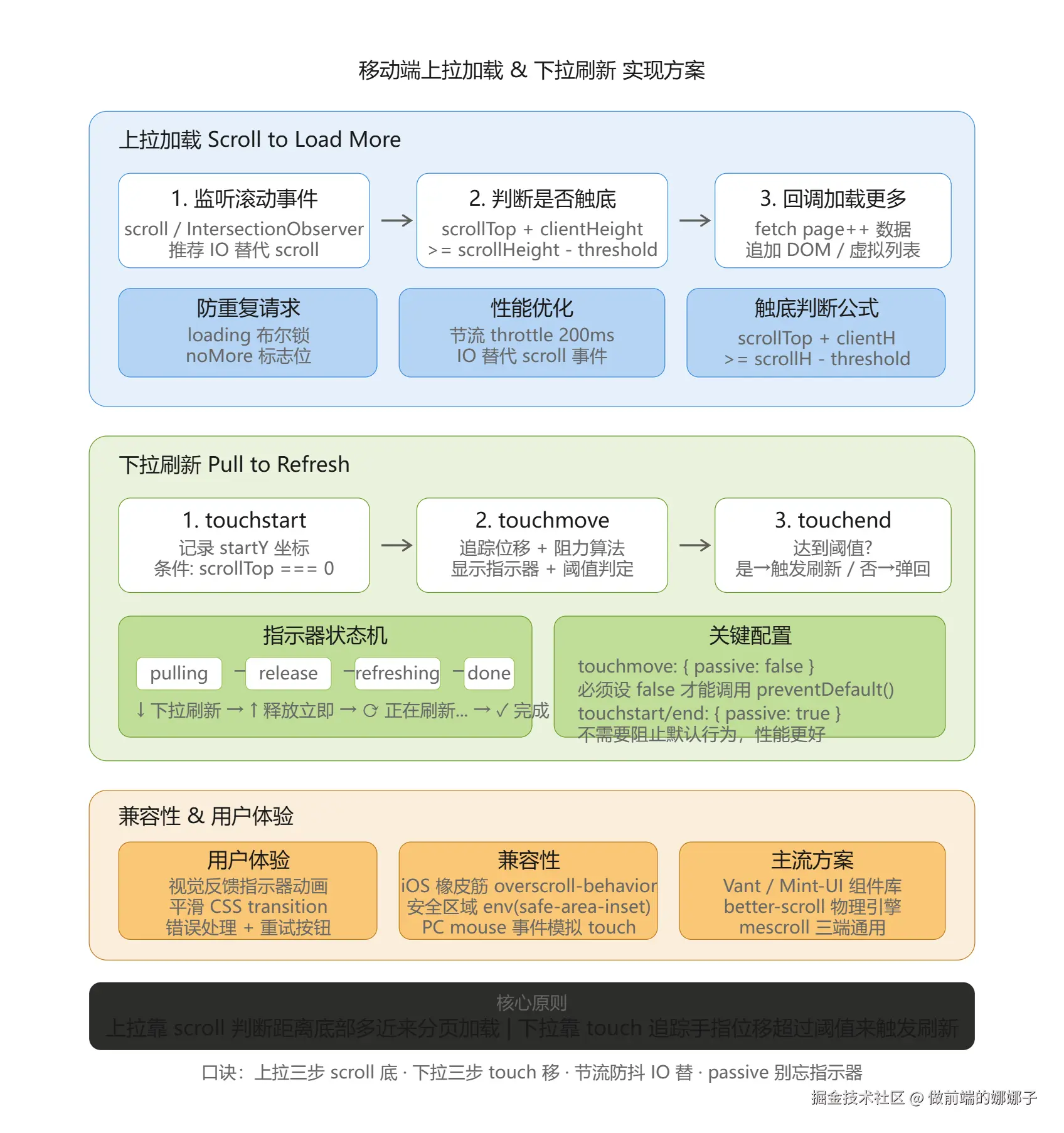
摘要:移动端长列表性能优化的两大核心交互------**上拉加载更多(Scroll to Load)**通过滚动触底检测 + 分页请求实现数据渐进式加载;**下拉刷新(Pull to Refresh)**通过触摸手势追踪 + 阈值判断 + 指示器动画实现数据重新获取。两者共同构成「无限滚动」体验的基础。必背要点:
- 上拉加载三步:
scroll 事件 → 判断触底 → 回调加载下一页- 下拉刷新三步:
touch 事件 → 追踪位移 + 阈值判定 → 触发刷新- 性能优化:节流防抖 + IntersectionObserver 替代 scroll + 图片懒加载
- 用户体验:视觉反馈指示器 + 平滑动画过渡 + 加载/错误/空状态处理
- 兼容性:touch 事件兼容 + CSS hack 处理 iOS 橡胶回弹 + passive 优化
一、为什么需要
传统一次性加载全部数据的三大问题:
| 问题 | 场景 | 后果 |
|---|---|---|
| 首屏慢 | 1000 条列表一次渲染 | 白屏 3~5 秒,用户流失 |
| 内存爆炸 | DOM 节点过多 | 页面卡顿、甚至崩溃 |
| 流量浪费 | 用户只看前 10 条 | 浪费 99% 的带宽 |
解决思路:化整为零------先渲染首屏,用户滑动时按需加载。
scss
传统方式:[请求全部 1000 条] → [渲染 1000 个 DOM] → 用户等待 ⏳
优化方式:[请求前 20 条] → [渲染 20 个 DOM] → 用户浏览 ✅
                              ↓ (触底)
                         [再请求 20 条] → [追加 20 个 DOM] → 继续浏览 ✅
二、上拉加载(Scroll to Load More)
2.1 实现原理
核心逻辑:监听滚动 → 判断是否到达底部 → 触发加载回调
javascript
// ============ 基础版:scroll 事件 + 触底检测 ============

class ScrollLoader {
  constructor(options) {
    this.container = options.container;       // 滚动容器(window 或某个 div)
    this.onLoadMore = options.onLoadMore;     // 触底回调
    this.threshold = options.threshold || 50; // 距底部多少 px 触发(提前量)
    this.loading = false;                     // 是否正在加载(防重复)
    this.noMore = false;                      // 是否已全部加载完毕

    this.bindEvents();
  }

  bindEvents() {
    // 核心步骤 1:监听滚动事件
    this.container.addEventListener('scroll', () => {
      this.handleScroll();
    });
  }

  // 核心步骤 2:怎么判断触底
  handleScroll() {
    if (this.loading || this.noMore) return;

    const { scrollTop, scrollHeight, clientHeight } = this.container;
    // 触底条件:滚动高度 - 当前滚动位置 - 可视高度 <= 阈值
    const distanceToBottom = scrollHeight - scrollTop - clientHeight;

    if (distanceToBottom <= this.threshold) {
      this.loadMore();
    }
  }

  // 核心步骤 3:回调触发列表加载更多
  async loadMore() {
    this.loading = true;
    this.showLoading(); // 显示"加载中..."提示

    try {
      const hasMore = await this.onLoadMore();
      if (!hasMore) {
        this.noMore = true;
        this.showNoMore(); // 显示"没有更多了"
      }
    } catch (error) {
      this.showError(error); // 显示错误状态,可点击重试
    } finally {
      this.loading = false;
      this.hideLoading();
    }
  }

  // UI 状态方法(需根据实际框架实现)
  showLoading() { /* 显示 loading 动画 */ }
  hideLoading() { /* 隐藏 loading */ }
  showNoMore() { /* 显示"--- 我是有底线的 ---" */ }
  showError(err) { /* 显示错误,提供重试按钮 */ }
}

// 使用示例
const loader = new ScrollLoader({
  container: window,
  threshold: 50,
  async onLoadMore() {
    const nextPage = currentPage++;
    const res = await fetch(`/api/list?page=${nextPage}&size=20`);
    const data = await res.json();
    appendToList(data.items);   // 追加到列表
    return data.hasMore;         // 告诉 loader 还有没有下一页
  }
});
2.2 触底判断的三种写法
| 写法 | 公式 | 适用场景 |
|---|---|---|
scrollTop + clientHeight >= scrollHeight - threshold |
最常用 | 普通滚动容器 |
element.getBoundingClientRect().bottom <= window.innerHeight + threshold |
单元素检测 | 无限滚动卡片 |
IntersectionObserver |
声明式,无需手动计算 | 现代浏览器首选 |
javascript
// ============ 进阶版:IntersectionObserver(推荐)============

class IOLoader {
  constructor(options) {
    this.onLoadMore = options.onLoadMore;
    this.loading = false;
    this.noMore = false;

    // 创建一个隐藏的"哨兵元素",放在列表末尾
    this.sentinel = document.createElement('div');
    this.sentinel.style.cssText = 'width:100%;height:1px;';
    options.listContainer.appendChild(this.sentinel);

    // 用 IO 监听哨兵是否进入视口
    this.observer = new IntersectionObserver(
      (entries) => {
        // 哨兵可见 → 说明滚到了底部附近 → 触发加载
        if (entries[0].isIntersecting && !this.loading && !this.noMore) {
          this.loadMore();
        }
      },
      { rootMargin: `${options.threshold || 50}px` } // 提前 50px 触发
    );

    this.observer.observe(this.sentinel);
  }

  async loadMore() { /* 同基础版 */ }
  destroy() { this.observer.disconnect(); } // 记得销毁
}
IO 版的优势:
- 不需要
scroll事件,不触发主线程布局计算 - 浏览器原生优化,性能远优于手动
getBoundingClientRect - 自动处理
display:none/visibility:hidden等边界情况
三、下拉刷新(Pull to Refresh)
3.1 实现原理
核心逻辑:监听触摸 → 追踪手指位移 → 超过阈值显示释放提示 → 松手触发刷新
javascript
// ============ 完整版:Touch 事件下拉刷新 ============

class PullToRefresh {
  constructor(options) {
    this.container = options.container;           // 可拉动区域
    this.onRefresh = options.onRefresh;           // 刷新回调
    this.threshold = options.threshold || 60;      // 下拉阈值(px)
    this.headHeight = options.headHeight || 50;    // 指示器高度

    this.startY = 0;          // 手指起始 Y 坐标
    this.currentY = 0;        // 当前 Y 坐标
    this.pulling = false;     // 是否正在下拉
    this.refreshing = false;  // 是否正在刷新

    this.initDOM();
    this.bindEvents();
  }

  // 初始化指示器 DOM
  initDOM() {
    this.indicator = document.createElement('div');
    this.indicator.className = 'ptr-indicator';
    this.indicator.innerHTML = `
      <div class="ptr-icon">↓ 下拉刷新</div>
      <div class="ptr-text">释放立即刷新</div>
    `;
    Object.assign(this.indicator.style, {
      position: 'absolute',
      top: `-${this.headHeight}px`,
      left: 0,
      right: 0,
      height: `${this.headHeight}px`,
      display: 'flex',
      alignItems: 'center',
      justifyContent: 'center',
      transition: 'transform 0.3s',
    });

    // 让容器支持内部绝对定位
    this.container.style.position = 'relative';
    this.container.style.overflow = 'hidden';
    this.container.insertBefore(this.indicator, this.container.firstChild);
  }

  // 核心步骤 1:监听触摸事件 touch / tap
  bindEvents() {
    this.container.addEventListener('touchstart', (e) => {
      // 只在顶部时才响应(防止页面中间也触发)
      if (this.container.scrollTop === 0) {
        this.startY = e.touches[0].clientY;
        this.pulling = true;
      }
    }, { passive: true });

    this.container.addEventListener('touchmove', (e) => {
      if (!this.pulling || this.refreshing) return;

      this.currentY = e.touches[0].clientY;
      const diffY = this.currentY - this.startY;

      // 只允许向下拉(正数)
      if (diffY > 0) {
        e.preventDefault(); // 阻止页面本身滚动

        // 核心步骤 2:显示刷新指示器,显示有没有达到下拉阈值
        const distance = this.easeDistance(diffY); // 增加阻力感
        this.indicator.style.transform = `translateY(${distance}px)`;

        // 更新文字状态
        if (distance >= this.threshold) {
          this.setState('release'); // "释放立即刷新"
        } else {
          this.setState('pulling'); // "下拉刷新"
        }
      }
    }, { passive: false }); // 需要 preventDefault 时不能是 passive

    this.container.addEventListener('touchend', () => {
      if (!this.pulling) return;

      const currentDistance = parseFloat(
        this.indicator.style.transform.match(/[\d.]+/)?.[0] || 0
      );

      // 核心步骤 3:触发刷新操作
      if (currentDistance >= this.threshold && !this.refreshing) {
        this.triggerRefresh();
      } else {
        // 未达阈值 → 弹回
        this.reset();
      }

      this.pulling = false;
    }, { passive: true });
  }

  // 阻力算法:越拉越费劲
  easeDistance(diffY) {
    const maxPull = this.threshold * 1.5;
    // 使用缓动函数让手感更自然
    const eased = diffY * (diffY / (diffY + this.threshold * 2));
    return Math.min(eased, maxPull);
  }

  setState(state) {
    const icon = this.indicator.querySelector('.ptr-icon');
    const text = this.indicator.querySelector('.ptr-text');

    switch (state) {
      case 'pulling':
        icon.textContent = '↓';
        text.textContent = '下拉刷新';
        break;
      case 'release':
        icon.textContent = '↑';
        text.textContent = '释放立即刷新';
        break;
      case 'refreshing':
        icon.innerHTML = '⟳'; // 旋转动画
        text.textContent = '正在刷新...';
        break;
    }
  }

  async triggerRefresh() {
    this.refreshing = true;
    this.setState('refreshing');

    // 吸附到阈值位置
    this.indicator.style.transform = `translateY(${this.threshold}px)`;

    try {
      await this.onRefresh();
    } catch (err) {
      console.error('Refresh failed:', err);
      this.showError('刷新失败,点击重试');
    } finally {
      setTimeout(() => this.reset(), 500); // 停留片刻让用户看到完成
    }
  }

  reset() {
    this.indicator.style.transform = 'translateY(0)';
    this.refreshing = false;
    this.setState('pulling');
  }

  showError(msg) {
    this.indicator.querySelector('.ptr-text').textContent = msg;
    this.indicator.style.cursor = 'pointer';
    this.indicator.onclick = () => this.triggerRefresh();
  }
}

// 使用示例
const ptr = new PullToRefresh({
  container: document.getElementById('app'),
  threshold: 60,
  async onRefresh() {
    const res = await fetch('/api/refresh');
    const data = await res.json();
    refreshList(data); // 用新数据替换当前列表
  }
});
3.2 Touch 事件关键点
| 事件 | 触发时机 | 本场景用途 |
|---|---|---|
touchstart |
手指接触屏幕 | 记录起始坐标 startY |
touchmove |
手指在屏幕上移动 | 计算位移差、更新指示器、判断是否达到阈值 |
touchend |
手指离开屏幕 | 判定是否触发刷新或弹回 |
注意:
e.touches[0].clientY获取触摸点的 Y 坐标(相对视口)passive: false才能在touchmove中调用preventDefault()(阻止页面滚动)passive: true用于不需要阻止默认行为的监听(性能更好,不阻塞滚动合成)
四、性能优化
4.1 节流与防抖
javascript
// ============ 节流:限制触发频率 ============
// 场景:scroll 事件每秒最多执行一次触底检查

function throttle(fn, delay = 200) {
  let lastTime = 0;
  return function(...args) {
    const now = Date.now();
    if (now - lastTime >= delay) {
      lastTime = now;
      fn.apply(this, args);
    }
  };
}

// 使用:将 handleScroll 包裹在 throttle 中
this.container.addEventListener('scroll', throttle(() => {
  this.handleScroll();
}, 200));

// ============ 防抖:停止操作后才触发 ============
// 场景:搜索框输入结束后才发起请求

function debounce(fn, delay = 300) {
  let timer = null;
  return function(...args) {
    clearTimeout(timer);
    timer = setTimeout(() => fn.apply(this, args), delay);
  };
}
4.2 对比表
| 优化手段 | 解决的问题 | 实现方式 | 效果 |
|---|---|---|---|
| 节流 Throttle | scroll/touchmove 高频触发 | 固定时间窗口内只执行一次 | CPU 降低 80%+ |
| 防抖 Debounce | 连续操作重复请求 | 操作停止后延迟执行 | 减少无效请求 60%+ |
| IntersectionObserver | scroll 事件频繁触发 | 声明式监听元素可见性 | 零事件监听开销 |
| 图片懒加载 | 首屏图片过多阻塞 | data-src → 进入视口再赋 src | 首屏加载快 3~5 倍 |
| 虚拟列表 | 大量 DOM 节点 | 只渲染可视区 + 缓冲区节点 | 10000 条列表流畅滚动 |
| requestAnimationFrame | touchmove 中读写 DOM | 将 DOM 写入推迟到下一帧绘制 | 避免强制同步布局 |
| passive: true | touch 事件阻塞滚动 | 告知浏览器不会 preventDefault | 滚动帧率从 30fps→60fps |
| DocumentFragment | 多次 DOM 插入导致回流 | 批量插入后一次性挂载 | 减少 n-1 次回流 |
五、用户体验设计
5.1 视觉反馈------指示器状态机
arduino
┌─────────────────────────────────────┐
│  ↓ 下拉刷新                          │  ← pulling 状态(未达阈值)
│  释放立即刷新                        │  ← release 状态(已达阈值,松手即刷新)
│  ⟳ 正在刷新...                       │  ← refreshing 状态(加载中)
│  ✓ 刷新成功                          │  ← success 状态(完成后短暂显示)
│  ✗ 刷新失败,点击重试                 │  ← error 状态(可交互重试)
│  ──── 我是有底线的 ────              │  ← noMore 状态(上拉加载到底)
└─────────────────────────────────────┘
5.2 CSS 动画实现平滑过渡
css
/* 下拉刷新指示器 */
.ptr-indicator {
  position: absolute;
  top: -50px;
  left: 0; right: 0;
  height: 50px;
  display: flex;
  align-items: center;
  justify-content: center;
  transition: transform 0.3s cubic-bezier(0.25, 0.46, 0.45, 0.94);
  background: linear-gradient(to bottom, #f0f0f0, transparent);
}

/* 刷新中旋转动画 */
.ptr-icon.refreshing {
  animation: spin 0.8s linear infinite;
}
@keyframes spin {
  from { transform: rotate(0deg); }
  to { transform: rotate(360deg); }
}

/* 上拉加载底部 */
.load-more-footer {
  padding: 15px;
  text-align: center;
  color: #999;
  font-size: 14px;
}

/* 加载中骨架屏效果 */
.loading-skeleton {
  background: linear-gradient(90deg, #f0f0f0 25%, #e0e0e0 50%, #f0f0f0 75%);
  background-size: 200% 100%;
  animation: shimmer 1.5s infinite;
}
@keyframes shimmer {
  0% { background-position: -200% 0; }
  100% { background-position: 200% 0; }
}
5.3 错误处理策略
javascript
// 统一错误处理
class LoadErrorHandler {
  constructor(container) {
    this.container = container;
  }

  // 展示错误状态(带重试按钮)
  showError(type, onRetry) {
    const errorEl = document.createElement('div');
    errorEl.className = 'load-error';
    errorEl.innerHTML = `
      <span class="error-text">${this.getErrorMsg(type)}</span>
      <button class="retry-btn">点击重试</button>
    `;
    errorEl.querySelector('.retry-btn').onclick = onRetry;
    this.container.appendChild(errorEl);
  }

  getErrorMsg(type) {
    const msgs = {
      network: '网络异常,请检查连接',
      timeout: '请求超时,请稍后重试',
      server: '服务器开小差了',
      empty: '暂无更多数据',
    };
    return msgs[type] || '加载失败';
  }
}
六、兼容性处理
6.1 触摸事件兼容
| 设备/浏览器 | touch 支持 | 注意事项 |
|---|---|---|
| iOS Safari | ✅ 完整支持 | -webkit-overflow-scrolling: touch 开启惯性滚动 |
| Android Chrome | ✅ 完整支持 | 部分 Android 4.x 需 polyfill |
| 微信内置浏览器 | ✅ 基于 X5 内核 | 有时会吞掉 touchcancel |
| PC 浏览器 | ❌ 不支持 | 需用 mousedown/mousemove/mouseup 模拟 |
javascript
// 统一触摸/鼠标事件封装
const PointerEvents = {
  down: 'ontouchstart' in document ? 'touchstart' : 'mousedown',
  move: 'ontouchstart' in document ? 'touchmove' : 'mousemove',
  up: 'ontouchstart' in document ? 'touchend' : 'mouseup',

  getY(e) {
    if (e.touches) return e.touches[0].clientY;
    return e.clientY;
  }
};
6.2 CSS Hack ------ iOS 橡胶回弹问题
iOS Safari 的橡皮筋效果(overscroll bounce)会干扰自定义下拉刷新:
css
/* 方案一:禁用橡皮筋效果(最直接) */
body {
  overscroll-behavior-y: contain; /* 现代浏览器 */
  -webkit-overflow-scrolling: touch; /* iOS 惯性滚动 */
}

/* 方案二:固定定位全屏容器(避免 body 层级滚动) */
html, body {
  height: 100%;
  overflow: hidden; /* 禁用原生的滚动 */
}
.app-container {
  position: fixed;
  top: 0; left: 0; right: 0; bottom: 0;
  overflow-y: auto; /* 在容器内滚动 */
  -webkit-overflow-scrolling: touch;
}

/* 方案三:安全区域适配(刘海屏) */
@supports (padding: env(safe-area-inset-top)) {
  .app-container {
    padding-top: env(safe-area-inset-top);
    padding-bottom: env(safe-area-inset-bottom);
  }
}
七、完整实战串联
下面是一个最小可运行的完整示例,包含上拉加载 + 下拉刷新 + 节流 + 错误处理:
html
<!DOCTYPE html>
<html lang="zh-CN">
<head>
<meta name="viewport" content="width=device-width,initial-scale=1.0,maximum-scale=1.0,user-scalable=no">
<title>上拉加载 + 下拉刷新 Demo</title>
<style>
  * { margin: 0; padding: 0; box-sizing: border-box; }
  body { font-family: -apple-system, sans-serif; background: #f5f5f5; }

  .app { position: fixed; top: 0; left: 0; right: 0; bottom: 0;
         overflow-y: auto; -webkit-overflow-scrolling: touch; }

  /* 下拉刷新指示器 */
  .ptr { position: absolute; top: -50px; left: 0; right: 0; height: 50px;
         display: flex; align-items: center; justify-content: center;
         background: linear-gradient(to bottom, #e8e8e8, transparent);
         transition: transform 0.3s; color: #666; font-size: 14px; }
  .ptr.refreshing .ptr-icon { animation: spin 0.8s linear infinite; display: inline-block; }
  @keyframes spin { to { transform: rotate(360deg); } }

  /* 列表项 */
  .list-item { padding: 16px; margin: 8px 12px; background: #fff;
               border-radius: 8px; box-shadow: 0 1px 3px rgba(0,0,0,0.08); }
  .list-item h3 { font-size: 16px; margin-bottom: 6px; }
  .list-item p { font-size: 13px; color: #888; }

  /* 底部加载状态 */
  .footer { padding: 20px; text-align: center; color: #999; font-size: 13px; }
  .footer .loading::after { content: ''; display: inline-block;
    width: 14px; height: 14px; margin-left: 6px;
    border: 2px solid #ddd; border-top-color: #666; border-radius: 50%;
    animation: spin 0.8s linear infinite; vertical-align: middle; }
  .retry-btn { color: #007aff; border: none; background: none; cursor: pointer; }
</style>
</head>
<body>
<div class="app" id="app">
  <!-- 下拉刷新指示器 -->
  <div class="ptr" id="ptr"><span class="ptr-icon">↓</span> <span class="ptr-text">下拉刷新</span></div>

  <!-- 列表容器 -->
  <div id="list"></div>

  <!-- 底部加载状态 -->
  <div class="footer" id="footer"></div>
</div>

<script>
const $ = s => document.querySelector(s);
const list = $('#list');
const ptr = $('#ptr');
const footer = $('#footer');
let page = 1, loading = false, noMore = false;

// ========== 模拟 API ==========
async function fetchData(p, isRefresh = false) {
  await new Promise(r => setTimeout(r, 1200)); // 模拟网络延迟
  if (isRefresh) page = 1;
  const total = 50; // 总共 50 条
  const start = (p - 1) * 10;
  const items = [];
  for (let i = start; i < Math.min(start + 10, total); i++) {
    items.push({ id: i + 1, title: `文章标题 ${i + 1}`, desc: `这是第 ${i + 1} 条内容的摘要描述...` });
  }
  return { items, hasMore: start + 10 < total };
}

// ========== 渲染列表 ==========
function renderItems(items, isRefresh = false) {
  if (isRefresh) list.innerHTML = '';
  items.forEach(item => {
    const el = document.createElement('div');
    el.className = 'list-item';
    el.innerHTML = `<h3>${item.title}</h3><p>${item.desc}</p>`;
    list.appendChild(el);
  });
}

// ========== 下拉刷新 ==========
let startY = 0, pulling = false, refreshing = false;
const THRESHOLD = 60;

$('#app').addEventListener('touchstart', e => {
  if ($('#app').scrollTop === 0) { startY = e.touches[0].clientY; pulling = true; }
}, { passive: true });

$('#app').addEventListener('touchmove', e => {
  if (!pulling || refreshing) return;
  const y = e.touches[0].clientY;
  const diff = y - startY;
  if (diff > 0) {
    e.preventDefault();
    const dist = Math.min(diff * 0.5, THRESHOLD * 1.5); // 阻力系数 0.5
    ptr.style.transform = `translateY(${dist}px)`;
    ptr.querySelector('.ptr-text').textContent =
      dist >= THRESHOLD ? '释放立即刷新' : '下拉刷新';
    ptr.querySelector('.ptr-icon').textContent = dist >= THRESHOLD ? '↑' : '↓';
  }
}, { passive: false });

$('#app').addEventListener('touchend', () => {
  if (!pulling) return;
  pulling = false;
  const dist = parseFloat(ptr.style.transform.match(/[\d.]+/)?.[0] || 0);
  if (dist >= THRESHOLD && !refreshing) {
    doRefresh();
  } else {
    ptr.style.transform = 'translateY(0)';
  }
}, { passive: true });

async function doRefresh() {
  refreshing = true;
  ptr.classList.add('refreshing');
  ptr.querySelector('.ptr-text').textContent = '正在刷新...';
  ptr.style.transform = `translateY(${THRESHOLD}px)`;

  try {
    const data = await fetchData(page, true);
    renderItems(data.items, true);
    noMore = !data.hasMore;
    footer.textContent = noMore ? '--- 我是有底线的 ---' : '';
  } catch (e) {
    ptr.querySelector('.ptr-text').textContent = '刷新失败,点击重试';
  } finally {
    setTimeout(() => {
      ptr.classList.remove('refreshing');
      ptr.style.transform = 'translateY(0)';
      ptr.querySelector('.ptr-icon').textContent = '↓';
      ptr.querySelector('.ptr-text').textContent = '下拉刷新';
      refreshing = false;
    }, 500);
  }
}

// ========== 上拉加载(scroll + 节流)============
let lastScrollTime = 0;
$('#app').addEventListener('scroll', () => {
  const now = Date.now();
  if (now - lastScrollTime < 200) return; // 节流 200ms
  lastScrollTime = now;

  if (loading || noMore) return;
  const { scrollTop, scrollHeight, clientHeight } = $('#app');
  if (scrollTop + clientHeight >= scrollHeight - 50) {
    loadMore();
  }
}, { passive: true });

async function loadMore() {
  loading = true;
  footer.className = 'footer loading';
  footer.textContent = '加载中';

  try {
    page++;
    const data = await fetchData(page);
    renderItems(data.items);
    if (!data.hasMore) {
      noMore = true;
      footer.className = 'footer';
      footer.textContent = '--- 我是有底线的 ---';
    } else {
      footer.textContent = '';
    }
  } catch (e) {
    page--; // 回退页码
    footer.innerHTML = '加载失败 <button class="retry-btn" onclick="loadMore()">重试</button>';
  } finally {
    loading = false;
  }
}

// ========== 初始加载 ==========
(async function init() {
  footer.className = 'footer loading';
  footer.textContent = '加载中';
  const data = await fetchData(page);
  renderItems(data.items);
  noMore = !data.hasMore;
  footer.className = 'footer';
  footer.textContent = noMore ? '--- 我是有底线的 ---' : '';
})();
</script>
</body>
</html>
使用方式 :保存为 .html 文件,手机浏览器打开即可体验完整交互。
八、主流库/框架方案对比
| 方案 | 来源 | 上拉加载 | 下拉刷新 | 特点 |
|---|---|---|---|---|
| Mint-UI | Vue 2 组件库 | InfiniteScroll 指令 |
Loadmore 组件 |
配置简单,适合快速开发 |
| Vant 4 | Vue 3 移动端组件库 | List 组件(自带 IO) |
PullRefresh 组件 |
功能完善,文档清晰 ★ |
| Ant Design Mobile | React 移动端 | ListView / InfiniteScroll |
PullToRefresh |
Ant 设计语言一致 |
| better-scroll | 通用滚动库 | 内置 pullUp |
内置 pullDown |
物理引擎丝滑,功能最强 |
| mescroll.js | Uni-app 生态 | ✅ | ✅ | 小程序/H5/App 三端通用 |
| 原生实现 | 自己写 | ✅ | ✅ | 零依赖,完全可控 |
选型建议:
- 快速开发 Vue 3 项目 → Vant 4 的
<van-list>+<van-pull-refresh> - 需要极致流畅体验 → better-scroll
- 跨端项目(小程序+H5)→ mescroll.js
- 面试/学习原理 → 原生实现(本文档代码)
九、面试高频 Q&A
Q1:scroll 事件为什么需要节流? A:scroll 事件在滚动过程中每帧都会触发 (60fps 意味着每秒 60 次),其中涉及 scrollTop / scrollHeight / clientHeight 的读取会触发强制同步布局(Forced Synchronous Layout)。不加节流会导致主线程被大量计算占用,造成页面卡顿。节流后限制为每 200ms 一次,性能提升 10 倍以上。
Q2:IntersectionObserver 比 scroll 好在哪里? A:① 零事件监听 ------不用绑定 scroll 事件,浏览器底层自动检测;② 不触发布局计算 ------不需要读取 scrollTop 等属性;③ 声明式 API ------只需配置 rootMargin 和 threshold;④ 自动解绑------目标不可见时自动暂停观察。唯一缺点是 IE 不支持(但移动端无需考虑 IE)。
Q3:下拉刷新中 passive: false 的作用? A:touchmove 事件的默认行为是页面跟随手指滚动 。要实现自定义下拉刷新,必须在 touchmove 中调用 preventDefault() 阻止默认滚动。但浏览器为了优化滚动性能,默认假设所有 touchmove 监听器都是 passive: true(即不会调用 preventDefault),此时调用 preventDefault() 会被忽略且报警告。所以必须显式设置 { passive: false }。
Q4:如何区分用户的"下拉刷新"和"正常向下滚动"? A:两个条件联合判断:① scrollTop === 0 ------说明已经滚动到顶部;② touchmove 的位移差 > 0------说明手指在向下移动。两者同时满足才是有效的下拉刷新手势,否则视为正常滚动。
Q5:上拉加载如何防止重复请求? A:三重锁:① loading 布尔锁 ------请求期间设为 true,新触发直接 return;② noMore 标志位 ------服务端返回 hasMore=false 后不再请求;③ 节流控制------即使快速滚动到触底区,200ms 内也只会触发一次。
十、记忆口诀
「上拉三步 scroll 底,下拉三步 touch 移」
上拉加载:scroll 监听 → 触底判断 → 回调分页 下拉刷新:touch 追踪 → 阈值判定 → 释放刷新 性能要记:节流防抖 + IO 替代 scroll + passive 优化 体验要好:指示器动画 + 错误重试 + 到底提示 兼容别忘:iOS 橡皮筋 overscroll-behavior + 安全区适配
一句话总结:上拉靠 scroll 判断距离底部多近来分页加载,下拉靠 touch 追踪手指位移超过阈值来触发刷新,两者配合构成移动端长列表的标准交互模式。