Node.js 安装与环境配置教程
1. Node.js 简介
Node.js 是一个基于 JavaScript 的跨平台运行环境,可以在 Windows、Linux、macOS 等操作系统中运行 JavaScript。
常见用途:
- Web 后端开发
- Vue / React / Vite 前端工程
- REST API
- WebSocket
- 命令行工具
- 自动化脚本
- Electron 桌面应用
- npm 工具链
Node.js 安装完成后通常会同时安装:
text
Node.js
├── node    JavaScript 运行环境
└── npm     Node.js 包管理器
常用检查命令:
bash
node -v
npm -v
2. Node.js 版本选择
Node.js 主要分为:
text
LTS      长期支持版本
Current  当前最新版本
普通开发、生产环境建议选择:
text
LTS如果项目明确要求某个 Node.js 版本,则按照项目要求安装。
3. Windows 安装 Node.js
3.1 下载 Node.js
进入 Node.js 官方网站:
text
https://nodejs.org/en/download选择:
text
LTSWindows 普通 Intel / AMD 电脑一般下载:
text
Windows Installer (.msi)
x64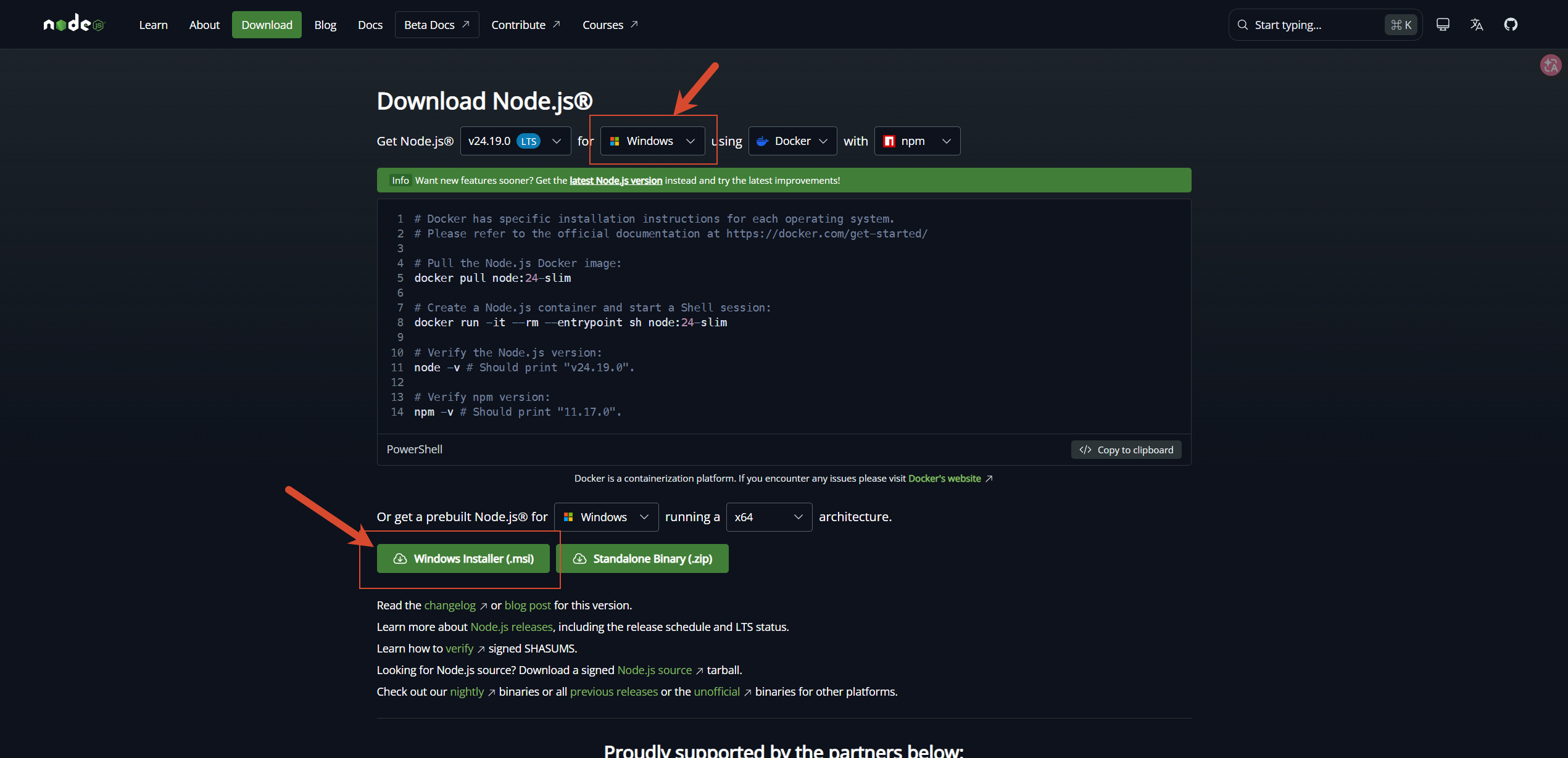
3.2 安装
运行下载的:
text
node-xxx-x64.msi按照安装程序依次点击:
text
Next同意许可协议。
默认安装目录通常为:
text
C:\Program Files\nodejs\组件保持默认配置即可,确保包含:
text
Node.js runtime
npm package manager
Add to PATH
然后执行:
text
Install安装完成后点击:
text
Finish4. 检查 Node.js 是否安装成功
重新打开:
text
CMD
PowerShell
Windows Terminal
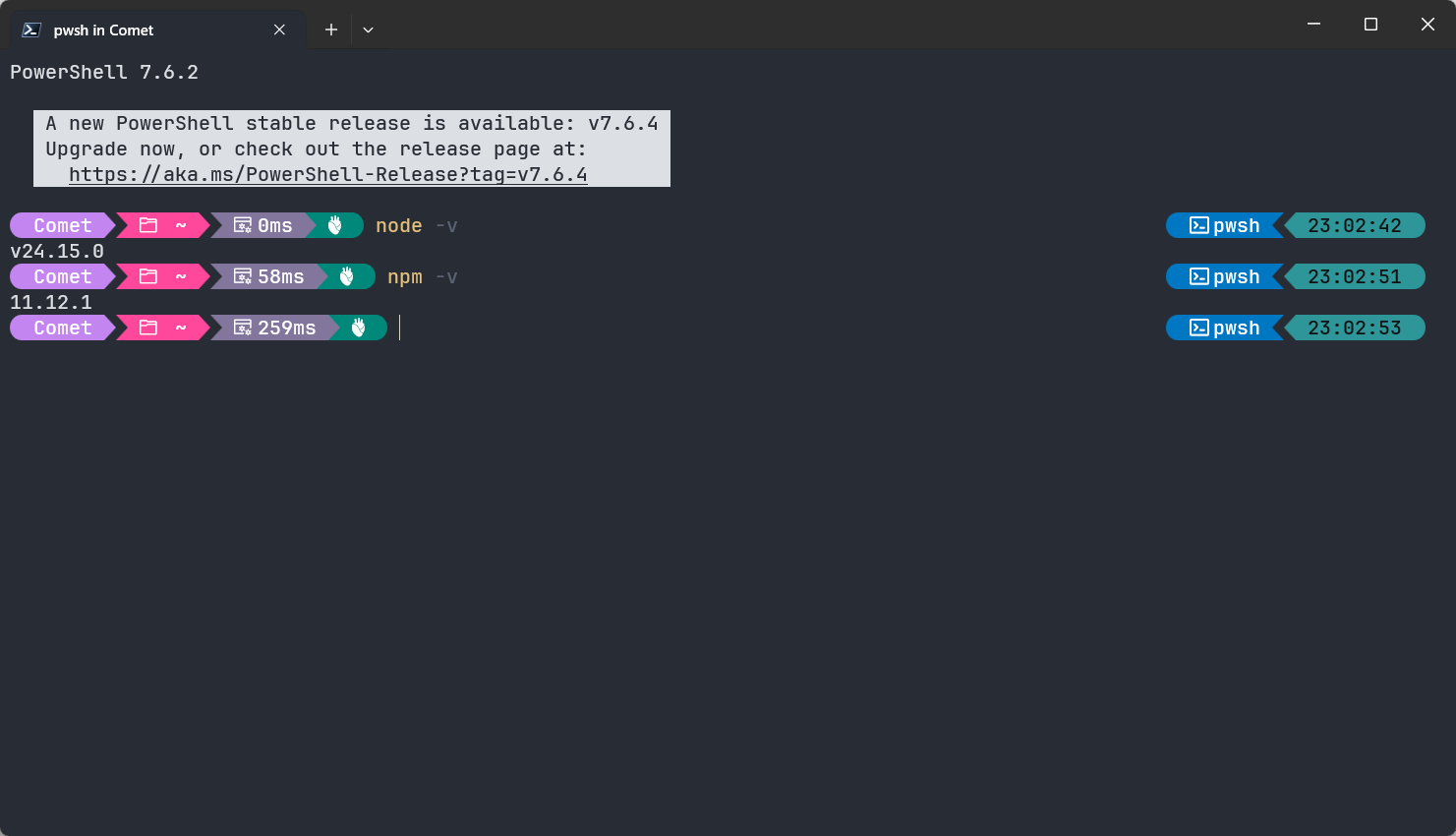
执行:
bash
node -v例如:
text
v24.x.x继续执行:
bash
npm -v例如:
text
11.x.x如果均能正常显示版本号,则安装成功。
5. 配置 npm 国内镜像源
5.1 查看当前 npm 源
bash
npm config get registry默认通常为:
text
https://registry.npmjs.org/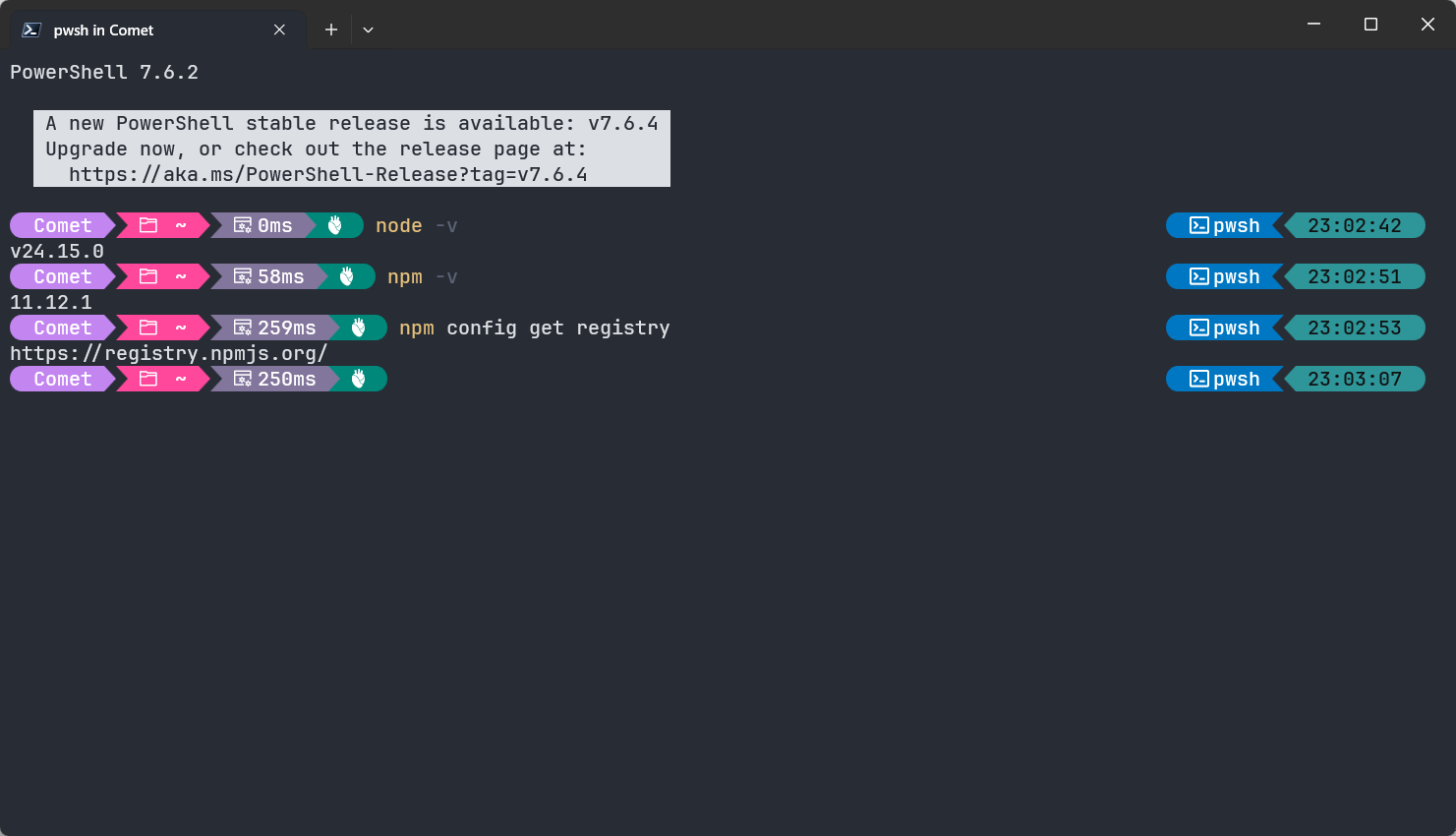
5.2 切换 npmmirror 镜像源
执行:
bash
npm config set registry https://registry.npmmirror.com检查:
bash
npm config get registry正常情况下输出:
text
https://registry.npmmirror.com/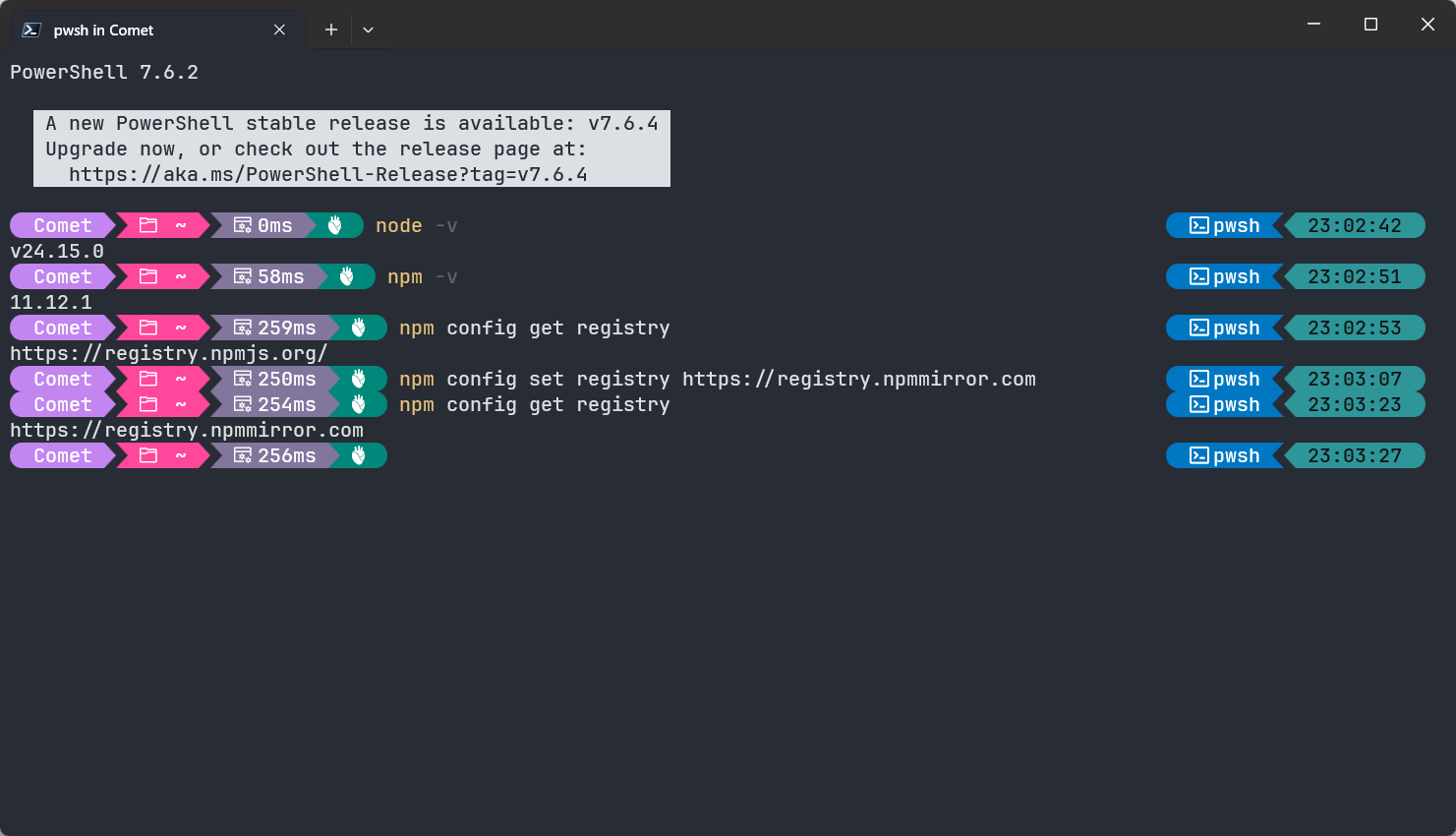
5.3 恢复 npm 官方源
bash
npm config set registry https://registry.npmjs.org/检查:
bash
npm config get registry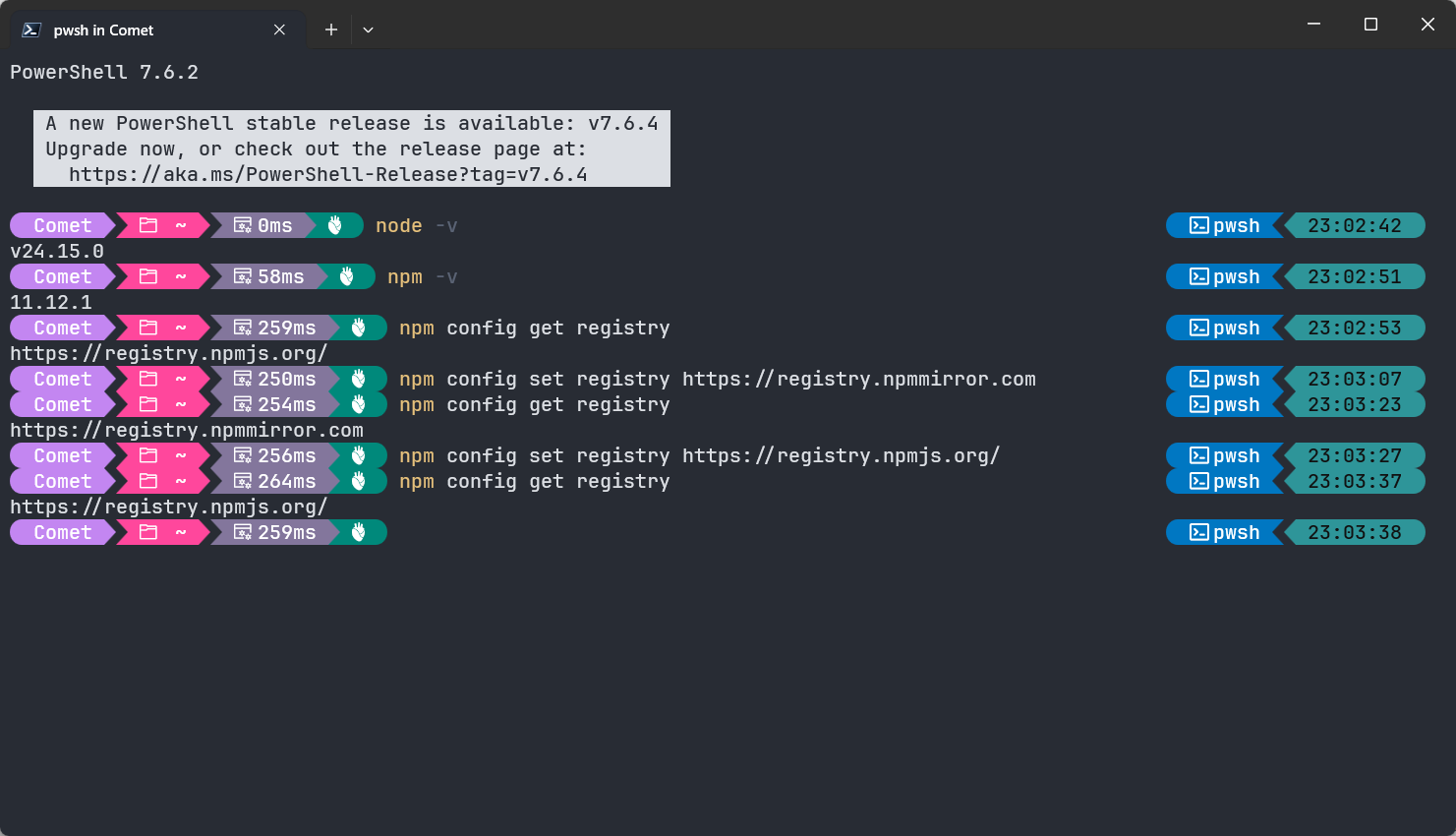
5.4 临时指定镜像源
如果只想让某一次安装使用国内镜像:
bash
npm install axios --registry=https://registry.npmmirror.com不会修改默认 npm 配置。
6. 使用 .npmrc 配置 npm 源
npm 也可以通过 .npmrc 文件配置。
6.1 用户级配置
Windows:
text
C:\Users\用户名\.npmrcLinux / macOS:
text
~/.npmrc写入:
ini
registry=https://registry.npmmirror.com6.2 项目级配置
在项目根目录创建:
text
.npmrc例如:
text
my-project/
├── src/
├── package.json
├── package-lock.json
└── .npmrc
写入:
ini
registry=https://registry.npmmirror.com此配置只影响当前项目。
7. macOS / Linux 使用 nvm 安装 Node.js
macOS 和 Linux 推荐使用 nvm 管理 Node.js。
nvm:
text
[Node Version Manager](https://github.com/nvm-sh/nvm)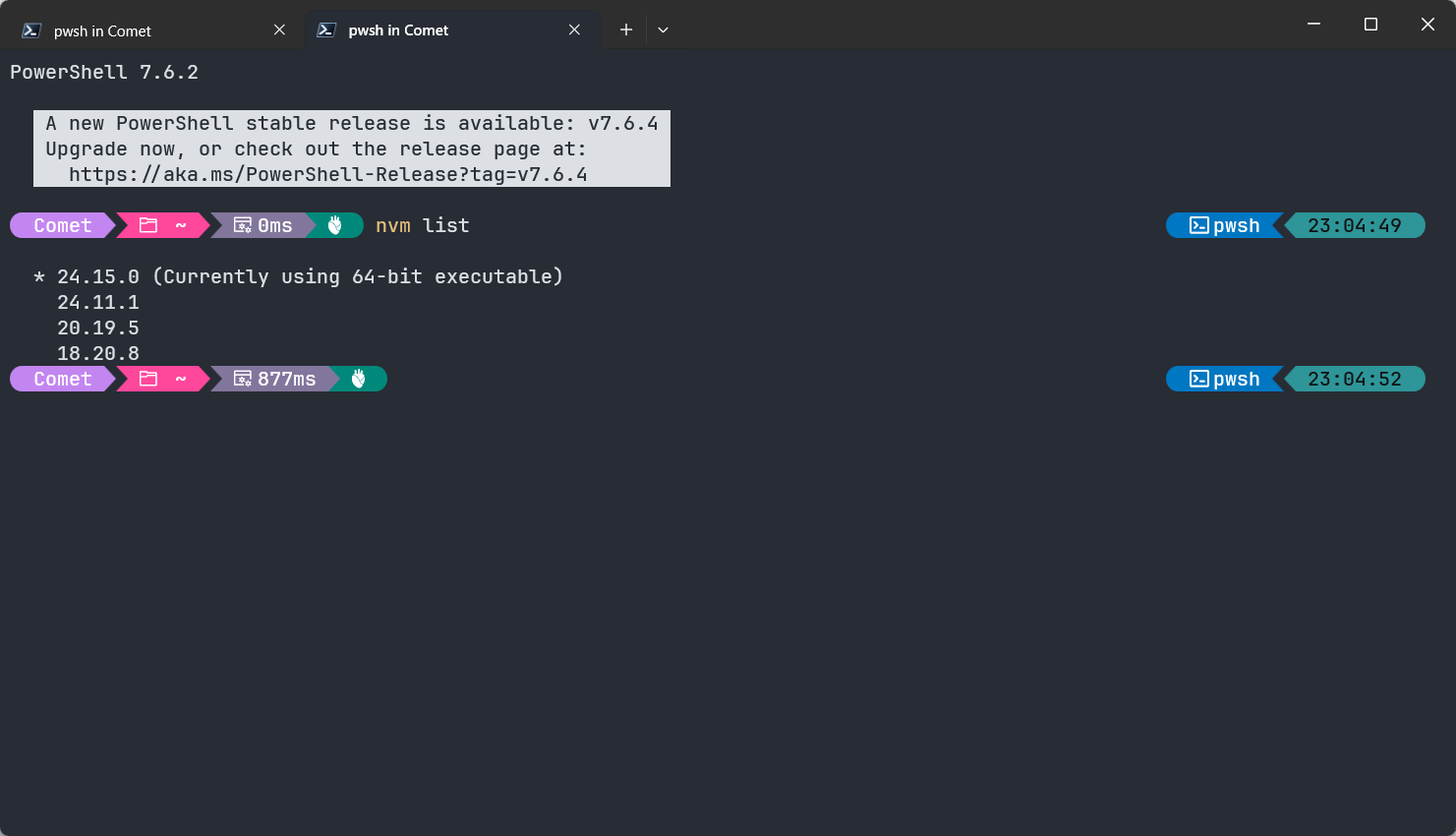
可以在同一台电脑上安装并切换多个 Node.js 版本。
例如:
text
Node.js 20
Node.js 22
Node.js 24
8. 安装 nvm
项目地址:
text
https://github.com/nvm-sh/nvm按照项目 README 中提供的安装命令进行安装。
安装完成后重新打开终端。
检查:
bash
command -v nvm正常情况下输出:
text
nvm如果没有生效,可以重新加载 Shell 配置。
Bash:
bash
source ~/.bashrcZsh:
bash
source ~/.zshrc9. 使用 nvm 安装 Node.js
安装最新版本:
bash
nvm install node安装指定主版本:
bash
nvm install 24切换版本:
bash
nvm use 24查看已经安装的版本:
bash
nvm ls查看可安装版本:
bash
nvm ls-remote设置默认版本:
bash
nvm alias default 24检查:
bash
node -v
npm -v
10. 创建第一个 Node.js 程序
创建项目目录:
bash
mkdir node-demo进入目录:
bash
cd node-demo创建:
text
app.js写入:
javascript
console.log("Hello Node.js!");运行:
bash
node app.js输出:
text
Hello Node.js!11. 初始化 Node.js 项目
执行:
bash
npm init如果使用默认配置:
bash
npm init -y此时会生成:
text
package.json目录结构:
text
node-demo/
├── app.js
└── package.json
12. 安装 npm 依赖
例如安装 Axios:
bash
npm install axios安装完成后:
text
node-demo/
├── node_modules/
├── app.js
├── package.json
└── package-lock.json
其中:
text
node_modules/保存项目依赖。
text
package.json保存项目配置和依赖声明。
text
package-lock.json记录实际安装的依赖版本。
13. 配置 .gitignore
Node.js 项目通常不提交:
text
node_modules/在项目根目录创建:
text
.gitignore写入:
gitignore
node_modules/常见 Node.js .gitignore:
gitignore
node_modules/
dist/
.env
*.log
.DS_Store
14. 常用 npm 命令
安装全部依赖
bash
npm install简写:
bash
npm i安装依赖
bash
npm install axios简写:
bash
npm i axios安装开发依赖
bash
npm install eslint --save-dev简写:
bash
npm i eslint -D卸载依赖
bash
npm uninstall axios查看依赖
bash
npm list查看全局安装的软件包
bash
npm list -g --depth=0更新依赖
bash
npm update运行项目脚本
bash
npm run dev例如:
bash
npm run build
bash
npm run start15. npm、node、npx 的区别
text
Node.js
   │
   ├── node
   │    └── 运行 JavaScript
   │
   ├── npm
   │    └── 安装和管理依赖
   │
   └── npx
        └── 执行 npm 软件包提供的命令
例如:
bash
node app.js运行 JavaScript 文件。
bash
npm install axios安装依赖。
bash
npx vite执行 Vite。
16. 查看 npm 配置
查看全部 npm 配置:
bash
npm config list查看 Registry:
bash
npm config get registry查看代理:
bash
npm config get proxy
bash
npm config get https-proxy17. npm 配置代理
如果需要通过 HTTP 代理访问网络:
bash
npm config set proxy http://127.0.0.1:7890HTTPS:
bash
npm config set https-proxy http://127.0.0.1:7890检查:
bash
npm config get proxy
bash
npm config get https-proxy删除代理:
bash
npm config delete proxy
npm config delete https-proxy
18. 清理 npm 缓存
查看缓存目录:
bash
npm config get cache检查缓存:
bash
npm cache verify强制清理:
bash
npm cache clean --force一般情况下不需要主动清理 npm 缓存。
19. 常见问题
19.1 node 不是内部或外部命令
如果 Windows 提示:
text
'node' 不是内部或外部命令重新打开终端后执行:
bash
node -v仍然无效时,检查环境变量:
text
PATH是否包含:
text
C:\Program Files\nodejs\19.2 npm 不是内部或外部命令
检查:
bash
node -v如果 Node.js 正常但 npm 无法使用,可以重新运行 Node.js 安装程序,并确认:
text
npm package manager已经安装。
19.3 npm 下载速度慢
检查当前源:
bash
npm config get registry切换国内源:
bash
npm config set registry https://registry.npmmirror.com19.4 npm 安装依赖超时
可以检查:
bash
npm config get registry
npm config get proxy
npm config get https-proxy
如果配置了错误代理:
bash
npm config delete proxy
npm config delete https-proxy
然后重新执行:
bash
npm install19.5 nvm 安装后无法识别
如果出现:
text
nvm: command not foundBash:
bash
source ~/.bashrcZsh:
bash
source ~/.zshrc然后:
bash
command -v nvm20. 最终环境检查
执行:
bash
node -v
npm -v
npm config get registry
如果使用 nvm:
bash
nvm --version国内镜像配置完成后,输出类似:
text
v24.x.x
11.x.x
https://registry.npmmirror.com/
说明 Node.js 开发环境已经配置完成。
21. 推荐环境
日常开发推荐:
text
Node.js LTS
+
npm
+
Git
+
VS Code
Linux / macOS 推荐:
text
nvm
+
Node.js LTS
+
npm
+
Git
+
VS Code
常用初始化流程:
bash
node -v
npm -v

npm config set registry https://registry.npmmirror.com

mkdir my-project
cd my-project

npm init -y
Node.js 环境安装与基础配置完成。