微信小程序常用API练习 - 音乐播放器小程序开发笔记
目录
音乐播放器
"音乐播放器"微信小程序可以让用户随时随地享受音乐,给用户带来了便捷的音乐体验,且支持后台播放,用户可以在听音乐的同时进行其他操作。下面将对"音乐播放器"微信小程序进行详细讲解。只是简单的实现音乐播放和推荐音乐列表渲染及音乐播放列表渲染。
准备工作
在开发本案例前,需要先完成一些准备工作,主要包括创建项目、配置页面、配置导航栏、复制素材和启动服务器,具体步骤如下。
创建项目
在微信开发者工具创建一个新的小程序项目,名称为"音乐播放器",选择"不使用模板"。
配置页面
本项目需要配置多个页面,配置页面如下:
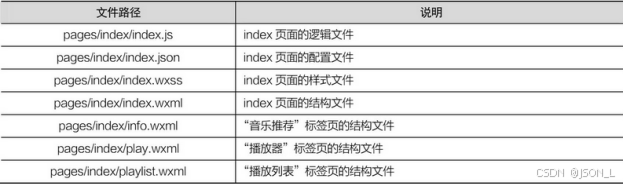
实际只有一个页面,即pages/index/index页面,整体的页面结构在index.wxml文件中编写。
由于内容区域中3个标签页的内容较多,为了避免页面嵌套层级过多,
所以拆分到info.wxml、play.wxml、playlist.wxml文件中,使代码容易阅读、便于维护。
配置导航栏
在pages/index/index.json文件中配置页面导航栏,具体代码如下。
javascript
{
    "usingComponents": {
        "navigation-bar": "/components/navigation-bar/navigation-bar"
    },
    "navigationBarTitleText": "音乐",
    "navigationBarBackgroundColor": "#17181a",
    "navigationBarTextStyle": "white"
}
资源文件准备
本项目所需图片文件,需创建images文件夹,包含:
banner图切换图片
功能按钮图片
歌曲封面图片
服务器准备
因为本地服务器,所以设置不检验域名。
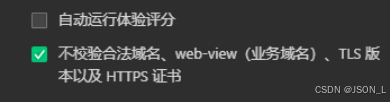
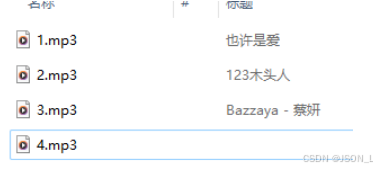
我采用的是apache+php。在项目路径下创建music文件夹,
准备4个mp3音乐文件,等待音乐播放器访问。
音乐播放器首页
音乐播放器的结构上分为:首页结构、音乐推荐、播放器、播放器列表四个页面。
首页页面
在pages/index/index.wxml文件中,设置标签、标签页、播放器等内容。
具体代码如下:
XML
<!--index.wxml-->
<navigation-bar title="音乐" back="{{false}}" color="white" background="#17181a"></navigation-bar>
<view class="tab">
    <view class="tab-item {{ tab == 0 ? 'active' : '' }}" bindtap="changeItem" data-item="0">音乐推荐</view>
    <view class="tab-item {{ tab == 1 ? 'active' : '' }}" bindtap="changeItem" data-item="1">播放器</view>
    <view class="tab-item {{ tab == 2 ? 'active' : '' }}" bindtap="changeItem" data-item="2">播放列表</view>
</view>
<view class="content">
    <swiper current="{{ item }}" bindchange="changeTab" style="height:{{windowHeight}}px">
        <swiper-item>
            <!-- 音乐推荐 -->
            <include src="info.wxml" />
        </swiper-item>
        <swiper-item>
            <!-- 播放器 -->
            <include src="play.wxml" />
        </swiper-item>
        <swiper-item>
            <!-- 播放列表 -->
            <include src="playlist.wxml" />
        </swiper-item>
    </swiper>
</view>
<!-- 最下方音乐播放器 -->
<view class="player">
    <image class="player-cover" src="{{ play.coverImgUrl }}" data-item="1" bindtap="changeItem" />
    <view class="player-info">
        <view class="player-info-title" data-item="1" bindtap="changeItem">{{ play.title }}
        </view>
        <view class="player-info-singer" data-item="1" bindtap="changeItem">{{ play.singer }}
        </view>
    </view>
    <view class="player-controls">
        <!-- 切换到播放列表 -->
        <image src="/images/list.png" data-item="2" bindtap="changeItem" />
        <!-- 播放/暂停 -->
        <image wx:if="{{ state == 'paused' }}" src="/images/play.png" bindtap="play" />
        <image wx:else src="/images/pause.png" bindtap="pause" />
        <!-- 下一曲 -->
        <image src="/images/right.png" bindtap="next" />
    </view>
</view>
音乐推荐页
在pages/index/info.wxml文件中编写,
主要内容包括:轮播图、功能按钮列表和推荐歌曲列表,
具体代码如下:
XML
<scroll-view scroll-top="{{scrollTop}}" style="height:{{windowHeight}}px" scroll-y="true" bindscroll="scroll" class="content-info">
    <!-- 轮播图 -->
    <swiper class="content-info-slide" indicator-color="rgba(255,255,255,.5)"
    indicator-active-color="#fff" indicator-dots circular autoplay>
        <swiper-item>
            <image src="/images/banner_1.jpg" mode="aspectFill"/>
        </swiper-item>
        <swiper-item>
            <image src="/images/banner_2.jpg" mode="aspectFill"/>
        </swiper-item>
        <swiper-item>
            <image src="/images/banner_3.jpg" mode="aspectFill"/>
        </swiper-item>
    </swiper>
    <!-- 功能按钮 -->
    <view class="content-info-portal">
        <view>
            <image src="/images/1.png" />
            <text>私人FM</text>
        </view>
        <view>
            <image src="/images/2.png" />
            <text>每日歌曲推荐</text>
        </view>
        <view>
            <image src="/images/3.png" />
            <text>云音乐新歌榜</text>
        </view>
    </view>
    <!-- 推荐歌曲列表 -->
    <view class="content-info-list">
        <view class="list-title">推荐歌曲</view>
        <view class="list-inner">
            <view class="list-item">
                <image src="/images/1.jpg" />
                <view>lemon tree</view>
            </view>
            <view class="list-item">
                <image src="/images/2.jpg" />
                <view>NOW BOY</view>
            </view>
            <view class="list-item">
                <image src="/images/3.jpg" />
                <view>爱就一个字</view>
            </view>
            <view class="list-item">
                <image src="/images/1.jpg" />
                <view>白天不懂夜的黑</view>
            </view>
            <view class="list-item">
                <image src="/images/2.jpg" />
                <view>清明雨上</view>
            </view>
            <view class="list-item">
                <image src="/images/3.jpg" />
                <view>有何不可</view>
            </view>
        </view>
    </view>
</scroll-view>
播放器页面
在pages/index/play.wxml文件中编写,
内容为展示当前播放的音乐名称、歌手、封面和播放进度,
具体代码如下:
XML
<view class="content-play">
    <!-- 音乐信息 -->
    <view class="content-play-info">
        <text>{{ play.title }}</text>
        <view>------ {{ play.singer }} ------</view>
    </view>
    <!-- 专辑封面 -->
    <view class="content-play-cover">
        <image src="{{ play.coverImgUrl }}" style="animation-play-state:{{ state }}" />
    </view>
    <!-- 播放进度和时间 -->
    <view class="content-play-progress">
        <text>{{ play.currentTime }}</text>
        <view>
            <slider bindchanging="sliderChanging" bindchange="sliderChange"
            activeColor="#d33a31" block-size="12" backgroundColor="#dadada" value="{{ play.percent }}" />
        </view>
        <text>{{ play.duration }}</text>
    </view>
</view>
播放列表
在pages/index/playlist.wxml文件中编写,
主要渲染音乐的播放列表,展示封面、音乐名称、歌手,
可点击进行播放。具体代码如下:
XML
<scroll-view class="content-playlist" scroll-y>
    <view class="playlist-item" wx:for="{{ playlist }}" wx:key="id" bindtap="change" data-index="{{ index }}">
        <image class="playlist-cover" src="{{ item.coverImgUrl }}" />
        <view class="playlist-info">
            <view class="playlist-info-title">{{ item.title }}</view>
            <view class="playlist-info-singer">{{ item.singer }}</view>
        </view>
        <view class="playlist-controls">
            <text wx:if="{{ index == playIndex }}">正在播放</text>
        </view>
    </view>
</scroll-view>
首页样式
因为整体页面就一个index.wxml文件,故样式文件也只有pages/index/index.wxss。
具体代码如下:
css
/**index.wxss**/
/* 标签页 */
.tab {
    background-color: #17181a;
    color: white;
    display: flex;
    flex-direction: row;
}

.tab .tab-item {
    padding: 0 8vw;
}

.tab .active {
    font-weight: bold;
    color: red;
    border-bottom: 2rpx solid red;
}

.content {
    background-color: #17181a;
}

/* 轮播图 */
.content-info-slide image {
    width: 100%;
}

/* 功能按钮 */
.content-info-portal {
    display: flex;
    flex-direction: row;
}

.content-info-portal view {
    width: 28vw;
    height: 10vh;
    color: white;
    margin: 3vh 4vw 1vh 4vw;
    text-align: center;
}

.content-info-portal image {
    width: 16vw;
    height: 5vh;
    display: flex;
    margin: 0 auto;
}

/* 推荐歌曲列表 */
.content-info-list {
    color: white;
}

.content-info-list .list-title {
    font-weight: bold;
    font-size: 40rpx;
    margin-bottom: 2vh;
    margin-left:2vw;
}

.list-inner {
    display: flex;
    flex-direction: row;
    flex-wrap: wrap;
    width: 100%;
}

.list-inner .list-item {
    width: 29%;
    height: 30%;
    text-align: center;
    margin: 0 2vw;
}

.list-inner .list-item image {
    height: 120px;
    width: 120px;
}

/* 播放器 */
/* 播放器歌曲名称 歌手 */
.content-play {
    color: white;
    text-align: center;
}

.content-play-info {
    margin-top: 2vh;
    margin-bottom: 4vh;
}

.content-play-info text {
    font-size: 20px;
}

.content-play-info view {
    color: #ccc;
}

/* 歌曲专辑封面 */
.content-play-cover image {
    width: 70%;
    border-radius: 60% 60%;
}

/* 歌曲进度 */
.content-play-progress {
    display: flex;
    flex-direction: row;
    margin-left:1vw;
}

.content-play-progress text {
    width: 10%;
}

.content-play-progress view {
    width: 78%;
}

/* 播放列表 */
.content-playlist {
    color:white;
}

.playlist-item {
    margin-left:2vw;
    margin-right:2vw;
    display: flex;
    flex-direction: row;
    padding-top:2vh;
    padding-bottom: 2vh;
    border-bottom: 1rpx solid rgb(172, 162, 162);
}

.playlist-item .playlist-cover{
    width:20%;
    height:80px;
}

.playlist-info {
    margin-top:2vh;
    width:40%;
    margin-left:2vw;
}

.playlist-info .playlist-info-singer{
    color:rgb(172, 162, 162);
}

.playlist-controls {
    margin-left:10%;
    width:20%;
    text-align: right;
}

.playlist-controls text {
    line-height: 60px;
    color:#d35f31;
}

/* 最下方播放器 */
.player {
    position: fixed;
    bottom:0;
    left:0;
    color:white;
    width:100%;
    height:80px;
    z-index: 999;
    display: flex;
    flex-direction: row;
    padding-top:2vh;
    background-color: rgba(68, 66, 66, 0.8);
    border-top:2px solid rgba(68, 66, 66, 0.8);
}

.player .player-cover{
    width:10%;
    height:55%;
    margin-left:2vw;
    margin-right:2vw;
}

.player-info {
    width:40%;
}

.player-info .player-info-singer{
    color:rgb(172, 162, 162);
}

.player-controls image {
    margin: 1vh 2vw;
    width:10vw;
    height: 5vh;
}
首页脚本实现
在pages/index/index.js文件中编写。
具体代码如下:
javascript
// index.js
// 格式化时间
function formatTime(time) {
    var minute = Math.floor(time / 60) % 60;
    var second = Math.floor(time) % 60
    return (minute < 10 ? '0' + minute : minute) + ':' + (second < 10 ? '0' + second : second)
}

Page({
    data: {
        item: 0,
        tab: 0,
        // 播放器列表
        playlist: [{
            id: 1,
            title: '! (也许是爱!) ',
            singer: '蔡妍',
            src: 'http://127.0.0.1/mini/music/1.mp3',
            coverImgUrl: '/images/1.jpg'
        }, {
            id: 2,
            title: '123木头人',
            singer: '黑Girl',
            src: 'http://127.0.0.1/mini/music/2.mp3',
            coverImgUrl: '/images/2.jpg'
        }, {
            id: 3,
            title: 'Bazzaya',
            singer: '蔡妍',
            src: 'http://127.0.0.1/mini/music/3.mp3',
            coverImgUrl: '/images/3.jpg'
        }, {
            id: 4,
            title: 'Fade',
            singer: 'Alan Walker',
            src: 'http://127.0.0.1/mini/music/4.mp3',
            coverImgUrl: '/images/4.jpg'
        }],
        // 记录音乐播放状态
        state: 'running',
        playIndex: 0,
        play: {
            currentTime: '00:00',
            duration: '00:00',
            percent: 0,
            title: '',
            singer: '',
            coverImgUrl: '/images/re_3.jpg',
        }
    },
    scrollTop: 0,
    // 标签栏标签切换事件
    changeItem: function (e) {
        this.setData({
            item: e.target.dataset.item
        })
    },
    // 设置tab的值
    changeTab: function (e) {
        this.setData({
            tab: e.detail.current
        })
    },
    // 定位数据
    scroll: function (event) {
        var that = this;
        that.setData({
            scrollTop: event.detail.scrollTop
        });
    },
    /**
     * 生命周期函数--监听页面加载
     */
    onLoad(options) {
        var that = this;
        wx.getSystemInfo({
            success: function (res) {
                that.setData({
                    windowHeight: res.windowHeight,
                    windowWidth: res.windowWidth
                })
            }
        });
    },
    // 实现在页面初次渲染时,自动选择播放列表中的第1个曲目
    audioBam: null,
    onReady: function () {
        this.audioBam = wx.getBackgroundAudioManager()
        // 默认选择第1曲
        this.setMusic(0)
        // 播放失败检测
        this.audioBam.onError(() => {
            console.log('播放失败:' + this.audioBam.src)
        })
        // 播放完成自动换下一曲,监听音频自然播放结束的事件
        this.audioBam.onEnded(() => {
            this.next()
        })
        // 监听音频播放进度更新事件,获取音乐状态信息
        var updateTime = 0 // 记录上次更新的时间,用于限制1秒只能更新1次进度
        this.audioBam.onTimeUpdate(() => {
            var currentTime = parseInt(this.audioBam.currentTime)
            if (!this.sliderChangeLock && currentTime !== updateTime) {
                updateTime = currentTime
                this.setData({
                    'play.duration': formatTime(this.audioBam.duration || 0),
                    'play.currentTime': formatTime(currentTime),
                    'play.percent': currentTime / this.audioBam.duration * 100
                })
            }
        })
    },
    setMusic: function (index) {
        // 设置当前播放的曲目,在后面的步骤中实现
        var music = this.data.playlist[index]
        this.audioBam.src = music.src
        this.audioBam.title = music.title
        this.setData({
            playIndex: index,
            'play.title': music.title,
            'play.singer': music.singer,
            'play.coverImgUrl': music.coverImgUrl,
            'play.currentTime': '00:00',
            'play.duration': '00:00',
            'play.percent': 0,
            state: 'running'
        })
    },
    // 播放事件
    play: function () {
        this.audioBam.play()
        this.setData({
            state: 'running'
        })
    },
    // 暂停播放事件
    pause: function () {
        this.audioBam.pause()
        this.setData({
            state: 'paused'
        })
    },
    // 播放下一曲功能
    next: function () {
        var index = this.data.playIndex >= this.data.playlist.length - 1 ? 0 : this.data.playIndex + 1
        this.setMusic(index)
    },
    // 用于在用户操作slider组件时阻止播放进度自动更新,并显示用户选择的时间
    sliderChangeLock: false,
    sliderChanging: function (e) {
        var second = e.detail.value * this.audioBam.duration / 100
        this.sliderChangeLock = true
        this.setData({
            'play.currentTime': formatTime(second),
        })
    },
    sliderChange: function (e) {
        var second = e.detail.value * this.audioBam.duration / 100
        // 调节音乐的播放进度
        this.audioBam.seek(second)
        // 在延迟1秒后允许播放进度自动更新
        setTimeout(() => {
            this.sliderChangeLock = false
        }, 1000)
    },
    // 播放列表点击播放事件
    change: function (e) {
        this.setMusic(e.currentTarget.dataset.index)
    }
})
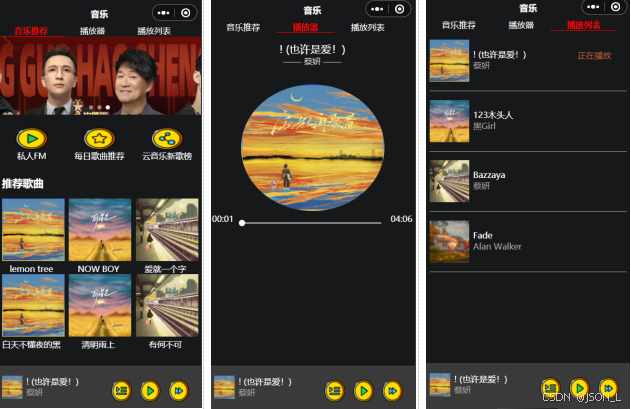
功能截图
总结
微信小程序常用API练习 - 音乐播放器小程序开发笔记