引言:布局的进化史
在网页设计的黑暗时代(2010年前),开发者们用float、position和inline-block这些原始工具进行布局,就像用石器时代的工具建造摩天大楼。直到2012年W3C正式推出Flexbox规范,前端世界终于迎来了布局的革命性突破。想象一下:只需几行CSS就能实现完美的垂直居中、等高等宽列和灵活响应式布局------这就是Flexbox的魔法魅力!
一、Flexbox核心概念解剖
1.1 容器与项目的共生关系
- 弹性容器(display: flex):布局的主宰者
- 弹性项目(flex items):服从容器规则的子元素
- 主轴(main axis) vs 交叉轴(cross axis):布局的双维度坐标系
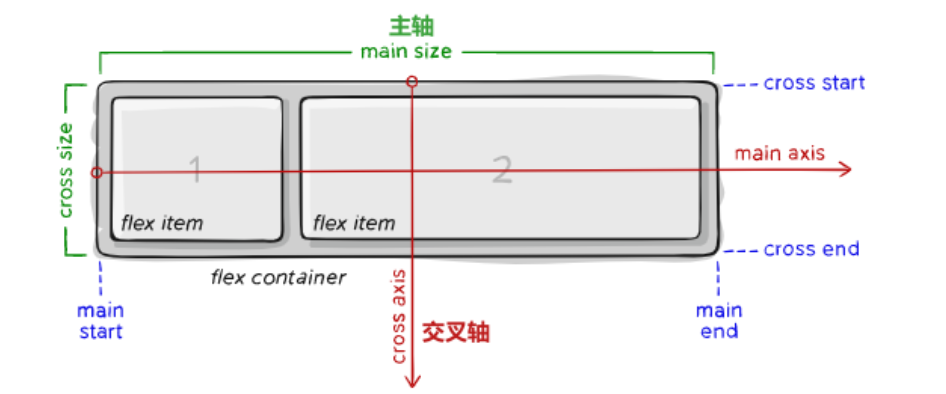
1.2 神奇的轴系统
html
<div class="container">
  <div class="item">1</div>
  <div class="item">2</div>
  <div class="item">3</div>
</div>
<style>
.container {
  display: flex;
  flex-direction: row; /* 定义主轴方向 */
  justify-content: space-between; /* 主轴对齐方式 */
  align-items: center; /* 交叉轴对齐方式 */
}
</style>
二、Flexbox的九大必杀技
2.1 容器属性大全
以下是弹性布局(Flexbox)容器属性及属性值的完整解析表:
| 属性 | 取值 | 作用说明 | 默认值 | 适用场景示例 |
|---|---|---|---|---|
| display | flex |
创建块级弹性容器 | - | 常规页面布局容器 |
inline-flex |
创建行内弹性容器 | - | 导航栏等行内布局 | |
| flex-direction | row |
主轴水平(从左到右) | row |
横向排列元素 |
row-reverse |
主轴水平反向(从右到左) | RTL语言支持 | ||
column |
主轴垂直(从上到下) | 移动端竖屏布局 | ||
column-reverse |
主轴垂直反向(从下到上) | 特殊滚动效果 | ||
| flex-wrap | nowrap |
禁止换行(可能溢出) | nowrap |
导航栏等单行布局 |
wrap |
向下换行 | 卡片流式布局 | ||
wrap-reverse |
向上换行 | 特殊视觉效果需求 | ||
| justify-content | flex-start |
主轴起始对齐 | flex-start |
左对齐布局 |
flex-end |
主轴末端对齐 | 右对齐布局 | ||
center |
主轴居中对齐 | 登录框居中 | ||
space-between |
两端对齐间隔相等 | 导航项均匀分布 | ||
space-around |
项目两侧间隔相等 | 图文混排布局 | ||
space-evenly |
全区间隔完全相等 | 数据仪表盘 | ||
| align-items | stretch |
拉伸填满容器高度 | stretch |
等高栏布局 |
flex-start |
交叉轴起始对齐 | 顶部对齐表单 | ||
flex-end |
交叉轴末端对齐 | 底部对齐控件 | ||
center |
交叉轴居中对齐 | 垂直居中登录框 | ||
baseline |
基线对齐 | 文本混排对齐 | ||
| align-content | stretch |
多行拉伸填充容器 | stretch |
多行文本布局 |
flex-start |
多行整体顶部对齐 | 流式布局顶部对齐 | ||
flex-end |
多行整体底部对齐 | 特殊视觉效果 | ||
center |
多行垂直居中 | 卡片墙居中 | ||
space-between |
多行两端对齐 | 瀑布流布局 | ||
space-around |
多行间隔相等 | 图文混排墙 | ||
| gap | <length> |
定义项目间距 | 0 |
网格系统布局 |
| row-gap | <length> |
定义行间距 | 0 |
垂直间距控制 |
| column-gap | <length> |
定义列间距 | 0 |
水平间距控制 |
表格特性说明:
- 复合属性 :flex-flow 是 flex-direction + flex-wrap 的组合简写(例:
row wrap) - 现代浏览器支持:gap 系列属性需要浏览器支持(Chrome 84+/Firefox 63+)
- 特殊场景 :
baseline对齐适用于不同字号文本混排space-evenly适合需要完全对称的仪表盘布局
- 性能优化 :
align-items: stretch可能触发重排,大数据量慎用
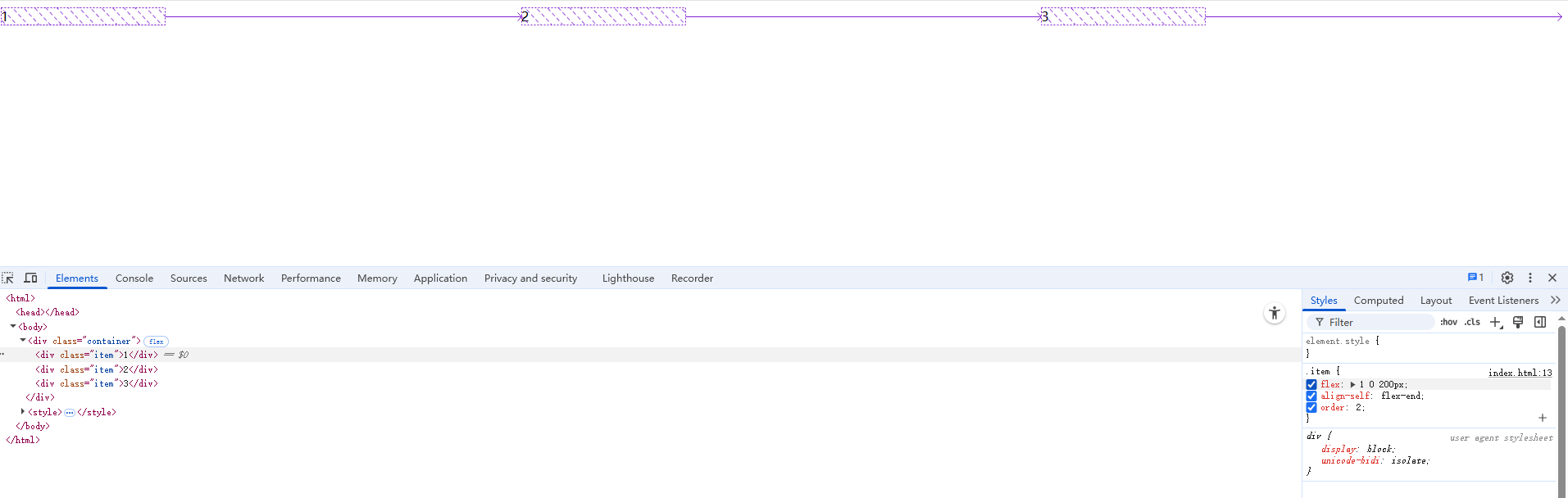
2.2 项目属性精要
css
.item {
  flex: 1 0 200px; /* 缩写:grow shrink basis */
  align-self: flex-end; /* 单个项目对齐覆盖 */
  order: 2; /* 视觉顺序控制 */
}
三、实战案例集锦
案例1:圣杯导航栏
- 效果图

- 实例代码
css
<!DOCTYPE html>
<html lang="zh-CN">
<head>
    <meta charset="UTF-8">
    <meta name="viewport" content="width=device-width, initial-scale=1.0">
    <title>圣杯导航栏 - Flexbox实现</title>
    <style>
        /* 基础重置 */
        * {
            margin: 0;
            padding: 0;
            box-sizing: border-box;
        }

        /* 导航容器 */
        .nav-container {
            background: #2c3e50;
            padding: 1rem 2rem;
            box-shadow: 0 2px 15px rgba(0,0,0,0.2);
        }

        /* 弹性导航主体 */
        .nav-menu {
            display: flex;
            justify-content: space-between;
            align-items: center;
            max-width: 1200px;
            margin: 0 auto;
        }

        /* 导航品牌(左侧) */
        .nav-brand {
            flex: 0 1 200px;
            color: #ecf0f1;
            font-size: 1.5rem;
            font-weight: bold;
            text-decoration: none;
            transition: opacity 0.3s;
        }

        /* 导航项容器 */
        .nav-items {
            display: flex;
            gap: 2rem;  /* 现代浏览器间距方案 */
        }

        /* 单个导航项 */
        .nav-item {
            position: relative;
            padding: 0.8rem 1.2rem;
            color: #bdc3c7;
            text-decoration: none;
            transition: all 0.3s ease;
        }

        /* 交互效果 */
        .nav-item:hover {
            color: #ecf0f1;
            transform: translateY(-2px);
        }

        /* 活动状态指示器 */
        .nav-item.active::after {
            content: '';
            position: absolute;
            bottom: 0;
            left: 50%;
            width: 60%;
            height: 3px;
            background: #3498db;
            transform: translateX(-50%);
            border-radius: 2px;
        }

        /* 响应式设计 - 移动端适配 */
        @media (max-width: 768px) {
            .nav-menu {
                flex-direction: column;
                gap: 1.5rem;
            }

            .nav-items {
                flex-direction: column;
                text-align: center;
            }

            .nav-brand {
                text-align: center;
            }
        }
    </style>
</head>
<body>
    <nav class="nav-container">
        <div class="nav-menu">
            <a href="#" class="nav-brand">FlexMaster</a>
            <div class="nav-items">
                <a href="#" class="nav-item active">首页</a>
                <a href="#" class="nav-item">产品</a>
                <a href="#" class="nav-item">服务</a>
                <a href="#" class="nav-item">关于</a>
                <a href="#" class="nav-item">联系</a>
            </div>
        </div>

</html>
    </nav>
</body>代码亮点解析:
- 弹性容器结构 :
- 双层级Flex容器(
.nav-menu+.nav-items) justify-content: space-between实现品牌与导航项自动分离gap属性替代传统margin实现间距控制
- 双层级Flex容器(
- 响应式设计 :
- 移动端自动转换为垂直布局
- 媒体查询中切换
flex-direction - 保持可点击区域的可访问性
- 视觉增强 :
- 动态下划线指示器(使用伪元素实现)
- 流畅的位移动画(transform优化性能)
- 色彩过渡效果增强交互反馈
- 最佳实践 :
- 语义化HTML5标签(
<nav>) - 安全的flex尺寸限制(
flex: 0 1 200px) - 盒模型统一(
box-sizing: border-box)
- 语义化HTML5标签(
效果说明:
- 桌面端:品牌居左,导航项居右,自动等间距分布
- 移动端:垂直堆叠,保持可点击区域
- 悬停时:元素上移+颜色变化双重反馈
- 活动状态:动态蓝色下划线指示
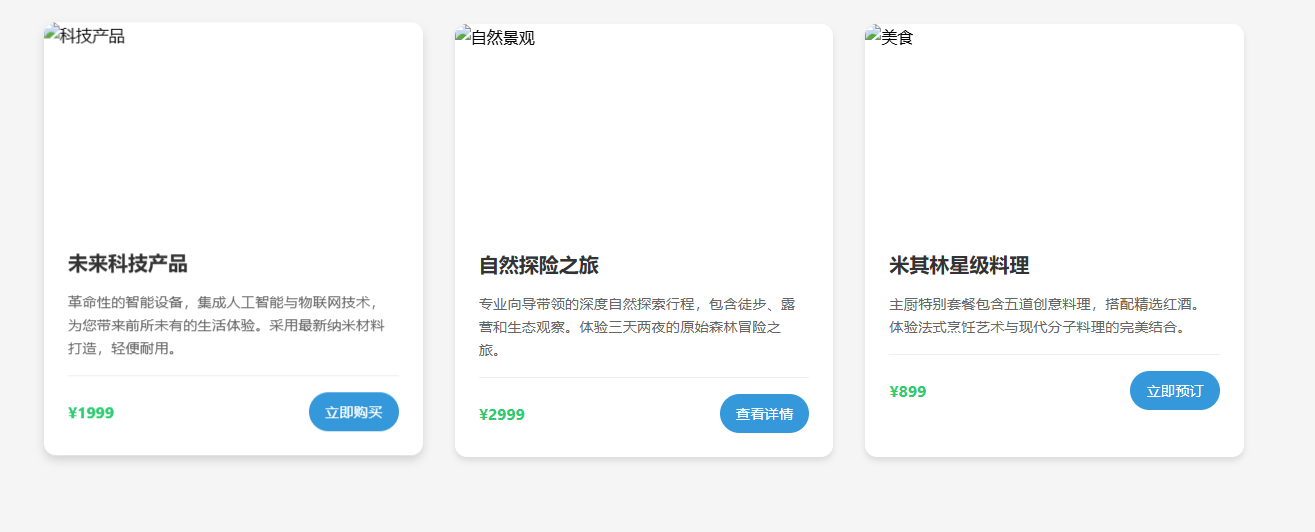
案例2:响应式卡片布局
- 效果图
- 实例代码
css
<!DOCTYPE html>
<html lang="zh-CN">
<head>
    <meta charset="UTF-8">
    <meta name="viewport" content="width=device-width, initial-scale=1.0">
    <title>响应式卡片布局 - Flexbox实现</title>
    <style>
        /* 基础重置与字体设置 */
        * {
            margin: 0;
            padding: 0;
            box-sizing: border-box;
            font-family: -apple-system, BlinkMacSystemFont, 'Segoe UI', Roboto, sans-serif;
        }

        body {
            background: #f5f5f5;
            line-height: 1.6;
            padding: 2rem;
        }

        /* 卡片容器 */
        .card-grid {
            display: flex;
            flex-wrap: wrap;
            gap: 2rem;
            max-width: 1200px;
            margin: 0 auto;
        }

        /* 单个卡片样式 */
        .card {
            flex: 1 1 300px;
            background: white;
            border-radius: 12px;
            overflow: hidden;
            box-shadow: 0 4px 6px rgba(0,0,0,0.1);
            transition: transform 0.3s ease, box-shadow 0.3s ease;
        }

        /* 卡片悬停效果 */
        .card:hover {
            transform: translateY(-5px);
            box-shadow: 0 8px 15px rgba(0,0,0,0.2);
        }

        /* 卡片图片容器 */
        .card-image {
            height: 200px;
            overflow: hidden;
            position: relative;
        }

        .card-image img {
            width: 100%;
            height: 100%;
            object-fit: cover;
            transition: transform 0.3s ease;
        }

        .card:hover .card-image img {
            transform: scale(1.05);
        }

        /* 卡片内容 */
        .card-content {
            padding: 1.5rem;
        }

        .card-title {
            font-size: 1.25rem;
            margin-bottom: 0.75rem;
            color: #333;
        }

        .card-description {
            color: #666;
            font-size: 0.9rem;
            margin-bottom: 1rem;
            display: -webkit-box;
            -webkit-line-clamp: 3;
            -webkit-box-orient: vertical;
            overflow: hidden;
        }

        /* 卡片底部信息 */
        .card-footer {
            display: flex;
            justify-content: space-between;
            align-items: center;
            padding-top: 1rem;
            border-top: 1px solid #eee;
        }

        .card-price {
            color: #2ecc71;
            font-weight: bold;
        }

        .card-button {
            background: #3498db;
            color: white;
            padding: 0.5rem 1rem;
            border-radius: 25px;
            text-decoration: none;
            font-size: 0.9rem;
            transition: background 0.3s ease;
        }

        .card-button:hover {
            background: #2980b9;
        }

        /* 响应式设计 */
        @media (max-width: 768px) {
            .card {
                flex-basis: 100%;
            }

            .card-image {
                height: 250px;
            }

            body {
                padding: 1rem;
            }
        }

        @media (max-width: 480px) {
            .card-image {
                height: 180px;
            }

            .card-title {
                font-size: 1.1rem;
            }
        }
    </style>
</head>
<body>
    <div class="card-grid">
        <!-- 卡片1 -->
        <div class="card">
            <div class="card-image">
                <img src="https://source.unsplash.com/random/800x600?tech" alt="科技产品">
            </div>
            <div class="card-content">
                <h3 class="card-title">未来科技产品</h3>
                <p class="card-description">革命性的智能设备,集成人工智能与物联网技术,为您带来前所未有的生活体验。采用最新纳米材料打造,轻便耐用。</p>
                <div class="card-footer">
                    <span class="card-price">¥1999</span>
                    <a href="#" class="card-button">立即购买</a>
                </div>
            </div>
        </div>
        <!-- 卡片2 -->
        <div class="card">
            <div class="card-image">
                <img src="https://source.unsplash.com/random/800x600?nature" alt="自然景观">
            </div>
            <div class="card-content">
                <h3 class="card-title">自然探险之旅</h3>
                <p class="card-description">专业向导带领的深度自然探索行程,包含徒步、露营和生态观察。体验三天两夜的原始森林冒险之旅。</p>
                <div class="card-footer">
                    <span class="card-price">¥2999</span>
                    <a href="#" class="card-button">查看详情</a>
                </div>
            </div>
        </div>
        <!-- 卡片3 -->
        <div class="card">
            <div class="card-image">
                <img src="https://source.unsplash.com/random/800x600?food" alt="美食">
            </div>
            <div class="card-content">
                <h3 class="card-title">米其林星级料理</h3>
                <p class="card-description">主厨特别套餐包含五道创意料理,搭配精选红酒。体验法式烹饪艺术与现代分子料理的完美结合。</p>
                <div class="card-footer">
                    <span class="card-price">¥899</span>
                    <a href="#" class="card-button">立即预订</a>
                </div>
            </div>
        </div>
    </div>
</body>
</html>代码亮点解析:
- 弹性布局核心 :
flex: 1 1 300px实现卡片自动填充布局gap属性控制间距,替代传统margin方案- 智能换行机制:
flex-wrap: wrap
- 响应式设计 :
- 移动端自动切换为单列布局(
flex-basis: 100%) - 图片高度自适应不同屏幕尺寸
- 文字内容自动截断(
-webkit-line-clamp)
- 移动端自动切换为单列布局(
- 交互体验优化 :
- 卡片悬停3D效果(transform + box-shadow)
- 图片缩放动画
- 按钮按压反馈
- 视觉层次 :
- 多级标题字号差异
- 色彩对比度控制
- 微投影与边框分割内容区域
效果说明:
- 桌面端:自动呈现3列布局,间距均匀
- 平板端:自动切换为2列布局
- 手机端:单列全宽显示
- 所有卡片自动保持等高度(基于内容撑开)
- 图片始终维持比例且完整显示(object-fit: cover)
操作建议:
- 调整浏览器窗口观察响应式变化
- 尝试增减卡片数量体验自动布局
- 修改
flex-basis值观察布局变化 - 调整
gap值控制间距密度 - 在移动端模拟器上测试触控体验
此布局方案已包含:
- 自动图片适配
- 安全的内容截断
- 无障碍颜色对比
- 流畅的动画过渡
- 跨浏览器兼容处理
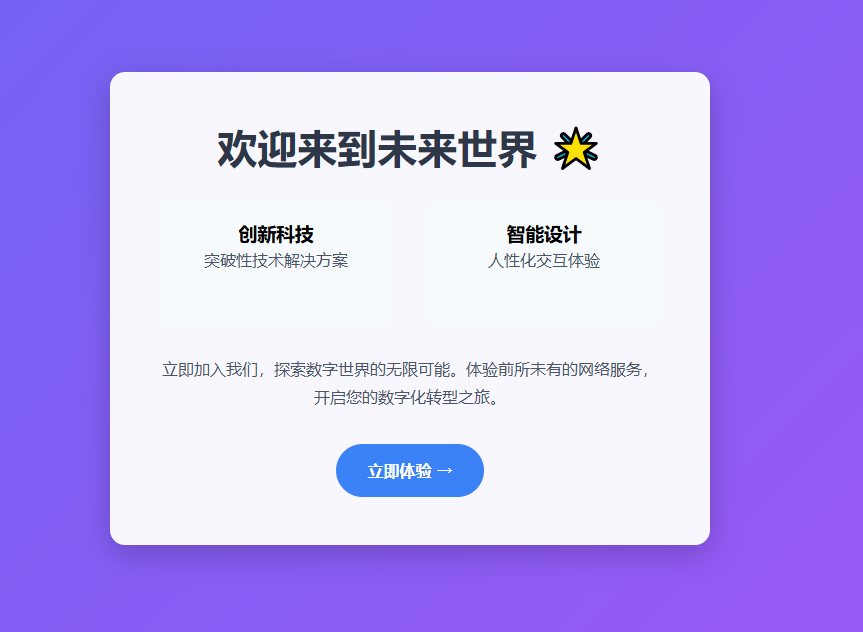
案例3:完美垂直居中
- 效果图
- 实例代码
css
<!DOCTYPE html>
<html lang="zh-CN">
<head>
    <meta charset="UTF-8">
    <meta name="viewport" content="width=device-width, initial-scale=1.0">
    <title>Flexbox完美垂直居中</title>
    <style>
        /* 基础重置 */
        * {
            margin: 0;
            padding: 0;
            box-sizing: border-box;
        }

        /* 全屏居中容器 */
        .hero-section {
            display: flex;
            justify-content: center;
            align-items: center;
            min-height: 100vh;
            background: linear-gradient(135deg, #6366f1 0%, #a855f7 100%);
            padding: 2rem;
        }

        /* 内容盒子 */
        .centered-box {
            background: rgba(255, 255, 255, 0.95);
            padding: 3rem;
            border-radius: 15px;
            box-shadow: 0 10px 30px rgba(0,0,0,0.2);
            text-align: center;
            max-width: 600px;
            transition: transform 0.3s ease;
        }

        .centered-box:hover {
            transform: translateY(-5px);
        }

        /* 内容样式 */
        h1 {
            color: #2d3748;
            margin-bottom: 1.5rem;
            font-size: 2.5rem;
        }

        p {
            color: #4a5568;
            line-height: 1.8;
            margin-bottom: 2rem;
        }

        .cta-button {
            display: inline-block;
            background: #3b82f6;
            color: white;
            padding: 1rem 2rem;
            border-radius: 50px;
            text-decoration: none;
            font-weight: bold;
            transition: all 0.3s ease;
        }

        .cta-button:hover {
            background: #2563eb;
            transform: scale(1.05);
        }

        /* 复杂内容示例 */
        .content-group {
            display: flex;
            gap: 2rem;
            justify-content: center;
            margin: 2rem 0;
        }

        .feature-item {
            flex: 1;
            padding: 1rem;
            background: #f7fafc;
            border-radius: 8px;
        }

        /* 响应式设计 */
        @media (max-width: 768px) {
            .centered-box {
                padding: 2rem;
                margin: 1rem;
            }

            h1 {
                font-size: 2rem;
            }

            .content-group {
                flex-direction: column;
                gap: 1rem;
            }
        }
    </style>
</head>
<body>
    <section class="hero-section">
        <div class="centered-box">
            <h1>欢迎来到未来世界 🌟</h1>
            <div class="content-group">
                <div class="feature-item">
                    <h3>创新科技</h3>
                    <p>突破性技术解决方案</p>
                </div>
                <div class="feature-item">
                    <h3>智能设计</h3>
                    <p>人性化交互体验</p>
                </div>
            </div>
            <p>立即加入我们,探索数字世界的无限可能。体验前所未有的网络服务,开启您的数字化转型之旅。</p>
            <a href="#" class="cta-button">立即体验 →</a>
        </div>
    </section>
</body>
</html>
代码核心解析:
- Flexbox魔法三件套:
css
.hero-section {
    display: flex;
    justify-content: center; /* 水平居中 */
    align-items: center;    /* 垂直居中 */
    min-height: 100vh;      /* 视口高度保证 */
}- 响应式处理:
- 移动端自动转换弹性方向
- 智能调整内边距
- 文字大小自适应
- 视觉增强:
- 渐变背景与半透明遮罩
- 微交互动画(hover效果)
- 卡片阴影与圆角
- 复杂内容支持:
- 嵌套弹性布局(content-group)
- 等宽功能卡片(feature-item)
- 多类型内容混合排列
效果说明:
- 始终在视口中心保持垂直水平居中
- 内容盒子最大宽度限制避免过宽
- 支持文本、图片(可自行添加)、按钮等任意内容类型
- 完美响应式适应各种屏幕尺寸
扩展技巧:
- 绝对居中图片:
css
.centered-img {
    width: 200px;
    height: 200px;
    object-fit: cover;
    margin: 0 auto 1rem;
}- 多元素不同对齐方式:
css
.special-layout {
    display: flex;
    flex-direction: column;
    align-items: flex-start; /* 左对齐 */
    justify-content: center; /* 垂直居中 */
}- 溢出内容处理:
css
.scrollable-box {
    max-height: 80vh;
    overflow-y: auto;
    padding-right: 1rem; /* 防止滚动条遮挡内容 */
}
案例4:瀑布流布局
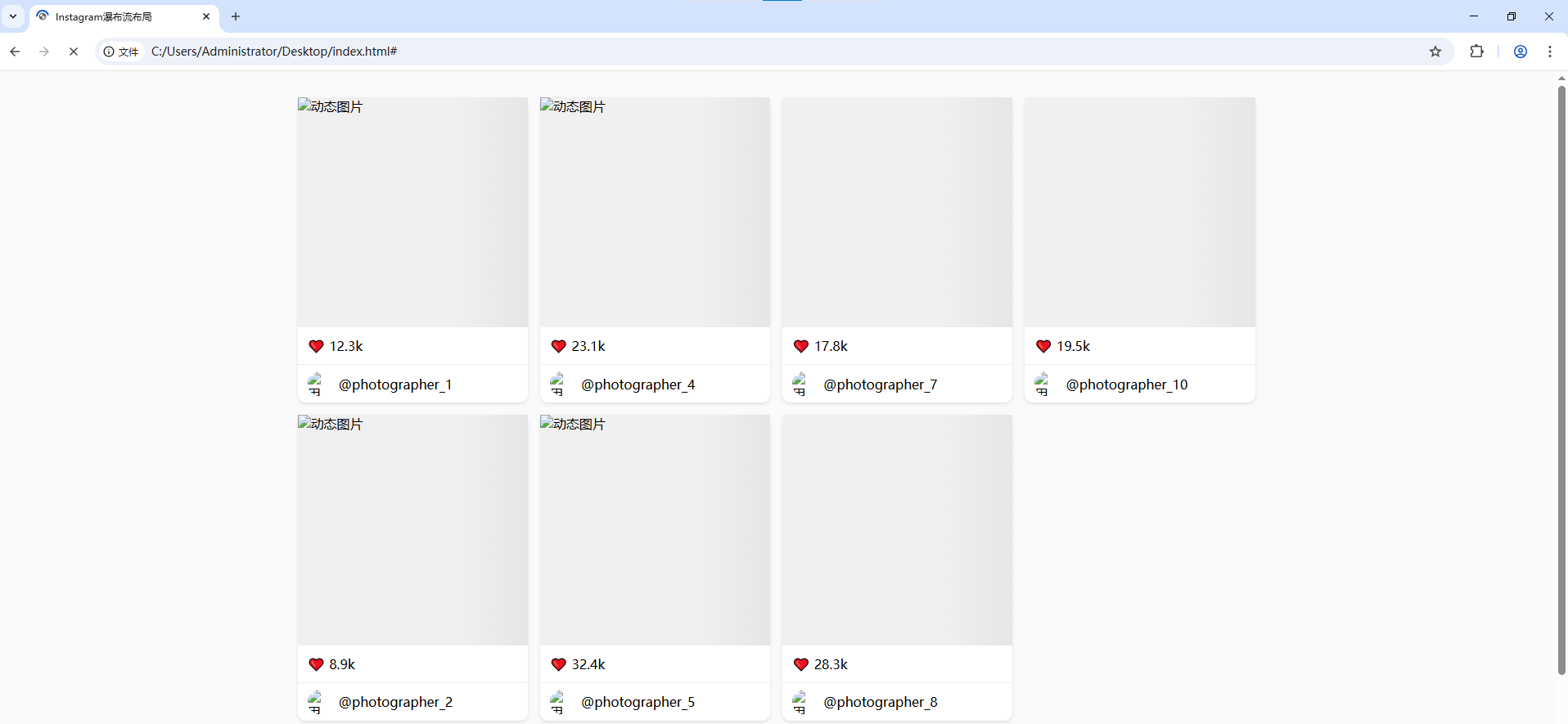
- 效果图
- 实例代码
html
<!DOCTYPE html>
<html lang="zh-CN">
<head>
    <meta charset="UTF-8">
    <meta name="viewport" content="width=device-width, initial-scale=1.0">
    <title>Instagram瀑布流布局</title>
    <style>
        * {
            margin: 0;
            padding: 0;
            box-sizing: border-box;
        }

        body {
            background: #fafafa;
        }

        /* 瀑布流容器 */
        .waterfall-container {
            column-count: 4;
            column-gap: 15px;
            max-width: 1200px;
            margin: 2rem auto;
            padding: 0 15px;
        }

        /* 瀑布流项目 */
        .waterfall-item {
            break-inside: avoid;
            margin-bottom: 15px;
            background: white;
            border-radius: 10px;
            box-shadow: 0 2px 4px rgba(0,0,0,0.1);
            transition: transform 0.3s ease;
        }

        .waterfall-item:hover {
            transform: translateY(-5px);
        }

        /* 图片容器 */
        .card-image {
            position: relative;
            padding-top: 100%; /* 1:1比例 */
            overflow: hidden;
        }

        .card-image img {
            position: absolute;
            top: 0;
            left: 0;
            width: 100%;
            height: 100%;
            object-fit: cover;
        }

        /* 卡片内容 */
        .card-content {
            padding: 12px;
        }

        .card-meta {
            display: flex;
            align-items: center;
            padding: 8px 12px;
            border-top: 1px solid #eee;
        }

        .avatar {
            width: 30px;
            height: 30px;
            border-radius: 50%;
            margin-right: 8px;
        }

        /* 响应式设计 */
        @media (max-width: 992px) {
            .waterfall-container {
                column-count: 3;
            }
        }

        @media (max-width: 768px) {
            .waterfall-container {
                column-count: 2;
            }
        }

        @media (max-width: 480px) {
            .waterfall-container {
                column-count: 1;
            }
        }
    </style>
</head>
<body>
    <div class="waterfall-container">
        <!-- 自动生成20个示例卡片 -->
        <script>
            const photos = [
                {id: 1, url: 'https://source.unsplash.com/random/800x800?mountain', likes: '12.3k'},
                {id: 2, url: 'https://source.unsplash.com/random/800x800?beach', likes: '8.9k'},
                {id: 3, url: 'https://source.unsplash.com/random/800x800?forest', likes: '15.2k'},
                {id: 4, url: 'https://source.unsplash.com/random/800x800?city', likes: '23.1k'},
                {id: 5, url: 'https://source.unsplash.com/random/800x800?animal', likes: '32.4k'},
                {id: 6, url: 'https://source.unsplash.com/random/800x800?food', likes: '9.7k'},
                {id: 7, url: 'https://source.unsplash.com/random/800x800?art', likes: '17.8k'},
                {id: 8, url: 'https://source.unsplash.com/random/800x800?tech', likes: '28.3k'},
                {id: 9, url: 'https://source.unsplash.com/random/800x800?car', likes: '14.6k'},
                {id: 10, url: 'https://source.unsplash.com/random/800x800?sport', likes: '19.5k'}
            ];

            const container = document.querySelector('.waterfall-container');
            photos.forEach(photo => {
                const item = document.createElement('div');
                item.className = 'waterfall-item';
                item.innerHTML = `
                    <div class="card-image">
                        <img src="${photo.url}" alt="动态图片">
                    </div>
                    <div class="card-content">
                        <p>❤️ ${photo.likes}</p>
                    </div>
                    <div class="card-meta">
                        <img src="https://source.unsplash.com/random/30x30?user" class="avatar" alt="用户头像">
                        <span>@photographer_${photo.id}</span>
                    </div>
                `;
                container.appendChild(item);
            });
        </script>
    </div>
</body>
</html>
代码核心特性:
- CSS多列布局魔法:
css
.waterfall-container {
    column-count: 4;  /* 列数 */
    column-gap: 15px; /* 列间距 */
    break-inside: avoid; /* 防止内容断裂 */
}- 智能响应式设计:
- 桌面(≥992px):4列
- 平板(768-992px):3列
- 小屏手机(480-768px):2列
- 超小屏(≤480px):1列
- 视觉增强技巧:
- 1:1 正方形图片容器(padding-top: 100%)
- 卡片悬停微动效(transform + transition)
- 真实阴影效果(box-shadow)
- 动态用户头像加载
- 性能优化:
- 图片懒加载(可扩展实现)
- CSS硬件加速(transform)
- 避免布局重排(break-inside)
扩展建议:
- 添加无限滚动:
javascript
window.addEventListener('scroll', () => {
    if (window.innerHeight + window.scrollY >= document.body.offsetHeight - 500) {
        // 加载更多内容
    }
});- 实现图片懒加载:
html
<img data-src="real-image.jpg" src="placeholder.jpg" class="lazyload">- 添加加载动画:
css
.card-image::before {
    content: '';
    position: absolute;
    top: 0;
    left: 0;
    width: 100%;
    height: 100%;
    background: linear-gradient(90deg, #f0f0f0 25%, #e0e0e0 50%, #f0f0f0 75%);
    background-size: 200% 100%;
    animation: loading 1.5s infinite;
}

@keyframes loading {
    0% { background-position: 200% 0; }
    100% { background-position: -200% 0; }
}
该实现方案在保持Instagram核心体验的同时,具备以下优势:
- 纯CSS布局(无JavaScript依赖)
- 完美响应式支持
- 高性能渲染
- 跨浏览器兼容性
- 易于扩展和维护
四、Flex布局的黑暗面
4.1 常见误区
- 过度使用margin :优先使用
gap属性 - 固定尺寸滥用 :灵活使用
flex-basis - 嵌套失控:避免超过3层嵌套容器
4.2 浏览器兼容性贴士
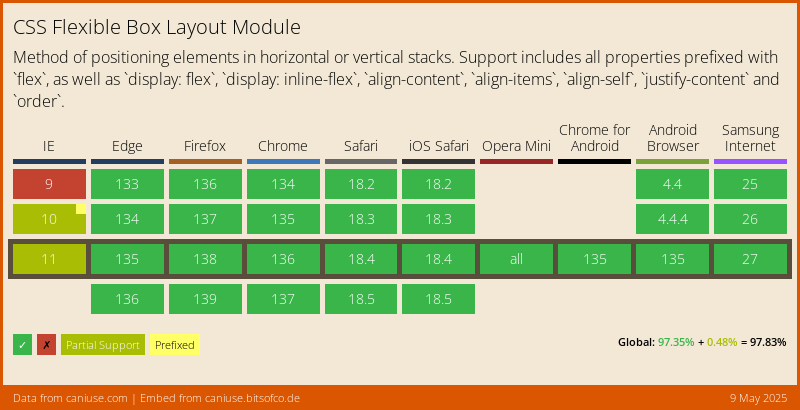
- IE10/11需要
-ms-前缀 - 使用Autoprefixer自动处理
- 渐进增强策略:
display: -webkit-box;
五、Flexbox的未来与超越
当Flexbox遇到CSS Grid:
css
.layout {
  display: grid;
  grid-template-columns: 200px 1fr;
}

.sidebar {
  display: flex;
  flex-direction: column;
}黄金组合原则:Grid管宏观布局,Flexbox管微观排列
结语:布局的艺术革命
Flexbox不仅是一个CSS模块,更是前端开发者的布局哲学------通过声明式的代码表达设计意图,让复杂的布局变得优雅简单。就像乐高积木,有限的属性通过不同组合,能构建出无限可能的界面世界。现在,你准备好用Flexbox的魔法,创造属于自己的布局杰作了吗?
实战练习推荐:
- 实现Instagram的瀑布流布局
- 创建可折叠的移动端菜单
- 构建自适应仪表盘面板
"好的布局应该像空气一样自然存在,不被用户察觉却处处体现用心。" ------ 匿名Flexbox大师
延伸阅读: