Python中的pyotp模块是一个用于生成和验证一次性密码(OTP)的库,支持基于时间(TOTP)和计数器(HOTP)的两种主流算法。它遵循RFC 4226(HOTP)和RFC 6238(TOTP)标准,兼容Google Authenticator等主流认证工具,广泛应用于需要增强系统安全性的业务场景中。
后端 python 代码
python
# main.py
import pyotp
import base64
import qrcode
import logging
from io import BytesIO
from flask import Flask, request, jsonify, render_template

app = Flask(__name__)

app.config['JSON_AS_ASCII'] = False

# 禁止控制台输出请求信息
logging.getLogger('werkzeug').disabled = True
# 设置总的日志输出级别
app.logger.setLevel(logging.ERROR)

# 404错误处理
@app.errorhandler(404)
def page_not_found(e):
    # 直接返回字符串
    return "您请求的资源不存在!", 404

# 500错误处理
@app.errorhandler(500)
def internal_error(e):
    return "服务器内部错误!", 500

# 捕获所有未处理异常
@app.errorhandler(Exception)
def handle_exception(e):
    return "发生错误,请稍后再试!", 500

@app.route('/')
def process_request():
    return render_template('index.html')

@app.route('/generate_secret', methods=['POST'])
def generate_secret():
    secret = pyotp.random_base32()
    response = {'status': 0, 'data': secret}
    return jsonify(response)

@app.route('/generate_otp', methods=['POST'])
def generate_otp():
    response = {'status': 1, 'data': None, 'msg': None}
    try:
        data = request.json
        secret = data['secret']
        length = int(data['length'])
        interval = int(data['interval'])

        if not verify_base32_key(secret):
            response['msg'] = '无效的密钥'
            return jsonify(response)

        if length>10 or length<4:
            response['msg'] = '口令的有效长度为 4 ~ 10 位'
            return jsonify(response)

        if interval>60 or interval<30:
            response['msg'] = '口令有效期范围为 30 ~ 60 秒'
            return jsonify(response)

        otp_code = get_otp_code(secret, length, interval)

        # 生成二维码
        img = qrcode.make(otp_code)
        buffered = BytesIO()
        img.save(buffered, format="PNG")
        img_str = base64.b64encode(buffered.getvalue()).decode()

        response['status'] = 0
        response['data'] = {
            'otp_code': otp_code,
            'qrcode': f"data:image/png;base64,{img_str}"
        }
        return jsonify(response)
    except Exception as e:
        response['msg'] = f'动态口令生成异常: {str(e)}'
        return jsonify(response)

@app.route('/verify_otp', methods=['POST'])
def verify_otp():
    data = request.json
    secret = data['secret']
    otp_code = data['otp_code']
    interval = int(data['interval'])
    response = {'status': 0, 'data': verify_otp_code(secret, otp_code, interval)}
    return jsonify(response)


'''
生成动态口令
secret_key 32位密钥字符串
digits 动态口令长度
interval 口令有效期
'''
def get_otp_code(secret_key, digits=6, interval=30):
    totp = pyotp.TOTP(secret_key, digits=digits, interval=interval)
    otp_code = totp.now()
    return otp_code

'''
校验动态口令
secret_key 32位密钥字符串
totp_code 动态口令
interval 口令有效期
'''
def verify_otp_code(secret_key, totp_code, interval=30):
    totp = pyotp.TOTP(secret_key, digits=len(totp_code), interval=interval)
    is_valid = totp.verify(totp_code)
    return is_valid

# 验证32位密钥, 标准的Base32字母表为A-Z和2-7,不含小写字母或特殊符号
def verify_base32_key(key):
    allowed = set('ABCDEFGHIJKLMNOPQRSTUVWXYZ234567')
    if len(key) != 32 or not all(c in allowed for c in key):
        return False
    try:
        base64.b32decode(key, casefold=False)
        return True
    except:
        return False

if __name__ == '__main__':
    app.run(host='0.0.0.0', port=8181)
前端 html 代码
在项目根目录下新建一个templates模板目录,然后在里面创建一个html文件,名称为 index.html
html
<!DOCTYPE html>
<html lang="zh-CN">
<head>
    <meta charset="UTF-8">
    <meta name="viewport" content="width=device-width, initial-scale=1.0, maximum-scale=5.0">
    <title>动态口令生成器</title>
    <style>
        :root {
            --primary-color: #2196F3;
            --secondary-color: #64B5F6;
            --background: linear-gradient(135deg, #f5f7fa 0%, #c3cfe2 100%);
        }

        * {
            box-sizing: border-box;
            margin: 0;
            padding: 0;
            font-family: 'Segoe UI', system-ui;
        }

        body {
            min-height: 100vh;
            display: flex;
            justify-content: center;
            align-items: center;
            background: var(--background);
            padding: 20px;
        }

        .container {
            background: rgba(255, 255, 255, 0.95);
            padding: 2rem;
            border-radius: 15px;
            box-shadow: 0 10px 30px rgba(0,0,0,0.1);
            width: 100%;
            max-width: 600px;
            transition: transform 0.3s ease;
        }

        .form-group {
            margin-bottom: 1.5rem;
        }

        label {
            display: block;
            margin-bottom: 0.5rem;
            color: #2c3e50;
            font-weight: 500;
        }

        input {
            width: 100%;
            padding: 12px;
            border: 2px solid #e0e0e0;
            border-radius: 8px;
            font-size: 16px;
            transition: border-color 0.3s ease;
        }

        input:focus {
            outline: none;
            border-color: var(--primary-color);
            box-shadow: 0 0 0 3px rgba(33, 150, 243, 0.1);
        }

        button {
            background: var(--primary-color);
            color: white;
            border: none;
            padding: 12px 24px;
            border-radius: 8px;
            font-size: 16px;
            cursor: pointer;
            transition: all 0.3s ease;
            width: 100%;
        }

        button:hover {
            background: var(--secondary-color);
            transform: translateY(-2px);
            box-shadow: 0 5px 15px rgba(33, 150, 243, 0.3);
        }

        #result {
            margin-top: 0rem;
            text-align: center;
        }

        #qrcode {
			display: none;
            margin: 0px auto;
			justify-content: center;
			align-items: center;
			width: 100%;
        }

        #timer {
            font-size: 16px;
            color: #e74c3c;
            margin-top: 1rem;
        }

		#error {
			color: #e74c3c;
		}

		#info {
			color: #009688;
			margin-top: 1rem;
		}

		.tab-nav {
			list-style: none;
			display: flex;
			margin-bottom: 2rem;
			border-bottom: 2px solid #eee;
		}

		.tab-nav li {
			padding: 12px 24px;
			cursor: pointer;
			color: #666;
			transition: all 0.3s ease;
			border-bottom: 2px solid transparent;
		}

		.tab-nav li.active {
			color: var(--primary-color);
			border-bottom-color: var(--primary-color);
		}

		.tab-content {
			display: none;
		}

		.tab-content.active {
			display: block;
		}

		.result-box {
			display: none;
			background: #f8f9fa;
			border-radius: 8px;
			padding: 1rem;
			text-align: center;
		}

		pre {
			white-space: pre-wrap;
			word-wrap: break-word;
			background: #fff;
			border-radius: 6px;
		}

		.copy-btn {
			margin-top: 2rem;
			background: #2F4056 !important;
			width: auto !important;
			display: inline-block !important;
		}

        @media (max-width: 480px) {
            .container {
                padding: 1.5rem;
            }

            input, button {
                font-size: 14px;
            }
        }
    </style>
</head>
<body>
	<div class="container">
		<ul class="tab-nav">
			<li class="active" data-tab="create-tab">生成密钥</li>
			<li data-tab="generate-tab">生成口令</li>
			<li data-tab="verify-tab">口令验证</li>
		</ul>

		<!-- 密钥生成界面 -->
		<div id="create-tab" class="tab-content active">
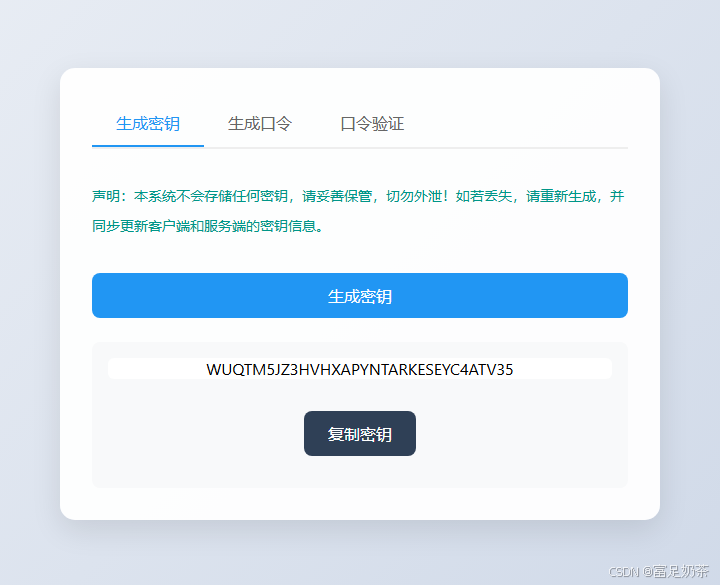
			<p style="color: #009688; line-height: 30px; font-size: 14px;">声明:本系统不会存储任何密钥,请妥善保管,切勿外泄!如若丢失,请重新生成,并同步更新客户端和服务端的密钥信息。</p>
			<button style="margin-top: 2rem; margin-bottom: 1.5rem;" onclick="generateSecret()">生成密钥</button>
			<div class="result-box">
				<pre id="new-secret"></pre>
				<button class="copy-btn" onclick="copySecrett()">复制密钥</button>
				<p id="info"></p>
			</div>
		</div>

		<!-- 动态口令生成界面 -->
		<div id="generate-tab" class="tab-content">
			<div class="form-group">
				<label for="secret">密钥:</label>
				<input type="text" id="secret" placeholder="请输入32位密钥" required>
			</div>

			<div class="form-group">
				<label for="length">动态口令长度:</label>
				<input type="number" id="length" min="4" max="10" value="6" placeholder="请输入动态口令长度,有效范围 4 ~ 10 位" required>
			</div>

			<div class="form-group">
				<label for="length">口令有效期(秒):</label>
				<input type="number" id="interval" min="30" max="60" value="60" placeholder="请输入动态口令有效期,时间范围 30 ~ 60 秒" required>
			</div>

			<button onclick="generateOTP()">生成动态口令</button>

			<div id="result">
				<div id="qrcode">
					<img id="qrImage" src="" alt="二维码">
				</div>
				<p id="otp_code"></p>
				<p id="timer"></p>
				<p id="error"></p>
			</div>
		</div>

		<!-- 口令验证界面 -->
		<div id="verify-tab" class="tab-content">
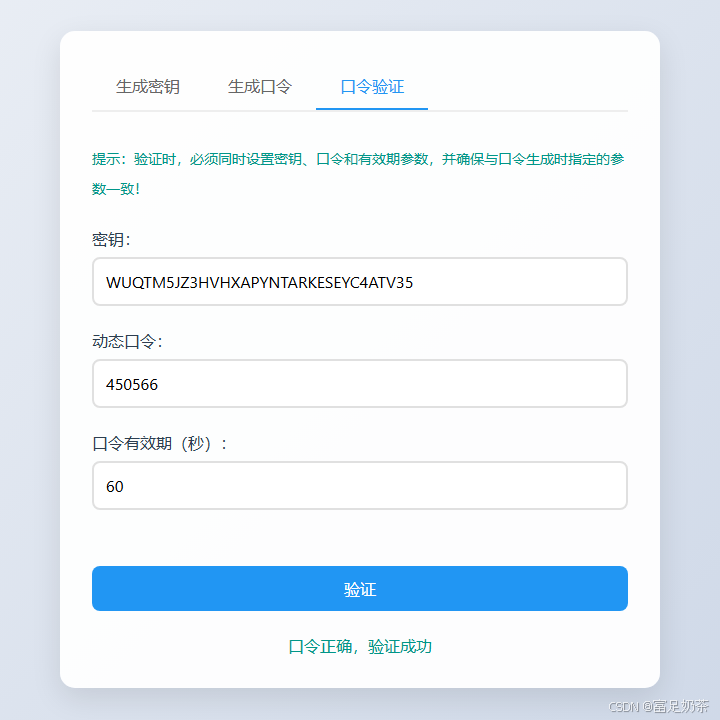
			<p style="color: #009688; line-height: 30px; font-size: 14px; margin-bottom: 1.5rem;">提示:验证时,必须同时设置密钥、口令和有效期参数,并确保与口令生成时指定的参数一致!</p>
			<div class="form-group">
				<label for="secret">密钥:</label>
				<input type="text" id="verify-secret" placeholder="请输入32位密钥" required>
			</div>
			<div class="form-group">
				<label for="secret">动态口令:</label>
				<input type="text" id="verify-otp_code" placeholder="请输入动态口令" required>
			</div>
			<div class="form-group">
				<label for="secret">口令有效期(秒):</label>
				<input type="number" id="verify-interval" min="30" max="60" value="60" placeholder="请输入动态口令有效期,时间范围 30 ~ 60 秒" required>
			</div>
			<button style="margin-top: 2rem; margin-bottom: 1.5rem;" onclick="verifyOTP()">验证</button>
			<div id="verify-info" style="text-align: center;"></div>
		</div>
	</div>

    <script>
        let countdown;

		document.querySelectorAll('.tab-nav li').forEach(tab => {
			tab.addEventListener('click', function() {
				// 移除所有激活状态
				document.querySelectorAll('.tab-nav li, .tab-content').forEach(el => {
					el.classList.remove('active');
				});

				// 设置当前激活状态
				this.classList.add('active');
				document.getElementById(this.dataset.tab).classList.add('active');
			});
		});

		// 生成密钥
		async function generateSecret() {
			document.getElementsByClassName('result-box')[0].style.display = 'none';
			document.getElementById('info').innerHTML = '';
			try {
                const response = await fetch('/generate_secret', {
                    method: 'POST',
                    headers: {
                        'Content-Type': 'application/json',
                    }
                });

                const resp = await response.json();

				const data = resp.data;
				document.getElementsByClassName('result-box')[0].style.display = 'block';
				document.getElementById('new-secret').textContent = data;
            } catch (error) {
                console.error('Error:', error);
            }
		}

		// 复制密钥
		function copySecrett() {
			const secret = document.getElementById('new-secret').textContent;
			navigator.clipboard.writeText(secret);
			document.getElementById('info').innerHTML = '复制成功';
		}

		// 生成动态口令
        async function generateOTP() {
			document.getElementById('error').innerHTML = '';
            const secret = document.getElementById('secret').value;
            const length = document.getElementById('length').value;
			const interval = document.getElementById('interval').value;

            try {
                const response = await fetch('/generate_otp', {
                    method: 'POST',
                    headers: {
                        'Content-Type': 'application/json',
                    },
                    body: JSON.stringify({ secret, length, interval })
                });

                const resp = await response.json();

				const data = resp.data;

				if (resp.status == 1) {
					clearInterval(countdown);
					document.getElementById('timer').innerHTML = '';
					emptyInfo()
					document.getElementById('error').innerHTML = `${resp.msg}`;
					return;
				}

                document.getElementById('otp_code').innerHTML = `动态口令:<strong>${data.otp_code}</strong>`;
				document.getElementById('qrImage').src = `${data.qrcode}`;
				document.getElementById('qrcode').style.display = 'flex';

                // 启动倒计时
                startCountdown(interval);
            } catch (error) {
                console.error('Error:', error);
            }
        }


		// 验证动态口令
        async function verifyOTP() {
			document.getElementById('verify-info').innerHTML = '';
            const secret = document.getElementById('verify-secret').value;
            const otp_code = document.getElementById('verify-otp_code').value;
			const interval = document.getElementById('verify-interval').value;

            try {
                const response = await fetch('/verify_otp', {
                    method: 'POST',
                    headers: {
                        'Content-Type': 'application/json',
                    },
                    body: JSON.stringify({ secret, otp_code, interval })
                });

                const resp = await response.json();

				if (resp.data) {
					document.getElementById('verify-info').innerHTML = '<p style="color: #009688;">口令正确,验证成功</p>';
				} else {
					document.getElementById('verify-info').innerHTML = '<p style="color: #e74c3c;">口令错误或已失效,验证失败</p>';
				}

            } catch (error) {
                console.error('Error:', error);
            }
        }

        function startCountdown(seconds) {
            let remaining = seconds;
            const timerElement = document.getElementById('timer');

            clearInterval(countdown);

            countdown = setInterval(() => {
				remaining--;
				timerElement.textContent = `有效期:${remaining} 秒`;
				if (remaining <= 0) {
                    clearInterval(countdown);
                    timerElement.textContent = '口令已过期';
                }
            }, 1000);
        }

		function emptyInfo() {
			document.getElementById('qrcode').style.display = 'none';
			document.getElementById('otp_code').innerHTML = '';
			document.getElementById('qrImage').src = '';
		}

    </script>
</body>
</html>
界面截图

🏷️ 如有疑问,可以关注 我的知识库,直接提问即可。