目录
一、项目简介
使用软件
Android Studio 4.0.0(2020版)
使用语言
JAVA
数据库
SQLite
注释量
中文注释量90%以上
项目页面
启动页、登录页、注册页、答题页
关键技术点
项目采用MVC架构模式,通过SQLiteOpenHelper管理数据库,使用SharedPreferences实现用户登录状态记忆功能,从JSON文件初始化题库数据,支持题目浏览、答案验证、答案解析查看等功能。
二、演示视频
原创模板--基于Android studio 实现的驾考训练App
三、项目要求
用Android系统实现一个机动车驾驶员科目一考试模拟训练app。要求将考试题编上题号,存储在SQLite 数据库中,用户可通过上下翻页键浏览试题,也可通过输入一个题号,翻到相应题号所对应的考题进行阅览,并且实现登录注册功能。
四、设计详情(部分)
登录页
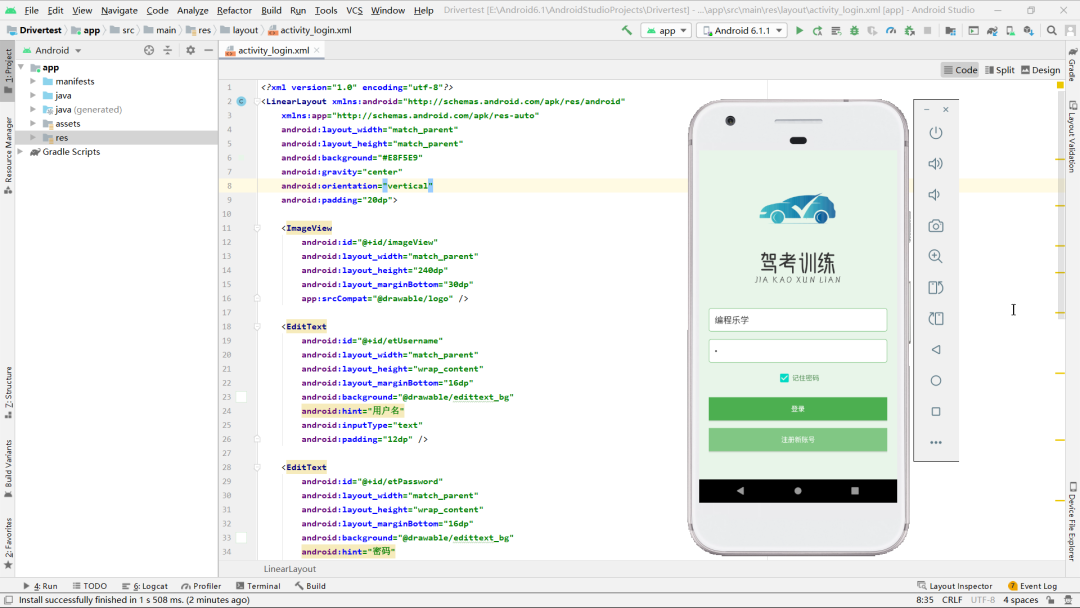
- 页面的结构
该页面采用垂直线性布局,整体结构清晰简洁。顶部设置了一个图片视图用于展示应用图标,下方依次排列用户名输入框、密码输入框、记住密码复选框、登录按钮和注册按钮。
所有元素居中显示,并保持统一的边距和样式。输入框和按钮均采用圆角矩形背景,配色以绿色系为主,整体界面风格清新自然,符合常见的登录页面设计规范。
- 使用到的技术
该页面使用了Android基础UI组件技术,包括线性布局、图片视图、编辑文本框、复选框和按钮等控件。
通过SharedPreferences实现了记住密码功能,可以本地存储用户登录信息。同时结合SQLite数据库验证用户凭证,实现了基本的登录逻辑。
页面还使用了资源文件定义样式,并通过Intent实现页面跳转功能,整体采用MVC架构模式进行开发。
- 页面详细介绍
这是一个标准的用户登录界面,主要功能包括用户身份验证和账号注册入口。界面设计注重用户体验,输入框有明确提示文字,密码字段自动隐藏输入内容。
记住密码选项可以保存登录凭证方便下次使用。登录按钮触发凭证验证,成功则跳转主界面,失败显示错误提示。注册按钮引导新用户创建账号。
整个页面布局合理,色彩搭配协调,操作流程符合用户习惯,实现了基本的登录功能需求。
java
package com.example.drivertest;

import android.content.Intent;
import android.content.SharedPreferences;
import android.os.Bundle;
import android.view.View;
import android.widget.Button;
import android.widget.CheckBox;
import android.widget.EditText;
import android.widget.Toast;
import androidx.appcompat.app.AppCompatActivity;

public class LoginActivity extends AppCompatActivity {
    private EditText etUsername, etPassword;
    private CheckBox cbRemember;
    private Button btnLogin, btnRegister;
    private UsersHelper dbHelper;
    private SharedPreferences sharedPreferences;

    @Override
    protected void onCreate(Bundle savedInstanceState) {
        super.onCreate(savedInstanceState);
        setContentView(R.layout.activity_login);

        dbHelper = new UsersHelper(this);
        sharedPreferences = getSharedPreferences("loginPrefs", MODE_PRIVATE);

        etUsername = findViewById(R.id.etUsername);
        etPassword = findViewById(R.id.etPassword);
        cbRemember = findViewById(R.id.cbRemember);
        btnLogin = findViewById(R.id.btnLogin);
        btnRegister = findViewById(R.id.btnRegister);

        // 检查是否有保存的登录信息
        boolean remember = sharedPreferences.getBoolean("remember", false);
        if (remember) {
            String username = sharedPreferences.getString("username", "");
            String password = sharedPreferences.getString("password", "");
            etUsername.setText(username);
            etPassword.setText(password);
            cbRemember.setChecked(true);
        }

        btnLogin.setOnClickListener(new View.OnClickListener() {
            @Override
            public void onClick(View v) {
                loginUser();
            }
        });

        btnRegister.setOnClickListener(new View.OnClickListener() {
            @Override
            public void onClick(View v) {
                startActivity(new Intent(LoginActivity.this, RegisterActivity.class));
            }
        });
    }

    private void loginUser() {
        String username = etUsername.getText().toString().trim();
        String password = etPassword.getText().toString().trim();

        if (username.isEmpty() || password.isEmpty()) {
            Toast.makeText(this, "请输入用户名和密码", Toast.LENGTH_SHORT).show();
            return;
        }

        boolean userExists = dbHelper.checkUser(username, password);
        if (userExists) {
            // 记住密码功能
            SharedPreferences.Editor editor = sharedPreferences.edit();
            if (cbRemember.isChecked()) {
                editor.putBoolean("remember", true);
                editor.putString("username", username);
                editor.putString("password", password);
            } else {
                editor.clear();
            }
            editor.apply();

            Toast.makeText(this, "登录成功", Toast.LENGTH_SHORT).show();
            // 跳转到主界面
             startActivity(new Intent(LoginActivity.this, MainActivity.class));
             finish();
        } else {
            Toast.makeText(this, "用户名或密码错误", Toast.LENGTH_SHORT).show();
        }
    }
}
答题页
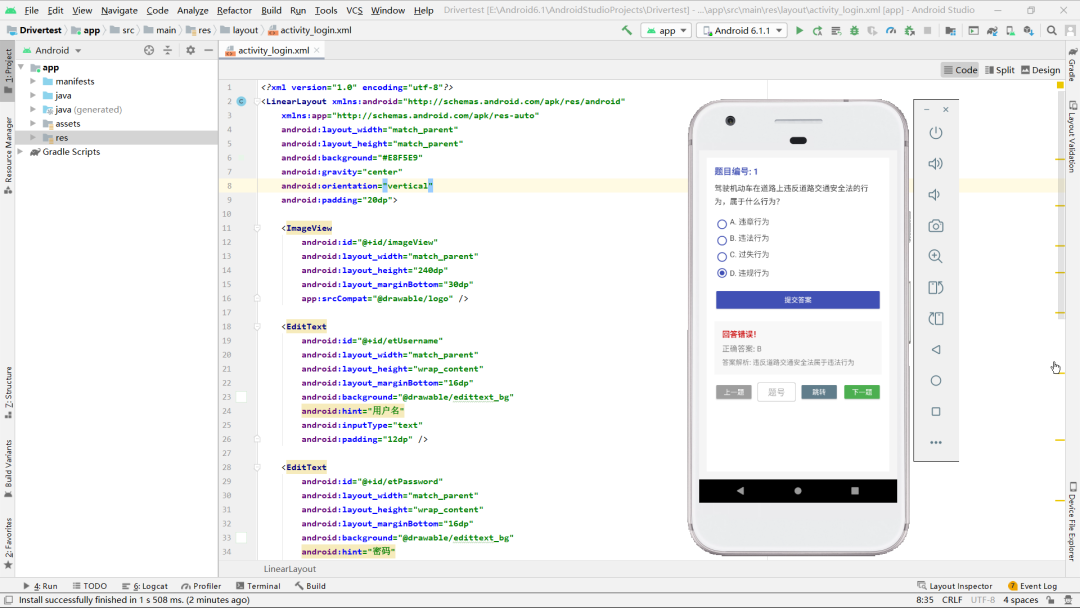
- 页面的结构
该页面采用滚动视图包裹垂直线性布局的整体结构,确保内容超出屏幕时可滚动查看。顶部显示题目编号和题目内容,中间是四个单选按钮组成的选项区域,下方设有提交答案按钮。
提交后显示结果反馈区域,包含答题结果、正确答案和解析。底部提供导航功能,包括上一题、下一题和跳转到指定题号的控件。
整体布局层次分明,功能区域划分清晰,采用卡片式设计提升视觉体验,配色以蓝色系为主,符合学习类应用的风格定位。
- 使用到的技术
该页面综合运用了Android的多种UI组件和交互技术。采用RadioGroup管理单选按钮组实现单选功能,通过动态显示隐藏结果区域实现交互反馈。
使用SQLite数据库存储和读取题目数据,实现题目切换和答案验证逻辑。页面支持题号跳转功能,包含输入验证和异常处理。
样式方面使用自定义背景和颜色调色板,通过elevation属性实现卡片阴影效果,整体采用响应式设计确保不同设备的适配性。
- 页面详细介绍
这是一个完整的题库练习页面,核心功能是呈现题目并验证用户答案。页面顶部清晰显示当前题号,题目内容采用合适的行间距提升可读性。
用户通过单选按钮选择答案后提交,系统立即反馈对错结果并显示详细解析。底部导航栏支持题目自由切换,跳转功能可快速定位特定题目。交互设计注重用户体验,未选择答案时给出提示,边界题目切换时显示Toast通知。
视觉设计上通过颜色区分不同状态,正确显示绿色、错误显示红色,整体布局整洁专业,适合长时间学习使用。
XML
<?xml version="1.0" encoding="utf-8"?>
<ScrollView xmlns:android="http://schemas.android.com/apk/res/android"
    xmlns:tools="http://schemas.android.com/tools"
    android:layout_width="match_parent"
    android:layout_height="match_parent"
    android:background="#F5F5F5"
    android:fillViewport="true"
    android:padding="16dp"
    tools:context=".MainActivity">

    <LinearLayout
        android:layout_width="match_parent"
        android:layout_height="wrap_content"
        android:orientation="vertical"
        android:background="@android:color/white"
        android:padding="16dp"
        android:elevation="4dp">

        <!-- 题目编号 -->
        <TextView
            android:id="@+id/tv_question_number"
            android:layout_width="match_parent"
            android:layout_height="wrap_content"
            android:textSize="18sp"
            android:textStyle="bold"
            android:textColor="#3F51B5"
            android:paddingBottom="12dp"/>

        <!-- 题目内容 -->
        <TextView
            android:id="@+id/tv_question"
            android:layout_width="match_parent"
            android:layout_height="wrap_content"
            android:textSize="16sp"
            android:textColor="#212121"
            android:lineSpacingMultiplier="1.2"
            android:paddingBottom="20dp"/>

        <!-- 选项区域 -->
        <RadioGroup
            android:id="@+id/rg_options"
            android:layout_width="match_parent"
            android:layout_height="wrap_content"
            android:orientation="vertical"
            android:paddingBottom="16dp">

            <RadioButton
                android:id="@+id/rb_option_a"
                style="@style/OptionRadioButton"
                android:paddingBottom="12dp"/>

            <RadioButton
                android:id="@+id/rb_option_b"
                style="@style/OptionRadioButton"
                android:paddingBottom="12dp"/>

            <RadioButton
                android:id="@+id/rb_option_c"
                style="@style/OptionRadioButton"
                android:paddingBottom="12dp"/>

            <RadioButton
                android:id="@+id/rb_option_d"
                style="@style/OptionRadioButton"/>
        </RadioGroup>

        <!-- 提交按钮 -->
        <Button
            android:id="@+id/btn_submit"
            android:layout_width="match_parent"
            android:layout_height="48dp"
            android:text="提交答案"
            android:textColor="@android:color/white"
            android:backgroundTint="#3F51B5"
            android:textAllCaps="false"
            android:layout_marginBottom="20dp"/>

        <!-- 结果反馈区域 -->
        <LinearLayout
            android:id="@+id/result_container"
            android:layout_width="match_parent"
            android:layout_height="wrap_content"
            android:background="#F8F8F8"
            android:orientation="vertical"
            android:padding="16dp"
            android:visibility="gone">

            <TextView
                android:id="@+id/tv_result"
                android:layout_width="match_parent"
                android:layout_height="wrap_content"
                android:paddingBottom="8dp"
                android:textSize="16sp"
                android:textStyle="bold" />

            <TextView
                android:id="@+id/tv_correct_answer"
                android:layout_width="match_parent"
                android:layout_height="wrap_content"
                android:paddingBottom="8dp"
                android:textSize="16sp" />

            <TextView
                android:id="@+id/tv_explanation"
                android:layout_width="match_parent"
                android:layout_height="wrap_content"
                android:lineSpacingMultiplier="1.3"
                android:textSize="14sp" />
        </LinearLayout>

        <!-- 导航按钮区域 -->
        <LinearLayout
            android:layout_width="match_parent"
            android:layout_height="wrap_content"
            android:orientation="horizontal"
            android:gravity="center"
            android:paddingTop="16dp">

            <Button
                android:id="@+id/btn_previous"
                android:layout_width="0dp"
                android:layout_height="40dp"
                android:layout_weight="1"
                android:text="上一题"
                android:backgroundTint="#9E9E9E"
                android:textColor="@android:color/white"
                android:textAllCaps="false"/>

            <EditText
                android:id="@+id/et_jump_to"
                android:layout_width="80dp"
                android:layout_height="40dp"
                android:inputType="number"
                android:hint="题号"
                android:gravity="center"
                android:background="@drawable/edittext_border"
                android:layout_marginLeft="8dp"
                android:layout_marginRight="8dp"/>

            <Button
                android:id="@+id/btn_jump"
                android:layout_width="0dp"
                android:layout_height="40dp"
                android:layout_weight="1"
                android:text="跳转"
                android:backgroundTint="#607D8B"
                android:textColor="@android:color/white"
                android:textAllCaps="false"/>

            <Button
                android:id="@+id/btn_next"
                android:layout_width="0dp"
                android:layout_height="40dp"
                android:layout_weight="1"
                android:text="下一题"
                android:backgroundTint="#4CAF50"
                android:textColor="@android:color/white"
                android:textAllCaps="false"
                android:layout_marginLeft="8dp"/>
        </LinearLayout>
    </LinearLayout>
</ScrollView>
五、项目源码
👇👇👇👇👇快捷方式👇👇👇👇👇