大屏项目指南
资源列表
1. echars官方文档:[Apache ECharts](https://echarts.apache.org/zh/index.html)
 	1. api: [Api](https://echarts.apache.org/zh/api.html#echarts)
 	2. 配置项手册:[Options](https://echarts.apache.org/zh/option.html#title)
 	3. 术语快查手册:[术语速查手册](https://echarts.apache.org/zh/cheat-sheet.html)
 	4. [echarts的渲染器ZRender](https://ecomfe.github.io/zrender-doc/public/)
 	5. [echarts源码](https://github.com/apache/echarts)
 	6. ...
2. 示例网站大全
 	1. [PPChart - 让图表更简单](https://ppchart.com/#/)
 	2. [makeapie echarts社区图表可视化案例](https://www.makeapie.cn/echarts)
 	3. [MCChart](https://echarts.zhangmuchen.top/#/index)
 	4. [分享你我 - ECharts 作品集](http://chart.majh.top/)
 	5. [分享你的可视化作品isqqw.com](https://www.isqqw.com/)
 	6. [官网示例](https://demo.runoops.com/echarts-website/examples/zh/index.html#chart-type-line)
3. 其他免费资源
 	1. 阿里云免费地图数据下载:[DataV.GeoAtlas地理小工具系列](https://datav.aliyun.com/portal/school/atlas/area_selector)
 	2. 100套大屏可视化模板 (他这些都是jquery的项目,可以参考学习): [100+套大数据可视化炫酷大屏Html5模板;包含行业:社区、物业、政务、交通、金融银行等,全网最新、最多,最全、最酷、最炫大数据可视化模板。陆续更新中](https://github.com/iGaoWei/BigDataView)
 	3. 数据可视化设计:[统计图表 Chart | AntV](https://antv.antgroup.com/specification/graph/chart)
大屏项目布局和响应式
-
页面布局就用Gird布局(让ai生成 ) CSS Grid 网格布局教程 - 阮一峰的网络日志 ,CSS 网格布局指南 | CSS-Tricks - CSS技巧
-
响应式用rem
-
echats中的尺寸可以自己写个函数转换一下:
-
场景是:在echarts的options配置的尺寸是固定的px,比如设置label的fontSize:14,这个14是固定的就是14px,这里不会动态变化,当大分辨率下会显得很小所以需要我们写个函数处理下得到动态的结果
js// 基于设计稿宽度自适应的函数 function autoSize(size) { const clientWidth = window.innerWidth || document.documentElement.clientWidth; const scale = clientWidth / 1920; // 1920是设计稿宽度 return Math.round(size * scale); } // ECharts 配置示例 option = { title: { text: '自适应字体', textStyle: { fontSize: autoSize(20) // 20 是设计稿上写的字号 } }, series: [ { type: 'pie', label: { fontSize: autoSize(14) } } ] }; -
echarts使用入门
-
下载echarts包 npm install echarts 即可
-
let chart = echarts.init()//初始化,要保证能够拿到dom并且dom是可见的
-
设置初始option
-
绑定resize事件
-
绑定点击事件
-
拿到数据后更新option
下面是封装的一个class,框架无关
js
import charttheme from '../assets/charttheme.json';//主题文件,可在echarts官网自定义主题
import * as Chart from 'echarts';

class ChartClass {
  // 静态属性存储已注册的主题
  static registeredThemes = new Set();
    //默认配置项,可以在初始化图标后设置,统一放在这个类的静态属性里,提高复用性
  static defaultOption = {
      grid: {
        left: '3%',
        right: '4%',
        bottom: '10%',
        containlabel: true
      },
		//...
    };
  // 静态方法注册主题
  static registerTheme(themeName = 'infographic', themeConfig = charttheme) {
    if (!this.registeredThemes.has(themeName)) {
      Chart.registerTheme(themeName, themeConfig);
      this.registeredThemes.add(themeName);
    }
  }

  constructor(dom, theme = 'infographic', initOptions = {}) {
      //
     if(Chart.getInstanceByDom(dom))return//如果已经挂载就退出
    this.chart =  Chart.init(dom, theme, initOptions);
    this.dom = dom;
    this.observer = null;
    this.resizeObserver = null;


    // this.chart.setOption(this.defaultChartOptions)
    //DOM 监听(用于销毁时清理)
    //当dom销毁时,进行清理操作
    this._initObserver();
    // 初始化尺寸监听
    this._initResizeObserver();
  }

  setOption(options) {
    // 合并默认配置和传入的配置
    const mergedOptions = Object.assign({}, this.defaultchartoptions, options);
    this.chart.setOption(mergedOptions, true);
  }

  dispose() {
    if (this.chart) {
      this.chart.dispose();
      this.chart = null;
    }

    if (this.observer) {
      this.observer.disconnect();
      this.observer = null;
    }

    if (this.resizeObserver) {
      this.resizeObserver.disconnect();
      this.resizeObserver = null;
    }
  }
  dispatchAction(){
    this.chart.dispatchAction(...arguments);
  }
  _initObserver() {
    const parent = this.dom.parentNode;

    if (!parent) {
      this.dispose();
      return;
    }

    const observer = new MutationObserver((mutations) => {
      for (const mutation of mutations) {
        if (mutation.type === 'childList') {
          // 检查被移除的节点中是否包含当前图表DOM
          for (const removedNode of mutation.removedNodes) {
            if (removedNode.contains(this.dom) || removedNode === this.dom) {
              this.dispose();
              observer.disconnect();
              return;
            }
          }

          // 同时检查DOM是否仍在文档中
          if (!document.body.contains(this.dom)) {
            this.dispose();
            observer.disconnect();
            return;
          }
        }
      }
    });

    // 修改观察选项,增加subtree以监听所有子节点变化
    observer.observe(document.body, {
      childList: true,
      subtree: true
    });

    this.observer = observer;
  }

  _initResizeObserver() {
    // const resizeObserver = new ResizeObserver(() => {
    //   if (this.chart && !this.chart.isDisposed()) {
    //     this.chart.resize();
    //   }
    // });

    // resizeObserver.observe(this.dom);

    // this.resizeObserver = resizeObserver;

    window.addEventListener('resize', () => {
      if (this.chart && !this.chart.isDisposed()) {
        console.log("窗口尺寸变化");


        this.chart.resize();
      }
    });

  }
}

// 静态方法调用:类初始化时注册主题
// ChartClass.registerTheme();

export default ChartClass;
使用
js
import ChartClass from './chartClass';

export default function sandian(dom) {
    // 根据百分比计算背景色
    function getBackgroundColor(percentStr) {
        const percent = parseFloat(percentStr.replace('%', ''));
        if (percent >= 60) return '#ff4757';  // 红色(高百分比)
        if (percent >= 20) return '#ffa726';  // 橙色(中等百分比)
        return '#42a5f5';  // 蓝色(低百分比)
    }

    function getBorderColor(percentStr) {
        const percent = parseFloat(percentStr.replace('%', ''));
        if (percent >= 60) return '#ff3742';
        if (percent >= 20) return '#ff9800';
        return '#2196f3';
    }

    var data2 = [
        {
            name: "马云马老板",
            children: [
                {
                    //子集
                    name: "北京国风信通科技有限公司",
                    value: "控股",
                    percent: "60%",
                    money: "120万元",
                    bgColor: getBackgroundColor("60%"),
                    borderColor: getBorderColor("60%")
                },
                {
                    name: "北京阿里巴巴信息技术有限公司",
                    value: "控股",
                    percent: "1.43%",
                    money: "800万元",
                    bgColor: getBackgroundColor("1.43%"),
                    borderColor: getBorderColor("1.43%")
                },
                {
                    name: "高德软件有限公司",
                    value: "控股",
                    percent: "67%",
                    money: "16242.4242万元",
                    bgColor: getBackgroundColor("67%"),
                    borderColor: getBorderColor("67%")
                },
                {
                    name: "杭州大井头贰拾贰号文化艺术有限公司",
                    value: "控股",
                    percent: "99%",
                    money: "990万元",
                    bgColor: getBackgroundColor("99%"),
                    borderColor: getBorderColor("99%")
                },
            ],
        },
    ];
    var chartDom = dom
    var myChart = new ChartClass(chartDom);

    var option;

    option = {
        tooltip: {
            trigger: "item",
            formatter: "{b}",
        },
        series: [
            {
                type: "tree",
                name: "股权穿透图",
                edgeShape: "polyline", //链接线是折现还是曲线
                orient: "TB",
                data: data2,
                width: 1000,
                height: 200,
                top: "30%",
                left: "5%",
                symbolSize: 1,
                initialTreeDepth: 10,
                hoverAnimation: false, // 禁用悬停动画
                label: {
                    // show: false,

                    position: [-80, 10],  // 调整位置以适应更宽的标签
                    verticalAlign: "middle",
                    align: "left",
                    backgroundColor: "#0084ff",
                    color: "#fff",
                    padding: [15, 20, 15, 20],  // 上右下左的内边距
                    borderWidth: 2,
                    borderColor: "#0070d9",
                    fontWeight: "bold",
                    fontSize: 14,  // 减小字体以适应更多文本
                    minMargin: 15,  // 增加最小边距避免重叠
                    width: 120,  // 设置固定宽度
                    height: 40,   // 设置固定高度
                    overflow: 'break',  // 文本换行而不是截断
                    lineHeight: 16,  // 设置行高
                    // formatter: function(params) {
                    //     // 自定义格式器,确保文本适应宽度
                    //     return params.name;
                    // }
                },
                leaves: {
                    label: {
                        // show: false,
                        position: [-120, 40],
                        verticalAlign: "middle",
                        align: "left",
                        color: "#fff",
                        padding: [15, 20, 15, 20],
                        borderWidth: 2,
                        width: 200,
                        height: 50,
                        fontSize: 12,
                        fontWeight: "bold",
                        overflow: 'truncate',
                        lineHeight: 14,
                        ellipsis: '...',
                        formatter: function (params) {
                            const percent = params.data.percent || '0%';
                            const money = params.data.money || '';
                            // const value = params.data.value || '';
                            const name = params?.name || '';
                            let bg = parseInt(money) >= 1000 ? 'red' : 'container';
                            return `{${bg}|${name}}\n{${bg}|${percent}}\n{${bg}|${money}}`;

                        },
                        backgroundColor: 'transparent',
                        borderColor: "transparent",
                        rich: {
                            container: {
                                backgroundColor: "#0084ff",
                                // borderColor: "#e0e0e0",
                                borderWidth: 1,
                                // borderRadius: 6,
                                padding: [20, 15],
                                width: 200,
                                lineHeight: 30,
                                // lineHeight: 14,
                            },
                            red: {
                                backgroundColor: "#ff4757",

                                // borderColor: "#e0e0e0",
                                borderWidth: 1,
                                // borderRadius: 6,
                                padding: [20, 15],
                                width: 200,
                                lineHeight: 30,
                            }
                        }

                    }
                },


                lineStyle: {
                    color: "#9b97beff",
                },
                expandAndCollapse: false,
                animationDuration: 550,
                animationDurationUpdate: 750,
            },
        ],
    };

    option && myChart.setOption(option);


    //可以通过他的内部api得到坐标,然后通过graphic覆盖来自定义节点形状等


    // myChart.chart.on('finished', function () {
    //     var seriesModel = myChart.chart.getModel().getSeriesByIndex(0);
    //     var data = seriesModel.getData();

    //     // 清空旧的 graphic
    //     //   myChart.chart.setOption({ graphic: [] });
    //     let graphic = [

    //     ]
    //     // 遍历所有节点并添加背景矩形 + 文本
    //     data._graphicEls.forEach((el, index) => {

    //         const layout = { x: 0, y: 0 }
    //         layout.x = el.transform[4]
    //         layout.y = el.transform[5]


    //         if (!layout) return
    //         // 使用 graphic 绘制背景和文本
    //         const groupName = data._idList[index];
    //         // 创建图形组
    //         const graphicGroup = {
    //             type: 'group',
    //             name: groupName, // 分组名称,用于后续查找
    //             id: `group_${index}`, // 唯一标识
    //             position: [layout.x, layout.y], // 组定位(替代单个元素定位)
    //             children: [
    //                 // 第一个图特殊处理:矩形改为椭圆并设置黄色
    //                 index === 2 ? {
    //                     type: 'ellipse',  // 将矩形改为椭圆
    //                     z: 1000,
    //                     shape: {
    //                         cx: 0,       // 椭圆中心x坐标(相对于组原点)
    //                         cy: 0,       // 椭圆中心y坐标(相对于组原点)
    //                         rx: 80,      // x轴半径(原矩形宽度的一半)
    //                         ry: 20       // y轴半径(原矩形高度的一半)
    //                     },
    //                     style: {
    //                         fill: 'rgba(141, 141, 25, 1)',  // 黄色填充
    //                         stroke: 'rgba(0, 0, 0, 0.5)',
    //                         borderRadius: 20  // 可选:添加圆角增强椭圆效果
    //                     }
    //                 } : {
    //                     // 其他节点保持原矩形样式
    //                     type: 'rect',
    //                     z: 1000,
    //                     shape: {
    //                         x: -80, // 相对于组的偏移量
    //                         y: -20,
    //                         width: 160,
    //                         height: 40,
    //                     },
    //                     style: {
    //                         fill: 'rgba(80, 113, 184, 1)',
    //                         stroke: 'rgba(0, 0, 0, 0.5)',
    //                     }
    //                 },
    //                 // 文本元素(可选)
    //                 {
    //                     type: 'text',
    //                     z: 1001,
    //                     style: {
    //                         text: (groupName || '未命名').length > 8 ?
    //                             (groupName || '未命名').slice(0, 8) + '...' :
    //                             (groupName || '未命名'),
    //                         fontSize: 12,
    //                         fill: '#fff',
    //                         // 将textAlign和textVerticalAlign替换为正确的对齐属性
    //                         align: 'center',         // 水平居中
    //                         verticalAlign: 'middle'  // 垂直居中
    //                     },
    //                     // 文本元素定位(相对于组原点)
    //                     left: -60,  // 组原点已在矩形中心
    //                     top: -5,

    //                 }
    //             ]
    //         };

    //         graphic.push(graphicGroup);

    //     });
    //     myChart.chart.setOption({
    //         graphic: graphic
    //     });
    // });

    return myChart
}
效果图

整个项目的代码地址 : dty/bigViewReact
重要概念
术语快查手册:术语速查手册
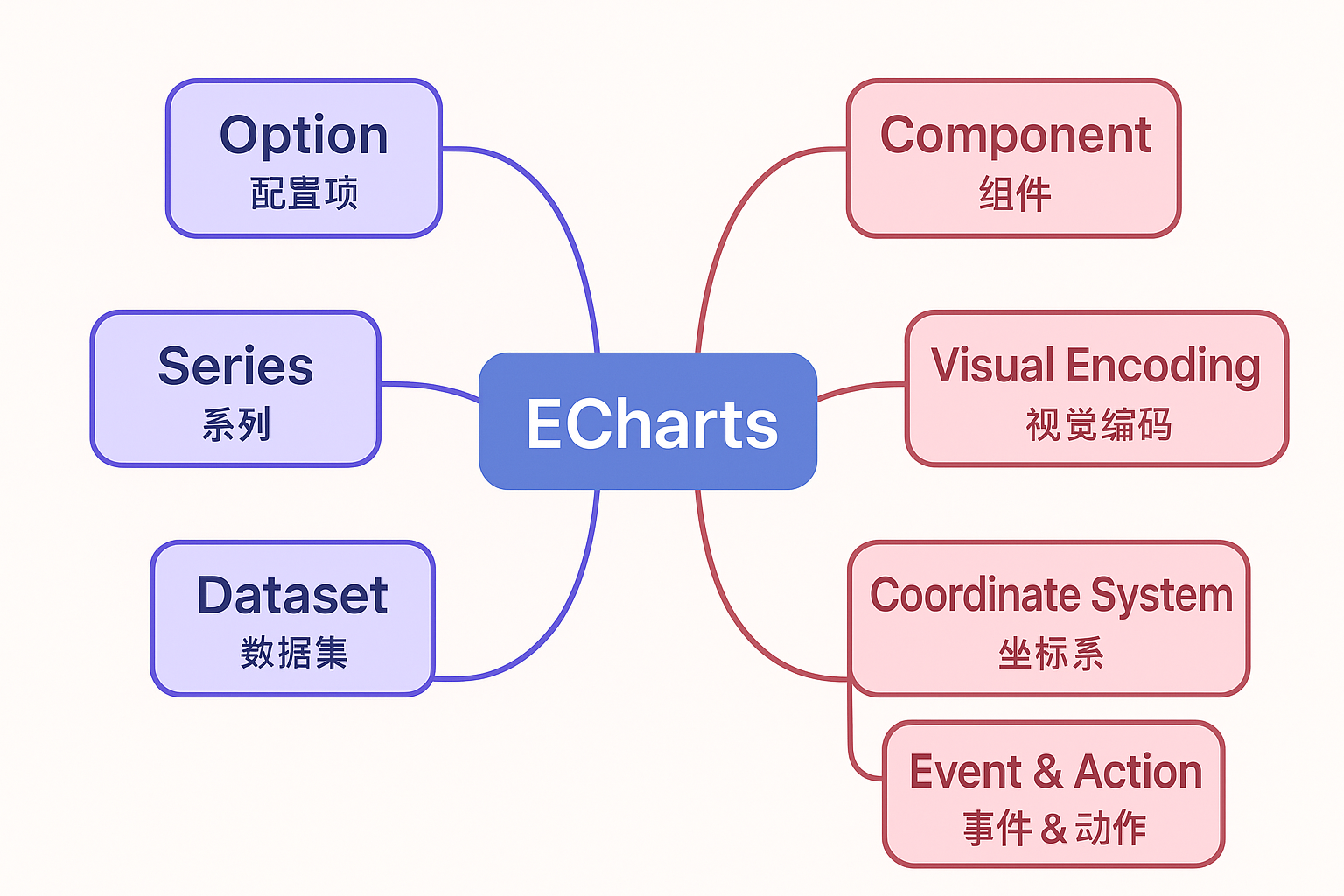
Option(配置项 → 就是一份"图表说明书",告诉 ECharts 要画什么样的图。
Series(系列) → 决定画哪种图(柱状图/折线图/饼图)和用哪些数据。系列和维度是正交关系
Dataset(数据集) → 把原始数据统一放在一个表里,方便多个图表共享使用。只适合特定坐标系
Dimension(维度) → 数据表的"列",决定某个字段用来当 x 轴、y 轴还是提示信息。
Coordinate System(坐标系) → 数据摆放的空间,比如直角坐标、极坐标、地图。
Component(组件) → 图表上的配件,比如标题、图例、提示框、缩放条。
Visual Encoding(视觉编码) → 数据转成图形的规则,比如数值大小对应柱子高度或颜色深浅。
Event & Action(事件与动作) → 图表的交互机制,你点一下图表,它能给你反馈或执行操作
不同图标的统计特性
| 图表类型 | 统计特性 | 适合场景 |
|---|---|---|
| 柱状图 (Bar Chart) | 比较不同类别的数据大小 | 各地区销量对比、部门业绩 |
| 折线图 (Line Chart) | 数据随时间的趋势变化 | 股票走势、网站流量、温度变化 |
| 饼图 / 环形图 (Pie/Donut Chart) | 整体中各部分的占比 | 市场份额、支出结构、人口分布 |
| 散点图 (Scatter Plot) | 两个变量之间的相关性、分布 | 学习时间 vs 成绩、广告费 vs 销售额 |
| 雷达图 (Radar Chart) | 多维度指标对比 | 运动员能力、公司竞争力 |
| 堆叠图 (Stacked Bar/Line) | 整体及部分随时间的变化 | 渠道销售额趋势、能源消耗结构 |
| 热力图 (Heatmap) | 二维空间上的数值密度分布 | 点击热区、时间-地点活动频率 |
| 关系图 (Graph) | 节点之间的连接关系 | 社交网络、知识图谱、网络拓扑 |
| 地图 (Geo/Map) | 地理空间分布 | 各省 GDP、疫情分布、物流覆盖 |
| 箱线图 (Boxplot) | 数据分布特征(中位数、离散度、异常值) | 工资分布、考试成绩差异、实验数据分析 |