基于Taro4、Vue3、TypeScript、Webpack5打造的一款最新版微信小程序、H5的多端开发简单模板

特色
-
💪 TypeScript 全新类型系统支持
-
🎨 Tailwindcss4 - 目前最 流行的原子化
CSS框架,用于快速UI开发 -
🔥 使用 新的
<script setup>语法 -
🚀 NutUI-Vue - 无需引入直接使用高质量组件,覆盖移动端主流场景
-
🌍 API 采用模块化导入方式 根据demo.js文件设置接口,以API_xxx_method的方式命名,在请求时无需导入 直接使用useRequest()函数返回参数以解构的方式获取,拿到即为写入的接口
准备
本项目搭建采用环境如下
vscode
v1.103.2node
v22.14.0taro
v4.1.5pnpm
v10.11.0
步入正题
创建项目基本结构
-
打开vscode编辑器终端进行操作
-
安装taro脚手架
bashpnpm install -g @tarojs/cli -
创建基础模版
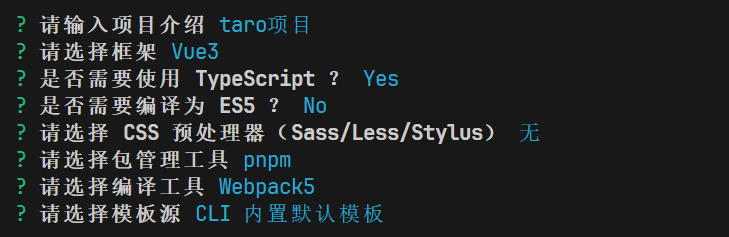
bashtaro init my-taro-project根据相应提示进行如下选择
-
进入创建的 my-taro-project 终端目录下
为了可以同时并且实时的预览小程序和h5,更改下
config/index.ts文件中的部分内容jsoutputRoot: `dist/${process.env.TARO_ENV}` -
直接运行微信小程序自动安装依赖
bashpnpm dev:weapp -
打开微信开发者工具
如未安装点击下面链接下载安装即可👇
https://developers.weixin.qq.com/miniprogram/dev/devtools/download.html打开编译过后的微信小程序代码在:`dist》weapp`目录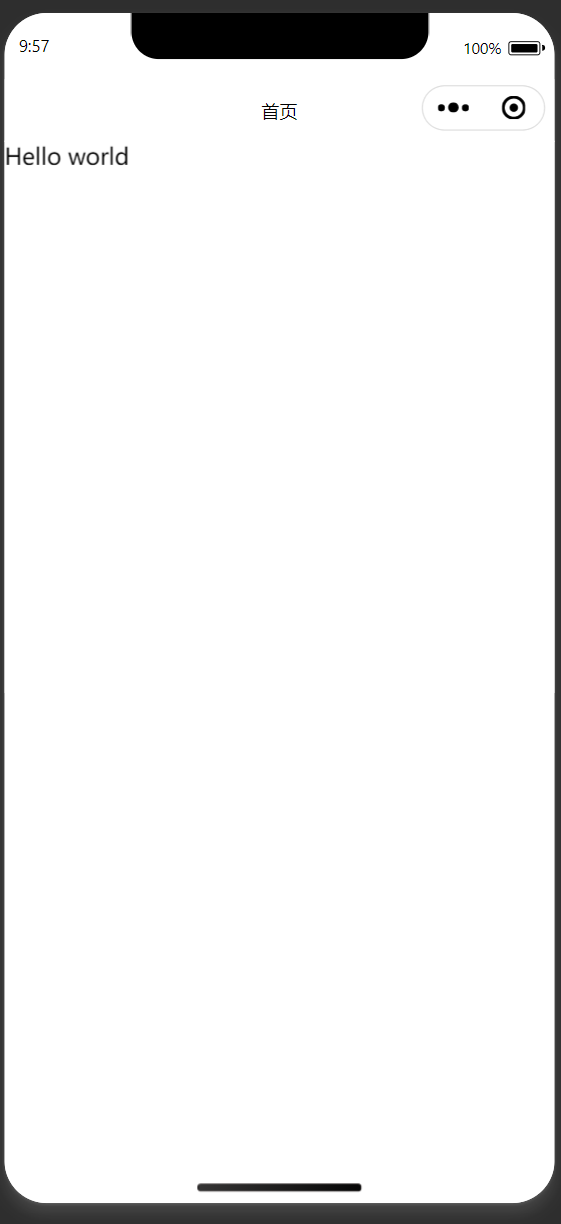
项目结构介绍
https://docs.taro.zone/docs/folder
接入Pinia
安装
bash
pnpm install pinia taro-plugin-pinia修改配置
修改config/index.ts内容
js
plugins: [
 "taro-plugin-pinia",
],
compiler: {
  type: "webpack5",
  prebundle: {
	enable: false, // 开启后导致pinia丢失响应式
  },
},
引入使用
创建以下文件夹以及文件
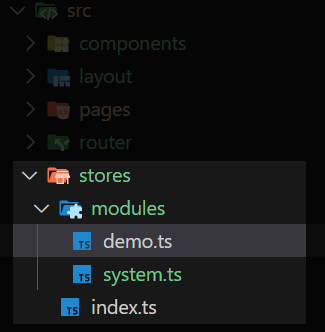
写入以下代码
index.ts
ts
import { createPinia } from "pinia";
import type { App } from "vue";

export const piniaStore = createPinia();
export function setupStore(app: App) {
  app.use(piniaStore);
}
demo.ts
ts
import { defineStore } from 'pinia'
import { piniaStore } from '@/stores'

const useCounterStore = defineStore('counter', {
  state: () => {
    return { count: 0 }
  },
  actions: {
    increment() {
      this.count++
    },
  },
})

export function useCounterOutsideStore() {
  return useCounterStore(piniaStore)
}
使用pinia
app.ts
ts
import { createApp } from "vue";
import { setupStore } from "./stores"; // +
import "./app.css";

const App = createApp({
  onShow(options) {
    console.log("App onShow.");
  },
});
setupStore(App); // +

export default App;
src/pages/index/index.ts
html
<template>
    <view>{{ msg }}</view>
    <view class="text-red-500" @tap="testPinia">点我测试pinia{{ count }}</view>
</template>

<script setup lang="ts">
import { ref, computed } from 'vue'
import './index.css'
import { useCounterOutsideStore } from '@/stores/modules/demo'

const msg = ref('Hello world')
const count = computed(() => counterStore.count)
const counterStore = useCounterOutsideStore()
const testPinia = () => {
  counterStore.increment()
  console.log(counterStore.count)
}
</script>
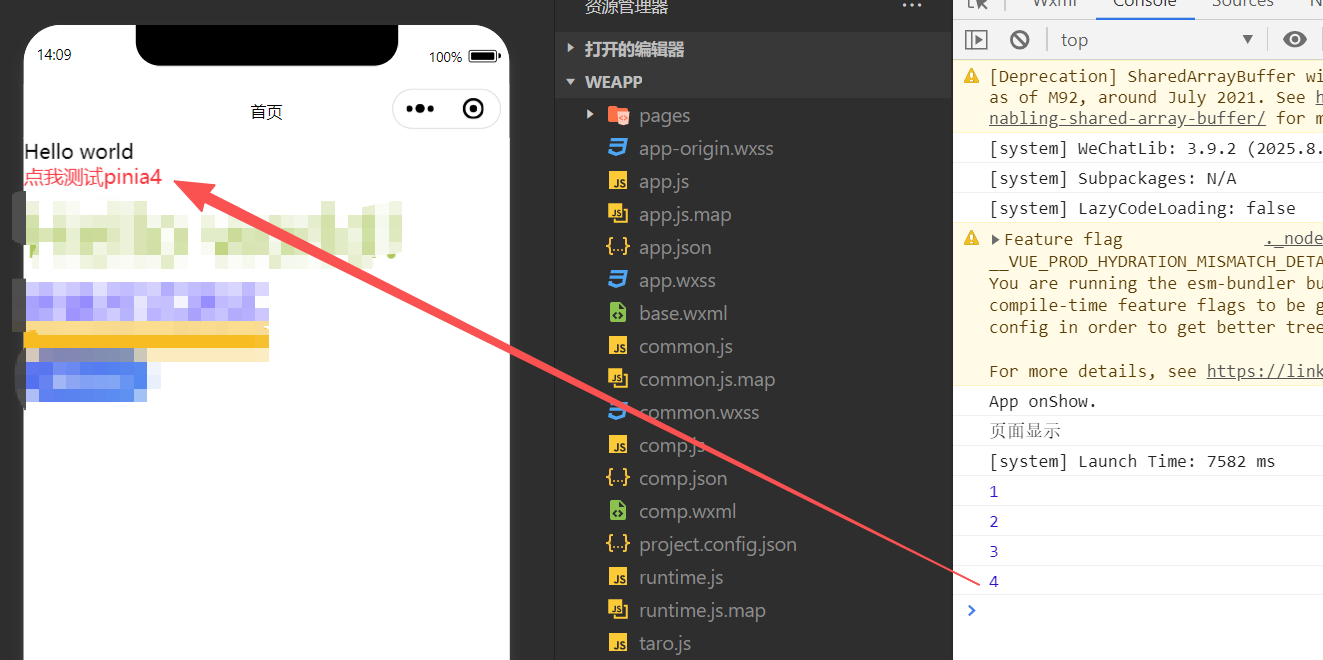
运行结果
接入Tailwind
安装
bash
pnpm install -D tailwindcss @tailwindcss/postcss postcss weapp-tailwindcss autoprefixerhttps://github.com/sonofmagic/weapp-tailwindcss
创建写入
创建 postcss.config.js 并注册 tailwindcss
ts
export default {
  plugins: {
    "@tailwindcss/postcss": {},
    autoprefixer: {},
  },
}
tailwind.config.ts
ts
/** @type {import('tailwindcss').Config} */
module.exports = {
  // 这里给出了一份 taro 通用示例,具体要根据你自己项目的目录结构进行配置
  // 比如你使用 vue3 项目,你就需要把 vue 这个格式也包括进来
  // 不在 content glob 表达式中包括的文件,在里面编写 tailwindcss class,是不会生成对应的 css 工具类的
  content: ['./public/index.html', './src/**/*.{html,js,ts,jsx,tsx}'],
  // 其他配置项 ...
  corePlugins: {
    // 小程序不需要 preflight,因为这主要是给 h5 的,如果你要同时开发多端,你应该使用 process.env.TARO_ENV 环境变量来控制它
    preflight: false,
  },
}
package.json
json
"scripts": {
+ "postinstall": "weapp-tw patch"
}
添加这段脚本的用途是,每次安装包后,都会自动执行一遍 weapp-tw patch 这个脚本,给本地的 tailwindcss 打上小程序支持补丁。
config/index.js
ts
mini: {
	webpackChain(chain) {
		chain.resolve.plugin("tsconfig-paths").use(TsconfigPathsPlugin);
		chain.merge({
		  plugin: {
			install: {
			  plugin: UnifiedWebpackPluginV5,
			  args: [
				{
				  // 这里可以传参数
				  rem2rpx: true,
				  tailwindcss: {
					v4: {
					  cssEntries: [
						// 你 @import "weapp-tailwindcss"; 那个文件绝对路径
						path.resolve(__dirname, "../src/app.css"),
					  ],
					},
				  },
				  // https://github.com/sonofmagic/weapp-tailwindcss/issues/155
				  injectAdditionalCssVarScope: true, // 解决nutui对tailwindcss的影响
				},
			  ],
			},
		  },
		});
	}
},
src/app.css
css
@import "weapp-tailwindcss";使用tailwind
src/pages/index/index.ts
html
<template>
    <view>{{ msg }}</view>
    <view class="text-red-500" @tap="testPinia">点我测试pinia{{ count }}</view>

    <view className="text-[#acc855] text-[100px]">Hello world!</view>
    <view class="outer">
      <view class="inner">嵌套样式测试</view>
      <view class="w-[50%] h-5 bg-amber-400"></view>
    </view>
</template>

<script setup lang="ts">
import { ref, computed } from 'vue'
import './index.css'
import { useCounterOutsideStore } from '@/stores/modules/demo'

const msg = ref('Hello world')
const count = computed(() => counterStore.count)
const counterStore = useCounterOutsideStore()
const testPinia = () => {
  counterStore.increment()
  console.log(counterStore.count)
}
</script>
src/pages/index/index.css
css
.outer{
  .inner{
    color: blue;
    font-size: xx-large;
  }
}
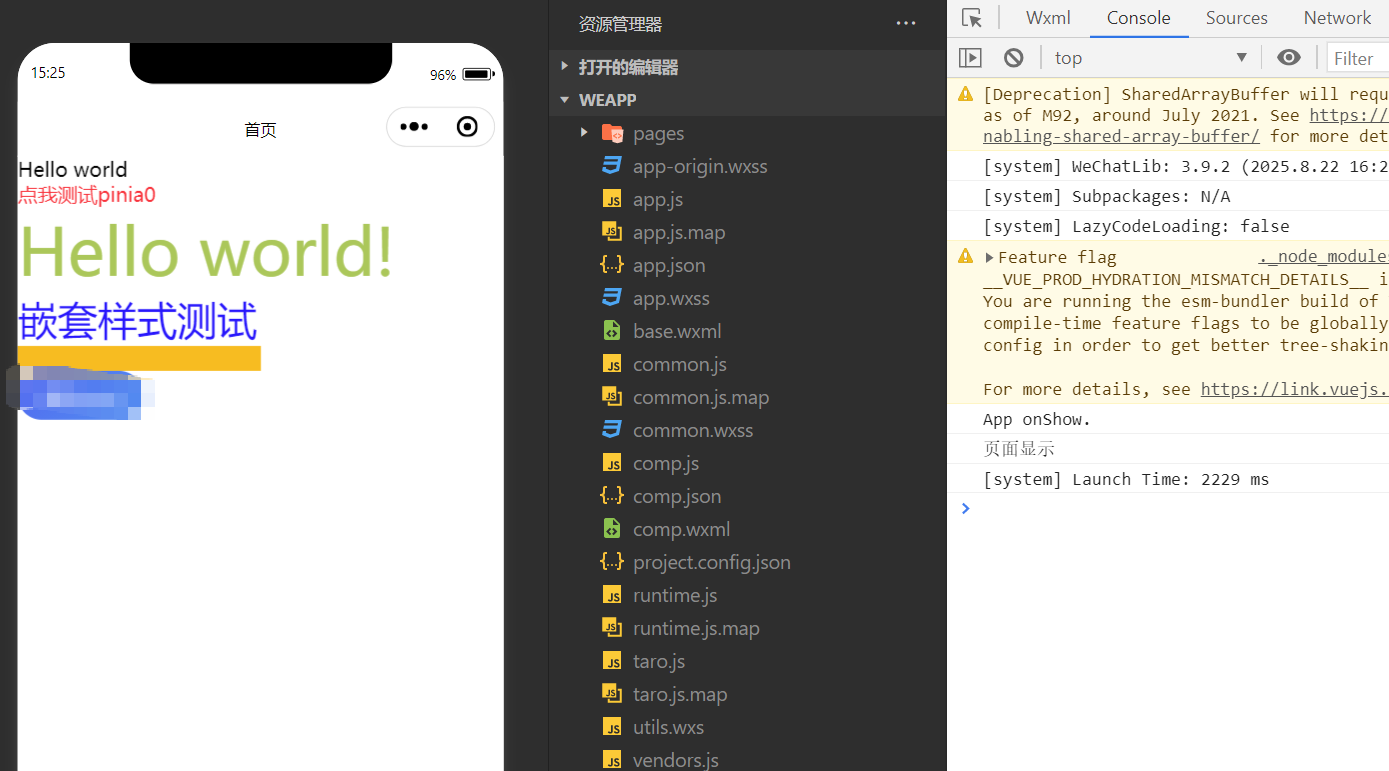
在tailwind4版本中已经实现了 样式嵌套功能所以不用sass、less这些 也可以嵌套样式编写
运行结果
接入NutUI
安装
bash
pnpm add @nutui/nutui-taro @nutui/icons-vue-taro @tarojs/plugin-html@tarojs/plugin-html 使用 HTML 标签,nutui需要用到
自动按需引入nutui组件
bash
pnpm add @nutui/auto-import-resolver unplugin-vue-components -D写入使用
在config/index.js添加以下相应配置
ts
import ComponentsPlugin from 'unplugin-vue-components/webpack'
import NutUIResolver from '@nutui/auto-import-resolver'

config = {
  // 开启 HTML 插件
  plugins: ['@tarojs/plugin-html'],
  designWidth (input) {
    // 配置 NutUI 375 尺寸
    if (input?.file?.replace(/\\+/g, '/').indexOf('@nutui') > -1) {
      return 375
    }
    // 全局使用 Taro 默认的 750 尺寸
    return 750
  },
  deviceRatio: {
    640: 2.34 / 2,
    750: 1,
    828: 1.81 / 2,
    375: 2 / 1
  },
  // 小程序开发
  mini: {
    webpackChain(chain) {
      chain.plugin('unplugin-vue-components').use(ComponentsPlugin({
        resolvers: [NutUIResolver({taro: true})]
      }))
    },
  },
  // Taro-H5 开发
  h5: {
    webpackChain(chain) {
      chain.plugin('unplugin-vue-components').use(ComponentsPlugin({
        resolvers: [NutUIResolver({taro: true})]
      }))
    },
  }
}
src/app.ts
ts
import { createApp } from "vue";
import { setupStore } from "./stores";
import "@nutui/nutui-taro/dist/style.css"; // +
import "./app.css";


const App = createApp({
  onShow(options) {
    console.log("App onShow.");
  },
});
setupStore(App);

export default App;
配置完成后,可以直接在模板中使用 NutUI 组件,unplugin-vue-components 插件会自动注册对应的组件,并按需引入组件样式。
使用NutUI
src/pages/index/index.ts
html
<template>
    <view>{{ msg }}</view>
    <view class="text-red-500" @tap="testPinia">点我测试pinia{{ count }}</view>
    <view className="text-[#acc855] text-[100px]">Hello world!</view>
    <view class="outer">
      <view class="inner">嵌套样式测试</view>
      <view class="w-[50%] h-5 bg-amber-400"></view>
    </view>

    <nut-button type="info">测试nutui</nut-button>
</template>

<script setup lang="ts">
import { ref, computed } from 'vue'
import './index.css'
import { useCounterOutsideStore } from '@/stores/modules/demo'

const msg = ref('Hello world')
const count = computed(() => counterStore.count)
const counterStore = useCounterOutsideStore()
const testPinia = () => {
  counterStore.increment()
  console.log(counterStore.count)
}
</script>
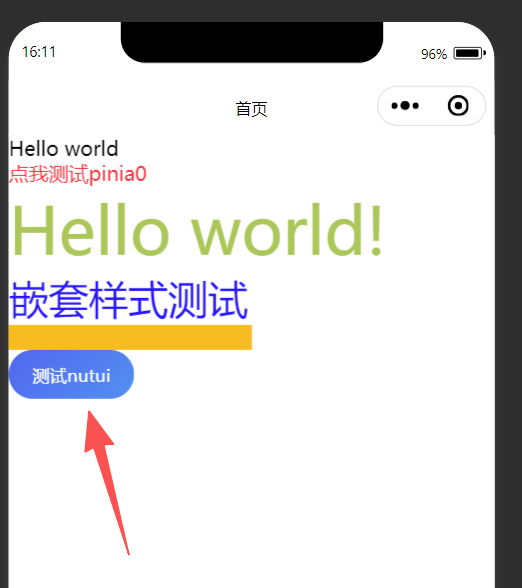
运行结果
接入自定义Tabbar
创建所需的目录结构
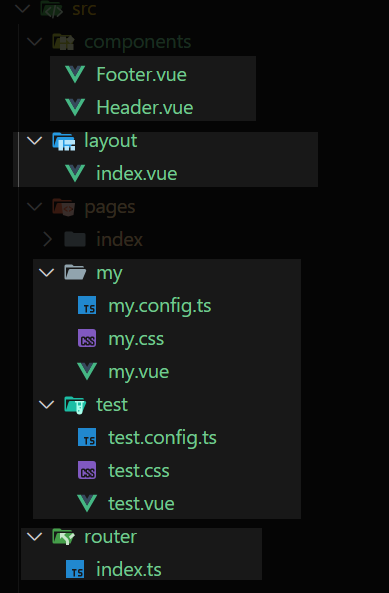
写入代码
src/stores/modules/system.ts
ts
import { defineStore } from "pinia";
import { piniaStore } from "@/stores";

type SystemState = {
  tabbar: {
    active: string;
  };
};

const useSystemStore = defineStore("system", {
  state: (): SystemState => {
    return { tabbar: { active: "home" } };
  },
  actions: {
    setActiveTab(tab: string) {
      if (tab === this.tabbar.active) return;
      this.tabbar.active = tab;
    },
  },
});

export function useSystemOutsideStore() {
  return useSystemStore(piniaStore);
}
将nut-tabbar的切换状态存入store为了解决页面重复渲染tabbar引起的问题 https://github.com/jd-opensource/nutui/issues/2368
router/index.ts
ts
import Taro from "@tarojs/taro";

type Params = Record<string, string | number | boolean | undefined | null>;

interface Router {
  push(url: string, params?: Params): void;
  replace(url: string, params?: Params): void;
  switchTab(url: string, params?: Params): void;
  reLaunch(url: string, params?: Params): void;
}

function buildQuery(params: Params): string {
  return Object.keys(params)
    .map(
      (key) =>
        `${encodeURIComponent(key)}=${encodeURIComponent(params[key] ?? "")}`
    )
    .join("&");
}

/**
 * Taro 应用的路由工具类。
 *
 * 提供页面跳转、重定向、切换 Tab、重启应用等方法,并支持可选的查询参数。
 *
 * @property navigateTo - 跳转到指定页面,可携带查询参数。
 * @property redirectTo - 重定向到指定页面,可携带查询参数。
 * @property switchTab - 切换到指定 Tab 页面,可携带查询参数。
 * @property reLaunch - 重启应用到指定页面,可携带查询参数。
 *
 * @example
 * router.navigateTo('/pages/home', { userId: 123 });
 */
const router: Router = {
  push(url, params) {
    if (params) {
      const query = buildQuery(params);
      Taro.navigateTo({ url: `${url}?${query}` });
    } else {
      Taro.navigateTo({ url });
    }
  },
  replace(url, params) {
    if (params) {
      const query = buildQuery(params);
      Taro.redirectTo({ url: `${url}?${query}` });
    } else {
      Taro.redirectTo({ url });
    }
  },
  switchTab(url, params) {
    if (params) {
      const query = buildQuery(params);
      Taro.switchTab({ url: `${url}?${query}` });
    } else {
      Taro.switchTab({ url });
    }
  },
  reLaunch(url, params) {
    if (params) {
      const query = buildQuery(params);
      Taro.reLaunch({ url: `${url}?${query}` });
    } else {
      Taro.reLaunch({ url });
    }
  },
};

export { router };
Footer.vue
html
<template>
  <view class="footer">
    <nut-tabbar
      v-model="activeName"
      @tab-switch="tabSwitch"
      :safe-area-inset-bottom="true"
    >
      <nut-tabbar-item
        v-for="item in list"
        :key="item.name"
        :name="item.name"
        :tab-title="item.title"
        :icon="item.icon"
      >
      </nut-tabbar-item>
    </nut-tabbar>
  </view>
</template>

<script setup lang="ts">
import { Home, Category, My } from "@nutui/icons-vue-taro";
import { ref, h, computed } from "vue";
import { router } from "@/router";
import { useSystemOutsideStore } from "@/stores/modules/system";

const useSystemStore = useSystemOutsideStore();
type TabItem = {
  name: string;
  path: string;
  title: string;
  icon: unknown;
};

const list = ref<TabItem[]>([
  { name: "home", path: "/pages/index/index", title: "首页", icon: h(Home) },
  { name: "test", path: "/pages/test/test", title: "测试", icon: h(Category) },
  { name: "my", path: "/pages/my/my", title: "我的", icon: h(My) },
]);

const activeName = computed({
  get: () => useSystemStore.tabbar.active,
  set: (value) => useSystemStore.setActiveTab(value),
});

const tabSwitch = (item: TabItem, index: number) => {
  const path = list.value.filter((tab) => tab.name === item.name)[0].path;
  console.log(path, index);
  router.switchTab(path);
};
</script>
Header.vue
html
<template>
  <view class="header">
    header
  </view>
</template>
layout/index.vue
html
<template>
  <nut-config-provider class="h-full" :theme-vars="themeVars">
    <view class="layout h-full flex flex-col">
      <view class="header" v-show="isShowHeader">
        <Header :title="title" />
      </view>
      <view class="content flex-1">
        <slot />
      </view>
      <view class="footer" v-show="isShowFooter">
        <Footer :activeName="footerActive" />
      </view>
    </view>
  </nut-config-provider>
</template>

<script setup lang="ts">
import Header from "@/components/Header.vue";
import Footer from "@/components/Footer.vue";
import { onMounted, ref } from "vue";

type Props = {
  title: string;
  isShowHeader?: boolean;
  isShowFooter?: boolean;
  footerActive: string;
};
withDefaults(defineProps<Props>(), {
  title: "标题",
  isShowHeader: false,
  isShowFooter: true,
  footerActive: "home"
});

// 修改nutui主题样式 https://nutui.jd.com/taro/vue/4x/#/zh-CN/component/configprovider
const themeVars = ref({
  primaryColor: "#008000",
  primaryColorEnd: "#008000",
});

onMounted(() => {
  console.log("页面显示");
});
</script>
index/index.vue
html
<template>
  <Layout title="首页" footerActive="home">

    <view>{{ msg }}</view>
    <view class="text-red-500" @tap="testPinia">点我测试pinia{{ count }}</view>
    <view className="text-[#acc855] text-[100px]">Hello world!</view>
    <view class="outer">
      <view class="inner">嵌套样式测试</view>
      <view class="w-[50%] h-5 bg-amber-400"></view>
    </view>
    <nut-button type="info">测试nutui</nut-button>

  </Layout>
</template>

<script setup lang="ts">
import { ref, computed } from 'vue'
import './index.css'
import Layout from '@/layout/index.vue' // +
import { useCounterOutsideStore } from '@/stores/modules/demo'

const msg = ref('Hello world')
const count = computed(() => counterStore.count)
const counterStore = useCounterOutsideStore()
const testPinia = () => {
  counterStore.increment()
  console.log(counterStore.count)
}
</script>
my/index.vue test/index.vue 和下面一样
html
<template>
  <Layout title="我的" footerActive="my">
    <view class="my-page">
      <view class="my-header">我的</view>
      <view class="my-content">欢迎来到我的页面</view>
    </view>
  </Layout>
</template>

<script setup lang="ts">
import "./my.css";
import Layout from "@/layout/index.vue";
</script>
src/app.config.ts
ts
// https://docs.taro.zone/docs/app-config
export default defineAppConfig({
  pages: [
    'pages/index/index',
    'pages/my/my',
    'pages/test/test',
  ],
  tabBar: {
    custom: true,
    list: [
      { pagePath: 'pages/index/index', text: '首页' },
      { pagePath: 'pages/test/test', text: '测试' },
      { pagePath: 'pages/my/my', text: '我的' },
    ]
  },
  window: {
    backgroundTextStyle: 'light',
    navigationBarBackgroundColor: '#fff',
    navigationBarTitleText: 'WeChat',
    navigationBarTextStyle: 'black'
  }
})
src/app.css
css
page{
  @apply h-full;
}
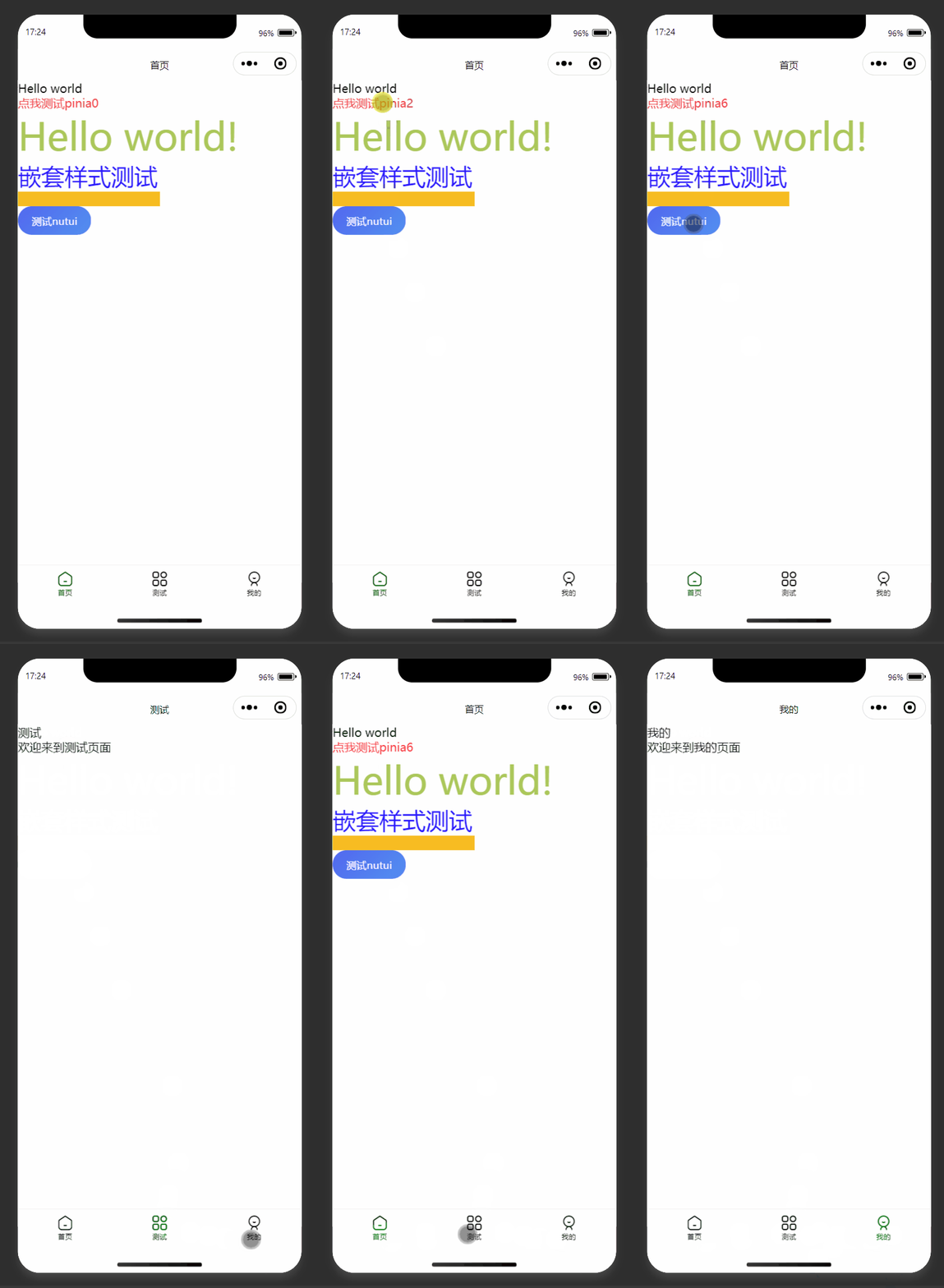
最终实现结果
项目地址
https://github.com/template-space/taro-template-vue
后续功能接入
🔳taro-axiosAPI 采用模块化导入方式
🔳上拉刷新、下拉加载
🔳子页面分包,跳转、拦截
🔳图片、视频、canvas、图表echarts
🔳地图
🔳...
敬请期待💥
到这里就结束了,后续还会更新 Taro、Vue 系列相关,还请持续关注!
感谢阅读,若有错误可以在下方评论区留言哦!!!

推荐文章👇