Orin-Apollo园区版本:订阅多个摄像头画面拼接与硬编码RTMP推流
-
- 一、目的
- 二、处理流程
- 三、操作步骤
-
- [1. 登录Orin开发板](#1. 登录Orin开发板)
- [2. 进入Apollo环境](#2. 进入Apollo环境)
- [3. 循环播放Record数据](#3. 循环播放Record数据)
- [4. 查看可用Topic](#4. 查看可用Topic)
- [5. 安装`Jetson-FFmpeg`](#5. 安装
Jetson-FFmpeg) - [6. RTMP服务器搭建](#6. RTMP服务器搭建)
- [7. 图像订阅与拼接程序](#7. 图像订阅与拼接程序)
- [8. 编译与运行](#8. 编译与运行)
- [9. 启动FFmpeg推流](#9. 启动FFmpeg推流)
- [10. 使用VLC播放](#10. 使用VLC播放)
- 四、总结
一、目的
本文旨在演示如何在NVIDIA Orin平台上基于Apollo Cyber RT框架,使用C++订阅多个摄像头Topic,对图像进行拼接处理,并通过硬件加速编码实现RTMP推流。该Demo仅用于基础学习。
二、处理流程
- 数据源:Apollo录制数据(bev_test.record)提供6路摄像头数据
- 数据订阅 :通过Cyber RT订阅以下Topic:
/apollo/sensor/camera/CAM_FRONT/image/apollo/sensor/camera/CAM_FRONT_RIGHT/image/apollo/sensor/camera/CAM_FRONT_LEFT/image/apollo/sensor/camera/CAM_BACK/image/apollo/sensor/camera/CAM_BACK_RIGHT/image/apollo/sensor/camera/CAM_BACK_LEFT/image
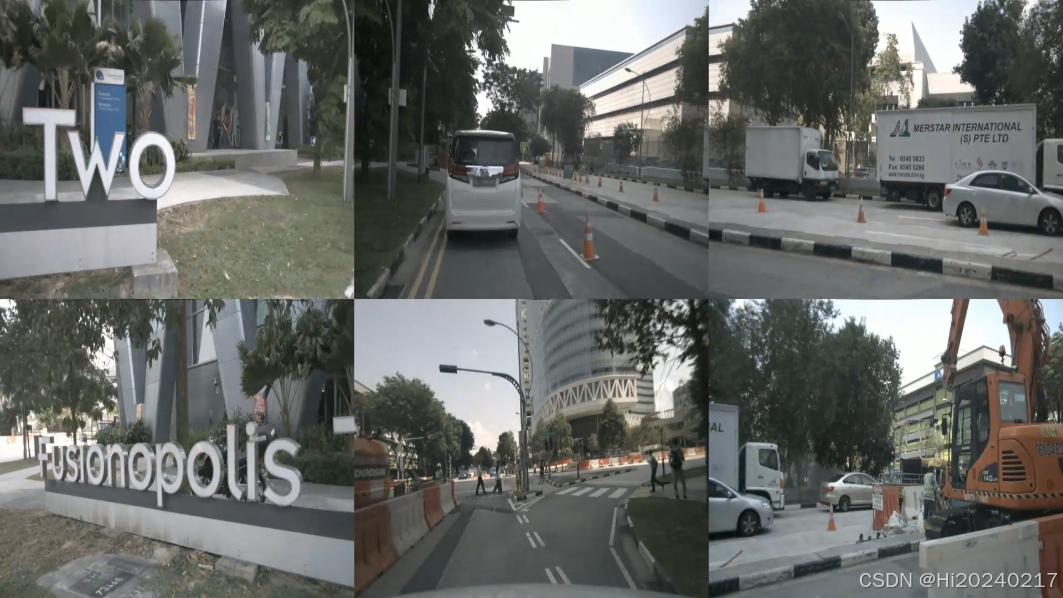
- 图像处理:使用OpenCV对图像进行缩放和拼接(2×3布局)
- 编码推流:通过FFmpeg NVMPI硬件编码转换为H.264格式,推流到RTMP服务器
- 流媒体分发:PingOS服务器接收并分发RTMP流
- 客户端播放:使用VLC播放器观看实时视频流
三、操作步骤
1. 登录Orin开发板
bash
ssh <username>@<hostname>注意:不要切换到root用户
2. 进入Apollo环境
bash
aem enter成功进入环境后,终端提示符会变为:[nvidia@in-dev-docker:/apollo_workspace]$
3. 循环播放Record数据
bash
cyber_recorder play -f bev_test.record -l-l参数表示循环播放,确保数据源持续供应
4. 查看可用Topic
此命令可查看当前所有活跃的Topic及其发布频率,确认摄像头Topic正常发布
bash
cyber_monitor输出
bash
/apollo/cyber/record_info                           0.00
/apollo/localization/pose                           150.34
/apollo/sensor/LIDAR_TOP/compensator/PointCloud2    20.01
/apollo/sensor/camera/CAM_BACK/image                12.07
/apollo/sensor/camera/CAM_BACK_LEFT/image           12.07
/apollo/sensor/camera/CAM_BACK_RIGHT/image          12.06
/apollo/sensor/camera/CAM_FRONT/image               10.97
/apollo/sensor/camera/CAM_FRONT_LEFT/image          12.07
/apollo/sensor/camera/CAM_FRONT_RIGHT/image         12.06
/tf                                                 158.26
5. 安装Jetson-FFmpeg
Jetson-FFmpeg是针对NVIDIA Jetson平台的FFmpeg优化版本,支持硬件编解码加速。
bash
mkdir -p /apollo_workspace/streamer
cd /apollo_workspace/streamer

# 下载FFmpeg源码
git clone git://source.ffmpeg.org/ffmpeg.git -b release/7.1 --depth=1

# 下载Jetson-FFmpeg补丁
git clone https://github.com/Keylost/jetson-ffmpeg

# 应用补丁
cd jetson-ffmpeg
./ffpatch.sh ../ffmpeg

# 编译安装nvmpi
mkdir build
cd build
cmake ..
make
sudo make install
sudo ldconfig

# 配置FFmpeg启用NVMPI
cd ../../ffmpeg/
./configure --enable-nvmpi --prefix=`pwd`/_install
make -j4
make install
6. RTMP服务器搭建
PingOS是一个基于Nginx的流媒体服务器,支持RTMP、HLS等协议。
bash
# 登录服务器
ssh username@hostname

# 下载并安装PingOS
git clone https://github.com/pingostack/pingos.git
cd pingos
./release.sh -i

# 启动PingOS服务
cd /usr/local/pingos/
./sbin/nginx
7. 图像订阅与拼接程序
c
cd /apollo_workspace/streamer
cat > image_stitching_streamer.cc <<-'EOF'
#include <iostream>
#include <string>
#include <vector>
#include <thread>
#include <mutex>
#include <condition_variable>
#include <atomic>
#include <queue>
#include <memory>
#include <cstdio>
#include <cstdlib>
#include <unistd.h>
#include <fcntl.h>
#include <sys/stat.h>
#include <csignal>
#include <sys/wait.h>
#include <cstring>

#include "cyber/cyber.h"
#include "modules/common_msgs/sensor_msgs/sensor_image.pb.h"
#include <opencv2/opencv.hpp>

extern "C" {
#include <libavcodec/avcodec.h>
#include <libavformat/avformat.h>
#include <libavutil/opt.h>
#include <libavutil/imgutils.h>
#include <libswscale/swscale.h>
#include <libavutil/hwcontext.h>
}

using apollo::cyber::Node;
using apollo::cyber::Reader;
using apollo::drivers::Image;

// 定义摄像头位置
enum CameraPosition {
    FRONT,
    RIGHT_FRONT,
    LEFT_FRONT,
    REAR,
    LEFT_REAR,
    RIGHT_REAR,
    NUM_CAMERAS
};

// 全局变量
std::mutex image_mutex;
std::condition_variable image_cv;
std::array<cv::Mat, NUM_CAMERAS> camera_images;
std::array<bool, NUM_CAMERAS> image_updated{false};
std::atomic<bool> running{true};

// FFmpeg相关结构体
SwsContext* sws_ctx = nullptr;
AVFrame* yuv_frame = nullptr;
FILE* pipe_fd = nullptr;

// 初始化YUV转换器
bool init_yuv_converter(int width, int height) {
    // 分配YUV帧
    yuv_frame = av_frame_alloc();
    yuv_frame->format = AV_PIX_FMT_YUV420P;
    yuv_frame->width = width;
    yuv_frame->height = height;

    int ret = av_frame_get_buffer(yuv_frame, 0);
    if (ret < 0) {
        std::cerr << "Failed to allocate YUV frame buffer: " << ret << std::endl;
        return false;
    }

    // 初始化转换上下文
    sws_ctx = sws_getContext(width, height, AV_PIX_FMT_RGB24,
                            width, height, AV_PIX_FMT_YUV420P,
                            SWS_BICUBIC, nullptr, nullptr, nullptr);

    if (!sws_ctx) {
        std::cerr << "Failed to create SwsContext" << std::endl;
        return false;
    }

    return true;
}

// 创建命名管道
bool start_ffmpeg_process(int width, int height) {
    // 创建命名管道
    std::string pipe_path = "/tmp/yuv_pipe";
    if (mkfifo(pipe_path.c_str(), 0666) < 0) {
        if (errno != EEXIST) {
            std::cerr << "Failed to create named pipe: " << strerror(errno) << std::endl;
            return false;
        }
    }
    // 打开管道用于写入
    pipe_fd = fopen(pipe_path.c_str(), "wb");
    if (!pipe_fd) {
        std::cerr << "Failed to open pipe for writing: " << strerror(errno) << std::endl;
        return false;
    }
    return true;
}

// 清理资源
void cleanup_resources() {
    if (pipe_fd) {
        fclose(pipe_fd);
        pipe_fd = nullptr;
    }
    if (sws_ctx) {
        sws_freeContext(sws_ctx);
        sws_ctx = nullptr;
    }

    if (yuv_frame) {
        av_frame_free(&yuv_frame);
        yuv_frame = nullptr;
    }
}

// 将RGB图像转换为YUV420P并写入管道
bool write_yuv_to_pipe(const cv::Mat& image) {
    if (image.empty()) {
        std::cerr << "Empty image provided to write_yuv_to_pipe" << std::endl;
        return false;
    }

    // 将BGR转换为YUV420P
    const uint8_t* src_data[1] = {image.data};
    int src_linesize[1] = {static_cast<int>(image.step)};

    sws_scale(sws_ctx, src_data, src_linesize, 0, image.rows,
              yuv_frame->data, yuv_frame->linesize);

    // 将YUV数据写入管道
    for (int i = 0; i < yuv_frame->height; i++) {
        fwrite(yuv_frame->data[0] + i * yuv_frame->linesize[0], 1, yuv_frame->width, pipe_fd);
    }

    for (int i = 0; i < yuv_frame->height / 2; i++) {
        fwrite(yuv_frame->data[1] + i * yuv_frame->linesize[1], 1, yuv_frame->width / 2, pipe_fd);
    }

    for (int i = 0; i < yuv_frame->height / 2; i++) {
        fwrite(yuv_frame->data[2] + i * yuv_frame->linesize[2], 1, yuv_frame->width / 2, pipe_fd);
    }

    fflush(pipe_fd); // 确保数据被刷新到管道
    return true;
}

// 图像回调函数
void image_callback(const std::shared_ptr<Image>& image_msg, CameraPosition position) {
    std::lock_guard<std::mutex> lock(image_mutex);
    if (image_msg->encoding() == "rgb8") {
        // 将数据转换为OpenCV格式
        cv::Mat img(image_msg->height(), image_msg->width(), CV_8UC3,
                   const_cast<char*>(image_msg->data().data()));
        img.copyTo(camera_images[position]);
        image_updated[position] = true;

        // 通知处理线程有新图像
        image_cv.notify_one();
    } else {
        std::cout << "Unsupported encoding: " << image_msg->encoding()
                  << " for camera " << position << std::endl;
    }
}

// 拼接图像函数
cv::Mat stitch_images() {
    // 假设每个摄像头图像大小为640x480
    const int single_width = 640;
    const int single_height = 480;

    // 创建拼接后的图像 (2行3列)
    cv::Mat stitched_image(2 * single_height, 3 * single_width, CV_8UC3, cv::Scalar(0, 0, 0));

    // 检查所有图像是否有效
    for (int i = 0; i < NUM_CAMERAS; i++) {
        if (camera_images[i].empty()) {
            std::cerr << "Camera " << i << " image is empty!" << std::endl;
            continue;
        }
        // 调整图像大小以确保一致
        if (camera_images[i].cols != single_width || camera_images[i].rows != single_height) {
            cv::resize(camera_images[i], camera_images[i], cv::Size(single_width, single_height));
        }
    }

    // 将各个摄像头图像放置到对应位置
    // 这里需要根据实际的摄像头布局进行调整
    if (!camera_images[FRONT].empty()) {
        camera_images[FRONT].copyTo(stitched_image(cv::Rect(single_width, 0,
                                                            single_width, single_height)));
    }

    if (!camera_images[RIGHT_FRONT].empty()) {
        camera_images[RIGHT_FRONT].copyTo(stitched_image(cv::Rect(2 * single_width, 0,
                                                                  single_width, single_height)));
    }

    if (!camera_images[LEFT_FRONT].empty()) {
        camera_images[LEFT_FRONT].copyTo(stitched_image(cv::Rect(0, 0, single_width, single_height)));
    }

    if (!camera_images[REAR].empty()) {
        camera_images[REAR].copyTo(stitched_image(cv::Rect(single_width, single_height,
                                                           single_width, single_height)));
    }

    if (!camera_images[RIGHT_REAR].empty()) {
        camera_images[RIGHT_REAR].copyTo(stitched_image(cv::Rect(2 * single_width,
                                                                 single_height, single_width, single_height)));
    }

    if (!camera_images[LEFT_REAR].empty()) {
        camera_images[LEFT_REAR].copyTo(stitched_image(cv::Rect(0, single_height,
                                                                single_width, single_height)));
    }

    // 调整大小为1920x1080
    cv::Mat resized_image;
    cv::resize(stitched_image, resized_image, cv::Size(1920, 1080));

    return resized_image;
}

// 检查所有摄像头图像是否已更新
bool all_images_updated() {
    for (bool updated : image_updated) {
        if (!updated) {
            return false;
        }
    }
    return true;
}

// 图像处理线程函数
void processing_thread() {
    const int width = 1920;
    const int height = 1080;

    // 初始化YUV转换器
    if (!init_yuv_converter(width, height)) {
        std::cerr << "Failed to initialize YUV converter" << std::endl;
        return;
    }

    // 启动FFmpeg进程
    if (!start_ffmpeg_process(width, height)) {
        std::cerr << "Failed to start FFmpeg process" << std::endl;
        return;
    }

    std::cout << "YUV converter initialized and FFmpeg process started" << std::endl;

    while (running) {
        std::unique_lock<std::mutex> lock(image_mutex);
        // 等待所有摄像头都有新图像
        if (!image_cv.wait_for(lock, std::chrono::milliseconds(100), []{ return all_images_updated(); })) {
            continue;  // 超时,继续等待
        }

        // 重置更新标志
        std::fill(image_updated.begin(), image_updated.end(), false);

        // 拼接图像
        cv::Mat stitched_image = stitch_images();

        lock.unlock();

        if (stitched_image.empty()) {
            std::cerr << "Stitched image is empty!" << std::endl;
            continue;
        }

        // 转换为YUV420P并写入管道
        if (!write_yuv_to_pipe(stitched_image)) {
            std::cerr << "Failed to write YUV to pipe" << std::endl;
            break;
        }

        // 控制帧率
        std::this_thread::sleep_for(std::chrono::milliseconds(100)); // ~25 fps
    }

    // 清理资源
    cleanup_resources();
}

int main(int argc, char** argv) {

    // 初始化CyberRT
    apollo::cyber::Init("image_stitching_streamer");

    // 创建节点
    auto node = apollo::cyber::CreateNode("image_stitching_streamer");

    // 创建订阅者
    std::array<std::shared_ptr<Reader<Image>>, NUM_CAMERAS> readers;

    readers[FRONT] = node->CreateReader<Image>(
        "/apollo/sensor/camera/CAM_FRONT/image",
        [](const std::shared_ptr<Image>& msg) { image_callback(msg, FRONT); });

    readers[RIGHT_FRONT] = node->CreateReader<Image>(
        "/apollo/sensor/camera/CAM_FRONT_RIGHT/image",
        [](const std::shared_ptr<Image>& msg) { image_callback(msg, RIGHT_FRONT); });

    readers[LEFT_FRONT] = node->CreateReader<Image>(
        "/apollo/sensor/camera/CAM_FRONT_LEFT/image",
        [](const std::shared_ptr<Image>& msg) { image_callback(msg, LEFT_FRONT); });

    readers[REAR] = node->CreateReader<Image>(
        "/apollo/sensor/camera/CAM_BACK/image",
        [](const std::shared_ptr<Image>& msg) { image_callback(msg, REAR); });

    readers[LEFT_REAR] = node->CreateReader<Image>(
        "/apollo/sensor/camera/CAM_BACK_LEFT/image",
        [](const std::shared_ptr<Image>& msg) { image_callback(msg, LEFT_REAR); });

    readers[RIGHT_REAR] = node->CreateReader<Image>(
        "/apollo/sensor/camera/CAM_BACK_RIGHT/image",
        [](const std::shared_ptr<Image>& msg) { image_callback(msg, RIGHT_REAR); });

    // 启动处理线程
    std::thread processor(processing_thread);

    std::cout << "Started image stitching and streaming application" << std::endl;
    std::cout << "Subscribed to 6 camera topics" << std::endl;

    // 等待终止信号
    apollo::cyber::WaitForShutdown();

    // 停止处理线程
    running = false;
    if (processor.joinable()) {
        processor.join();
    }

    return 0;
}
EOF
8. 编译与运行
编译时需要链接Apollo Cyber RT、OpenCV和FFmpeg等相关库:
bash
# 创建OpenCV头文件软链接
ln -sf /opt/apollo/neo/packages/3rd-opencv/latest/include opencv2

# 编译程序(链接所有必要库)
g++ -std=c++14 -o image_stitching_streamer image_stitching_streamer.cc \
	-I . -I /opt/apollo/neo/include \
	-I /apollo_workspace/streamer/ffmpeg/_install/include/ \
	/opt/apollo/neo/packages/3rd-protobuf/latest/lib/libprotobuf.so -lpthread \
	/opt/apollo/neo/lib/modules/common_msgs/sensor_msgs/lib_sensor_image_proto_mcs_bin.so \
	/opt/apollo/neo/lib/cyber/transport/libcyber_transport.so \
	/opt/apollo/neo/lib/cyber/service_discovery/libcyber_service_discovery.so \
	/opt/apollo/neo/lib/cyber/service_discovery/libcyber_service_discovery_role.so \
	/opt/apollo/neo/lib/cyber/class_loader/shared_library/libshared_library.so \
	/opt/apollo/neo/lib/cyber/class_loader/utility/libclass_loader_utility.so \
	/opt/apollo/neo/lib/cyber/class_loader/libcyber_class_loader.so \
	/opt/apollo/neo/lib/cyber/message/libcyber_message.so \
	/opt/apollo/neo/lib/cyber/plugin_manager/libcyber_plugin_manager.so \
	/opt/apollo/neo/lib/cyber/profiler/libcyber_profiler.so \
	/opt/apollo/neo/lib/cyber/common/libcyber_common.so \
	/opt/apollo/neo/lib/cyber/data/libcyber_data.so \
	/opt/apollo/neo/lib/cyber/logger/libcyber_logger.so \
	/opt/apollo/neo/lib/cyber/service/libcyber_service.so \
	/opt/apollo/neo/lib/cyber/libcyber.so \
	/opt/apollo/neo/lib/cyber/timer/libcyber_timer.so \
	/opt/apollo/neo/lib/cyber/blocker/libcyber_blocker.so \
	/opt/apollo/neo/lib/cyber/component/libcyber_component.so \
	/opt/apollo/neo/lib/cyber/tools/cyber_recorder/librecorder.so \
	/opt/apollo/neo/lib/cyber/base/libcyber_base.so \
	/opt/apollo/neo/lib/cyber/sysmo/libcyber_sysmo.so \
	/opt/apollo/neo/lib/cyber/croutine/libcyber_croutine.so \
	/opt/apollo/neo/lib/cyber/libcyber_binary.so \
	/opt/apollo/neo/lib/cyber/io/libcyber_io.so \
	/opt/apollo/neo/lib/cyber/event/libcyber_event.so \
	/opt/apollo/neo/lib/cyber/statistics/libapollo_statistics.so \
	/opt/apollo/neo/lib/cyber/scheduler/libcyber_scheduler.so \
	/opt/apollo/neo/lib/cyber/record/libcyber_record.so \
	/opt/apollo/neo/lib/cyber/libcyber_state.so \
	/opt/apollo/neo/lib/cyber/context/libcyber_context.so \
	/opt/apollo/neo/lib/cyber/node/libcyber_node.so \
	/opt/apollo/neo/lib/cyber/task/libcyber_task.so \
	/opt/apollo/neo/lib/cyber/parameter/libcyber_parameter.so \
	/opt/apollo/neo/lib/cyber/time/libcyber_time.so \
	/opt/apollo/neo/lib/cyber/transport/libcyber_transport.so \
	/opt/apollo/neo/lib/cyber/proto/lib_qos_profile_proto_cp_bin.so \
	/opt/apollo/neo/lib/cyber/proto/lib_topology_change_proto_cp_bin.so \
	/opt/apollo/neo/lib/cyber/proto/lib_component_conf_proto_cp_bin.so \
	/opt/apollo/neo/lib/cyber/proto/lib_unit_test_proto_cp_bin.so \
	/opt/apollo/neo/lib/cyber/proto/lib_record_proto_cp_bin.so \
	/opt/apollo/neo/lib/cyber/proto/lib_parameter_proto_cp_bin.so \
	/opt/apollo/neo/lib/cyber/proto/lib_cyber_conf_proto_cp_bin.so \
	/opt/apollo/neo/lib/cyber/proto/lib_role_attributes_proto_cp_bin.so \
	/opt/apollo/neo/lib/cyber/proto/lib_transport_conf_proto_cp_bin.so \
	/opt/apollo/neo/lib/cyber/proto/lib_scheduler_conf_proto_cp_bin.so \
	/opt/apollo/neo/lib/cyber/proto/lib_run_mode_conf_proto_cp_bin.so \
	/opt/apollo/neo/lib/cyber/proto/lib_classic_conf_proto_cp_bin.so \
	/opt/apollo/neo/lib/cyber/proto/lib_dag_conf_proto_cp_bin.so \
	/opt/apollo/neo/lib/cyber/proto/lib_choreography_conf_proto_cp_bin.so \
	/opt/apollo/neo/lib/cyber/proto/lib_simple_proto_cp_bin.so \
	/opt/apollo/neo/lib/cyber/proto/lib_perf_conf_proto_cp_bin.so \
	/opt/apollo/neo/lib/cyber/proto/lib_clock_proto_cp_bin.so \
	/opt/apollo/neo/lib/cyber/proto/lib_proto_desc_proto_cp_bin.so \
	/usr/local/lib/libbvar.so \
	/opt/apollo/neo/packages/3rd-glog/latest/lib/libglog.so \
	/opt/apollo/neo/packages/3rd-gflags/latest/lib/libgflags.so \
	/opt/apollo/neo/packages/3rd-opencv/latest/lib/libopencv_core.so \
	/opt/apollo/neo/packages/3rd-opencv/latest/lib/libopencv_imgproc.so \
	/opt/apollo/neo/packages/3rd-opencv/latest/lib/libopencv_imgcodecs.so  \
	/apollo_workspace/streamer/ffmpeg/_install/lib/libavformat.a \
	/apollo_workspace/streamer/ffmpeg/_install/lib/libavcodec.a \
	/apollo_workspace/streamer/ffmpeg/_install/lib/libavdevice.a \
	/apollo_workspace/streamer/ffmpeg/_install/lib/libavfilter.a \
	/apollo_workspace/streamer/ffmpeg/_install/lib/libswresample.a \
	/apollo_workspace/streamer/ffmpeg/_install/lib/libswscale.a \
	/apollo_workspace/streamer/ffmpeg/_install/lib/libavutil.a \
	/usr/local/lib/libnvmpi.so -lz \
	/usr/lib/aarch64-linux-gnu/liblzma.so -ldrm

# 运行程序
./image_stitching_streamer
9. 启动FFmpeg推流
bash
/apollo_workspace/streamer/ffmpeg/_install/bin/ffmpeg -f rawvideo -pixel_format yuv420p \
	-video_size 1920x1080 -framerate 10 -i /tmp/yuv_pipe \
	-c:v h264_nvmpi -b:v 4M -f flv rtmp://<服务器地址>/live/test
10. 使用VLC播放
四、总结
本文介绍了在Orin-Apollo平台上实现多摄像头订阅、图像拼接和RTMP推流的完整流程。通过利用Cyber RT的实时通信能力、OpenCV的图像处理功能和Jetson平台的硬件编解码加速。