小程序文件在线显示(支持word,图片,视频等)
一、介绍
又是一天敲代码,今天公司要求一个文件上传,可以传多个类型的文件,而且在小程序还都要在线给他显示出来(之前明明就要求显示一个pdf就可以了)现在给我整这出,我真的XXX。
下班点到了,就先凑合一写,后续在进行优化。为了方便,我直接复制了整个文件的代码,凑合看一看。
二、代码
这里的代码不是俺写的,实在原来显示pdf的基础上加入了word,excel,图片视频等。
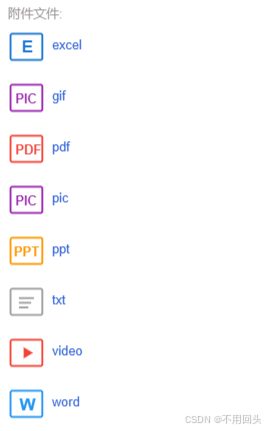
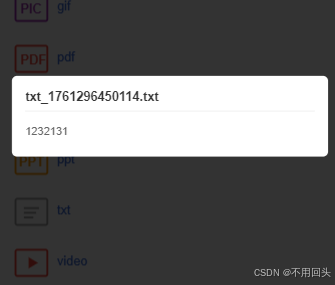
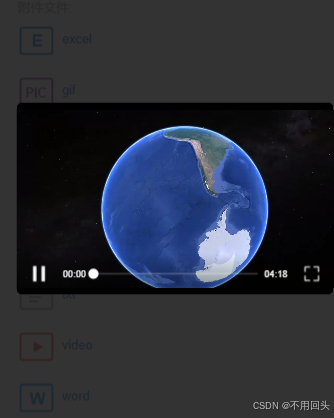
具体文件,我这边使用图标进行区分了一下(图片我上传到服务器了,这里使用的是svg代码也会贴在下面,方便使用),点击去具体的文件都可以进行显示,点击word之类的就会跳转打开,图片视频文本会弹窗显示。



vue代码
bash
<template>
	<view style="background-color: #FFF;padding-bottom: 200rpx;">
		<cu-custom bgColor="bg-gradual-blue" :isBack="true">
			<block slot="backText">返回</block>
			<block slot="content">文件明细</block>

		</cu-custom>
		<!-- 加载组件 -->
		<view class="loading-container" v-if="loading">
			<u-loading-icon color="red" size="40"></u-loading-icon>
		</view>
		<!-- 视频组件 -->
		<view v-if="showVideo" class="video-modal">
			<view class="modal-mask" @click="closeVideo"></view>
			<view class="video-container">
				<view class="close-btn" @click="closeVideo">×</view>
				<video id="videoPlayer" :src="videoUrl" :controls="true" :autoplay="true" class="video-player"
					@error="handleVideoError">
				</video>
			</view>
		</view>

		<!-- 文本组件 -->
		<view v-if="showTxt" class="txt-modal">
			<view class="modal-mask" @click="closeTxt"></view>
			<view class="txt-container">
				<view class="close-btn" @click="closeTxt">×</view>
				<view class="txt-title">{{currentTxtName}}</view>
				<view class="txt-content">
					<view class="txt-content-text">{{txtContent}}</view>
				</view>
			</view>
		</view>

		<view class="file-info-item"
			style="margin-top: 30rpx;border-bottom: 1rpx solid #cac7c7;padding-top: 15rpx;padding: 0rpx 40rpx  0rpx  40rpx;">
			<view class="" style="color: #9e9898;">
				标题:
			</view>
			<view style="padding-top: 15rpx;font-size: 30rpx; font-weight: bold;margin-bottom: 25rpx;">
				{{dataInfo.title}}
			</view>
		</view>

		<view class="file-info-item"
			style="margin-top: 30rpx;border-bottom: 1rpx solid #cac7c7; padding: 0rpx 40rpx  0rpx  40rpx;">
			<view class="" style="color: #9e9898;">
				发送人:
			</view>
			<view style="padding-top: 15rpx;font-size: 30rpx; margin-bottom: 25rpx;">
				{{dataInfo.createByName}}
			</view>
		</view>

		<view class="file-info-item"
			style="margin-top: 30rpx;border-bottom: 1rpx solid #cac7c7;padding: 0rpx 40rpx  0rpx  40rpx;">
			<view class="" style="color: #9e9898;">
				发送时间:
			</view>
			<view style="padding-top: 15rpx;font-size: 30rpx;margin-bottom: 25rpx;">
				{{dataInfo.createTime}}
			</view>
		</view>

		<view class="file-info-item"
			style="margin-top: 30rpx;border-bottom: 1rpx solid #cac7c7; padding: 0rpx 40rpx  0rpx  40rpx;">
			<view class="" style="color: #9e9898;">
				附件文件:
			</view>

			<view v-for="(item, index) in fileList" :key="index">
				<view @click="openFile(item.url)">
					<view style="margin-top:15rpx;margin-bottom: 25rpx;display: flex;" class="fileClass">
						<view>
							<img :src="getFileIcon(item.url)" alt="" style="width: 80rpx;height: 80rpx;">
						</view>
						<view style="margin-top: 20rpx;margin-left: 15rpx;">
							<text style="color: #2e61d7;">
								{{ item.fileName }}
							</text>
						</view>
					</view>
				</view>

			</view>
		</view>

		<view class="file-info-item" style="margin-top: 30rpx; padding: 0rpx 40rpx  0rpx  40rpx;">
			<view class="" style="color: #9e9898;">
				内容:
			</view>
			<view style="margin-top: 20rpx;width: 90%;margin-left: 5%;">
				<!-- <rich-text :nodes="dataInfo.content"></rich-text> -->
				<u-parse :content="dataInfo.content"></u-parse>
			</view>
		</view>

	</view>
</template>

<script>
	import configService from '@/common/service/config.service.js';
	import {
		ACCESS_TOKEN
	} from "@/common/util/constants"

	export default {
		data() {
			return {
				fileType: '', // 文件类型
				basUrl: configService.apiUrl,	// 项目config.1service.js配置文件下configService下的apiUrl(后台接口网址前缀,访问图片资源使用,类似于127.0.0.1:8080/temp)
				loading: false, // 是否显示加载组件
				fileList: [], // 附件文件列表
				id: '', // 传给组件的id用于查询数据,可以忽略
				dataInfo: {
					title: '',
					createByName: '',
					createTime: '',
					content: '',
				}, // 查询该条数据的详情信息
				showVideo: false,
				videoUrl: '',
				videoContext: null, // 视频上下文对象
				showTxt: false, // TXT弹窗显示开关
				currentTxtName: '', // 当前预览的TXT文件名
				txtContent: '', // TXT文件内容
			};
		},
		onReady() {
			this.videoContext = uni.createVideoContext('videoPlayer', this);
		},
		mounted() {},
		onLoad(e) {
			this.id = e.id
			this.getFileById()
		},
		onShow() {
			this.loading = false
		},
		methods: {
			// 打开文件
			openFile(fileUrl) {
				this.loading = true;
				// 文件地址
				const fullUrl = this.basUrl+ "/" + fileUrl;
				// 获取文件类型信息
				const { fileName, fileExt, isImage, isVideo, isDoc } = this.checkFileType(fileUrl);
				uni.downloadFile({
					url: fullUrl, // 文件下载地址
					header: {
						'X-Access-Token': uni.getStorageSync(ACCESS_TOKEN)
					},
					success: response => {
						if (response.statusCode !== 200) {
							uni.showToast({
								title: '文件下载失败',
								icon: 'none'
							});
							return;
						}
						const tempFilePath = response.tempFilePath;
						// 图片文件
						if (isImage) {
							this.previewImage(tempFilePath)
						}
						// 视频文件
						else if (isVideo) {
							this.playVideo(tempFilePath);
						}
						// 文档文件
						else if (isDoc) {
							fileExt === '.txt' ?
								this.previewTxt(tempFilePath, fileName) :
								this.openDocument(tempFilePath, fileExt);
						} else {
							uni.showToast({
								title: `不支持${fileExt}格式`,
								icon: 'none'
							});
						}
					},
					fail: downloadError => {
						this.loading = false
						uni.showToast({
							title: '下载失败,请检查网络',
							icon: 'none'
						});
					}
				})
			},
			// 图片
			previewImage(tempFilePath) {
				uni.previewImage({
					current: tempFilePath,
					urls: [tempFilePath],
					fail: imgError => {
						console.error('图片预览失败:', imgError);
						uni.showToast({
							title: '图片预览失败',
							icon: 'none'
						});
					}
				});
			},
			// 视频
			playVideo(tempFilePath) {
				this.showVideo = true;
				this.videoUrl = tempFilePath;
				// 用$nextTick替代setTimeout,确保DOM渲染完成后再初始化上下文
				this.$nextTick(() => {
					this.videoContext = uni.createVideoContext('videoPlayer', this);
				});
			},
			// TXT
			previewTxt(tempFilePath, fileName) {
				this.loading = false; // 关闭全局加载
				this.showTxt = true; // 显示TXT弹窗
				this.currentTxtName = fileName; // 显示文件名
				// 微信小程序API:读取本地临时文件内容(TXT为文本格式,用utf-8编码)
				const fs = uni.getFileSystemManager();
				try {
					const content = fs.readFileSync(tempFilePath, 'utf-8');
					// 读取成功:赋值内容,关闭加载
					this.txtContent = content;
					this.txtLoading = false;

				} catch (err) {
					// 3. 完整捕获错误:提示用户,关闭加载
					console.error('TXT读取失败:', err);
					this.txtContent = '文本读取失败,请重试';
					this.txtLoading = false;
					// 额外提示用户错误原因
					uni.showToast({
						title: '文本读取失败',
						icon: 'none'
					});
				}
			},
			// 文档
			openDocument(tempFilePath, fileExt) {
				uni.saveFile({
					tempFilePath: tempFilePath,
					success: (resData) => {
						uni.openDocument({
							filePath: resData.savedFilePath,
							fileType: this.getFileType(fileExt),
							showMenu: true, // 允许出现分享功能
							success: r => {
								this.loading = false;
								uni.showToast({
									title: '正在打开文件',
									icon: 'none',
									duration: 1500
								});
							},
							fail: (openError) => {
								this.loading = false
								console.error('文档打开失败:', openError);
								const errorMsg = openError.errMsg.includes('not support') ?
									'不支持该文件格式' : openError.errMsg.includes('not found') ?
									'文件不存在或已损坏' :
									'文件打开失败,请重试';
								uni.showToast({
									title: errorMsg,
									icon: 'none'
								});
							}
						})
					},
					fail: (error) => {
						this.loading = false;
						console.error('文件保存失败:', error);
						uni.showToast({
							title: '文件保存失败,请重试',
							icon: 'none'
						});
					}
				})
			},
			// 判断文件图标
			getFileIcon(fileUrl) {
				// 提取文件后缀(兼容URL带参数的情况)
				const fileName = decodeURIComponent(fileUrl.split('/').pop().split('?')[0]);
				const lastDotIndex = fileName.lastIndexOf('.');
				const fileExt = lastDotIndex > -1 ? fileName.substring(lastDotIndex).toLowerCase() : '';

				// 定义文件类型与图标映射
				const iconMap = {
					// 图片类型
					'.png': this.basUrl + '/svg/image.svg',
					'.jpg': this.basUrl + '/svg/image.svg',
					'.jpeg': this.basUrl + '/svg/image.svg',
					'.gif': this.basUrl + '/svg/image.svg',
					// 视频类型
					'.mp4': this.basUrl + '/svg/video.svg',
					'.mov': this.basUrl + '/svg/video.svg',
					'.avi': this.basUrl + '/svg/video.svg',
					// 文档类型
					'.doc': this.basUrl + '/svg/word.svg',
					'.docx': this.basUrl + '/svg/word.svg',
					'.xls': this.basUrl + '/svg/excel.svg',
					'.xlsx': this.basUrl + '/svg/excel.svg',
					'.csv': this.basUrl + '/svg/excel.svg',
					'.pdf': this.basUrl + '/svg/pdf.svg',
					'.txt': this.basUrl + '/svg/txt.svg',
					'.ppt': this.basUrl + '/svg/ppt.svg',
					'.pptx': this.basUrl + '/svg/ppt.svg'
				};

				// 返回对应图标,默认用通用文件图标
				return iconMap[fileExt] || this.basUrl + '/svg/file.svg';
			},
			// 判断文档类型
			getFileType(fileType) {
				const extMap = {
					'.doc': 'doc',
					'.docx': 'doc',
					'.ppt': 'ppt',
					'.pptx': 'ppt',
					'.xls': 'xls',
					'.xlsx': 'xls',
					'.csv': 'xls',
					'.pdf': 'pdf',
					'.txt': 'txt'
				};
				return extMap[fileType] || '';
			},
			// 检查文件类型
			checkFileType(fileUrl) {
				// 提取文件名和后缀(兼容URL中含参数的场景,如 "file.pdf?id=123")
				const fileName = decodeURIComponent(fileUrl.split('/').pop().split('?')[0]);
				const lastDotIndex = fileName.lastIndexOf('.');
				const fileExt = lastDotIndex > -1 ? fileName.substring(lastDotIndex).toLowerCase() : '';

				// 定义支持的文件类型集合
				const imageExts = ['.png', '.jpg', '.jpeg', '.gif', '.bmp'];
				const videoExts = ['.mp4', '.webm', '.mov', '.avi', '.mkv'];
				const docExts = ['.doc', '.docx', '.ppt', '.pptx', '.xls', '.xlsx', '.csv', '.pdf', '.txt'];

				return {
					fileName: fileName, // 纯净文件名(不含URL参数)
					fileExt: fileExt, // 小写文件后缀
					isImage: imageExts.includes(fileExt),
					isVideo: videoExts.includes(fileExt),
					isDoc: docExts.includes(fileExt)
				};
			},
			// 根据id查询数据
			getFileById() {
				this.$http.get('/hisonline/basUploadFile/list', {
					params: {
						mainId: this.id
					}
				}).then(data => {
					this.fileList = data.data.result.records
				})

				this.$http.get('/safety/homeAnnouncement/queryById', {
					params: {
						id: this.id
					}
				}).then(res => {
					this.dataInfo = res.data.result
				});
			},
			// 关闭视频
			closeVideo() {
				this.loading = false
				this.showVideo = false;
				this.videoUrl = '';
				// 停止播放并释放资源
				if (this.videoContext) {
					this.videoContext.stop();
					this.videoContext = null;
				}
			},
			// 视频播放错误处理
			handleVideoError(err) {
				console.error('视频播放错误:', err);
				uni.showToast({
					title: '视频加载失败,请重试',
					icon: 'none',
					duration: 2000
				});
				this.closeVideo(); // 错误时关闭弹窗
			},
			// 关闭TXT弹窗
			closeTxt() {
				this.showTxt = false;
				this.txtContent = ''; // 清空内容,避免下次复用
			},
		},
	}
</script>

<style lang="scss" scoped>
	.fileClass {
		overflow: hidden;
		white-space: nowrap;
		text-overflow: ellipsis;
	}

	// 视频弹窗遮罩
	.video-modal {
		position: fixed;
		top: 0;
		left: 0;
		right: 0;
		bottom: 0;
		z-index: 9999; // 确保在最上层
		display: flex;
		justify-content: center;
		align-items: center;
	}

	// 半透明背景
	.modal-mask {
		position: absolute;
		top: 0;
		left: 0;
		right: 0;
		bottom: 0;
		background-color: rgba(0, 0, 0, 0.8); // 深色半透明,突出视频
	}

	// 视频容器
	.video-container {
		width: 90%;
		max-width: 800rpx;
		min-height: 400rpx;
	}

	// 视频播放器
	.video-player {
		width: 100%;
		background-color: #000; // 黑色背景更适合视频
		border-radius: 12rpx; // 圆角更美观
		object-fit: contain;
	}

	// 关闭按钮
	.close-btn {
		position: absolute;
		top: -60rpx;
		right: 0;
		width: 50rpx;
		height: 50rpx;
		color: #fff;
		font-size: 50rpx;
		text-align: center;
		background-color: rgba(0, 0, 0, 0.5);
		border-radius: 50%;
		line-height: 45rpx;
	}

	// 全局加载组件样式
	.loading-container {
		position: fixed;
		top: 0;
		left: 0;
		right: 0;
		bottom: 0;
		display: flex;
		justify-content: center;
		align-items: center;
		z-index: 999; // 确保覆盖其他内容
		background-color: rgba(255, 255, 255, 0.5); // 半透明背景,提示正在加载
	}

	// 视频弹窗样式
	.txt-modal {
		position: fixed;
		top: 0;
		left: 0;
		right: 0;
		bottom: 0;
		z-index: 9999;
		display: flex;
		justify-content: center;
		align-items: center;
	}

	.txt-container {
		width: 90%;
		max-width: 700rpx;
		max-height: 70vh; // 限制弹窗最大高度为屏幕70%,避免超出屏幕
		background-color: #FFFFFF;
		border-radius: 12rpx;
		padding: 30rpx;
		position: relative;
		z-index: 2;
		overflow: hidden; // 防止内部内容溢出弹窗
	}

	.txt-title {
		font-size: 28rpx;
		font-weight: bold;
		color: #333333;
		margin-bottom: 20rpx;
		padding-bottom: 15rpx;
		border-bottom: 1rpx solid #EEEEEE;
		white-space: nowrap;
		overflow: hidden;
		text-overflow: ellipsis;
	}

	.txt-content {
		width: 100%;
		height: calc(100% - 60rpx); // 减去标题高度,确保内容区不被挤压
		max-height: 60vh; // 限制内容区最大高度
		overflow-y: auto; // 内容超出时显示垂直滚动条
		font-size: 24rpx;
		color: #666666;
		line-height: 40rpx;
		padding-right: 10rpx; // 避免文字与滚动条重叠
	}


	.txt-content-text {
		white-space: pre-wrap; // 保留换行(\n)和空格
		word-break: break-all; // 长单词/长数字强制换行,避免横向溢出
		line-height: 48rpx; // 适当增加行高,提升可读性
	}
</style>
word.svg
W
bash
<svg width="40" height="40" viewBox="0 0 40 40" fill="none" xmlns="http://www.w3.org/2000/svg">
  <rect x="3" y="6" width="34" height="28" rx="2" stroke="#2196F3" stroke-width="2" fill="white"/>
  <text x="12.5" y="27" font-family="Arial, sans-serif" font-size="18" font-weight="bold" fill="#2196F3">W</text>
</svg>
pdf.svg
bash
<svg width="40" height="40" viewBox="0 0 40 40" fill="none" xmlns="http://www.w3.org/2000/svg">
  <rect x="3" y="6" width="34" height="28" rx="2" stroke="#F44336" stroke-width="2" fill="white"/>
  <text x="8" y="26" font-family="Arial, sans-serif" font-size="14" font-weight="bold" fill="#F44336">PDF</text>
</svg>
excel.svg
E
bash
<svg width="40" height="40" viewBox="0 0 40 40" fill="none" xmlns="http://www.w3.org/2000/svg">
  <rect x="3" y="6" width="34" height="28" rx="2" stroke="#1976D2" stroke-width="2" fill="white"/>
  <text x="15" y="26" font-family="Arial, sans-serif" font-size="18" font-weight="bold" fill="#1976D2">E</text>
</svg>
ppt.svg
PPT
bash
<svg width="40" height="40" viewBox="0 0 40 40" fill="none" xmlns="http://www.w3.org/2000/svg">
  <rect x="3" y="6" width="34" height="28" rx="2" stroke="#FF9800" stroke-width="2" fill="white"/>
  <text x="6.5" y="26" font-family="Arial, sans-serif" font-size="14" font-weight="bold" fill="#FF9800">PPT</text>
</svg>
txt.svg
bash
<svg width="40" height="40" viewBox="0 0 40 40" fill="none" xmlns="http://www.w3.org/2000/svg">
  <rect x="3" y="6" width="34" height="28" rx="2" stroke="#9E9E9E" stroke-width="2" fill="white"/>
  <line x1="12" y1="16" x2="28" y2="16" stroke="#9E9E9E" stroke-width="2"/>
  <line x1="12" y1="21" x2="25" y2="21" stroke="#9E9E9E" stroke-width="2"/>
  <line x1="12" y1="26" x2="22" y2="26" stroke="#9E9E9E" stroke-width="2"/>
</svg>
video.svg
bash
<svg width="40" height="40" viewBox="0 0 40 40" fill="none" xmlns="http://www.w3.org/2000/svg">
  <rect x="3" y="6" width="34" height="28" rx="2" stroke="#F44336" stroke-width="2" fill="white"/>
  <polygon points="17,14 27,20 17,26" fill="#F44336"/>
</svg>
image.svg
PIC
bash
<svg width="40" height="40" viewBox="0 0 40 40" fill="none" xmlns="http://www.w3.org/2000/svg">
  <rect x="3" y="6" width="34" height="28" rx="2" stroke="#9C27B0" stroke-width="2" fill="white"/>
  <text x="8" y="26" font-family="Arial, sans-serif" font-size="14" font-weight="bold" fill="#9C27B0">PIC</text>
</svg>
file.svg
File
bash
<svg width="40" height="40" viewBox="0 0 40 40" fill="none" xmlns="http://www.w3.org/2000/svg">
  <rect x="3" y="6" width="34" height="28" rx="2" stroke="#3F51B5" stroke-width="2" fill="white"/>
  <text x="9" y="26" font-family="Arial, sans-serif" font-size="14" font-weight="bold" fill="#3F51B5">File</text>
</svg>