前言
在将 Pomotroid(一款 Electron 桌面番茄工作法计时器)适配到鸿蒙 PC 平台的过程中,我们实现了完整的应用集成、资源文件管理、多语言支持、Remote 模块代理等功能。本文将详细记录适配过程中的核心技术实现和架构设计。
关键词:鸿蒙PC、Electron适配、Pomotroid、WebSocket、模块依赖、IPC通信、Remote模块、系统托盘
📋 项目概述
本文档详细介绍了如何将 Pomotroid 番茄工作法计时器应用适配到鸿蒙PC平台。项目基于 Electron for 鸿蒙PC 框架,实现了完整的应用集成、资源文件管理、多语言支持、Remote 模块代理等功能。
项目信息
- 原始项目:Pomotroid (v0.13.0)
- 适配平台:鸿蒙PC
- 框架版本:Electron for 鸿蒙PC
- 应用名称:番茄工作法计时器
- 项目地址 :https://gitcode.com/szkygc/pomotroid
项目功能
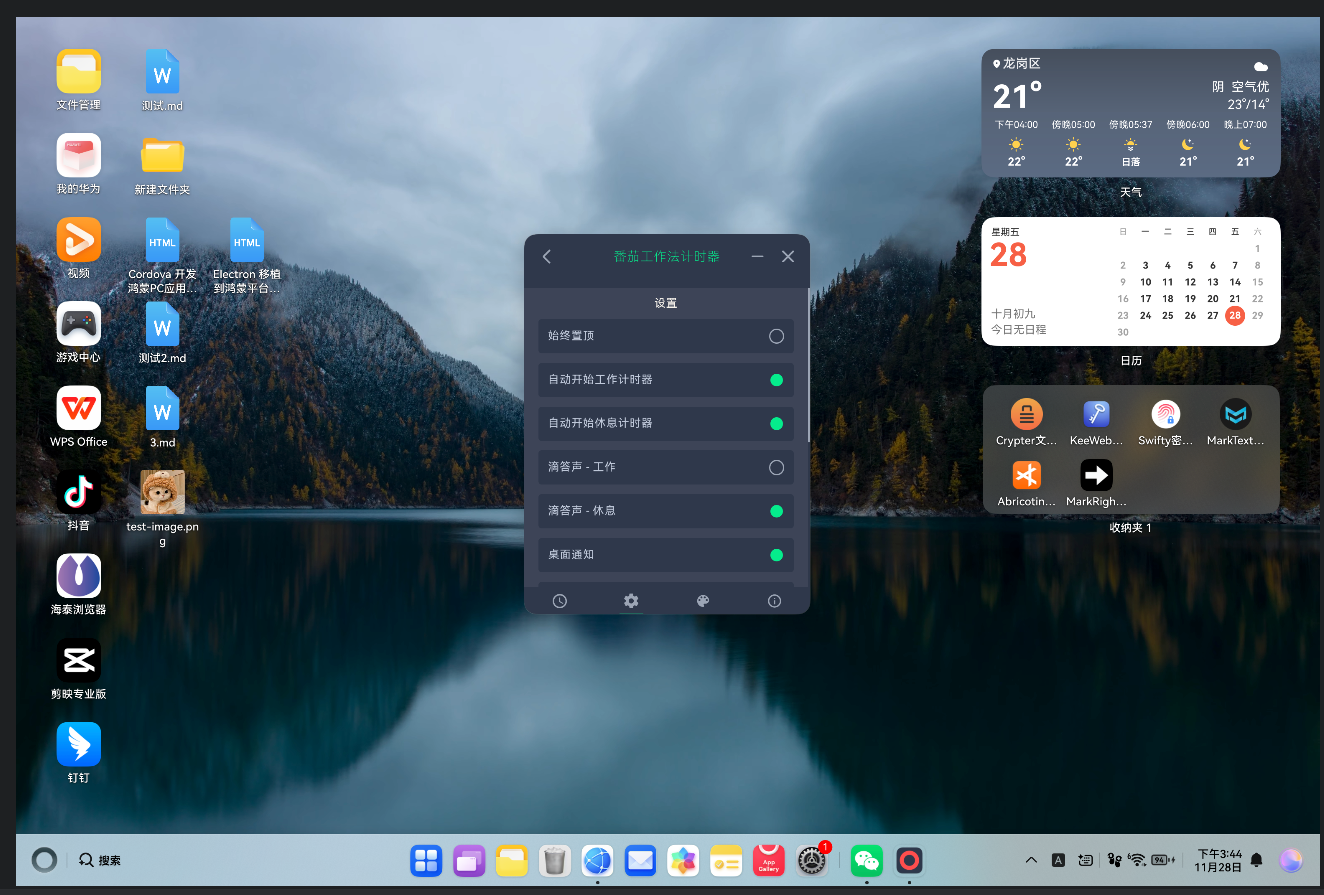
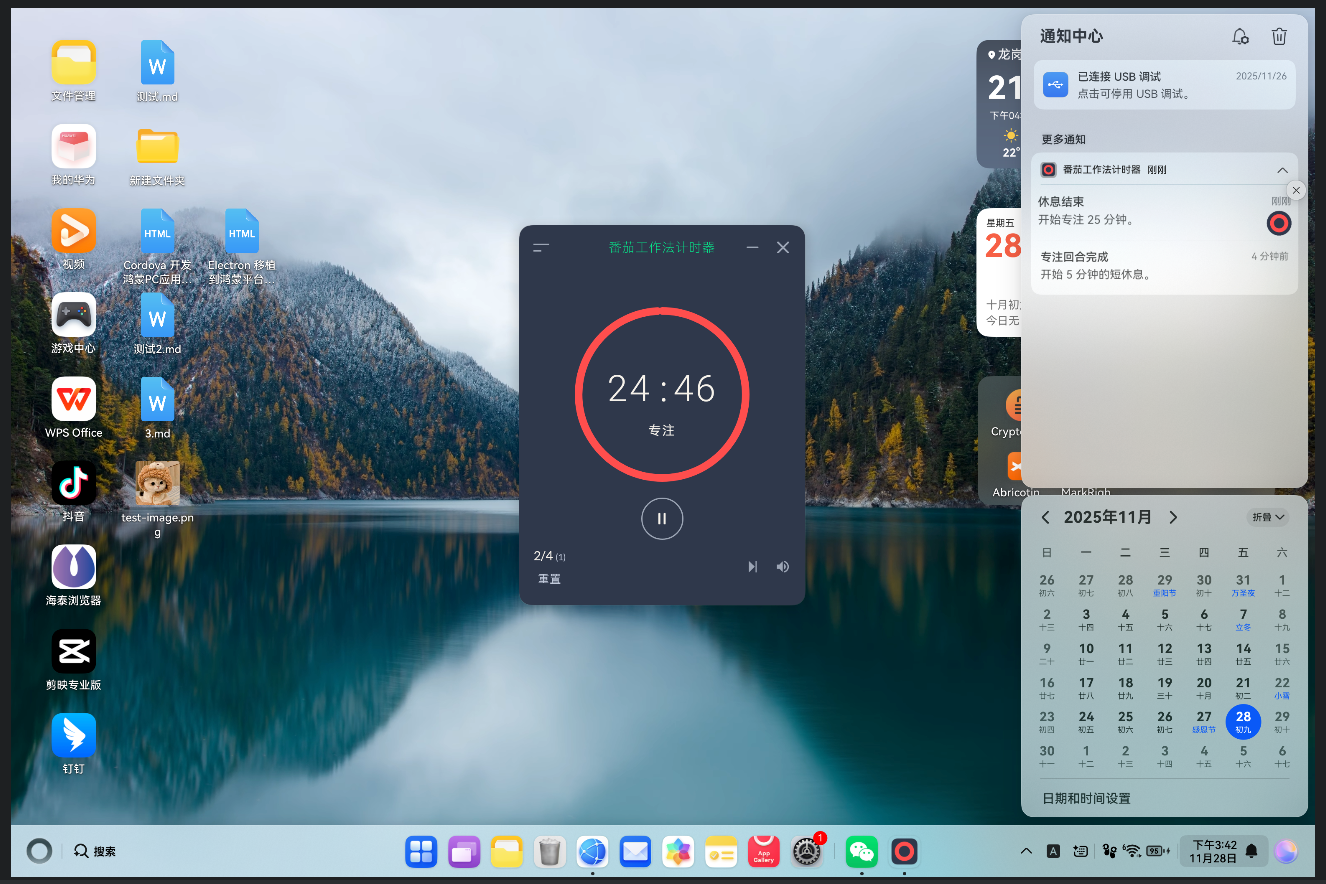
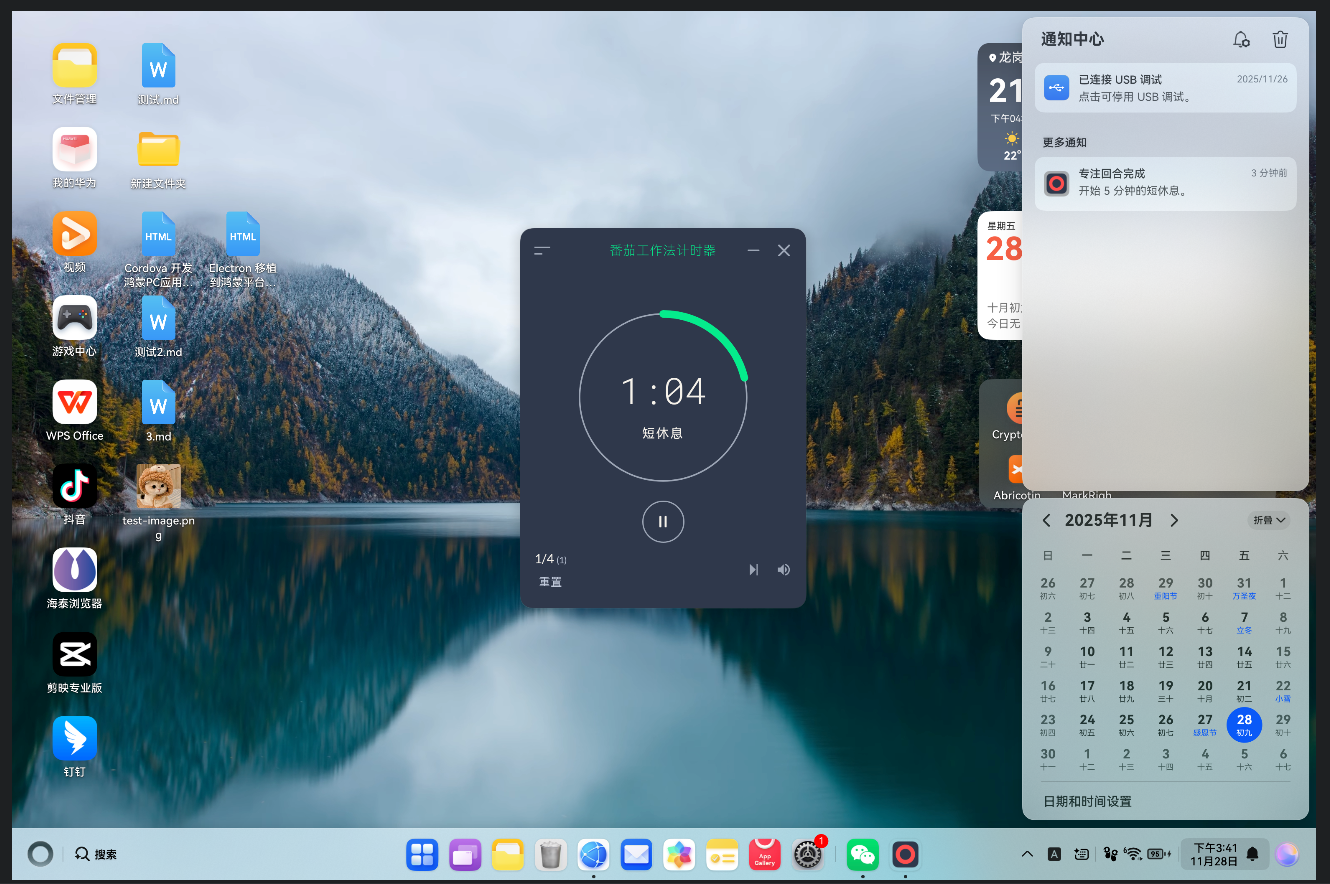
- ✅ 完整的番茄工作法计时功能(专注、短休息、长休息)
- ✅ 可自定义计时时长和回合数
- ✅ 17 种内置主题,支持自定义主题
- ✅ 计时器提示音和桌面通知
- ✅ 全局快捷键支持
- ✅ 系统托盘集成
- ✅ 始终置顶窗口选项
- ✅ WebSocket 进程间通信
- ✅ 完整的 Electron 主进程和渲染进程集成
- ✅ Remote 模块完整支持(通过 IPC 实现)
- ✅ 简体中文界面支持
📸 效果展示
以下是番茄工作法计时器在鸿蒙PC平台上的运行效果:
🏗️ 技术架构
项目结构
ElectronForHarmony_pomotroid/
├── AppScope/                          # 应用配置层
│   ├── app.json5                     # 应用主配置
│   └── resources/                    # 应用资源
│       ├── base/element/string.json # 应用名称(中文)
│       └── base/media/              # 应用图标
│
├── electron/                          # Electron 模块(鸿蒙原生层)
│   └── src/main/ets/                 # ArkTS 代码
│       ├── EntryAbility.ets          # 应用入口 Ability
│       ├── BrowserAbility.ets        # 浏览器能力
│       └── adapter/                  # 适配器层
│
├── web_engine/                        # Web 引擎模块
│   └── src/main/resources/
│       └── resfile/resources/app/    # Electron 应用代码
│           ├── main.js               # ⭐ 主进程入口
│           ├── preload.js            # ⭐ Preload 脚本
│           ├── index.html            # 渲染进程 HTML
│           ├── renderer.js            # ⭐ 渲染进程(Vue.js 构建后)
│           ├── static/               # 静态资源
│           │   ├── themes/          # 17 个主题 JSON 文件
│           │   ├── audio/           # 提示音文件
│           │   └── icon*.png        # 图标文件
│           └── node_modules/        # Node.js 模块
│               ├── ws/              # WebSocket 模块
│               └── winston/         # 日志模块
│
└── themes/                            # 主题文档目录
    ├── themes.md                     # 主题使用说明
    ├── theme-template.json          # 主题模板
    └── images/                      # 34 张主题预览图
核心技术栈
| 技术 | 版本/说明 | 用途 |
|---|---|---|
| Electron for 鸿蒙PC | - | 跨平台桌面应用框架 |
| Vue.js | 2.6.12 | 前端框架(渲染进程) |
| Vuex | 3.6.2 | 状态管理 |
| WebSocket (ws) | 7.4.6 | 进程间通信 |
| Winston | 3.3.3 | 日志记录 |
| Anime.js | 3.2.1 | 动画效果 |
| ArkTS | - | HarmonyOS 原生层开发 |
| Webpack | 4.44.2 | 构建工具 |
🔧 核心实现要点
1. Electron for 鸿蒙PC 主进程入口:main.js
1.1 硬件加速禁用(必需)
⚠️ 关键要点:鸿蒙PC上必须禁用硬件加速!
javascript
// ✅ 正确配置
const { app } = require('electron');

// Step 1: 在 Electron 层面禁用硬件加速
app.disableHardwareAcceleration();

// Step 2: 在 Chromium 层面追加命令行开关,彻底禁用 GPU
app.commandLine.appendSwitch('disable-gpu');原因说明:
- 鸿蒙PC的 GPU 驱动可能不完全兼容 Chromium 的硬件加速
- 禁用硬件加速可以避免黑屏、渲染错误或应用崩溃
- 这两个配置必须同时使用
1.2 环境变量设置
javascript
// 设置环境变量
process.env.ELECTRON_DISABLE_SECURITY_WARNINGS = '1';
process.env.NODE_ENV = process.env.NODE_ENV || 'production';

// 设置静态资源路径
global.__static = path.join(__dirname, '/static').replace(/\\/g, '\\\\');
1.3 窗口创建配置
javascript
function createWindow() {
    const pomotroidHtmlPath = path.join(__dirname, 'index.html');
    const preloadPath = path.join(__dirname, 'preload.js');

    mainWindowRef = new BrowserWindow({
        alwaysOnTop: false,
        backgroundColor: '#2F384B',
        fullscreenable: false,
        frame: false,                    // 无边框窗口
        resizable: false,                // 不可调整大小
        useContentSize: true,
        width: 360,
        height: 478,
        webPreferences: {
            backgroundThrottling: false,
            nodeIntegration: true,
            contextIsolation: false,      // ⚠️ 必须为 false
            webSecurity: false,
            enableRemoteModule: true,
            preload: preloadPath
        }
    });

    mainWindowRef.loadFile(pomotroidHtmlPath);
}关键配置说明:
frame: false:无边框窗口,符合 Pomotroid 的设计风格resizable: false:固定窗口大小contextIsolation: false:允许直接访问 Node.js APInodeIntegration: true:启用 Node.js 集成
2. Remote 模块支持(通过 IPC 实现)
2.1 IPC 处理器实现
javascript
// main.js - IPC 处理器
ipcMain.on('electron-app-getPath-sync', (event, name) => {
    event.returnValue = app.getPath(name);
});

ipcMain.on('electron-app-getVersion-sync', (event) => {
    event.returnValue = app.getVersion();
});

ipcMain.on('electron-app-getName-sync', (event) => {
    event.returnValue = app.getName();
});

ipcMain.handle('electron-app-getPath', (event, name) => {
    return app.getPath(name);
});
2.2 Preload 脚本实现
javascript
// preload.js
const electron = require('electron');
const { ipcRenderer } = electron;

// 创建 remote 代理对象
const appProxy = {
    getPath: function(name) {
        try {
            return ipcRenderer.sendSync('electron-app-getPath-sync', name);
        } catch (e) {
            console.error('Error getting path:', e);
            return '/tmp';
        }
    },
    getVersion: function() {
        try {
            return ipcRenderer.sendSync('electron-app-getVersion-sync');
        } catch (e) {
            return 'unknown';
        }
    },
    getName: function() {
        try {
            return ipcRenderer.sendSync('electron-app-getName-sync');
        } catch (e) {
            return 'ElectronApp';
        }
    }
};

const remote = {
    app: appProxy,
    getCurrentWindow: function() {
        return {
            minimize: () => ipcRenderer.send('window-minimize'),
            close: () => ipcRenderer.send('window-close'),
            // ...
        };
    }
};

// ⚠️ 关键:同时设置 window.remote 和 electron.remote
window.remote = remote;
electron.remote = remote;
electron.app = remote.app;实现要点:
- 使用
sendSync实现同步调用 - 使用
send实现异步调用 - 同时设置
window.remote和electron.remote,确保兼容性
3. WebSocket 进程间通信
3.1 WebSocket 服务器初始化
javascript
// main.js
let WebSocket;
try {
    const wsPath = path.join(__dirname, 'node_modules', 'ws');
    if (fs.existsSync(wsPath)) {
        WebSocket = require(wsPath);
    } else {
        WebSocket = require('ws');
    }
} catch (e) {
    console.error('Failed to load ws module:', e);
}

let wss = null;
let timerState = 'idle';

function initWebSocket(port) {
    wss = new WebSocket.Server({ port });
    wss.on('connection', (ws) => {
        console.log('New Websocket Connection');
        ws.on('message', (data) => {
            try {
                const parsedData = JSON.parse(data);
                if (parsedData.event === 'getState') {
                    ws.send(JSON.stringify({
                        event: 'getState',
                        data: { state: timerState }
                    }));
                }
            } catch (e) {
                console.error('WebSocket message error:', e);
            }
        });
    });
    console.log(`Initialized local websocket on ${port}`);
}

// 在 app.whenReady() 中启动
app.whenReady().then(() => {
    initWebSocket(1314);
    // ...
});
3.2 计时器状态同步
javascript
// main.js - 监听回合变化
ipcMain.on('roundChange', (_event, round) => {
    timerState = round;
    const message = {
        event: 'roundChange',
        data: {
            state: timerState
        }
    };
    sendGlobalMessage(message);
});

function sendGlobalMessage(data) {
    if (!wss) return;
    const parsedData = JSON.stringify(data);
    wss.clients.forEach(client => {
        if (client.readyState === WebSocket.OPEN) {
            client.send(parsedData);
        }
    });
}
4. 模块依赖处理
4.1 自定义模块解析
javascript
// main.js
const Module = require('module');
const fs = require('fs');

const nodeModulesPath = path.join(__dirname, 'node_modules');
if (fs.existsSync(nodeModulesPath)) {
    const originalResolveFilename = Module._resolveFilename;
    Module._resolveFilename = function(request, parent, isMain) {
        // 优先从当前目录的 node_modules 查找
        if (request === 'ws') {
            const wsPath = path.join(nodeModulesPath, 'ws', 'index.js');
            if (fs.existsSync(wsPath)) {
                return wsPath;
            }
        }
        // 对于其他模块,也尝试从当前目录查找
        const localPath = path.join(nodeModulesPath, request);
        if (fs.existsSync(localPath)) {
            const pkgPath = path.join(localPath, 'package.json');
            if (fs.existsSync(pkgPath)) {
                try {
                    const pkg = JSON.parse(fs.readFileSync(pkgPath, 'utf8'));
                    const mainFile = pkg.main || 'index.js';
                    const mainPath = path.join(localPath, mainFile);
                    if (fs.existsSync(mainPath)) {
                        return mainPath;
                    }
                } catch (e) {
                    // 继续使用默认解析
                }
            }
        }
        return originalResolveFilename.apply(this, arguments);
    };
}
4.2 依赖模块复制
需要复制的模块:
ws:WebSocket 通信winston:日志记录winston-daily-rotate-file:日志轮转- 以及所有间接依赖
自动化脚本:
bash
#!/bin/bash
# copy-dependencies.sh

SOURCE_DIR="../pomotroid/node_modules"
TARGET_DIR="web_engine/src/main/resources/resfile/resources/app/node_modules"

mkdir -p "$TARGET_DIR"

# 复制直接依赖
cp -r "$SOURCE_DIR/ws" "$TARGET_DIR/"
cp -r "$SOURCE_DIR/winston" "$TARGET_DIR/"
cp -r "$SOURCE_DIR/winston-daily-rotate-file" "$TARGET_DIR/"

# 复制间接依赖
cp -r "$SOURCE_DIR/logform" "$TARGET_DIR/"
cp -r "$SOURCE_DIR/triple-beam" "$TARGET_DIR/"
cp -r "$SOURCE_DIR/colors" "$TARGET_DIR/"
# ... 其他依赖
5. 系统托盘集成
5.1 托盘创建
javascript
// main.js
let tray = null;

function createTray() {
    if (tray) return;

    const trayIconFile = process.platform === 'darwin'
        ? 'icon--macos--tray.png'
        : 'icon.png';
    const trayIconPath = path.join(global.__static, trayIconFile);

    tray = new Tray(trayIconPath);
    tray.setToolTip('番茄工作法计时器\n点击恢复');

    const contextMenu = Menu.buildFromTemplate([
        {
            label: '查看',
            click: function() {
                toggleWindow();
            }
        },
        {
            label: '退出',
            click: function() {
                app.isQuiting = true;
                app.quit();
            }
        }
    ]);

    tray.on('click', () => {
        toggleWindow();
    });
    tray.setContextMenu(contextMenu);
}
5.2 托盘图标更新
javascript
// main.js - IPC 处理器
ipcMain.on('tray-icon-update', (event, image) => {
    if (tray) {
        const nativeImg = nativeImage.createFromDataURL(image);
        tray.setImage(nativeImg);
    }
});
6. 全局快捷键支持
6.1 快捷键注册
javascript
// main.js
function loadGlobalShortcuts(globalShortcuts) {
    if (!globalShortcuts) return;

    Object.keys(globalShortcuts).forEach(key => {
        try {
            globalShortcut.register(globalShortcuts[key], () => {
                if (mainWindowRef) {
                    mainWindowRef.webContents.send('event-bus', key);
                }
            });
        } catch (e) {
            console.error(`Failed to register shortcut ${key}:`, e);
        }
    });
}

// IPC 处理器 - 重新加载快捷键
ipcMain.on('reload-global-shortcuts', (event, shortcuts) => {
    globalShortcut.unregisterAll();
    loadGlobalShortcuts(shortcuts);
});
6.2 快捷键清理
javascript
// main.js
app.on('will-quit', () => {
    globalShortcut.unregisterAll();
    if (wss) {
        wss.close();
    }
});
7. 窗口管理
7.1 窗口置顶控制
javascript
// main.js - IPC 处理器
ipcMain.on('toggle-alwaysOnTop', (event, arg) => {
    if (mainWindowRef) {
        mainWindowRef.setAlwaysOnTop(arg);
    }
});

let breakAlwaysOnTop;
ipcMain.on('toggle-breakAlwaysOnTop', (event, arg) => {
    breakAlwaysOnTop = arg;
    if (breakAlwaysOnTop === false && mainWindowRef) {
        mainWindowRef.setAlwaysOnTop(true);
    }
});

ipcMain.on('onBreak', (event, arg) => {
    if (breakAlwaysOnTop === true && mainWindowRef) {
        mainWindowRef.setAlwaysOnTop(!arg);
    }
});
7.2 窗口最小化控制
javascript
// main.js - IPC 处理器
ipcMain.on('window-minimize', (event, arg) => {
    if (mainWindowRef) {
        if (arg) {
            mainWindowRef.hide();  // 最小化到托盘
        } else {
            mainWindowRef.minimize();  // 最小化到任务栏
        }
    }
});
8. 主题系统实现
8.1 主题文件结构
主题文件位于 static/themes/ 目录,每个主题一个 JSON 文件:
json
{
  "name": "番茄工作法计时器",
  "colors": {
    "--color-long-round": "#0bbddb",
    "--color-short-round": "#05ec8c",
    "--color-focus-round": "#ff4e4d",
    "--color-background": "#2f384b",
    "--color-background-light": "#3d4457",
    "--color-background-lightest": "#9ca5b5",
    "--color-foreground": "#f6f2eb",
    "--color-foreground-darker": "#c0c9da",
    "--color-foreground-darkest": "#dbe1ef",
    "--color-accent": "#05ec8c"
  }
}
8.2 主题加载和应用
主题加载逻辑在 renderer.js 中的 Themer 类实现:
javascript
// Themer.js (在 renderer.js 中)
class Themer {
    constructor() {
        const localDir = join(__static, 'themes');
        const customDir = join(userDir(), 'themes');
        this.themes = [];
        this._load([localDir, customDir]);
    }

    apply(themeName) {
        const theme = this.getTheme(themeName);
        for (const k in theme.colors) {
            document.documentElement.style.setProperty(k, theme.colors[k]);
        }
    }

    _load(directories) {
        directories.forEach(d => {
            const files = readdirSync(d);
            files.forEach(f => {
                const theme = JSON.parse(readFileSync(join(d, f)));
                this.themes.push(theme);
            });
        });
    }
}
9. 多语言支持
9.1 鸿蒙应用名称配置
json
// AppScope/resources/base/element/string.json
{
  "string": [
    {
      "name": "app_name",
      "value": "番茄工作法计时器"
    }
  ]
}
9.2 Electron 模块标签配置
json
// electron/src/main/resources/base/element/string.json
{
  "string": [
    {
      "name": "EntryAbility_label",
      "value": "番茄工作法计时器"
    }
  ]
}
9.3 界面文本翻译
界面文本在 renderer.js 中已翻译为中文:
- "专注回合"、"短休息"、"长休息"
- "设置"、"计时器"、"关于"、"主题"
- "重置默认值"、"跳过回合"、"静音"等
10. 构建和部署
10.1 构建流程
-
构建原始 Pomotroid 应用:
bashcd pomotroid npm install NODE_OPTIONS=--openssl-legacy-provider npm run pack:renderer -
复制构建文件:
bashcp dist/electron/renderer.js \ ../ElectronForHarmony_pomotroid/web_engine/src/main/resources/resfile/resources/app/ -
复制静态资源:
bashcp -r static/* \ ../ElectronForHarmony_pomotroid/web_engine/src/main/resources/resfile/resources/app/static/ -
复制依赖模块:
bash./copy-dependencies.sh -
使用 DevEco Studio 构建:
- 打开项目
- 等待依赖安装
- 点击运行按钮
10.2 构建产物
构建完成后生成:
electron-default-signed.hap:签名后的 HAP 包electron-default-unsigned.hap:未签名的 HAP 包
🎯 关键技术决策
1. 为什么禁用硬件加速?
鸿蒙PC的 GPU 驱动可能不完全兼容 Chromium 的硬件加速,禁用硬件加速可以:
- 避免黑屏和渲染错误
- 提高应用稳定性
- 确保在所有鸿蒙PC设备上正常运行
2. 为什么使用 IPC 实现 Remote 模块?
- Electron for 鸿蒙PC 可能不完全支持原生的
remote模块 - IPC 方式更可控,可以精确处理每个 API 调用
- 更好的错误处理和调试能力
3. 为什么需要自定义模块解析?
- Electron for 鸿蒙PC 应用的模块搜索路径与标准 Electron 不同
- 需要确保模块从应用目录加载,而不是系统目录
- 提高模块加载的可靠性
4. 为什么使用 WebSocket 进行进程间通信?
- Pomotroid 使用 WebSocket 同步计时器状态
- 支持多个客户端连接(未来可能支持多窗口)
- 更灵活的消息传递机制
📝 配置清单
鸿蒙应用配置
AppScope/app.json5
json5
{
  "app": {
    "bundleName": "com.electron.pomotroid",
    "vendor": "splode",
    "versionCode": 1300000,
    "versionName": "0.13.0",
    "icon": "$media:app_icon",
    "label": "$string:app_name"
  }
}
electron/src/main/module.json5
json5
{
  "module": {
    "abilities": [
      {
        "name": "EntryAbility",
        "launchType": "singleton",  // ⚠️ 必须是 singleton
        "removeMissionAfterTerminate": true
      }
    ]
  }
}
🔍 调试技巧
1. 启用 DevTools
javascript
// main.js
mainWindowRef.webContents.on('did-finish-load', () => {
    if (process.env.NODE_ENV !== 'production') {
        mainWindowRef.webContents.openDevTools();
    }
});
2. 添加日志输出
javascript
// main.js
console.log('Creating Pomotroid window...');
console.log('HTML path:', pomotroidHtmlPath);
console.log('Preload path:', preloadPath);
3. 监听窗口事件
javascript
// main.js
mainWindowRef.webContents.on('did-fail-load', (event, errorCode, errorDescription, validatedURL) => {
    console.error('Window failed to load:', errorCode, errorDescription, validatedURL);
});

mainWindowRef.webContents.on('console-message', (event, level, message, line, sourceId) => {
    console.log(`[Renderer ${level}] ${message} (${sourceId}:${line})`);
});
📚 参考资源
- OpenHarmony PC开发者专区
- HarmonyOS PC 开发者社区
- Electron for 鸿蒙PC 官方文档
- HarmonyOS 开发文档
- Pomotroid 原始项目
- 主题使用文档
- 问题排查与解决方案