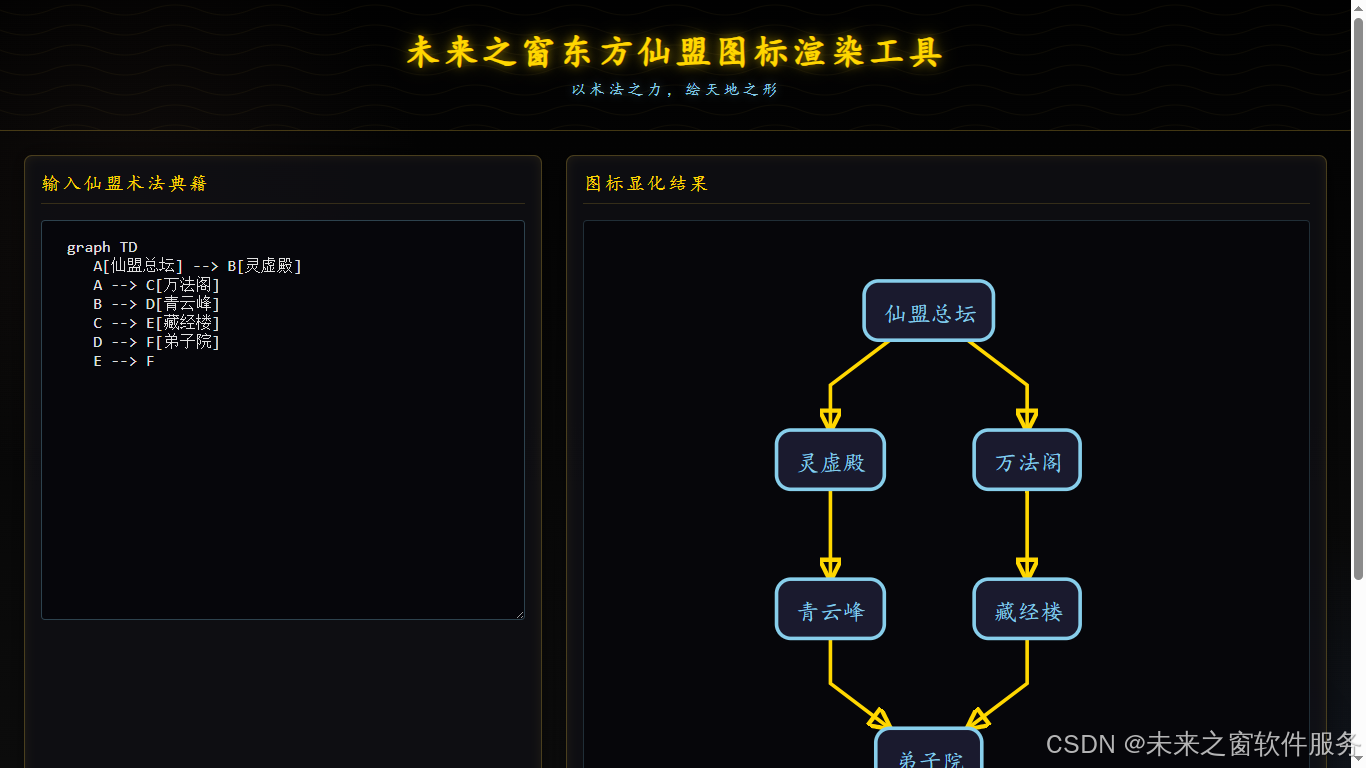
Mermaid 图标渲染工具改为 Go 语言实现,核心思路是:用 Go 搭建 Web 服务 (处理 HTTP 请求),保留前端界面和交互逻辑(复用原 HTML/CSS/JS),通过 Go 的文件服务提供静态资源。以下是完整实现方案:
一、项目结构
mermaid-render-go/
├── static/                # 静态资源目录(存放前端文件)
│   ├── index.html         # 前端界面(复用原HTML,仅修改路径)
│   └── css/               # (可选,若拆分CSS)
│   └── js/                # (可选,若拆分JS)
└── main.go                # Go后端服务代码
二、Go 后端代码(main.go)
功能:搭建 HTTP 服务,提供静态文件访问(前端页面、Mermaid 库),无需额外后端逻辑(渲染由前端 JS 完成)。
go
运行
package main

import (
	"log"
	"net/http"
	"path/filepath"
	"strings"
)

func main() {
	// 1. 配置静态文件路由:将/static路径映射到本地static目录
	fs := http.FileServer(http.Dir("static"))
	http.Handle("/static/", http.StripPrefix("/static/", fs))

	// 2. 根路径路由:访问localhost:8080时返回index.html
	http.HandleFunc("/", func(w http.ResponseWriter, r *http.Request) {
		// 处理根路径请求
		if r.URL.Path == "/" {
			r.URL.Path = "/index.html" // 重定向到index.html
		}

		// 确保请求路径指向static目录下的文件
		filePath := filepath.Join("static", strings.TrimPrefix(r.URL.Path, "/"))
		// 提供文件访问
		http.ServeFile(w, r, filePath)
	})

	// 3. 启动服务
	log.Println("东方仙盟图标渲染工具已启动:http://localhost:8080")
	log.Fatal(http.ListenAndServe(":8080", nil))
}
三、前端文件(static/index.html)
复用原 HTML 逻辑,仅修改 2 处:
- 移除外部 MermaidCDN 依赖(通过 Go 服务提供,或保留 CDN 均可,此处保留 CDN 更简洁);
- 确保路径正确(因 Go 服务提供静态文件,无需修改路径,直接复用)。
html
预览
<!DOCTYPE html>
<html lang="zh-CN">
<head>
    <meta charset="UTF-8">
    <meta name="viewport" content="width=device-width, initial-scale=1.0">
    <title>未来之窗东方仙盟图标渲染工具</title>
    <!-- 保留CDN依赖(无需本地部署Mermaid,简化配置) -->
    <script src="https://cdn.jsdelivr.net/npm/mermaid@10.9.1/dist/mermaid.min.js"></script>
    <style>
        /* 全局样式 - 黑色修仙风格(完全复用原CSS) */
        * {
            margin: 0;
            padding: 0;
            box-sizing: border-box;
            font-family: '楷体', 'KaiTi', serif;
        }

        body {
            background: #0a0a0a;
            background-image:
                radial-gradient(circle at 10% 20%, rgba(121, 85, 72, 0.1) 0%, transparent 20%),
                radial-gradient(circle at 90% 80%, rgba(66, 133, 244, 0.1) 0%, transparent 20%),
                linear-gradient(to bottom, rgba(0,0,0,0.9), rgba(15,15,15,0.95));
            color: #e0e0e0;
            min-height: 100vh;
            overflow-x: hidden;
        }

        /* 标题样式 */
        .header {
            text-align: center;
            padding: 2rem 1rem;
            border-bottom: 1px solid rgba(212, 175, 55, 0.3);
            position: relative;
            overflow: hidden;
        }

        .header::before {
            content: "";
            position: absolute;
            top: 0;
            left: 0;
            width: 100%;
            height: 100%;
            background-image: url("data:image/svg+xml,%3Csvg width='100' height='20' xmlns='http://www.w3.org/2000/svg'%3E%3Cpath d='M0 10 Q 25 20, 50 10 T 100 10' fill='none' stroke='rgba(212, 175, 55, 0.2)' stroke-width='1'/%3E%3C/svg%3E");
            opacity: 0.3;
        }

        h1 {
            font-size: 2.2rem;
            color: #ffd700;
            text-shadow: 0 0 10px rgba(255, 215, 0, 0.5), 0 0 20px rgba(255, 215, 0, 0.3);
            letter-spacing: 0.1em;
            position: relative;
            z-index: 1;
        }

        .subtitle {
            color: #87ceeb;
            margin-top: 0.5rem;
            font-size: 1rem;
            letter-spacing: 0.2em;
            text-shadow: 0 0 8px rgba(135, 206, 235, 0.4);
        }

        /* 主容器 */
        .container {
            display: flex;
            flex-wrap: wrap;
            padding: 1.5rem;
            gap: 1.5rem;
            max-width: 1600px;
            margin: 0 auto;
            flex: 1;
        }

        /* 左侧输入区 */
        .input-panel {
            flex: 1;
            min-width: 300px;
            background: rgba(15, 15, 20, 0.8);
            border: 1px solid rgba(212, 175, 55, 0.3);
            border-radius: 8px;
            padding: 1rem;
            box-shadow: 0 0 20px rgba(0, 0, 0, 0.5), inset 0 0 10px rgba(212, 175, 55, 0.1);
        }

        .panel-title {
            color: #ffd700;
            margin-bottom: 1rem;
            padding-bottom: 0.5rem;
            border-bottom: 1px solid rgba(212, 175, 55, 0.2);
            font-size: 1.2rem;
            letter-spacing: 0.1em;
        }

        textarea {
            width: 100%;
            height: 400px;
            background: rgba(5, 5, 10, 0.9);
            border: 1px solid rgba(135, 206, 235, 0.3);
            border-radius: 4px;
            padding: 1rem;
            color: #e0e0e0;
            font-size: 1rem;
            resize: vertical;
            outline: none;
            transition: all 0.3s ease;
            font-family: 'Consolas', monospace;
        }

        textarea:focus {
            border-color: #87ceeb;
            box-shadow: 0 0 10px rgba(135, 206, 235, 0.3);
        }

        /* 右侧预览区 */
        .preview-panel {
            flex: 1.5;
            min-width: 400px;
            background: rgba(15, 15, 20, 0.8);
            border: 1px solid rgba(212, 175, 55, 0.3);
            border-radius: 8px;
            padding: 1rem;
            box-shadow: 0 0 20px rgba(0, 0, 0, 0.5), inset 0 0 10px rgba(212, 175, 55, 0.1);
            display: flex;
            flex-direction: column;
        }

        #preview-container {
            flex: 1;
            background: rgba(5, 5, 10, 0.95);
            border: 1px solid rgba(135, 206, 235, 0.2);
            border-radius: 4px;
            padding: 1.5rem;
            overflow: auto;
            display: flex;
            align-items: center;
            justify-content: center;
        }

        /* 占位提示 */
        .placeholder {
            text-align: center;
            color: #888;
            padding: 2rem;
            line-height: 1.8;
        }

        .placeholder i {
            font-size: 3rem;
            color: rgba(212, 175, 55, 0.3);
            display: block;
            margin-bottom: 1rem;
        }

        /* 底部版权 */
        .footer {
            text-align: center;
            padding: 1.5rem;
            border-top: 1px solid rgba(212, 175, 55, 0.3);
            color: #87ceeb;
            font-size: 1rem;
            letter-spacing: 0.2em;
            background: rgba(5, 5, 10, 0.9);
        }

        .footer::before {
            content: "✧";
            margin-right: 0.5rem;
            color: #ffd700;
        }

        .footer::after {
            content: "✧";
            margin-left: 0.5rem;
            color: #ffd700;
        }

        /* 响应式调整 */
        @media (max-width: 768px) {
            .container {
                flex-direction: column;
            }

            .input-panel, .preview-panel {
                min-width: 100%;
            }

            textarea {
                height: 300px;
            }

            h1 {
                font-size: 1.8rem;
            }
        }

        /* Mermaid渲染样式适配(修仙风格定制) */
        .mermaid {
            max-width: 100%;
            max-height: 100%;
        }

        .mermaid .node rect,
        .mermaid .node circle,
        .mermaid .node ellipse,
        .mermaid .node polygon,
        .mermaid .node path {
            fill: #1a1a2e !important;
            stroke: #87ceeb !important;
            stroke-width: 2px !important;
            rx: 8px !important;
            ry: 8px !important;
        }

        .mermaid .node text {
            fill: #e0e0e0 !important;
            font-size: 14px !important;
            font-family: '楷体', 'KaiTi', serif !important;
        }

        .mermaid .edgePath path,
        .mermaid .edge path {
            stroke: #ffd700 !important;
            stroke-width: 2px !important;
            fill: none !important;
        }

        .mermaid .arrowhead path {
            fill: #ffd700 !important;
            stroke: #ffd700 !important;
        }

        .mermaid .label text {
            fill: #87ceeb !important;
            font-size: 13px !important;
        }

        .mermaid .title {
            fill: #ffd700 !important;
            font-size: 16px !important;
            text-shadow: 0 0 5px rgba(255, 215, 0, 0.3) !important;
        }

        /* 隐藏临时渲染容器 */
        #mermaid-temp-container {
            display: none !important;
        }
    </style>
</head>
<body>
    <!-- 头部标题 -->
    <div class="header">
        <h1>未来之窗东方仙盟图标渲染工具</h1>
        <div class="subtitle">以术法之力,绘天地之形</div>
    </div>

    <!-- 主内容区 -->
    <div class="container">
        <!-- 左侧输入面板 -->
        <div class="input-panel">
            <div class="panel-title">输入仙盟术法典籍</div>
            <textarea id="mermaid-code" placeholder="在此输入Mermaid图表代码...
示例1(流程图):
graph TD
    A[仙盟总坛] --> B[灵虚殿]
    A --> C[万法阁]
    B --> D[青云峰]
    C --> E[藏经楼]
    D --> F[弟子院]
    E --> F

示例2(时序图):
sequenceDiagram
    弟子->>灵虚殿: 求见掌门
    灵虚殿-->>弟子: 准入
    弟子->>掌门: 汇报修行进度
    掌门-->>弟子: 赐下丹药

示例3(类图):
classDiagram
    class 修仙者 {
        +姓名: string
        +修为: int
        +修炼()
        +渡劫()
    }
    class 掌门 {
        +执掌宗门()
        +传授功法()
    }
    修仙者 <|-- 掌门"></textarea>
        </div>

        <!-- 右侧预览面板 -->
        <div class="preview-panel">
            <div class="panel-title">图标显化结果</div>
            <div id="preview-container">
                <div class="placeholder">
                    <i>📜</i>
                    <p>输入术法典籍,即刻显化图标</p>
                    <p style="font-size: 0.9rem; margin-top: 0.5rem;">支持流程图、时序图、类图等多种形制</p>
                </div>
            </div>
        </div>
    </div>

    <!-- 底部版权 -->
    <div class="footer">东方仙盟 版权所有</div>

    <!-- 临时渲染容器 -->
    <div id="mermaid-temp-container"></div>

    <script>
        // 初始化Mermaid(完全复用原JS逻辑)
        mermaid.initialize({
            startOnLoad: false,
            theme: 'dark',
            themeVariables: {
                primaryColor: '#1a1a2e',
                primaryTextColor: '#e0e0e0',
                primaryBorderColor: '#87ceeb',
                lineColor: '#ffd700',
                secondaryColor: '#2a2a3e',
                tertiaryColor: '#0f0f1a'
            },
            fontFamily: '"楷体", "KaiTi", serif',
            fontSize: '14px',
            arrowMarkerAbsolute: false,
            logLevel: 3,
            securityLevel: 'loose'
        });

        document.addEventListener('DOMContentLoaded', function() {
            const textarea = document.getElementById('mermaid-code');
            const previewContainer = document.getElementById('preview-container');
            const tempContainer = document.getElementById('mermaid-temp-container');

            textarea.addEventListener('input', debounce(renderMermaid, 500));

            function debounce(func, delay) {
                let timer;
                return function() {
                    clearTimeout(timer);
                    timer = setTimeout(() => func.apply(this, arguments), delay);
                };
            }

            async function renderMermaid() {
                const code = textarea.value.trim();
                if (!code) {
                    previewContainer.innerHTML = `
                        <div class="placeholder">
                            <i>📜</i>
                            <p>输入术法典籍,即刻显化图标</p>
                            <p style="font-size: 0.9rem; margin-top: 0.5rem;">支持流程图、时序图、类图等多种形制</p>
                        </div>
                    `;
                    return;
                }

                try {
                    tempContainer.innerHTML = '';
                    const chartId = `mermaid-chart-${Date.now()}`;
                    const chartContainer = document.createElement('div');
                    chartContainer.id = chartId;
                    chartContainer.className = 'mermaid';
                    tempContainer.appendChild(chartContainer);

                    const renderResult = await mermaid.render(chartId, code, chartContainer);
                    previewContainer.innerHTML = renderResult.svg;
                    tempContainer.removeChild(chartContainer);

                } catch (error) {
                    let errorMsg = error.message || '未知错误';
                    if (errorMsg.includes('getBoundingClientRect')) {
                        errorMsg = '图表渲染容器初始化失败,请刷新页面重试';
                    } else if (errorMsg.includes('Parse error')) {
                        errorMsg = '语法解析错误,请检查代码格式';
                    }

                    previewContainer.innerHTML = `
                        <div class="placeholder" style="color: #ff6b6b;">
                            <i>⚠️</i>
                            <p>术法典籍有误,无法显化</p>
                            <p style="font-size: 0.9rem; margin-top: 0.5rem;">错误信息:${errorMsg}</p>
                            <p style="font-size: 0.8rem; margin-top: 0.3rem;">请检查语法格式后重试</p>
                        </div>
                    `;
                }
            }

            if (textarea.value.trim()) {
                renderMermaid();
            }
        });
    </script>
</body>
</html>
四、运行步骤
-
安装 Go 环境 :确保本地安装 Go 1.18+(下载地址:https://golang.org/dl/);
-
创建项目目录 :按上述结构创建
mermaid-render-go和static目录; -
复制文件 :
- 将
main.go放入根目录; - 将修改后的
index.html放入static目录;
- 将
-
启动服务 :
bash
运行
cd mermaid-render-go go run main.go -
访问工具 :打开浏览器,输入
http://localhost:8080,即可使用(功能与原 HTML 版完全一致)。
五、核心说明
- Go 的角色:仅作为 Web 服务器,提供静态文件(HTML/CSS/JS)访问,不参与 Mermaid 渲染逻辑;
- 渲染逻辑:仍由前端 JS 完成(复用原 Mermaid 初始化和渲染代码),确保功能一致;
- 优势 :
- 可部署到服务器(支持跨设备访问);
- 无需依赖本地浏览器打开 HTML 文件;
- 保持原修仙风格 UI 和交互体验;
- 扩展方向 :
- 若需保存图表,可在 Go 中添加文件存储接口;
- 若需共享图表,可添加生成临时链接功能;
- 若需离线使用,可将 Mermaid 库下载到
static目录,修改 HTML 中 CDN 路径为本地路径。
阿雪技术观
让我们积极投身于技术共享的浪潮中,不仅仅是作为受益者,更要成为贡献者。无论是分享自己的代码、撰写技术博客,还是参与开源项目的维护和改进,每一个小小的举动都可能成为推动技术进步的巨大力量
Embrace open source and sharing, witness the miracle of technological progress, and enjoy the happy times of humanity! Let's actively join the wave of technology sharing. Not only as beneficiaries, but also as contributors. Whether sharing our own code, writing technical blogs, or participating in the maintenance and improvement of open source projects, every small action may become a huge force driving technological progrss.