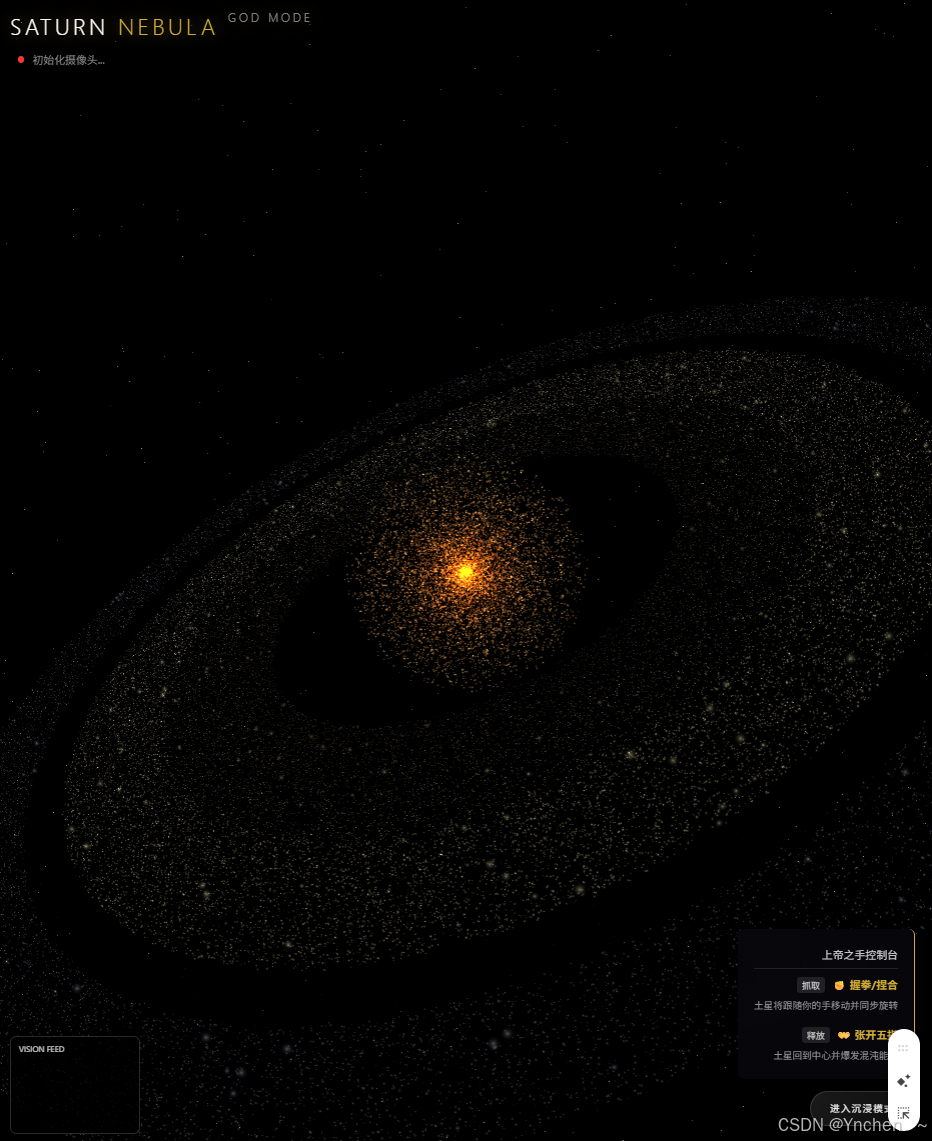
效果图
v1.0
v2.0
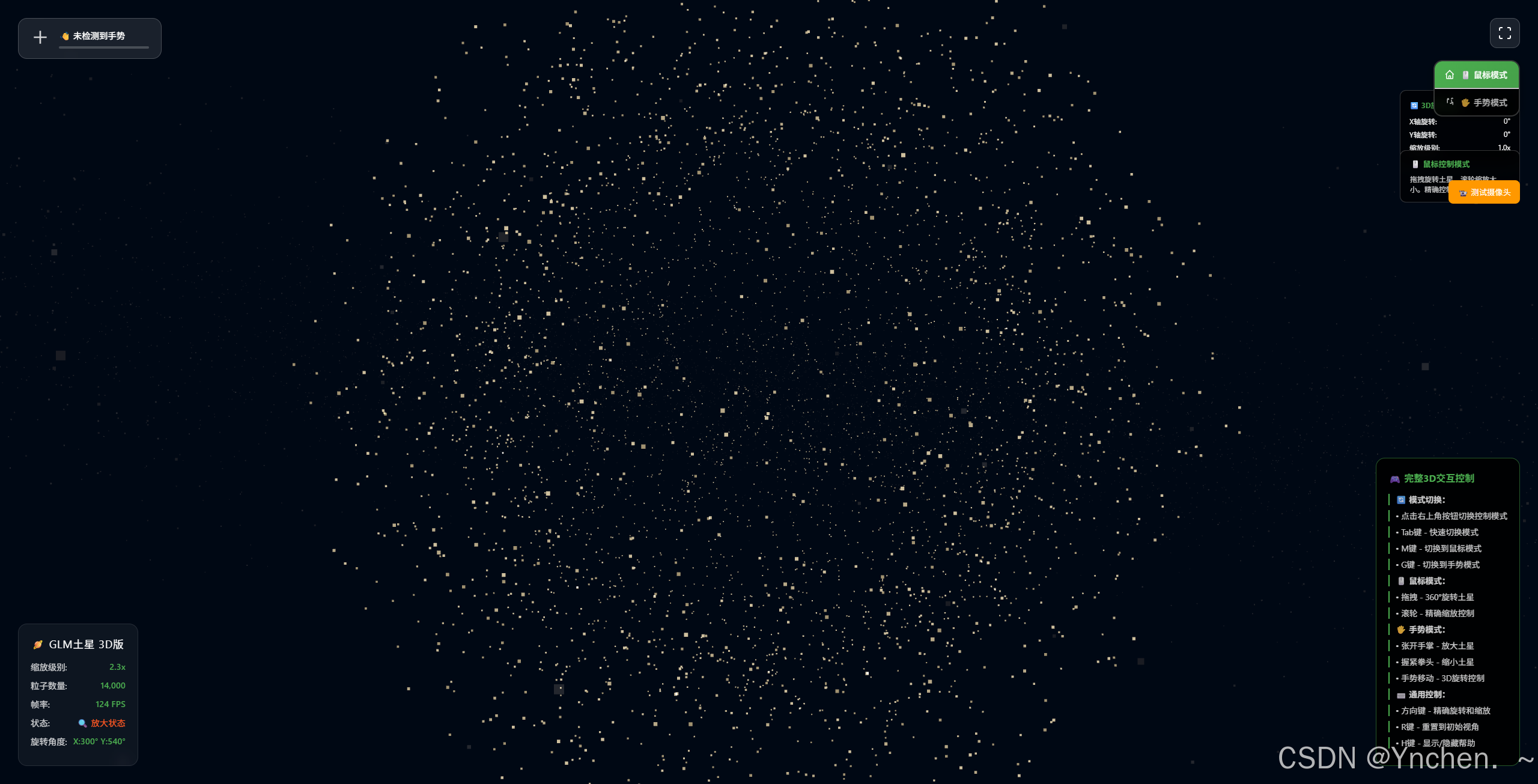
html
<!DOCTYPE html>
<html lang="zh-CN">
<head>
<meta charset="UTF-8">
<meta name="viewport" content="width=device-width, initial-scale=1.0">
<title>GLM土星 - 完整3D交互版本</title>
<link rel="stylesheet" href="styles.css">
<style>
/* 额外的交互样式 */
#canvas3d {
cursor: grab;
}
#canvas3d:active {
cursor: grabbing;
}
.interaction-hint {
position: fixed;
bottom: 100px;
left: 50%;
transform: translateX(-50%);
background: rgba(0,0,0,0.8);
color: white;
padding: 15px 25px;
border-radius: 30px;
font-size: 14px;
z-index: 1000;
backdrop-filter: blur(10px);
border: 1px solid rgba(255,255,255,0.2);
opacity: 0;
animation: fadeInUp 0.5s ease forwards;
}
@keyframes fadeInUp {
from {
opacity: 0;
transform: translateX(-50%) translateY(20px);
}
to {
opacity: 1;
transform: translateX(-50%) translateY(0);
}
}
.rotation-display {
position: fixed;
top: 150px;
right: 30px;
background: rgba(0,0,0,0.7);
color: white;
padding: 15px;
border-radius: 10px;
font-size: 12px;
backdrop-filter: blur(10px);
border: 1px solid rgba(255,255,255,0.2);
min-width: 200px;
}
.rotation-display h4 {
margin-bottom: 10px;
color: #4CAF50;
}
.rotation-display div {
margin-bottom: 5px;
display: flex;
justify-content: space-between;
}
/* 优化控制提示 */
.controls-hint {
background: rgba(0,0,0,0.9) !important;
border: 1px solid rgba(76, 175, 80, 0.5) !important;
}
.controls-hint h4 {
color: #4CAF50 !important;
margin-bottom: 15px !important;
}
.controls-hint p {
margin-bottom: 8px !important;
padding-left: 10px !important;
border-left: 2px solid #4CAF50 !important;
}
/* 3D模式指示器 */
.mode-3d-indicator {
position: fixed;
top: 30px;
left: 50%;
transform: translateX(-50%);
background: linear-gradient(135deg, #4CAF50, #45a049);
color: white;
padding: 10px 20px;
border-radius: 20px;
font-size: 14px;
font-weight: bold;
z-index: 1000;
box-shadow: 0 4px 15px rgba(76, 175, 80, 0.3);
}
/* 交互模式切换按钮 */
.mode-switcher {
position: fixed;
top: 100px;
right: 30px;
background: rgba(0, 0, 0, 0.8);
border: 2px solid rgba(255, 255, 255, 0.2);
border-radius: 15px;
backdrop-filter: blur(10px);
z-index: 1000;
overflow: hidden;
box-shadow: 0 4px 15px rgba(0, 0, 0, 0.3);
}
.mode-btn {
display: flex;
align-items: center;
gap: 8px;
padding: 12px 16px;
background: transparent;
color: rgba(255, 255, 255, 0.7);
border: none;
cursor: pointer;
transition: all 0.3s ease;
font-size: 14px;
font-weight: 500;
min-width: 140px;
}
.mode-btn:hover {
background: rgba(255, 255, 255, 0.1);
color: white;
}
.mode-btn.active {
background: linear-gradient(135deg, #4CAF50, #45a049);
color: white;
border-color: #4CAF50;
}
.mode-btn svg {
width: 18px;
height: 18px;
}
.mode-switcher .divider {
height: 1px;
background: rgba(255, 255, 255, 0.1);
margin: 0;
}
/* 模式状态指示 */
.mode-status {
position: fixed;
top: 250px;
right: 30px;
background: rgba(0, 0, 0, 0.7);
color: white;
padding: 12px 16px;
border-radius: 10px;
font-size: 13px;
backdrop-filter: blur(10px);
border: 1px solid rgba(255, 255, 255, 0.2);
z-index: 1000;
max-width: 200px;
}
.mode-status .status-title {
font-weight: bold;
margin-bottom: 8px;
color: #4CAF50;
}
.mode-status .status-desc {
font-size: 12px;
opacity: 0.8;
line-height: 1.4;
}
</style>
</head>
<body>
<!-- 加载界面 -->
<div id="loading" class="loading-screen">
<div class="loading-content">
<div class="loading-spinner"></div>
<h2>🪐 GLM土星 3D交互版</h2>
<p>正在初始化完整的3D交互控制系统...</p>
<div id="loadingStatus" style="margin-top: 20px; font-size: 0.9rem; opacity: 0.7;">
初始化中...
</div>
<div style="margin-top: 30px; padding: 15px; background: rgba(76, 175, 80, 0.1); border-radius: 8px; border: 1px solid rgba(76, 175, 80, 0.3);">
<p style="margin-bottom: 10px; color: #4CAF50;">🎮 全新3D交互功能:</p>
<ul style="text-align: left; font-size: 0.85rem; opacity: 0.8; list-style: none; padding-left: 0;">
<li>✨ 鼠标拖拽360°旋转</li>
<li>🖐️ 手势3D控制</li>
<li>🔄 滚轮精确缩放</li>
<li>📐 键盘精确控制</li>
<li>🎯 轨道相机视角</li>
</ul>
</div>
</div>
</div>
<!-- 3D模式指示器 -->
<div class="mode-3d-indicator" id="modeIndicator" style="display: none;">
🎮 3D交互模式已启动
</div>
<!-- 3D渲染画布 -->
<canvas id="canvas3d"></canvas>
<!-- 视频元素(用于手势检测) -->
<video id="video" autoplay muted playsinline style="display: none;"></video>
<!-- 旋转显示面板 -->
<div class="rotation-display" id="rotationDisplay" style="display: none;">
<h4>🔄 3D旋转信息</h4>
<div>
<span>X轴旋转:</span>
<span id="rotationX">0°</span>
</div>
<div>
<span>Y轴旋转:</span>
<span id="rotationY">0°</span>
</div>
<div>
<span>缩放级别:</span>
<span id="zoomLevel">1.0x</span>
</div>
</div>
<!-- 交互模式切换器 -->
<div class="mode-switcher">
<button class="mode-btn active" id="mouseModeBtn" onclick="switchToMouseMode()">
<svg viewBox="0 0 24 24" fill="none" stroke="currentColor" stroke-width="2">
<path d="M3 12l2-2m0 0l7-7 7 7M5 10v10a1 1 0 001 1h3m10-11l2 2m-2-2v10a1 1 0 01-1 1h-3m-6 0a1 1 0 001-1v-4a1 1 0 011-1h2a1 1 0 011 1v4a1 1 0 001 1m-6 0h6"/>
</svg>
🖱️ 鼠标模式
</button>
<hr class="divider">
<button class="mode-btn" id="gestureModeBtn" onclick="switchToGestureMode()">
<svg viewBox="0 0 24 24" fill="none" stroke="currentColor" stroke-width="2">
<path d="M7 11.5V14m0-2.5v-6a1.5 1.5 0 113 0m-3 1.5a1.5 1.5 0 013 0m6 0V11m0-5.5v-1a1.5 1.5 0 013 0m0 13.5v-6m-3 1.5a1.5 1.5 0 013 0m-6 0a1.5 1.5 0 003 0"/>
</svg>
🖐️ 手势模式
</button>
</div>
<!-- 模式状态指示 -->
<div class="mode-status" id="modeStatus">
<div class="status-title">🖱️ 鼠标控制模式</div>
<div class="status-desc">
拖拽旋转土星,滚轮缩放大小。精确控制,流畅体验。
</div>
</div>
<!-- UI控制界面 -->
<div class="ui-overlay">
<!-- 全屏控制按钮 -->
<button id="fullscreenBtn" class="control-btn" title="全屏切换">
<svg width="24" height="24" viewBox="0 0 24 24" fill="none" stroke="currentColor" stroke-width="2">
<path d="M8 3H5a2 2 0 0 0-2 2v3m18 0V5a2 2 0 0 0-2-2h-3m0 18h3a2 2 0 0 0 2-2v-3M3 16v3a2 2 0 0 0 2 2h3"/>
</svg>
</button>
<!-- 手势控制指示器 -->
<div class="gesture-indicator">
<div class="gesture-icon">
<svg width="32" height="32" viewBox="0 0 24 24" fill="none" stroke="currentColor" stroke-width="2">
<path d="M4 12h16m-8-8v16"/>
</svg>
</div>
<div class="gesture-status">
<span id="gestureText">正在初始化3D交互...</span>
<div class="gesture-bar">
<div id="gestureProgress" class="gesture-progress"></div>
</div>
</div>
</div>
<!-- 信息面板 -->
<div class="info-panel">
<h3>🪐 GLM土星 3D版</h3>
<div class="info-item">
<span>缩放级别:</span>
<span id="scaleValue">1.0x</span>
</div>
<div class="info-item">
<span>粒子数量:</span>
<span id="particleCount">0</span>
</div>
<div class="info-item">
<span>帧率:</span>
<span id="fpsValue">-- FPS</span>
</div>
<div class="info-item">
<span>状态:</span>
<span id="systemStatus">初始化中</span>
</div>
</div>
<!-- 控制提示 -->
<div class="controls-hint">
<h4>🎮 完整3D交互控制</h4>
<p><strong>🔄 模式切换:</strong></p>
<p>• 点击右上角按钮切换控制模式</p>
<p>• Tab键 - 快速切换模式</p>
<p>• M键 - 切换到鼠标模式</p>
<p>• G键 - 切换到手势模式</p>
<p><strong>🖱️ 鼠标模式:</strong></p>
<p>• 拖拽 - 360°旋转土星</p>
<p>• 滚轮 - 精确缩放控制</p>
<p><strong>🖐️ 手势模式:</strong></p>
<p>• 张开手掌 - 放大土星</p>
<p>• 握紧拳头 - 缩小土星</p>
<p>• 手势移动 - 3D旋转控制</p>
<p><strong>⌨️ 通用控制:</strong></p>
<p>• 方向键 - 精确旋转和缩放</p>
<p>• R键 - 重置到初始视角</p>
<p>• H键 - 显示/隐藏帮助</p>
</div>
</div>
<!-- 交互提示 -->
<div class="interaction-hint" id="interactionHint">
💡 提示:使用鼠标拖拽可以360度旋转土星,就像把玩一个真实的球体<br>
🔄 按Tab键可快速切换控制模式,点击右上角按钮选择模式
</div>
<!-- 错误提示 -->
<div id="errorMessage" class="error-message" style="display: none;">
<h3>❌ 初始化失败</h3>
<p id="errorText"></p>
<div style="margin-top: 15px;">
<button onclick="location.reload()" style="margin-right: 10px;">🔄 重新加载</button>
<button onclick="window.open('index-simple.html', '_blank')">🎯 打开简化版</button>
</div>
</div>
<!-- 摄像头测试按钮 -->
<button id="cameraTestBtn" style="position: fixed; top: 300px; right: 30px; padding: 10px 15px; background: #ff9800; color: white; border: none; border-radius: 8px; cursor: pointer; z-index: 1000; display: none;" onclick="testCameraAccess()">
📹 测试摄像头
</button>
<!-- 外部依赖 -->
<script src="https://cdnjs.cloudflare.com/ajax/libs/three.js/r128/three.min.js"></script>
<script>
// 如果第一个CDN失败,尝试备用CDN
if (typeof THREE === 'undefined') {
console.log('🔄 主CDN失败,尝试备用CDN...');
document.write('<script src="https://unpkg.com/three@0.128.0/build/three.min.js"><\/script>');
}
</script>
<!-- MediaPipe加载 - 手势控制必需 -->
<script>
// 定义全局的loading状态更新函数
function updateLoadingStatus(status) {
const statusElement = document.getElementById('loadingStatus');
if (statusElement) {
statusElement.textContent = status;
}
console.log(`📊 ${status}`);
}
function loadMediaPipe() {
return new Promise((resolve, reject) => {
if (typeof Hands !== 'undefined') {
console.log('✅ MediaPipe Hands已加载');
// 加载Camera Utils
if (typeof Camera !== 'undefined') {
console.log('✅ MediaPipe Camera Utils已加载');
resolve();
return;
}
const cameraScript = document.createElement('script');
cameraScript.src = 'https://cdn.jsdelivr.net/npm/@mediapipe/camera_utils/camera_utils.js';
cameraScript.onload = () => {
console.log('✅ MediaPipe Camera Utils加载完成');
resolve();
};
cameraScript.onerror = () => {
console.warn('⚠️ Camera Utils加载失败,但可能不影响基础功能');
resolve();
};
document.head.appendChild(cameraScript);
return;
}
console.log('📦 开始加载MediaPipe...');
updateLoadingStatus('加载MediaPipe手势检测库...');
// 加载Hands模块
const script = document.createElement('script');
script.src = 'https://cdn.jsdelivr.net/npm/@mediapipe/hands/hands.js';
script.onload = () => {
console.log('✅ MediaPipe Hands加载完成');
// 加载Camera Utils
const cameraScript = document.createElement('script');
cameraScript.src = 'https://cdn.jsdelivr.net/npm/@mediapipe/camera_utils/camera_utils.js';
cameraScript.onload = () => {
console.log('✅ MediaPipe全部加载完成');
updateLoadingStatus('MediaPipe加载完成,准备初始化...');
resolve();
};
cameraScript.onerror = () => {
console.warn('⚠️ Camera Utils加载失败');
resolve();
};
document.head.appendChild(cameraScript);
};
script.onerror = () => {
console.error('❌ MediaPipe加载失败');
updateLoadingStatus('MediaPipe加载失败,将使用鼠标控制');
reject(new Error('MediaPipe加载失败'));
};
document.head.appendChild(script);
});
}
// 立即开始加载MediaPipe
loadMediaPipe().then(() => {
console.log('🚀 MediaPipe加载成功,手势控制可用');
}).catch(err => {
console.warn('⚠️ MediaPipe加载失败:', err);
});
</script>
<!-- 主应用脚本 -->
<script src="js/main-interactive.js"></script>
<!-- 模式切换功能 -->
<script>
// 全局模式管理
let currentMode = 'mouse';
let saturnSystem = null;
// 等待系统初始化
document.addEventListener('DOMContentLoaded', () => {
// 监听系统初始化完成
setTimeout(() => {
// 尝试获取系统实例
if (window.saturnInstance) {
saturnSystem = window.saturnInstance;
}
}, 1000);
});
// 切换到鼠标模式
function switchToMouseMode() {
console.log('🖱️ 切换到鼠标模式');
currentMode = 'mouse';
// 更新按钮状态
document.getElementById('mouseModeBtn').classList.add('active');
document.getElementById('gestureModeBtn').classList.remove('active');
// 更新状态显示
updateModeStatus('mouse');
// 启用鼠标控制
if (saturnSystem) {
saturnSystem.enableMouseControl();
saturnSystem.disableHandControl();
}
// 显示切换反馈
showModeFeedback('🖱️ 已切换到鼠标模式');
}
// 切换到手势模式
async function switchToGestureMode() {
console.log('🖐️ 切换到手势模式');
currentMode = 'gesture';
// 更新按钮状态
document.getElementById('gestureModeBtn').classList.add('active');
document.getElementById('mouseModeBtn').classList.remove('active');
// 更新状态显示
updateModeStatus('gesture');
// 显示正在初始化的反馈
showModeFeedback('🖐️ 正在启用手势控制...');
if (saturnSystem) {
// 禁用鼠标拖拽控制,但保持滚轮控制
saturnSystem.disableMouseControl();
// 启用手势控制
try {
await saturnSystem.enableHandControl();
showModeFeedback('✅ 🖐️ 手势控制已启用');
updateModeStatus('gesture');
} catch (error) {
console.error('❌ 手势控制启用失败:', error);
showModeFeedback('⚠️ 手势控制失败,土星仍可正常显示');
// 不要自动切换回鼠标模式,让用户决定
updateModeStatus('gesture-error');
// 显示错误详情
if (error.message.includes('摄像头')) {
setTimeout(() => {
showModeFeedback('💡 请检查摄像头权限,或点击测试摄像头按钮');
}, 3000);
}
}
} else {
showModeFeedback('❌ 系统未初始化,请刷新页面');
}
}
// 更新模式状态显示
function updateModeStatus(mode) {
const statusDiv = document.getElementById('modeStatus');
if (!statusDiv) return;
const title = statusDiv.querySelector('.status-title');
const desc = statusDiv.querySelector('.status-desc');
if (mode === 'mouse') {
title.textContent = '🖱️ 鼠标控制模式';
desc.textContent = '拖拽旋转土星,滚轮缩放大小。精确控制,流畅体验。';
title.style.color = '#4CAF50';
} else if (mode === 'gesture') {
title.textContent = '🖐️ 手势控制模式';
desc.textContent = '张开手掌放大,握紧拳头缩小,移动手掌旋转。未来科技体验。';
title.style.color = '#ff9800';
} else if (mode === 'gesture-error') {
title.textContent = '⚠️ 手势模式(部分功能)';
desc.textContent = '手势控制失败,但您仍可使用滚轮缩放和键盘控制。';
title.style.color = '#ff5722';
}
}
// 显示模式切换反馈
function showModeFeedback(message) {
// 创建反馈元素
const feedback = document.createElement('div');
feedback.textContent = message;
feedback.style.cssText = `
position: fixed;
top: 50%;
left: 50%;
transform: translate(-50%, -50%);
background: linear-gradient(135deg, #4CAF50, #45a049);
color: white;
padding: 15px 30px;
border-radius: 25px;
font-size: 16px;
font-weight: bold;
z-index: 10000;
box-shadow: 0 4px 20px rgba(76, 175, 80, 0.4);
animation: modeFeedbackPulse 2s ease-in-out;
backdrop-filter: blur(10px);
border: 1px solid rgba(255, 255, 255, 0.2);
`;
// 添加动画样式
const style = document.createElement('style');
style.textContent = `
@keyframes modeFeedbackPulse {
0% { opacity: 0; transform: translate(-50%, -50%) scale(0.8); }
50% { opacity: 1; transform: translate(-50%, -50%) scale(1.05); }
100% { opacity: 0; transform: translate(-50%, -50%) scale(1); }
}
`;
document.head.appendChild(style);
document.body.appendChild(feedback);
// 2秒后移除
setTimeout(() => {
feedback.remove();
style.remove();
}, 2000);
}
// 键盘快捷键支持
document.addEventListener('keydown', (event) => {
switch (event.code) {
case 'KeyM':
switchToMouseMode();
break;
case 'KeyG':
switchToGestureMode();
break;
case 'KeyTab':
event.preventDefault();
// 切换模式
if (currentMode === 'mouse') {
switchToGestureMode();
} else {
switchToMouseMode();
}
break;
}
});
// 系统实例注册
window.switchToMouseMode = switchToMouseMode;
window.switchToGestureMode = switchToGestureMode;
// 摄像头测试功能
function testCameraAccess() {
console.log('🔍 开始测试摄像头访问...');
showModeFeedback('🔍 正在测试摄像头访问...');
// 直接请求摄像头权限
navigator.mediaDevices.getUserMedia({
video: {
width: 640,
height: 480
}
})
.then(stream => {
console.log('✅ 摄像头访问成功');
showModeFeedback('✅ 摄像头访问成功,可以切换到手势模式');
// 显示摄像头测试按钮
const testBtn = document.getElementById('cameraTestBtn');
if (testBtn) {
testBtn.textContent = '✅ 摄像头正常';
testBtn.style.background = '#4CAF50';
}
// 停止流
stream.getTracks().forEach(track => track.stop());
})
.catch(error => {
console.error('❌ 摄像头访问失败:', error);
showModeFeedback('❌ 摄像头访问失败: ' + error.message);
// 显示错误信息
const testBtn = document.getElementById('cameraTestBtn');
if (testBtn) {
testBtn.textContent = '❌ 摄像头失败';
testBtn.style.background = '#f44336';
}
// 提供解决方案
if (error.name === 'NotAllowedError' || error.name === 'PermissionDeniedError') {
showModeFeedback('请在浏览器设置中允许摄像头访问,或点击地址栏左侧的摄像头图标');
}
});
}
// 页面加载完成后显示摄像头测试按钮
window.addEventListener('load', function() {
setTimeout(() => {
// 检查是否支持MediaPipe
if (typeof Hands !== 'undefined') {
const testBtn = document.getElementById('cameraTestBtn');
if (testBtn) {
testBtn.style.display = 'block';
}
}
}, 3000);
});
// 全局注册showModeFeedback函数,供系统调用
window.showModeFeedback = showModeFeedback;
</script>
<!-- 初始化提示和交互 -->
<script>
// 显示3D模式指示器
setTimeout(() => {
const indicator = document.getElementById('modeIndicator');
const rotationDisplay = document.getElementById('rotationDisplay');
if (indicator) {
indicator.style.display = 'block';
setTimeout(() => {
indicator.style.opacity = '0';
setTimeout(() => indicator.style.display = 'none', 500);
}, 3000);
}
if (rotationDisplay) {
rotationDisplay.style.display = 'block';
}
}, 3000);
// 隐藏交互提示
setTimeout(() => {
const hint = document.getElementById('interactionHint');
if (hint) {
hint.style.opacity = '0';
setTimeout(() => hint.style.display = 'none', 500);
}
}, 8000);
// 添加键盘快捷键提示
document.addEventListener('keydown', (event) => {
if (event.code === 'KeyH') {
const hint = document.getElementById('interactionHint');
if (hint) {
hint.style.display = hint.style.display === 'none' ? 'block' : 'none';
if (hint.style.display === 'block') {
hint.style.opacity = '1';
}
}
}
});
console.log('🎮 GLM土星3D交互版本准备就绪');
console.log('💡 按H键显示/隐藏交互提示');
</script>
</body>
</html>