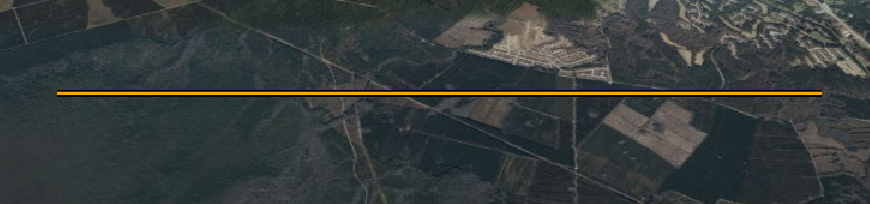
前言:这里所说的材质包括:颜色、纹理、图片等。设置的方法有:
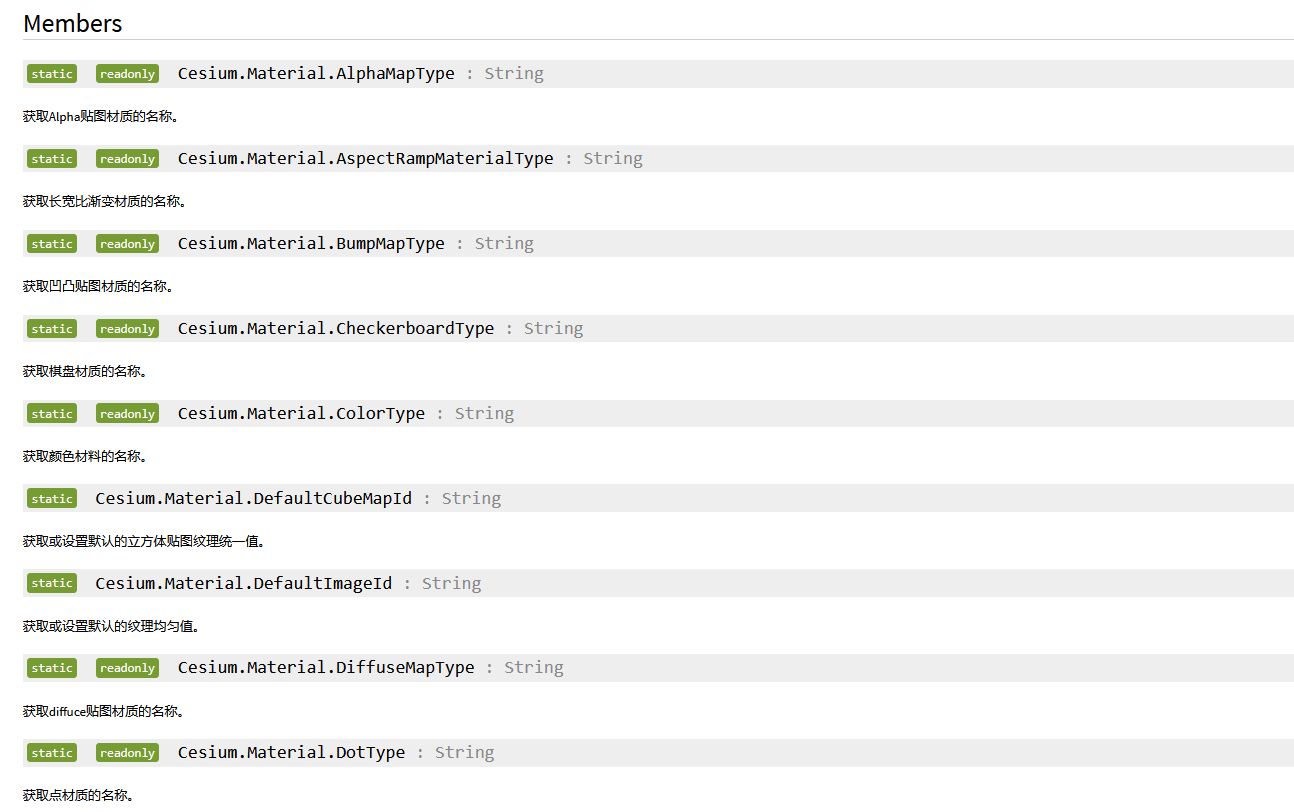
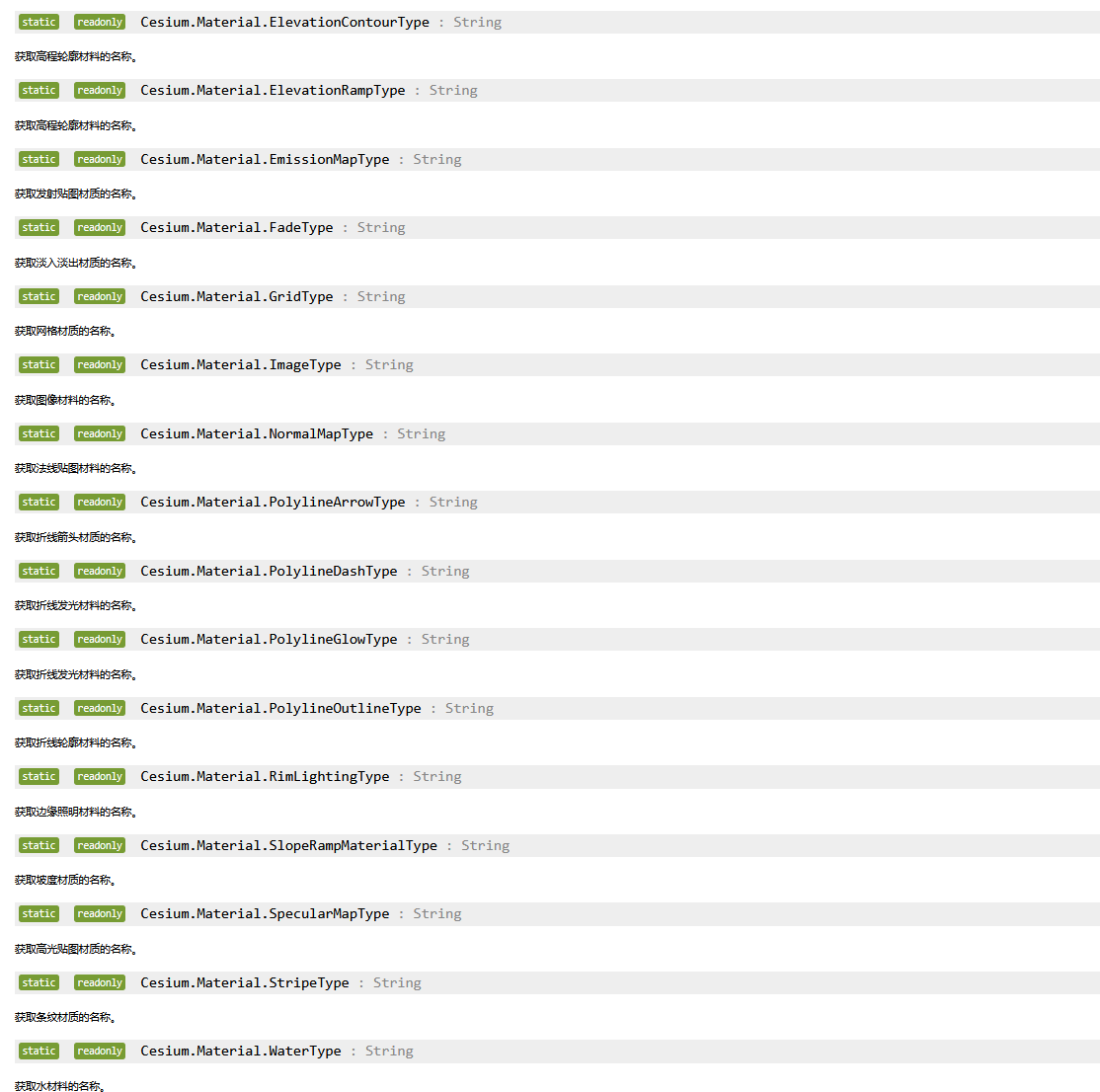
一、Material
二、MaterialProperty
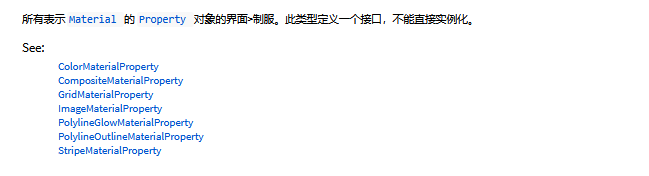
这里主要讲MaterialProperty
1.ColorMaterialProperty :设置颜色
用:material: Cesium.Color.RED.withAlpha(0.5),可设置不同的MaterialProperty
javascript
<template>
  <div id="cesiumContainer"></div>
</template>

<script setup>
import { onMounted } from 'vue';
import * as Cesium from 'cesium';

onMounted(() => {
  materialColor();//颜色
});


/**
  * 设置颜色
* **/
function materialColor() {
  //初始化
  let viewer = new Cesium.Viewer('cesiumContainer', {
    animation: true, //是否显示动画控件
    baseLayerPicker: true, //是否显示图层选择控件
    fullscreenButton: true, //是否显示全屏按钮
    vrButton: true, // vr部件
    geocoder: true, // 位置搜索部件
    homeButton: true, //是否显示Home按钮
    infoBox: false, //是否显示点击要素之后显示的信息
    sceneModePicker: true, // 二三维切换部件
    timeline: true, //是否显示时间线控件
    navigationHelpButton: true, //是否显示帮助信息控件
  });

  //方法一,构造时赋材质
  var entity = viewer.entities.add({
    position: Cesium.Cartesian3.fromDegrees(-103.0, 40.0),
    ellipse: {
      semiMinorAxis: 250000.0,
      semiMajorAxis: 400000.0,
      material: Cesium.Color.RED.withAlpha(0.5)//可设置不同的MaterialProperty
    }
  });
  viewer.zoomTo(entity)
}

</script>

<style scoped>
#cesiumContainer {
  width: 100vw;
  height: 100vh;
}
</style>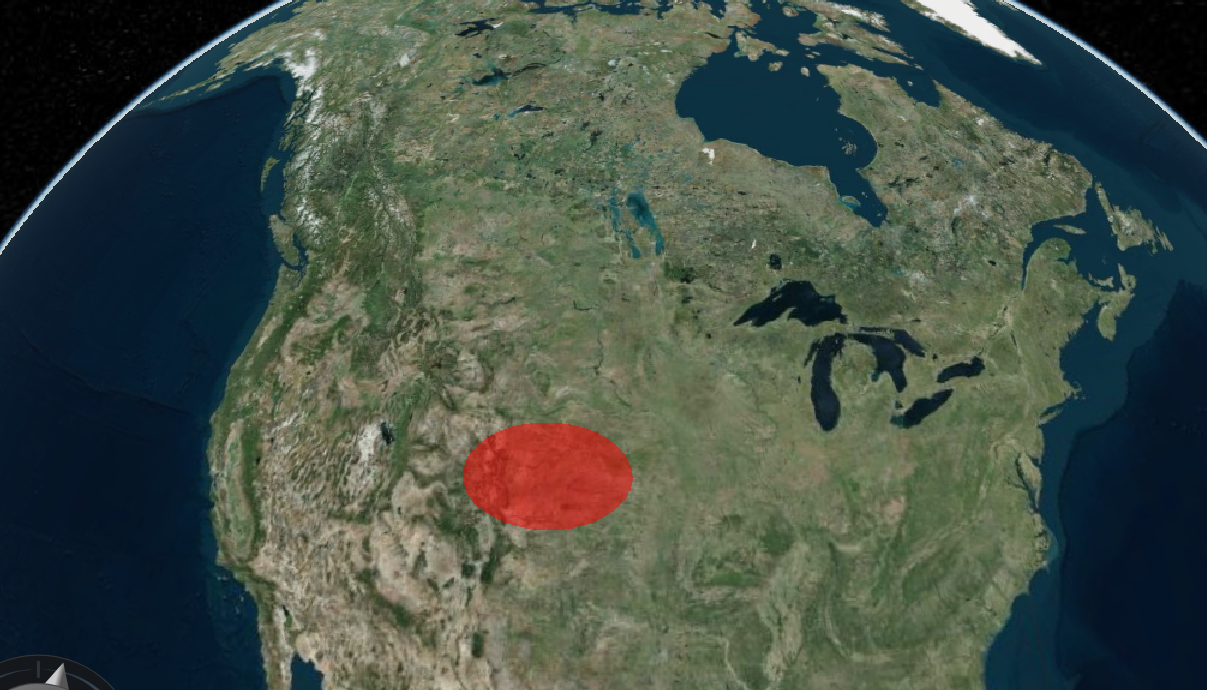
2.ImageMaterialProperty :设置图片
Cesium.ImageMaterialProperty设置图片
javascript
<template>
  <div id="cesiumContainer"></div>
</template>

<script setup>
import { onMounted } from 'vue';
import * as Cesium from 'cesium';

onMounted(() => {
  //materialColor();//颜色
  materialImage();//图片
});


/**
  * 设置图片
* **/
function materialImage() {
  //初始化
  let viewer = new Cesium.Viewer('cesiumContainer', {
    animation: true, //是否显示动画控件
    baseLayerPicker: true, //是否显示图层选择控件
    fullscreenButton: true, //是否显示全屏按钮
    vrButton: true, // vr部件
    geocoder: true, // 位置搜索部件
    homeButton: true, //是否显示Home按钮
    infoBox: false, //是否显示点击要素之后显示的信息
    sceneModePicker: true, // 二三维切换部件
    timeline: true, //是否显示时间线控件
    navigationHelpButton: true, //是否显示帮助信息控件
  });

  //方法一,构造时赋材质
  var entity = viewer.entities.add({
    position: Cesium.Cartesian3.fromDegrees(-103.0, 40.0),
    ellipse: {
      semiMinorAxis: 250000.0,
      semiMajorAxis: 400000.0,
      material: new Cesium.ImageMaterialProperty({
        image: './assets/img/fbb3.webp',
        color: Cesium.Color.PINK,
        repeat: new Cesium.Cartesian2(4, 4)
      })
    }
  });
  viewer.zoomTo(entity)
}


</script>

<style scoped>
#cesiumContainer {
  width: 100vw;
  height: 100vh;
}
</style>
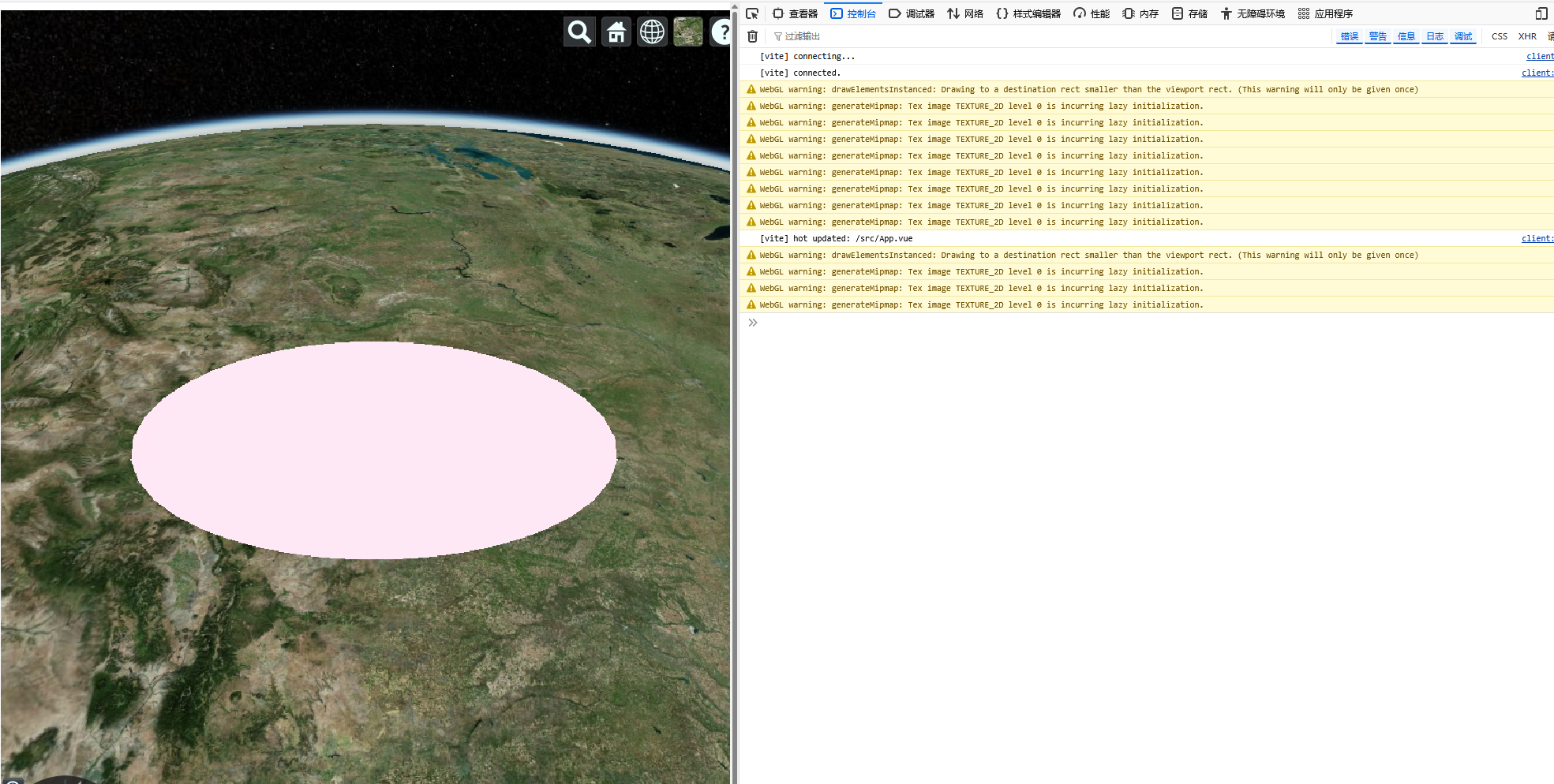
图片没出来:
3.CheckerboardMaterialProperty :设置棋盘格
evenColor:获取或设置指定第一个 Color 的属性,默认白色
oddColor:获取或设置指定第二个 Color 的属性,默认黑色
repeat:获取或设置 Cartesian2 属性,该属性指定图块在每个方向上重复多少次。
javascript
<template>
  <div id="cesiumContainer"></div>
</template>

<script setup>
import { onMounted } from 'vue';
import * as Cesium from 'cesium';

onMounted(() => {
  //materialColor();//颜色
  //materialImage();//图片
  materialCheckerboard();//棋盘纹理
});

/**
  * 设置棋盘纹理
* **/
function materialCheckerboard() {
  //初始化
  let viewer = new Cesium.Viewer('cesiumContainer', {
    animation: true, //是否显示动画控件
    baseLayerPicker: true, //是否显示图层选择控件
    fullscreenButton: true, //是否显示全屏按钮
    vrButton: true, // vr部件
    geocoder: true, // 位置搜索部件
    homeButton: true, //是否显示Home按钮
    infoBox: false, //是否显示点击要素之后显示的信息
    sceneModePicker: true, // 二三维切换部件
    timeline: true, //是否显示时间线控件
    navigationHelpButton: true, //是否显示帮助信息控件
  });

  //方法一,构造时赋材质
  var entity = viewer.entities.add({
    position: Cesium.Cartesian3.fromDegrees(-103.0, 40.0),
    ellipse: {
      semiMinorAxis: 250000.0,
      semiMajorAxis: 400000.0,
      material: new Cesium.CheckerboardMaterialProperty({
        evenColor: Cesium.Color.PINK,
        oddColor: Cesium.Color.RED,
        repeat: new Cesium.Cartesian2(4, 4)
      })
    }
  });
  viewer.zoomTo(entity)
}


</script>

<style scoped>
#cesiumContainer {
  width: 100vw;
  height: 100vh;
}
</style>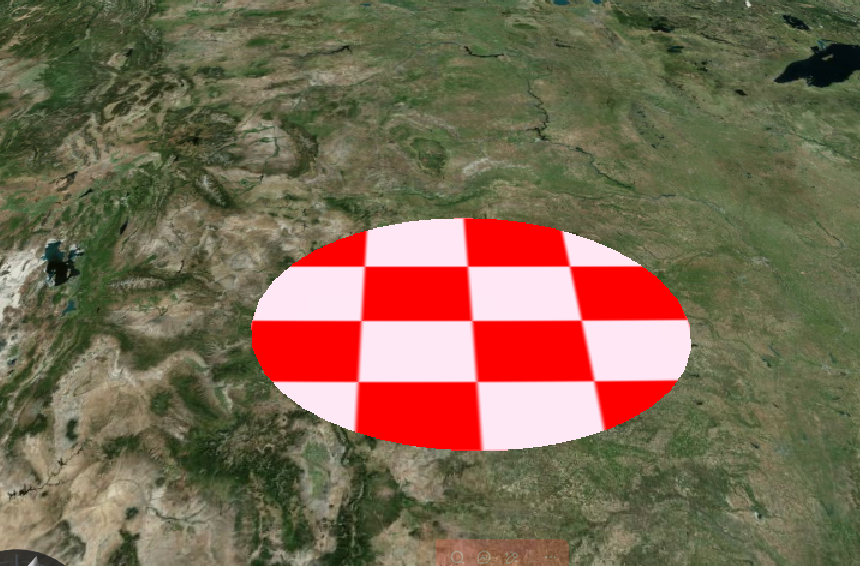
4.StripeMaterialProperty:设置竖型条纹
offset:获取或设置数字属性,该属性指定模式中的点开始绘画;以0.0为偶数颜色的开始,以1.0为开始的奇数颜色,2.0再次为偶数颜色,以及任何倍数或分数值在两者之间。
orientation :获取或设置指定 StripeOrientation 的属性,主要是水平还是垂直,默认水平
javascript
<template>
  <div id="cesiumContainer"></div>
</template>

<script setup>
import { onMounted } from 'vue';
import * as Cesium from 'cesium';

onMounted(() => {
  //materialColor();//颜色
  //materialImage();//图片
  //materialCheckerboard();//棋盘纹理
  StripeMaterial();//棋盘纹理
});

/**
  * 设置竖条纹
* **/
function StripeMaterial() {
  //初始化
  let viewer = new Cesium.Viewer('cesiumContainer', {
    animation: true, //是否显示动画控件
    baseLayerPicker: true, //是否显示图层选择控件
    fullscreenButton: true, //是否显示全屏按钮
    vrButton: true, // vr部件
    geocoder: true, // 位置搜索部件
    homeButton: true, //是否显示Home按钮
    infoBox: false, //是否显示点击要素之后显示的信息
    sceneModePicker: true, // 二三维切换部件
    timeline: true, //是否显示时间线控件
    navigationHelpButton: true, //是否显示帮助信息控件
  });


  var entity = viewer.entities.add({
    position: Cesium.Cartesian3.fromDegrees(-103.0, 40.0),
    ellipse: {
      semiMinorAxis: 250000.0,
      semiMajorAxis: 400000.0,
      material: new Cesium.StripeMaterialProperty({
        evenColor: Cesium.Color.PINK,
        oddColor: Cesium.Color.RED,
        repeat: 32,
        offset: 20,
        orientation: Cesium.StripeOrientation.VERTICAL
      })
    }
  });

  viewer.zoomTo(entity)
}


</script>

<style scoped>
#cesiumContainer {
  width: 100vw;
  height: 100vh;
}
</style>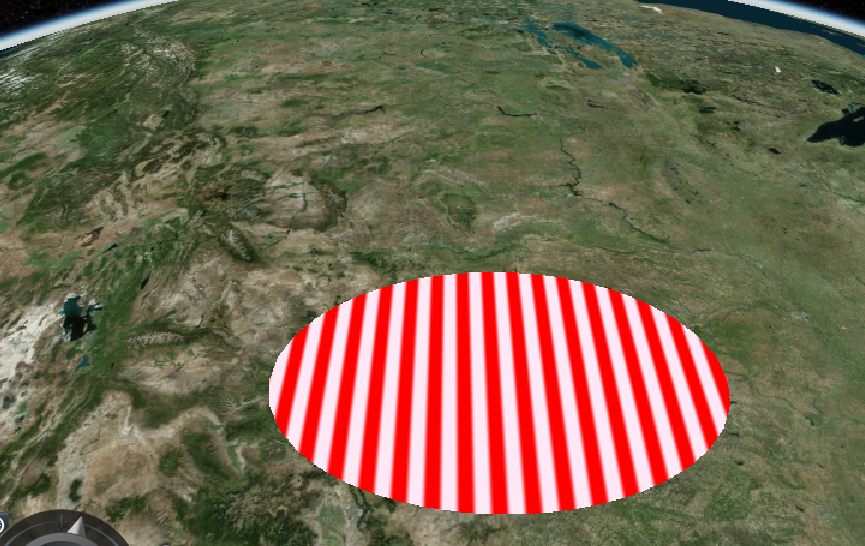
5.StripeMaterialProperty:设置网格
color:获取或设置指定网格 Color 的属性。
cellAlpha :获取或设置数字属性,该属性指定单元格alpha值。
lineCount :获取或设置 Cartesian2 属性,该属性指定沿每个轴的网格线数。
lineOffset :该属性指定沿每个轴的网格线的起始偏移量。
lineThickness :该属性指定沿每个轴的网格线的粗细。
javascript
<template>
  <div id="cesiumContainer"></div>
</template>

<script setup>
import { onMounted } from 'vue';
import * as Cesium from 'cesium';

onMounted(() => {
  //materialColor();//颜色
  //materialImage();//图片
  //materialCheckerboard();//棋盘纹理
  //StripeMaterial();//棋盘纹理
  GridMaterial();//设置网格
});

/**
  * 设置网格
* **/
function GridMaterial() {
  //初始化
  let viewer = new Cesium.Viewer('cesiumContainer', {
    animation: true, //是否显示动画控件
    baseLayerPicker: true, //是否显示图层选择控件
    fullscreenButton: true, //是否显示全屏按钮
    vrButton: true, // vr部件
    geocoder: true, // 位置搜索部件
    homeButton: true, //是否显示Home按钮
    infoBox: false, //是否显示点击要素之后显示的信息
    sceneModePicker: true, // 二三维切换部件
    timeline: true, //是否显示时间线控件
    navigationHelpButton: true, //是否显示帮助信息控件
  });


  var entity = viewer.entities.add({
    position: Cesium.Cartesian3.fromDegrees(-103.0, 40.0),
    ellipse: {
      semiMinorAxis: 250000.0,
      semiMajorAxis: 400000.0,
      material: new Cesium.GridMaterialProperty({
        color: Cesium.Color.RED,
        cellAlpha: 0.2,
        lineCount: new Cesium.Cartesian2(8, 8),
        lineThickness: new Cesium.Cartesian2(2.0, 2.0)
      })
    }
  });

  viewer.zoomTo(entity)
}


</script>

<style scoped>
#cesiumContainer {
  width: 100vw;
  height: 100vh;
}
</style>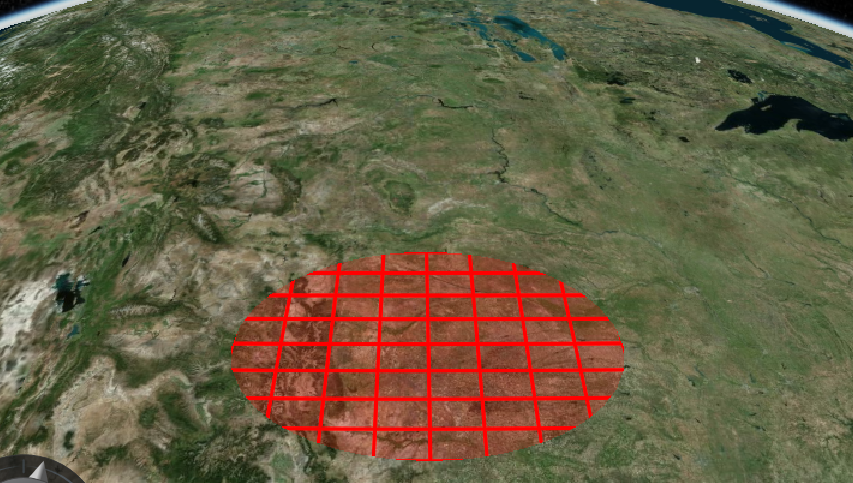
6.polyline:设置一条线
javascript
<template>
  <div id="cesiumContainer"></div>
</template>

<script setup>
import { onMounted } from 'vue';
import * as Cesium from 'cesium';

onMounted(() => {
  //materialColor();//颜色
  //materialImage();//图片
  //materialCheckerboard();//棋盘纹理
  //StripeMaterial();//棋盘纹理
  //GridMaterial();//设置网格
  polyline();//设置一条线

});


/**
  * 设置一条线
* **/
function polyline() {
  //初始化
  let viewer = new Cesium.Viewer('cesiumContainer', {
    animation: true, //是否显示动画控件
    baseLayerPicker: true, //是否显示图层选择控件
    fullscreenButton: true, //是否显示全屏按钮
    vrButton: true, // vr部件
    geocoder: true, // 位置搜索部件
    homeButton: true, //是否显示Home按钮
    infoBox: false, //是否显示点击要素之后显示的信息
    sceneModePicker: true, // 二三维切换部件
    timeline: true, //是否显示时间线控件
    navigationHelpButton: true, //是否显示帮助信息控件
  });


  var entity = viewer.entities.add({
    polyline: {
      positions: Cesium.Cartesian3.fromDegreesArray([-77, 35,
      -77.1, 35]),
      width: 5,
      material: Cesium.Color.RED
    }
  });

  viewer.zoomTo(entity)
}

</script>

<style scoped>
#cesiumContainer {
  width: 100vw;
  height: 100vh;
}
</style>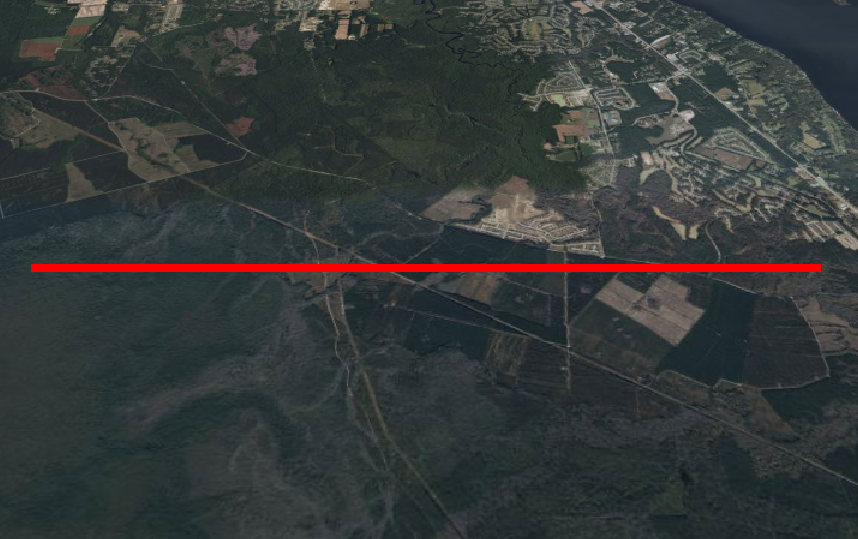
7.PolylineGlowMaterialProperty:设置一条发光
javascript
<template>
  <div id="cesiumContainer"></div>
</template>

<script setup>
import { onMounted } from 'vue';
import * as Cesium from 'cesium';

onMounted(() => {
  //materialColor();//颜色
  //materialImage();//图片
  //materialCheckerboard();//棋盘纹理
  //StripeMaterial();//棋盘纹理
  //GridMaterial();//设置网格
  // polyline();//设置一条线
  PolylineGlowMaterial();//发光线
});


/**
  * 设置发光线条
* **/
function PolylineGlowMaterial() {
  //初始化
  let viewer = new Cesium.Viewer('cesiumContainer', {
    animation: true, //是否显示动画控件
    baseLayerPicker: true, //是否显示图层选择控件
    fullscreenButton: true, //是否显示全屏按钮
    vrButton: true, // vr部件
    geocoder: true, // 位置搜索部件
    homeButton: true, //是否显示Home按钮
    infoBox: false, //是否显示点击要素之后显示的信息
    sceneModePicker: true, // 二三维切换部件
    timeline: true, //是否显示时间线控件
    navigationHelpButton: true, //是否显示帮助信息控件
  });


  var entity = viewer.entities.add({
    polyline: {
      positions: Cesium.Cartesian3.fromDegreesArray([-77, 35,
      -77.1, 35]),
      width: 5,
      material: new Cesium.PolylineGlowMaterialProperty({
        glowPower: 0.2,
        color: Cesium.Color.RED
      })
    }
  });

  viewer.zoomTo(entity)
}


</script>

<style scoped>
#cesiumContainer {
  width: 100vw;
  height: 100vh;
}
</style>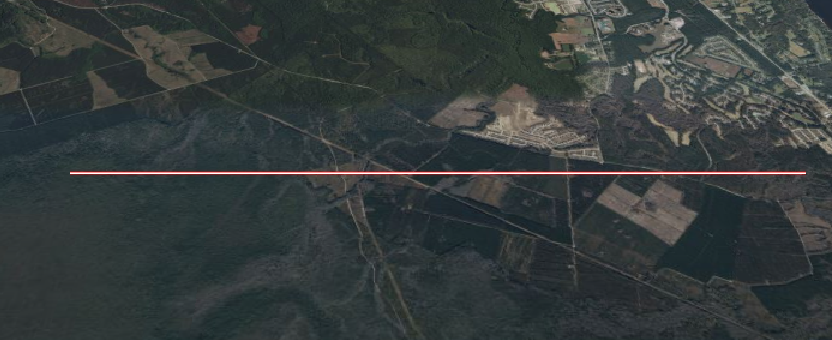
8.PolylineOutlineMaterialProperty:设置线条的宽度、纹理
javascript
<template>
  <div id="cesiumContainer"></div>
</template>

<script setup>
import { onMounted } from 'vue';
import * as Cesium from 'cesium';

onMounted(() => {
  //materialColor();//颜色
  //materialImage();//图片
  //materialCheckerboard();//棋盘纹理
  //StripeMaterial();//棋盘纹理
  //GridMaterial();//设置网格
  // polyline();//设置一条线
  //PolylineGlowMaterial();//发光线
  PolylineOutlineMaterial();//设置线条的宽度、纹理
});

/**
  * 设置线条的宽度、纹理
* **/
function PolylineOutlineMaterial() {
  //初始化
  let viewer = new Cesium.Viewer('cesiumContainer', {
    animation: true, //是否显示动画控件
    baseLayerPicker: true, //是否显示图层选择控件
    fullscreenButton: true, //是否显示全屏按钮
    vrButton: true, // vr部件
    geocoder: true, // 位置搜索部件
    homeButton: true, //是否显示Home按钮
    infoBox: false, //是否显示点击要素之后显示的信息
    sceneModePicker: true, // 二三维切换部件
    timeline: true, //是否显示时间线控件
    navigationHelpButton: true, //是否显示帮助信息控件
  });


  var entity = viewer.entities.add({
    polyline: {
      positions: Cesium.Cartesian3.fromDegreesArray([-77, 35,
      -77.1, 35]),
      width: 5,
      material: new Cesium.PolylineOutlineMaterialProperty({
        color: Cesium.Color.ORANGE,
        outlineWidth: 3,
        outlineColor: Cesium.Color.BLACK
      })
    }
  });

  viewer.zoomTo(entity)
}


</script>

<style scoped>
#cesiumContainer {
  width: 100vw;
  height: 100vh;
}
</style>