测试学习记录,仅供参考!
如何切换窗口句柄
在浏览器中,每打开一个新标签页或者窗口,均是有唯一标识符的;
打开新标签页时在新的标签页中继续操作是 web 自动化很常见的一种方式,需要切换窗口句柄才能继续操作;
浏览器中各个标签、各个窗口之间的切换
获取所有窗口的句柄:handles = driver.window_handlers
获取当前窗口的句柄:handles = driver.window_handlers0
通过窗口的句柄进入某个(n)窗口:driver.switch_to.window(handlesn)
# 获取当前窗口的句柄作为原始窗口
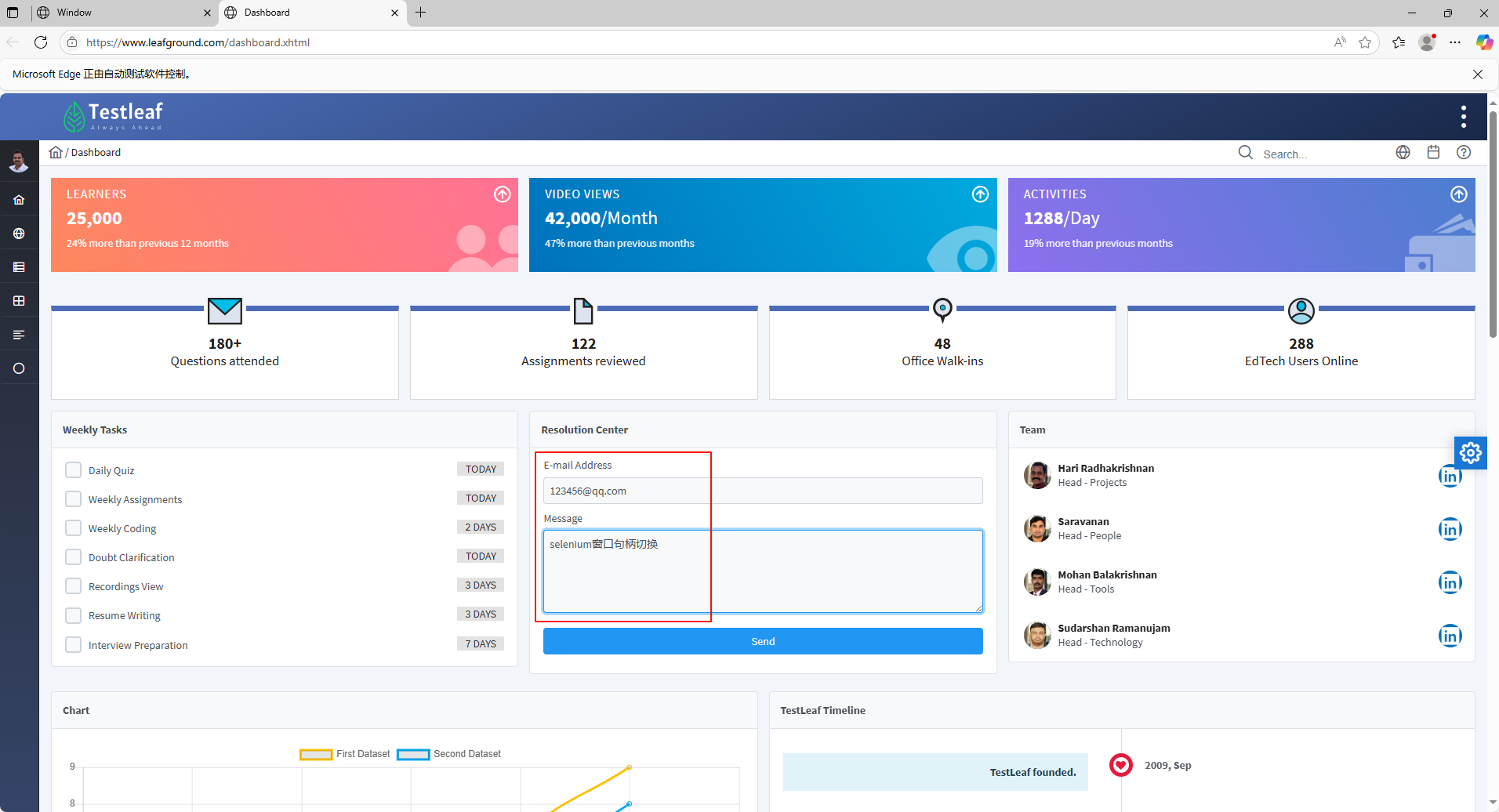
original_window = self.__driver.window_handles[0]

# 获取所有窗口的句柄列表
all_window = self.__driver.window_handles


# 仅供参考
# 获取所有窗口的句柄
handles = driver.window_handlers

# 通过窗口的句柄进入窗口
driver.switch_to.window(handles[n])
切换窗口句柄,实现在新标签页中继续操作
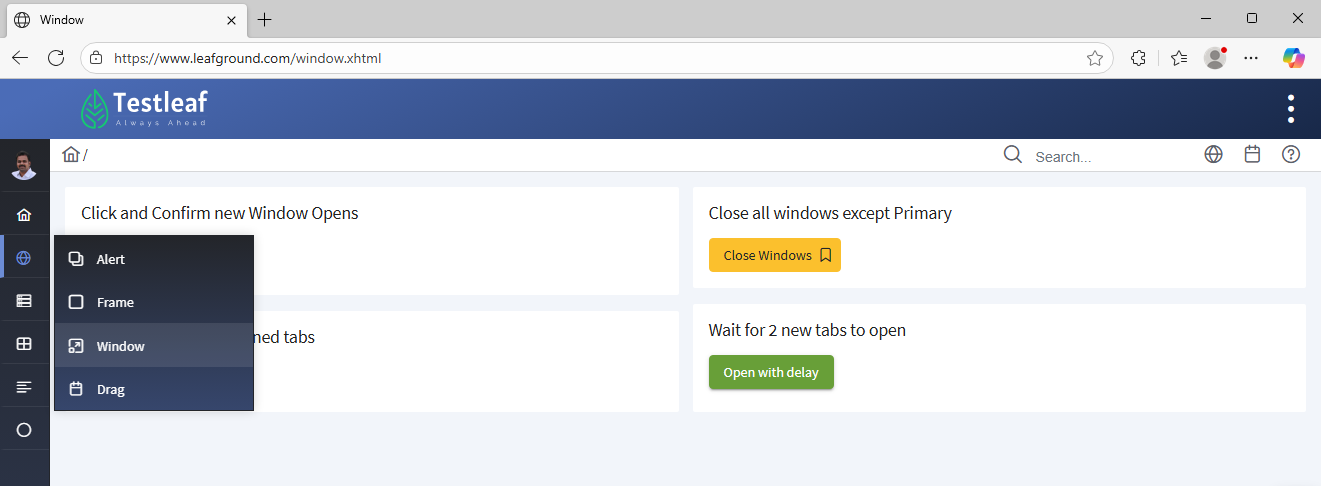
1、以测试网站 https://www.leafground.com/window.xhtml 页面跳转新的标签页面为例;
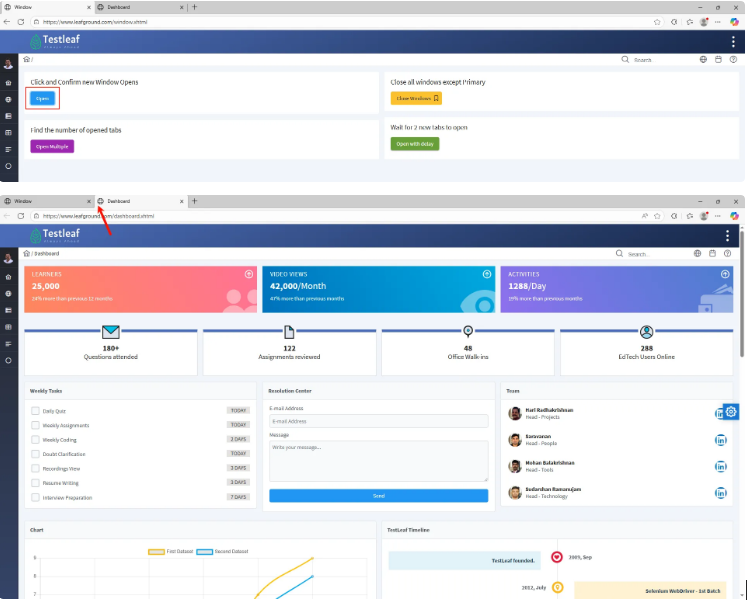
2、在当前页面通过点击操作切换到了一个新的标签页;然后在新的标签页中定位元素、点击输入等各种操作;
页面类
3、在项目根目录 pageObject 软件包文件下新建一个名称为 other 的目录,在 other 目录文件下新建名称一个为 label_page.py 的 Python 文件;
按照正常的思维来看能不能实现?--(肯定不行,不能在新标签页中进行操作)
# 导包
from selenium.webdriver.common.by import By
from util_tools.basePage import BasePage
from time import sleep

class LabelPage(BasePage):
    """点击后打开新的标签页,然后在新的标签页上继续测试操作"""
    url = 'https://www.leafground.com/window.xhtml'
    # 点击按钮
    click_button = (By.XPATH, '//*[@id="j_idt88:new"]/span')
    # 新的标签页,邮箱地址输入框
    email_address = (By.ID, 'email')
    # 邮箱内容
    message = (By.ID, 'message')
    # 新标签页的url
    label_new_url = 'https://www.leafground.com/dashboard.xhtml'

    # 页面操作
    def open_new_table_operate(self):
        self.open_url(self.url)
        self.click(self.click_button)
        # 打开新标签页的url
        self.open_url(self.label_new_url)
        # 在新标签页进行操作
        self.send_keys(self.email_address, '123456@qq.com')
        self.send_keys(self.message, 'selenium窗口句柄切换')
        sleep(3)
测试类
测试执行文件
4、在项目根目录 testcase 软件包文件下新建一个名称为 other 的目录,在 other 目录文件下新建名称一个为 test_label_page.py 的 Python 文件;
from pageObject.other.label_page import LabelPage

class TestLabelPage:

    def test_open_new_label(self, not_login_driver):
        label_page = LabelPage(not_login_driver)
        label_page.open_new_table_operate()
5、单独执行 test_label_page.py 文件,可以发现只打开了两个页面,没有在新标签页有进行任何的操作;
封装公共方法
在基类公共方法模块中添加;
6、 优化项目根目录 util_tools 软件包下 basePage.py 文件,封装 切换窗口句柄 方法;
(1)、首先获取当前浏览器窗口的窗口句柄;(self.__driver.window_handles)
(2)、把获取到的当前窗口句柄定义为原始的窗口句柄;(self.__driver.window_handles0)
(3)、获取当前窗口句柄作为原始窗口并赋值给变量original_window 后保存下来,下面做判断的时候会用到;
(4)、再使用 self.__driver.window_handles 获取到所有的窗口句柄,把获取到的所有窗口句柄列表亦赋值给一个变量 all_window (变量名自行定义即可);
(5)、定义一个空变量 new_window = None 用于比较新打开的窗口和原始窗口的区别;
(6)、开始判断是否已经切换到新窗口句柄上(可自行一步一步查看调试或者使用其他方法);
(7)、再加上异常判断;
    def switch_to_new_tab(self):
        """浏览器打开新的标签页,切换窗口句柄"""
        try:
            # 获取当前窗口的句柄作为原始窗口
            original_window = self.__driver.window_handles[0]
            # 获取所有窗口的句柄列表
            all_window = self.__driver.window_handles
            new_window = None
            for window in all_window:
                # 找到不等于原始窗口句柄的新窗口句柄
                if window != original_window:
                    new_window = window
                    break

            if new_window:
                # 切换到新窗口,以便在新窗口上执行后续操作
                # self.__driver.switch_to.window(new_window)
                self.switch_to.window(new_window)
                logs.info('成功切换到新标签页')
        except TimeoutException:
            logs.error('等待新标签页打开超时。')
        except NoSuchElementException:
            logs.error('未找到新标签页句柄。')
        except Exception as e:
            logs.error(f'切换窗口时发生异常:{str(e)}')
7、完整的 basePage.py 文件;
# 导包
from pyxnat.core.uriutil import file_path
from selenium import webdriver
from selenium.common import NoSuchElementException, TimeoutException
from selenium.webdriver.common.by import By
from time import sleep
from selenium.webdriver.support import expected_conditions as ec
from selenium.webdriver.support.wait import WebDriverWait
from config import setting
from util_tools.logs_util.recordlog import logs
from selenium.webdriver.common.action_chains import ActionChains
from selenium.webdriver.common.keys import Keys
from datetime import datetime
import pytesseract
from PIL import Image
from selenium.webdriver.support.ui import Select
from util_tools.handle_data.configParse import ConfigParse


class BasePage(object):


    def __init__(self, driver):
        self.__driver = driver
        self.__wait = WebDriverWait(self.__driver, setting.WAIT_TIME)
        self.conf = ConfigParse()

    def window_max(self):
        self.__driver.maximize_window()

    def window_full(self):
        self.__driver.fullscreen_window()

    def screenshot(self):
        self.__driver.get_screenshot_as_png()

    def open_url(self, url):
        if url.startswith('http') or url.startswith('https'):
            self.__driver.get(url)
            logs.info(f'打开页面:{url}')
        else:
            new_url = self.conf.get_host('host') + url
            self.__driver.get(new_url)
            logs.info(f'打开页面:{new_url}')

    @property
    def current_url(self):
        return self.__driver.current_url

    @property
    def title(self):
        return self.__driver.title

    def refresh(self):
        self.__driver.refresh()

    @property
    def switch_to(self):
        return self.__driver.switch_to

    def iframe(self, frame):
        try:
            self.switch_to.frame(frame)
            logs.info(f'切换到{frame}--iframe内部框架中')
        except:
            logs.error('切换到iframe框架失败!')

    def switch_to_new_tab(self):
        try:
            original_window = self.__driver.window_handles[0]
            all_window = self.__driver.window_handles
            new_window = None
            for window in all_window:
                if window != original_window:
                    new_window = window
                    break
            if new_window:
                # self.__driver.switch_to.window(new_window)
                self.switch_to.window(new_window)
                logs.info('成功切换到新标签页')
        except TimeoutException:
            logs.error('等待新标签页打开超时。')
        except NoSuchElementException:
            logs.error('未找到新标签页句柄。')
        except Exception as e:
            logs.error(f'切换窗口时发生异常:{str(e)}')

    def exit_iframe(self):
        self.switch_to.default_content()

    @property
    def alert(self):
        return self.__wait.until(ec.alert_is_present())

    def alert_confirm(self):
        self.alert.accept()

    def alert_cancel(self):
        self.alert.dismiss()

    def location_element(self, by, value):
        try:
            element = self.__wait.until(ec.presence_of_element_located((by, value)))
            logs.info(f"找到元素:{by}={value}")
            return element
        except Exception as e:
            logs.error(f"未找到元素:{by}={value}")
            raise e

    def location_elements(self, by, value):
        try:
            self.__wait.until(ec.presence_of_all_elements_located((by, value)))
            elements = self.__driver.find_elements(by, value)
            logs.info(f"找到元素列表:{by}={value}")
            return elements
        except Exception as e:
            logs.error(f"未找到元素列表:{by}={value}")
            raise e

    def click(self, locator: tuple, force=False):
        try:
            element = self.location_element(*locator)
            if not force:
                self.__driver.execute_script("arguments[0].click()", element)
            else:
                self.__driver.execute_script("arguments[0].click({force:true})", element)
            logs.info(f"元素被点击:{locator}")
        except NoSuchElementException as e:
            logs.error(f"元素无法定位:{e}")
            raise e

    def send_keys(self, locator: tuple, data):
        try:
            element = self.location_element(*locator)
            element.send_keys(data)
            logs.info(f"元素被输入内容:{locator},输入的内容为:{data}")
        except NoSuchElementException as e:
            logs.error(f"元素无法定位:{e}")
            raise e

    def selects(self, locator: tuple, index):
        try:
            select = Select(self.location_element(*locator))
            select.select_by_index(index)
            logs.info(f'选择第{index}个数据')
        except NoSuchElementException as e:
            logs.error(f'元素无法定位:{e}')
            raise e

    def enter(self):
        try:
            ActionChains(self.__driver).send_keys(Keys.ENTER).perform()
            logs.info("按下回车键")
        except NoSuchElementException as e:
            logs.error(f"元素无法定位:{e}")
            raise e

    def right_click(self, locator: tuple):
        try:
            element = self.location_element(*locator)
            ActionChains(driver).context_click(element).perform()
            logs.info("执行鼠标右键点击操作")
        except NoSuchElementException as e:
            logs.error(f"元素无法定位:{e}")
            raise e

    def double_click(self, locator: tuple):
        try:
            element = self.location_element(*locator)
            ActionChains(driver).double_click(element).perform()
            logs.info("执行鼠标双击操作")
        except NoSuchElementException as e:
            logs.error(f"元素无法定位:{e}")
            raise e

    def screenshots(self, image_name):
        import os
        current_time = datetime.now().strftime("%Y%m%d%H%M%S")
        file_name = f"{image_name}-{current_time}.png"
        file_path = os.path.join(setting.FILE_PATH.get('screenshot'), file_name)
        self.__driver.get_screenshot_as_file(file_path)

    def clear(self, locator: tuple):
        try:
            element = self.location_element(*locator)
            element.clear()
            logs.info("清空文本")
        except NoSuchElementException as e:
            logs.error(f"元素无法定位:{e}")
            raise e

    def ocr_captcha(self, locator: tuple):
        captcha_element = self.location_element(*locator)
        captcha_path = setting.FILE_PATH['screenshot'] + '/captcha.png'
        captcha_element.screenshot(captcha_path)
        captcha_image = Image.open(captcha_path)
        try:
            captcha_text = pytesseract.image_to_string(captcha_image)
            logs.info(f"识别到的验证码为:{captcha_text}")
            return captcha_text
        except pytesseract.pytesseract.TesseractNotFoundError:
            logs.error("找不到tesseract,这是因为pytesseract模块依赖于TesseractOCR引擎来进行图像识别!")

    def is_element_present(self, locator: tuple):
        try:
            self.__wait.until(ec.presence_of_element_located(*locator))
            return True
        except:
            return False

    def assert_is_element_present(self, locator: tuple):
        try:
            element = self.__driver.find_element(*locator)
            assert element.is_displayed(), '元素不存在'
        except NoSuchElementException as e:
            logs.error(f'元素未找到:{e}')
            raise AssertionError('元素不存在')

    def assert_element_not_visible(self, locator: tuple):
        try:
            self.__wait.until(ec.invisibility_of_element_located(locator))
        except TimeoutException:
            logs.error('元素可见')

    def assert_title(self, expect_title):
        assert expect_title in self.title
使用
8、优化 label_page.py 的 Python 文件;切换窗口句柄;
# 导包
from selenium.webdriver.common.by import By
from util_tools.basePage import BasePage
from time import sleep

class LabelPage(BasePage):
    """点击后打开新的标签页,然后在新的标签页上继续测试操作"""
    url = 'https://www.leafground.com/window.xhtml'
    # 点击按钮
    click_button = (By.XPATH, '//*[@id="j_idt88:new"]/span')
    # 新的标签页,邮箱地址输入框
    email_address = (By.ID, 'email')
    # 邮箱内容
    message = (By.ID, 'message')
    # 新标签页的url
    label_new_url = 'https://www.leafground.com/dashboard.xhtml'

    def open_new_table_operate(self):
        self.open_url(self.url)
        self.click(self.click_button)
        # # 打开新标签页的url
        # self.open_url(self.label_new_url)

        # 切换窗口句柄
        self.switch_to_new_tab()
        # 在新标签页进行操作
        self.send_keys(self.email_address, '123456@qq.com')
        self.send_keys(self.message, 'selenium窗口句柄切换')
        sleep(3)
9、运行主函数 run.py 文件,测试查看是能够成功切换窗口句柄并继续测试操作的;
注意是单独运行,只执行 test_label_page.py 一个文件(通过配置)
未完待续。。。