前言
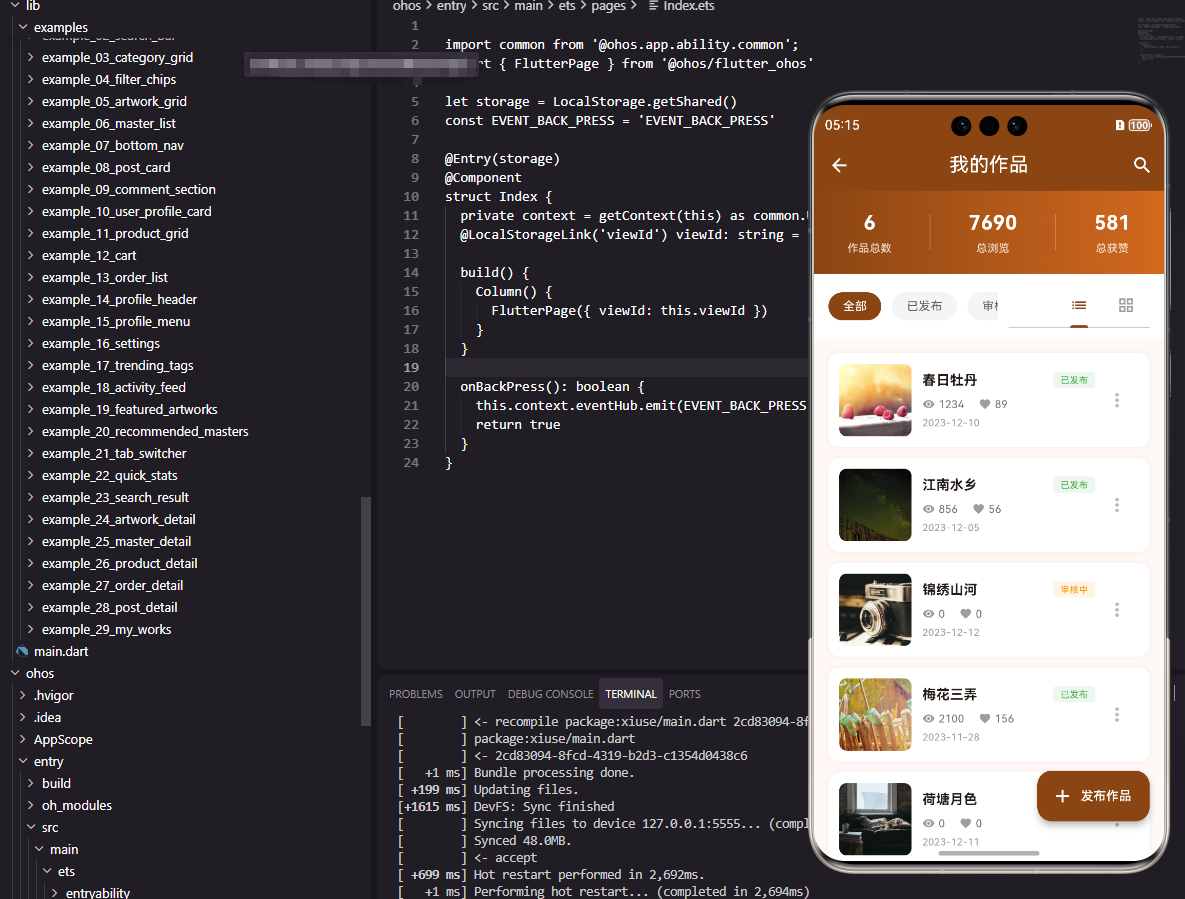
我的作品页面是创作者管理自己发布内容的重要页面。它需要展示作品列表、支持作品管理(编辑、删除)、提供发布新作品的入口。本文将详细介绍如何在Flutter和OpenHarmony平台上实现一个功能完善的我的作品页面。
我的作品页面的设计需要方便创作者查看和管理自己的内容,同时提供清晰的数据统计。
Flutter我的作品页面实现
页面结构设计
我的作品页面展示用户发布的所有作品。
dart
class MyWorksPage extends StatefulWidget {
  const MyWorksPage({super.key});

  @override
  State<MyWorksPage> createState() => _MyWorksPageState();
}

class _MyWorksPageState extends State<MyWorksPage> {
  final List<Map<String, dynamic>> _works = [
    {'title': '春日牡丹', 'status': '已发布', 'views': 1234, 'likes': 89, 'date': '2023-12-10'},
    {'title': '江南水乡', 'status': '已发布', 'views': 856, 'likes': 56, 'date': '2023-12-05'},
    {'title': '锦绣山河', 'status': '审核中', 'views': 0, 'likes': 0, 'date': '2023-12-12'},
  ];
作品数据包含标题、状态、浏览量、点赞数和发布日期。
页面头部统计
展示作品总数和总浏览量。
dart
  @override
  Widget build(BuildContext context) {
    return Scaffold(
      appBar: AppBar(
        title: const Text('我的作品', style: TextStyle(color: Colors.white)),
        backgroundColor: const Color(0xFF8B4513),
        leading: IconButton(
          icon: const Icon(Icons.arrow_back, color: Colors.white),
          onPressed: () => Navigator.pop(context),
        ),
      ),
      body: Column(
        children: [
          Container(
            padding: const EdgeInsets.all(20),
            decoration: const BoxDecoration(
              gradient: LinearGradient(colors: [Color(0xFF8B4513), Color(0xFFD2691E)]),
            ),
            child: Row(
              mainAxisAlignment: MainAxisAlignment.spaceAround,
              children: [
                _buildStatItem('作品总数', '${_works.length}'),
                Container(width: 1, height: 40, color: Colors.white.withOpacity(0.3)),
                _buildStatItem('总浏览', '${_works.fold(0, (sum, w) => sum + (w['views'] as int))}'),
                Container(width: 1, height: 40, color: Colors.white.withOpacity(0.3)),
                _buildStatItem('总获赞', '${_works.fold(0, (sum, w) => sum + (w['likes'] as int))}'),
              ],
            ),
          ),
统计区域使用渐变背景。fold方法计算总浏览量和总点赞数。
作品列表
展示作品卡片列表。
dart
          Expanded(
            child: ListView.builder(
              padding: const EdgeInsets.all(16),
              itemCount: _works.length,
              itemBuilder: (context, index) {
                final work = _works[index];
                final isPublished = work['status'] == '已发布';

                return Container(
                  margin: const EdgeInsets.only(bottom: 12),
                  padding: const EdgeInsets.all(16),
                  decoration: BoxDecoration(
                    color: Colors.white,
                    borderRadius: BorderRadius.circular(12),
                    boxShadow: [BoxShadow(color: Colors.black.withOpacity(0.05), blurRadius: 5)],
                  ),
                  child: Row(
                    children: [
                      Container(
                        width: 80,
                        height: 80,
                        decoration: BoxDecoration(color: Colors.grey[200], borderRadius: BorderRadius.circular(8)),
                        child: const Icon(Icons.image, color: Colors.grey, size: 32),
                      ),
                      const SizedBox(width: 12),
                      Expanded(
                        child: Column(
                          crossAxisAlignment: CrossAxisAlignment.start,
                          children: [
                            Row(
                              children: [
                                Expanded(child: Text(work['title'], style: const TextStyle(fontSize: 15, fontWeight: FontWeight.bold))),
                                Container(
                                  padding: const EdgeInsets.symmetric(horizontal: 8, vertical: 2),
                                  decoration: BoxDecoration(
                                    color: isPublished ? Colors.green.withOpacity(0.1) : Colors.orange.withOpacity(0.1),
                                    borderRadius: BorderRadius.circular(4),
                                  ),
                                  child: Text(work['status'], style: TextStyle(fontSize: 10, color: isPublished ? Colors.green : Colors.orange)),
                                ),
                              ],
                            ),
                            const SizedBox(height: 8),
                            Row(
                              children: [
                                Icon(Icons.visibility, size: 14, color: Colors.grey[500]),
                                const SizedBox(width: 4),
                                Text('${work['views']}', style: TextStyle(fontSize: 12, color: Colors.grey[600])),
                                const SizedBox(width: 16),
                                Icon(Icons.favorite, size: 14, color: Colors.grey[500]),
                                const SizedBox(width: 4),
                                Text('${work['likes']}', style: TextStyle(fontSize: 12, color: Colors.grey[600])),
                              ],
                            ),
                            const SizedBox(height: 4),
                            Text(work['date'], style: TextStyle(fontSize: 11, color: Colors.grey[500])),
                          ],
                        ),
                      ),
                      PopupMenuButton<String>(
                        icon: Icon(Icons.more_vert, color: Colors.grey[400]),
                        onSelected: (value) {},
                        itemBuilder: (context) => [
                          const PopupMenuItem(value: 'edit', child: Text('编辑')),
                          const PopupMenuItem(value: 'delete', child: Text('删除')),
                        ],
                      ),
                    ],
                  ),
                );
              },
            ),
          ),
        ],
      ),
作品卡片显示缩略图、标题、状态、数据统计和日期。PopupMenuButton提供编辑和删除操作。
发布按钮
悬浮的发布新作品按钮。
dart
      floatingActionButton: FloatingActionButton.extended(
        onPressed: () {},
        backgroundColor: const Color(0xFF8B4513),
        icon: const Icon(Icons.add, color: Colors.white),
        label: const Text('发布作品', style: TextStyle(color: Colors.white)),
      ),
    );
  }

  Widget _buildStatItem(String label, String value) {
    return Column(
      children: [
        Text(value, style: const TextStyle(fontSize: 22, fontWeight: FontWeight.bold, color: Colors.white)),
        const SizedBox(height: 4),
        Text(label, style: TextStyle(fontSize: 12, color: Colors.white.withOpacity(0.8))),
      ],
    );
  }
}
FloatingActionButton.extended提供带文字的悬浮按钮。
OpenHarmony鸿蒙实现
页面定义
鸿蒙平台定义作品数据。
typescript
interface WorkItem {
  title: string
  status: string
  views: number
  likes: number
  date: string
}

@Entry
@Component
struct MyWorksPage {
  private works: Array<WorkItem> = [
    { title: '春日牡丹', status: '已发布', views: 1234, likes: 89, date: '2023-12-10' },
    { title: '江南水乡', status: '已发布', views: 856, likes: 56, date: '2023-12-05' },
    { title: '锦绣山河', status: '审核中', views: 0, likes: 0, date: '2023-12-12' }
  ]
页面布局实现
使用Column和List构建页面。
typescript
  build() {
    Stack() {
      Column() {
        Row() {
          Image($r('app.media.back'))
            .width(24)
            .height(24)
            .fillColor(Color.White)
            .onClick(() => router.back())
          Text('我的作品')
            .fontSize(18)
            .fontColor(Color.White)
            .layoutWeight(1)
            .textAlign(TextAlign.Center)
          Blank().width(24)
        }
        .width('100%')
        .height(56)
        .padding({ left: 16, right: 16 })
        .backgroundColor('#8B4513')

        Row() {
          this.StatItem('作品总数', this.works.length.toString())
          Divider().vertical(true).height(40).color('#FFFFFF4D')
          this.StatItem('总浏览', this.getTotalViews().toString())
          Divider().vertical(true).height(40).color('#FFFFFF4D')
          this.StatItem('总获赞', this.getTotalLikes().toString())
        }
        .width('100%')
        .padding(20)
        .justifyContent(FlexAlign.SpaceAround)
        .linearGradient({
          direction: GradientDirection.Right,
          colors: [['#8B4513', 0], ['#D2691E', 1]]
        })

        List() {
          ForEach(this.works, (item: WorkItem) => {
            ListItem() {
              Row() {
                Stack() {
                  Image($r('app.media.placeholder'))
                    .width(80)
                    .height(80)
                    .borderRadius(8)
                }
                .width(80)
                .height(80)
                .backgroundColor('#F0F0F0')
                .borderRadius(8)

                Column() {
                  Row() {
                    Text(item.title)
                      .fontSize(15)
                      .fontWeight(FontWeight.Bold)
                      .layoutWeight(1)
                    Text(item.status)
                      .fontSize(10)
                      .fontColor(item.status === '已发布' ? '#4CAF50' : '#FF9800')
                      .backgroundColor(item.status === '已发布' ? '#4CAF501A' : '#FF98001A')
                      .borderRadius(4)
                      .padding({ left: 8, right: 8, top: 2, bottom: 2 })
                  }
                  .width('100%')

                  Row() {
                    Image($r('app.media.eye'))
                      .width(14)
                      .height(14)
                      .fillColor('#999999')
                    Text(item.views.toString())
                      .fontSize(12)
                      .fontColor('#666666')
                      .margin({ left: 4 })
                    Image($r('app.media.heart'))
                      .width(14)
                      .height(14)
                      .fillColor('#999999')
                      .margin({ left: 16 })
                    Text(item.likes.toString())
                      .fontSize(12)
                      .fontColor('#666666')
                      .margin({ left: 4 })
                  }
                  .margin({ top: 8 })

                  Text(item.date)
                    .fontSize(11)
                    .fontColor('#999999')
                    .margin({ top: 4 })
                }
                .layoutWeight(1)
                .alignItems(HorizontalAlign.Start)
                .margin({ left: 12 })

                Image($r('app.media.more'))
                  .width(20)
                  .height(20)
                  .fillColor('#CCCCCC')
              }
              .width('100%')
              .padding(16)
              .backgroundColor(Color.White)
              .borderRadius(12)
            }
            .margin({ bottom: 12 })
          })
        }
        .width('90%')
        .layoutWeight(1)
        .padding({ top: 16 })
      }
      .width('100%')
      .height('100%')

      Button() {
        Row() {
          Image($r('app.media.add'))
            .width(20)
            .height(20)
            .fillColor(Color.White)
          Text('发布作品')
            .fontSize(14)
            .fontColor(Color.White)
            .margin({ left: 8 })
        }
      }
      .width(130)
      .height(48)
      .backgroundColor('#8B4513')
      .borderRadius(24)
      .position({ x: '50%', y: '90%' })
      .markAnchor({ x: 65, y: 24 })
    }
    .width('100%')
    .height('100%')
    .backgroundColor('#F5F5F5')
  }

  @Builder StatItem(label: string, value: string) {
    Column() {
      Text(value)
        .fontSize(22)
        .fontWeight(FontWeight.Bold)
        .fontColor(Color.White)
      Text(label)
        .fontSize(12)
        .fontColor('#FFFFFFCC')
        .margin({ top: 4 })
    }
  }

  getTotalViews(): number {
    return this.works.reduce((sum, w) => sum + w.views, 0)
  }

  getTotalLikes(): number {
    return this.works.reduce((sum, w) => sum + w.likes, 0)
  }
}
Stack实现悬浮按钮效果。reduce方法计算总数据。
总结
本文介绍了Flutter和OpenHarmony平台上我的作品页面的实现方法。我的作品页面是创作者管理内容的重要页面,其设计需要方便查看和管理作品。欢迎加入开源鸿蒙跨平台社区:https://openharmonycrossplatform.csdn.net