HarmonyOS6 - 运动健身三环展示图页面案例
1. 页面效果
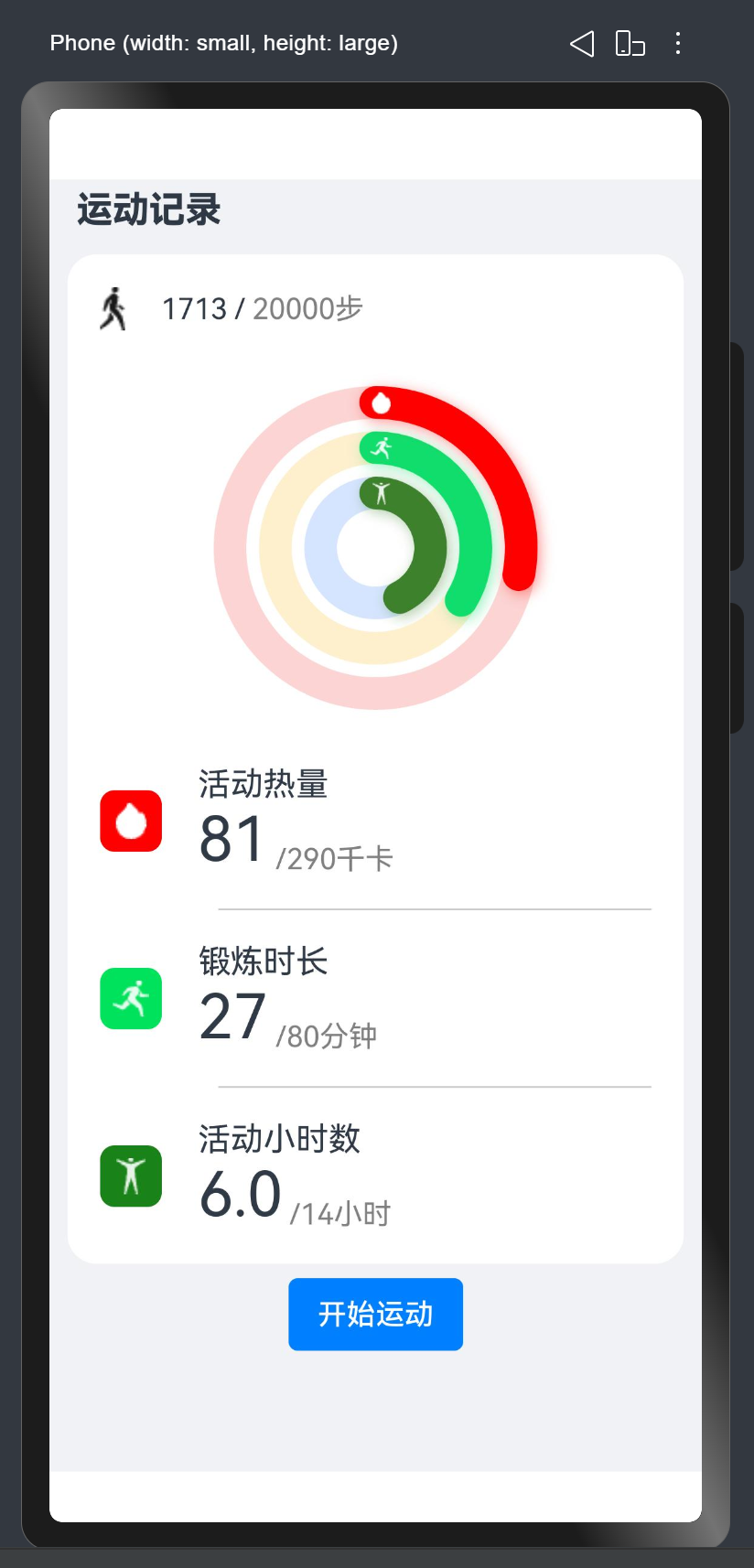
本示例是基于Progress组件构建三个环形进度条,实时显示运动数据,包括活动热量、锻炼时长、活动小时数三项数据。
2. 思路分析
- 这里实现圆环效果的话,需要使用 Progress 组件
- 需要设置三个 Progress 组件,并且type需要设置为:ProgressType.Ring
- 要用层叠效果需要使用
Stack布局,将三个环形进度条中心对齐 - 必须要设置进度条的宽度
strokeWidth和半径width,实现半径等差的三个同心圆效果 - 然后再分别设置每个进度条的背景颜色
backgroundColor和运动数据颜色color - 为了有动态效果,新增一个按钮,绑定
onClick点击事件,使用setInterval做数据的更新操作 - 最后使用
offset设置小图标的位置偏移量即可
3. 代码编写
页面代码如下:
js
@Entry
@Component
struct Test001 {
  @State stepNumber: number = 1713;
  @State targetStepNumber: number = 20000;
  @State exerciseCalories: number = 81;
  @State targetCalories: number = 290;
  @State exerciseTime: number = 27;
  @State targetTime: number = 80;
  @State totalTime: number = 6;
  @State targetTotalTime: number = 14;

  //分割线
  @Builder
  MyDivider() {
    Divider()
      .strokeWidth(1)
      .color('#cccccc')
      .width('100%')
      .margin({ left: 65 });
  }

  build() {
    Column({ space: 8 }) {
      Row() {
        Text('运动记录')
          .fontSize(20)
          .fontWeight(800)
          .margin({ left: 5 }) //设置外边距
      }
      .width('100%')
      .margin({ top: 5, bottom: 5 }) //设置外边距
      .justifyContent(FlexAlign.Start) //设置对齐方式

      Column() {
        Row() {
          Image($r('app.media.steps'))
            .height(24);
          Text(this.stepNumber.toString())
            .margin({ left: 20 });
          Text(' / ');
          Text(this.targetStepNumber.toString() + '步')
            .fontColor(Color.Gray);
        }
        .width('100%')
        .justifyContent(FlexAlign.Start) //设置主轴方向对齐方式
        .alignItems(VerticalAlign.Center); //设置交叉轴对齐方式

        //圆环层叠布局
        Stack({ alignContent: Alignment.Center }) {
          Progress({ value: this.totalTime, total: this.targetTotalTime, type: ProgressType.Ring })
            .width(100)
            .color('#ff3e812c')//设置圆环颜色
            .style({ strokeWidth: 18, shadow: true })//设置圆环宽度
            .backgroundColor('#d5e5ff'); //设置圆环背景色
          Image($r('app.media.hours'))
            .height(12)
            .offset({ x: 3, y: -30 }) //设置位置偏移量

          Progress({ value: this.exerciseTime, total: this.targetTime, type: ProgressType.Ring })
            .width(150)
            .color('#ff11dd6c')
            .style({ strokeWidth: 18, shadow: true })
            .backgroundColor('#feefcd');
          Image($r('app.media.times'))
            .height(12)
            .offset({ x: 3, y: -55 });

          Progress({ value: this.exerciseCalories, total: this.targetCalories, type: ProgressType.Ring })
            .width(200)
            .color('#ffff0000')
            .style({ strokeWidth: 18, shadow: true })
            .backgroundColor('#fbd4d3');
          Image($r('app.media.calories'))
            .height(12)
            .offset({ x: 3, y: -80 });
        }
        .padding({ top: 20 });

        // 活动热量数据
        Row() {
          Row() {
            Image($r('app.media.calories'))
              .height(20);
          }
          .height(34)
          .width(34)
          .backgroundColor('#ffff0000')
          .justifyContent(FlexAlign.Center)
          .alignItems(VerticalAlign.Center)
          .borderRadius(8) //设置圆角效果

          Column() {
            Text($r('app.string.activity_heat'))
              .fontSize(18)
              .fontWeight(450) //设置加粗效果
            Row() {
              Text(this.exerciseCalories.toString())
                .fontSize(34);
              Text(' /' + this.targetCalories.toString() + '千卡')
                .fontColor(Color.Gray);
            }
            .alignItems(VerticalAlign.Bottom);
          }
          .alignItems(HorizontalAlign.Start)
          .margin({ left: 20 });
        }
        .width('100%')
        .margin({ top: 20, bottom: 18 });

        //设置分割线
        this.MyDivider()

        // 锻炼时长数据
        Row() {
          Row() {
            Image($r('app.media.times'))
              .height(20);
          }
          .height(34)
          .width(34)
          .backgroundColor('#ff11dd6c')
          .justifyContent(FlexAlign.Center)
          .alignItems(VerticalAlign.Center)
          .borderRadius(8);

          Column() {
            Text($r('app.string.exercise_duration'))
              .fontSize(18)
              .fontWeight(450);
            Row() {
              Text(this.exerciseTime.toString())
                .fontSize(34);
              Text(' /' + this.targetTime.toString() + '分钟')
                .fontColor(Color.Gray);
            }
            .alignItems(VerticalAlign.Bottom);
          }
          .alignItems(HorizontalAlign.Start)
          .margin({ left: 20 });
        }
        .width('100%')
        .margin({ top: 18, bottom: 18 });

        //设置分割线
        this.MyDivider()

        // 活动小时数数据
        Row() {
          Row() {
            Image($r('app.media.hours'))
              .height(20);
          }
          .height(34)
          .width(34)
          .backgroundColor('#ff3e812c')
          .justifyContent(FlexAlign.Center)
          .alignItems(VerticalAlign.Center)
          .borderRadius(8);


          Column() {
            Text($r('app.string.activity_hours'))
              .fontSize(18)
              .fontWeight(450);
            Row() {
              Text(this.totalTime.toFixed(1))
                .fontSize(34);
              Text(' /' + this.targetTotalTime.toString() + '小时')
                .fontColor(Color.Gray);
            }
            .alignItems(VerticalAlign.Bottom);
          }
          .alignItems(HorizontalAlign.Start)
          .margin({ left: 20 });
        }
        .width('100%')
        .margin({ top: 18 });
      }
      .backgroundColor(Color.White)
      .borderRadius(16)
      .padding(18);

      Button($r('app.string.start_exercising'))
        .borderRadius(5)
        .onClick(() => {
          setInterval(() => {
            this.exerciseCalories += 10;
            this.exerciseTime += 1;
            this.totalTime += 0.3;
            this.stepNumber += 12;
          }, 1000);
        })
    }
    .width('100%')
    .height('100%')
    //设置左右的内边距
    .padding({
      left: 10,
      right: 10,
    })
    .backgroundColor('#f0f2f5');
  }
}
注意:代码中涉及到的一些小图标大家自己下载好了放到media目录中即可