Python自动化办公提效相关脚本
- 1.长视频拆分
- 2.基于感情色彩进行单词数量统计
- [3. 批量重命名文件](#3. 批量重命名文件)
- [4. 批量打印文件](#4. 批量打印文件)
- [5. 快速区分不同类型的文件](#5. 快速区分不同类型的文件)
- 6.如何提取图片中出现最多的像素
- 7.定时发邮件
- [8. 把任意文件转换为pdf](#8. 把任意文件转换为pdf)
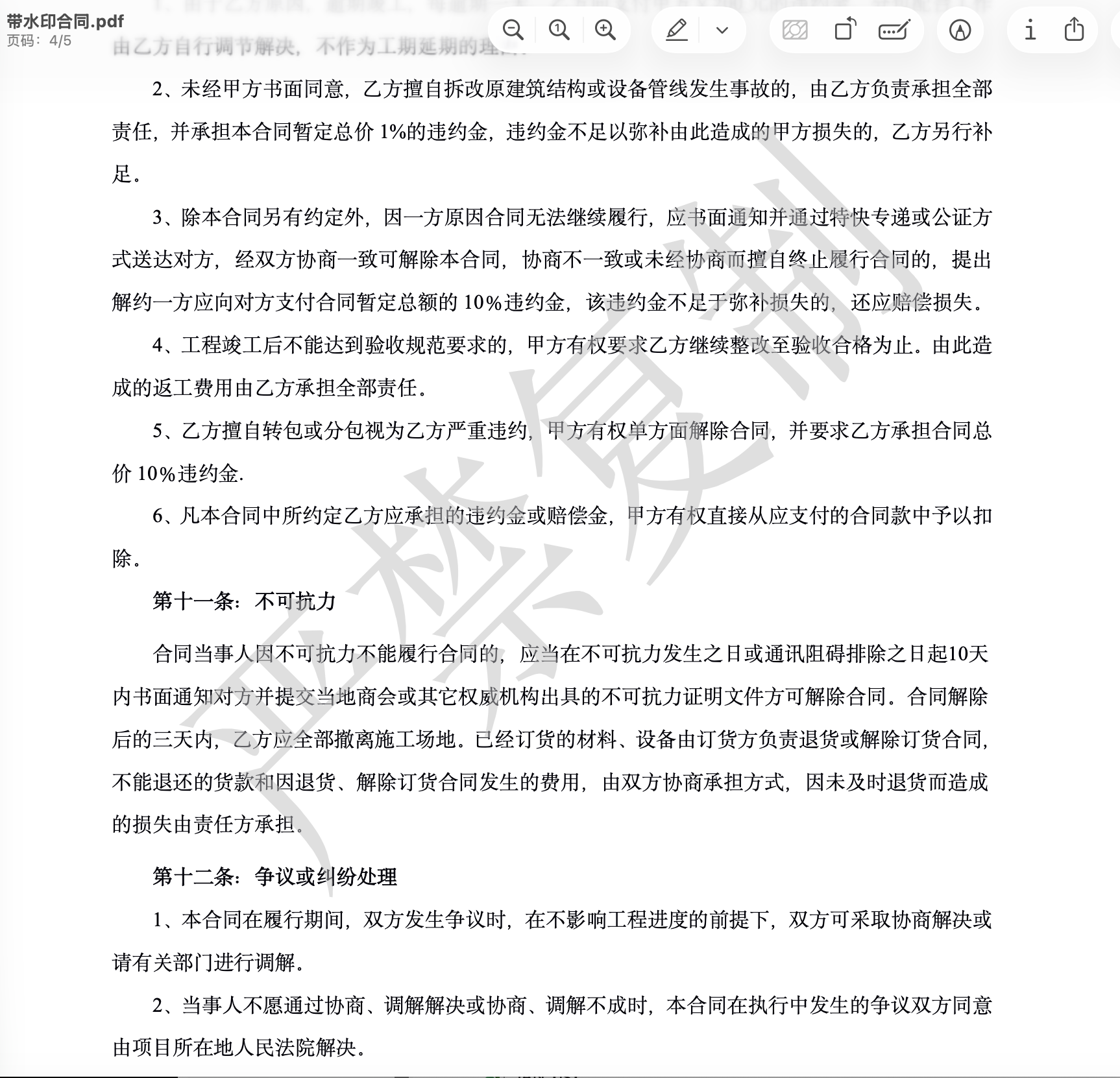
- 9.pdf逐页批量加水印
1.长视频拆分
python
from subprocess import run
# 拆分文件的路径
input_video = "test.mp4"

# 10秒分为一个文件
segment_time = 10

# m3u8文件保存位置
m3u8_list = "/Users/cn-xx/Downloads/Python自动化办公实战课/文章5代码/playlist.m3u8"

# ts文件保存位置
output_video = "/Users/cn-xx/Downloads/Python自动化办公实战课/文章5代码/video-%04d.ts"

cmd1 = ["ffmpeg", "-i", input_video, "-f", "segment", "-segment_time", str(segment_time), "-segment_format",
    "mpegts", "-segment_list", m3u8_list, "-c", "copy", "-map", "0", output_video]

run(cmd1)

# 合并
# ffmpeg -allowed_extensions ALL -protocol_whitelist "file,http,crypto,tcp,https" -i index.m3u8 -c copy out.mp4
2.基于感情色彩进行单词数量统计
python
import jieba

# jieba是第三方库,需要使用pip3 install jieba 进行安装后使用

#words1="速度快,包装好,看着特别好,喝着肯定不错!价廉物美"
words1 = '味道差,口感没有,服务态度恶劣,心情很差,不再来了'

words2 = jieba.cut(words1)
words3 = list(words2)
print("/".join(words3))
# 速度/快/,/包装/好/,/看着/特别/好/,/喝/着/肯定/不错/!/价廉物美

# words4 停止词
stop_words = [",", "!"]
words4 =[x for x in words3 if x not in stop_words]
print(words4)
# ['速度', '快', '包装', '好', '看着', '特别', '好', '喝', '着', '肯定', '不错', '价廉物美']

# words5 基于词性移除标点符号
import jieba.posseg as psg
words5 = [ (w.word, w.flag) for w in psg.cut(words1) ]
# 保留形容词
saved = ['a', 'l']
words5 =[x for x in words5 if x[1] in saved]
print(words5)
# [('快', 'a'), ('好', 'a'), ('好', 'a'), ('不错', 'a'), ('价廉物美', 'l')]


from snownlp import SnowNLP
words6 = [ x[0] for x in words5 ]
s1 = SnowNLP(" ".join(words3))
print(s1.sentiments)
# 0.99583439264303
positive = 0
negtive = 0
for word in words6:
    s2 = SnowNLP(word)

    if s2.sentiments > 0.7:
        positive+=1
    else:
        negtive+=1

    print(word,str(s2.sentiments))
print(f"正向评价数量:{positive}")
print(f"负向评价数量:{negtive}")
# 快 0.7164835164835165
# 好 0.6558628208940429
# 好 0.6558628208940429
# 不错 0.8612132352941176
# 价廉物美 0.7777777777777779
# 正向评价数量:3
# 负向评价数量:2
3. 批量重命名文件
python
import os
# 保存图片的目录
file_path = "/Users/cn-xx/Downloads/发票批量下载_20251231154735"
# 需要批量重命名的扩展名
old_ext = ".pdf"
# 取得指定文件夹下的文件列表
old_names = os.listdir(file_path)
# 新文件名称从1开始
new_name = 1

# 取得所有的文件名
for old_name in old_names:

    # 根据扩展名,判断文件是否需要改名
    if old_name.endswith(old_ext):

        # 完整的文件路径
        old_path = os.path.join(file_path, old_name)

        # 新的文件名
        new_path = os.path.join(file_path, str(new_name)+".pdf")

        # 重命名
        os.rename(old_path, new_path)

        # 文件名数字加1
        new_name = int(new_name)+1

# 显示改名后的结果
print(os.listdir(file_path))

#  ['3.txt', '2.txt', '1.txt', 'xyz.bmp']
4. 批量打印文件
python
import os
import subprocess

def batch_print_pdfs():
    file_path = "/Users/cn-xx/Downloads/20251231154750"

    for filename in os.listdir(file_path):
        if filename.lower().endswith('.pdf'):
            pdf_file = os.path.join(file_path, filename)
            subprocess.run(['lpr', pdf_file])
            print(f"已发送打印: {filename}")

if __name__ == "__main__":
    batch_print_pdfs()
5. 快速区分不同类型的文件
python
import os
import shutil
from queue import Queue

# 建立新的目录
def make_new_dir(dir, type_dir):
    for td in type_dir:
        new_td = os.path.join(dir, td)
        if not os.path.isdir(new_td):
            os.makedirs(new_td)

# 遍历目录并存入队列
def write_to_q(path_to_write, q: Queue):
    for full_path, dirs, files in os.walk(path_to_write):
        # 如果目录下没有文件,就跳过该目录
        if not files:
            continue
        else:
            q.put(f"{full_path}::{files}")

# 移动文件到新的目录
def move_to_newdir(filename_withext, file_in_path, type_to_newpath):
    # 取得文件的扩展名
    filename_withext = filename_withext.strip(" \'")
    ext = filename_withext.split(".")[1]

    for new_path in type_to_newpath:
        if ext in type_to_newpath[new_path]:
            oldfile = os.path.join(file_in_path, filename_withext)
            newfile = os.path.join(source_dir, new_path, filename_withext)
            shutil.move(oldfile, newfile)

# 将队列的文件名分类并写入新的文件夹
def classify_from_q(q: Queue, type_to_classify):
    while not q.empty():
        item = q.get()

        # 将路径和文件分开
        filepath, files = item.split("::")

        files = files.strip("[]").split(",")
        # 对每个文件进行处理
        for filename in files:
            # 将文件移动到新的目录
            move_to_newdir(filename, filepath, type_to_classify)


if __name__ == "__main__":
    # 定义要对哪个目录进行文件扩展名分类
    source_dir = "/Users/cn-xx/Downloads/test"

    # 定义文件类型和它的扩展名
    file_type = {
        "music": ("mp3", "wav"),
        "movie": ("mp4", "rmvb", "rm", "avi"),
        "execute": ("exe", "bat", "dmg", "py", "apk"),
        "pic": ("jpg", "png")
    }

    # 建立新的文件夹
    make_new_dir(source_dir, file_type)

    # 定义一个用于记录扩展名放在指定目录的队列
    filename_q = Queue()

    # 遍历目录并存入队列
    write_to_q(source_dir, filename_q)

    # 将队列的文件名分类并写入新的文件夹
    classify_from_q(filename_q, file_type)
6.如何提取图片中出现最多的像素
python
from PIL import Image
# pip3 instlal pillow

# 打开图片文件
image = Image.open("test.JPG")

# 模式"P"为8位彩色图像,每个像素用8个bit表示
image_p = image.convert(
    "P", palette=Image.ADAPTIVE
    )
# image_p.show()

# 以列表形式返回图像调色板,目标需先转换为P模式,才具有调色板属性,否则得到的调色板为None
palette = image_p.getpalette()

# 返回此图像中使用的颜色列表,maxcolors默认256
color_counts = sorted(image_p.getcolors(maxcolors=9999), reverse=True)
colors = []


for i in range(5):
    palette_index = color_counts[i][1]
    dominant_color = palette[palette_index * 3 : palette_index * 3 + 3]
    colors.append(tuple(dominant_color))

print(colors)
# [(204, 154, 86), (230, 237, 226), (213, 213, 212), (251, 238, 206), (82, 167, 204)]
for i, val in enumerate(colors):
    image.paste(val,(0+i*120, 0 ,100+i*120, 100))

image.save("test2.jpg")
image.show()
Demo :

7.定时发邮件
python
import yagmail

# 163邮箱配置
# 注意:password 需要使用163邮箱的"授权码",不是登录密码
# 获取授权码:登录163邮箱 -> 设置 -> POP3/SMTP/IMAP -> 开启服务 -> 获取授权码
conn = yagmail.SMTP(
        user="xx@163.com",
        password="xx",  # 这里需要改成163邮箱的**授权码**
        host="smtp.163.com",  # 修正:使用 smtp.163.com
        port=465
        )

content = "自动发送邮件ok"
body = f"模版 {content}"

# 发送邮件
conn.send("xx@163.com", "主题1", body, "one.png")
8. 把任意文件转换为pdf
使用命令: python3 office_to_pdf.py 输入表格.xlsx 输出结果.pdf
python
"""
Office文件转PDF通用工具
支持: doc, docx, xls, xlsx, ppt, pptx
"""
import os
import subprocess
import platform


def office_to_pdf(input_file, output_file=None):
    """
    将Office文件转换为PDF

    参数:
        input_file: 输入文件路径
        output_file: 输出PDF路径(可选,默认同名.pdf)

    返回:
        成功返回输出文件路径,失败返回None
    """
    if not os.path.exists(input_file):
        print(f"错误: 文件不存在 - {input_file}")
        return None

    # 获取文件扩展名
    _, ext = os.path.splitext(input_file)
    ext = ext.lower()

    # 支持的格式
    supported = ['.doc', '.docx', '.xls', '.xlsx', '.ppt', '.pptx']
    if ext not in supported:
        print(f"错误: 不支持的格式 {ext}")
        print(f"支持的格式: {', '.join(supported)}")
        return None

    # 默认输出文件名
    if output_file is None:
        output_file = os.path.splitext(input_file)[0] + '.pdf'

    # 获取绝对路径
    input_file = os.path.abspath(input_file)
    output_file = os.path.abspath(output_file)
    output_dir = os.path.dirname(output_file)

    print(f"转换: {os.path.basename(input_file)} -> {os.path.basename(output_file)}")

    # macOS使用soffice (LibreOffice)
    if platform.system() == 'Darwin':
        return _convert_with_libreoffice(input_file, output_dir, output_file)
    else:
        print("错误: 当前仅支持macOS系统")
        return None


def _convert_with_libreoffice(input_file, output_dir, output_file):
    """使用LibreOffice转换"""
    # 检查LibreOffice是否安装
    soffice_paths = [
        '/Applications/LibreOffice.app/Contents/MacOS/soffice',
        '/usr/local/bin/soffice',
        'soffice'
    ]

    soffice = None
    for path in soffice_paths:
        if os.path.exists(path) or subprocess.run(['which', path],
                                                   capture_output=True).returncode == 0:
            soffice = path
            break

    if not soffice:
        print("错误: 未找到LibreOffice")
        print("请安装: brew install --cask libreoffice")
        return None

    try:
        # 使用LibreOffice转换
        cmd = [
            soffice,
            '--headless',
            '--convert-to', 'pdf',
            '--outdir', output_dir,
            input_file
        ]

        result = subprocess.run(cmd, capture_output=True, text=True, timeout=30)

        if result.returncode == 0:
            # LibreOffice生成的文件名
            generated_file = os.path.join(
                output_dir,
                os.path.splitext(os.path.basename(input_file))[0] + '.pdf'
            )

            # 如果指定了不同的输出文件名,重命名
            if generated_file != output_file and os.path.exists(generated_file):
                os.rename(generated_file, output_file)

            if os.path.exists(output_file):
                print(f"✓ 转换成功: {output_file}")
                return output_file
            else:
                print(f"✗ 转换失败: 未生成PDF文件")
                return None
        else:
            print(f"✗ 转换失败: {result.stderr}")
            return None

    except subprocess.TimeoutExpired:
        print("✗ 转换超时")
        return None
    except Exception as e:
        print(f"✗ 转换出错: {e}")
        return None


def batch_convert(input_dir, output_dir=None):
    """
    批量转换目录下的所有Office文件

    参数:
        input_dir: 输入目录
        output_dir: 输出目录(可选,默认同输入目录)
    """
    if output_dir is None:
        output_dir = input_dir

    os.makedirs(output_dir, exist_ok=True)

    supported = ['.doc', '.docx', '.xls', '.xlsx', '.ppt', '.pptx']
    files = [f for f in os.listdir(input_dir)
             if os.path.splitext(f)[1].lower() in supported]

    if not files:
        print(f"未找到Office文件在: {input_dir}")
        return

    print(f"找到 {len(files)} 个文件")
    print("-" * 60)

    success = 0
    for filename in files:
        input_file = os.path.join(input_dir, filename)
        output_file = os.path.join(output_dir,
                                   os.path.splitext(filename)[0] + '.pdf')

        if office_to_pdf(input_file, output_file):
            success += 1
        print()

    print("-" * 60)
    print(f"完成: {success}/{len(files)} 个文件转换成功")


if __name__ == "__main__":
    import sys

    print("Office文件转PDF工具")
    print("=" * 60)
    print()

    # 检查是否有命令行参数
    if len(sys.argv) > 1:
        # 有参数,转换指定文件
        input_file = sys.argv[1]
        output_file = sys.argv[2] if len(sys.argv) > 2 else None
        office_to_pdf(input_file, output_file)
    else:
        # 无参数,批量转换当前目录
        print("未指定文件,将转换当前目录所有Office文件")
        print()
        batch_convert('.')

    print()
    print("用法:")
    print("  python3 office_to_pdf.py 文档.docx")
    print("  python3 office_to_pdf.py 表格.xlsx 输出.pdf")
    print("  python3 office_to_pdf.py  # 转换当前目录所有文件")
9.pdf逐页批量加水印
python
from PyPDF2 import PdfReader, PdfWriter

def watermark(pdfWithoutWatermark, watermarkfile, pdfWithWatermark):

    # 准备合并后的文件对象
    pdfWriter = PdfWriter()

    # 打开水印文件
    with open(watermarkfile, 'rb') as f:
        watermarkpage = PdfReader(f)

        # 打开需要增加水印的文件
        with open(pdfWithoutWatermark, 'rb') as f:
            pdf_file = PdfReader(f)

            for i in range(len(pdf_file.pages)):
                # 从第一页开始处理
                page = pdf_file.pages[i]
                # 合并水印和当前页
                page.merge_page(watermarkpage.pages[0])
                # 将合并后的PDF文件写入新的文件
                pdfWriter.add_page(page)

    # 写入新的PDF文件
    with open(pdfWithWatermark, "wb") as f:
        pdfWriter.write(f)

if __name__ == "__main__":
    pdf_without_watermark = "合同.pdf"
    pdf_with_watermark = "带水印合同.pdf"
    watermark_file = "水印.pdf"

    watermark(pdf_without_watermark, watermark_file, pdf_with_watermark)
    print(f"✓ 水印添加完成:{pdf_with_watermark}")
水印图:

加水印效果图: