示例代码
dart
import 'package:flutter/material.dart';

void main() => runApp(const ImagePlaceholderApp());

class ImagePlaceholderApp extends StatelessWidget {
  const ImagePlaceholderApp({Key? key}) : super(key: key);

  @override
  Widget build(BuildContext context) {
    return MaterialApp(
      debugShowCheckedModeBanner: false,
      home: Scaffold(
        appBar: AppBar(title: const Text('Image Widget 占位符技术')),
        body: const SingleChildScrollView(
          padding: EdgeInsets.all(16),
          child: Column(
            crossAxisAlignment: CrossAxisAlignment.start,
            children: [
              ColorPlaceholderExample(),
              SizedBox(height: 20),
              WidgetPlaceholderExample(),
              SizedBox(height: 20),
              GradientPlaceholderExample(),
              SizedBox(height: 20),
              SkeletonPlaceholderExample(),
            ],
          ),
        ),
      ),
    );
  }
}

class ColorPlaceholderExample extends StatelessWidget {
  const ColorPlaceholderExample({Key? key}) : super(key: key);

  @override
  Widget build(BuildContext context) {
    return Card(
      child: Column(
        crossAxisAlignment: CrossAxisAlignment.start,
        children: [
          Padding(
            padding: const EdgeInsets.all(12),
            child: Text(
              '示例1:颜色占位符',
              style: TextStyle(fontWeight: FontWeight.bold, fontSize: 16),
            ),
          ),
          Center(
            child: Image.network(
              'https://images.unsplash.com/photo-1501785888041-af3ef285b470?w=400',
              width: 300,
              height: 200,
              fit: BoxFit.cover,
              loadingBuilder: (context, child, loadingProgress) {
                if (loadingProgress == null) return child;
                return Container(
                  width: 300,
                  height: 200,
                  color: Colors.grey[200],
                );
              },
            ),
          ),
          const SizedBox(height: 12),
        ],
      ),
    );
  }
}

class WidgetPlaceholderExample extends StatelessWidget {
  const WidgetPlaceholderExample({Key? key}) : super(key: key);

  @override
  Widget build(BuildContext context) {
    return Card(
      child: Column(
        crossAxisAlignment: CrossAxisAlignment.start,
        children: [
          Padding(
            padding: const EdgeInsets.all(12),
            child: Text(
              '示例2:Widget 占位符',
              style: TextStyle(fontWeight: FontWeight.bold, fontSize: 16),
            ),
          ),
          Center(
            child: Image.network(
              'https://images.unsplash.com/photo-1516961642265-531546e84af2?w=400',
              width: 300,
              height: 200,
              fit: BoxFit.cover,
              loadingBuilder: (context, child, loadingProgress) {
                if (loadingProgress == null) return child;
                return Container(
                  width: 300,
                  height: 200,
                  color: Colors.grey[100],
                  child: const Center(
                    child: Icon(Icons.image, size: 64, color: Colors.grey),
                  ),
                );
              },
            ),
          ),
          const SizedBox(height: 12),
        ],
      ),
    );
  }
}

class GradientPlaceholderExample extends StatelessWidget {
  const GradientPlaceholderExample({Key? key}) : super(key: key);

  @override
  Widget build(BuildContext context) {
    return Card(
      child: Column(
        crossAxisAlignment: CrossAxisAlignment.start,
        children: [
          Padding(
            padding: const EdgeInsets.all(12),
            child: Text(
              '示例3:渐变色占位符',
              style: TextStyle(fontWeight: FontWeight.bold, fontSize: 16),
            ),
          ),
          Center(
            child: Image.network(
              'https://images.unsplash.com/photo-1542291026-7eec264c27ff?w=400',
              width: 300,
              height: 200,
              fit: BoxFit.cover,
              loadingBuilder: (context, child, loadingProgress) {
                if (loadingProgress == null) return child;
                return Container(
                  width: 300,
                  height: 200,
                  decoration: BoxDecoration(
                    gradient: LinearGradient(
                      colors: [Colors.blue[100]!, Colors.purple[100]!],
                      begin: Alignment.topLeft,
                      end: Alignment.bottomRight,
                    ),
                  ),
                  child: const Center(
                    child: CircularProgressIndicator(),
                  ),
                );
              },
            ),
          ),
          const SizedBox(height: 12),
        ],
      ),
    );
  }
}

class SkeletonPlaceholderExample extends StatelessWidget {
  const SkeletonPlaceholderExample({Key? key}) : super(key: key);

  @override
  Widget build(BuildContext context) {
    return Card(
      child: Column(
        crossAxisAlignment: CrossAxisAlignment.start,
        children: [
          Padding(
            padding: const EdgeInsets.all(12),
            child: Text(
              '示例4:骨架屏占位符',
              style: TextStyle(fontWeight: FontWeight.bold, fontSize: 16),
            ),
          ),
          Center(
            child: Image.network(
              'https://images.unsplash.com/photo-1497215728101-856f4ea42174?w=400',
              width: 300,
              height: 200,
              fit: BoxFit.cover,
              loadingBuilder: (context, child, loadingProgress) {
                if (loadingProgress == null) return child;
                return const SkeletonLoader();
              },
            ),
          ),
          const SizedBox(height: 12),
        ],
      ),
    );
  }
}

class SkeletonLoader extends StatelessWidget {
  const SkeletonLoader({Key? key}) : super(key: key);

  @override
  Widget build(BuildContext context) {
    return Container(
      width: 300,
      height: 200,
      decoration: BoxDecoration(
        gradient: LinearGradient(
          colors: [
            Colors.grey[300]!,
            Colors.grey[200]!,
            Colors.grey[300]!,
          ],
          begin: Alignment(-1, -1),
          end: Alignment(1, 1),
        ),
      ),
      child: AnimatedContainer(
        duration: const Duration(milliseconds: 1500),
        decoration: BoxDecoration(
          gradient: LinearGradient(
            colors: [
              Colors.grey[300]!.withOpacity(0.5),
              Colors.grey[200]!.withOpacity(0.8),
              Colors.grey[300]!.withOpacity(0.5),
            ],
          ),
        ),
      ),
    );
  }
}
🚀 快速运行
示例应用
本篇文章的示例项目:flutter_examples/04_image_state_demo
运行步骤
bash
# 进入示例项目目录
cd flutter_examples/04_image_state_demo

# 运行应用(鸿蒙虚拟机)
flutter run -d 127.0.0.1:5555

# 或运行应用(其他设备)
flutter run
演示内容
运行应用后,您将看到本篇文章的示例:
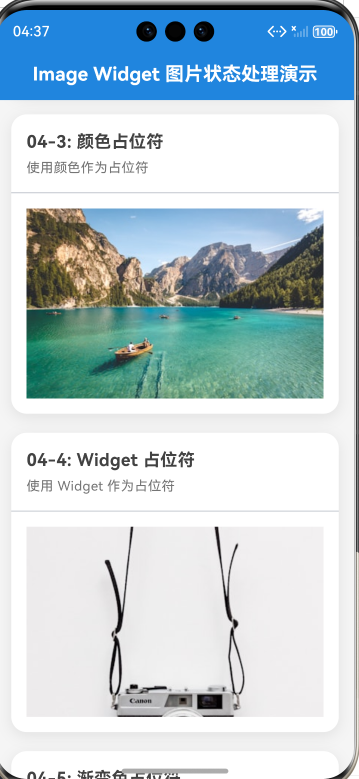
- 示例1:颜色占位符 - 使用颜色作为占位符
- 示例2:Widget 占位符 - 使用自定义 Widget 作为占位符
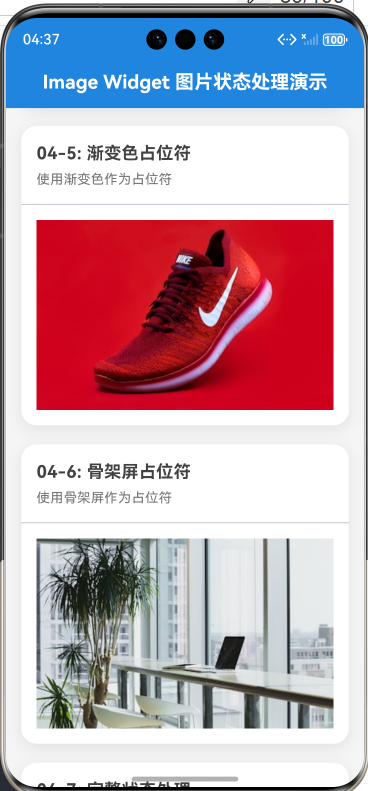
- 示例3:渐变色占位符 - 使用渐变色作为占位符
- 示例4:骨架屏占位符 - 使用骨架屏作为占位符
一、 前言
在图片加载时,显示一个占位符可以提升用户体验,让用户知道这里即将显示图片。占位符可以是简单的颜色、自定义的 Widget,或者更复杂的骨架屏。
本篇文章讲解常见的占位符技术。
二、 颜色占位符
2.1 基本用法
最简单的占位符就是使用单色背景。
dart
Image.network(
  'https://images.unsplash.com/photo-1501785888041-af3ef285b470?w=400',
  width: double.infinity,
  height: 200,
  fit: BoxFit.cover,
  loadingBuilder: (context, child, loadingProgress) {
    if (loadingProgress == null) return child;

    return Container(
      width: double.infinity,
      height: 200,
      color: Colors.grey[200],
    );
  },
)
2.2 选择合适的颜色
dart
// 1. 使用灰色系(最常用)
color: Colors.grey[200]

// 2. 使用主题色
color: Colors.blue[100]

// 3. 使用半透明白色
color: Colors.white.withOpacity(0.5)
三、 Widget 占位符
3.1 使用图标作为占位符
dart
Image.network(
  'https://images.unsplash.com/photo-1516961642265-531546e84af2?w=400',
  width: double.infinity,
  height: 200,
  fit: BoxFit.cover,
  loadingBuilder: (context, child, loadingProgress) {
    if (loadingProgress == null) return child;

    return Container(
      width: double.infinity,
      height: 200,
      color: Colors.grey[100],
      child: const Center(
        child: Icon(Icons.image, size: 64, color: Colors.grey),
      ),
    );
  },
)
3.2 使用进度指示器
dart
Image.network(
  url,
  loadingBuilder: (context, child, loadingProgress) {
    if (loadingProgress == null) return child;

    return Container(
      width: double.infinity,
      height: 200,
      color: Colors.blue[50],
      child: const Center(
        child: CircularProgressIndicator(),
      ),
    );
  },
)
四、 渐变色占位符
4.1 使用 LinearGradient
dart
Image.network(
  'https://images.unsplash.com/photo-1542291026-7eec264c27ff?w=400',
  width: double.infinity,
  height: 200,
  fit: BoxFit.cover,
  loadingBuilder: (context, child, loadingProgress) {
    if (loadingProgress == null) return child;

    return Container(
      width: double.infinity,
      height: 200,
      decoration: BoxDecoration(
        gradient: LinearGradient(
          colors: [Colors.blue[100]!, Colors.purple[100]!],
          begin: Alignment.topLeft,
          end: Alignment.bottomRight,
        ),
      ),
      child: const Center(
        child: CircularProgressIndicator(),
      ),
    );
  },
)
4.2 渐变方向选择
dart
// 1. 从左上到右下
gradient: LinearGradient(
  colors: [Colors.blue[100]!, Colors.purple[100]!],
  begin: Alignment.topLeft,
  end: Alignment.bottomRight,
)

// 2. 从左到右
gradient: LinearGradient(
  colors: [Colors.blue[100]!, Colors.purple[100]!],
  begin: Alignment.centerLeft,
  end: Alignment.centerRight,
)

// 3. 从上到下
gradient: LinearGradient(
  colors: [Colors.blue[100]!, Colors.purple[100]!],
  begin: Alignment.topCenter,
  end: Alignment.bottomCenter,
)
五、 骨架屏占位符
5.1 什么是骨架屏
骨架屏是一种在数据加载时显示的占位动画,模拟内容的大致结构,给用户一种"内容即将到来"的感觉。
5.2 简单的骨架屏实现
dart
Image.network(
  'https://images.unsplash.com/photo-1497215728101-856f4ea42174?w=400',
  width: double.infinity,
  height: 200,
  fit: BoxFit.cover,
  loadingBuilder: (context, child, loadingProgress) {
    if (loadingProgress == null) return child;

    return _SkeletonLoader();
  },
)
5.3 骨架屏 Widget 实现
dart
class _SkeletonLoader extends StatelessWidget {
  @override
  Widget build(BuildContext context) {
    return Container(
      width: double.infinity,
      height: 200,
      decoration: BoxDecoration(
        gradient: LinearGradient(
          colors: [
            Colors.grey[300]!,
            Colors.grey[200]!,
            Colors.grey[300]!,
          ],
          begin: Alignment(-1, -1),
          end: Alignment(1, 1),
        ),
      ),
      child: AnimatedContainer(
        duration: const Duration(milliseconds: 1500),
        decoration: BoxDecoration(
          gradient: LinearGradient(
            colors: [
              Colors.grey[300]!.withOpacity(0.5),
              Colors.grey[200]!.withOpacity(0.8),
              Colors.grey[300]!.withOpacity(0.5),
            ],
          ),
        ),
      ),
    );
  }
}
5.4 使用第三方库
更专业的骨架屏可以使用第三方库,如 shimmer:
yaml
# pubspec.yaml
dependencies:
  shimmer: ^3.0.0
dart
import 'package:shimmer/shimmer.dart';

Shimmer.fromColors(
  baseColor: Colors.grey[300]!,
  highlightColor: Colors.grey[100]!,
  child: Container(
    width: 200,
    height: 200,
    color: Colors.white,
  ),
)
六、 占位符选择指南
| 场景 | 推荐占位符 | 原因 |
|---|---|---|
| 列表图片 | 颜色占位 | 简单快速,不影响性能 |
| 用户头像 | Widget占位 | 使用用户图标,更具个性化 |
| 头部横幅 | 渐变占位 | 视觉效果更好 |
| 详情页 | 骨架屏 | 体验最佳,接近最终效果 |
| 卡片图片 | 颜色+Widget | 简洁又有提示作用 |
七、 总结
占位符技术是提升图片加载体验的重要手段:
- 颜色占位:最简单,性能最好
- Widget占位:更直观,可以显示图标或文字
- 渐变占位:视觉效果更好
- 骨架屏:最佳体验,模拟真实内容结构
记住,好的占位符应该简洁、快速、有提示性。根据具体场景选择合适的占位符技术。