**本文摘要:**该JavaScript代码实现了一个将HTML内容导出为PDF的混合方法。主要功能包括:1) 通过html2canvas将DOM转换为canvas;2) 使用jspdf生成PDF文件;3) 智能分页处理,特别针对表格内容进行优化,确保表格不被分割;4) 提供两种分页模式(基于表格计算分页点和传统分页);5) 添加样式保护防止内容错乱。核心方法包括分析DOM结构、计算分页点、生成PDF等,支持高清导出和跨域图片处理。
场景
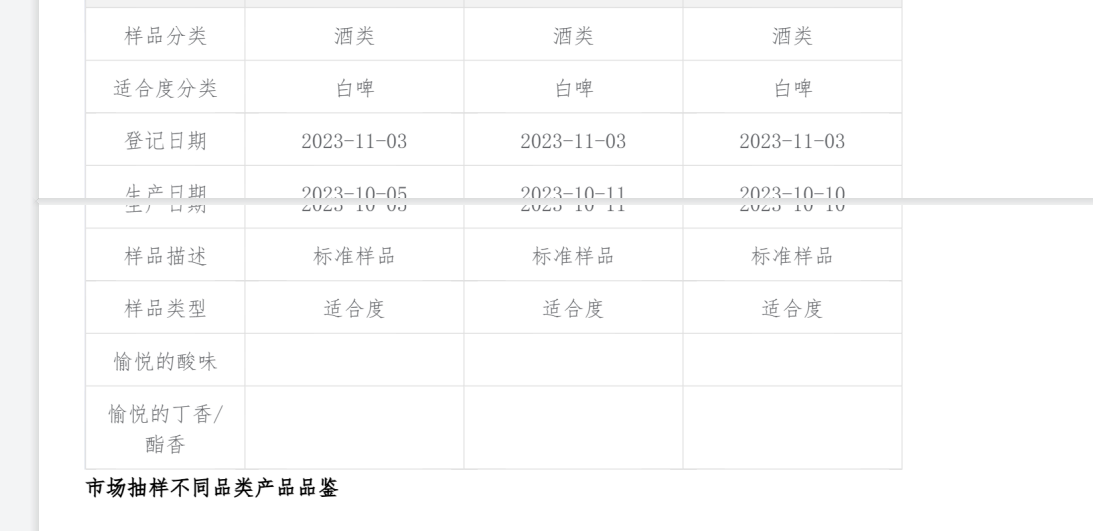
当由前端来实现导出pdf功能时,要是普通导出则根据这个包中的方法正常导出即可,可是当页面内容涉及到表格的时候,很容易造成表格行被截断在两页中,如下图
解决方案:
js文件内容思路

记得提前安装html2Canvas包和JsPDF包
代码内容较长,但确实是是在企业前端开发过程中实际用到的,花了两天时间查阅资料整理出来的。希望对大家有帮助。代码中几乎每行都做了注释方便理解,可以结合思路图和标注的a-e和1-7这个步骤来看就清晰多了。
核心步骤就是在分页点的计算,下面是封装好的工具函数,大家用的时候只需在别的页面导入js文件调用这个方法时传入参数(要打印的元素的ID,pdf文件名)调用即可。
javascript
import html2Canvas from "html2canvas";
import JsPDF from "jspdf";
import NP from 'number-precision'
const mixin = {
methods: {
printOut(el, fileName) {
return new Promise((resolve, reject) => {
var that = this;
// 要打印的东西--找到id是el的
var shareContent = document.querySelector(`#${el}`);
// 1. 添加表格保护样式
that.addTableProtectionStyles(shareContent);
// 2. 先分析DOM结构,获取所有表格行的位置信息
const { rowInfo, containerHeight, tablesInfo } = that.analyzeTableRows(shareContent);
// console.log('表格行信息:', rowInfo); console.log('表格信息:', tablesInfo);
var width = shareContent.offsetWidth; // 获取元素的宽度(像素) offsetWidth包括:内容宽度+内边距+边框
var height = shareContent.offsetHeight;
shareContent.style.height = height + 'px';
shareContent.style.width = width + 'px';
// 3. 生成canvas
html2Canvas(shareContent, {
scale: 1.5, // 2倍高清
dpi: 300,// 高分辨率
allowTaint: true,
useCORS: true,// 允许跨域图片
backgroundColor: '#ffffff',
logging: true // 开启日志便于调试
}).then(function (canvas) {
var context = canvas.getContext("2d"); // 获取canvas的2D绘图上下文
// 关闭抗锯齿
context.mozImageSmoothingEnabled = false; // Firefox浏览器:关闭图片平滑处理
context.webkitImageSmoothingEnabled = false; // Chrome/Safari浏览器:关闭图片平滑处理
context.msImageSmoothingEnabled = false; // IE浏览器:关闭图片平滑处理
context.imageSmoothingEnabled = false; // 标准API:关闭图片平滑处理
var imgData = canvas.toDataURL("image/png", 1.0);// 把canvas转换成Data URL格式的图片
var img = new Image();// 创建图片对象
img.src = imgData;// 设置图片的src为刚才生成的Data URL
img.onload = function () { // 图片加载完成后的回调
// 4. 创建PDF
var pdf = new JsPDF("p", "mm", 'a4');// portrait(竖着放),如果是"l"就是landscape(横着放)
const pdfWidth = pdf.internal.pageSize.getWidth(); // 获取PDF页面的宽度(毫米)
const pdfHeight = pdf.internal.pageSize.getHeight();
const canvasWidth = canvas.width;// 获取canvas的宽度(像素)
const canvasHeight = canvas.height;
// 用原始图片属性给"无分页"模式使用
const imgProps = pdf.getImageProperties(imgData);
// 5. 计算缩放比例
const scale = pdfWidth / imgProps.width;
const imageHeightInMM = imgProps.height * scale;
// 6. 如果有表格行信息,使用智能分页(在canvas生成后,用实际比例重新计算)
if (rowInfo.length > 0) {
// 使用表格信息计算分页点
const pageBreaks = that.calculateTableBasedPageBreaks(
tablesInfo,
containerHeight,
canvasHeight,
pdfHeight,
pdfWidth,
canvasWidth
);
that.generatePDFWithPageBreaks( // 使用智能分页生成PDF
pdf,
canvas,
pageBreaks,
pdfWidth,
pdfHeight,
fileName,
containerHeight,
canvasHeight
).then(resolve).catch(reject);
} else {
// 7. 没有表格或不需要分页,使用基本的
that.generatePDFWithoutPageBreaks(
pdf,
imgData,
imgProps,
pdfWidth,
pdfHeight,
imageHeightInMM,
fileName
).then(resolve).catch(reject);
}
that.dianpingShow = true;
};
}).catch(error => {
console.error('生成canvas失败:', error);
reject(error);
});
});
},
// b.保护样式
addTableProtectionStyles(element) {
// 添加内联样式确保表格不被分割
const style = document.createElement('style');
style.textContent = `
/* 容器样式,确保内容对齐 */
#${element.id} {
padding-left: 20px !important;
padding-right: 20px !important;
box-sizing: border-box !important;
}
/* 确保表格不被分割 */
table {
page-break-inside: avoid !important;
break-inside: avoid !important;
border-collapse: collapse !important;
margin-bottom: 10px !important;
width: auto !important;
table-layout: fixed !important;
margin-left: 0 !important;
}
tr {
page-break-inside: avoid !important;
break-inside: avoid !important;
}
/* 表格单元格样式 */
td, th {
border: 1px solid #ddd !important;
padding: 6px !important;
text-align: left !important;
font-size: 12px !important;
line-height: 1.3 !important;
white-space: nowrap !important; /* 防止换行 */
}
/* 新增:调整标题样式,减少标题与表格之间的间距 */
h1, h2, h3, h4, h5, h6 {
margin-top: 5px !important;
margin-bottom: 5px !important;
}
/* 重置段落和div边距 */
p, div {
margin-top: 0 !important;
margin-bottom: 5px !important;
padding: 0 !important;
}
/* 强制重要元素保持在一起 */
.keep-together {
page-break-inside: avoid !important;
break-inside: avoid !important;
}
`;
// 移除已存在的样式
const existingStyles = element.querySelectorAll('style');
existingStyles.forEach(s => s.remove());// 遍历并移除所有找到的style标签 防止样式重复
element.appendChild(style);
// 为所有表格添加保护类
const tables = element.querySelectorAll('table');
tables.forEach(table => {
table.classList.add('keep-together');
});
},
// a.分析DOM结构,记录每一行的位置和高度(不计算分页点,只收集信息)
analyzeTableRows(container) {
const tables = container.querySelectorAll('table');
const containerRect = container.getBoundingClientRect();// 获取容器的位置和尺寸信息
const containerHeight = container.offsetHeight;// 获取容器的高度(像素)
if (tables.length === 0) return { rowInfo: [], containerHeight, tablesInfo: [] };
// 记录所有表格行的信息
const allRows = [];
// 记录所有表格的信息
const tablesInfo = [];
tables.forEach((table, tableIndex) => {
const tableRect = table.getBoundingClientRect(); // 获取表格的位置和尺寸
const tableTop = tableRect.top - containerRect.top; // 计算表格顶部相对于容器顶部的距离= tableRect.top:表格相对于视口顶部的距离 - containerRect.top:容器相对于视口顶部的距离
const tableBottom = tableRect.bottom - containerRect.top;
const tableHeight = tableRect.height;
tablesInfo.push({
index: tableIndex,
top: tableTop,
bottom: tableBottom,
height: tableHeight,
rowCount: table.querySelectorAll('tr').length
});
const rows = table.querySelectorAll('tr');// 获取表格中所有的tr(行)元素
rows.forEach((row) => {// 遍历每一行
const rowRect = row.getBoundingClientRect(); // 获取行的位置和尺寸
const rowTop = rowRect.top - containerRect.top; // 计算行顶部相对于容器顶部的距离
const rowBottom = rowRect.bottom - containerRect.top;// 计算行底部相对于容器顶部的距离
const rowHeight = rowRect.height;// 获取行的高度
if (rowHeight > 0) { // 忽略隐藏的行
allRows.push({
tableIndex: tableIndex,
top: rowTop,// 行顶部位置
bottom: rowBottom,
height: rowHeight
});
}
});
});
// 按位置排序
allRows.sort((a, b) => a.top - b.top);
tablesInfo.sort((a, b) => a.top - b.top);
return { rowInfo: allRows, containerHeight, tablesInfo };
},
// c.基于表格计算分页点
calculateTableBasedPageBreaks(tablesInfo, containerHeight, canvasHeight, pdfHeightMM, pdfWidthMM, canvasWidth) {
if (tablesInfo.length === 0) return [];
// DOM 像素 -> canvas 像素 的比例 canvas高度 ÷ 容器高度 = 缩放比例
const domToCanvasScale = canvasHeight / containerHeight;
// canvas 像素 -> PDF 毫米 的比例 PDF宽度(毫米) ÷ canvas宽度(像素) = 每像素多少毫米
const canvasPxToMM = pdfWidthMM / canvasWidth;
// PDF 每页可用高度(毫米),留足够的边距
const pageHeightMM = pdfHeightMM * 0.9; // 使用90%的页面高度
console.log('分页计算参数:', {containerHeight,canvasHeight,domToCanvasScale,canvasPxToMM,pageHeightMM,pdfHeightMM,tablesCount: tablesInfo.length});
const pageBreaks = [];// 创建空数组,存储分页点
let currentPageHeightMM = 0;// 当前页面已使用的高度(毫米)
// 按表格计算分页
tablesInfo.forEach((table, index) => {
// 将表格DOM像素转换为canvas像素
const tableTopCanvas = table.top * domToCanvasScale; // 表格顶部在canvas中的位置 DOM位置 × 缩放比例 = canvas位置
const tableBottomCanvas = table.bottom * domToCanvasScale;// 表格底部在canvas中的位置
const tableHeightCanvas = table.height * domToCanvasScale;// 表格在canvas中的高度
// 转换为PDF中的毫米高度
const tableHeightMM = tableHeightCanvas * canvasPxToMM;
console.log(`表格${index}: DOM高=${table.height}px, Canvas高=${tableHeightCanvas}px, PDF高=${tableHeightMM.toFixed(2)}mm, 行数=${table.rowCount}`);
// 检查表格是否能完整放入当前页
if (currentPageHeightMM + tableHeightMM > pageHeightMM && currentPageHeightMM > 0) {
// 表格无法放入当前页,需要分页 找到上一个表格的底部作为分页点
if (index > 0) {
const prevTable = tablesInfo[index - 1];
const prevTableBottomCanvas = prevTable.bottom * domToCanvasScale; // 计算前一个表格底部在canvas中的位置
pageBreaks.push(Math.round(prevTableBottomCanvas));
console.log(`在表格${index - 1}后分页,位置: ${prevTableBottomCanvas}px`);
// 新页面从当前表格开始
currentPageHeightMM = tableHeightMM; // 重置当前页高度为当前表格高度
} else {
// 第一个表格就放不下,只能从表格开始处分页
pageBreaks.push(0);
currentPageHeightMM = tableHeightMM;
}
} else {
// 表格可以放入当前页
if (currentPageHeightMM === 0 && index > 0) {
// 如果这是新页面的第一个表格,但前面有表格已经放不下,说明已经分页过了
// 不需要额外处理
}
currentPageHeightMM += tableHeightMM;
}
});
// 去重并排序
const uniqueBreaks = [...new Set(pageBreaks)].sort((a, b) => a - b);
console.log('计算出的canvas分页点:', uniqueBreaks);
return uniqueBreaks;
},
// d.使用分页点生成PDF
generatePDFWithPageBreaks(pdf, canvas, pageBreaks, pdfWidth, pdfHeight, fileName, containerHeight, canvasHeight) {
return new Promise((resolve) => {
const canvasWidth = canvas.width;// 获取canvas宽度
const canvasBreaks = [...pageBreaks]; // 创建pageBreaks的副本,避免修改原数组
// 确保第一个分页点是0
if (canvasBreaks.length === 0 || canvasBreaks[0] !== 0) {
canvasBreaks.unshift(0);
}
// 最后一页的结束位置(整个画布高度)
canvasBreaks.push(canvasHeight);
console.log('最终Canvas分页点:', canvasBreaks);
let startCanvasY = 0;
// 计算统一的缩放比例
const margin = 10; // 上边距
const leftMargin = 15; // 固定左边距(毫米)
const maxWidthMM = pdfWidth - 2 * leftMargin;
const maxHeightMM = pdfHeight - 2 * margin;// 最大可用宽度=PDF高度 - 上下边距
// 按宽度约束计算缩放比例(统一每页的缩放比例)
const scaleByWidth = maxWidthMM / canvasWidth;
// 遍历每个分页点--breakPoint:当前分页点(Y坐标)
canvasBreaks.forEach((breakPoint, index) => {
if (index === 0) return; // 跳过第一个0点,从第二个分页点开始处理
const segmentHeightPx = breakPoint - startCanvasY;
if (segmentHeightPx <= 0) {
console.warn(`跳过第${index}页:高度为0或负数`);
return;
}
// 为当前页创建一个临时 canvas,只包含本页需要的那几行
const pageCanvas = document.createElement('canvas');
pageCanvas.width = canvasWidth;
pageCanvas.height = segmentHeightPx;
const pageCtx = pageCanvas.getContext('2d'); // 获取新canvas的2D上下文
// 把大画布中 [startCanvasY, breakPoint] 这一段"剪切"出来
pageCtx.drawImage(
canvas,// 源canvas
0, startCanvasY,// 源canvas的起始坐标
canvasWidth, segmentHeightPx,// 要裁剪的尺寸
0, 0, // 目标canvas的起始坐标
canvasWidth, segmentHeightPx // 在目标canvas中的尺寸
);
const pageImgData = pageCanvas.toDataURL("image/png", 1.0);// 把新canvas转换成图片数据
if (index > 1) { // 第一页不需要添加,第二页开始添加新页
pdf.addPage();// 添加新的一页
}
// 使用固定的缩放比例和左边距
const scale = scaleByWidth; // 统一使用宽度约束的缩放比例
const drawWidthMM = canvasWidth * scale;
const drawHeightMM = segmentHeightPx * scale;
// 固定左边距,确保所有页面内容左对齐
const offsetX = leftMargin; // 固定左边距
const offsetY = margin;
console.log(`第${index}页: Canvas位置 ${startCanvasY}px -> ${breakPoint}px, 高度px=${segmentHeightPx}, 缩放比例=${scale.toFixed(3)}, 绘制宽度=${drawWidthMM.toFixed(2)}mm, 高度=${drawHeightMM.toFixed(2)}mm`);
pdf.addImage( // 把图片添加到PDF页面中
pageImgData,
"PNG",
offsetX, // 固定左边距
offsetY,
drawWidthMM,
drawHeightMM
);
startCanvasY = breakPoint;// 更新起始Y坐标为当前分页点,准备处理下一页
});
pdf.save(fileName + ".pdf"); // 保存PDF文件
console.log('PDF生成完成,共', canvasBreaks.length - 1, '页');
resolve(pdf); // 成功完成,返回pdf对象
});
},
// e.不使用分页点的原有逻辑
generatePDFWithoutPageBreaks(pdf, imgData, imgProps, pdfWidth, pdfHeight, imageHeight, fileName) {
return new Promise((resolve) => {
const imageWidth = imgProps.width;
// 计算图片在PDF中的高度(毫米)
const imageHeightMM = Math.floor(NP.times(NP.divide(pdfWidth, imgProps.width), imgProps.height));
let position = 0; // 当前绘制位置(Y坐标)
let height = 0; // 累计高度
if (imageHeightMM < pdfHeight) {
pdf.addImage(imgData, "JPEG", 0, position, pdfWidth, imageHeightMM);
} else {
while (height < imageHeightMM) {
pdf.addImage(
imgData,
"JPEG",
0,
position,
pdfWidth,
imageHeightMM
);
position = position - pdfHeight; // 更新位置(减去一页的高度)jsPDF的坐标系中,往下是正方向
height += pdfHeight;// 累计高度增加一页
if (height < imageHeightMM) pdf.addPage();// 如果还有内容没画完,添加新页
}
}
pdf.save(fileName + ".pdf");// 保存PDF
resolve(pdf);
});
},
},
};
export default mixin;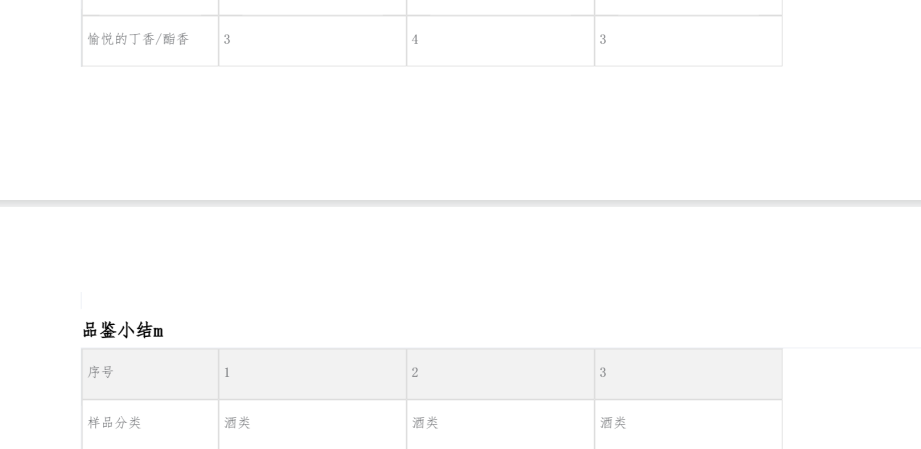 通过智能分页这样就不会被截断了。希望能帮大家解决问题,当然目前我的代码较长,要是有更好的建议欢迎留言~