虚拟测试环境搭建:
在conda虚拟环境中下载安装selenium
powershell
pip install selenium -i https://pypi.tuna.tsinghua.edu.cn/simple下载chrome浏览器和浏览器驱动:
https://www.google.cn/chrome/
https://googlechromelabs.github.io/chrome-for-testing/
镜像源(有配套的chrome浏览器和浏览器驱动):
https://registry.npmmirror.com/binary.html?path=chrome-for-testing/
写一个自动化脚本检查测试环境是否搭建成功:
python
from selenium import webdriver
from selenium.webdriver.chrome.service import Service

# 创建 WebDriver 对象,指明使用chrome浏览器驱动
wd = webdriver.Chrome(service=Service(r'd:\chromedriver\chromedriver-win64\chromedriver.exe'))
# 调用WebDriver 对象的get方法 可以让浏览器打开指定网址
wd.get('https://www.baidu.com')
# 程序运行完会自动关闭浏览器,就是很多人说的闪退
# 这里加入等待用户输入,防止闪退
input('等待回车键结束程序')
省略浏览器的驱动目录的方法
添加环境变量,exe文件的上级目录
测试环境搭建遇到的问题
1、输入脚本测试环境是否搭建成功
报错:selenium.common.exceptions.SessionNotCreatedException: Message: session not created from unknown error: cannot find Chrome binary
解决:安装与chrome浏览器相对应的chromedriver版本包
chrome浏览器版本:v135.0.7049.84
chromedriver版本:v135.0.7049.0
运行成功,弹出baidu.com页面
解决:将chromedriver.exe文件和chrome.exe文件放在同一目录下
选择/定位元素的基本方法:
操控元素,需选择元素/定位元素--html元素
方法就是告诉浏览器,要操作的这个web元素的特征(元素唯一)
可以通过开发者工具栏去查看,选择web元素
1、通过标签名找到元素
2、通过其他属性找到元素
1、根据id属性选择元素
如果元素有id属性,这个id必须是当前html中唯一的。
如果元素有id,则可以根据id选择元素。
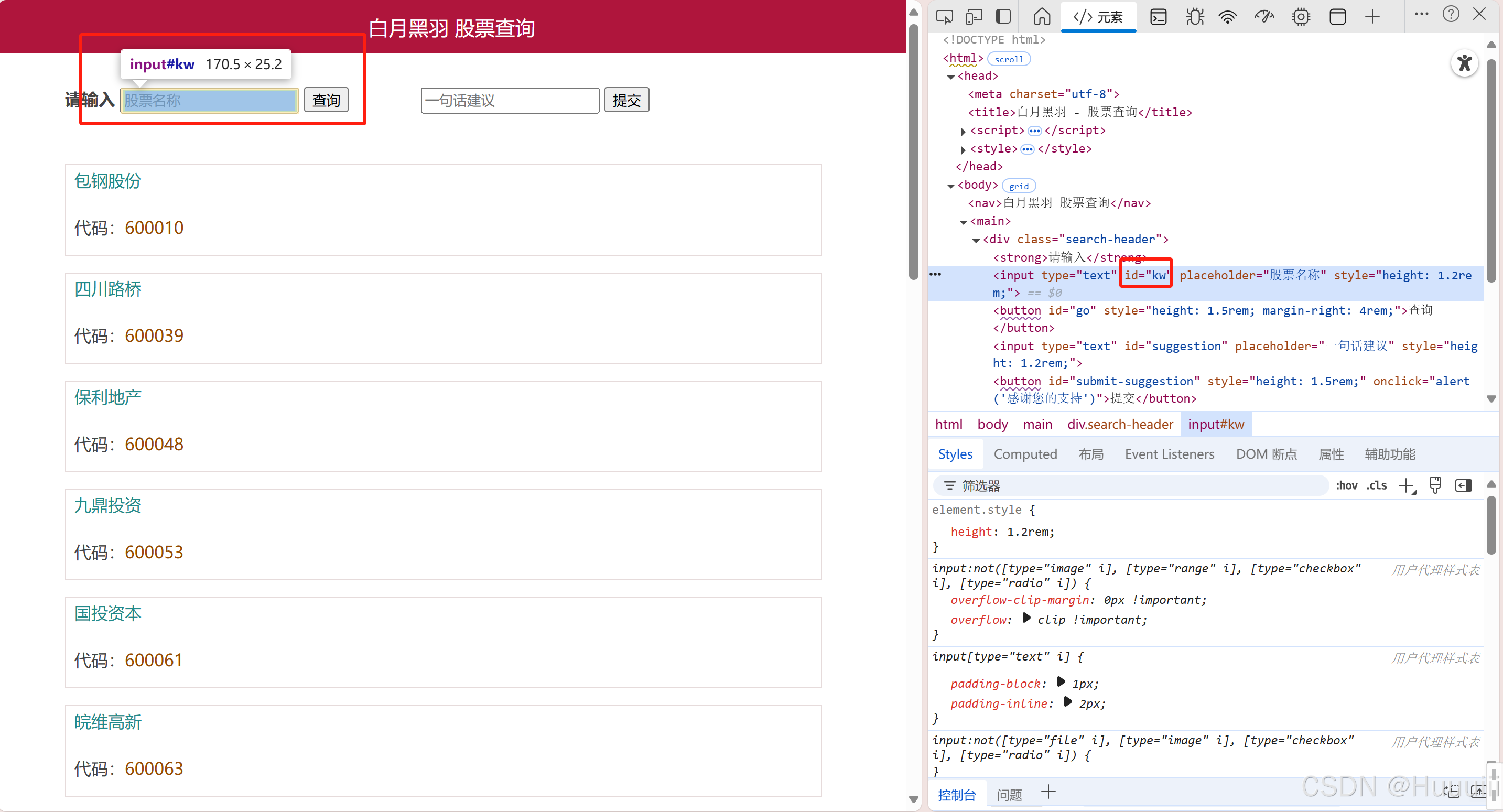
编写抓取元素的脚本并进行查询
python
from selenium import webdriver
from selenium.webdriver.common.by import By
from selenium.webdriver.chrome.service import Service

wd =webdriver.Chrome(service=Service(r"D:\chrome-win64\chromedriver.exe"))
wd.get("https://www.byhy.net/cdn2/files/selenium/stock1.html")
element = wd.find_element(By.ID, 'kw')
element.send_keys('通讯\n') #在后面加回车,相当于查询
注意:selenium3和selenium4的区别是这个方法不同
selenium3:wd.find_element_by_id('kw')
selenium4:wd.find_element(By.ID, 'kw')
如果根据id找不到这个元素,find_element方法就会抛出异常:
selenium.common.exceptions.NoSuchElementException: Message: no such
element: Unable to locate element: {"method":"css selector","selector":"id="kw1""}
(Session info: chrome=135.0.7049.84); For documentation on this error, please visit:https://www.selenium.dev/documentation/webdriver/troubleshooting/errors#no-such-element-exception
定位到'查询'这个元素
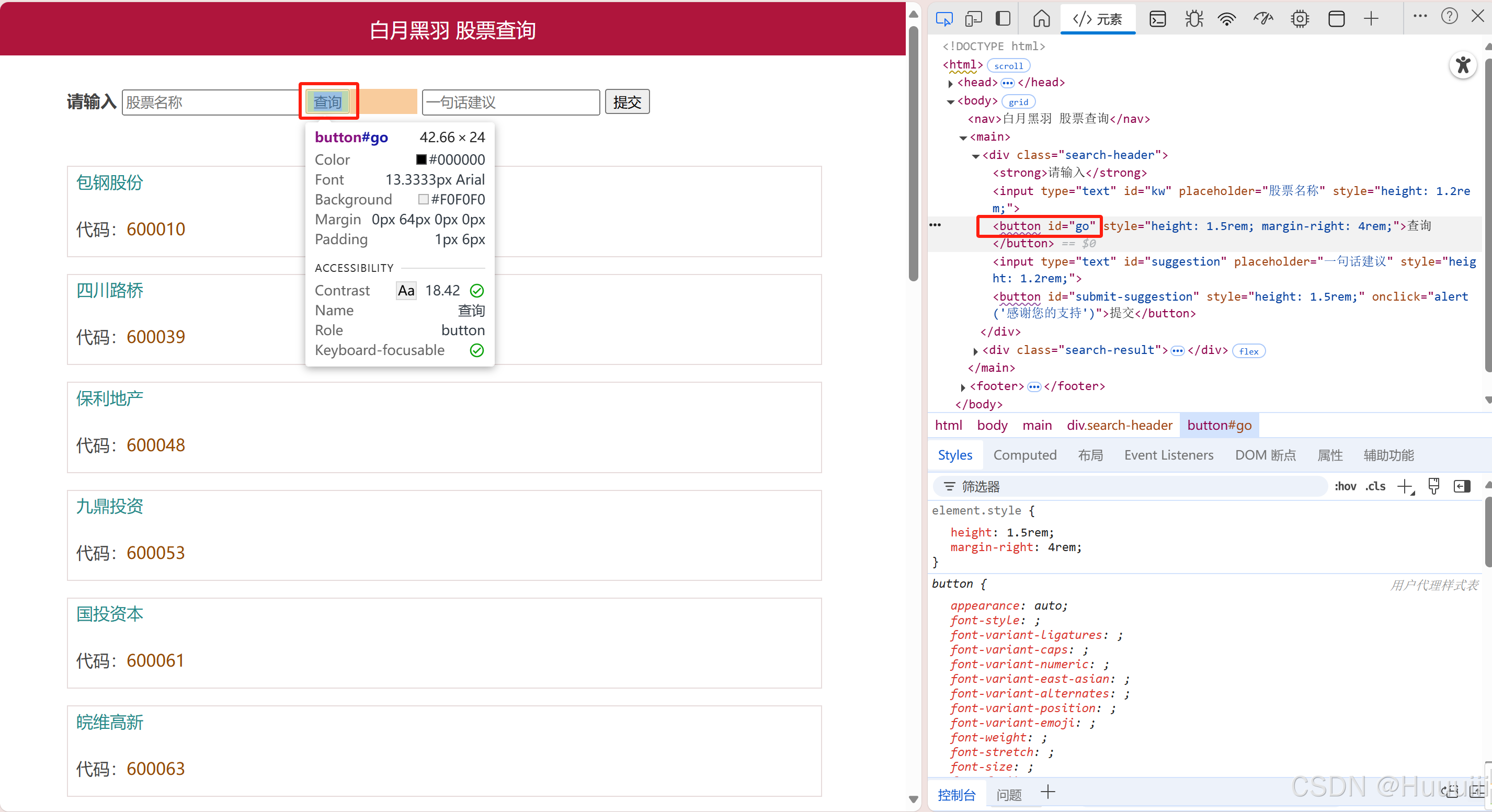
python
from selenium import webdriver
from selenium.webdriver.common.by import By
from selenium.webdriver.chrome.service import Service

wd =webdriver.Chrome(service=Service(r"D:\chrome-win64\chromedriver.exe"))
wd.get("https://www.byhy.net/cdn2/files/selenium/stock1.html")
element = wd.find_element(By.ID, 'kw')
element.send_keys('通讯') #输入'通讯'
element = wd.find_element(By.ID, 'go')
element.click() # 点击查询

pass
2、根据class属性选择元素
网址:https://www.byhy.net/cdn2/files/selenium/sample1.html
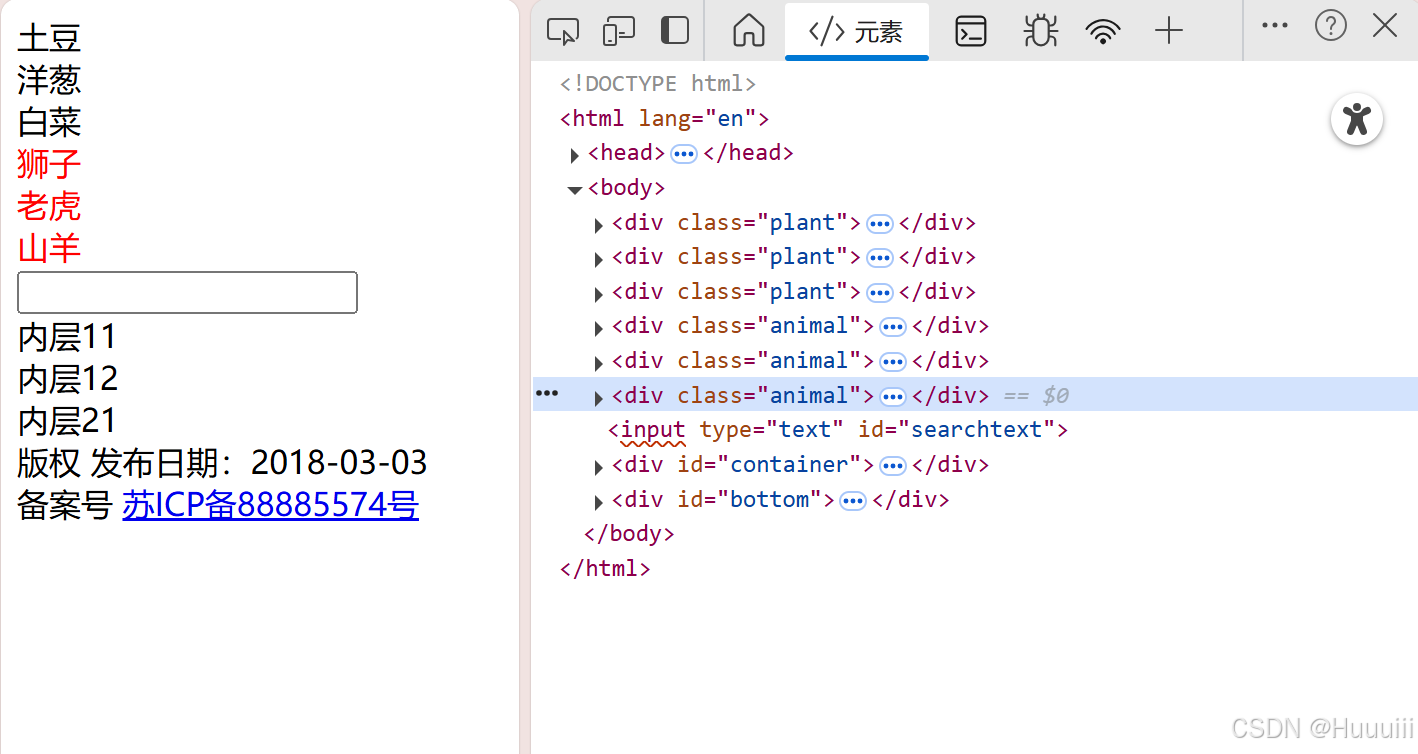
python
from selenium import webdriver
from selenium.webdriver.common.by import By
from selenium.webdriver.chrome.service import Service

wd = webdriver.Chrome(service=Service(r"D:\chrome-win64\chromedriver.exe"))
wd.get("https://www.byhy.net/cdn2/files/selenium/sample1.html")
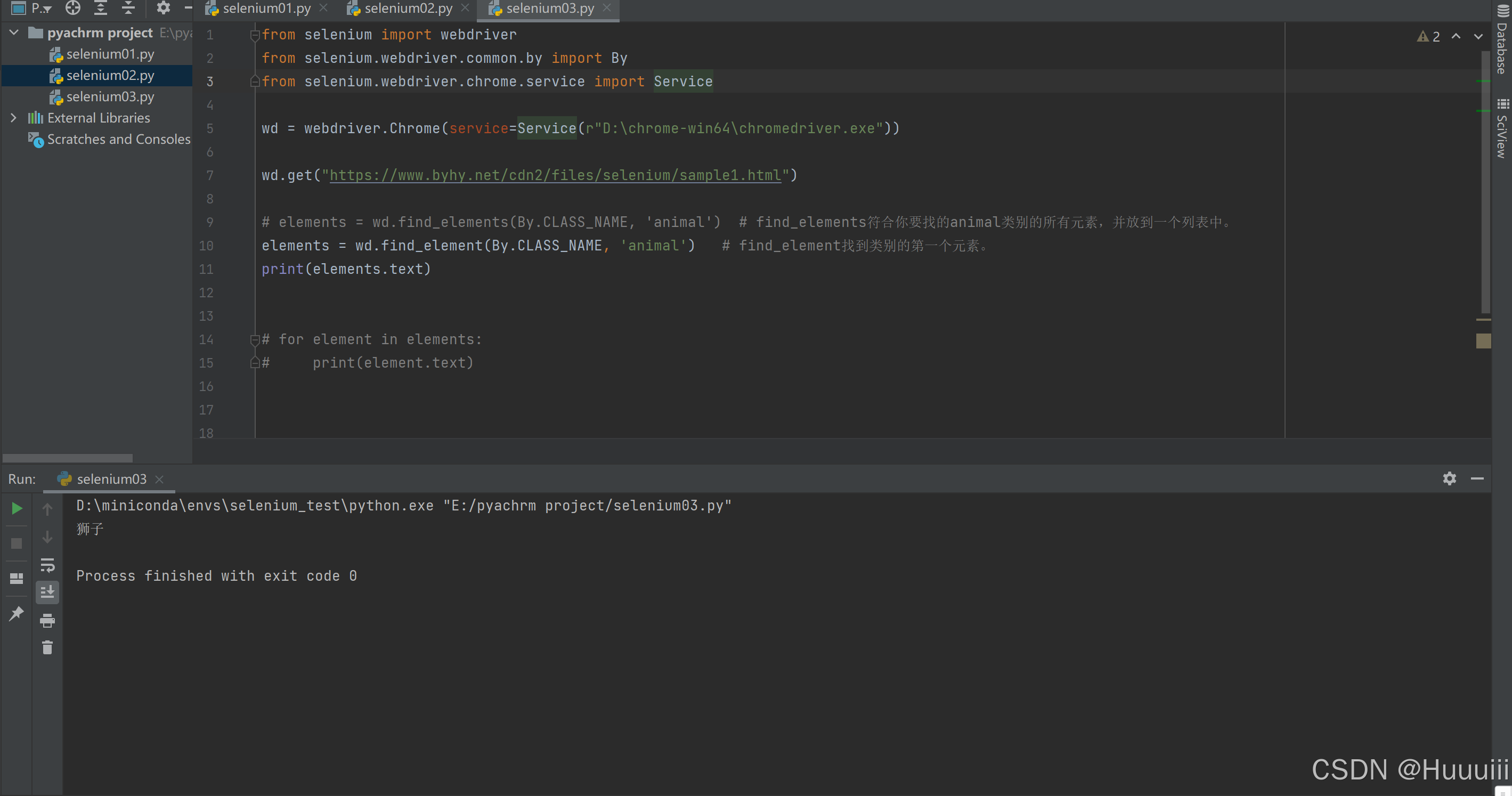
elements = wd.find_elements(By.CLASS_NAME, 'animal')  # 符合你要找的animal类别的所有元素,并放到一个列表中。
for element in elements:
    print(element.text)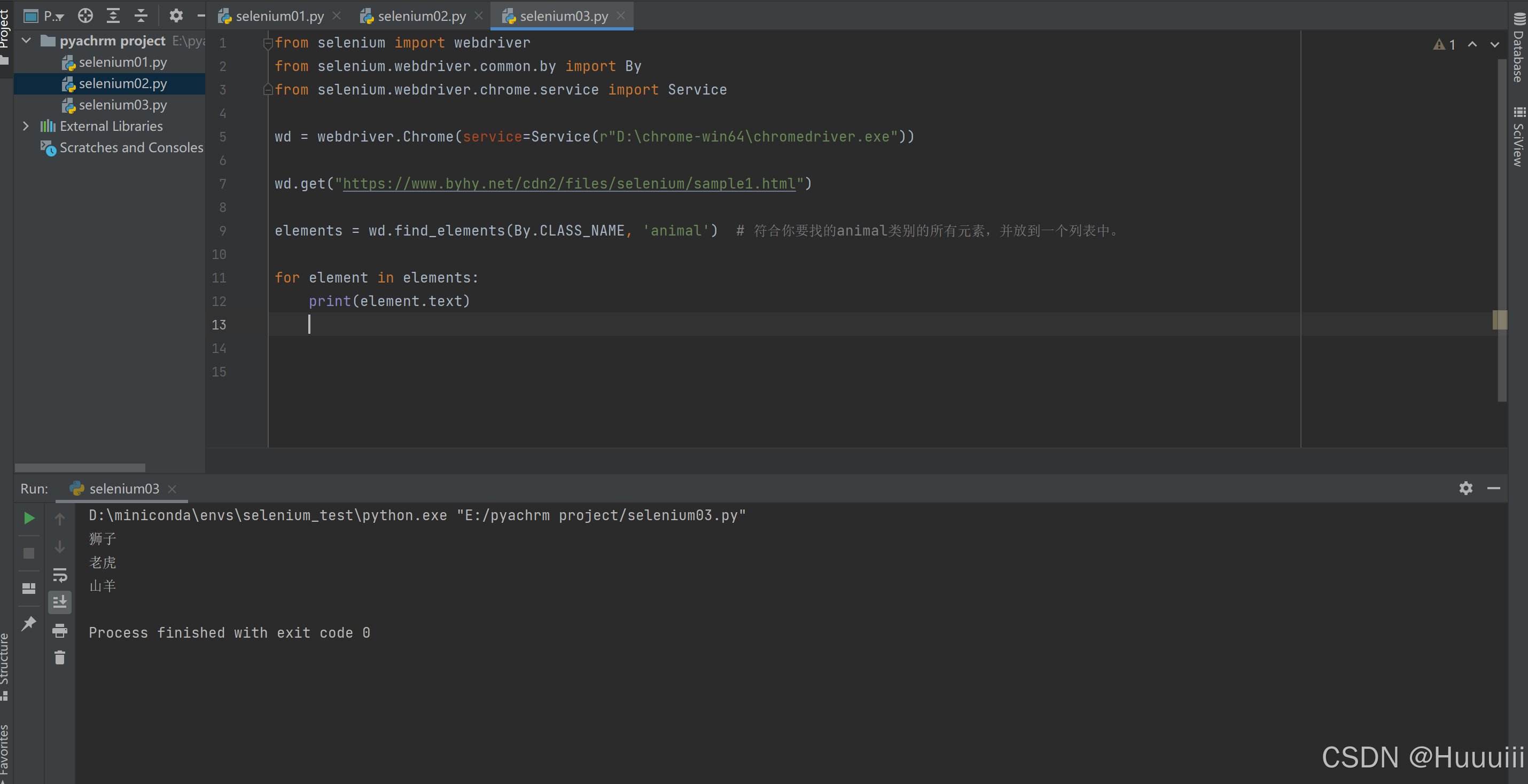
find_elements和find_element的区别:
find_elements返回的是找到的符合条件的所有元素 (这里有3个元素), 放在一个列表中返回,如果没有符合条件的元素,返回一个空列表。
而如果我们使用find_element (注意少了一个s) 方法, 就只会返回第一个元素,如果没有符合条件的元素,抛出异常。
3、根据tag名选择元素
python
from selenium import webdriver
from selenium.webdriver.common.by import By
from selenium.webdriver.chrome.service import Service

# 创建Webdriver对象
wd = webdriver.Chrome(service=Service(r"D:\chrome-win64\chromedriver.exe"))
wd.get("https://www.byhy.net/cdn2/files/selenium/sample1.html")
elements = wd.find_elements(By.TAG_NAME,'span')  # find_elements符合你要找的类别的所有元素,并放到一个列表中。
# elements = wd.find_element(By.CLASS_NAME, 'animal')   # find_element找到类别的第一个元素。
# print(elements.text)

for element in elements:
    print(element.text)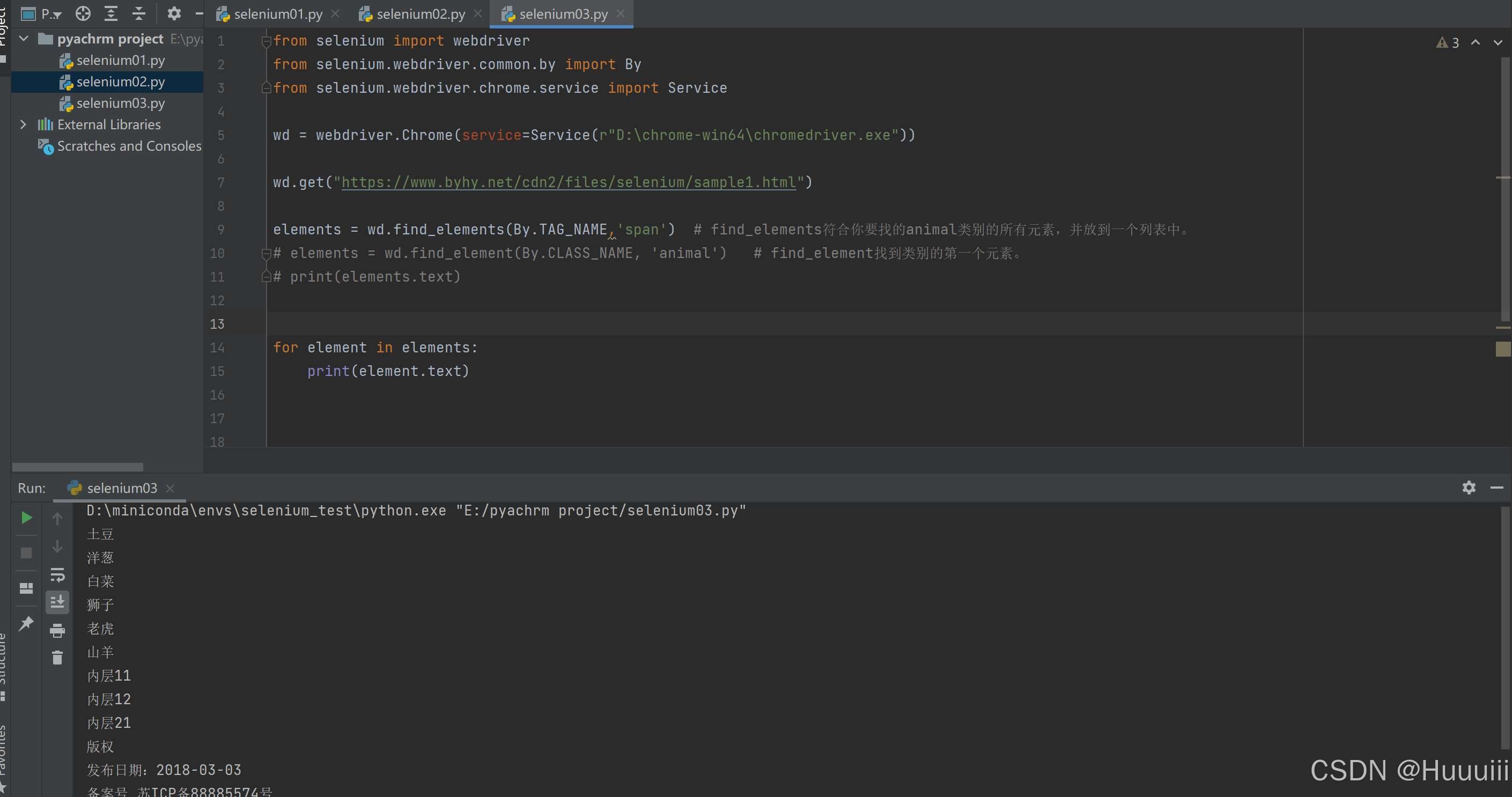
报错:AttributeError: 'WebDriver' object has no attribute 'find_elements_by_tag_name'
解决:由于在 Selenium 4.x 版本中,find_element_by_* 和 find_elements_by_* 方法已经被移除,需要使用新的定位方法。
elements = driver.find_elements_by_tag_name("div") 改为:elements = driver.find_elements(By.TAG_NAME, "div")
4、通过webElement对象选择元素
WebElement对象也可以调用find_elements和find_element之类的方法。
webElement对象和WebDriver对象选择元素区别 :
WebDriver对象选择元素的范围是整个web页面。
WebElement对象选择元素的范围是该元素的内部。
python
from selenium import webdriver
from selenium.webdriver.common.by import By
# 初始化Chrome浏览器实例
wd = webdriver.Chrome()
# 访问指定网页
wd.get('https://www.byhy.net/cdn2/files/selenium/sample1.html')
# 通过ID找到名为'container'的元素
element = wd.find_element(By.ID, 'container')
# 在'container'元素内部查找所有<span>标签
spans = element.find_elements(By.TAG_NAME, 'span')
# 遍历找到的所有<span>标签并打印它们的文本内容
for span in spans:
    print(span.text)
# 等待用户输入回车键后退出
input('按回车退出')