ListView交互与手势详解
一、ListView交互概述
ListView不仅用于展示数据,还支持丰富的用户交互。通过实现点击、长按、滑动等手势操作,可以让列表更加生动和实用。良好的交互设计可以大大提升用户体验,让应用更加易用和有趣。
交互类型全景图
ListView交互
点击交互
手势操作
滚动交互
多选模式
onTap
onDoubleTap
导航跳转
onLongPress
滑动删除
拖拽排序
下拉刷新
上拉加载
滚动监听
多选模式
批量操作
选择状态
交互设计原则
| 设计原则 | 说明 | 应用场景 |
|---|---|---|
| 即时反馈 | 用户操作后立即给予视觉或触觉反馈 | 点击、滑动 |
| 清晰指示 | 明确告知用户可以进行哪些操作 | 图标、提示文字 |
| 可撤销性 | 提供撤销机制,避免误操作 | 删除操作 |
| 手势一致性 | 遵循平台手势规范 | iOS滑动、Android长按 |
二、点击与长按交互
1. 基础点击事件
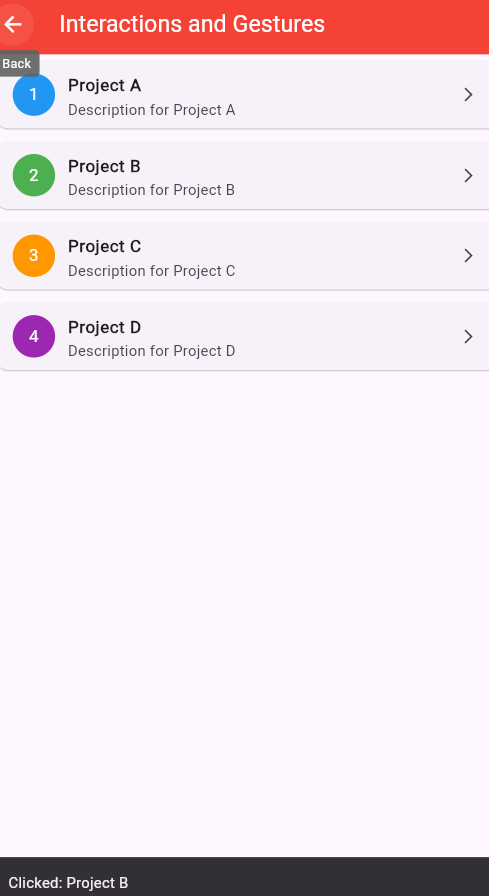
点击是最基础的交互方式,用于导航、选择等场景。Flutter提供了多种处理点击的方式,包括ListTile的onTap、InkWell、GestureDetector等。
dart
class InteractiveListExample extends StatelessWidget {
final List<Map<String, dynamic>> _items = [
{'id': 1, 'name': '项目 A', 'description': '这是项目A的描述', 'avatar': Colors.blue, 'category': '工作'},
{'id': 2, 'name': '项目 B', 'description': '这是项目B的描述', 'avatar': Colors.green, 'category': '学习'},
{'id': 3, 'name': '项目 C', 'description': '这是项目C的描述', 'avatar': Colors.orange, 'category': '生活'},
{'id': 4, 'name': '项目 D', 'description': '这是项目D的描述', 'avatar': Colors.purple, 'category': '工作'},
{'id': 5, 'name': '项目 E', 'description': '这是项目E的描述', 'avatar': Colors.red, 'category': '学习'},
];
@override
Widget build(BuildContext context) {
return Scaffold(
appBar: AppBar(
title: const Text('交互列表'),
backgroundColor: Colors.red,
foregroundColor: Colors.white,
actions: [
IconButton(
icon: const Icon(Icons.info_outline),
onPressed: () {
ScaffoldMessenger.of(context).showSnackBar(
const SnackBar(content: Text('点击列表项查看详情,长按显示更多选项')),
);
},
),
],
),
body: ListView.builder(
padding: const EdgeInsets.all(8),
itemCount: _items.length,
itemBuilder: (context, index) {
final item = _items[index];
return Card(
margin: const EdgeInsets.symmetric(horizontal: 12, vertical: 6),
elevation: 2,
child: InkWell(
onTap: () {
_showItemDetails(context, item);
},
onLongPress: () {
_showItemOptions(context, item);
},
splashColor: item['avatar'] as Color,
highlightColor: (item['avatar'] as Color).withOpacity(0.2),
child: Padding(
padding: const EdgeInsets.all(16),
child: Row(
children: [
Hero(
tag: 'avatar_${item['id']}',
child: CircleAvatar(
radius: 28,
backgroundColor: item['avatar'] as Color,
child: Text(
'${item['id']}',
style: const TextStyle(
color: Colors.white,
fontSize: 20,
fontWeight: FontWeight.bold,
),
),
),
),
const SizedBox(width: 16),
Expanded(
child: Column(
crossAxisAlignment: CrossAxisAlignment.start,
children: [
Text(
item['name'] as String,
style: const TextStyle(
fontSize: 18,
fontWeight: FontWeight.bold,
),
),
const SizedBox(height: 4),
Text(
item['description'] as String,
style: TextStyle(
fontSize: 14,
color: Colors.grey[600],
),
maxLines: 2,
overflow: TextOverflow.ellipsis,
),
const SizedBox(height: 8),
Container(
padding: const EdgeInsets.symmetric(
horizontal: 8,
vertical: 4,
),
decoration: BoxDecoration(
color: (item['avatar'] as Color).withOpacity(0.1),
borderRadius: BorderRadius.circular(12),
),
child: Text(
item['category'] as String,
style: TextStyle(
fontSize: 12,
color: item['avatar'] as Color,
fontWeight: FontWeight.w500,
),
),
),
],
),
),
Icon(
Icons.chevron_right,
color: Colors.grey[400],
),
],
),
),
),
);
},
),
);
}
void _showItemDetails(BuildContext context, Map<String, dynamic> item) {
Navigator.push(
context,
MaterialPageRoute(
builder: (context) => DetailPage(item: item),
),
);
}
void _showItemOptions(BuildContext context, Map<String, dynamic> item) {
showModalBottomSheet(
context: context,
backgroundColor: Colors.transparent,
builder: (context) => Container(
decoration: const BoxDecoration(
color: Colors.white,
borderRadius: BorderRadius.vertical(top: Radius.circular(20)),
),
child: SafeArea(
child: Column(
mainAxisSize: MainAxisSize.min,
children: [
Container(
margin: const EdgeInsets.symmetric(vertical: 12),
width: 40,
height: 4,
decoration: BoxDecoration(
color: Colors.grey[300],
borderRadius: BorderRadius.circular(2),
),
),
Padding(
padding: const EdgeInsets.symmetric(horizontal: 24, vertical: 16),
child: Row(
children: [
Hero(
tag: 'avatar_${item['id']}',
child: CircleAvatar(
radius: 24,
backgroundColor: item['avatar'] as Color,
child: Text(
'${item['id']}',
style: const TextStyle(color: Colors.white, fontSize: 16),
),
),
),
const SizedBox(width: 16),
Expanded(
child: Column(
crossAxisAlignment: CrossAxisAlignment.start,
children: [
Text(
item['name'] as String,
style: const TextStyle(
fontSize: 18,
fontWeight: FontWeight.bold,
),
),
Text(
item['description'] as String,
style: TextStyle(
fontSize: 14,
color: Colors.grey[600],
),
),
],
),
),
],
),
),
const Divider(height: 1),
ListTile(
leading: const Icon(Icons.edit, color: Colors.blue),
title: const Text('编辑'),
onTap: () {
Navigator.pop(context);
ScaffoldMessenger.of(context).showSnackBar(
SnackBar(
content: Text('编辑: ${item["name"]}'),
action: SnackBarAction(
label: '确定',
onPressed: () {},
),
),
);
},
),
ListTile(
leading: const Icon(Icons.share, color: Colors.green),
title: const Text('分享'),
onTap: () {
Navigator.pop(context);
ScaffoldMessenger.of(context).showSnackBar(
SnackBar(content: Text('分享: ${item["name"]}')),
);
},
),
ListTile(
leading: const Icon(Icons.bookmark_border, color: Colors.orange),
title: const Text('收藏'),
onTap: () {
Navigator.pop(context);
ScaffoldMessenger.of(context).showSnackBar(
SnackBar(
content: Text('已收藏: ${item["name"]}'),
action: SnackBarAction(
label: '查看',
onPressed: () {},
),
),
);
},
),
ListTile(
leading: const Icon(Icons.delete_outline, color: Colors.red),
title: const Text('删除'),
onTap: () {
Navigator.pop(context);
ScaffoldMessenger.of(context).showSnackBar(
SnackBar(
content: Text('删除: ${item["name"]}'),
action: SnackBarAction(
label: '撤销',
onPressed: () {},
),
),
);
},
),
const SizedBox(height: 8),
],
),
),
),
);
}
}
class DetailPage extends StatelessWidget {
final Map<String, dynamic> item;
const DetailPage({super.key, required this.item});
@override
Widget build(BuildContext context) {
return Scaffold(
appBar: AppBar(
title: Text(item['name'] as String),
backgroundColor: item['avatar'] as Color,
foregroundColor: Colors.white,
elevation: 0,
),
body: Container(
color: (item['avatar'] as Color).withOpacity(0.1),
child: Column(
children: [
const SizedBox(height: 40),
Hero(
tag: 'avatar_${item['id']}',
child: CircleAvatar(
radius: 60,
backgroundColor: item['avatar'] as Color,
child: Text(
'${item['id']}',
style: const TextStyle(
color: Colors.white,
fontSize: 40,
fontWeight: FontWeight.bold,
),
),
),
),
const SizedBox(height: 24),
Text(
item['name'] as String,
style: const TextStyle(
fontSize: 28,
fontWeight: FontWeight.bold,
),
),
const SizedBox(height: 8),
Container(
padding: const EdgeInsets.symmetric(horizontal: 16, vertical: 6),
decoration: BoxDecoration(
color: (item['avatar'] as Color),
borderRadius: BorderRadius.circular(20),
),
child: Text(
item['category'] as String,
style: const TextStyle(
color: Colors.white,
fontWeight: FontWeight.w500,
),
),
),
const SizedBox(height: 24),
Padding(
padding: const EdgeInsets.symmetric(horizontal: 32),
child: Text(
item['description'] as String,
style: TextStyle(
fontSize: 16,
color: Colors.grey[700],
height: 1.5,
),
textAlign: TextAlign.center,
),
),
const SizedBox(height: 48),
Row(
mainAxisAlignment: MainAxisAlignment.spaceEvenly,
children: [
_buildActionButton(
Icons.edit,
'编辑',
Colors.blue,
() {
ScaffoldMessenger.of(context).showSnackBar(
const SnackBar(content: Text('编辑功能')),
);
},
),
_buildActionButton(
Icons.share,
'分享',
Colors.green,
() {
ScaffoldMessenger.of(context).showSnackBar(
const SnackBar(content: Text('分享功能')),
);
},
),
_buildActionButton(
Icons.bookmark,
'收藏',
Colors.orange,
() {
ScaffoldMessenger.of(context).showSnackBar(
const SnackBar(content: Text('收藏功能')),
);
},
),
],
),
],
),
),
);
}
Widget _buildActionButton(
IconData icon,
String label,
Color color,
VoidCallback onPressed,
) {
return Column(
children: [
Container(
padding: const EdgeInsets.all(16),
decoration: BoxDecoration(
color: color.withOpacity(0.2),
shape: BoxShape.circle,
),
child: Icon(
icon,
color: color,
size: 28,
),
),
const SizedBox(height: 8),
Text(
label,
style: TextStyle(
fontSize: 14,
color: Colors.grey[700],
),
),
],
);
}
}三、滑动删除操作
滑动删除是移动应用中非常流行的交互方式,可以让用户快速删除不需要的列表项。Flutter提供了Dismissible widget来实现这一功能,它提供了流畅的动画效果和完整的生命周期管理。
滑动删除实现原理
向左/右
不足
足够
用户开始滑动
滑动方向
Dismissible检测
滑动距离
弹回原位
触发确认
执行onDismissed
更新数据
重建列表
Dismissible关键参数
| 参数 | 类型 | 说明 | 必需 |
|---|---|---|---|
| key | Key | 唯一标识 | 是 |
| child | Widget | 被滑动的子widget | 是 |
| onDismissed | Function | 删除完成回调 | 是 |
| background | Widget | 背景widget(向右滑动) | 否 |
| secondaryBackground | Widget | 背景widget(向左滑动) | 否 |
| confirmDismiss | Future | 确认是否删除 | 否 |
| direction | DismissDirection | 滑动方向 | 否 |
滑动删除示例代码
dart
class SwipeToDeleteList extends StatefulWidget {
  const SwipeToDeleteList({super.key});

  @override
  State<SwipeToDeleteList> createState() => _SwipeToDeleteListState();
}

class _SwipeToDeleteListState extends State<SwipeToDeleteList> {
  final List<Map<String, dynamic>> _items = [
    {'id': 1, 'name': '邮件 1', 'time': '10:30', 'unread': true},
    {'id': 2, 'name': '邮件 2', 'time': '09:15', 'unread': false},
    {'id': 3, 'name': '邮件 3', 'time': '08:45', 'unread': true},
    {'id': 4, 'name': '邮件 4', 'time': '昨天', 'unread': false},
    {'id': 5, 'name': '邮件 5', 'time': '昨天', 'unread': true},
  ];

  @override
  Widget build(BuildContext context) {
    return Scaffold(
      appBar: AppBar(
        title: const Text('滑动删除邮件'),
        backgroundColor: Colors.red,
        foregroundColor: Colors.white,
      ),
      body: ListView.builder(
        itemCount: _items.length,
        itemBuilder: (context, index) {
          final item = _items[index];
          return Dismissible(
            key: Key(item['id'].toString()),
            direction: DismissDirection.endToStart,
            confirmDismiss: (direction) async {
              if (direction == DismissDirection.endToStart) {
                final result = await showDialog<bool>(
                  context: context,
                  builder: (context) => AlertDialog(
                    title: const Text('确认删除'),
                    content: Text('确定要删除"${item['name']}"吗?'),
                    actions: [
                      TextButton(
                        onPressed: () => Navigator.pop(context, false),
                        child: const Text('取消'),
                      ),
                      TextButton(
                        onPressed: () => Navigator.pop(context, true),
                        child: const Text('删除'),
                      ),
                    ],
                  ),
                );
                return result ?? false;
              }
              return true;
            },
            onDismissed: (direction) {
              setState(() {
                _items.removeAt(index);
              });
              ScaffoldMessenger.of(context).showSnackBar(
                SnackBar(
                  content: Text('已删除: ${item['name']}'),
                  action: SnackBarAction(
                    label: '撤销',
                    onPressed: () {
                      setState(() {
                        _items.insert(index, item);
                      });
                    },
                  ),
                ),
              );
            },
            background: Container(
              alignment: Alignment.centerRight,
              padding: const EdgeInsets.only(right: 20),
              color: Colors.red,
              child: const Icon(
                Icons.delete,
                color: Colors.white,
                size: 32,
              ),
            ),
            child: ListTile(
              leading: CircleAvatar(
                backgroundColor: item['unread'] ? Colors.blue : Colors.grey,
                child: Text(
                  '${item['id']}',
                  style: const TextStyle(color: Colors.white),
                ),
              ),
              title: Text(
                item['name'] as String,
                style: TextStyle(
                  fontWeight: item['unread'] ? FontWeight.bold : FontWeight.normal,
                ),
              ),
              subtitle: Text(item['time'] as String),
              trailing: item['unread']
                  ? const Icon(Icons.mark_email_read, color: Colors.blue)
                  : const Icon(Icons.mark_email_unread, color: Colors.grey),
            ),
          );
        },
      ),
    );
  }
}
四、下拉刷新功能
下拉刷新是现代移动应用的标准功能,允许用户通过下拉列表来更新数据。Flutter提供了RefreshIndicator widget来实现这一功能,它提供了流畅的刷新动画和回调机制。
下拉刷新流程图
未达到阈值
达到阈值
是
否
用户下拉
下拉距离
弹回原位
显示刷新指示器
触发onRefresh
执行数据更新
更新成功?
关闭指示器
显示错误提示
RefreshIndicator配置选项
| 属性 | 说明 | 默认值 |
|---|---|---|
| onRefresh | 刷新回调函数 | - |
| child | 可滚动的子widget | - |
| color | 指示器颜色 | 主题色 |
| backgroundColor | 背景颜色 | - |
| displacement | 指示器距离顶部距离 | 40.0 |
| strokeWidth | 指示器线条宽度 | 2.0 |
下拉刷新示例代码
dart
class PullToRefreshList extends StatefulWidget {
  const PullToRefreshList({super.key});

  @override
  State<PullToRefreshList> createState() => _PullToRefreshListState();
}

class _PullToRefreshListState extends State<PullToRefreshList> {
  List<Map<String, dynamic>> _items = List.generate(
    10,
    (index) => {'id': index + 1, 'name': '项目 ${index + 1}', 'time': DateTime.now().toString()},
  );
  bool _isLoading = false;

  Future<void> _refresh() async {
    setState(() {
      _isLoading = true;
    });

    // 模拟网络请求延迟
    await Future.delayed(const Duration(seconds: 2));

    setState(() {
      _items = List.generate(
        10,
        (index) => {'id': index + 1, 'name': '项目 ${index + 1}', 'time': DateTime.now().toString()},
      );
      _isLoading = false;
    });

    ScaffoldMessenger.of(context).showSnackBar(
      const SnackBar(content: Text('刷新成功')),
    );
  }

  @override
  Widget build(BuildContext context) {
    return Scaffold(
      appBar: AppBar(
        title: const Text('下拉刷新'),
        backgroundColor: Colors.red,
        foregroundColor: Colors.white,
      ),
      body: RefreshIndicator(
        onRefresh: _refresh,
        color: Colors.red,
        backgroundColor: Colors.white,
        strokeWidth: 3,
        child: ListView.builder(
          physics: const AlwaysScrollableScrollPhysics(),
          itemCount: _items.length + 1,
          itemBuilder: (context, index) {
            if (index < _items.length) {
              final item = _items[index];
              return ListTile(
                leading: CircleAvatar(
                  child: Text('${item['id']}'),
                ),
                title: Text(item['name'] as String),
                subtitle: Text(item['time'] as String),
                trailing: _isLoading
                    ? const SizedBox(
                        width: 16,
                        height: 16,
                        child: CircularProgressIndicator(strokeWidth: 2),
                      )
                    : const Icon(Icons.more_vert),
              );
            } else {
              return const Center(
                child: Padding(
                  padding: EdgeInsets.all(16),
                  child: Text('没有更多数据'),
                ),
              );
            }
          },
        ),
      ),
    );
  }
}
五、滚动监听与控制
监听和控制ListView的滚动行为对于实现复杂交互非常重要。通过ScrollController可以获取滚动位置、控制滚动行为、监听滚动事件等。
滚动监听应用场景
| 场景 | 说明 | 实现方式 |
|---|---|---|
| 顶部渐变 | 随滚动改变AppBar透明度 | 监听滚动位置 |
| 滚动回到顶部 | 悬浮按钮点击滚动到顶部 | animateTo/jumpTo |
| 滚动加载更多 | 滚动到底部自动加载 | 监听滚动位置 |
| 滚动动画 | 特定位置触发动画 | 判断滚动范围 |
滚动监听示例代码
dart
class ScrollListenerList extends StatefulWidget {
  const ScrollListenerList({super.key});

  @override
  State<ScrollListenerList> createState() => _ScrollListenerListState();
}

class _ScrollListenerListState extends State<ScrollListenerList> {
  final ScrollController _scrollController = ScrollController();
  List<String> _items = List.generate(30, (index) => '项目 ${index + 1}');
  bool _showBackToTop = false;

  @override
  void initState() {
    super.initState();
    _scrollController.addListener(() {
      setState(() {
        _showBackToTop = _scrollController.offset > 500;
      });

      // 滚动到底部加载更多
      if (_scrollController.position.pixels >=
          _scrollController.position.maxScrollExtent - 200) {
        _loadMore();
      }
    });
  }

  @override
  void dispose() {
    _scrollController.dispose();
    super.dispose();
  }

  Future<void> _loadMore() async {
    if (_items.length >= 100) return;

    await Future.delayed(const Duration(seconds: 1));
    setState(() {
      _items.addAll(
        List.generate(10, (index) => '项目 ${_items.length + index + 1}'),
      );
    });
  }

  void _scrollToTop() {
    _scrollController.animateTo(
      0,
      duration: const Duration(milliseconds: 500),
      curve: Curves.easeInOut,
    );
  }

  void _scrollToBottom() {
    _scrollController.animateTo(
      _scrollController.position.maxScrollExtent,
      duration: const Duration(milliseconds: 500),
      curve: Curves.easeInOut,
    );
  }

  @override
  Widget build(BuildContext context) {
    return Scaffold(
      appBar: AppBar(
        title: const Text('滚动监听'),
        backgroundColor: Colors.red,
        foregroundColor: Colors.white,
      ),
      body: ListView.builder(
        controller: _scrollController,
        itemCount: _items.length + 1,
        itemBuilder: (context, index) {
          if (index < _items.length) {
            return ListTile(
              leading: CircleAvatar(
                child: Text('${index + 1}'),
              ),
              title: Text(_items[index]),
              subtitle: Text('这是${_items[index]}的详细描述'),
            );
          } else {
            return const Center(
              child: Padding(
                padding: EdgeInsets.all(16),
                child: CircularProgressIndicator(),
              ),
            );
          }
        },
      ),
      floatingActionButton: Column(
        mainAxisSize: MainAxisSize.min,
        children: [
          if (_showBackToTop)
            FloatingActionButton(
              heroTag: 'bottom',
              mini: true,
              onPressed: _scrollToBottom,
              backgroundColor: Colors.green,
              child: const Icon(Icons.arrow_downward),
            ),
          const SizedBox(height: 8),
          if (_showBackToTop)
            FloatingActionButton(
              heroTag: 'top',
              onPressed: _scrollToTop,
              backgroundColor: Colors.red,
              child: const Icon(Icons.arrow_upward),
            ),
        ],
      ),
    );
  }
}
六、多选模式实现
多选模式允许用户一次选择多个列表项进行批量操作。通过维护选择状态列表,配合CheckBox或SelectMode等widget实现。
多选模式状态管理
进入列表
点击选择
点击项目
完成选择
执行批量操作
Normal
SelectMode
多选模式示例代码
dart
class MultiSelectList extends StatefulWidget {
  const MultiSelectList({super.key});

  @override
  State<MultiSelectList> createState() => _MultiSelectListState();
}

class _MultiSelectListState extends State<MultiSelectList> {
  final List<Map<String, dynamic>> _items = List.generate(
    15,
    (index) => {
      'id': index + 1,
      'name': '联系人 ${index + 1}',
      'selected': false,
    },
  );
  bool _isSelectMode = false;

  bool get _hasSelection => _items.any((item) => item['selected'] as bool);

  int get _selectedCount => _items.where((item) => item['selected'] as bool).length;

  void _toggleSelection(int index) {
    setState(() {
      _items[index]['selected'] = !(_items[index]['selected'] as bool);
      _updateSelectMode();
    });
  }

  void _toggleSelectMode() {
    setState(() {
      _isSelectMode = !_isSelectMode;
      if (!_isSelectMode) {
        for (var item in _items) {
          item['selected'] = false;
        }
      }
    });
  }

  void _selectAll() {
    setState(() {
      final allSelected = _items.every((item) => item['selected'] as bool);
      for (var item in _items) {
        item['selected'] = !allSelected;
      }
    });
  }

  void _updateSelectMode() {
    if (!_hasSelection) {
      setState(() {
        _isSelectMode = false;
      });
    }
  }

  void _batchDelete() {
    setState(() {
      _items.removeWhere((item) => item['selected'] as bool);
      _isSelectMode = false;
    });
    ScaffoldMessenger.of(context).showSnackBar(
      const SnackBar(content: Text('已删除选中项')),
    );
  }

  @override
  Widget build(BuildContext context) {
    return Scaffold(
      appBar: AppBar(
        title: Text(_isSelectMode ? '已选 $_selectedCount' : '多选列表'),
        backgroundColor: Colors.red,
        foregroundColor: Colors.white,
        leading: _isSelectMode
            ? IconButton(
                icon: const Icon(Icons.close),
                onPressed: _toggleSelectMode,
              )
            : null,
        actions: [
          if (!_isSelectMode)
            IconButton(
              icon: const Icon(Icons.checklist),
              onPressed: _toggleSelectMode,
            ),
          if (_isSelectMode) ...[
            IconButton(
              icon: const Icon(Icons.select_all),
              onPressed: _selectAll,
              tooltip: '全选',
            ),
            if (_hasSelection)
              IconButton(
                icon: const Icon(Icons.delete),
                onPressed: _batchDelete,
                tooltip: '删除',
              ),
          ],
        ],
      ),
      body: ListView.builder(
        itemCount: _items.length,
        itemBuilder: (context, index) {
          final item = _items[index];
          final isSelected = item['selected'] as bool;

          return ListTile(
            leading: _isSelectMode
                ? Checkbox(
                    value: isSelected,
                    onChanged: (_) => _toggleSelection(index),
                    activeColor: Colors.red,
                  )
                : CircleAvatar(
                    child: Text('${item['id']}'),
                  ),
            title: Text(item['name'] as String),
            subtitle: Text('这是${item['name']}的详细信息'),
            onTap: () => _toggleSelection(index),
            selected: isSelected,
            selectedTileColor: Colors.red.withOpacity(0.1),
          );
        },
      ),
    );
  }
}
七、综合交互示例
将多种交互方式组合在一起,创建一个功能完善的列表应用。
综合交互特性
| 功能 | 实现方式 | 备注 |
|---|---|---|
| 点击查看 | GestureDetector | 跳转详情页 |
| 长按菜单 | showModalBottomSheet | 显示操作选项 |
| 滑动删除 | Dismissible | 带确认和撤销 |
| 下拉刷新 | RefreshIndicator | 更新数据 |
| 滚动监听 | ScrollController | 回到顶部按钮 |
| 多选模式 | Checkbox | 批量操作 |
dart
class AdvancedInteractionList extends StatefulWidget {
  const AdvancedInteractionList({super.key});

  @override
  State<AdvancedInteractionList> createState() => _AdvancedInteractionListState();
}

class _AdvancedInteractionListState extends State<AdvancedInteractionList> {
  final ScrollController _scrollController = ScrollController();
  List<Map<String, dynamic>> _items = List.generate(
    20,
    (index) => {
      'id': index + 1,
      'name': '消息 ${index + 1}',
      'content': '这是消息${index + 1}的内容',
      'selected': false,
      'read': false,
    },
  );
  bool _isSelectMode = false;
  bool _showBackToTop = false;

  @override
  void initState() {
    super.initState();
    _scrollController.addListener(() {
      setState(() {
        _showBackToTop = _scrollController.offset > 500;
      });
    });
  }

  @override
  void dispose() {
    _scrollController.dispose();
    super.dispose();
  }

  Future<void> _refresh() async {
    await Future.delayed(const Duration(seconds: 1));
    setState(() {
      _items = List.generate(
        20,
        (index) => {
          'id': index + 1,
          'name': '消息 ${index + 1}',
          'content': '这是消息${index + 1}的内容',
          'selected': false,
          'read': false,
        },
      );
    });
  }

  void _toggleSelectMode() {
    setState(() {
      _isSelectMode = !_isSelectMode;
      if (!_isSelectMode) {
        for (var item in _items) {
          item['selected'] = false;
        }
      }
    });
  }

  void _onTap(int index) {
    if (_isSelectMode) {
      setState(() {
        _items[index]['selected'] = !(_items[index]['selected'] as bool);
      });
    } else {
      setState(() {
        _items[index]['read'] = true;
      });
      _showDetail(index);
    }
  }

  void _onLongPress(int index) {
    showModalBottomSheet(
      context: context,
      builder: (context) => Container(
        child: SafeArea(
          child: Column(
            mainAxisSize: MainAxisSize.min,
            children: [
              ListTile(
                leading: const Icon(Icons.mark_email_read),
                title: const Text('标记为已读'),
                onTap: () {
                  Navigator.pop(context);
                  setState(() {
                    _items[index]['read'] = true;
                  });
                },
              ),
              ListTile(
                leading: const Icon(Icons.share),
                title: const Text('分享'),
                onTap: () {
                  Navigator.pop(context);
                  ScaffoldMessenger.of(context).showSnackBar(
                    SnackBar(content: Text('分享: ${_items[index]['name']}')),
                  );
                },
              ),
              ListTile(
                leading: const Icon(Icons.delete),
                title: const Text('删除'),
                onTap: () {
                  Navigator.pop(context);
                  setState(() {
                    _items.removeAt(index);
                  });
                },
              ),
            ],
          ),
        ),
      ),
    );
  }

  void _showDetail(int index) {
    Navigator.push(
      context,
      MaterialPageRoute(
        builder: (context) => Scaffold(
          appBar: AppBar(
            title: Text(_items[index]['name']),
            backgroundColor: Colors.red,
            foregroundColor: Colors.white,
          ),
          body: Center(
            child: Padding(
              padding: const EdgeInsets.all(16),
              child: Column(
                mainAxisAlignment: MainAxisAlignment.center,
                children: [
                  const Icon(Icons.message, size: 80, color: Colors.red),
                  const SizedBox(height: 24),
                  Text(
                    _items[index]['name'],
                    style: const TextStyle(fontSize: 24, fontWeight: FontWeight.bold),
                  ),
                  const SizedBox(height: 16),
                  Text(
                    _items[index]['content'],
                    style: const TextStyle(fontSize: 16),
                    textAlign: TextAlign.center,
                  ),
                ],
              ),
            ),
          ),
        ),
      ),
    );
  }

  @override
  Widget build(BuildContext context) {
    return Scaffold(
      appBar: AppBar(
        title: const Text('综合交互列表'),
        backgroundColor: Colors.red,
        foregroundColor: Colors.white,
        actions: [
          if (!_isSelectMode)
            IconButton(
              icon: const Icon(Icons.checklist),
              onPressed: _toggleSelectMode,
            ),
        ],
      ),
      body: RefreshIndicator(
        onRefresh: _refresh,
        child: ListView.builder(
          controller: _scrollController,
          itemCount: _items.length,
          itemBuilder: (context, index) {
            final item = _items[index];
            final isSelected = item['selected'] as bool;
            final isRead = item['read'] as bool;

            return Dismissible(
              key: Key(item['id'].toString()),
              onDismissed: (direction) {
                setState(() {
                  _items.removeAt(index);
                });
              },
              background: Container(
                alignment: Alignment.centerRight,
                padding: const EdgeInsets.only(right: 20),
                color: Colors.red,
                child: const Icon(Icons.delete, color: Colors.white),
              ),
              child: ListTile(
                leading: _isSelectMode
                    ? Checkbox(
                        value: isSelected,
                        onChanged: (_) => setState(() {
                          item['selected'] = !(item['selected'] as bool);
                        }),
                      )
                    : CircleAvatar(
                        backgroundColor: isRead ? Colors.grey : Colors.red,
                        child: Text(
                          '${item['id']}',
                          style: const TextStyle(color: Colors.white),
                        ),
                      ),
                title: Text(
                  item['name'] as String,
                  style: TextStyle(
                    fontWeight: isRead ? FontWeight.normal : FontWeight.bold,
                  ),
                ),
                subtitle: Text(item['content'] as String),
                onTap: () => _onTap(index),
                onLongPress: () => _onLongPress(index),
                selected: isSelected,
              ),
            );
          },
        ),
      ),
      floatingActionButton: _showBackToTop
          ? FloatingActionButton(
              onPressed: () {
                _scrollController.animateTo(
                  0,
                  duration: const Duration(milliseconds: 500),
                  curve: Curves.easeInOut,
                );
              },
              backgroundColor: Colors.red,
              child: const Icon(Icons.arrow_upward),
            )
          : null,
    );
  }
}
八、最佳实践与注意事项
交互最佳实践流程图
是
否
设计ListView交互
确定交互类型
基础交互
高级交互
点击
长按
滑动删除
下拉刷新
多选模式
添加视觉反馈
需要确认?
添加确认对话框
直接执行
提供撤销功能
性能优化
完成
最佳实践要点
| 实践 | 说明 | 示例 |
|---|---|---|
| 提供即时反馈 | 操作后立即显示反馈 | SnackBar、动画 |
| 可撤销操作 | 删除等重要操作可撤销 | 撤销按钮 |
| 遵循平台规范 | 符合用户习惯 | iOS左滑、Android长按 |
| 合理使用动画 | 增强用户体验 | Hero动画、淡入淡出 |
| 处理边界情况 | 空列表、网络错误 | 状态提示、错误处理 |
| 性能优化 | 避免不必要的重建 | const构造、itemExtent |
| 无障碍支持 | 支持屏幕阅读器 | semanticLabel、tooltip |
| 状态管理 | 合理管理选择状态 | setState、Provider |
常见问题与解决方案
-
滚动冲突
- 问题:嵌套滚动时出现冲突
- 解决:使用NeverScrollableScrollPhysics或ClampingScrollPhysics
-
性能问题
- 问题:大量数据时列表卡顿
- 解决:使用ListView.builder而不是ListView,添加itemExtent
-
状态丢失
- 问题:列表项状态在滚动时丢失
- 解决:使用AutomaticKeepAliveClientMixin或保持key唯一性
-
刷新失败
- 问题:下拉刷新不触发
- 解决:确保ListView有足够的可滚动内容,使用AlwaysScrollableScrollPhysics
通过合理运用这些交互方式和最佳实践,可以创建出用户体验优秀的ListView应用。
欢迎加入开源鸿蒙跨平台社区:https://openharmonycrossplatform.csdn.net