🔥 Vue3 + TS 实现一键复制指令 v-copy:优雅解决文本复制需求
在前端开发中,"一键复制"是高频使用的交互功能(如复制链接、订单号、邀请码等)。本文将教你基于 Vue3 + TypeScript 实现一个功能完善、体验友好、类型安全 的 v-copy 自定义指令,支持自定义复制内容、复制成功/失败回调、复制提示等特性,开箱即用。
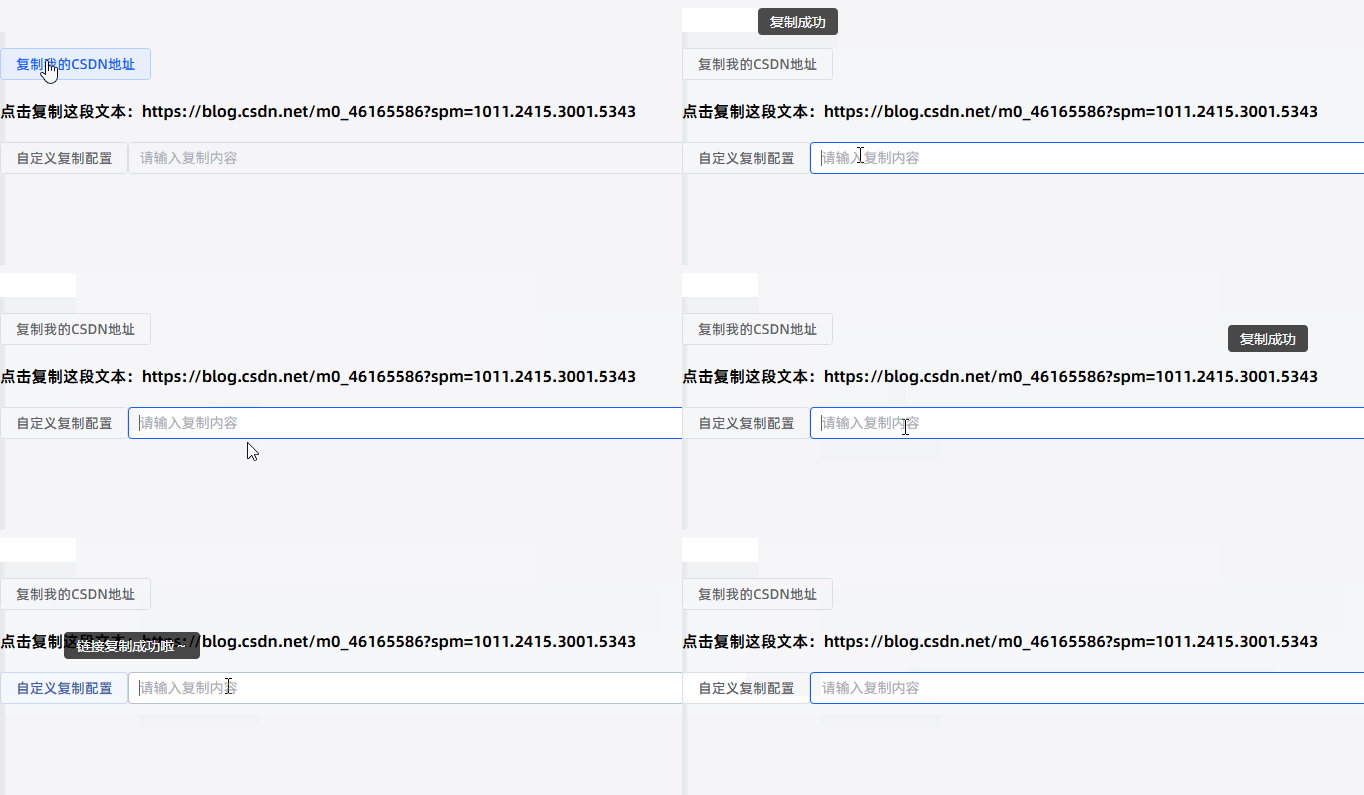
🎯 指令核心特性
- ✅ 支持复制元素文本/自定义内容,灵活适配不同场景
- ✅ 复制成功/失败回调,便于业务层处理交互反馈
- ✅ 内置复制成功提示(可自定义),提升用户体验
- ✅ 完整 TypeScript 类型定义,开发提示友好
- ✅ 自动兼容剪贴板 API,低版本浏览器友好提示
- ✅ 支持指令参数动态更新,适配动态内容
- ✅ 无第三方依赖,轻量高效
📁 完整代码实现(v-copy.ts)
typescript
// directives/v-copy.ts
import type { ObjectDirective, DirectiveBinding, App } from 'vue'

/**
 * 复制指令配置接口
 */
export interface CopyOptions {
  /** 要复制的内容,优先级高于元素文本 */
  content?: string
  /** 复制成功回调 */
  onSuccess?: (text: string) => void
  /** 复制失败回调 */
  onError?: (error: Error) => void
  /** 复制成功提示文本,默认"复制成功" */
  successTip?: string
  /** 提示显示时长(ms),默认2000 */
  tipDuration?: number
  /** 是否显示复制提示,默认true */
  showTip?: boolean
}

/**
 * 扩展元素属性,存储复制相关状态
 */
interface CopyElement extends HTMLElement {
  _copy?: {
    options: CopyOptions
    tipElement?: HTMLDivElement // 提示元素
    tipTimer?: number | null    // 提示定时器
    clickHandler: (e: MouseEvent) => void // 点击事件处理函数
  }
}

/**
 * 默认配置
 */
const DEFAULT_OPTIONS: CopyOptions = {
  successTip: '复制成功',
  tipDuration: 2000,
  showTip: true
}

/**
 * 创建复制成功提示元素
 * @param el 目标元素
 * @param text 提示文本
 * @returns 提示元素
 */
const createTipElement = (el: CopyElement, text: string): HTMLDivElement => {
  // 若已有提示元素,先移除
  if (el._copy?.tipElement) {
    document.body.removeChild(el._copy.tipElement)
    if (el._copy.tipTimer) {
      clearTimeout(el._copy.tipTimer)
      el._copy.tipTimer = null
    }
  }

  // 创建提示元素
  const tip = document.createElement('div')
  tip.style.position = 'absolute'
  tip.style.padding = '4px 12px'
  tip.style.backgroundColor = 'rgba(0, 0, 0, 0.7)'
  tip.style.color = '#fff'
  tip.style.borderRadius = '4px'
  tip.style.fontSize = '14px'
  tip.style.zIndex = '9999'
  tip.style.transition = 'opacity 0.3s ease'
  tip.textContent = text

  // 计算提示位置(目标元素中心)
  const rect = el.getBoundingClientRect()
  const top = rect.top + window.scrollY - 40
  const left = rect.left + window.scrollX + (rect.width - tip.offsetWidth) / 2

  tip.style.top = `${top}px`
  tip.style.left = `${left}px`

  return tip
}

/**
 * 显示复制提示
 * @param el 目标元素
 * @param text 提示文本
 * @param duration 显示时长
 */
const showCopyTip = (el: CopyElement, text: string, duration: number) => {
  if (!el._copy) return

  // 创建并挂载提示元素
  const tip = createTipElement(el, text)
  document.body.appendChild(tip)
  el._copy.tipElement = tip

  // 定时隐藏提示
  el._copy.tipTimer = window.setTimeout(() => {
    tip.style.opacity = '0'
    setTimeout(() => {
      document.body.removeChild(tip)
      el._copy!.tipElement = undefined
      el._copy!.tipTimer = null
    }, 300)
  }, duration) as unknown as number
}

/**
 * 核心复制逻辑
 * @param text 要复制的文本
 * @returns Promise<string> 复制成功的文本
 */
const copyToClipboard = async (text: string): Promise<string> => {
  // 优先使用 Clipboard API(现代浏览器)
  if (navigator.clipboard && window.isSecureContext) {
    try {
      await navigator.clipboard.writeText(text)
      return text
    } catch (err) {
      // 降级处理
      throw new Error(`剪贴板API复制失败: ${(err as Error).message}`)
    }
  }

  // 降级方案:创建临时textarea元素
  const textarea = document.createElement('textarea')
  textarea.value = text
  // 隐藏textarea
  textarea.style.position = 'absolute'
  textarea.style.opacity = '0'
  textarea.style.pointerEvents = 'none'
  document.body.appendChild(textarea)

  try {
    // 选中并复制
    textarea.select()
    textarea.setSelectionRange(0, textarea.value.length) // 兼容移动设备
    const success = document.execCommand('copy')
    if (!success) {
      throw new Error('execCommand复制失败')
    }
    return text
  } finally {
    // 清理临时元素
    document.body.removeChild(textarea)
  }
}

/**
 * 清理复制相关资源
 * @param el 目标元素
 */
const cleanup = (el: CopyElement) => {
  const copyData = el._copy
  if (!copyData) return

  // 移除点击事件
  el.removeEventListener('click', copyData.clickHandler)

  // 清理提示定时器和元素
  if (copyData.tipTimer) {
    clearTimeout(copyData.tipTimer)
    copyData.tipTimer = null
  }
  if (copyData.tipElement) {
    document.body.removeChild(copyData.tipElement)
    copyData.tipElement = undefined
  }

  // 删除扩展属性
  delete el._copy
}

// 创建独立的初始化函数
const initializeCopy = (el: CopyElement, binding: DirectiveBinding<CopyOptions | string>) => {
  // 将 mounted 中的所有逻辑移动到这里
  // 1. 解析指令参数
  let options: CopyOptions = { ...DEFAULT_OPTIONS }

  if (typeof binding.value === 'string') {
    options.content = binding.value
  } else if (typeof binding.value === 'object' && binding.value !== null) {
    options = { ...DEFAULT_OPTIONS, ...binding.value }
  }
  // 2. 定义点击处理函数
  const clickHandler = async (e: MouseEvent) => {
    e.preventDefault()

    const copyText = options.content || el.textContent?.trim() || ''
    if (!copyText) {
      const error = new Error('无可用的复制内容')
      options.onError?.(error)
      console.warn('[v-copy] 无可用的复制内容')
      return
    }
    try {
      await copyToClipboard(copyText)
      options.onSuccess?.(copyText)

      if (options.showTip) {
        showCopyTip(el, options.successTip!, options.tipDuration!)
      }
    } catch (error) {
      const err = error as Error
      options.onError?.(err)
      console.error('[v-copy] 复制失败:', err.message)

      if (options.showTip) {
        showCopyTip(el, '复制失败', options.tipDuration!)
      }
    }
  }
  // 3. 绑定点击事件
  el.addEventListener('click', clickHandler)
  // 4. 存储状态到元素
  el._copy = {
    options,
    clickHandler,
    tipTimer: null
  }
  // 5. 给元素添加可点击样式提示
  el.style.cursor = 'pointer'
}

/**
 * v-copy 自定义指令实现
 */
export const copyDirective: ObjectDirective<CopyElement, CopyOptions | string> = {
  /**
   * 指令挂载时初始化
   */
  mounted(el: CopyElement, binding: DirectiveBinding<CopyOptions | string>) {
   initializeCopy(el, binding)
  },

  /**
   * 指令更新时处理参数变化
   */
  updated(el: CopyElement, binding: DirectiveBinding<CopyOptions | string>) {
    // 先清理旧配置
    cleanup(el)
    // 重新初始化
    initializeCopy(el, binding)
  },

  /**
   * 指令卸载时清理资源
   */
  unmounted(el: CopyElement) {
    cleanup(el)
  }
}

/**
 * 全局注册复制指令
 * @param app Vue应用实例
 * @param directiveName 指令名称,默认copy
 */
export const setupCopyDirective = (app: App, directiveName: string = 'copy') => {
  app.directive(directiveName, copyDirective)
}

// TypeScript 类型扩展
declare module 'vue' {
  export interface ComponentCustomDirectives {
    copy: typeof copyDirective
  }
}
🚀 快速上手
1. 全局注册指令(main.ts)
在 Vue3 入口文件中注册指令,全局可用:
typescript
// main.ts
import { createApp } from 'vue'
import App from './App.vue'
import { setupCopyDirective } from './directives/v-copy'

const app = createApp(App)

// 注册复制指令(默认名称v-copy)
setupCopyDirective(app)

app.mount('#app')
2. 基础使用(直接传复制内容)
最简单的用法:直接传递要复制的字符串,使用默认配置(显示"复制成功"提示):
vue
<template>
  <!-- 复制固定文本 -->
  <button v-copy="'https://github.com/your-repo'">
    复制我的GitHub地址
  </button>

  <!-- 复制元素文本内容 -->
  <div v-copy style="cursor: pointer;">
    点击复制这段文本:1234567890
  </div>
</template>
3. 高级使用(自定义配置)
通过对象参数配置完整的复制规则,支持自定义提示、回调函数:
vue
<template>
  <div>
    <input v-model="copyText" placeholder="输入要复制的内容" />

    <button
      v-copy="{
        content: copyText,
        successTip: '链接复制成功啦~',
        tipDuration: 1500,
        onSuccess: handleCopySuccess,
        onError: handleCopyError
      }"
    >
      自定义复制配置
    </button>
  </div>
</template>

<script setup lang="ts">
import { ref } from 'vue'

const copyText = ref('https://example.com/custom-link')

// 复制成功回调
const handleCopySuccess = (text: string) => {
  console.log('复制成功,内容:', text)
  // 可在这里添加自定义提示,如使用Element Plus的Message
  // ElMessage.success(`复制成功:${text}`)
}

// 复制失败回调
const handleCopyError = (error: Error) => {
  console.error('复制失败:', error)
  // ElMessage.error('复制失败,请手动复制')
}
</script>
4. 动态内容复制
适配动态变化的复制内容(如接口返回的订单号、邀请码):
vue
<template>
  <div>
    <div>您的邀请码:<span v-copy="inviteCode">{{ inviteCode }}</span></div>
    <button @click="refreshInviteCode">刷新邀请码</button>
  </div>
</template>

<script setup lang="ts">
import { ref } from 'vue'

// 模拟动态邀请码
const inviteCode = ref('ABC123456')

// 刷新邀请码
const refreshInviteCode = () => {
  // 生成随机邀请码
  const randomCode = Math.random().toString(36).substring(2, 8).toUpperCase()
  inviteCode.value = randomCode
}
</script>

<style>
/* 给可复制元素添加样式提示 */
span[V-copy] {
  color: #409eff;
  text-decoration: underline;
  cursor: pointer;
}
</style>
5. 关闭默认提示(自定义反馈)
若需自定义复制反馈(如使用UI库的提示组件),可关闭默认提示:
vue
<template>
  <button
    v-copy="{
      content: '自定义反馈示例',
      showTip: false,
      onSuccess: () => ElMessage.success('复制成功✅'),
      onError: () => ElMessage.error('复制失败❌')
    }"
  >
    自定义反馈提示
  </button>
</template>

<script setup lang="ts">
import { ElMessage } from 'element-plus'
</script>
🔧 核心知识点解析
1. 复制实现原理
指令兼容两种复制方案,保证最大兼容性:
- 现代浏览器 :使用
navigator.clipboard.writeText()(异步、安全,推荐) - 降级方案 :创建临时
textarea元素,通过document.execCommand('copy')复制(兼容低版本浏览器)
2. 提示组件实现
- 动态创建提示元素,基于目标元素位置计算居中显示
- 使用定时器自动隐藏提示,添加过渡动画提升体验
- 重复点击时自动清理旧提示,避免多个提示叠加
3. 内存泄漏防护
unmounted钩子中移除点击事件、清理定时器、删除临时提示元素updated钩子中先清理旧配置,再初始化新配置- 扩展元素属性存储状态,卸载时删除属性释放内存
4. TypeScript 类型优化
- 定义
CopyOptions接口,明确配置项类型 - 扩展
HTMLElement类型,添加复制状态属性 - 支持两种参数类型(字符串/对象),类型推导自动适配
📋 配置项说明
| 配置项 | 类型 | 默认值 | 说明 |
|---|---|---|---|
| content | string | - | 要复制的内容,优先级高于元素文本 |
| onSuccess | (text: string) => void | - | 复制成功回调,参数为复制的文本 |
| onError | (error: Error) => void | - | 复制失败回调,参数为错误对象 |
| successTip | string | '复制成功' | 复制成功提示文本 |
| tipDuration | number | 2000 | 提示显示时长,单位ms |
| showTip | boolean | true | 是否显示默认的复制提示 |
🎯 常见使用场景
场景1:复制订单号/优惠券码
vue
<template>
  <div class="order-card">
    <div class="label">订单号:</div>
    <div class="value" v-copy="{ successTip: '订单号复制成功' }">
      {{ orderNo }}
    </div>
  </div>
</template>

<script setup lang="ts">
import { ref } from 'vue'

// 模拟接口返回的订单号
const orderNo = ref('ORD20240124123456789')
</script>

<style>
.order-card {
  display: flex;
  align-items: center;
  padding: 10px;
}
.label {
  margin-right: 8px;
  color: #666;
}
.value {
  color: #409eff;
  cursor: pointer;
}
</style>
场景2:复制分享链接
vue
<template>
  <div class="share-card">
    <input
      type="text"
      readonly
      v-model="shareLink"
      class="link-input"
    />
    <button
      v-copy="{
        content: shareLink,
        onSuccess: () => ElMessage.success('分享链接已复制'),
        onError: () => ElMessage.error('复制失败,请手动复制')
      }"
      class="copy-btn"
    >
      复制链接
    </button>
  </div>
</template>

<script setup lang="ts">
import { ref } from 'vue'
import { ElMessage } from 'element-plus'

// 模拟生成分享链接
const shareLink = ref(`https://example.com/share?uid=${Math.random().toString(36).substring(2, 10)}`)
</script>

<style>
.share-card {
  display: flex;
  gap: 8px;
  padding: 10px;
}
.link-input {
  flex: 1;
  padding: 6px;
  border: 1px solid #e5e7eb;
  border-radius: 4px;
}
.copy-btn {
  padding: 6px 12px;
  background: #409eff;
  color: #fff;
  border: none;
  border-radius: 4px;
  cursor: pointer;
}
</style>
🚨 注意事项
- Clipboard API 安全限制 :
navigator.clipboard仅在安全上下文(HTTPS)或本地开发环境(localhost)中可用,HTTP 环境会自动降级到execCommand。 - 移动端兼容性 :部分移动端浏览器对
execCommand('copy')支持有限,建议在实际项目中测试。 - 复制内容为空 :指令会校验复制内容,为空时触发
onError并打印警告,需确保复制内容有效。 - 样式提示 :指令会自动给元素添加
cursor: pointer,可根据需要覆盖样式。
📌 总结
本文实现的 v-copy 指令具备以下核心优势:
- 兼容性强:兼容现代浏览器和低版本浏览器,自动降级处理。
- 体验友好:内置居中提示,支持自定义提示文本和时长,交互体验佳。
- 配置灵活:支持自定义复制内容、成功/失败回调,适配各种业务场景。
- 类型安全:基于 TypeScript 开发,类型提示完善,减少开发错误。
- 轻量无依赖:无需引入第三方库,体积小,性能优。
这个指令可以直接集成到你的 Vue3 项目中,解决各种文本复制需求。如果需要进一步扩展,可以在此基础上增加:
- 支持复制富文本(HTML内容)
- 支持自定义提示样式(颜色、位置、动画)
- 支持双击复制/长按复制
- 支持复制后自动清空输入框
希望这篇文章对你有帮助,欢迎点赞、收藏、评论交流!