Android的线性布局
线性布局的作用
- 容器特性: 线性布局本质上是一种容器框架,内部视图必须按照特定规则排列
- 排列规则: 严格遵循从上往下(垂直方向)或从左往右(水平方向)的单一方向排列
- 强制约束: 任何违背该排列规则的视图摆放方式都无法实现,布局会强制按设定方向排列
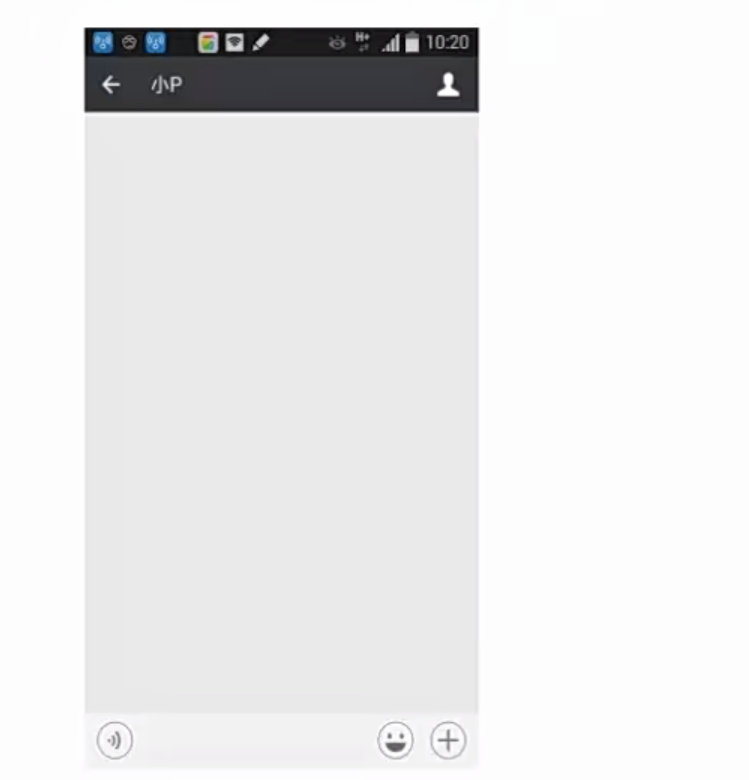
- 聊天窗口案例 :
- 整体结构: 可分解为上中下三层垂直结构,符合线性布局的垂直排列特性
- 嵌套应用 :
- 顶部标题栏采用水平线性布局(左中右结构)
- 底部输入栏同样适用水平线性布局
- 不规则处理: 虽然内部元素大小不一,但整体排列方向仍保持线性特征
- 适用判断: 当界面元素呈现单向规律排列时,无论复杂度如何都可考虑使用线性布局
线性布局的使用
布局添加
-
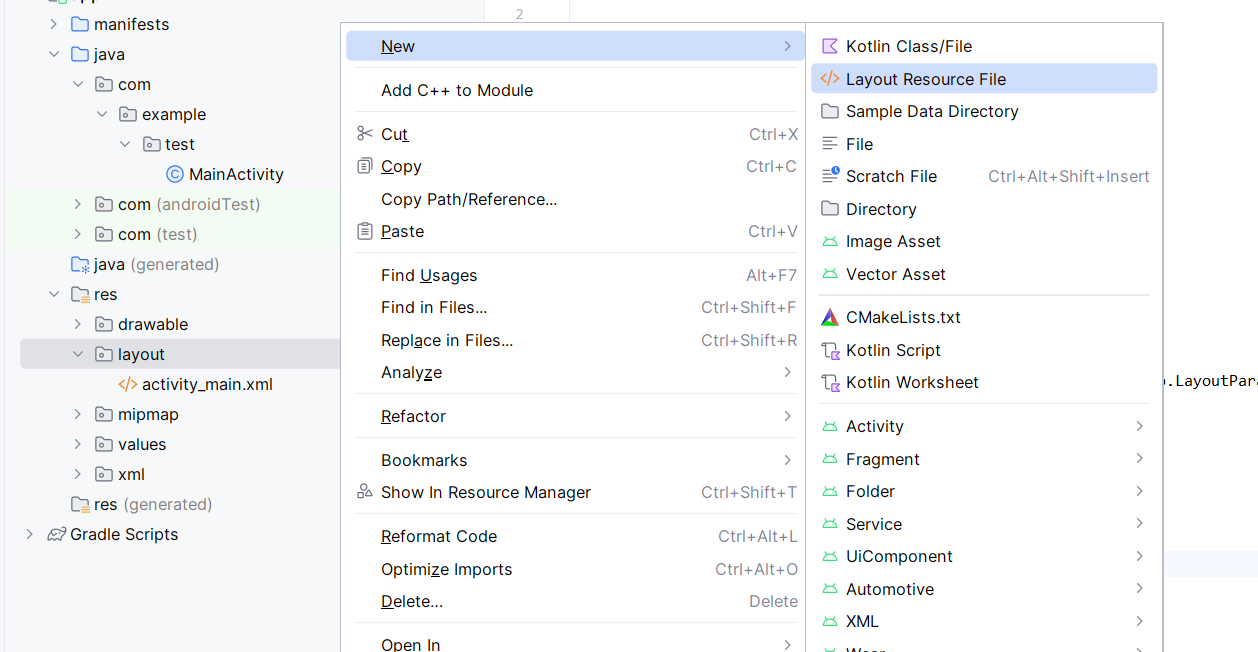
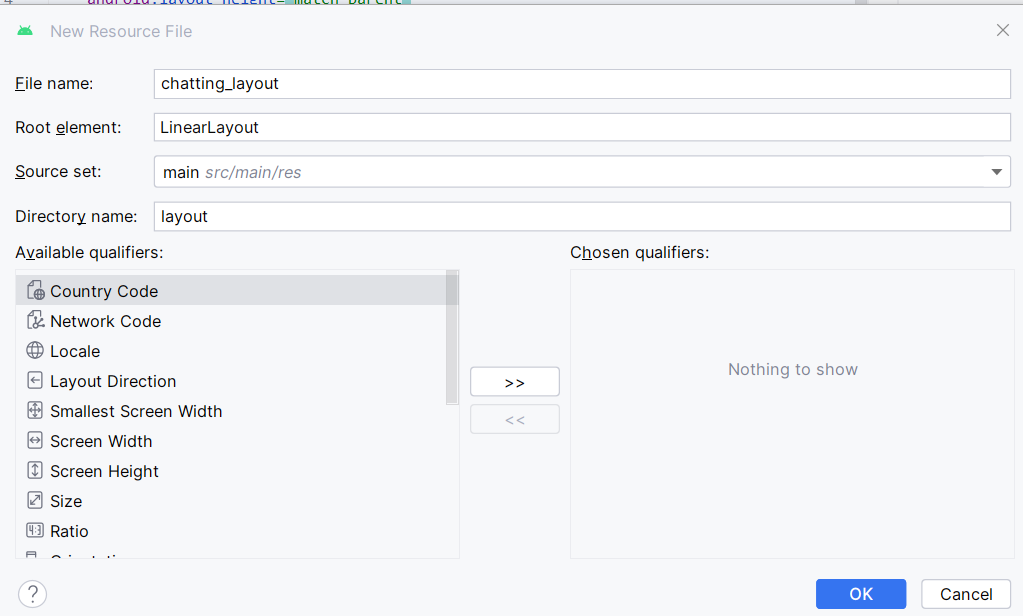
创建路径:在res目录下的layout文件夹中右键新建布局文件
-
-
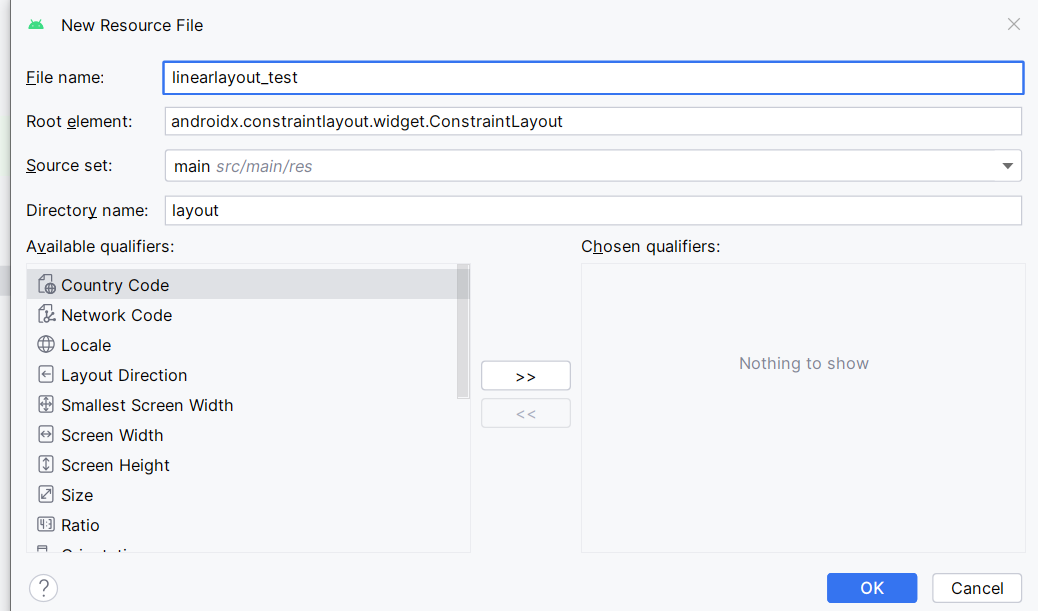
命名规范:布局文件名必须全小写,可以包含数字和下划线,但数字不能开头
-
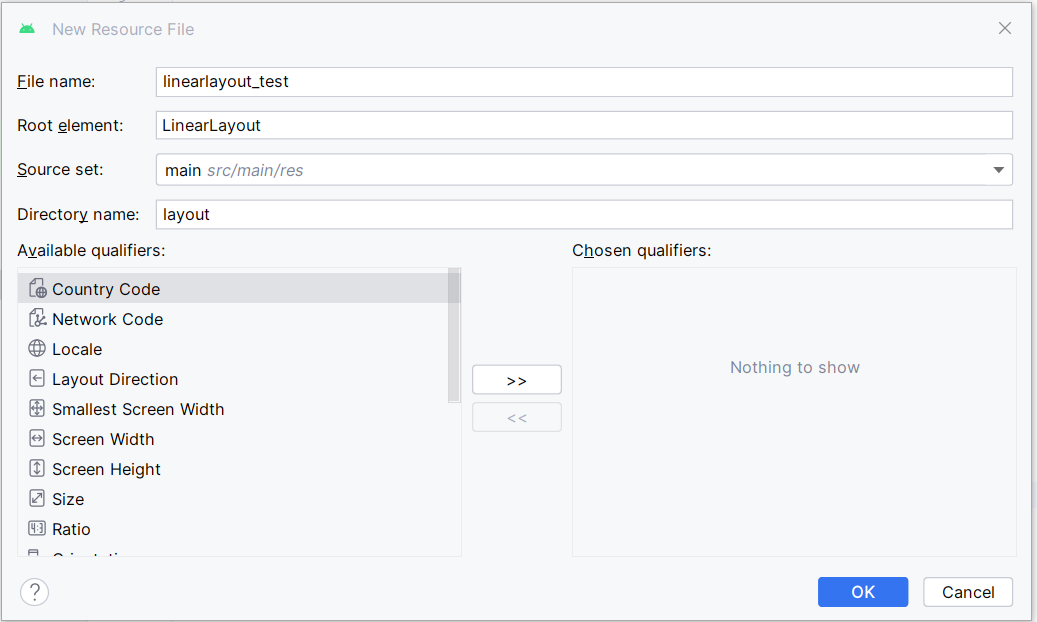
根元素设置:创建时默认根元素为ConstraintLayout,需手动改为LinearLayout
-
-
-
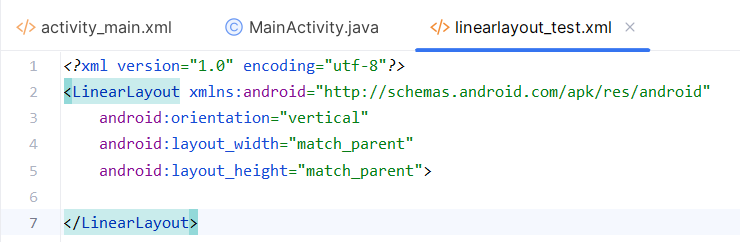
文件结构:XML文件最外层由成对的LinearLayout标签组成,作为容器放置其他控件
-
缩进规范:内层元素要比外层多一个缩进,保持层次结构清晰
-
-
基本语法:
xml<?xml version="1.0" encoding="utf-8"?> <LinearLayout xmlns:android="http://schemas.android.com/apk/res/android" android:orientation="vertical" android:layout_width="match_parent" android:layout_height="match_parent"> </LinearLayout>
布局重要属性
-
android:layout_width 宽度
-
android:layout_height 高度
-
android:layout_padding 内边距
-
android:layout_margin 外边距
-
宽高设置:
- match_parent:匹配父容器大小
- wrap_content:根据内容自动调整大小
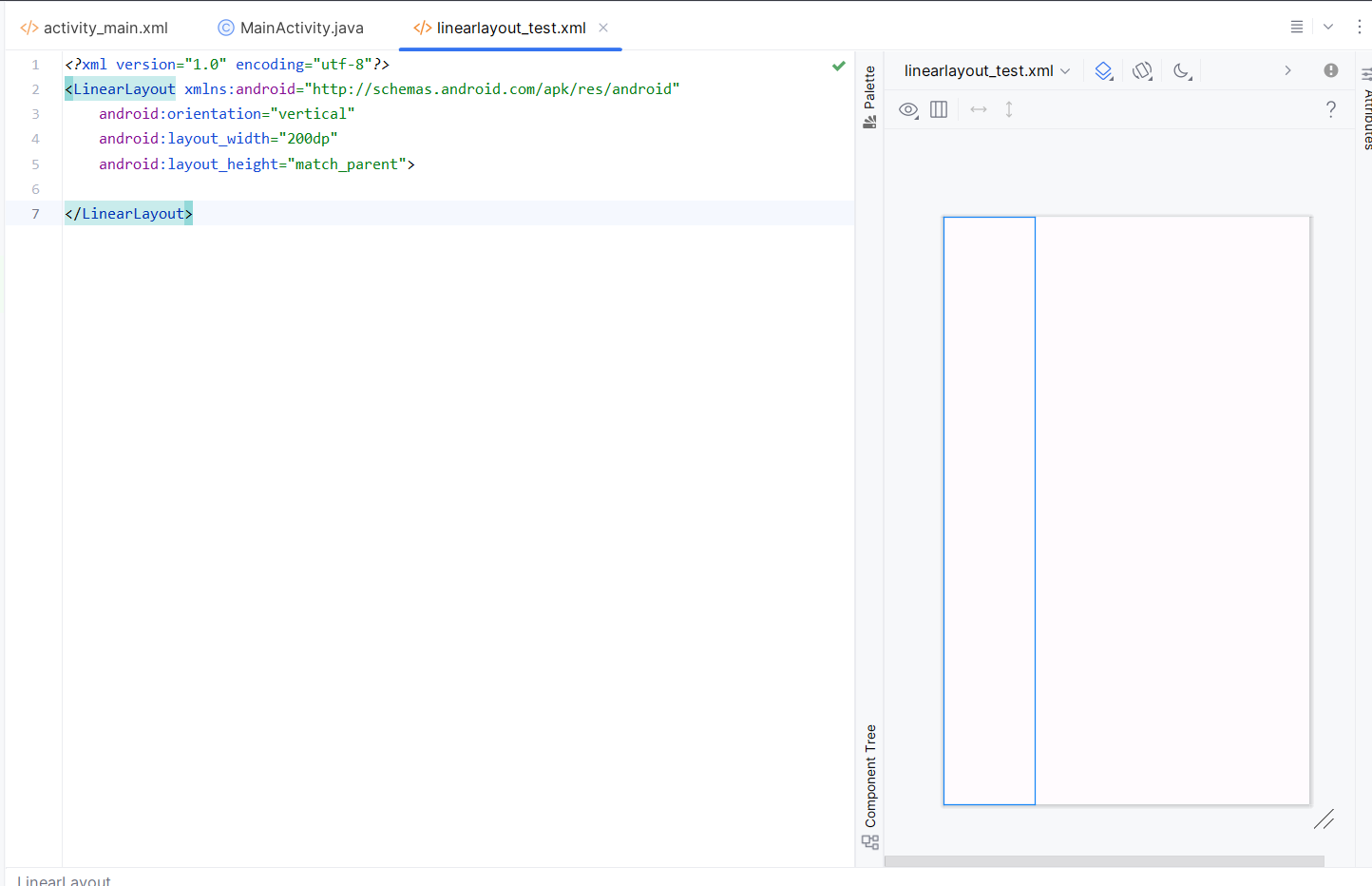
- 固定值:如200dp,dp是XML中使用的尺寸单位
-
边距设置:
-
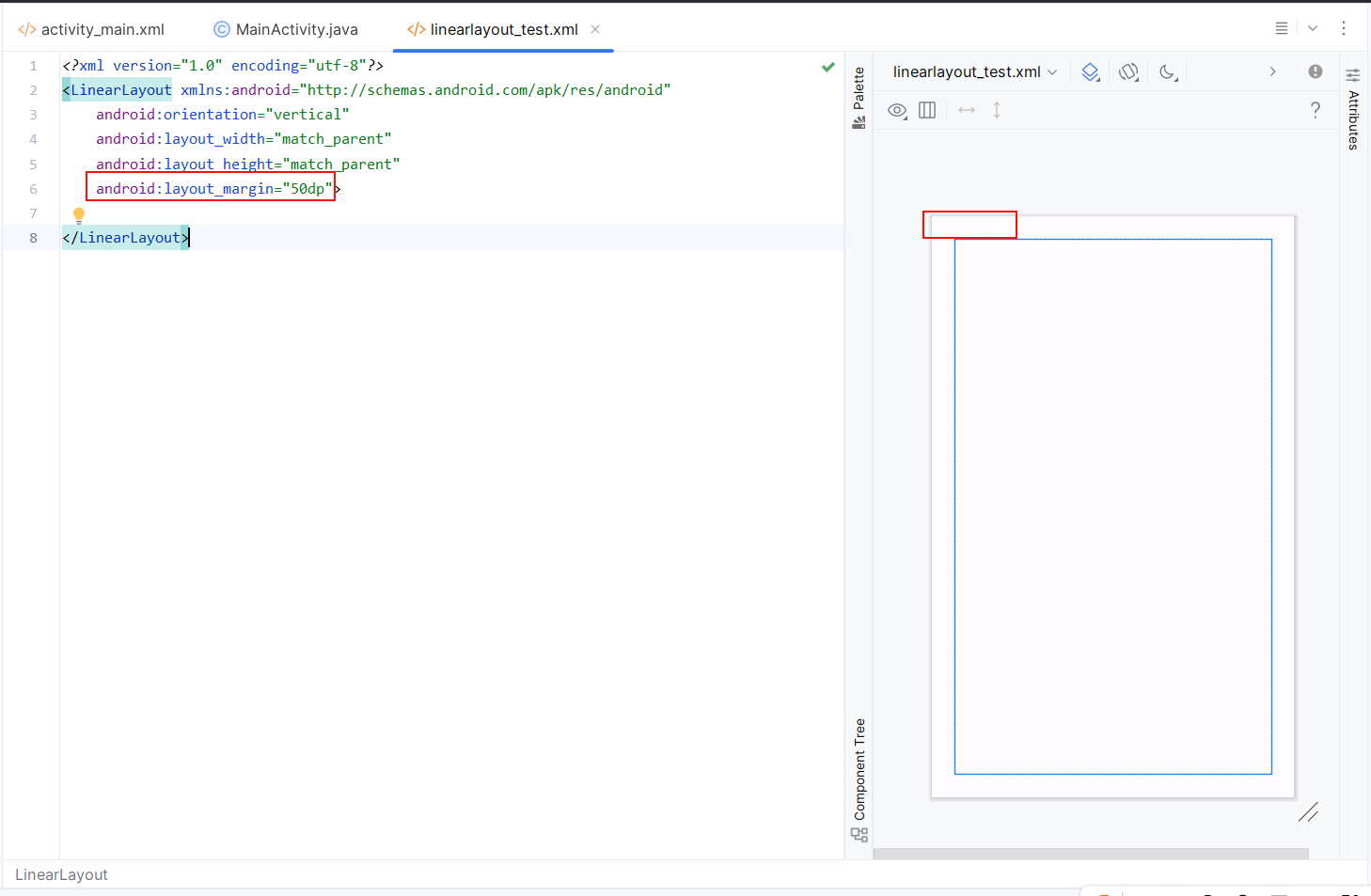
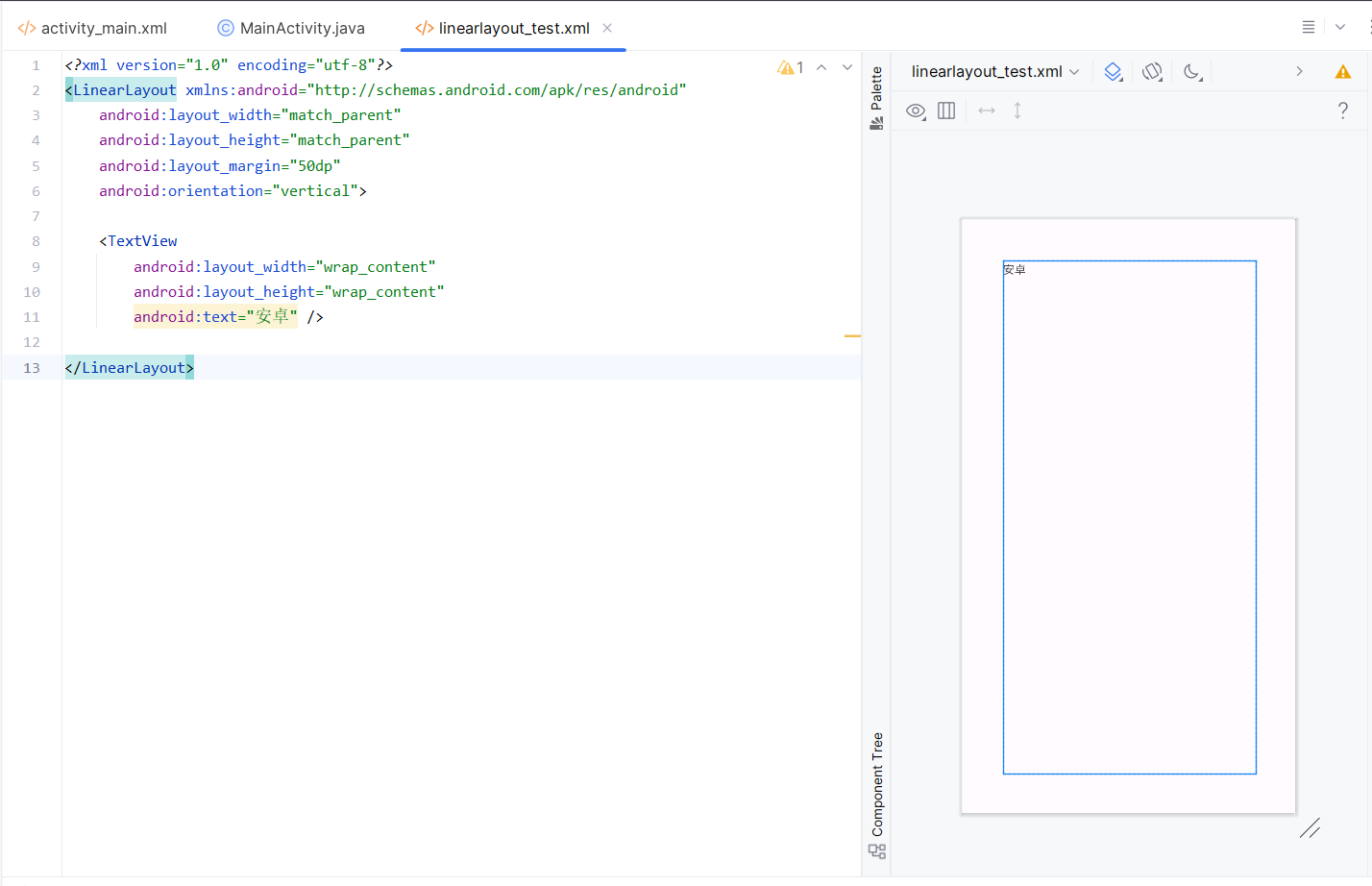
layout_margin:外边距,控件与外部元素的间距
-
-
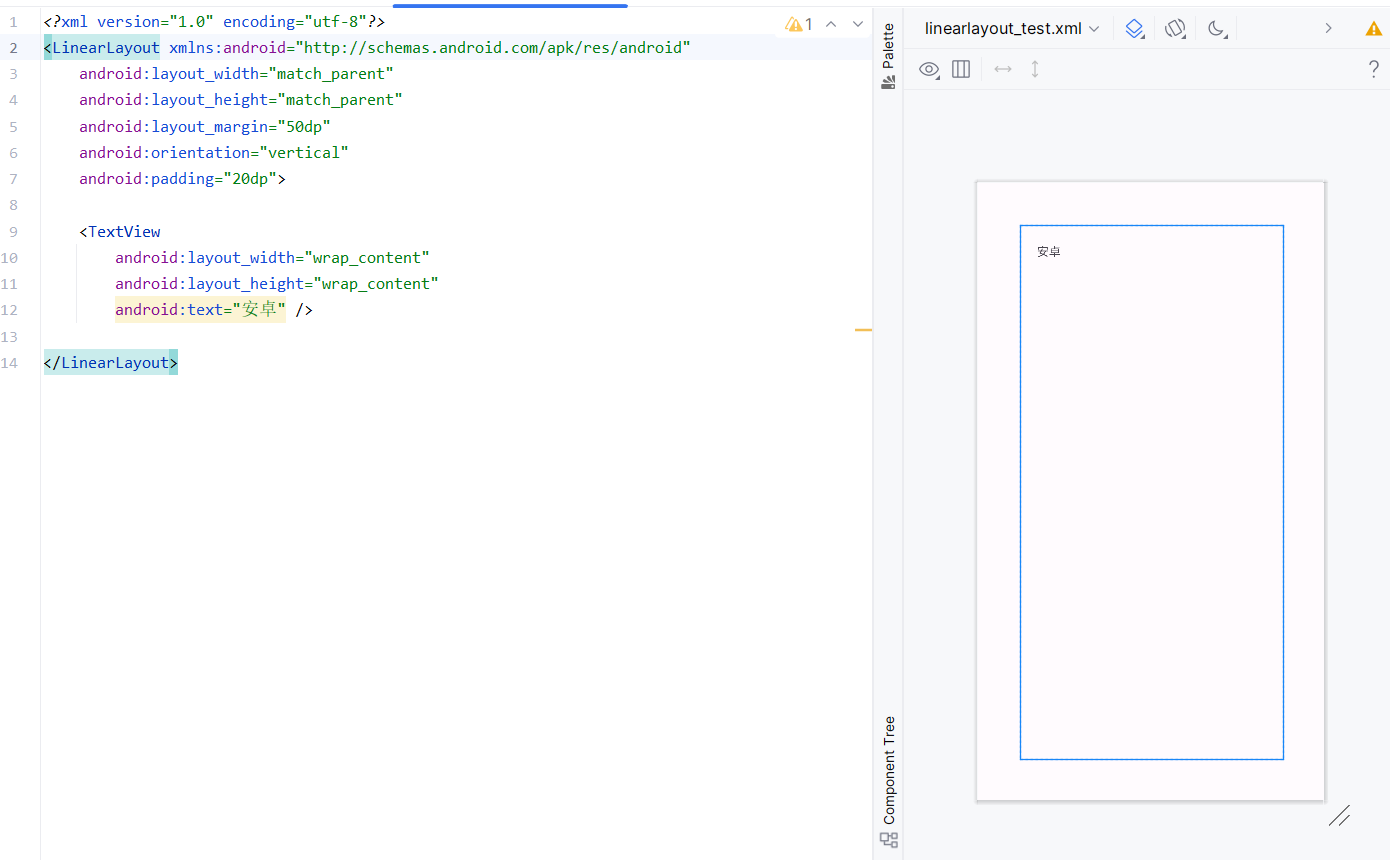
padding:内边距,控件内容与边界的间距
-
-
-
-
单位说明:
- dp:用于尺寸的单位
- sp:专门用于字体大小的单位
-
注意事项:宽高属性必须指定,否则会出现布局问题
线型布局重要属性
-
android:orientation 方向
-
android:layout_weight 权重
-
android:layout_gravity 重力
-
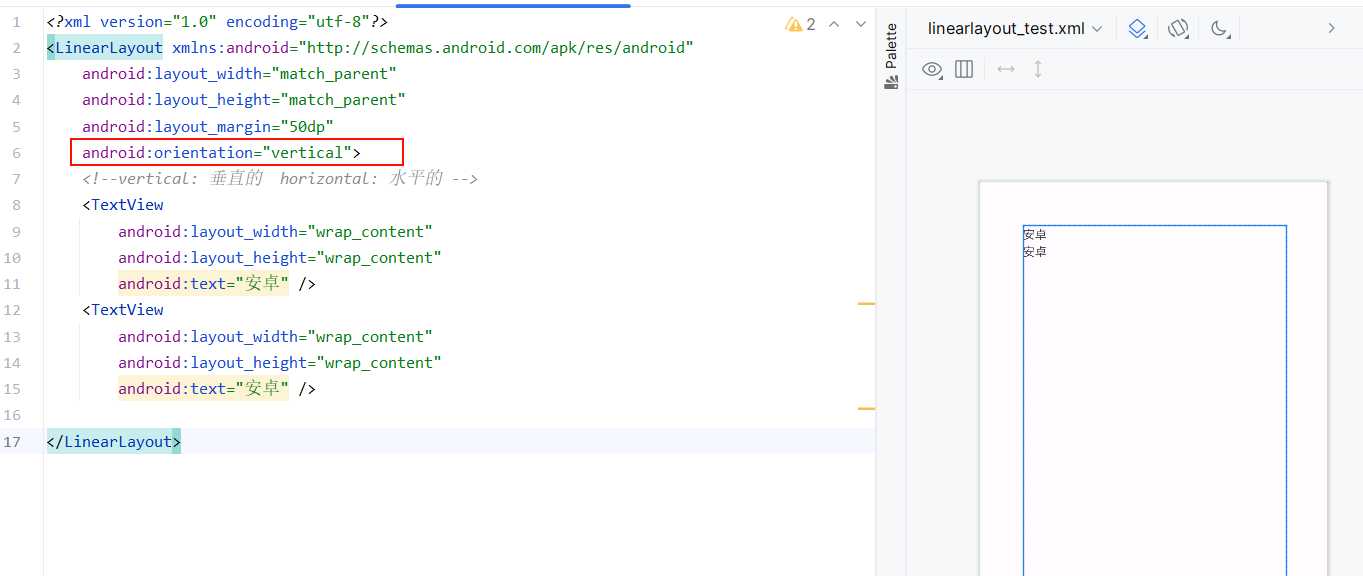
方向控制:
-
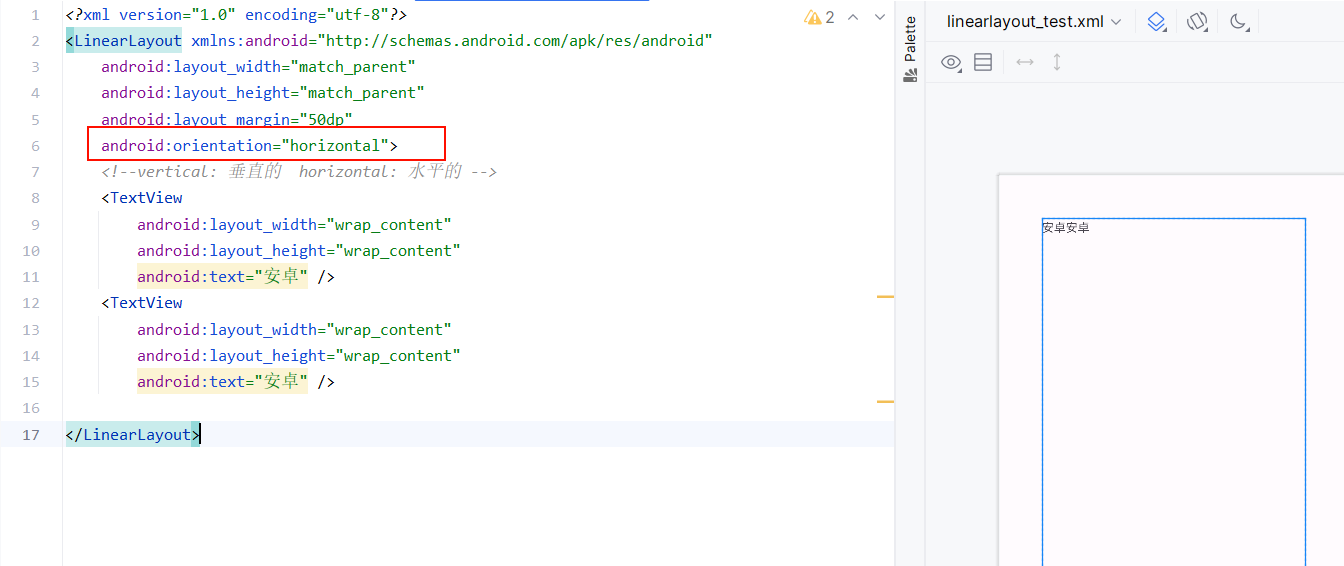
orientation:vertical(垂直)或horizontal(水平)
-
-
-
默认值:不指定时默认为horizontal,但建议显式声明
xml<?xml version="1.0" encoding="utf-8"?> <LinearLayout xmlns:android="http://schemas.android.com/apk/res/android" android:layout_width="match_parent" android:layout_height="match_parent" android:layout_margin="50dp" android:orientation="horizontal"> <!--vertical: 垂直的 horizontal: 水平的 --> <TextView android:layout_width="wrap_content" android:layout_height="wrap_content" android:text="安卓" /> <TextView android:layout_width="wrap_content" android:layout_height="wrap_content" android:text="安卓" /> </LinearLayout>
-
-
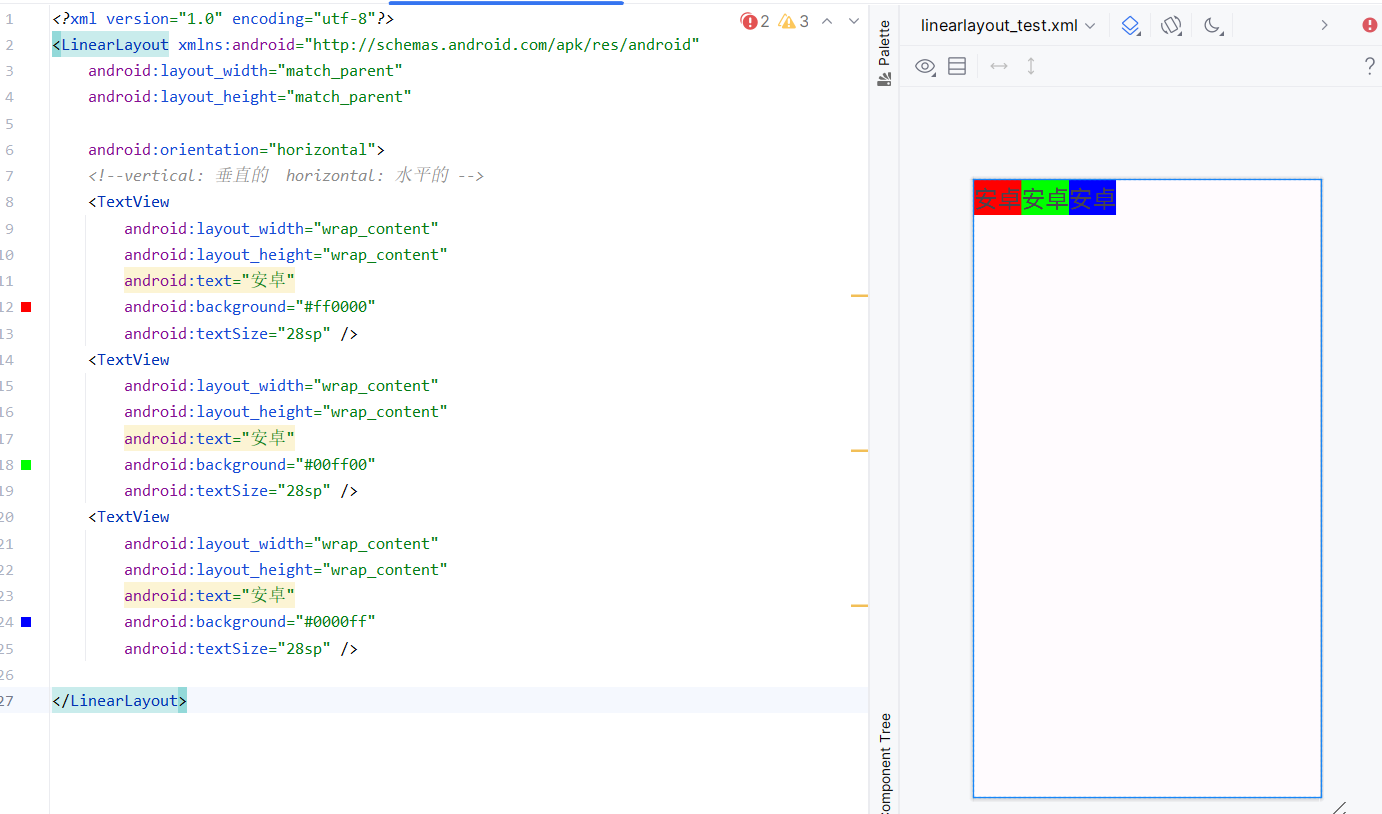
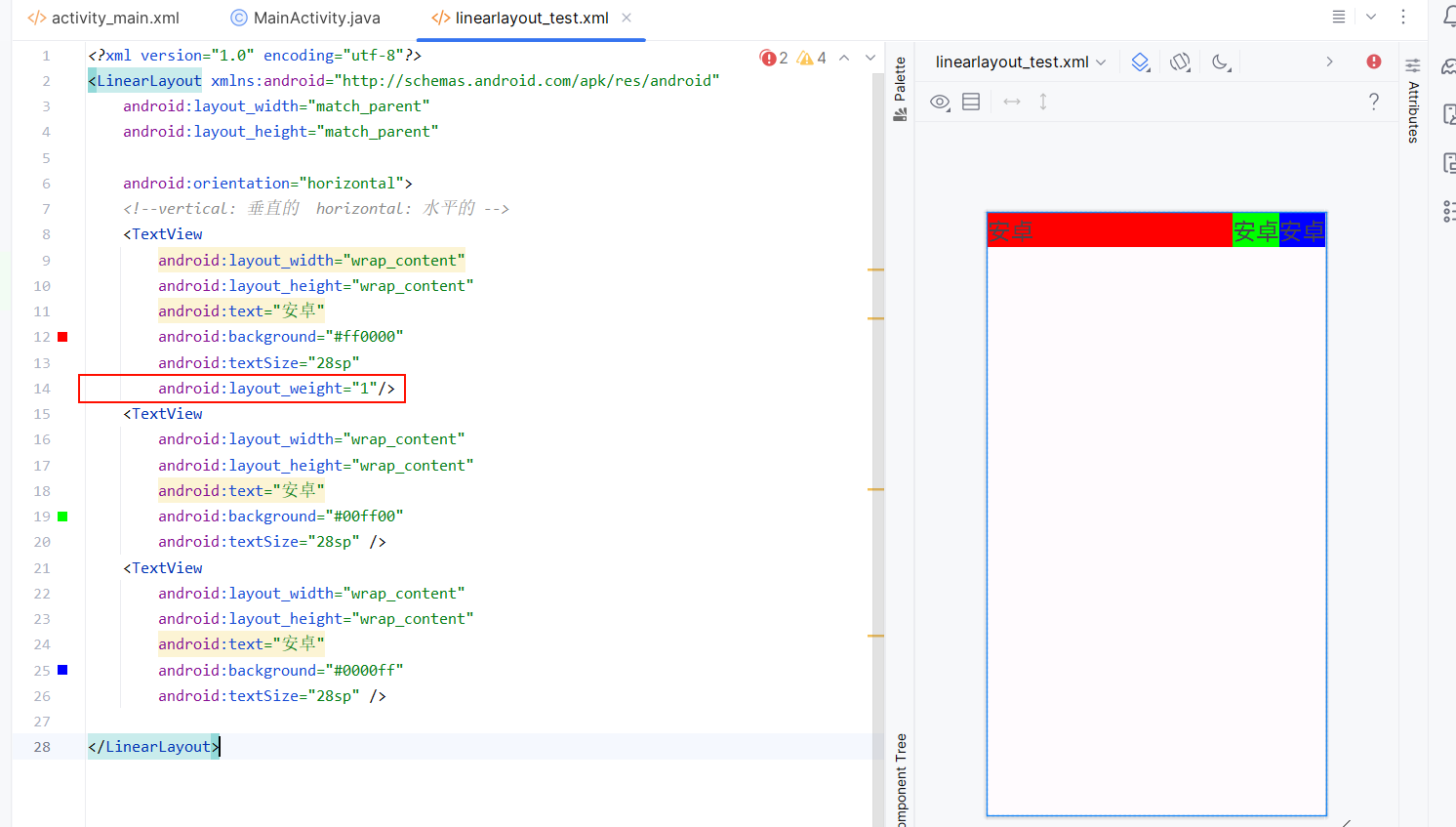
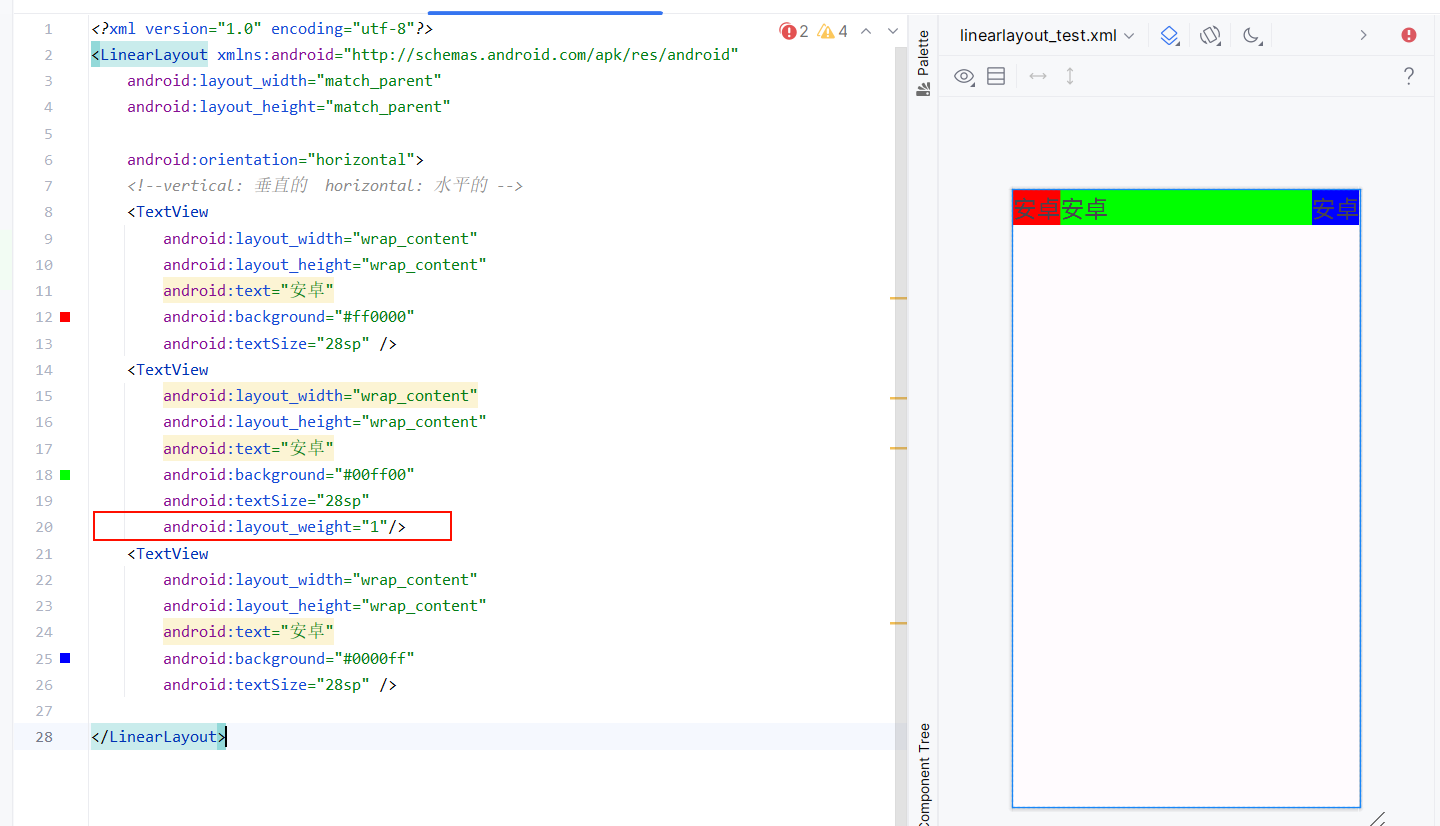
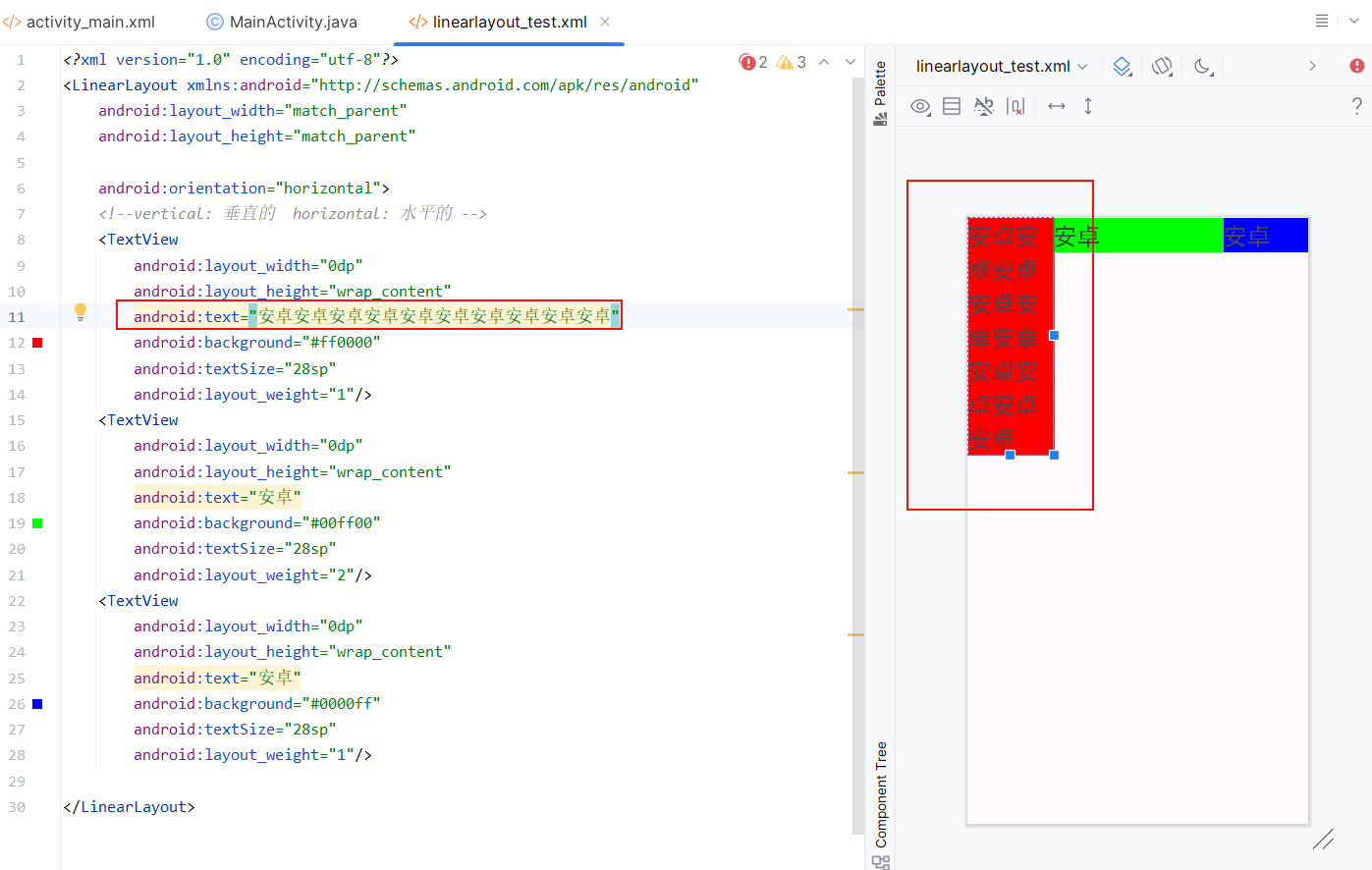
权重layout_weight:
-
-
作用1:特殊布局效果,让某个控件占据剩余空间
-
-
-
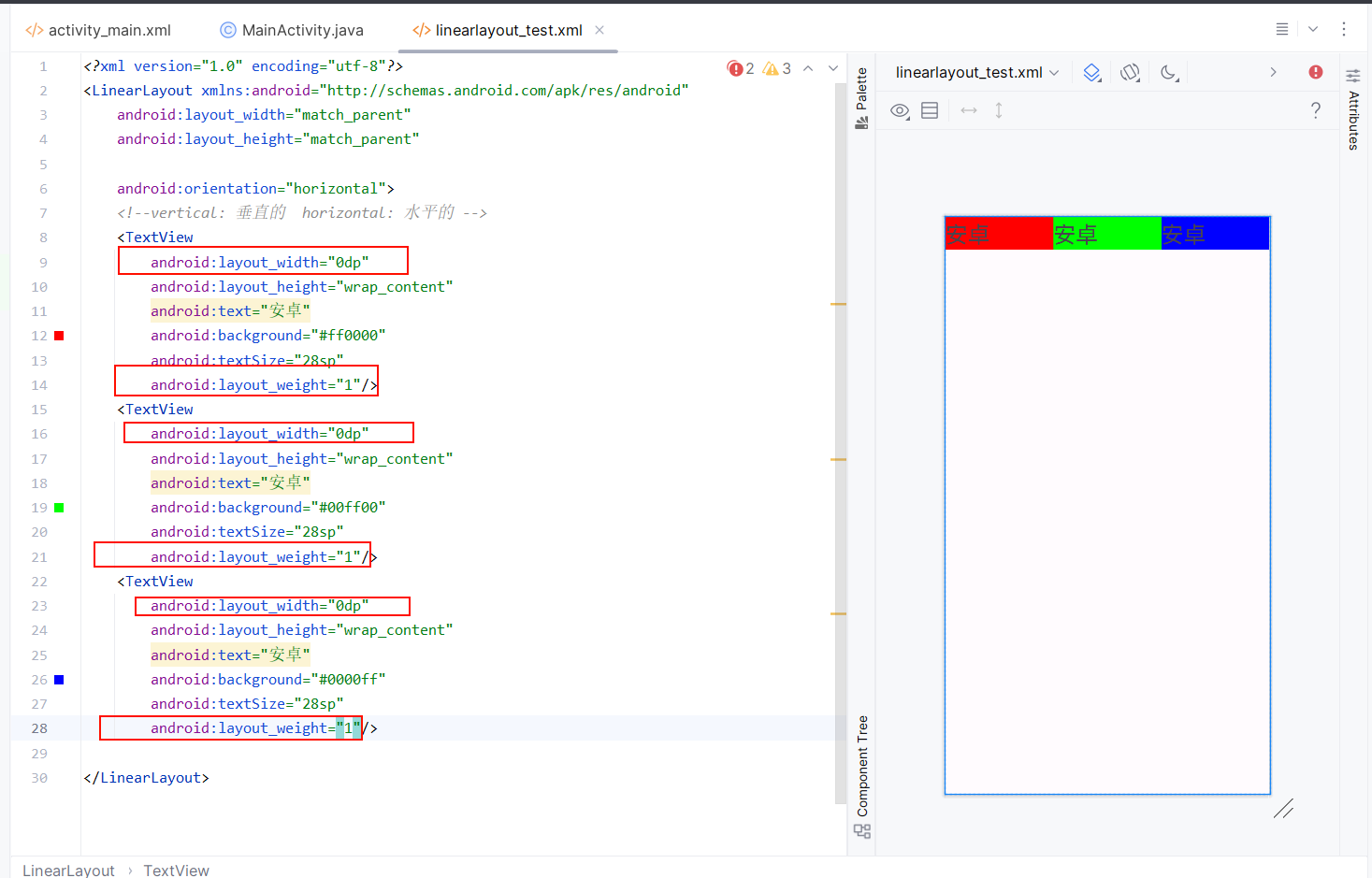
作用2:按比例划分空间,需配合0dp使用
-
-
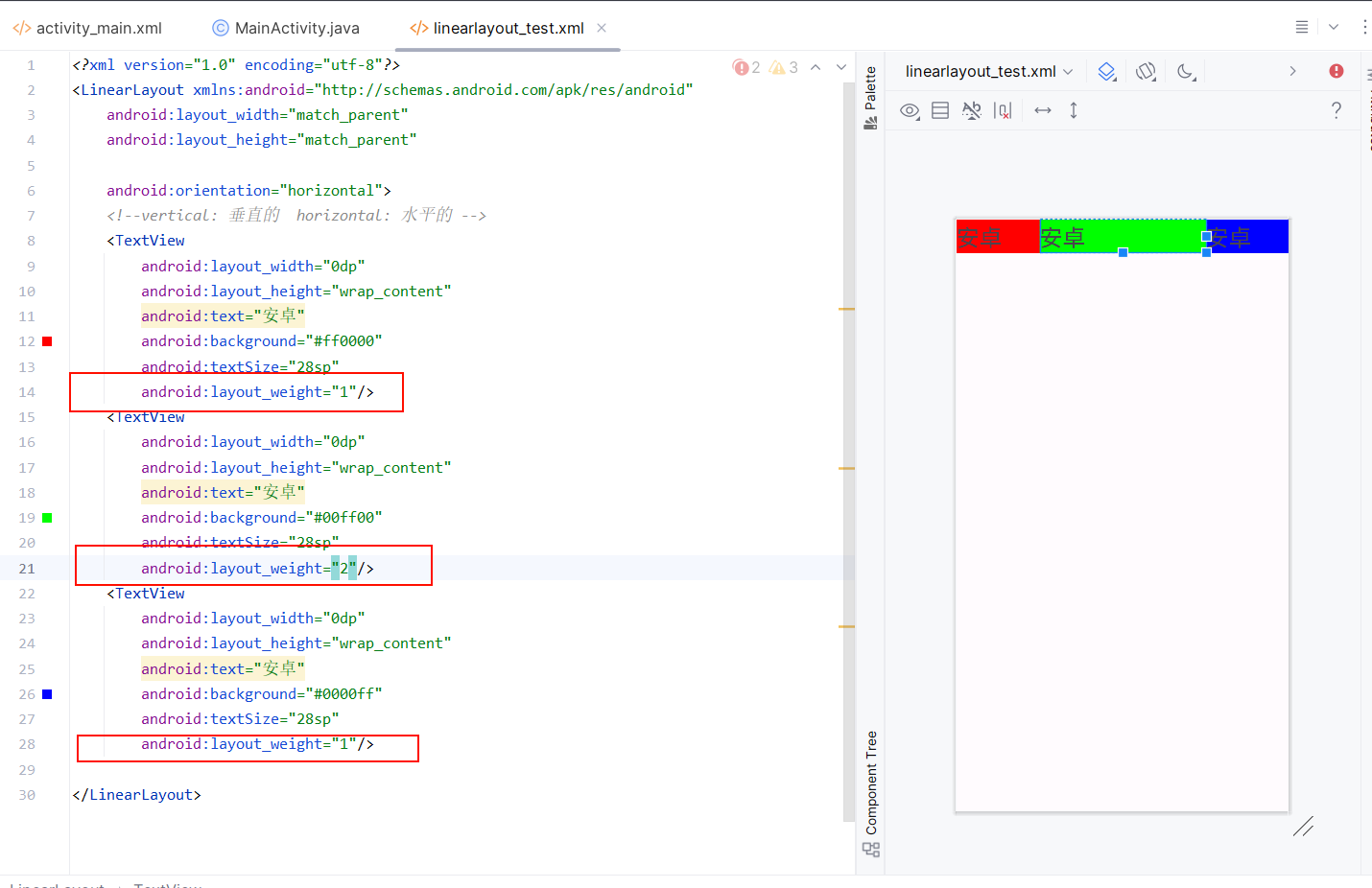
计算方式:各控件权重值/总权重值=所占比例
-
权重使用技巧:
-
设置权重时建议将对应宽/高设为0dp
-
权重值可以是任意整数,比例关系更重要
-
-
带权重的控件大小不会随内容改变
-
-
-
-
重力layout_gravity:
- 垂直布局:可设置left/right/center_horizontal
- 水平布局:可设置top/bottom/center_vertical
- 常用值:center表示水平和垂直都居中
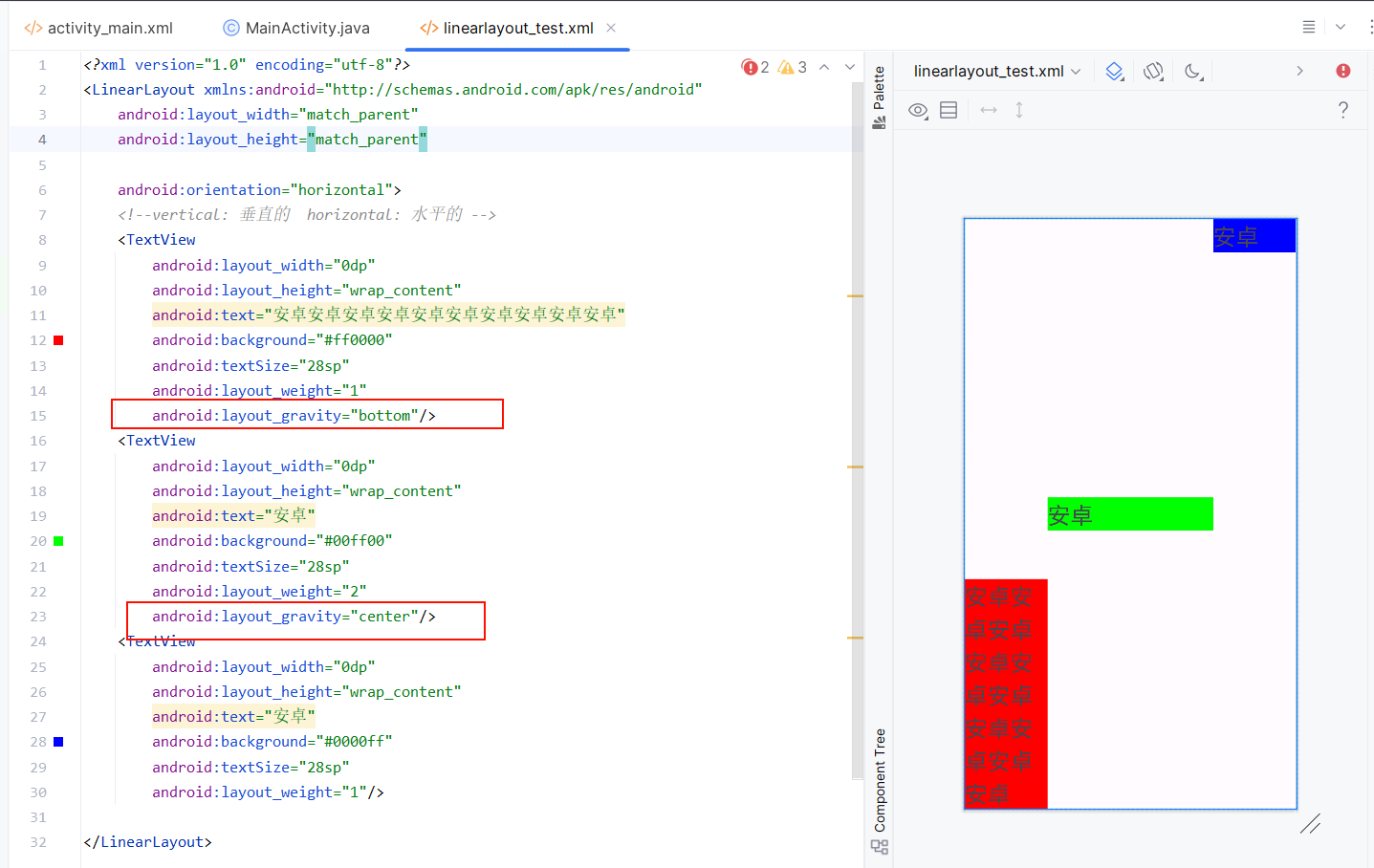
- 重力取值:
- top/bottom/center_vertical:控制垂直位置
- left/right/center_horizontal:控制水平位置
- center:水平和垂直都居中
案例实现------聊天窗口
创建布局
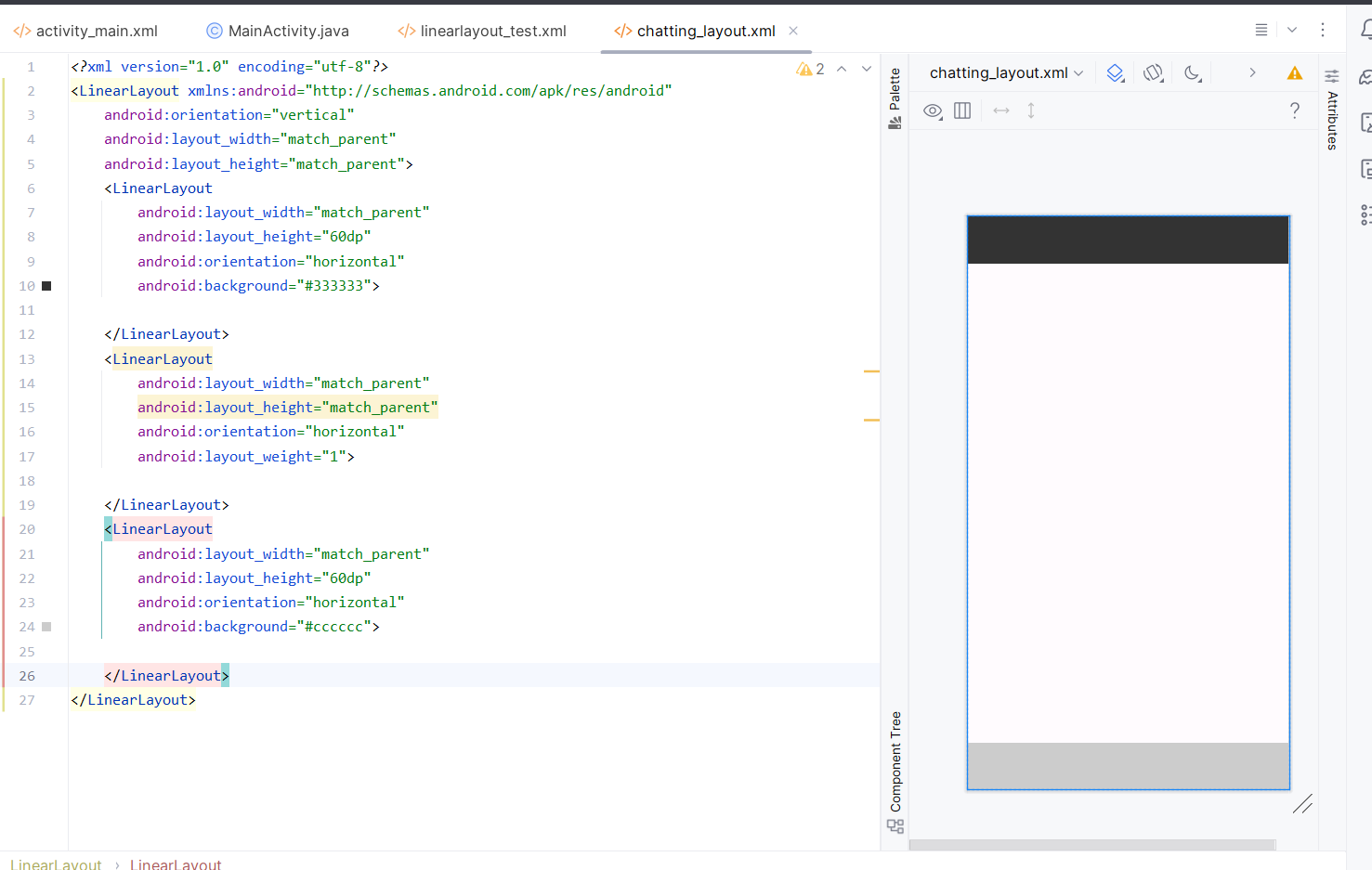
- 布局结构:整体采用上中下三部分结构,其中上下部分又分为左中右布局
- 实现方法 :
- 根布局使用垂直方向的线性布局(LinearLayout)
- 中间部分设置layout_weight属性实现弹性填充
- 上下部分通过水平线性布局实现从左到右的排列
上方线性布局
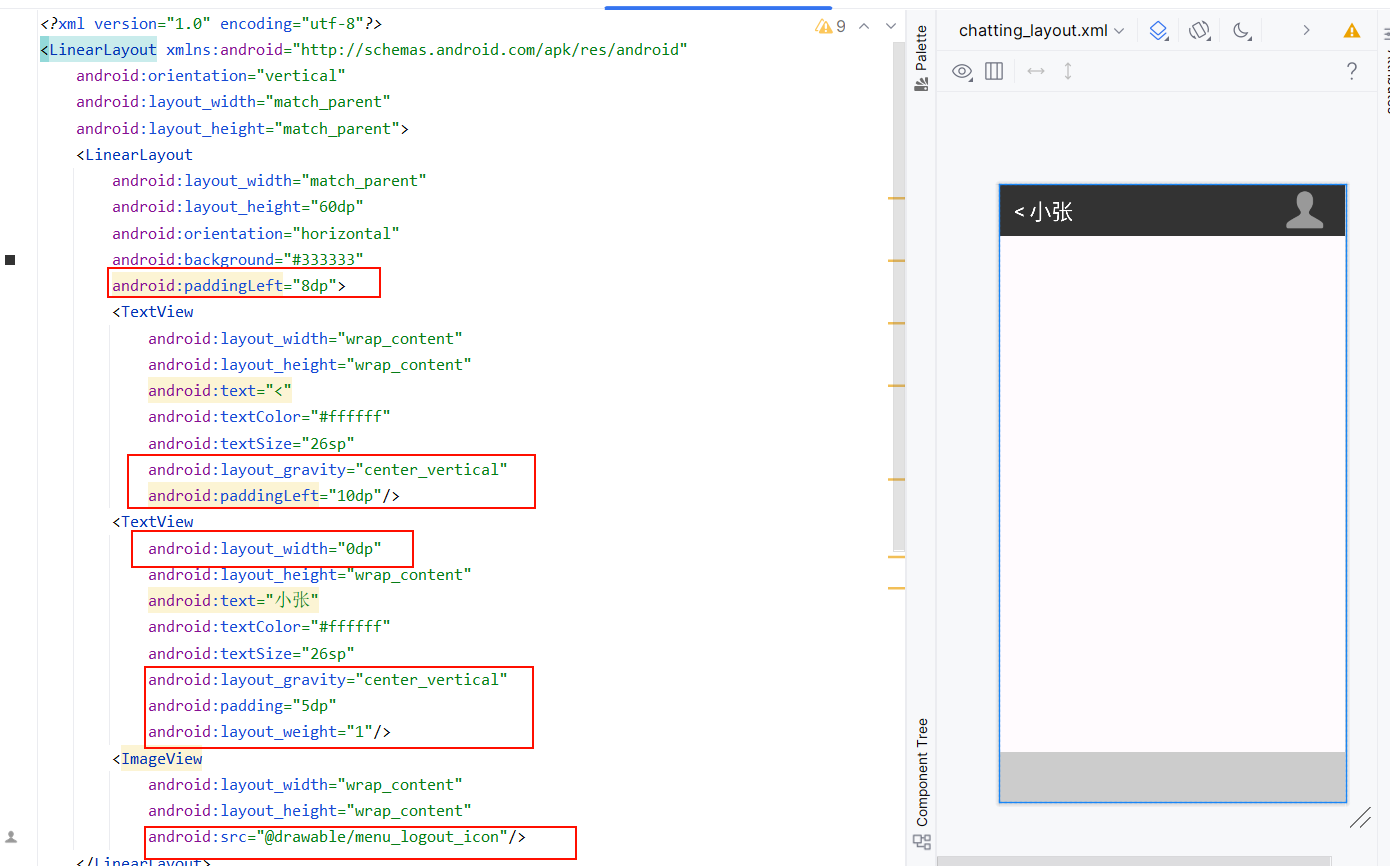
- 布局实现 :
- 使用水平方向的LinearLayout作为顶部容器
- 设置固定高度60dp和深色背景(#333333)
- 添加paddingLeft="8dp"调整内边距
- 权重应用:中间部分使用layout_weight="1"实现弹性填充
- 按钮实现 :
- 使用TextView模拟返回按钮("<"符号)
- 设置textColor="#ffffff"和textSize="26sp"
- 通过layout_gravity="center_vertical"实现垂直居中
- 布局技巧 :
- 使用paddingLeft调整与左侧边距
- 线性布局中通过gravity控制子元素位置
- 文本区域 :
- 设置layout_width="0dp"和layout_weight="1"实现自动填充
- 使用wrap_content高度保持自适应
- 图标实现 :
- 使用ImageView显示菜单图标
- 通过src="@drawable/menu_logout_icon"指定图标资源
- 保持wrap_content的宽高设置
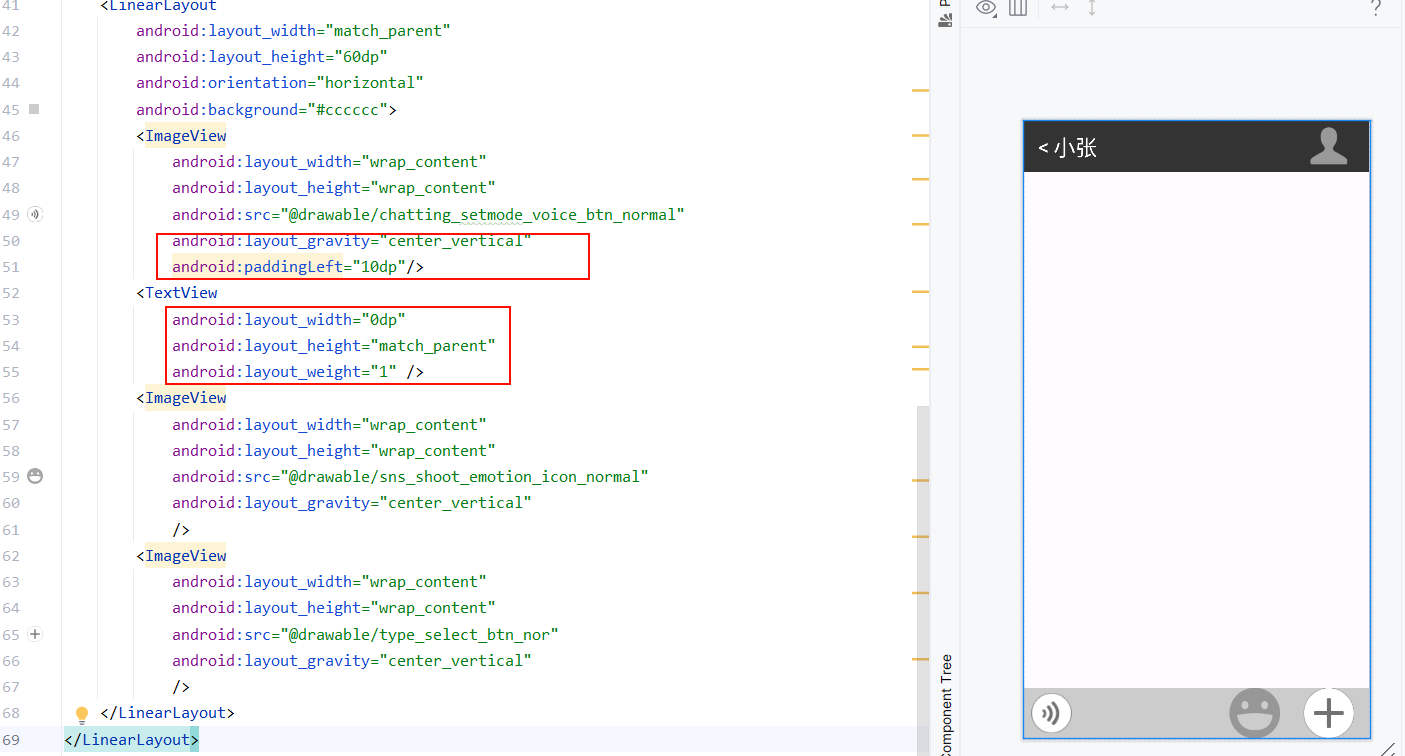
下方图片和文本视图布局
- 输入区域组成 :
- 三个ImageView分别显示功能图标
- 中间使用TextView模拟输入框(layout_weight="1")
- 布局技巧 :
- 通过权重分配实现两侧图标固定、中间输入框弹性填充
- 使用layout_gravity统一控制垂直居中
- 图标资源来自drawable目录(voice_btn、emotion_icon等)
- 全部代码
xml
<?xml version="1.0" encoding="utf-8"?>
<LinearLayout xmlns:android="http://schemas.android.com/apk/res/android"
    android:orientation="vertical"
    android:layout_width="match_parent"
    android:layout_height="match_parent">
    <LinearLayout
        android:layout_width="match_parent"
        android:layout_height="60dp"
        android:orientation="horizontal"
        android:background="#333333"
        android:paddingLeft="8dp">
        <TextView
            android:layout_width="wrap_content"
            android:layout_height="wrap_content"
            android:text="<"
            android:textColor="#ffffff"
            android:textSize="26sp"
            android:layout_gravity="center_vertical"
            android:paddingLeft="10dp"/>
        <TextView
            android:layout_width="0dp"
            android:layout_height="wrap_content"
            android:text="小张"
            android:textColor="#ffffff"
            android:textSize="26sp"
            android:layout_gravity="center_vertical"
            android:padding="5dp"
            android:layout_weight="1"/>
        <ImageView
            android:layout_width="wrap_content"
            android:layout_height="wrap_content"
            android:src="@drawable/menu_logout_icon"/>
    </LinearLayout>
    <LinearLayout
        android:layout_width="match_parent"
        android:layout_height="match_parent"
        android:orientation="horizontal"
        android:layout_weight="1">

    </LinearLayout>
    <LinearLayout
        android:layout_width="match_parent"
        android:layout_height="60dp"
        android:orientation="horizontal"
        android:background="#cccccc">
        <ImageView
            android:layout_width="wrap_content"
            android:layout_height="wrap_content"
            android:src="@drawable/chatting_setmode_voice_btn_normal"
            android:layout_gravity="center_vertical"
            android:paddingLeft="10dp"/>
        <TextView
            android:layout_width="0dp"
            android:layout_height="match_parent"
            android:layout_weight="1" />
        <ImageView
            android:layout_width="wrap_content"
            android:layout_height="wrap_content"
            android:src="@drawable/sns_shoot_emotion_icon_normal"
            android:layout_gravity="center_vertical"
            />
        <ImageView
            android:layout_width="wrap_content"
            android:layout_height="wrap_content"
            android:src="@drawable/type_select_btn_nor"
            android:layout_gravity="center_vertical"
            />
    </LinearLayout>
</LinearLayout>