!在这里插入图片描述(https://i-blog.csdnimg.cn/direct/a0438241c101458dae514f5114683cdf.png
这种结构能让你清晰地看到:两个子窗口类之间完全没有互相引用(解耦),所有的联络逻辑都写在主界面里。
1. SubWindowA.h (发送方)
定义一个信号,用来把字符串带出去。
cpp
#ifndef SUBWINDOWA_H
#define SUBWINDOWA_H

#include <QWidget>
#include <QLineEdit>
#include <QPushButton>
#include <QVBoxLayout>

class SubWindowA : public QWidget {
    Q_OBJECT
public:
    explicit SubWindowA(QWidget *parent = nullptr) : QWidget(parent) {
        setWindowTitle("子窗口 A (发送)");
        QVBoxLayout *layout = new QVBoxLayout(this);
        inputEdit = new QLineEdit(this);
        inputEdit->setPlaceholderText("输入传给 B 的内容...");
        QPushButton *btn = new QPushButton("传给 B", this);

        layout->addWidget(inputEdit);
        layout->addWidget(btn);

        // 点击按钮时发射信号
        connect(btn, &QPushButton::clicked, [=]() {
            emit dataReady(inputEdit->text());
        });
    }

signals:
    void dataReady(const QString &text); // 信号:数据准备好了

private:
    QLineEdit *inputEdit;
};

#endif
2. SubWindowB.h (接收方)
定义一个公开的函数(槽),用来接收字符串。
cpp
#ifndef SUBWINDOWB_H
#define SUBWINDOWB_H

#include <QWidget>
#include <QLabel>
#include <QVBoxLayout>

class SubWindowB : public QWidget {
    Q_OBJECT
public:
    explicit SubWindowB(QWidget *parent = nullptr) : QWidget(parent) {
        setWindowTitle("子窗口 B (接收)");
        QVBoxLayout *layout = new QVBoxLayout(this);
        displayLabel = new QLabel("这里将显示来自 A 的内容", this);
        layout->addWidget(displayLabel);
    }

public slots:
    // 槽函数:处理接收到的数据
    void receiveMessage(const QString &text) {
        displayLabel->setText("B 收到: " + text);
    }

private:
    QLabel *displayLabel;
};

#endif
3. MainWindow.h (中转站)
负责持有 A 和 B 的指针,并完成连线。
cpp
#ifndef MAINWINDOW_H
#define MAINWINDOW_H

#include <QWidget>
#include <QPushButton>
#include <QVBoxLayout>
#include "SubWindowA.h"
#include "SubWindowB.h"

class MainWindow : public QWidget {
    Q_OBJECT
public:
    MainWindow(QWidget *parent = nullptr);

private:
    SubWindowA *winA;
    SubWindowB *winB;
    QPushButton *btnOpen;
};

#endif
4. MainWindow.cpp (核心逻辑)
这是最关键的文件,A 与 B 的数据线就在这里焊接。
cpp
#include "MainWindow.h"

MainWindow::MainWindow(QWidget *parent) : QWidget(parent) {
    setWindowTitle("主界面 (控制中心)");
    resize(300, 200);
    QVBoxLayout *layout = new QVBoxLayout(this);
    btnOpen = new QPushButton("打开 A 和 B 窗口", this);
    layout->addWidget(btnOpen);

    // 1. 实例化两个平级的子窗口
    winA = new SubWindowA();
    winB = new SubWindowB();

    // 2. 关键:把 A 的信号 连到 B 的槽
    // 逻辑:A 喊一声 dataReady,B 就立刻执行 receiveMessage
    connect(winA, &SubWindowA::dataReady, winB, &SubWindowB::receiveMessage);

    // 点击主按钮显示两个窗口
    connect(btnOpen, &QPushButton::clicked, [=]() {
        winA->show();
        winB->show();
    });
}
5. main.cpp (启动程序)
cpp
#include <QApplication>
#include "MainWindow.h"

int main(int argc, char *argv[]) {
    QApplication a(argc, argv);
    MainWindow w;
    w.show();
    return a.exec();
}
6. project.pro (项目配置文件)
确保你的 .pro 文件里包含这一行,否则无法使用界面组件:
pro
QT += widgets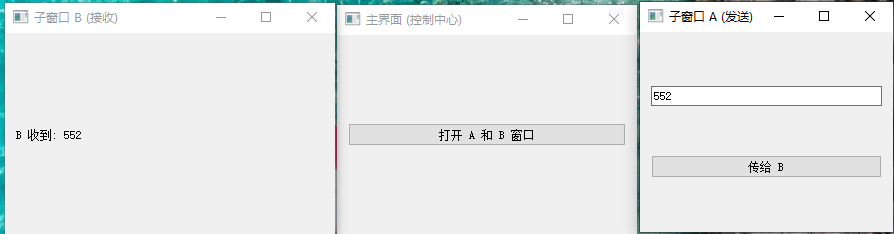
💡 验证流程:
- 构建并运行:点击主界面的"打开 A 和 B 窗口"。
- 操作 :在 子窗口 A 的输入框里随便写点什么。
- 点击:点击 A 窗口里的按钮。
- 结果 :你会看到 子窗口 B 里的文字实时更新了。
为什么说这是最强的架构?
通过主界面 MainWindow 进行 connect,实际上是把 A 和 B 的关系从"源码级别"降到了"配置级别"。
- 如果 A 需要把数据发给 10 个窗口 :你只需要在
MainWindow.cpp里写 10 行connect。 - 如果 A 以后不发给 B 了,要发给 C :你只需要改
MainWindow.cpp里的这一行连接,A 和 B 的源代码文件完全不需要动。