Flutter for OpenHarmony手势涂鸦画板开发详解
在本篇文章中,我们将深入探讨如何使用 Flutter 构建一个功能齐全的手势涂鸦画板应用。这个项目不仅展示了 Flutter
强大的绘图能力,还演示了如何实现撤销、清空、保存和橡皮擦等实用功能。
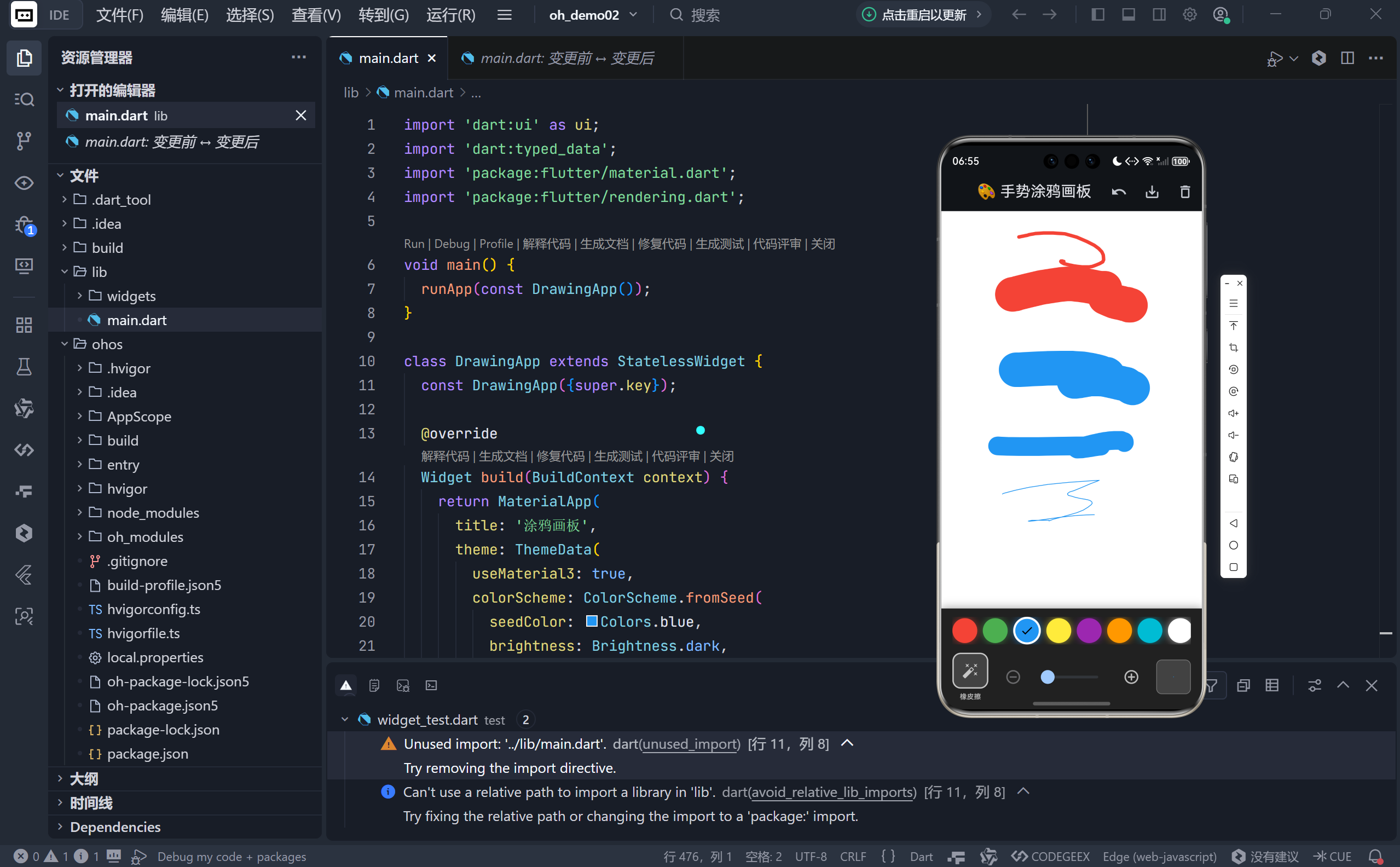
完整效果展示
一、项目概述
我们的目标是创建一个可以自由绘制的画板应用,用户可以通过手势在屏幕上绘画,并能选择不同的颜色、调整画笔的粗细,使用橡皮擦,以及撤销上一步操作或清空整个画布。此外,用户还可以将他们的作品保存为图片到本地相册。
二、核心组件解析
1. 主界面布局
主界面由顶部的 AppBar 和底部的工具栏组成。AppBar 包含了三个按钮:撤销、保存和清空,分别对应着撤销上一步、保存当前绘画结果以及清空整个画布的功能。而底部的工具栏则提供了颜色选择器、橡皮擦切换、画笔粗细调节等功能。
2. 绘制区域
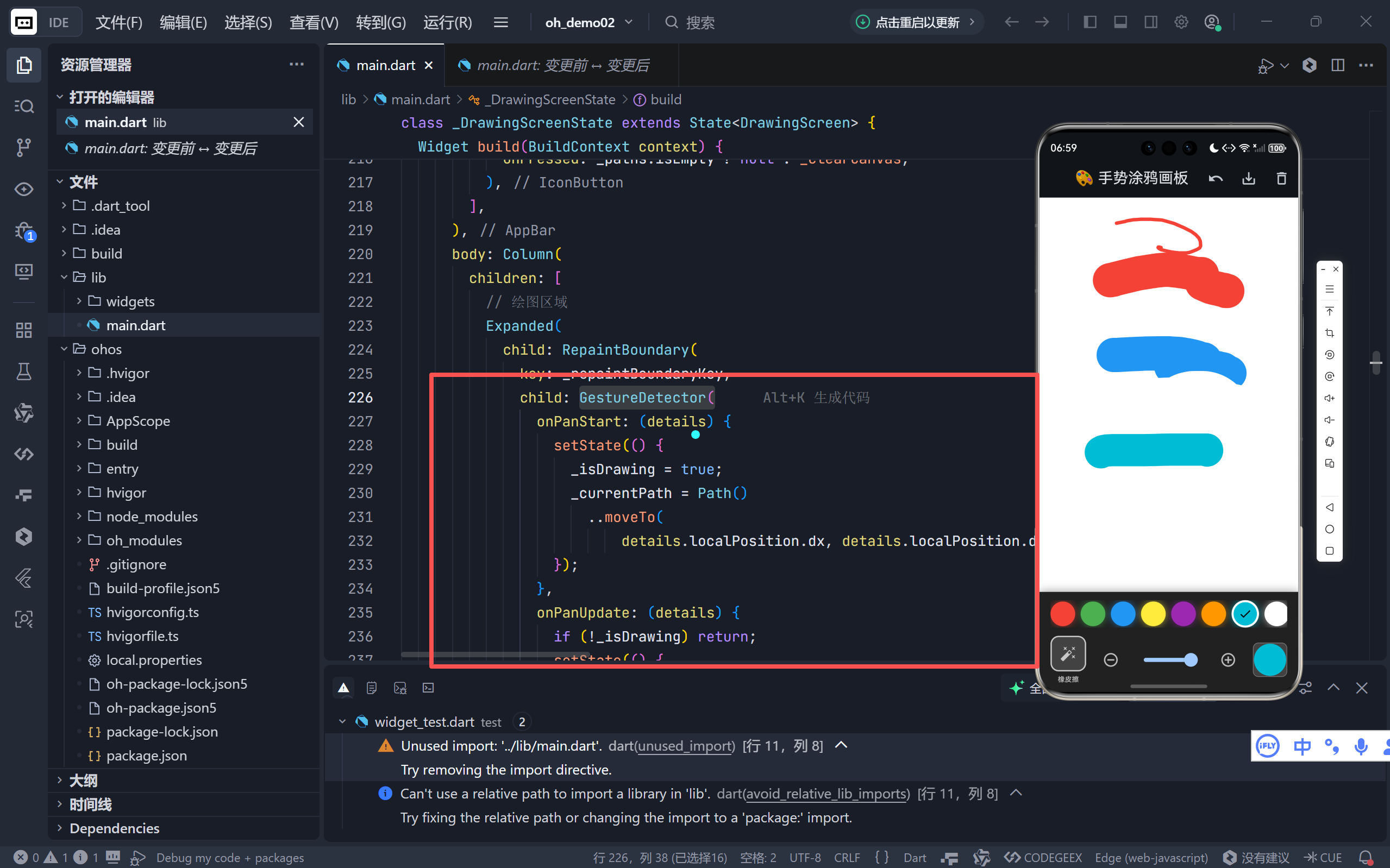
绘制区域是一个基于
CustomPaint的自定义组件,它通过监听用户的触摸事件(如onPanStart,
onPanUpdate,onPanEnd)来捕捉用户的绘图动作,并实时更新显示。每次绘制动作都会生成一个新的
PaintPath对象,该对象包含了路径信息及对应的画笔配置,这些对象被存储在一个列表_paths中,以便支持撤销功能。
dart
GestureDetector(
    onPanStart: (details) {
        // 开始绘制时初始化路径
    },
    onPanUpdate: (details) {
        // 更新路径数据
    },
    onPanEnd: (details) {
        // 结束绘制并保存路径
    },
    child: CustomPaint(...),
)
3. 工具栏设计
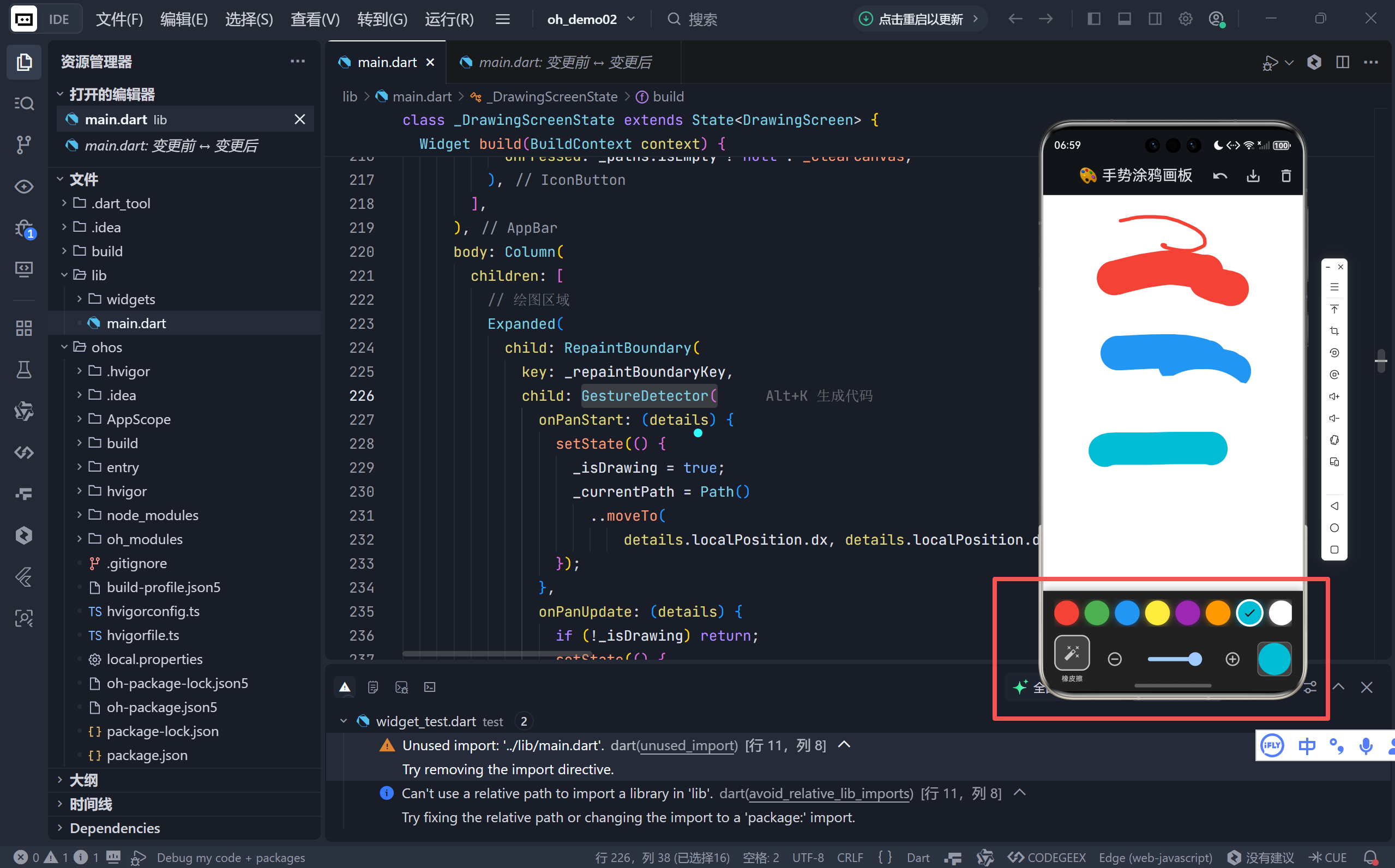
- 颜色选择器:允许用户从一组预设的颜色中选择一种作为当前画笔的颜色。
- 橡皮擦:当启用橡皮擦模式时,画笔颜色变为白色,且线条宽度增加以模拟橡皮擦的效果。
- 画笔粗细调节:用户可以通过滑动条动态调整画笔的粗细。
三、关键技术点
1. 撤销与重做
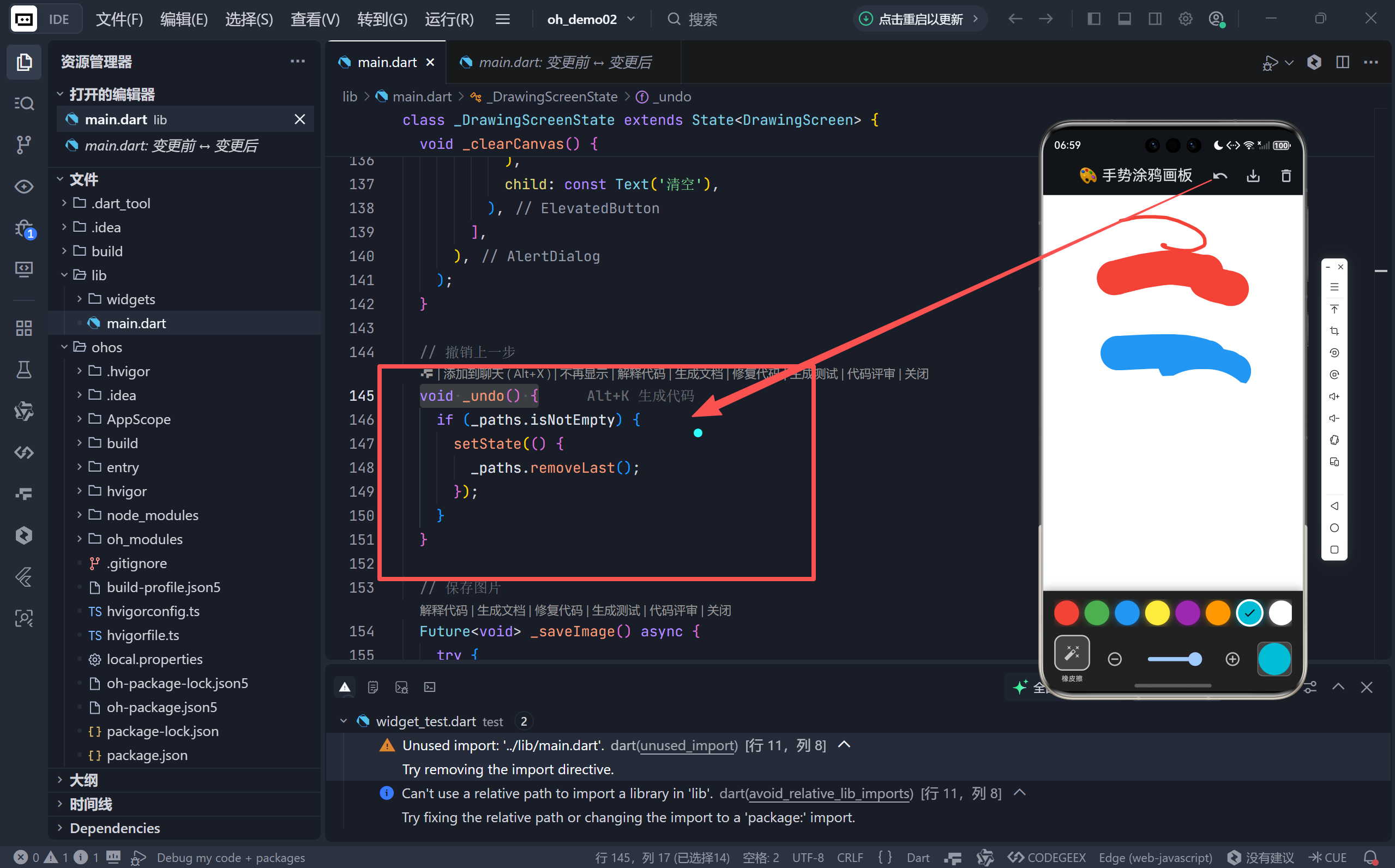
为了实现撤销功能,我们维护了一个包含所有绘制路径的列表
_paths。每当用户完成一次绘制动作,这条路径就会被添加到列表中。要撤销上一步操作,只需简单地移除列表中的最后一个元素即可。
dart
void _undo() {
    if (_paths.isNotEmpty) {
        setState(() {
            _paths.removeLast();
        });
    }
}
2. 图片保存
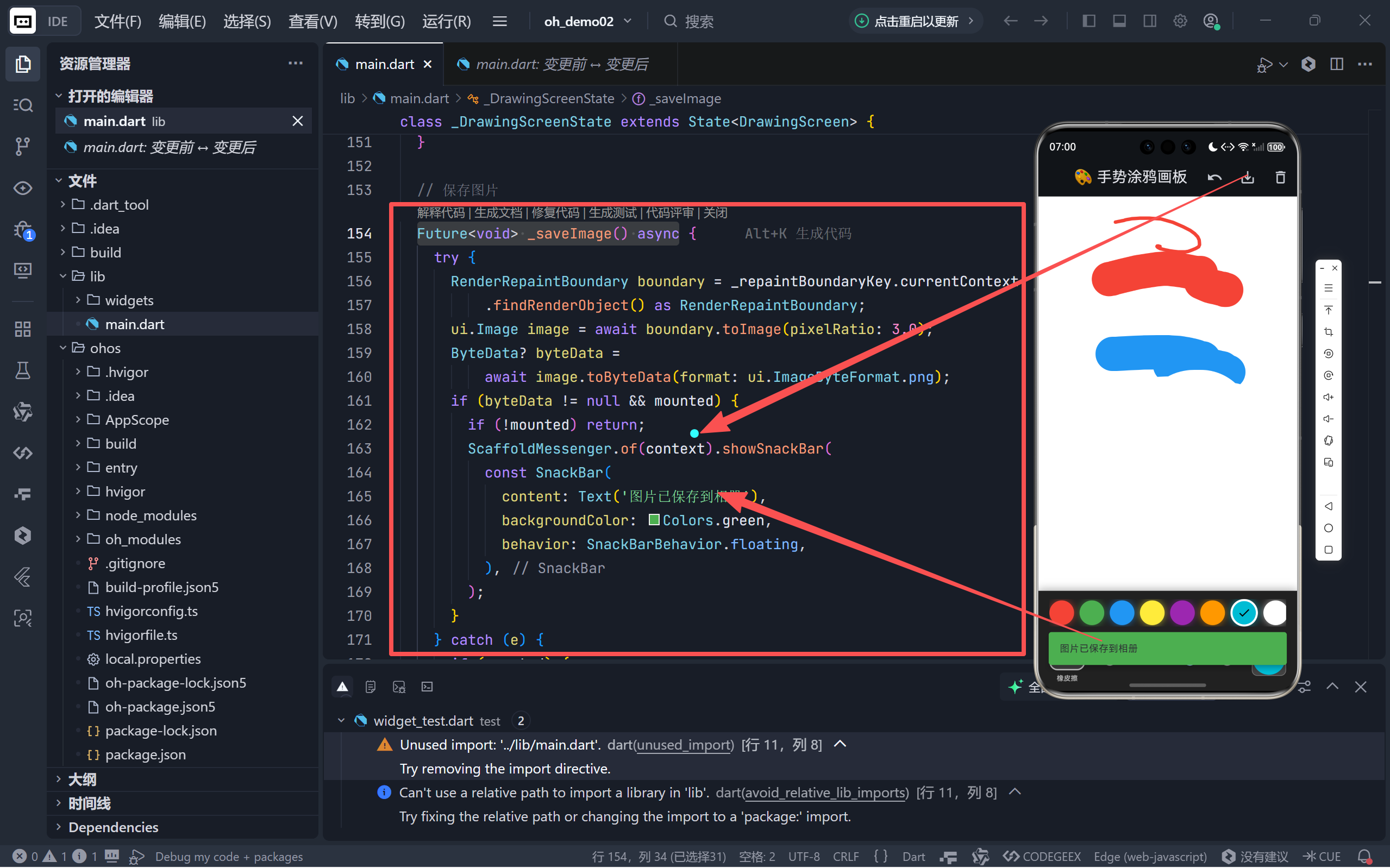
利用 RepaintBoundary 和 toImage 方法,我们可以轻松地将当前绘制的内容转换为图片格式并保存至本地相册。首先,我们需要给需要截图的部分分配一个全局键 _repaintBoundaryKey,然后调用 toImage 方法生成图像数据,最后通过 ByteData 将图像数据写入文件系统。
dart
Future<void> _saveImage() async {
    try {
        RenderRepaintBoundary boundary = _repaintBoundaryKey.currentContext!
            .findRenderObject() as RenderRepaintBoundary;
        ui.Image image = await boundary.toImage(pixelRatio: 3.0);
        ByteData? byteData =
            await image.toByteData(format: ui.ImageByteFormat.png);
        ...
    } catch (e) {
        print('保存失败: $e');
    }
}
3. 自定义绘制逻辑
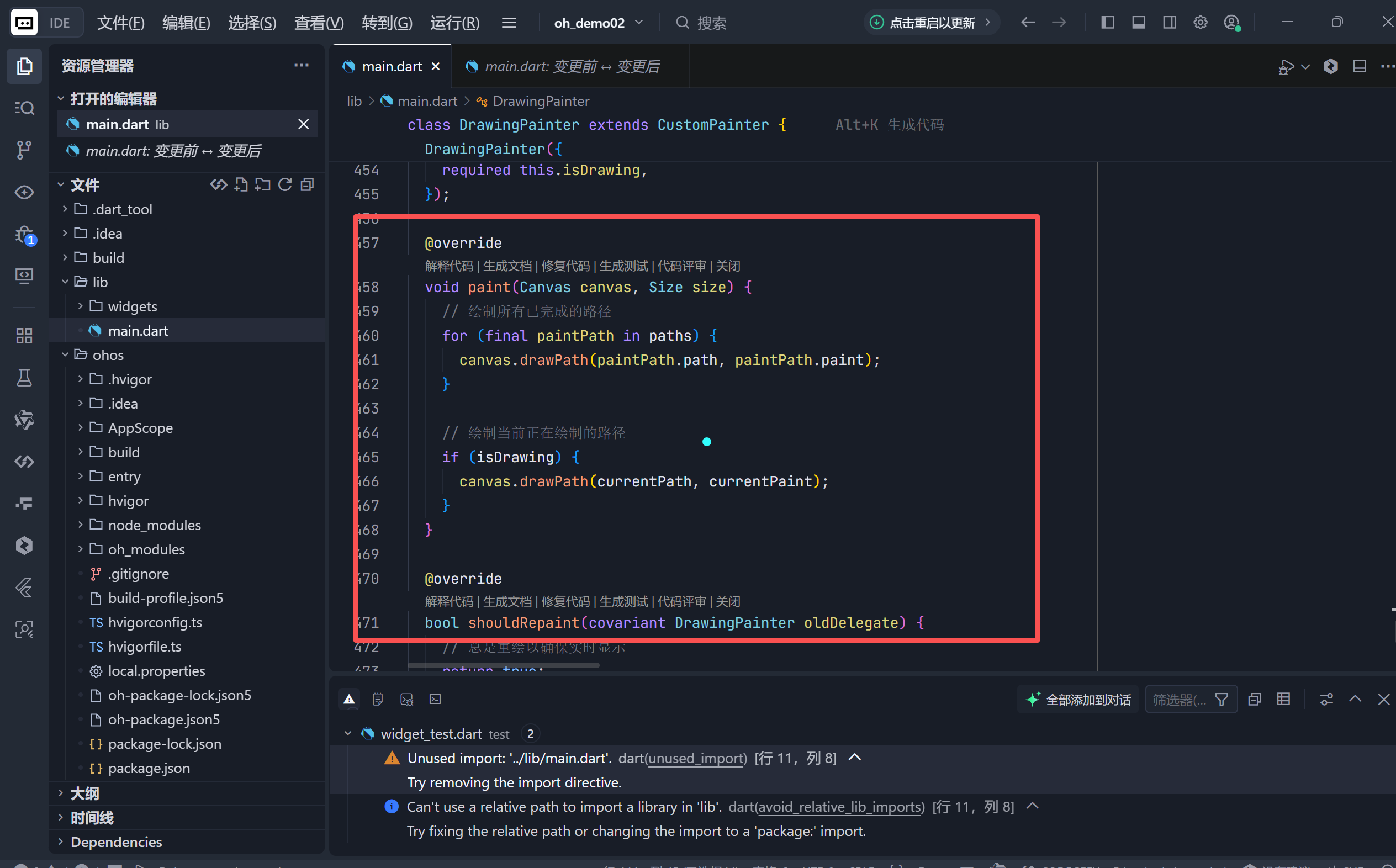
DrawingPainter 类实现了 CustomPainter 接口,负责具体的绘制工作。它的 paint 方法会遍历所有的绘制路径,并使用相应的画笔属性进行渲染。此外,它还处理了当前正在进行但尚未完成的路径的绘制。
dart
class DrawingPainter extends CustomPainter {
    @override
    void paint(Canvas canvas, Size size) {
        for (final paintPath in paths) {
            canvas.drawPath(paintPath.path, paintPath.paint);
        }
        if (isDrawing) {
            canvas.drawPath(currentPath, currentPaint);
        }
    }
    ...
}
四、总结
通过构建这个手势涂鸦画板应用,我们学习了如何在 Flutter 中运用手势识别、自定义绘图以及图像处理技术。这不仅增强了我们对 Flutter UI 编程的理解,也为开发更复杂的交互式应用程序打下了坚实的基础。无论你是初学者还是经验丰富的开发者,都可以从中获得宝贵的实践经验和灵感。
🌐 加入社区
欢迎加入 开源鸿蒙跨平台开发者社区 ,获取最新资源与技术支持:
👉 开源鸿蒙跨平台开发者社区
完整代码展示
bash
import 'dart:ui' as ui;
import 'dart:typed_data';
import 'package:flutter/material.dart';
import 'package:flutter/rendering.dart';

void main() {
  runApp(const DrawingApp());
}

class DrawingApp extends StatelessWidget {
  const DrawingApp({super.key});

  @override
  Widget build(BuildContext context) {
    return MaterialApp(
      title: '涂鸦画板',
      theme: ThemeData(
        useMaterial3: true,
        colorScheme: ColorScheme.fromSeed(
          seedColor: Colors.blue,
          brightness: Brightness.dark,
        ),
        scaffoldBackgroundColor: const Color(0xFF1E1E1E),
      ),
      home: const DrawingScreen(),
      debugShowCheckedModeBanner: false,
    );
  }
}

// 绘制路径的数据模型
class PaintPath {
  final Path path;
  final Paint paint;

  PaintPath({required this.path, required this.paint});
}

// 绘制屏幕状态
class DrawingScreen extends StatefulWidget {
  const DrawingScreen({super.key});

  @override
  State<DrawingScreen> createState() => _DrawingScreenState();
}

class _DrawingScreenState extends State<DrawingScreen> {
  // 存储所有的绘制路径
  final List<PaintPath> _paths = [];
  // 当前正在绘制的路径
  Path _currentPath = Path();
  // 当前画笔配置
  double _strokeWidth = 5;
  Color _currentColor = Colors.red;
  bool _isEraser = false;
  bool _isDrawing = false;

  // 预设颜色列表
  final List<Color> _colors = [
    Colors.red,
    Colors.green,
    Colors.blue,
    Colors.yellow,
    Colors.purple,
    Colors.orange,
    Colors.cyan,
    Colors.white,
  ];

  // 记录橡皮擦前的颜色
  Color _savedColor = Colors.red;
  double _savedStrokeWidth = 5;

  // 全局键用于截图
  final GlobalKey _repaintBoundaryKey = GlobalKey();

  // 切换颜色
  void _changeColor(Color color) {
    setState(() {
      _isEraser = false;
      _currentColor = color;
      _savedColor = color;
    });
  }

  // 切换橡皮擦
  void _toggleEraser() {
    setState(() {
      _isEraser = !_isEraser;
      if (_isEraser) {
        _savedColor = _currentColor;
        _savedStrokeWidth = _strokeWidth;
      } else {
        _currentColor = _savedColor;
        _strokeWidth = _savedStrokeWidth;
      }
    });
  }

  // 调整线条粗细
  void _adjustStrokeWidth(double delta) {
    setState(() {
      _strokeWidth = (_strokeWidth + delta).clamp(1, 50);
    });
  }

  // 清空画布
  void _clearCanvas() {
    showDialog(
      context: context,
      builder: (context) => AlertDialog(
        title: const Row(
          children: [
            Icon(Icons.warning_amber_rounded, color: Colors.orange),
            SizedBox(width: 8),
            Text('确认清空'),
          ],
        ),
        content: const Text('确定要清空画布吗?此操作无法撤销。'),
        actions: [
          TextButton(
            onPressed: () => Navigator.of(context).pop(),
            child: const Text('取消'),
          ),
          ElevatedButton(
            onPressed: () {
              Navigator.of(context).pop();
              setState(() {
                _paths.clear();
                _currentPath = Path();
              });
            },
            style: ElevatedButton.styleFrom(
              backgroundColor: Colors.red,
              foregroundColor: Colors.white,
            ),
            child: const Text('清空'),
          ),
        ],
      ),
    );
  }

  // 撤销上一步
  void _undo() {
    if (_paths.isNotEmpty) {
      setState(() {
        _paths.removeLast();
      });
    }
  }

  // 保存图片
  Future<void> _saveImage() async {
    try {
      RenderRepaintBoundary boundary = _repaintBoundaryKey.currentContext!
          .findRenderObject() as RenderRepaintBoundary;
      ui.Image image = await boundary.toImage(pixelRatio: 3.0);
      ByteData? byteData =
          await image.toByteData(format: ui.ImageByteFormat.png);
      if (byteData != null && mounted) {
        if (!mounted) return;
        ScaffoldMessenger.of(context).showSnackBar(
          const SnackBar(
            content: Text('图片已保存到相册'),
            backgroundColor: Colors.green,
            behavior: SnackBarBehavior.floating,
          ),
        );
      }
    } catch (e) {
      if (mounted) {
        ScaffoldMessenger.of(context).showSnackBar(
          SnackBar(
            content: Text('保存失败: $e'),
            backgroundColor: Colors.red,
            behavior: SnackBarBehavior.floating,
          ),
        );
      }
    }
  }

  // 获取当前画笔
  Paint _getCurrentPaint() {
    return Paint()
      ..color = _isEraser ? Colors.white : _currentColor
      ..strokeWidth = _isEraser ? _strokeWidth * 3 : _strokeWidth
      ..style = PaintingStyle.stroke
      ..strokeCap = StrokeCap.round
      ..strokeJoin = StrokeJoin.round
      ..isAntiAlias = true;
  }

  @override
  Widget build(BuildContext context) {
    return Scaffold(
      appBar: AppBar(
        title: const Text('🎨 手势涂鸦画板'),
        centerTitle: true,
        elevation: 0,
        actions: [
          IconButton(
            icon: const Icon(Icons.undo),
            tooltip: '撤销',
            onPressed: _paths.isEmpty ? null : _undo,
          ),
          IconButton(
            icon: const Icon(Icons.save_alt),
            tooltip: '保存',
            onPressed: _paths.isEmpty ? null : _saveImage,
          ),
          IconButton(
            icon: const Icon(Icons.delete_outline),
            tooltip: '清空',
            onPressed: _paths.isEmpty ? null : _clearCanvas,
          ),
        ],
      ),
      body: Column(
        children: [
          // 绘图区域
          Expanded(
            child: RepaintBoundary(
              key: _repaintBoundaryKey,
              child: GestureDetector(
                onPanStart: (details) {
                  setState(() {
                    _isDrawing = true;
                    _currentPath = Path()
                      ..moveTo(
                          details.localPosition.dx, details.localPosition.dy);
                  });
                },
                onPanUpdate: (details) {
                  if (!_isDrawing) return;
                  setState(() {
                    _currentPath.lineTo(
                        details.localPosition.dx, details.localPosition.dy);
                  });
                },
                onPanEnd: (details) {
                  if (_isDrawing) {
                    setState(() {
                      _isDrawing = false;
                      _paths.add(PaintPath(
                        path: Path.from(_currentPath),
                        paint: _getCurrentPaint(),
                      ));
                      _currentPath = Path();
                    });
                  }
                },
                child: Container(
                  color: Colors.white,
                  child: CustomPaint(
                    size: Size.infinite,
                    painter: DrawingPainter(
                      paths: _paths,
                      currentPath: _currentPath,
                      currentPaint: _getCurrentPaint(),
                      isDrawing: _isDrawing,
                    ),
                  ),
                ),
              ),
            ),
          ),

          // 工具栏
          _buildToolbar(),
        ],
      ),
    );
  }

  // 构建工具栏
  Widget _buildToolbar() {
    return Container(
      padding: const EdgeInsets.symmetric(horizontal: 16, vertical: 12),
      decoration: BoxDecoration(
        color: Colors.grey[900],
        boxShadow: [
          BoxShadow(
            color: Colors.black.withValues(alpha: 0.3),
            blurRadius: 10,
            offset: const Offset(0, -2),
          ),
        ],
      ),
      child: Column(
        children: [
          // 颜色选择器
          SingleChildScrollView(
            scrollDirection: Axis.horizontal,
            child: Row(
              children: _colors.map((color) {
                final isSelected = _currentColor == color && !_isEraser;
                return GestureDetector(
                  onTap: () => _changeColor(color),
                  child: Container(
                    width: isSelected ? 40 : 36,
                    height: isSelected ? 40 : 36,
                    margin: const EdgeInsets.only(right: 8),
                    decoration: BoxDecoration(
                      color: color,
                      shape: BoxShape.circle,
                      border: Border.all(
                        color: isSelected ? Colors.white : Colors.transparent,
                        width: 3,
                      ),
                      boxShadow: [
                        BoxShadow(
                          color: color.withValues(alpha: 0.5),
                          blurRadius: 8,
                          spreadRadius: 1,
                        ),
                      ],
                    ),
                    child: isSelected
                        ? const Icon(Icons.check, color: Colors.black, size: 20)
                        : null,
                  ),
                );
              }).toList(),
            ),
          ),
          const SizedBox(height: 12),

          // 控制按钮
          Row(
            children: [
              // 橡皮擦
              _buildToolButton(
                icon: _isEraser ? Icons.check_circle : Icons.auto_fix_high,
                label: _isEraser ? '画笔' : '橡皮擦',
                color: _isEraser ? Colors.orange : Colors.white70,
                onTap: _toggleEraser,
              ),

              const SizedBox(width: 12),

              // 线条粗细
              Expanded(
                child: Row(
                  children: [
                    IconButton(
                      icon: const Icon(Icons.remove_circle_outline),
                      onPressed: _strokeWidth <= 1
                          ? null
                          : () => _adjustStrokeWidth(-1),
                      color: Colors.white70,
                    ),
                    Expanded(
                      child: Slider(
                        value: _strokeWidth,
                        min: 1,
                        max: 50,
                        divisions: 49,
                        label: '${_strokeWidth.toInt()}px',
                        onChanged: (value) {
                          setState(() {
                            _strokeWidth = value;
                          });
                        },
                      ),
                    ),
                    IconButton(
                      icon: const Icon(Icons.add_circle_outline),
                      onPressed: _strokeWidth >= 50
                          ? null
                          : () => _adjustStrokeWidth(1),
                      color: Colors.white70,
                    ),
                  ],
                ),
              ),

              const SizedBox(width: 12),

              // 当前笔刷大小预览
              Container(
                width: 50,
                height: 50,
                decoration: BoxDecoration(
                  color: Colors.grey[800],
                  borderRadius: BorderRadius.circular(8),
                  border: Border.all(color: Colors.grey[600]!),
                ),
                child: Center(
                  child: Container(
                    width: _isEraser ? _strokeWidth * 3 : _strokeWidth,
                    height: _isEraser ? _strokeWidth * 3 : _strokeWidth,
                    decoration: BoxDecoration(
                      color: _isEraser ? Colors.white : _currentColor,
                      shape: BoxShape.circle,
                    ),
                  ),
                ),
              ),
            ],
          ),
        ],
      ),
    );
  }

  // 构建工具按钮
  Widget _buildToolButton({
    required IconData icon,
    required String label,
    required Color color,
    required VoidCallback onTap,
  }) {
    return GestureDetector(
      onTap: onTap,
      child: Column(
        children: [
          Container(
            padding: const EdgeInsets.all(12),
            decoration: BoxDecoration(
              color: Colors.grey[800],
              borderRadius: BorderRadius.circular(12),
              border: Border.all(color: color, width: 2),
            ),
            child: Icon(icon, color: color, size: 24),
          ),
          const SizedBox(height: 4),
          Text(
            label,
            style: TextStyle(
              color: color,
              fontSize: 10,
              fontWeight: FontWeight.w500,
            ),
          ),
        ],
      ),
    );
  }
}

// 自定义绘制类
class DrawingPainter extends CustomPainter {
  final List<PaintPath> paths;
  final Path currentPath;
  final Paint currentPaint;
  final bool isDrawing;

  DrawingPainter({
    required this.paths,
    required this.currentPath,
    required this.currentPaint,
    required this.isDrawing,
  });

  @override
  void paint(Canvas canvas, Size size) {
    // 绘制所有已完成的路径
    for (final paintPath in paths) {
      canvas.drawPath(paintPath.path, paintPath.paint);
    }

    // 绘制当前正在绘制的路径
    if (isDrawing) {
      canvas.drawPath(currentPath, currentPaint);
    }
  }

  @override
  bool shouldRepaint(covariant DrawingPainter oldDelegate) {
    // 总是重绘以确保实时显示
    return true;
  }
}