在开发 AI 对话应用时,"打字机效果"是提升用户体验的关键。它能让 AI 的回复看起来像是在实时思考和输入,而不是生硬地一次性抛出大段文字。
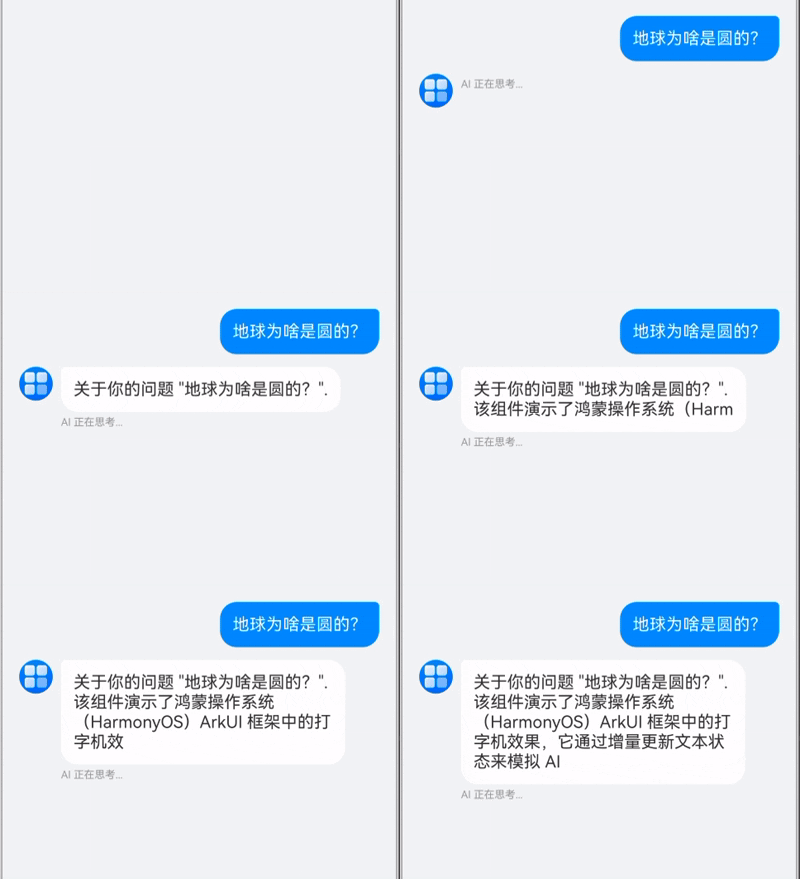
本文记录了在 HarmonyOS ArkUI 中实现该效果的全过程,详细介绍了前端模拟流式 和真实服务端流式两种场景的实现方案,并附带完整源码。
1. 核心原理
打字机效果的本质是增量更新 UI。无论是哪种场景,核心流程都是一样的:
- 创建消息占位符 :用户发送消息后,立即在列表末尾添加一条内容为空的 AI 消息(状态为
isTyping: true)。 - 增量追加内容:
-
- 模拟流式 :前端拿到完整文本后,使用定时器(
setInterval)将字符逐个追加到消息内容中。 - 真实流式:监听网络流(SSE/WebSocket),每收到一个 Chunk,就将其追加到消息内容中。
- 模拟流式 :前端拿到完整文本后,使用定时器(
- 局部刷新 :利用 ArkUI 的
@ObjectLink机制,确保只有最后一条消息的气泡在重绘,避免整个列表闪烁。
2. 遇到的坑与解决方案
坑点一:UI 闪烁问题
最初的实现中,我们在 ForEach 渲染列表时,使用了内容长度作为 Key:
TypeScript
//  错误示范:内容长度变化导致 Key 变化
ForEach(this.messages, (msg) => { ... }, (msg) => msg.id + msg.content.length)
现象 :每次追加字符,ArkUI 认为这是一个全新的组件,销毁并重建 ListItem,导致头像和气泡疯狂闪烁。
解决:使用稳定的唯一 ID 作为 Key。
TypeScript
// 正确做法:Key 保持不变,复用组件
ForEach(this.messages, (msg) => { ... }, (msg) => msg.id)
坑点二:文字不更新
修复了闪烁后,发现文字不再更新了。
原因 :ArkUI 的 @State 装饰器默认只监听数组本身的增删(push/pop)或对象引用的替换。当我们修改数组元素的属性(msg.content += 'a')时,@State 监听不到。
解决 :使用 @Observed 和 @ObjectLink 机制。
- 数据模型 :用
@Observed装饰ChatMessage类。 - 子组件 :将消息气泡封装为
MessageItemView,使用@ObjectLink接收消息对象。
3. 场景实现详解
场景 A:服务器一次性返回完整文本(前端模拟流式)
这是最常见的过渡方案。后端 API 是普通的 HTTP 接口,返回完整的 JSON 字符串。前端为了体验好,人为制造"打字感"。
实现逻辑:
- 发起 HTTP 请求,
await等待结果返回。 - 拿到完整字符串
fullText。 - 启动定时器,每隔 50ms 截取一个字符追加到当前消息中。
TypeScript
// 伪代码
const fullText = await api.askAI(question);
let index = 0;
setInterval(() => {
  if (index < fullText.length) {
    currentMsg.content += fullText[index]; // @ObjectLink 触发刷新
    index++;
  }
}, 50);
场景 B:服务器真实流式返回(SSE / WebSocket)
这是 AI 应用的最佳实践。服务器使用 Server-Sent Events (SSE) 或 WebSocket 实时推送 Token。
实现逻辑:
- 建立连接(如
http.createHttp()或 WebSocket)。 - 监听数据包事件(
on('data')或on('message'))。 - 每收到一个数据包,直接追加到当前消息。
TypeScript
// 伪代码
// 假设使用 SSE 或类似流式协议
stream.on('data', (chunk) => {
  // 直接追加 chunk,无需定时器
  currentMsg.content += chunk;
  scrollToBottom();
});
4. 完整代码
可以直接复制以下代码到 AIChatView.ets 文件中使用。
TypeScript
import { util } from '@kit.ArkTS';

// 1. 数据模型:必须使用 @Observed 装饰
@Observed
export class ChatMessage {
  id: string;
  content: string;
  role: 'user' | 'ai';
  isTyping: boolean;

  constructor(content: string, role: 'user' | 'ai', isTyping: boolean = false) {
    this.id = Date.now().toString() + Math.random().toString();
    this.content = content;
    this.role = role;
    this.isTyping = isTyping;
  }
}

// 2. 子组件:消息气泡,使用 @ObjectLink 监听属性变化
@Component
struct MessageItemView {
  @ObjectLink msg: ChatMessage;

  build() {
    Row() {
      if (this.msg.role === 'user') {
        Blank()
        Text(this.msg.content)
          .fontSize(16)
          .fontColor(Color.White)
          .backgroundColor('#007DFF')
          .padding(12)
          .borderRadius({ topLeft: 16, topRight: 4, bottomLeft: 16, bottomRight: 16 })
          .constraintSize({ maxWidth: '80%' })
      } else {
        Row({ space: 8 }) {
          Image($r('app.media.startIcon')) // 请替换为实际图标资源
            .width(32)
            .height(32)
            .borderRadius(16)
            .backgroundColor('#E0E0E0')

          Column() {
            if (this.msg.content.length > 0 || !this.msg.isTyping) {
              Text(this.msg.content)
                .fontSize(16)
                .fontColor('#333')
                .backgroundColor(Color.White)
                .padding(12)
                .borderRadius({ topLeft: 4, topRight: 16, bottomLeft: 16, bottomRight: 16 })
            }

            if (this.msg.isTyping) {
              Text('AI 正在思考...')
                .fontSize(10)
                .fontColor('#999')
                .margin({ top: 4 })
            }
          }
          .alignItems(HorizontalAlign.Start)
          .constraintSize({ maxWidth: '80%' })
        }
        .alignItems(VerticalAlign.Top)
        Blank()
      }
    }
    .width('100%')
  }
}

// 3. 主组件:聊天界面
@Component
export struct AIChatView {
  @State messages: ChatMessage[] = [];
  @State inputValue: string = '';
  private scroller: Scroller = new Scroller();
  private timer: number = -1;

  build() {
    Column() {
      // 聊天列表
      List({ scroller: this.scroller, space: 12 }) {
        ForEach(this.messages, (msg: ChatMessage) => {
          ListItem() {
            MessageItemView({ msg: msg })
          }
        }, (msg: ChatMessage) => msg.id) // 关键:使用唯一 ID
      }
      .layoutWeight(1)
      .width('100%')
      .padding(16)
      .alignListItem(ListItemAlign.Start)

      // 底部输入栏
      Row({ space: 12 }) {
        TextInput({ text: this.inputValue, placeholder: 'Ask AI something...' })
          .layoutWeight(1)
          .backgroundColor('#F5F5F5')
          .borderRadius(20)
          .onChange((value: string) => {
            this.inputValue = value;
          })
          .onSubmit(() => {
            this.sendMessage();
          })

        Button('发送')
          .type(ButtonType.Capsule)
          .backgroundColor('#007DFF')
          .onClick(() => {
            this.sendMessage();
          })
          .enabled(this.inputValue.trim().length > 0)
      }
      .width('100%')
      .padding(12)
      .backgroundColor(Color.White)
      .shadow({ radius: 4, color: '#1A000000', offsetY: -2 })
    }
    .width('100%')
    .height('100%')
    .backgroundColor('#F1F3F5')
  }

  // 模拟网络请求 (仅用于演示场景 A)
  mockNetworkRequest(query: string): Promise<string> {
    return new Promise((resolve) => {
      setTimeout(() => {
        resolve(`关于你的问题 "${query}". 该组件演示了鸿蒙操作系统(HarmonyOS)ArkUI 框架中的打字机效果,它通过增量更新文本状态来模拟 AI 流式响应。`);
      }, 1000);
    });
  }

  async sendMessage() {
    if (this.inputValue.trim() === '') return;

    // 1. 添加用户消息
    const userMsg = new ChatMessage(this.inputValue, 'user');
    this.messages.push(userMsg);
    const userQuery = this.inputValue;
    this.inputValue = '';
    this.scrollToBottom();

    // 2. 创建一个空的 AI 消息 (Loading 状态)
    const aiMsg = new ChatMessage('', 'ai', true);
    this.messages.push(aiMsg);

    // --- 分支:选择场景 A 或 B ---

    // 场景 A: 模拟流式 (获取完整文本 -> 前端切分)
    const serverResponse = await this.mockNetworkRequest(userQuery);
    this.startTypewriterEffect(serverResponse);

    // 场景 B: 真实流式 (监听网络事件 -> 调用 appendStreamContent)
    // 伪代码示例:
    // const stream = await api.stream(userQuery);
    // stream.on('data', (chunk) => this.appendStreamContent(chunk));
  }

  scrollToBottom() {
    setTimeout(() => {
      this.scroller.scrollEdge(Edge.Bottom);
    }, 100);
  }

  // [场景 A 实现] 前端定时器模拟打字机
  startTypewriterEffect(fullText: string) {
    let currentIndex = 0;
    if (this.timer !== -1) clearInterval(this.timer);

    this.timer = setInterval(() => {
      const lastMsgIndex = this.messages.length - 1;
      if (lastMsgIndex < 0) {
        clearInterval(this.timer);
        return;
      }

      if (currentIndex < fullText.length) {
        this.messages[lastMsgIndex].content += fullText[currentIndex];
        currentIndex++;
        this.scrollToBottom();
      } else {
        clearInterval(this.timer);
        this.timer = -1;
        this.messages[lastMsgIndex].isTyping = false;
      }
    }, 50);
  }

  // [场景 B 实现] 真实流式数据追加
  appendStreamContent(chunk: string) {
    const lastMsgIndex = this.messages.length - 1;
    if (lastMsgIndex >= 0 && this.messages[lastMsgIndex].role === 'ai') {
       this.messages[lastMsgIndex].content += chunk;
       this.scrollToBottom();
    }
  }
}