index.vue
---Camera.vue
---BottomList.vue
1.Camera.vue
javascript
<!-- 全屏摄像头预览 -->
<video ref="videoRef" autoplay playsinline></video>
//1.<video>标签是H5的原生视频播放器元素,用于显示摄像头实时预览画面
//2.ref="videoRef"是Vue3模版引用,创建一个对video元素的响应式引用,在<script setup>中可以通过videoRef.value访问DOM元素
//3.autoplay页面加载后立即开始播放视频
//4.playsinline内联播放 在iOS Safari中防止视频全屏播放
//user 和 environment是Web API中用于控制摄像头方向的枚举值。代表前置摄像头和后置摄像头。
javascript
// 打开摄像头
const startCamera = async () => {
  try {
    // 释放旧流,避免多个摄像头同时开启
    stopCamera();
    //获取摄像头
    stream = await navigator.mediaDevices.getUserMedia({
      video: {
        facingMode: 'environment', // 默认使用后置摄像头
        width: { ideal: 1440 * 2 },
        height: { ideal: 1920 * 2 },
        aspectRatio: 0.75,
      },
      audio: false,
    });
    if (videoRef.value) {
      videoRef.value.srcObject = stream;
      const onReady = () => {
        videoReady.value = true;
        videoRef.value?.removeEventListener('loadeddata', onReady);
      };
      videoRef.value.addEventListener('loadeddata', onReady);
      await videoRef.value.play().catch(() => {});
    }
  } catch (err) {
    console.error('无法访问摄像头:', err);
  }
};
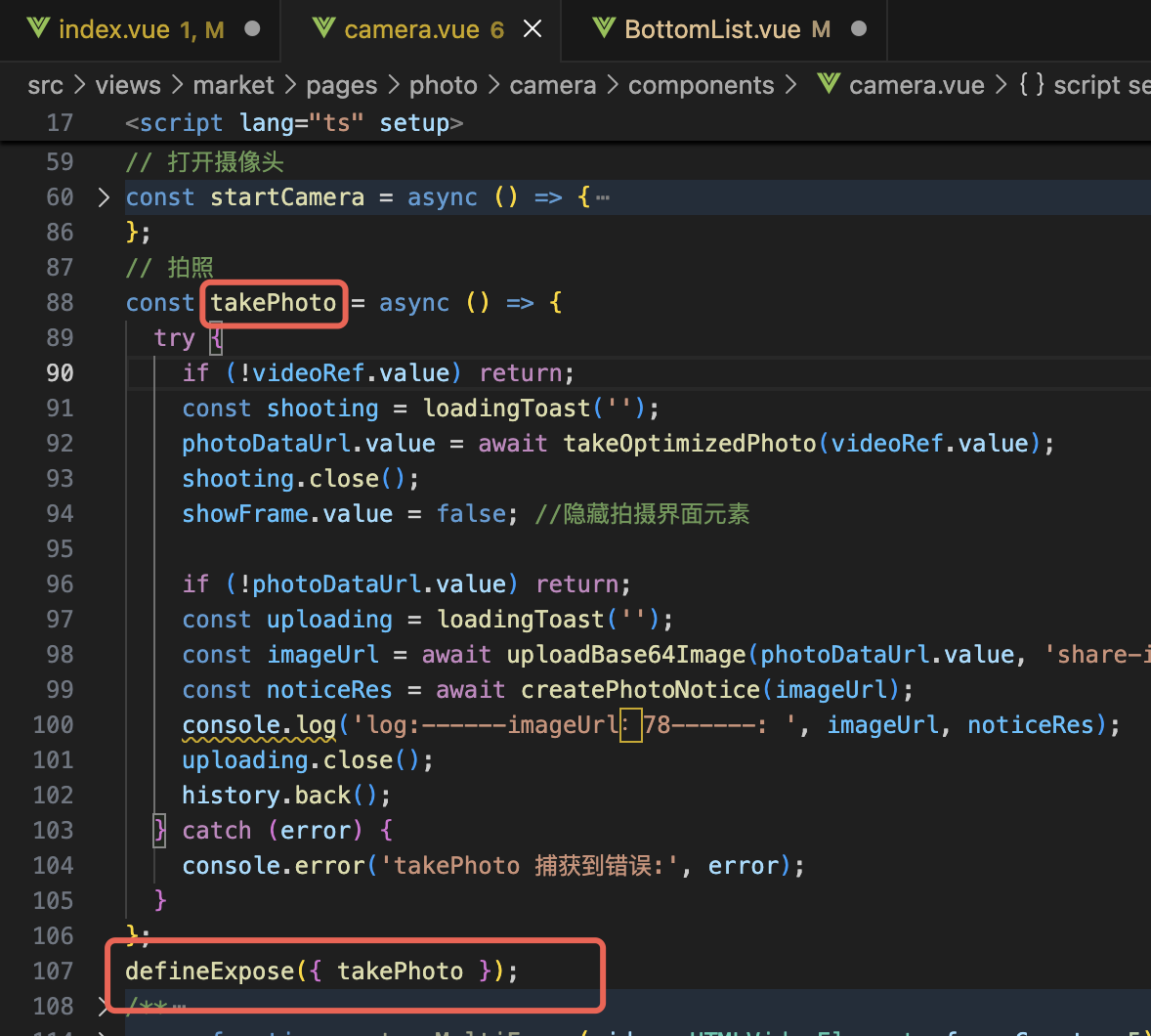
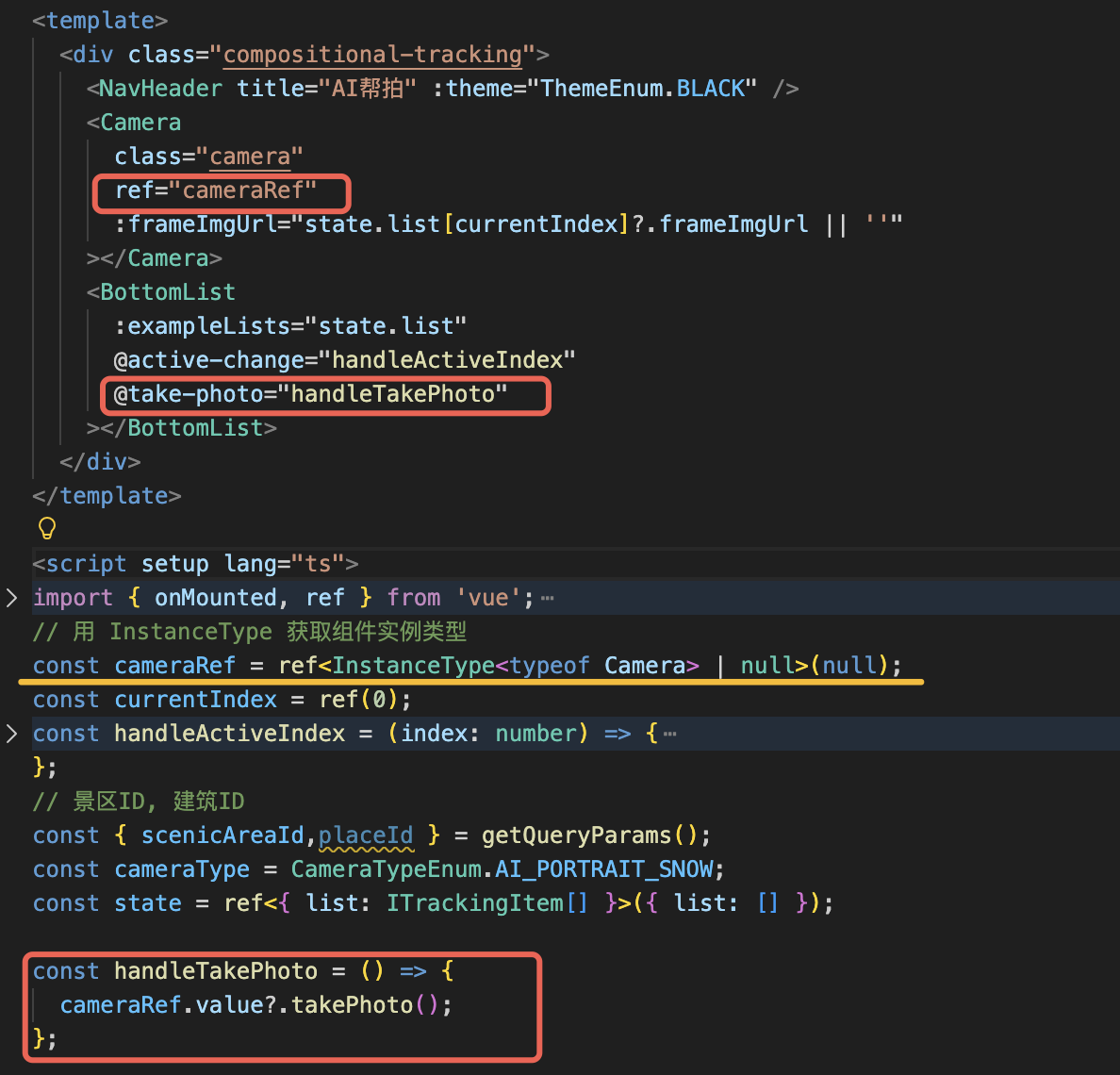
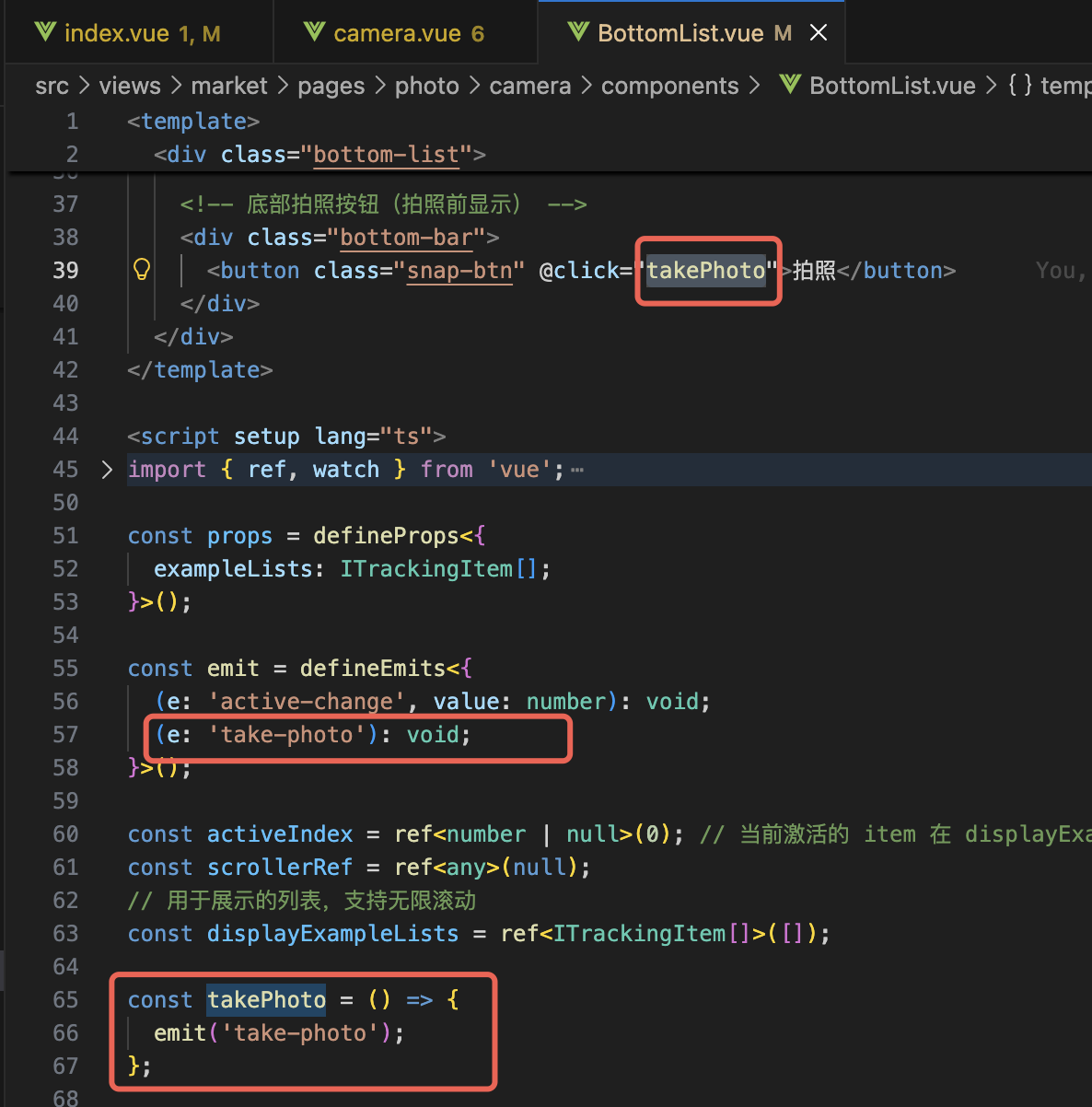
2.组件间通信
想把Camera.vue的方法传递给兄弟组件BottomList.vue
defineExopse. - -- -- - - - >. defineEmits
3.虚拟列表
横向无限滚动(提供十张图片) bottomList.vue
用的是DynamicScroller组件
javascript
<template>
  <div class="bottom-list">
    <!-- 小云朵图片 -->
    <img
      class="small-cloud"
      src="https://pic5.40017.cn/i/ori/1JVnFBgAIX6.png"
      alt="雪"
    />

    <!-- 动态横向滚动列表(虚拟滚动优化性能) -->
    <DynamicScroller
      ref="scrollerRef"
      class="scroller"
      :items="displayExampleLists"
      :min-item-size="165"
      :buffer="165 * 5"
      :prerender="10"
      :direction="'horizontal'"
      key-field="uniqueKey"
      @scroll="handleScroll"
    >
      <!-- 使用作用域插槽渲染每个项目 -->
      <template v-slot="{ item, index, active }">
        <DynamicScrollerItem :item="item" :active="active" :data-index="index">
          <div
            :class="['scroll-item', { 'scroll-item-active': isActive(index) }]"
            @click="handleItemClick(index)"
          >
            <img
              class="example-img"
              :src="imageAddCDNParams(item.showImgUrl, { width: 260, format: ImageFormatEnum.TYPE2 })"
              alt="示例图片"
            />
          </div>
        </DynamicScrollerItem>
      </template>
    </DynamicScroller>

    <!-- 底部拍照按钮(拍照前显示) -->
    <div class="bottom-bar">
      <button class="snap-btn" @click="takePhoto">拍照</button>
    </div>
  </div>
</template>

<script setup lang="ts">
import { nextTick, ref, watch } from 'vue';
import { ITrackingItem } from '@/views/market/api/photo/types';
import { DynamicScroller, DynamicScrollerItem } from 'vue-virtual-scroller';
import 'vue-virtual-scroller/dist/vue-virtual-scroller.css';
import { imageAddCDNParams, ImageFormatEnum } from '@/utils/format';
import { getQueryParams } from '@/utils';

const props = defineProps<{
  exampleLists: ITrackingItem[];
}>();

const emit = defineEmits<{
  (e: 'active-change', value: number): void;
  (e: 'take-photo'): void;
}>();
// 景区ID, 建筑ID
const { placeId } = getQueryParams();
const id = Number(placeId) || null;
const activeIndex = ref<number | null>(0); // 当前激活的 item 在 displayExampleLists 中的实际索引
const scrollerRef = ref<any>(null);
// 用于展示的列表,支持无限滚动
const displayExampleLists = ref<ITrackingItem[]>([]);

const takePhoto = () => {
  emit('take-photo');
};

// 初始化展示列表,为每个 item 添加唯一标识
const initDisplayList = () => {
  if (props.exampleLists.length === 0) {
    displayExampleLists.value = [];
    activeIndex.value = 0;
    return;
  }

  // 为每个 item 添加唯一 key,格式:index_showImgUrl
  const listWithKey = props.exampleLists.map((item, index) => ({
    ...item,
    uniqueKey: `${index}_${item.showImgUrl}`,
  }));

  displayExampleLists.value = listWithKey;
  appendToList();
  if (id !== null) {
    const targetIndex = props.exampleLists.findIndex(item => item.id === id);
    if (targetIndex !== -1) {
      activeIndex.value = targetIndex;
      // 立即触发 active-change 事件,加载对应的模板
      emit('active-change', targetIndex);
      // 增加延迟,确保虚拟滚动列表已渲染
      setTimeout(() => {
        handleItemClick(targetIndex, true);
      }, 100); // 增加100ms延迟确保DOM渲染完成
    } else {
      // 如果没找到匹配的 id,默认选中第一个
      activeIndex.value = 0;
      emit('active-change', 0);
    }
  } else {
    // 如果没有 placeId 参数,默认选中第一个
    activeIndex.value = 0;
    emit('active-change', 0);
  }
};

/** 精确定位到指定 item */
const scrollToItem = (index: number, isInitial = false) => {
  if (!scrollerRef.value?.$el) return;
  const isClickActiveLeft = index < (activeIndex.value || 0);

  const scrollerEl = scrollerRef.value.$el;
  const activeTargetItem = scrollerEl.querySelector(`[data-index="${activeIndex.value || 0}"]`);
  const isOutVirtualList = !activeTargetItem;
  activeIndex.value = index;
  const targetItem = scrollerEl.querySelector(`[data-index="${index}"]`);

  if (targetItem) {
    const itemRect = targetItem.getBoundingClientRect();
    const itemLeft = itemRect.left + scrollerEl.scrollLeft;

    if (isInitial) {
      const targetScrollLeft = Math.max(0, itemLeft);
      scrollerEl.scrollTo({
        left: targetScrollLeft,
        behavior: 'smooth',
      });
    } else {
      // 计算让 item 居中的 scrollLeft,使用激活状态的宽度
      const targetScrollLeft = scrollerEl.scrollLeft + itemRect.left - (isClickActiveLeft || isOutVirtualList ? 0 : 44);
      scrollerEl.scrollTo({
        left: targetScrollLeft,
        behavior: 'smooth',
      });
    }
  } else {
    // 备选方案:估算滚动位置
    const estimatedScrollLeft = index * 173;
    scrollerEl.scrollTo({
      left: estimatedScrollLeft,
      behavior: 'auto',
    });
  }
};

// 追加数据到展示列表(实现无限滚动效果)
const appendToList = () => {
  if (props.exampleLists.length === 0) return;

  const currentLength = displayExampleLists.value.length;
  const newItems = props.exampleLists.map((item, index) => ({
    ...item,
    uniqueKey: `${currentLength + index}_${item.showImgUrl}`,
  }));

  displayExampleLists.value = [...displayExampleLists.value, ...newItems];
};

// 判断是否是激活状态(只判断当前选中的那个 item)
const isActive = (index: number): boolean => {
  return activeIndex.value === index;
};

const handleScroll = () => {
  // 处理滚动事件,检测是否接近最右边
  const SCROLL_THRESHOLD = 500; // 距离最右边多少像素时触发追加
  if (!scrollerRef.value || props.exampleLists.length === 0) return;

  // 获取实际的滚动容器DOM元素
  const scrollerEl = (scrollerRef.value as any).$el as HTMLElement;
  if (!scrollerEl) return;
  // 解构获取滚动相关的关键属性
  const { scrollLeft, scrollWidth, clientWidth } = scrollerEl;
  // 计算当前滚动位置距离最右侧的距离
  const scrollRight = scrollWidth - scrollLeft - clientWidth;

  if (scrollRight < SCROLL_THRESHOLD) {
    appendToList();
  }
};

// 处理 item 点击:设置选中状态、放大并滚动到最左边
const handleItemClick = async (index: number, isInitial = false) => {
  const originalIndex = index % props.exampleLists.length;

  await nextTick();

  scrollToItem(index, isInitial);

  if (!isInitial) {
    // 用户点击逻辑
    setTimeout(() => {
      emit('active-change', originalIndex);
    }, 300);
  }
};

// 监听 props.exampleLists 变化,重新初始化展示列表
watch(
  () => props.exampleLists,
  () => {
    initDisplayList();
  },
  { immediate: true },
);
</script>

<style scoped lang="less">
.bottom-list {
  position: relative;
  max-width: 100%;
  background: linear-gradient(180deg, #222222 0%, #6b006c 100%);
}
.small-cloud {
  position: absolute;
  right: 0;
  top: -20px;
  width: 388px;
  height: auto;
}
.scroller {
  height: 326px;
  margin-top: -88px;
  padding-left: 16px;
  overflow-y: hidden;
  /* 隐藏滚动条 */
  scrollbar-width: none; /* Firefox */
  -ms-overflow-style: none; /* IE 和 Edge */
  /* 移动端优化  */
  -webkit-overflow-scrolling: touch; /* iOS 动量滚动 */
  overscroll-behavior-x: contain; /* 防止滚动传播 */
  .scroll-item {
    width: 157px;
    height: 209px;
    border-radius: 16px;
    margin-right: 16px;
    background-color: #e4d5d3;
    overflow: hidden;
    transition: all 0.3s ease-in-out;
    .example-img {
      width: 100%;
      height: 100%;
      object-fit: cover;
    }
  }
  .scroll-item-active {
    width: 245px;
    height: 326px;
    border: 2px solid transparent;
    background:
      linear-gradient(#e4d5d3, #e4d5d3) padding-box,
      linear-gradient(151.45deg, #fd5aff 2.88%, #7c47ee 101.59%) border-box;
  }
  :deep(.vue-recycle-scroller__item-wrapper) {
    display: flex;
    align-items: flex-end;
    overflow: visible;
    .vue-recycle-scroller__item-view {
      height: auto;
      top: auto;
      bottom: 0;
    }
  }
}

.bottom-bar {
  position: relative;
  display: flex;
  justify-content: center;
  margin-top: 34px;
  padding-bottom: calc(32px + constant(safe-area-inset-bottom));
  padding-bottom: calc(32px + env(safe-area-inset-bottom));
  z-index: 100;
  .snap-btn {
    width: 106px;
    height: 106px;
    font-size: 0;
    background: url('https://pic5.40017.cn/i/ori/1JWL6ixCw3C.png') center/cover;
  }
}
</style>
4.注意点
1.css : pointer-events: none;/* 不响应鼠标事件,穿透到下层元素 */
2.后端先给接口定义 跟拍的框是一个png后端返回
3.这个是属于在app中接入这个h5,所以在拍完照之后需要通过接口上传cdn,让市场部那边拿到拍的图片,在他们那边展示,所以需要关闭webview回到市场部那边。
/** 关闭当前H5页面 */
export const nativeWebClose = () => {if (!isTAPP()) return;
_multi_bridge.invoke('_tc_bridge_web.close', {
param: {
test: 'test',
},
callback: function() {
// console.log('log:------data:41------: ', data);
}
});
};
这段代码是用于与原生移动端应用(可能是通过 WebView 加载的 H5 页面)进行桥接通信的 JavaScript 函数。