'''
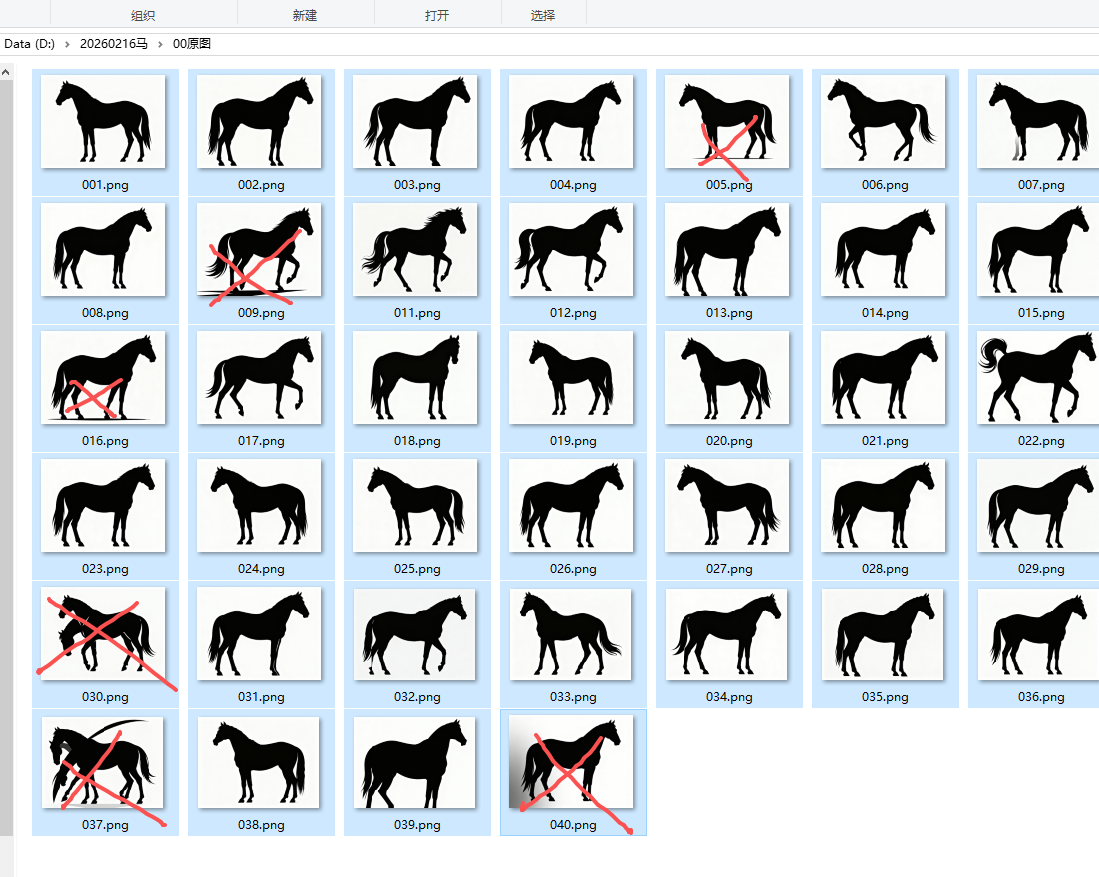
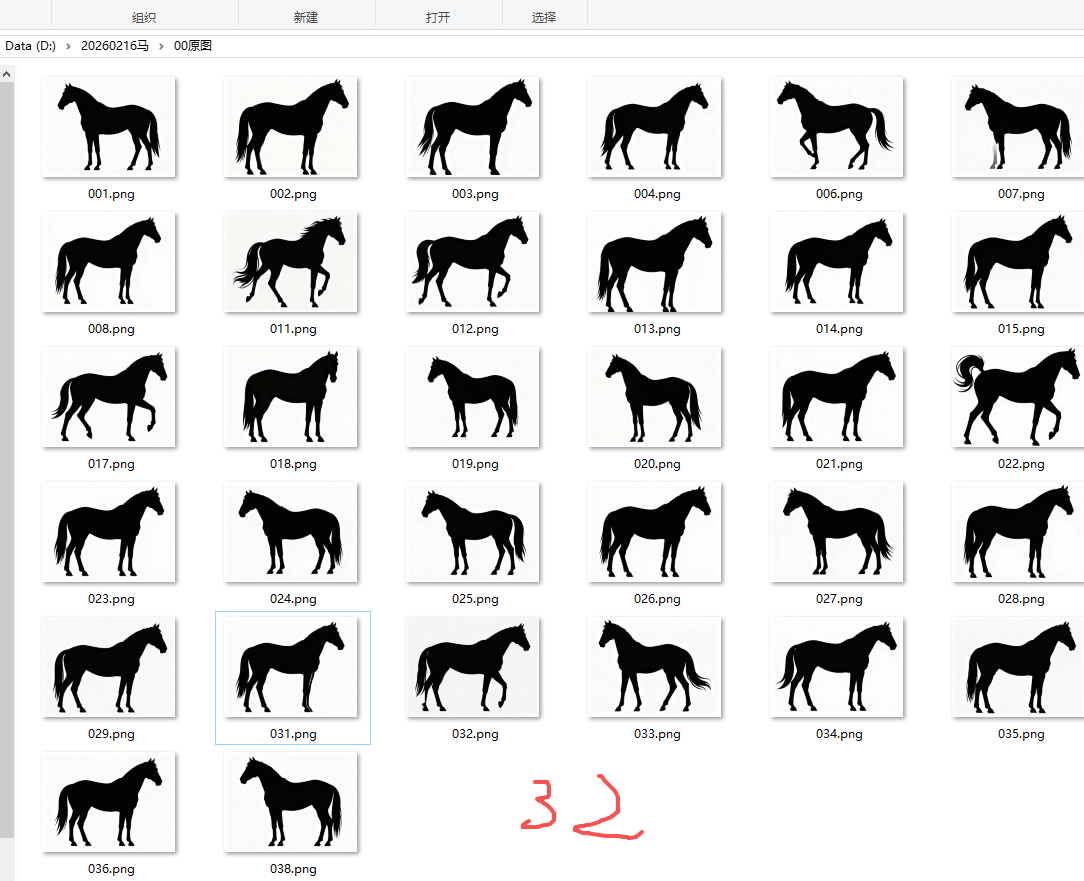
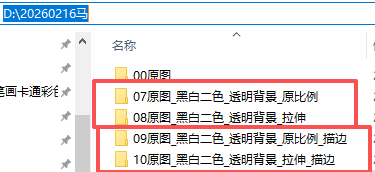
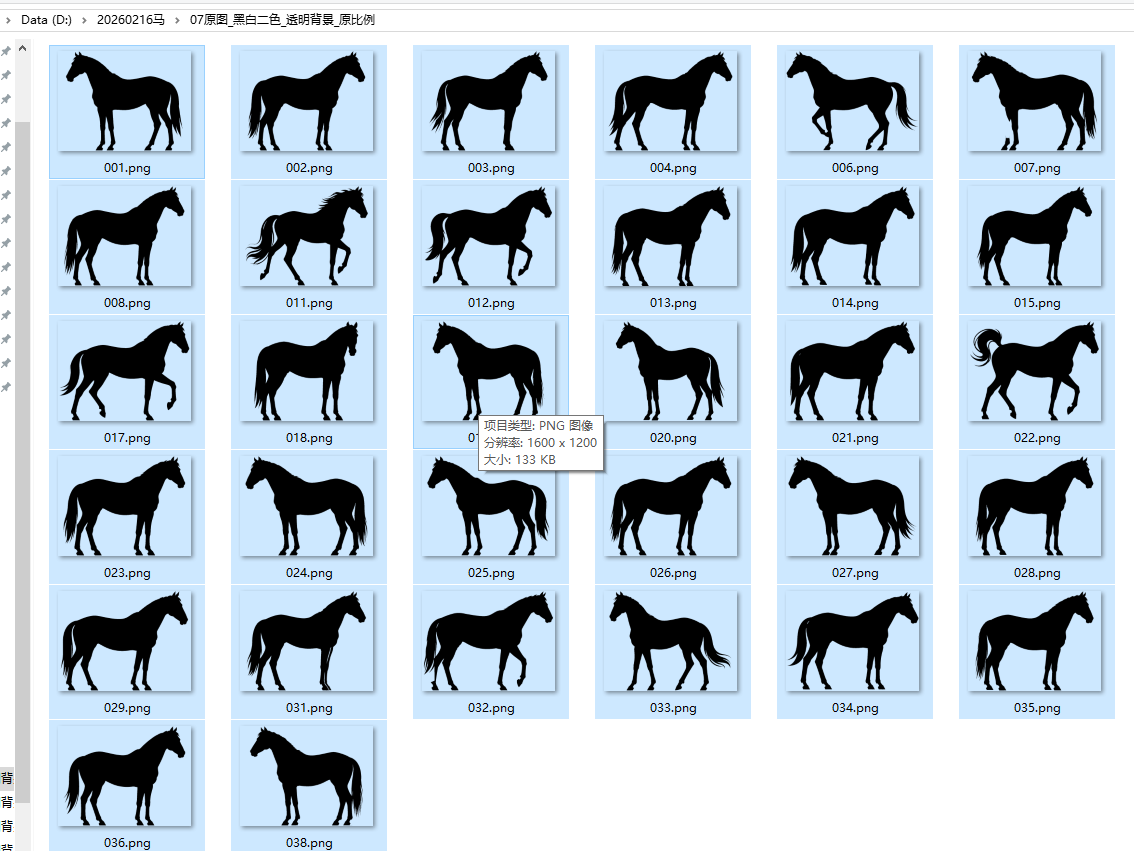
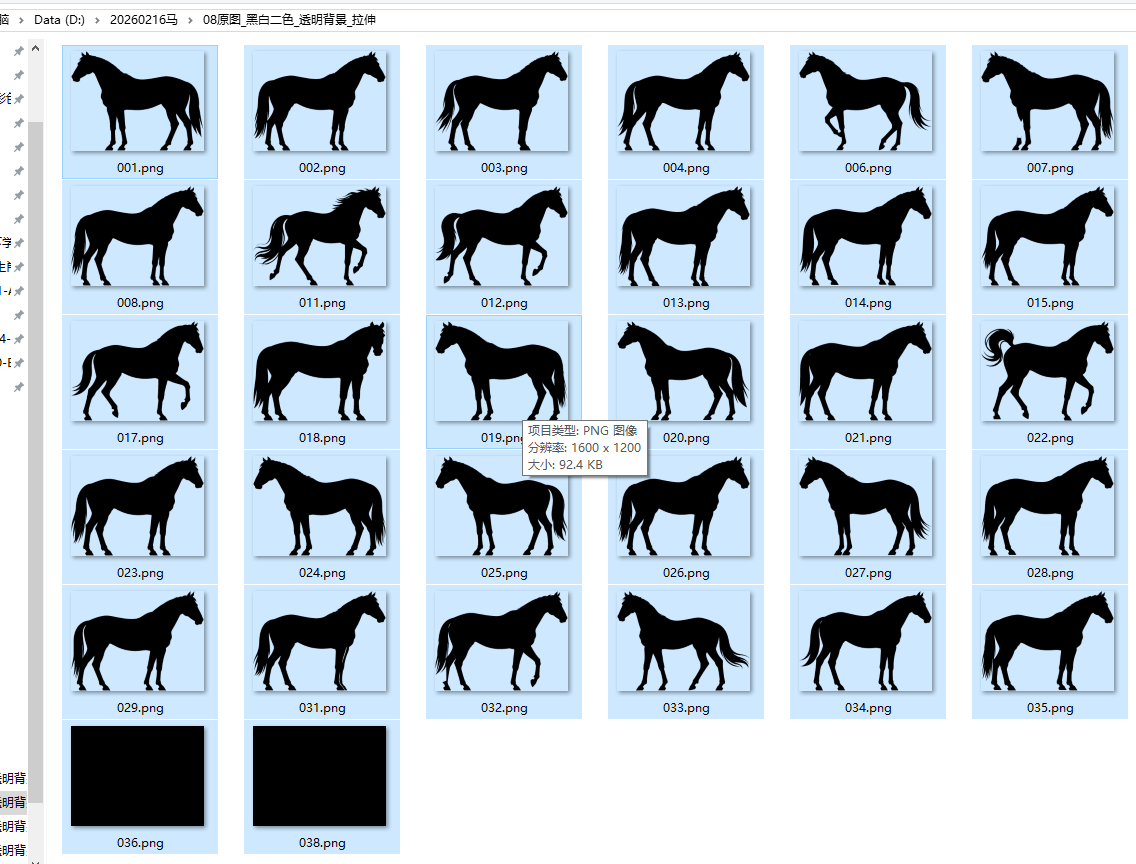
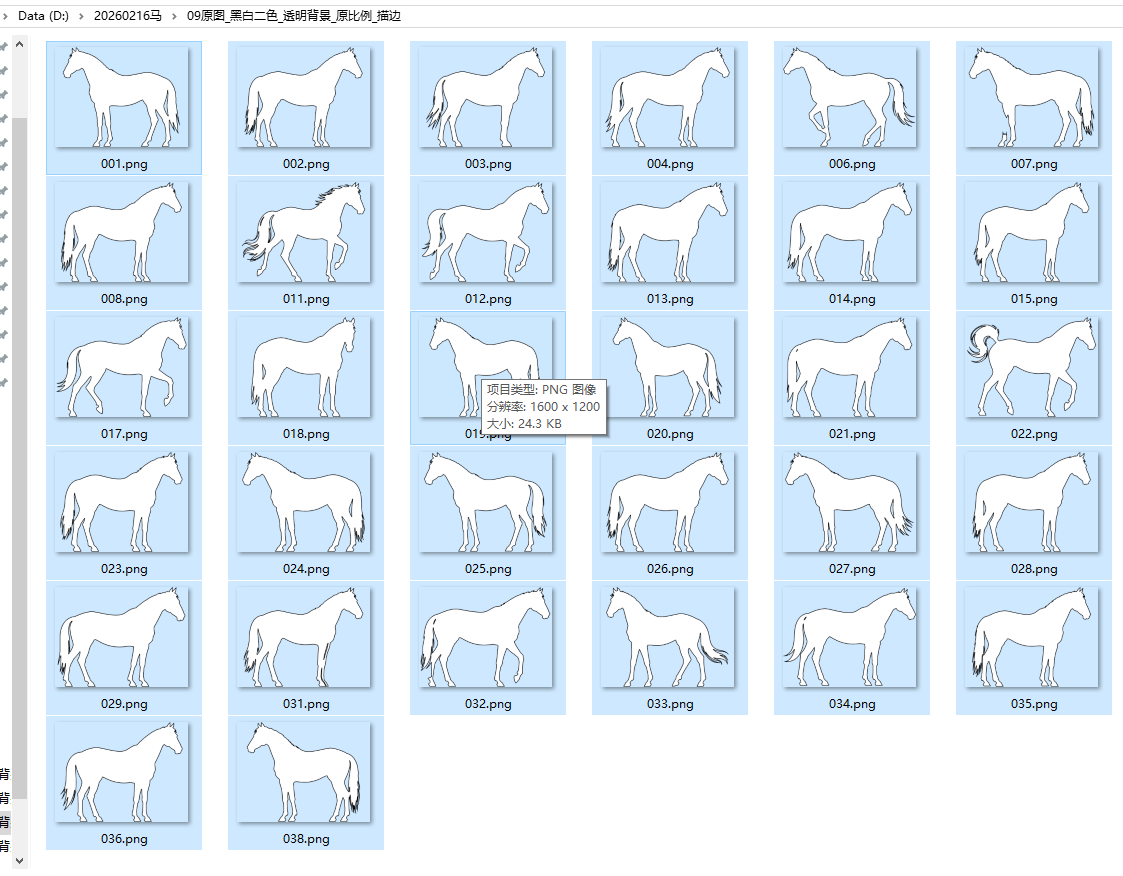
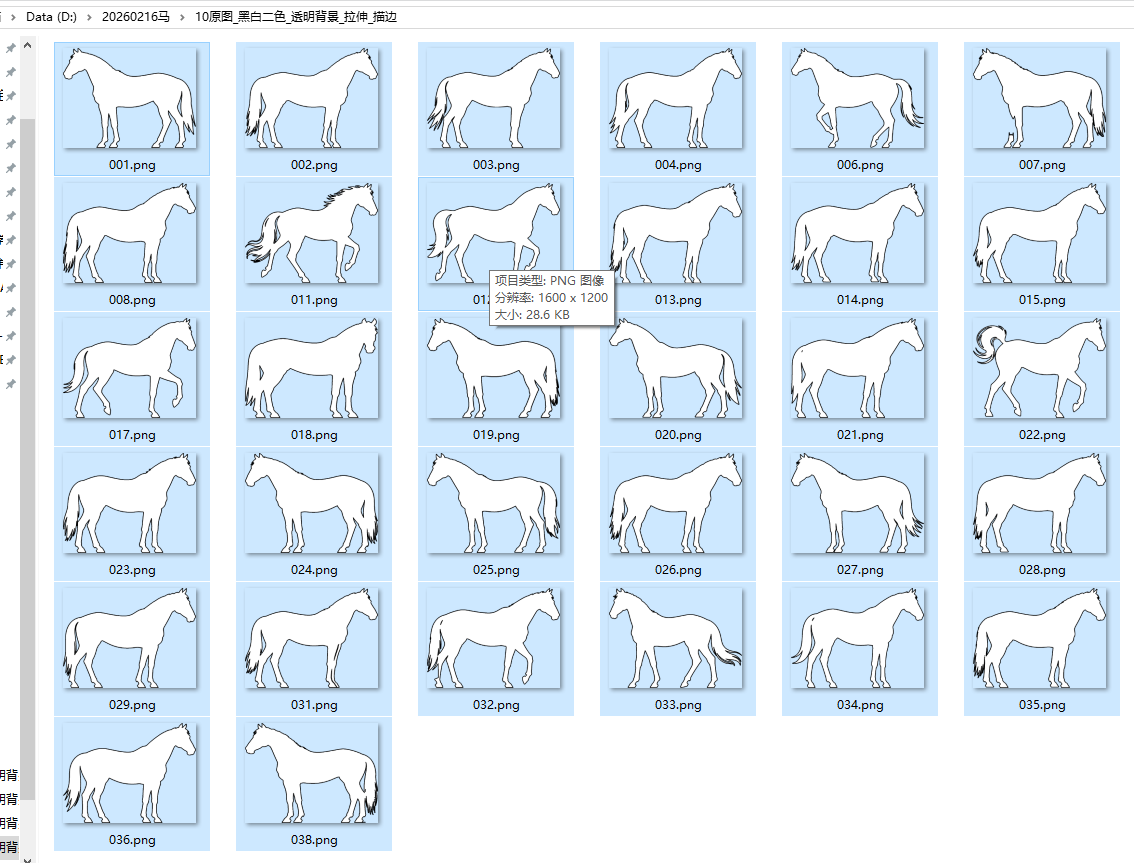
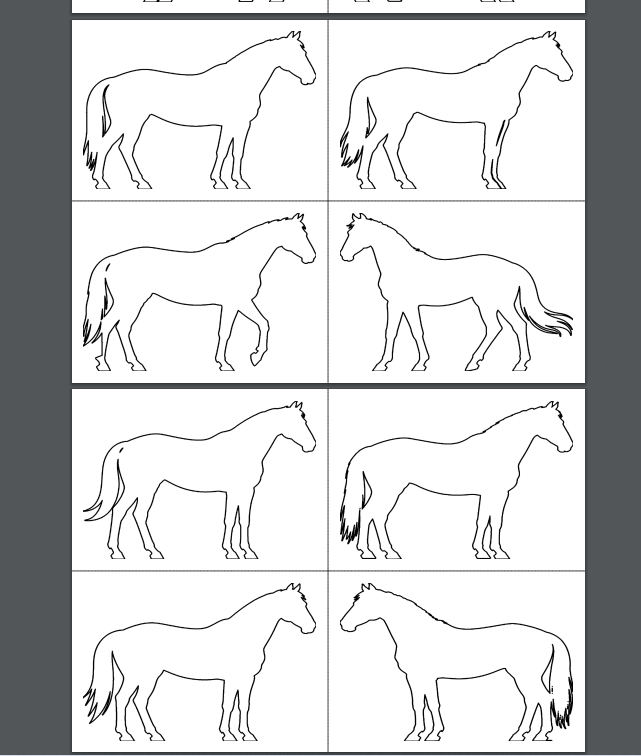
对"切边原图"操作,制作白色斑点狗------黑白化+背景透明+切边+统一大小+只要黑色描边,黑色转白色
图边距0
豆包,阿夏
20250216
'''

import os
from PIL import Image, ImageDraw, ImageFilter
import numpy as np

def convert_to_pure_bw(image_path, output_path, threshold=128):
    """
    将图片转为纯黑白两色(黑色0,0,0和白色255,255,255)

    参数:
    image_path: 输入图片路径
    output_path: 输出图片路径
    threshold: 二值化阈值
    """
    try:
        img = Image.open(image_path)
        img = img.convert('L')  # 转为灰度图

        # 二值化处理
        binary_img = img.point(lambda x: 0 if x < threshold else 255, '1')
        binary_img = binary_img.convert('RGB')  # 转回RGB模式

        # 保存黑白图片
        binary_img.save(output_path)
        print(f"黑白图生成: {os.path.basename(image_path)}")
        return output_path

    except Exception as e:
        print(f"处理图片 {image_path} 时出错: {str(e)}")
        return None

def crop_transparent_edges(image, margin=0):
    """
    裁剪掉图片的透明边缘,并保留指定的间距

    参数:
    image: PIL Image对象(RGBA模式)
    margin: 要保留的间距(磅/像素)

    返回:
    裁剪后的PIL Image对象
    """
    # 转换为numpy数组
    data = np.array(image)

    # 获取alpha通道
    alpha = data[:, :, 3]

    # 找到非透明像素的位置
    non_transparent = np.where(alpha > 0)

    if len(non_transparent[0]) == 0:
        # 如果全是透明像素,返回原图
        return image

    # 获取非透明区域的边界
    top = np.min(non_transparent[0])
    bottom = np.max(non_transparent[0])
    left = np.min(non_transparent[1])
    right = np.max(non_transparent[1])

    # 添加间距
    top = max(0, top - margin)
    bottom = min(image.height - 1, bottom + margin)
    left = max(0, left - margin)
    right = min(image.width - 1, right + margin)

    # 裁剪图片
    cropped_image = image.crop((left, top, right + 1, bottom + 1))

    return cropped_image

def make_background_transparent(bw_image_path, output_path, tolerance=30, margin=0):
    """
    将黑白图片的白色背景变为透明并裁剪透明边缘

    参数:
    bw_image_path: 黑白图片路径
    output_path: 输出图片路径
    tolerance: 颜色容差,控制背景识别的灵敏度
    margin: 裁剪后保留的间距(磅/像素)
    """
    # 打开黑白图片并转换为RGBA模式
    with Image.open(bw_image_path) as img:
        # 转换为RGBA模式
        img = img.convert('RGBA')

        # 获取图片数据
        data = np.array(img)

        # 创建白色背景掩码:判断像素是否为白色(在容差范围内)
        white_mask = (
            (data[:, :, 0] >= 255 - tolerance) &
            (data[:, :, 1] >= 255 - tolerance) &
            (data[:, :, 2] >= 255 - tolerance)
        )

        # 将白色背景像素的alpha通道设为0(透明)
        data[white_mask, 3] = 0

        # 转换回Image
        result = Image.fromarray(data)

        # 裁剪透明边缘并保留间距
        cropped_result = crop_transparent_edges(result, margin)

        # 保存结果
        cropped_result.save(output_path, 'PNG')

def add_black_outline_and_invert(image_path, output_path, outline_width=5):
    """
    给图片添加黑色描边并将黑色部分填充为白色

    参数:
    image_path: 输入图片路径
    output_path: 输出图片路径
    outline_width: 描边宽度(磅/像素)
    """
    with Image.open(image_path) as img:
        # 确保是RGBA模式
        if img.mode != 'RGBA':
            img = img.convert('RGBA')

        # 创建新图像用于绘制结果
        result_img = Image.new('RGBA', img.size, (255, 255, 255, 0))
        draw = ImageDraw.Draw(result_img)

        # 获取原图数据
        img_data = np.array(img)

        # 找到黑色像素(RGB值接近0)且不透明的像素
        # 先获取alpha通道
        alpha_channel = img_data[:, :, 3]

        # 找到黑色区域(R,G,B都小于30,且不透明)
        black_mask = (
            (img_data[:, :, 0] <= 30) &
            (img_data[:, :, 1] <= 30) &
            (img_data[:, :, 2] <= 30) &
            (alpha_channel > 0)
        )

        # 将黑色区域转换为白色(在新图像中)
        # 获取黑色区域的坐标
        black_coords = np.where(black_mask)

        # 在新图像中绘制白色区域(原来的黑色部分)
        for y, x in zip(black_coords[0], black_coords[1]):
            result_img.putpixel((x, y), (255, 255, 255, 255))

        # 创建边缘检测图像
        # 创建一个二值图像:黑色区域为1,其他为0
        binary = np.zeros((img.height, img.width), dtype=np.uint8)
        binary[black_mask] = 255

        # 转换为PIL图像
        binary_img = Image.fromarray(binary)

        # 使用边缘检测找到轮廓
        # 膨胀操作来找到边缘
        from PIL import ImageFilter

        # 先进行边缘检测
        edges = binary_img.filter(ImageFilter.FIND_EDGES)
        edges_data = np.array(edges)

        # 找到边缘像素
        edge_pixels = np.where(edges_data > 0)

        # 在结果图像上绘制黑色轮廓
        # 使用画圆的方式绘制轮廓,确保宽度可控
        for y, x in zip(edge_pixels[0], edge_pixels[1]):
            # 计算圆的边界
            left = x - outline_width // 2
            top = y - outline_width // 2
            right = left + outline_width
            bottom = top + outline_width

            # 绘制圆形描边点
            draw.ellipse([left, top, right, bottom], fill=(0, 0, 0, 255))

        # 保存结果
        result_img.save(output_path, 'PNG')

def resize_to_uniform_size(image_path, output_path, target_size=(200, 200)):
    """
    将图片调整为统一大小,保持宽高比,在空白处填充透明

    参数:
    image_path: 输入图片路径
    output_path: 输出图片路径
    target_size: 目标尺寸 (宽, 高)
    """
    with Image.open(image_path) as img:
        if img.mode != 'RGBA':
            img = img.convert('RGBA')

        # 创建新的透明背景图片
        new_img = Image.new('RGBA', target_size, (255, 255, 255, 0))

        # 计算缩放比例,保持宽高比
        img_ratio = img.width / img.height
        target_ratio = target_size[0] / target_size[1]

        if img_ratio > target_ratio:
            # 图片较宽,按宽度缩放
            new_width = target_size[0]
            new_height = int(target_size[0] / img_ratio)
        else:
            # 图片较高,按高度缩放
            new_height = target_size[1]
            new_width = int(target_size[1] * img_ratio)

        # 缩放图片
        resized_img = img.resize((new_width, new_height), Image.Resampling.LANCZOS)

        # 计算居中位置
        x = (target_size[0] - new_width) // 2
        y = (target_size[1] - new_height) // 2

        # 将缩放后的图片粘贴到新图片上
        new_img.paste(resized_img, (x, y), resized_img)

        # 保存结果
        new_img.save(output_path, 'PNG')

def resize_to_exact_size(image_path, output_path, target_size=(200, 200)):
    """
    将图片拉伸到精确的目标尺寸

    参数:
    image_path: 输入图片路径
    output_path: 输出图片路径
    target_size: 目标尺寸 (宽, 高)
    """
    with Image.open(image_path) as img:
        if img.mode != 'RGBA':
            img = img.convert('RGBA')

        # 直接拉伸到目标尺寸
        resized_img = img.resize(target_size, Image.Resampling.LANCZOS)

        # 保存结果
        resized_img.save(output_path, 'PNG')

def process_single_image_keep_ratio(image_path, output_path, outline_output_path,
                                  bw_threshold=128, transparency_tolerance=30,
                                  margin=0, target_size=(200, 200), outline_width=5):
    """
    处理单张图片:黑白化 → 透明化 → 保持比例统一尺寸 → 描边和颜色反转

    参数:
    image_path: 输入图片路径
    output_path: 输出图片路径(描边前)
    outline_output_path: 描边后的输出图片路径
    bw_threshold: 黑白化阈值
    transparency_tolerance: 透明化容差
    margin: 裁剪边距
    target_size: 目标尺寸
    outline_width: 描边宽度
    """
    try:
        # 步骤1: 转为黑白图片(临时文件)
        temp_bw_path = output_path.replace('.png', '_bw_temp.png')
        bw_path = convert_to_pure_bw(image_path, temp_bw_path, bw_threshold)

        if not bw_path:
            return False

        # 步骤2: 背景透明化(临时文件)
        temp_transparent_path = output_path.replace('.png', '_trans_temp.png')
        make_background_transparent(bw_path, temp_transparent_path, transparency_tolerance, margin)

        # 步骤3: 保持比例统一尺寸
        resize_to_uniform_size(temp_transparent_path, output_path, target_size)

        # 步骤4: 添加黑色描边并将黑色部分变为白色
        add_black_outline_and_invert(output_path, outline_output_path, outline_width)

        # 清理临时文件
        if os.path.exists(temp_bw_path):
            os.remove(temp_bw_path)
        if os.path.exists(temp_transparent_path):
            os.remove(temp_transparent_path)

        return True

    except Exception as e:
        print(f"处理图片 {image_path} 时出错: {str(e)}")
        # 清理临时文件
        for temp_path in ['temp_bw_path', 'temp_transparent_path']:
            if temp_path in locals() and os.path.exists(locals()[temp_path]):
                os.remove(locals()[temp_path])
        return False

def process_single_image_stretch(image_path, output_path, outline_output_path,
                               bw_threshold=128, transparency_tolerance=30,
                               margin=0, target_size=(200, 200), outline_width=5):
    """
    处理单张图片:黑白化 → 透明化 → 精确拉伸到目标尺寸 → 描边和颜色反转

    参数:
    image_path: 输入图片路径
    output_path: 输出图片路径(描边前)
    outline_output_path: 描边后的输出图片路径
    bw_threshold: 黑白化阈值
    transparency_tolerance: 透明化容差
    margin: 裁剪边距
    target_size: 目标尺寸
    outline_width: 描边宽度
    """
    try:
        # 步骤1: 转为黑白图片(临时文件)
        temp_bw_path = output_path.replace('.png', '_bw_temp.png')
        bw_path = convert_to_pure_bw(image_path, temp_bw_path, bw_threshold)

        if not bw_path:
            return False

        # 步骤2: 背景透明化(临时文件)
        temp_transparent_path = output_path.replace('.png', '_trans_temp.png')
        make_background_transparent(bw_path, temp_transparent_path, transparency_tolerance, margin)

        # 步骤3: 精确拉伸到目标尺寸
        resize_to_exact_size(temp_transparent_path, output_path, target_size)

        # 步骤4: 添加黑色描边并将黑色部分变为白色
        add_black_outline_and_invert(output_path, outline_output_path, outline_width)

        # 清理临时文件
        if os.path.exists(temp_bw_path):
            os.remove(temp_bw_path)
        if os.path.exists(temp_transparent_path):
            os.remove(temp_transparent_path)

        return True

    except Exception as e:
        print(f"处理图片 {image_path} 时出错: {str(e)}")
        # 清理临时文件
        for temp_path in ['temp_bw_path', 'temp_transparent_path']:
            if temp_path in locals() and os.path.exists(locals()[temp_path]):
                os.remove(locals()[temp_path])
        return False

def batch_process_images(input_dir, output_dir_keep_ratio, output_dir_stretch,
                        output_dir_keep_ratio_outline, output_dir_stretch_outline,
                        bw_threshold=128, transparency_tolerance=30, margin=0,
                        target_size=(200, 200), outline_width=5):
    """
    批量处理文件夹中的所有图片,生成四个版本的输出

    参数:
    input_dir: 输入文件夹路径
    output_dir_keep_ratio: 保持比例的输出文件夹路径(描边前)
    output_dir_stretch: 拉伸撑满的输出文件夹路径(描边前)
    output_dir_keep_ratio_outline: 保持比例的描边后输出文件夹路径
    output_dir_stretch_outline: 拉伸撑满的描边后输出文件夹路径
    bw_threshold: 黑白化阈值
    transparency_tolerance: 透明化容差
    margin: 裁剪边距
    target_size: 目标尺寸
    outline_width: 描边宽度
    """
    # 创建输出文件夹(如果不存在)
    os.makedirs(output_dir_keep_ratio, exist_ok=True)
    os.makedirs(output_dir_stretch, exist_ok=True)
    os.makedirs(output_dir_keep_ratio_outline, exist_ok=True)
    os.makedirs(output_dir_stretch_outline, exist_ok=True)

    # 支持的图片格式
    supported_formats = ('.png', '.jpg', '.jpeg', '.gif', '.bmp', '.tiff')

    # 遍历输入文件夹中的所有文件
    processed_count = 0
    for filename in os.listdir(input_dir):
        # 检查文件是否为支持的图片格式
        if filename.lower().endswith(supported_formats):
            input_path = os.path.join(input_dir, filename)

            # 构建输出文件路径,统一保存为PNG格式
            output_filename = os.path.splitext(filename)[0] + '.png'

            # 保持比例版本
            output_path_keep_ratio = os.path.join(output_dir_keep_ratio, output_filename)
            output_path_keep_ratio_outline = os.path.join(output_dir_keep_ratio_outline, output_filename)

            # 拉伸撑满版本
            output_path_stretch = os.path.join(output_dir_stretch, output_filename)
            output_path_stretch_outline = os.path.join(output_dir_stretch_outline, output_filename)

            print(f"正在处理: {filename}")

            # 处理保持比例版本
            success_keep_ratio = process_single_image_keep_ratio(
                input_path, output_path_keep_ratio, output_path_keep_ratio_outline,
                bw_threshold, transparency_tolerance, margin, target_size, outline_width
            )

            # 处理拉伸撑满版本
            success_stretch = process_single_image_stretch(
                input_path, output_path_stretch, output_path_stretch_outline,
                bw_threshold, transparency_tolerance, margin, target_size, outline_width
            )

            if success_keep_ratio and success_stretch:
                print(f"✓ 成功处理: {filename} -> 保持比例 & 拉伸版本(包含描边版本)")
                processed_count += 1
            else:
                print(f"✗ 处理失败或部分失败: {filename}")

    print(f"\n批量处理完成!成功处理 {processed_count} 张图片,生成四个版本")

if __name__ == "__main__":
    # 输入文件夹
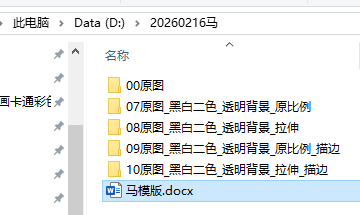
    path = r'D:\20260216马'
    # a = '00原图2'
    a = '00原图'
    input_directory = path + fr'\{a}'

    # 输出文件夹 - 保持比例版本(描边前)
    output_directory_keep_ratio = os.path.join(path,  f"07{a[2:]}_黑白二色_透明背景_原比例")
    # 输出文件夹 - 拉伸撑满版本(描边前)
    output_directory_stretch = os.path.join(path, f"08{a[2:]}_黑白二色_透明背景_拉伸")

    # 输出文件夹 - 保持比例描边版本(描边后)
    output_directory_keep_ratio_outline = os.path.join(path, f"09{a[2:]}_黑白二色_透明背景_原比例_描边")
    # 输出文件夹 - 拉伸撑满描边版本(描边后)
    output_directory_stretch_outline = os.path.join(path, f"10{a[2:]}_黑白二色_透明背景_拉伸_描边")

    # 检查输入文件夹是否存在
    if not os.path.exists(input_directory):
        print(f"错误: 文件夹 '{input_directory}' 不存在")
    else:
        print(f"开始批量处理图片...")
        print(f"输入文件夹: {input_directory}")
        print(f"目标尺寸: 1600x1200")
        print(f"描边宽度: 5像素")
        print("-" * 50)

        # 执行批量处理
        batch_process_images(
            input_directory,
            output_directory_keep_ratio,
            output_directory_stretch,
            output_directory_keep_ratio_outline,
            output_directory_stretch_outline,
            bw_threshold=128,           # 黑白化阈值(0-255)
            transparency_tolerance=30,  # 透明化容差
            margin=0,                   # 裁剪边距
            target_size=(1600, 1200),   # 目标尺寸
            outline_width=5              # 描边宽度(磅/像素)
        )
        print("\n" + "=" * 50)
        print("所有图片处理完成!")
        print(f"保持比例版本(描边前)保存在: {output_directory_keep_ratio}")
        print(f"拉伸撑满版本(描边前)保存在: {output_directory_stretch}")
        print(f"保持比例描边版本保存在: {output_directory_keep_ratio_outline}")
        print(f"拉伸撑满描边版本保存在: {output_directory_stretch_outline}")
        print("=" * 50)
'''
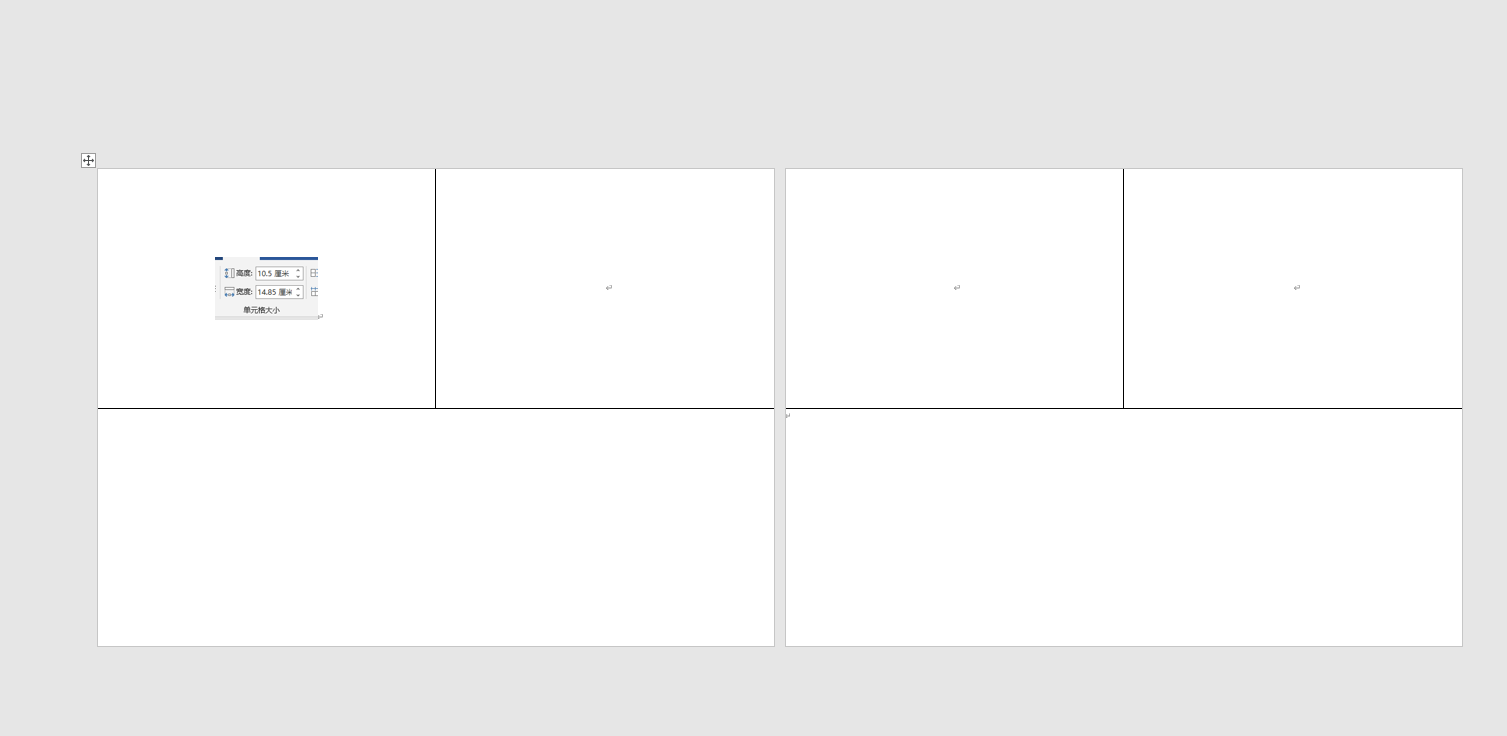
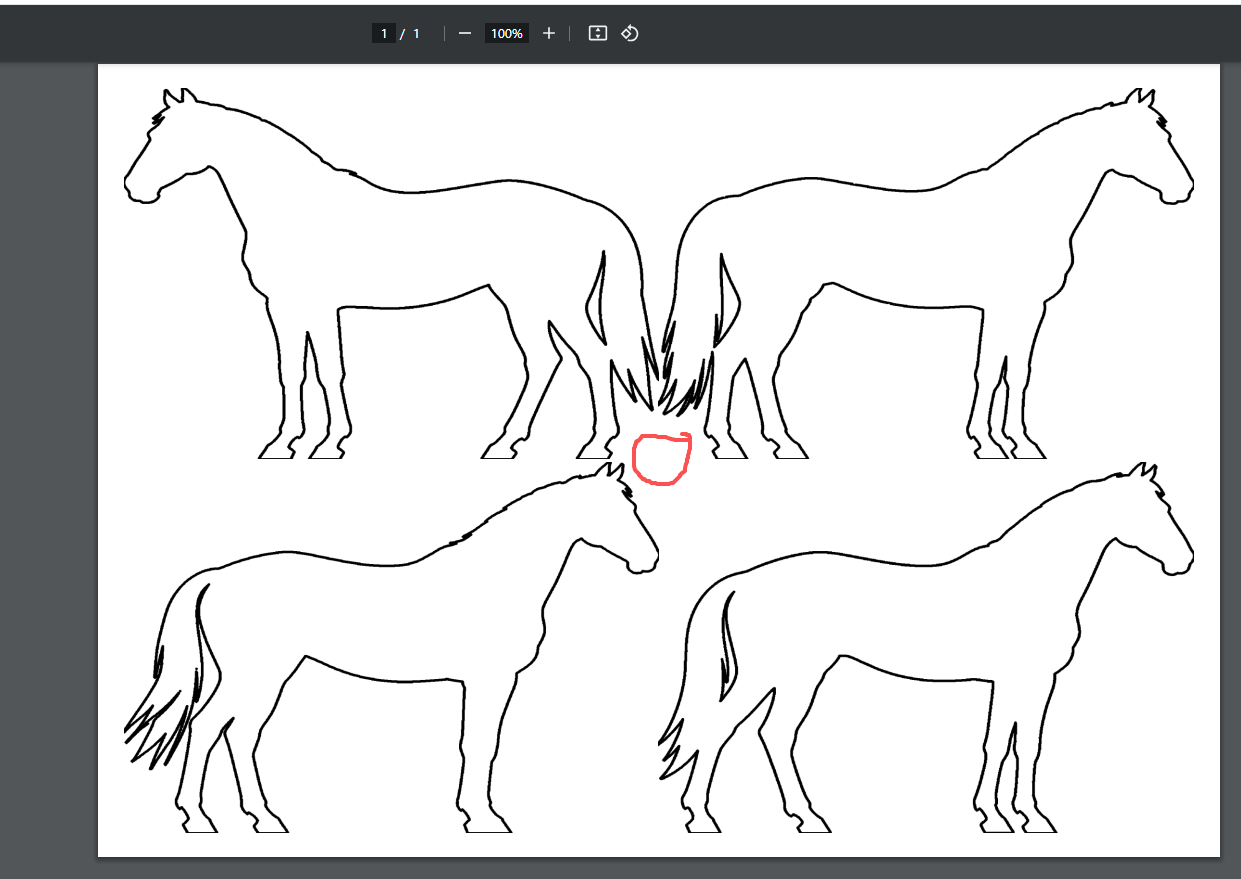
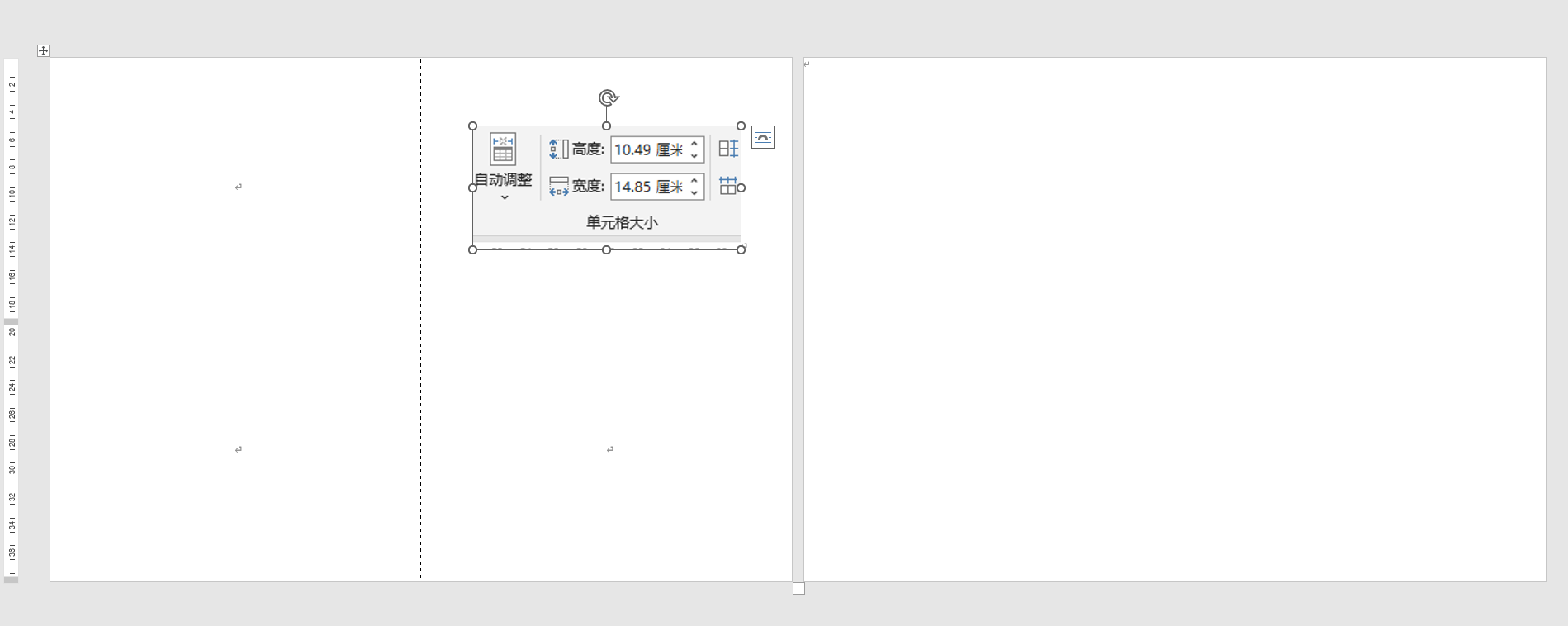
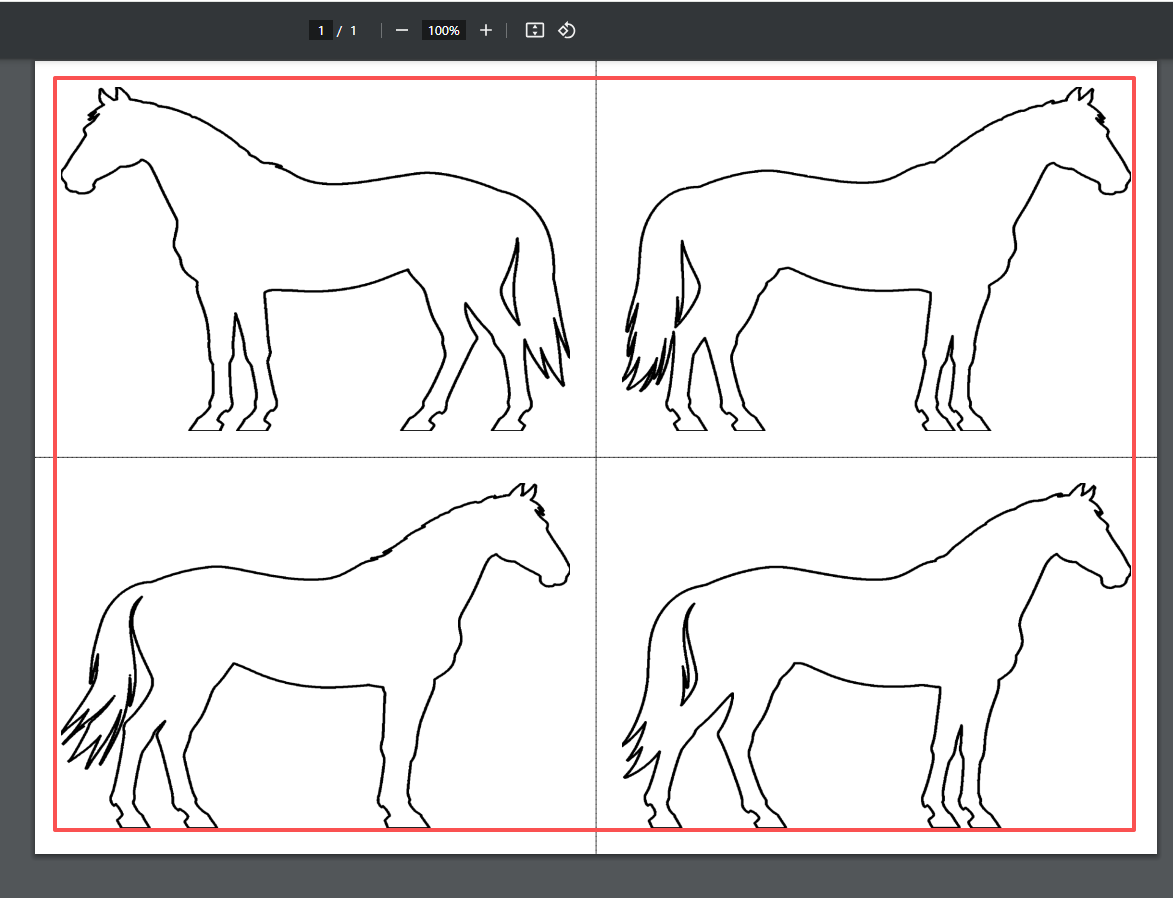
把图片插入2*2模版内,四个对齐方式都靠近中心,删除PDF第二页
实现指定对齐方式:
创建 alignment_map 字典,定义每个单元格的对齐方式
单元格(0,0) - 右下对齐
单元格(0,1) - 左下对齐
单元格(1,0) - 右上对齐
单元格(1,1) - 左上对齐
Deepseek,阿夏
20260216
'''


import random
import math
from PIL import Image, ImageDraw, ImageFont
import os
import time
from docx import Document
from docx.shared import Cm, Pt
from docx.enum.text import WD_ALIGN_PARAGRAPH
from docx2pdf import convert
from PyPDF2 import PdfMerger, PdfReader, PdfWriter
import shutil

# 测试图片59张
path = r'D:\20260216马'
# 格子一共有几个
sl = 4
names = f"10原图_黑白二色_透明背景_拉伸_描边"
input_path = path + fr'\{names}'
mb = '马模版'
# 表格有2列
# 高度和宽度是多少厘米
h = 9.8  # 高度9.8cm
w = 14.15  # 宽度14.15cm

def remove_pdf_page(pdf_path, page_num_to_remove):
    """
    删除PDF指定页码(页码从0开始计数),覆盖原PDF文件
    :param pdf_path: PDF文件路径
    :param page_num_to_remove: 要删除的页码(第2页对应索引1)
    :return: 处理后的PDF路径(失败返回None)
    """
    try:
        reader = PdfReader(pdf_path)
        writer = PdfWriter()

        # 检查页码是否有效
        if page_num_to_remove >= len(reader.pages):
            print(f"PDF {os.path.basename(pdf_path)} 只有 {len(reader.pages)} 页,无第{page_num_to_remove+1}页,跳过删除")
            return pdf_path

        # 保留除指定页码外的所有页
        for idx, page in enumerate(reader.pages):
            if idx != page_num_to_remove:
                writer.add_page(page)

        # 覆盖原PDF文件(删除指定页后保存)
        with open(pdf_path, 'wb') as f:
            writer.write(f)

        print(f"已删除 {os.path.basename(pdf_path)} 第{page_num_to_remove+1}页,剩余 {len(writer.pages)} 页")
        return pdf_path
    except Exception as e:
        print(f"删除PDF页码失败 {os.path.basename(pdf_path)}: {e}")
        return None

def check_and_repair_image(image_path):
    """检查并修复图片文件"""
    try:
        with Image.open(image_path) as img:
            img.verify()  # 验证图片完整性
        return True
    except (IOError, SyntaxError, Exception) as e:
        print(f"图片文件损坏: {image_path}, 错误: {e}")
        return False

def get_valid_image_files(input_path):
    """获取有效的图片文件列表"""
    valid_files = []
    for file in os.listdir(input_path):
        if file.lower().endswith(('.png', '.jpg', '.jpeg', '.bmp', '.gif')):
            file_path = os.path.join(input_path, file)
            if check_and_repair_image(file_path):
                valid_files.append(file_path)
            else:
                print(f"跳过损坏的图片: {file}")
    return valid_files

print('----1、检查图片文件------------')
file_paths = get_valid_image_files(input_path)
print(f"找到 {len(file_paths)} 张有效图片")

if len(file_paths) == 0:
    print("没有找到有效的图片文件,程序退出")
    exit()

grouped_files = [file_paths[i:i+sl] for i in range(0, len(file_paths), sl)]
print(f"分成 {len(grouped_files)} 组")

print('----2、创建临时文件夹------------')
new_folder = path + r'\零时文件夹'
if os.path.exists(new_folder):
    shutil.rmtree(new_folder)
os.makedirs(new_folder, exist_ok=True)

print('----3、插入docx,制作pdf------------')

def create_document_with_images(group, group_index):
    """在已有模板中插入图片,实现指定的对齐方式"""
    try:
        # 检查模板文件是否存在
        template_path = path + fr'\{mb}.docx'
        if not os.path.exists(template_path):
            print(f"模板文件不存在: {template_path}")
            return False

        # 打开模板文档
        doc = Document(template_path)

        # 检查文档中是否有表格
        if len(doc.tables) == 0:
            print("模板文档中没有找到表格")
            return False

        # 获取第一个表格
        table = doc.tables[0]

        # 计算表格的行列数
        rows = len(table.rows)
        cols = len(table.columns)
        total_cells = rows * cols

        print(f"表格大小: {rows}行 x {cols}列, 共{total_cells}个单元格")

        # 设置单元格边距为0
        for row in table.rows:
            for cell in row.cells:
                # 设置单元格边距为0
                cell.margin_top = Cm(0)
                cell.margin_bottom = Cm(0)
                cell.margin_left = Cm(0)
                cell.margin_right = Cm(0)

        # 定义每个单元格的对齐方式
        # 单元格(0,0) - 右下对齐
        # 单元格(0,1) - 左下对齐
        # 单元格(1,0) - 右上对齐
        # 单元格(1,1) - 左上对齐
        alignment_map = {
            (0, 0): {'vertical': 'bottom', 'horizontal': 'right'},   # 右下
            (0, 1): {'vertical': 'bottom', 'horizontal': 'left'},    # 左下
            (1, 0): {'vertical': 'top', 'horizontal': 'right'},      # 右上
            (1, 1): {'vertical': 'top', 'horizontal': 'left'}        # 左上
        }

        # 遍历每个单元格,并插入图片
        for cell_index, image_file in enumerate(group):
            if not image_file or not os.path.exists(image_file):
                print(f"图片文件不存在: {image_file}")
                continue

            # 如果单元格索引超出表格范围,跳过
            if cell_index >= total_cells:
                print(f"图片数量超过表格容量,跳过第{cell_index + 1}张图片")
                break

            # 计算行和列的位置
            row = cell_index // cols
            col = cell_index % cols

            # 获取单元格
            cell = table.cell(row, col)

            # 清除单元格内容
            for paragraph in cell.paragraphs:
                p = paragraph._element
                p.getparent().remove(p)

            # 添加新段落
            cell_paragraph = cell.add_paragraph()

            # 设置水平对齐方式
            if alignment_map[(row, col)]['horizontal'] == 'left':
                cell_paragraph.alignment = WD_ALIGN_PARAGRAPH.LEFT
            elif alignment_map[(row, col)]['horizontal'] == 'right':
                cell_paragraph.alignment = WD_ALIGN_PARAGRAPH.RIGHT
            else:
                cell_paragraph.alignment = WD_ALIGN_PARAGRAPH.CENTER

            # 设置段落格式,确保垂直对齐
            # 段前和段后间距设为0
            cell_paragraph.paragraph_format.space_before = Pt(0)
            cell_paragraph.paragraph_format.space_after = Pt(0)
            cell_paragraph.paragraph_format.line_spacing = 1.0

            run = cell_paragraph.add_run()

            try:
                # 插入图片,严格按照指定尺寸(不保持宽高比)
                run.add_picture(image_file,
                              width=Cm(w),
                              height=Cm(h))
                print(f"成功插入图片到表格位置({row+1},{col+1}), 对齐方式: {alignment_map[(row, col)]}")
                print(f"  插入尺寸: {w}cm x {h}cm (严格按照指定尺寸)")
            except Exception as e:
                print(f"插入图片失败 {image_file}: {e}")
                continue

        # 保存Word文档
        docx_path = os.path.join(new_folder, f'{group_index + 1:03d}.docx')
        doc.save(docx_path)
        print(f"创建文档成功: {group_index + 1:03d}.docx")
        return True

    except Exception as e:
        print(f"创建文档失败 组{group_index + 1}: {e}")
        return False

# 处理每一组图片
success_count = 0
for group_index, group in enumerate(grouped_files):
    if create_document_with_images(group, group_index):
        success_count += 1

print(f"成功创建 {success_count} 个Word文档")

print('----4、转换为PDF并删除第二页------------')
pdf_files = []
if success_count > 0:
    # 获取所有DOCX文件并按数字排序
    docx_files = [f for f in os.listdir(new_folder) if f.endswith('.docx')]
    docx_files.sort()

    for docx_file in docx_files:
        docx_path = os.path.join(new_folder, docx_file)
        pdf_path = docx_path.replace('.docx', '.pdf')
        try:
            # 转换Word为PDF
            convert(docx_path, pdf_path)
            print(f"转换成功: {docx_file} -> {os.path.basename(pdf_path)}")

            # 删除PDF的第二页(页码索引从0开始,第2页对应索引1)
            processed_pdf_path = remove_pdf_page(pdf_path, page_num_to_remove=1)
            if processed_pdf_path:
                pdf_files.append(processed_pdf_path)

            time.sleep(0.5)  # 短暂等待避免冲突
        except Exception as e:
            print(f"转换/处理失败 {docx_file}: {e}")

print('----5、合并PDF------------')
if pdf_files:
    # 按文件名排序
    pdf_files.sort()

    # 合并PDF
    merger = PdfMerger()
    for pdf_file in pdf_files:
        try:
            merger.append(pdf_file)
            print(f"添加PDF: {os.path.basename(pdf_file)}")
        except Exception as e:
            print(f"添加PDF失败 {pdf_file}: {e}")

    # 保存合并后的PDF
    pdf_output_path = path + fr'\{mb[:2]}{names[2:4]}{mb}(A4一页{sl}张)共{len(file_paths)}图.pdf'
    try:
        merger.write(pdf_output_path)
        merger.close()
        print(f"PDF合并完成: {pdf_output_path}")
    except Exception as e:
        print(f"PDF合并失败: {e}")
else:
    print("没有可合并的PDF文件")

print('----6、清理临时文件------------')
try:
    shutil.rmtree(new_folder)
    print("临时文件夹已清理")
except Exception as e:
    print(f"清理临时文件夹失败: {e}")

print('----程序执行完成------------')
print(f"使用的图片尺寸: 宽度{w}cm x 高度{h}cm")
'''
把图片插入2*2模版内,四个对齐方式都靠近中心,删除PDF第二页
实现指定对齐方式:
创建 alignment_map 字典,定义每个单元格的对齐方式
单元格(0,0) - 右下对齐
单元格(0,1) - 左下对齐
单元格(1,0) - 右上对齐
单元格(1,1) - 左上对齐
Deepseek,阿夏
20260216
'''


import random
import math
from PIL import Image, ImageDraw, ImageFont
import os
import time
from docx import Document
from docx.shared import Cm, Pt
from docx.enum.text import WD_ALIGN_PARAGRAPH
from docx2pdf import convert
from PyPDF2 import PdfMerger, PdfReader, PdfWriter
import shutil

# 测试图片59张
path = r'D:\20260216马'
# 格子一共有几个
sl = 4
names = f"10原图_黑白二色_透明背景_拉伸_描边"
input_path = path + fr'\{names}'
mb = '马模版'
# 表格有2列
# 高度和宽度是多少厘米
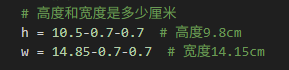
h = 10.5-0.7-0.7  # 高度9.8cm
w = 14.85-0.7-0.7  # 宽度14.15cm

def remove_pdf_page(pdf_path, page_num_to_remove):
    """
    删除PDF指定页码(页码从0开始计数),覆盖原PDF文件
    :param pdf_path: PDF文件路径
    :param page_num_to_remove: 要删除的页码(第2页对应索引1)
    :return: 处理后的PDF路径(失败返回None)
    """
    try:
        reader = PdfReader(pdf_path)
        writer = PdfWriter()

        # 检查页码是否有效
        if page_num_to_remove >= len(reader.pages):
            print(f"PDF {os.path.basename(pdf_path)} 只有 {len(reader.pages)} 页,无第{page_num_to_remove+1}页,跳过删除")
            return pdf_path

        # 保留除指定页码外的所有页
        for idx, page in enumerate(reader.pages):
            if idx != page_num_to_remove:
                writer.add_page(page)

        # 覆盖原PDF文件(删除指定页后保存)
        with open(pdf_path, 'wb') as f:
            writer.write(f)

        print(f"已删除 {os.path.basename(pdf_path)} 第{page_num_to_remove+1}页,剩余 {len(writer.pages)} 页")
        return pdf_path
    except Exception as e:
        print(f"删除PDF页码失败 {os.path.basename(pdf_path)}: {e}")
        return None

def check_and_repair_image(image_path):
    """检查并修复图片文件"""
    try:
        with Image.open(image_path) as img:
            img.verify()  # 验证图片完整性
        return True
    except (IOError, SyntaxError, Exception) as e:
        print(f"图片文件损坏: {image_path}, 错误: {e}")
        return False

def get_valid_image_files(input_path):
    """获取有效的图片文件列表"""
    valid_files = []
    for file in os.listdir(input_path):
        if file.lower().endswith(('.png', '.jpg', '.jpeg', '.bmp', '.gif')):
            file_path = os.path.join(input_path, file)
            if check_and_repair_image(file_path):
                valid_files.append(file_path)
            else:
                print(f"跳过损坏的图片: {file}")
    return valid_files

print('----1、检查图片文件------------')
file_paths = get_valid_image_files(input_path)
print(f"找到 {len(file_paths)} 张有效图片")

if len(file_paths) == 0:
    print("没有找到有效的图片文件,程序退出")
    exit()

grouped_files = [file_paths[i:i+sl] for i in range(0, len(file_paths), sl)]
print(f"分成 {len(grouped_files)} 组")

print('----2、创建临时文件夹------------')
new_folder = path + r'\零时文件夹'
if os.path.exists(new_folder):
    shutil.rmtree(new_folder)
os.makedirs(new_folder, exist_ok=True)

print('----3、插入docx,制作pdf------------')

def create_document_with_images(group, group_index):
    """在已有模板中插入图片,实现指定的对齐方式"""
    try:
        # 检查模板文件是否存在
        template_path = path + fr'\{mb}.docx'
        if not os.path.exists(template_path):
            print(f"模板文件不存在: {template_path}")
            return False

        # 打开模板文档
        doc = Document(template_path)

        # 检查文档中是否有表格
        if len(doc.tables) == 0:
            print("模板文档中没有找到表格")
            return False

        # 获取第一个表格
        table = doc.tables[0]

        # 计算表格的行列数
        rows = len(table.rows)
        cols = len(table.columns)
        total_cells = rows * cols

        print(f"表格大小: {rows}行 x {cols}列, 共{total_cells}个单元格")

        # 设置单元格边距为0
        for row in table.rows:
            for cell in row.cells:
                # 设置单元格边距为0
                cell.margin_top = Cm(0)
                cell.margin_bottom = Cm(0)
                cell.margin_left = Cm(0)
                cell.margin_right = Cm(0)

        # 定义每个单元格的对齐方式
        # 单元格(0,0) - 右下对齐
        # 单元格(0,1) - 左下对齐
        # 单元格(1,0) - 右上对齐
        # 单元格(1,1) - 左上对齐
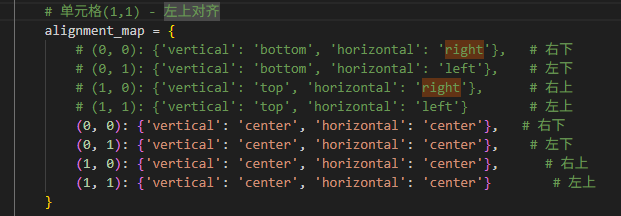
        alignment_map = {
            # (0, 0): {'vertical': 'bottom', 'horizontal': 'right'},   # 右下
            # (0, 1): {'vertical': 'bottom', 'horizontal': 'left'},    # 左下
            # (1, 0): {'vertical': 'top', 'horizontal': 'right'},      # 右上
            # (1, 1): {'vertical': 'top', 'horizontal': 'left'}        # 左上
            (0, 0): {'vertical': 'center', 'horizontal': 'center'},   # 右下
            (0, 1): {'vertical': 'center', 'horizontal': 'center'},    # 左下
            (1, 0): {'vertical': 'center', 'horizontal': 'center'},      # 右上
            (1, 1): {'vertical': 'center', 'horizontal': 'center'}        # 左上
        }

        # 遍历每个单元格,并插入图片
        for cell_index, image_file in enumerate(group):
            if not image_file or not os.path.exists(image_file):
                print(f"图片文件不存在: {image_file}")
                continue

            # 如果单元格索引超出表格范围,跳过
            if cell_index >= total_cells:
                print(f"图片数量超过表格容量,跳过第{cell_index + 1}张图片")
                break

            # 计算行和列的位置
            row = cell_index // cols
            col = cell_index % cols

            # 获取单元格
            cell = table.cell(row, col)

            # 清除单元格内容
            for paragraph in cell.paragraphs:
                p = paragraph._element
                p.getparent().remove(p)

            # 添加新段落
            cell_paragraph = cell.add_paragraph()

            # 设置水平对齐方式
            if alignment_map[(row, col)]['horizontal'] == 'left':
                cell_paragraph.alignment = WD_ALIGN_PARAGRAPH.LEFT
            elif alignment_map[(row, col)]['horizontal'] == 'right':
                cell_paragraph.alignment = WD_ALIGN_PARAGRAPH.RIGHT
            else:
                cell_paragraph.alignment = WD_ALIGN_PARAGRAPH.CENTER

            # 设置段落格式,确保垂直对齐
            # 段前和段后间距设为0
            cell_paragraph.paragraph_format.space_before = Pt(0)
            cell_paragraph.paragraph_format.space_after = Pt(0)
            cell_paragraph.paragraph_format.line_spacing = 1.0

            run = cell_paragraph.add_run()

            try:
                # 插入图片,严格按照指定尺寸(不保持宽高比)
                run.add_picture(image_file,
                              width=Cm(w),
                              height=Cm(h))
                print(f"成功插入图片到表格位置({row+1},{col+1}), 对齐方式: {alignment_map[(row, col)]}")
                print(f"  插入尺寸: {w}cm x {h}cm (严格按照指定尺寸)")
            except Exception as e:
                print(f"插入图片失败 {image_file}: {e}")
                continue

        # 保存Word文档
        docx_path = os.path.join(new_folder, f'{group_index + 1:03d}.docx')
        doc.save(docx_path)
        print(f"创建文档成功: {group_index + 1:03d}.docx")
        return True

    except Exception as e:
        print(f"创建文档失败 组{group_index + 1}: {e}")
        return False

# 处理每一组图片
success_count = 0
for group_index, group in enumerate(grouped_files):
    if create_document_with_images(group, group_index):
        success_count += 1

print(f"成功创建 {success_count} 个Word文档")

print('----4、转换为PDF并删除第二页------------')
pdf_files = []
if success_count > 0:
    # 获取所有DOCX文件并按数字排序
    docx_files = [f for f in os.listdir(new_folder) if f.endswith('.docx')]
    docx_files.sort()

    for docx_file in docx_files:
        docx_path = os.path.join(new_folder, docx_file)
        pdf_path = docx_path.replace('.docx', '.pdf')
        try:
            # 转换Word为PDF
            convert(docx_path, pdf_path)
            print(f"转换成功: {docx_file} -> {os.path.basename(pdf_path)}")

            # 删除PDF的第二页(页码索引从0开始,第2页对应索引1)
            processed_pdf_path = remove_pdf_page(pdf_path, page_num_to_remove=1)
            if processed_pdf_path:
                pdf_files.append(processed_pdf_path)

            time.sleep(0.5)  # 短暂等待避免冲突
        except Exception as e:
            print(f"转换/处理失败 {docx_file}: {e}")

print('----5、合并PDF------------')
if pdf_files:
    # 按文件名排序
    pdf_files.sort()

    # 合并PDF
    merger = PdfMerger()
    for pdf_file in pdf_files:
        try:
            merger.append(pdf_file)
            print(f"添加PDF: {os.path.basename(pdf_file)}")
        except Exception as e:
            print(f"添加PDF失败 {pdf_file}: {e}")

    # 保存合并后的PDF
    pdf_output_path = path + fr'\{mb[:2]}{names[2:4]}{mb}(A4一页{sl}张)共{len(file_paths)}图.pdf'
    try:
        merger.write(pdf_output_path)
        merger.close()
        print(f"PDF合并完成: {pdf_output_path}")
    except Exception as e:
        print(f"PDF合并失败: {e}")
else:
    print("没有可合并的PDF文件")

print('----6、清理临时文件------------')
try:
    shutil.rmtree(new_folder)
    print("临时文件夹已清理")
except Exception as e:
    print(f"清理临时文件夹失败: {e}")

print('----程序执行完成------------')
print(f"使用的图片尺寸: 宽度{w}cm x 高度{h}cm")
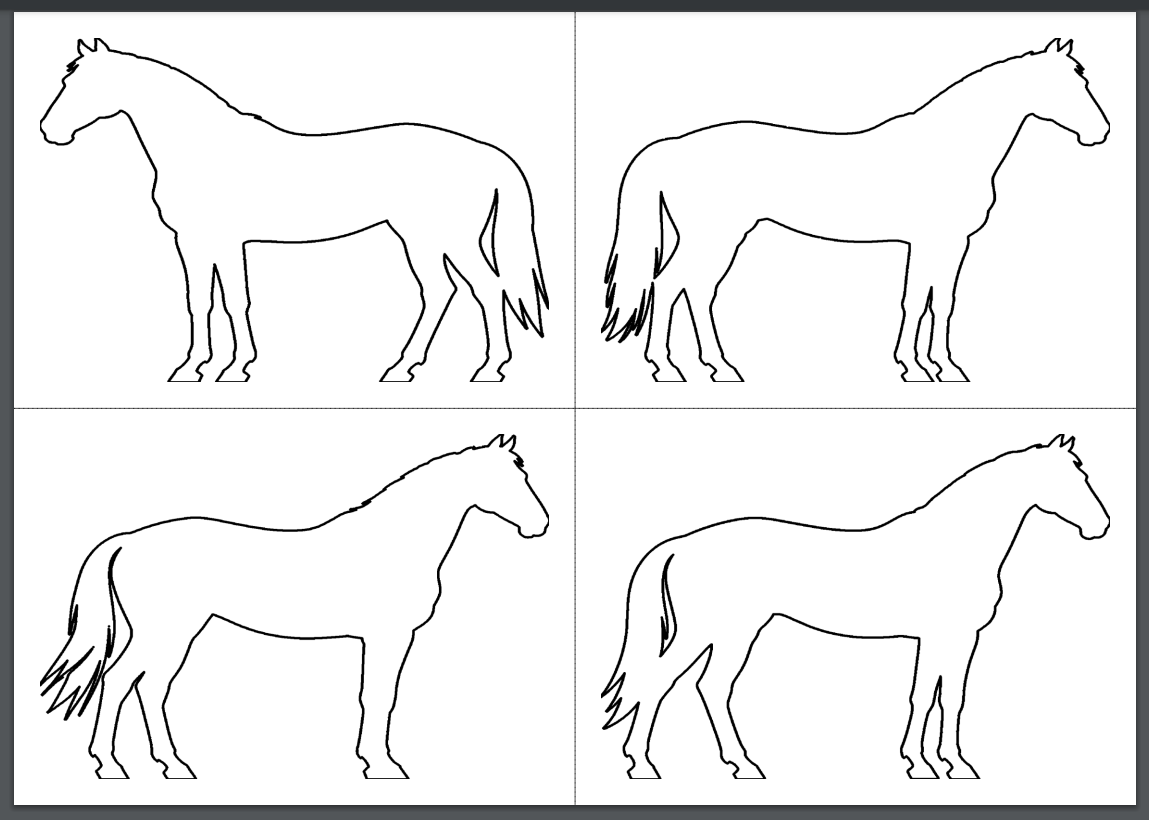
 下载后
下载后