文章目录
-
- 一、属性介绍
- [二、OverlayOptions 参数说明](#二、OverlayOptions 参数说明)
- [三、Alignment 枚举值一览](#三、Alignment 枚举值一览)
- 四、示例解析
-
- 示例一:基础叠加层(固定底部文字)
- [示例二:overlay 显示与隐藏控制](#示例二:overlay 显示与隐藏控制)
- [示例三:九个 align 方向动态切换](#示例三:九个 align 方向动态切换)
- [示例四:offset 偏移量演示](#示例四:offset 偏移量演示)
- 五、完整源码
- 总结
一、属性介绍
overlay 是 ArkUI 提供的通用属性,用于在组件上方叠加一段文字,形成浮层效果。常见于图片说明、角标提示、水印等场景。
接口签名:
typescript
overlay(value: string, options?: OverlayOptions): T| 参数 | 类型 | 必填 | 说明 |
|---|---|---|---|
| value | string | 是 | 叠加在组件上方的文字内容 |
| options | OverlayOptions | 否 | 叠加层的对齐与偏移配置 |
二、OverlayOptions 参数说明
typescript
interface OverlayOptions {
  align?: Alignment   // 叠加层相对于组件的对齐位置,默认 Alignment.Center
  offset?: { x: number; y: number }  // 在 align 基础上的额外偏移,单位 vp,默认 {x:0, y:0}
}| 字段 | 类型 | 默认值 | 说明 |
|---|---|---|---|
| align | Alignment | Alignment.Center | 叠加层的对齐方向,见下方枚举表 |
| offset | { x: number; y: number } |
{ x: 0, y: 0 } |
x 为水平偏移(正值向右),y 为垂直偏移(正值向下) |
三、Alignment 枚举值一览
ArkTS 的 Alignment 枚举共 9 个值,对应九宫格的 9 个位置:
| 枚举值 | 位置 | 枚举值 | 位置 |
|---|---|---|---|
Alignment.TopStart |
左上角 | Alignment.Top |
顶部居中 |
Alignment.TopEnd |
右上角 | Alignment.Start |
左侧居中 |
Alignment.Center |
正中央(默认) | Alignment.End |
右侧居中 |
Alignment.BottomStart |
左下角 | Alignment.Bottom |
底部居中 |
Alignment.BottomEnd |
右下角 | --- | --- |
┌─────────────────────────────────┐
│ TopStart      Top      TopEnd   │
│                                 │
│ Start        Center       End   │
│                                 │
│ BottomStart  Bottom  BottomEnd  │
└─────────────────────────────────┘
四、示例解析
示例一:基础叠加层(固定底部文字)
typescript
Image($r('app.media.bg'))
  .width(240)
  .height(160)
  .overlay('Winter is a beautiful season, especially when it snows.', {
    align: Alignment.Bottom,
    offset: { x: 0, y: -15 }
  })
align: Alignment.Bottom:文字锚定在图片底部居中offset: { x: 0, y: -15 }:向上偏移 15vp,避免文字紧贴底边
效果示意:
┌────────────────────┐
│                    │
│      (图片区域)     │
│                    │
│  Winter is a beau- │  ← overlay 文字,底部上移 15vp
└────────────────────┘
示例二:overlay 显示与隐藏控制
typescript
@State showOverlay: boolean = true

Image($r('app.media.bg'))
  .overlay(
    this.showOverlay ? '叠加层已显示(点击按钮切换)' : '',
    { align: Alignment.Center }
  )

Button(this.showOverlay ? '隐藏 overlay' : '显示 overlay')
  .onClick(() => {
    this.showOverlay = !this.showOverlay
  })
要点:
overlay的value传入空字符串''即可隐藏叠加层,无需额外 API- 用
@State驱动三元表达式,实现叠加层的动态显隐 - 这是 ArkTS 响应式编程的典型用法:状态变更 → UI 自动刷新
示例三:九个 align 方向动态切换
typescript
@State currentAlign: Alignment = Alignment.Bottom

// 用具名 class 声明数组元素类型(ArkTS 规范要求)
class AlignOption {
  label: string = ''
  value: Alignment = Alignment.Center
}

private alignOptions: AlignOption[] = [
  { label: 'TopStart',    value: Alignment.TopStart },
  { label: 'Top',         value: Alignment.Top },
  { label: 'TopEnd',      value: Alignment.TopEnd },
  { label: 'Start',       value: Alignment.Start },
  { label: 'Center',      value: Alignment.Center },
  { label: 'End',         value: Alignment.End },
  { label: 'BottomStart', value: Alignment.BottomStart },
  { label: 'Bottom',      value: Alignment.Bottom },
  { label: 'BottomEnd',   value: Alignment.BottomEnd },
]

Image($r('app.media.bg'))
  .overlay('★ overlay 文字', { align: this.currentAlign, offset: { x: 0, y: 0 } })

// 九宫格按钮
Grid() {
  ForEach(this.alignOptions, (item: AlignOption) => {
    GridItem() {
      Button(item.label)
        .backgroundColor(this.currentAlign === item.value ? '#007DFF' : '#E5E5E5')
        .fontColor(this.currentAlign === item.value ? Color.White : Color.Black)
        .onClick(() => { this.currentAlign = item.value })
    }
  })
}
.columnsTemplate('1fr 1fr 1fr')
.width(300)
.height(132)
要点:
Grid+columnsTemplate('1fr 1fr 1fr')实现 3 列九宫格布局ForEach遍历AlignOption[]渲染按钮,item: AlignOption显式标注类型- 当前选中项通过颜色高亮(蓝色背景 + 白色文字)直观反馈
this.currentAlign === item.value比较枚举值来判断是否选中
示例四:offset 偏移量演示
typescript
Image($r('app.media.bg'))
  .overlay('偏移后的 overlay 文字', {
    align: Alignment.BottomStart,
    offset: { x: 30, y: -20 }
})- 先以
Alignment.BottomStart(左下角)为锚点 - 再向右偏移 30vp、向上偏移 20vp
- 最终文字落在左下角偏右上的位置
offset 坐标系说明:
| x 值 | 效果 | y 值 | 效果 |
|---|---|---|---|
| 正值(如 30) | 向右偏移 | 正值(如 20) | 向下偏移 |
| 负值(如 -30) | 向左偏移 | 负值(如 -20) | 向上偏移 |
| 0 | 不偏移 | 0 | 不偏移 |
五、完整源码
typescript
// ArkTS 要求数组字面量元素类型可推断,需提前声明具名类型
class AlignOption {
  label: string = ''
  value: Alignment = Alignment.Center
}

@Entry
@Component
struct OverlayExample {
  @State currentAlign: Alignment = Alignment.Bottom
  @State showOverlay: boolean = true

  // 对齐方式选项
  private alignOptions: AlignOption[] = [
    { label: 'TopStart',    value: Alignment.TopStart },
    { label: 'Top',         value: Alignment.Top },
    { label: 'TopEnd',      value: Alignment.TopEnd },
    { label: 'Start',       value: Alignment.Start },
    { label: 'Center',      value: Alignment.Center },
    { label: 'End',         value: Alignment.End },
    { label: 'BottomStart', value: Alignment.BottomStart },
    { label: 'Bottom',      value: Alignment.Bottom },
    { label: 'BottomEnd',   value: Alignment.BottomEnd },
  ]

  build() {
    Column({ space: 16 }) {

      // ── 示例一:基础用法(固定底部文字叠加层)─────────────────────────
      Text('示例一:基础 overlay 叠加层')
        .fontSize(15)
        .fontWeight(FontWeight.Bold)
        .alignSelf(ItemAlign.Start)
        .margin({ left: 16 })

      Column() {
        // $r('app.media.bg') 需要替换为开发者所需的图像资源文件
        Image($r('app.media.bg'))
          .width(240)
          .height(160)
          .borderRadius(8)
          .overlay('Winter is a beautiful season, especially when it snows.', {
            align: Alignment.Bottom,
            offset: { x: 0, y: -15 }
          })
      }
      .border({ color: Color.Gray, width: 1 })
      .borderRadius(8)

      // ── 示例二:overlay 显示 / 隐藏控制 ────────────────────────────────
      Text('示例二:overlay 显示与隐藏')
        .fontSize(15)
        .fontWeight(FontWeight.Bold)
        .alignSelf(ItemAlign.Start)
        .margin({ left: 16 })

      Column() {
        Image($r('app.media.bg'))
          .width(240)
          .height(160)
          .borderRadius(8)
          .overlay(
            this.showOverlay ? '叠加层已显示(点击按钮切换)' : '',
            { align: Alignment.Center }
          )
      }
      .border({ color: Color.Gray, width: 1 })
      .borderRadius(8)

      Button(this.showOverlay ? '隐藏 overlay' : '显示 overlay')
        .onClick(() => {
          this.showOverlay = !this.showOverlay
        })
        .width(160)

      // ── 示例三:九个对齐方向动态切换 ────────────────────────────────────
      Text('示例三:align 枚举值动态切换')
        .fontSize(15)
        .fontWeight(FontWeight.Bold)
        .alignSelf(ItemAlign.Start)
        .margin({ left: 16 })

      Column() {
        Image($r('app.media.bg'))
          .width(240)
          .height(160)
          .borderRadius(8)
          .overlay('★ overlay 文字', { align: this.currentAlign, offset: { x: 0, y: 0 } })
      }
      .border({ color: Color.Gray, width: 1 })
      .borderRadius(8)

      // 九宫格按钮选择对齐方式
      Grid() {
        ForEach(this.alignOptions, (item: AlignOption) => {
          GridItem() {
            Button(item.label)
              .fontSize(11)
              .width('100%')
              .height(36)
              .backgroundColor(this.currentAlign === item.value ? '#007DFF' : '#E5E5E5')
              .fontColor(this.currentAlign === item.value ? Color.White : Color.Black)
              .onClick(() => {
                this.currentAlign = item.value
              })
          }
        })
      }
      .columnsTemplate('1fr 1fr 1fr')
      .rowsGap(6)
      .columnsGap(6)
      .width(300)
      .height(132)

      // ── 示例四:offset 偏移量演示 ────────────────────────────────────────
      Text('示例四:offset 偏移量(x:30, y:-20)')
        .fontSize(15)
        .fontWeight(FontWeight.Bold)
        .alignSelf(ItemAlign.Start)
        .margin({ left: 16 })

      Column() {
        Image($r('app.media.bg'))
          .width(240)
          .height(160)
          .borderRadius(8)
          .overlay('偏移后的 overlay 文字', {
            align: Alignment.BottomStart,
            offset: { x: 30, y: -20 }
          })
      }
      .border({ color: Color.Gray, width: 1 })
      .borderRadius(8)

    }
    .width('100%')
    .height('100%')
    .padding(16)
    .backgroundColor('#F5F5F5')
  }
}
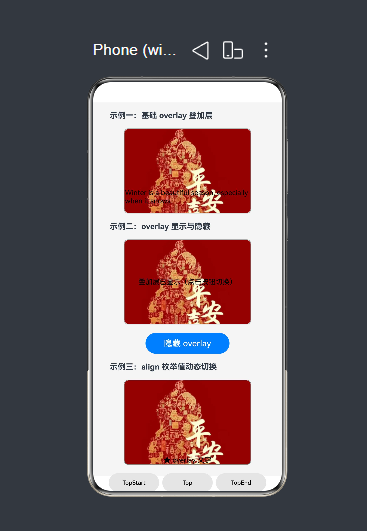
运行效果如图:
总结
| 需求 | 写法 |
|---|---|
| 底部文字说明 | .overlay('文字', { align: Alignment.Bottom }) |
| 动态显隐 | value 传 '' 隐藏,传非空字符串显示 |
| 向上微调位置 | offset: { x: 0, y: -15 } |
| 向右偏移 | offset: { x: 30, y: 0 } |
| 左下角文字 | align: Alignment.BottomStart |
| 正中央文字 | align: Alignment.Center(默认值) |
如果这篇文章对你有帮助,欢迎点赞、收藏、关注,你的支持是持续创作的动力!