Windows 本地部署
基本要求
硬件要求:
- CPU:2核以上
- 内存:4GB以上(推荐8GB)
- 硬盘:10GB以上空闲空间
操作系统:
- Windows 10 或 Windows 11
前置条件
- Node.js 22.0.0+
部署方式选择
Windows有两种部署方式:
- WSL2 + Ubuntu(推荐):官方推荐方式,提供完整Linux环境支持
- PowerShell原生部署:纯Windows环境,适合不想使用WSL2的用户
WSL2+ Ubuntu
第一步:启用WSL2
- 启用WSL功能
以管理员身份打开PowerShell,执行:
bash
dism.exe /online /enable-feature /featurename:Microsoft-Windows-Subsystem-Linux /all /norestart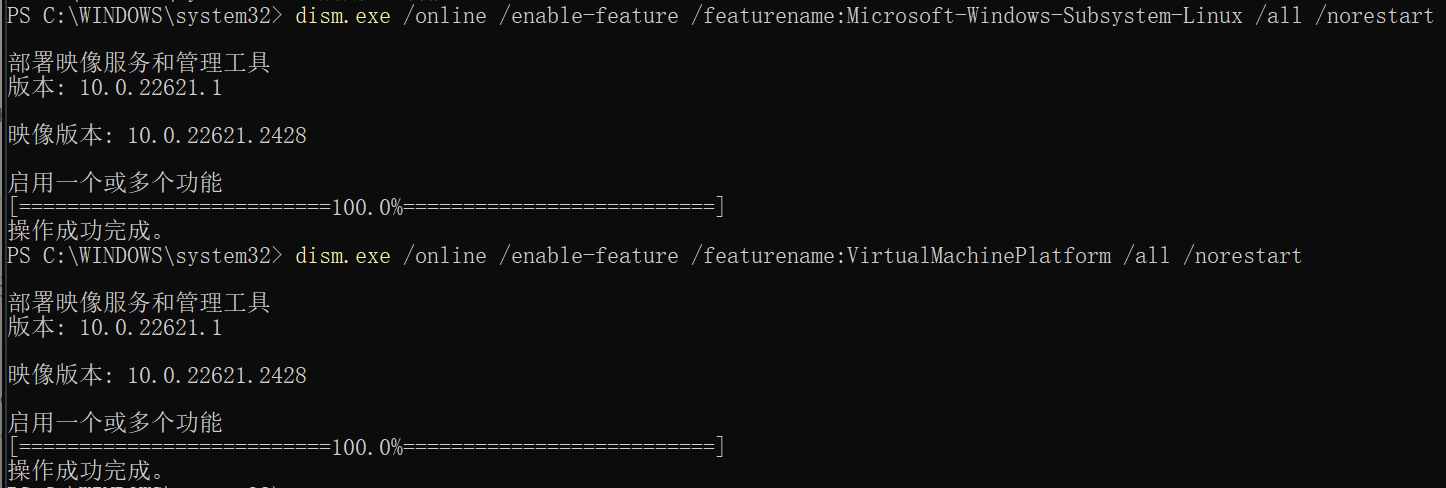
bash
dism.exe /online /enable-feature /featurename:VirtualMachinePlatform /all /norestart
- 设置WSL 2为默认版本
bash
wsl --set-default-version 2
第二步:安装Ubuntu
通过Microsoft Store安装Ubuntu
-
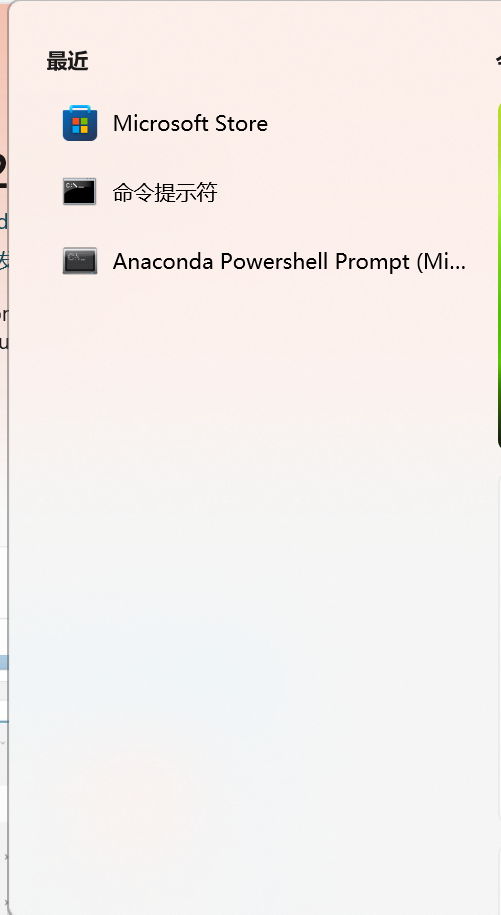
打开Microsoft Store
-
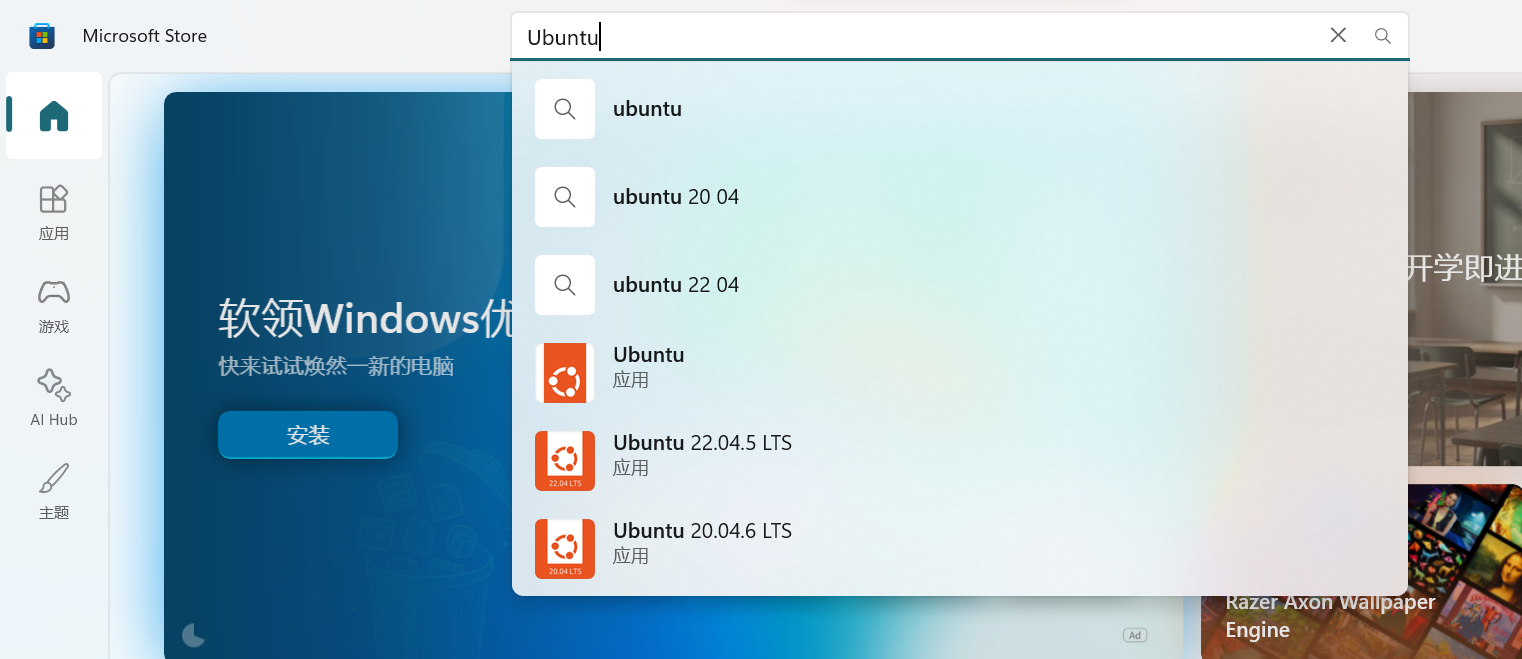
搜索Ubuntu,选择「Ubuntu 22.04 LTS」或「Ubuntu 24.04 LTS」
-
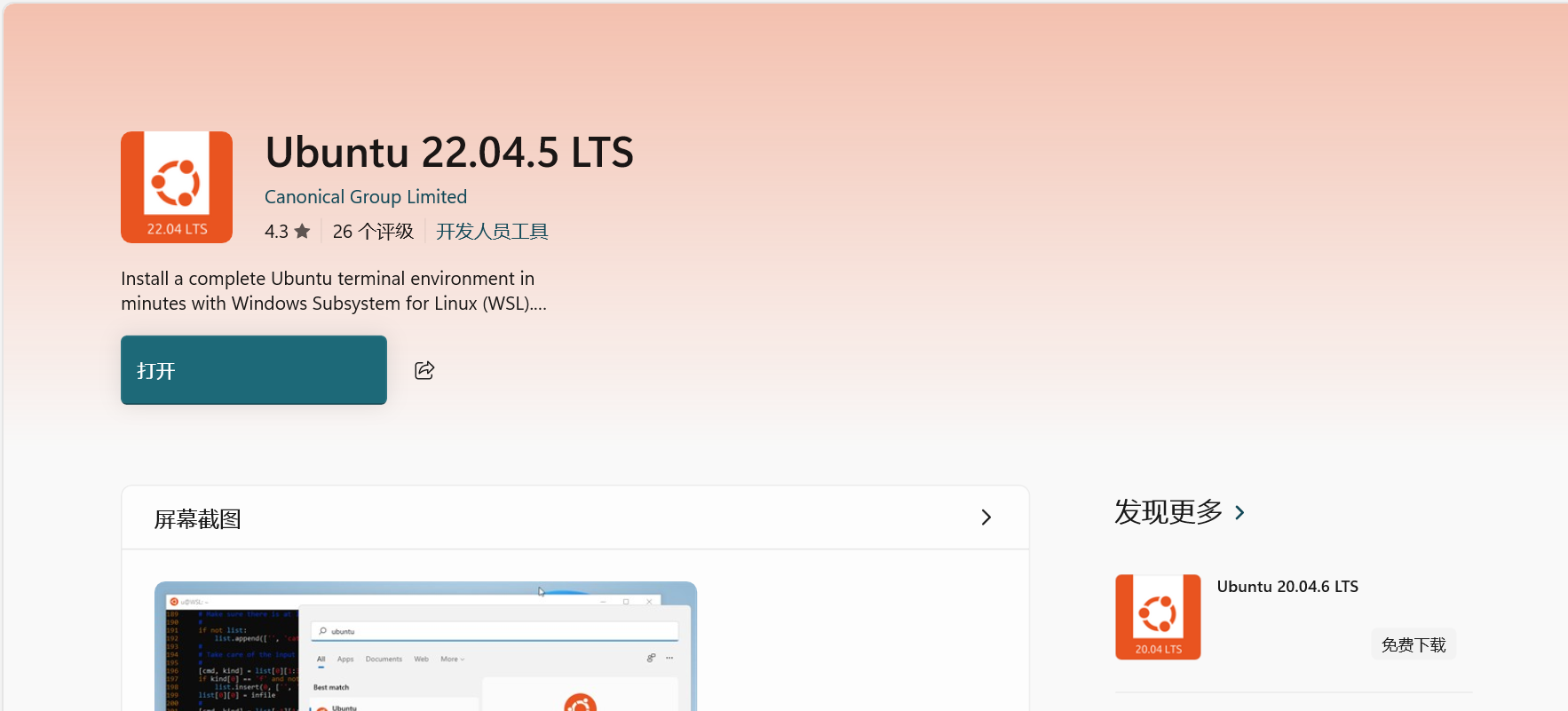
点击「获取」并安装
-
安装完成后,点击打开启动Ubuntu
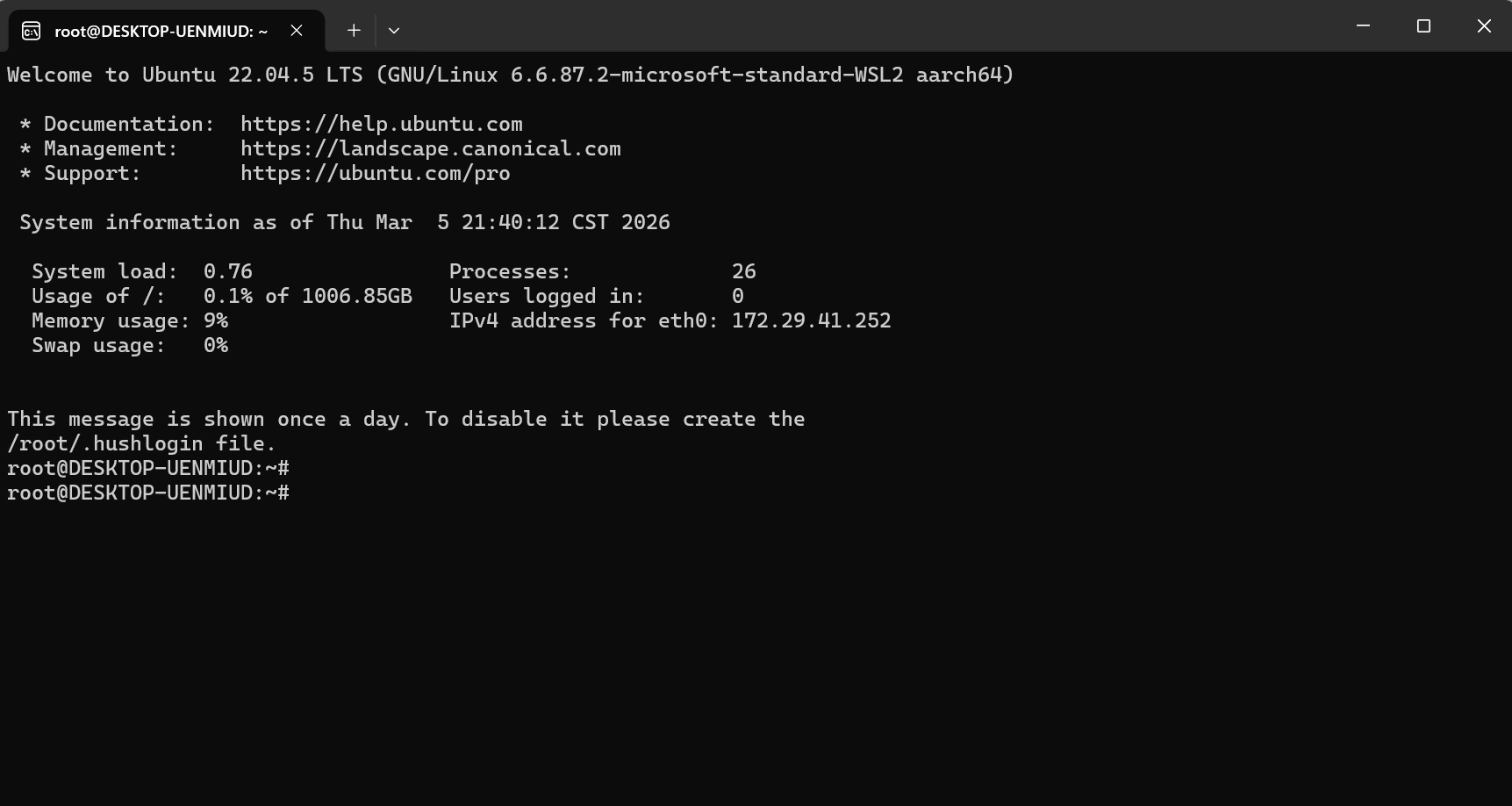
第三步:更新Ubuntu系统
在Ubuntu终端中执行如下指令:
- 更新软件包列表
bash
sudo apt update && sudo apt upgrade -y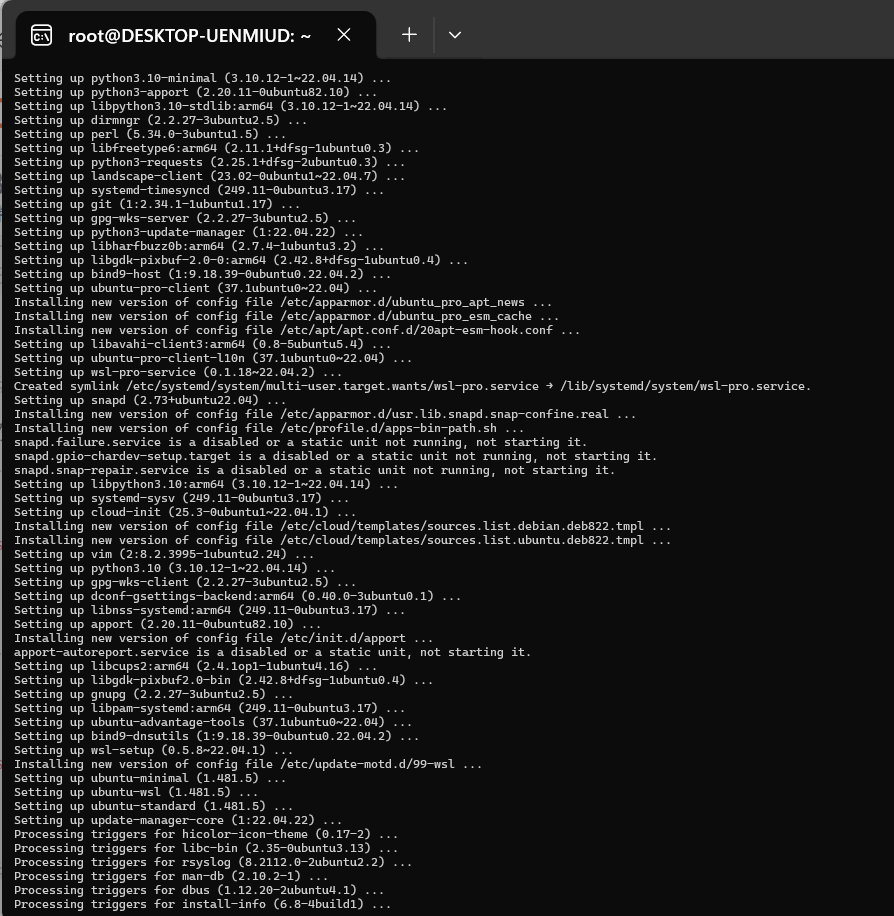
- 安装基础工具
bash
sudo apt install -y curl git wget build-essential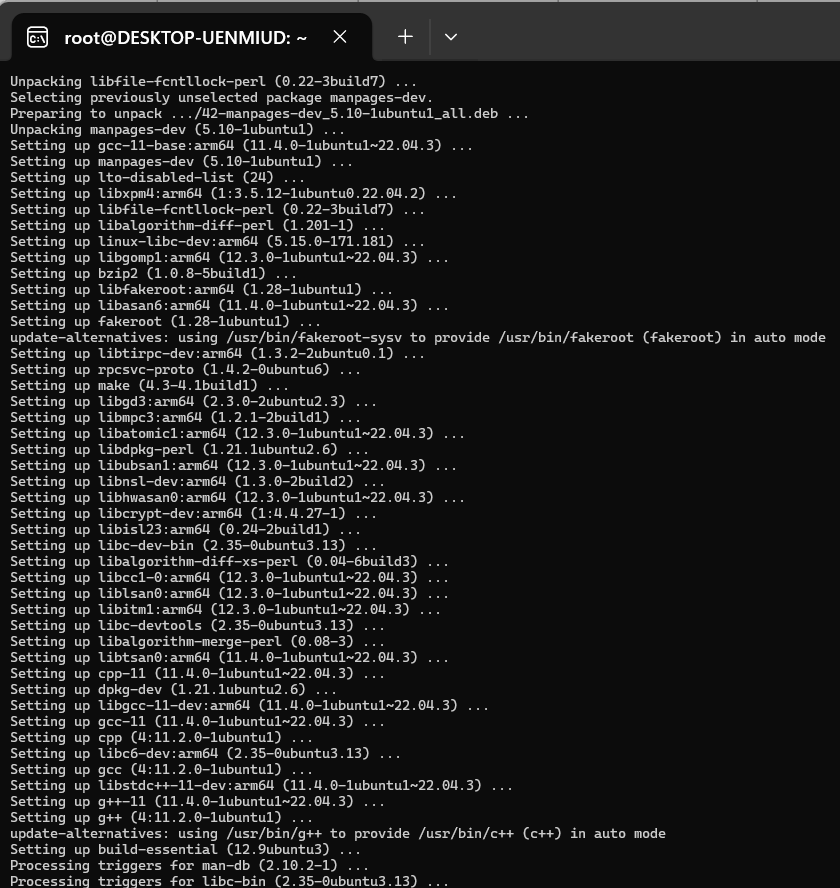
第四步:安装Node.js
Node.js 22.0.0+
- 添加NodeSource仓库
bash
curl -fsSL https://deb.nodesource.com/setup_22.x | sudo -E bash -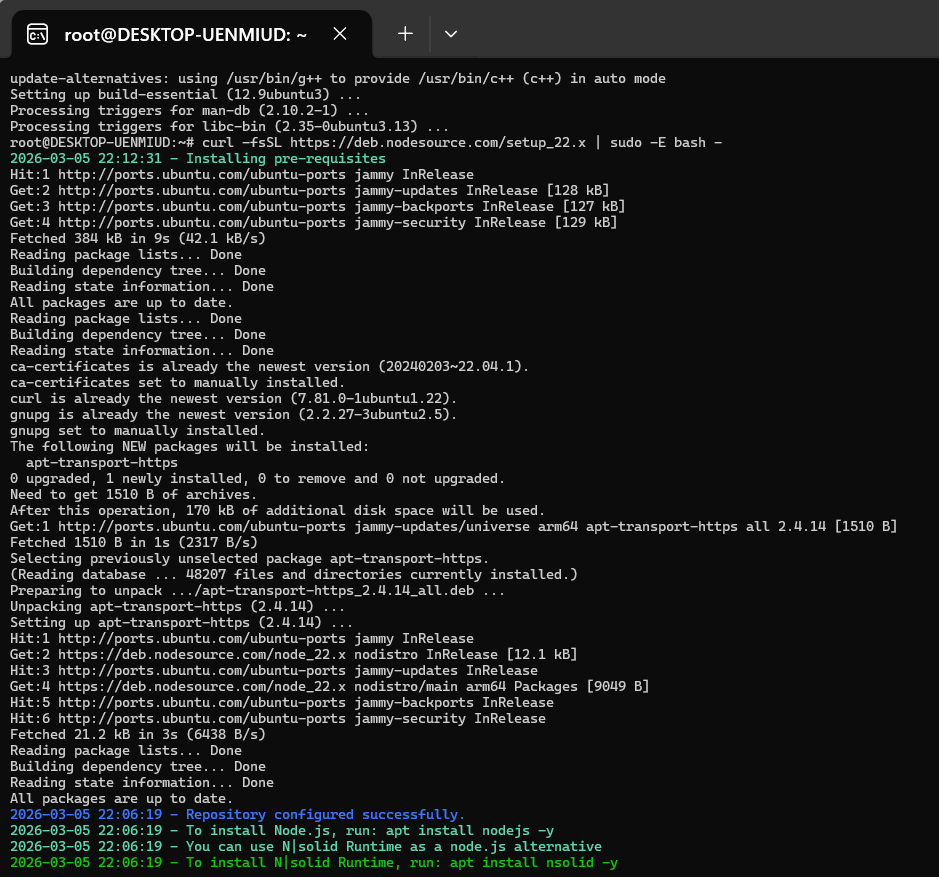
- 安装Node.js
bash
sudo apt install -y nodejs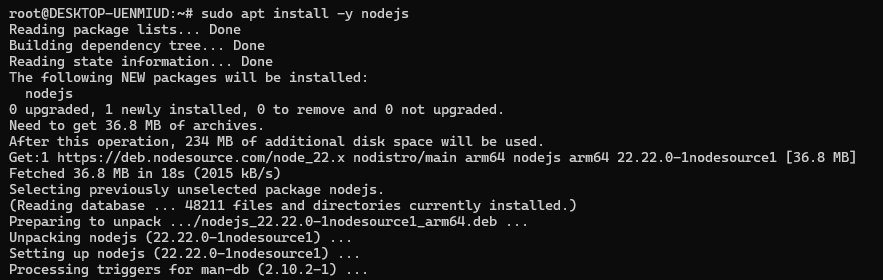
- 验证版本(必须≥22.x)
bash
node -v
npm -v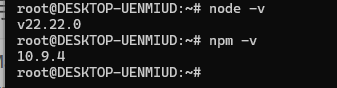
第五步:安装 OpenClaw
- 使用一键脚本
bash
curl -fsSL https://openclaw.ai/install.sh | bash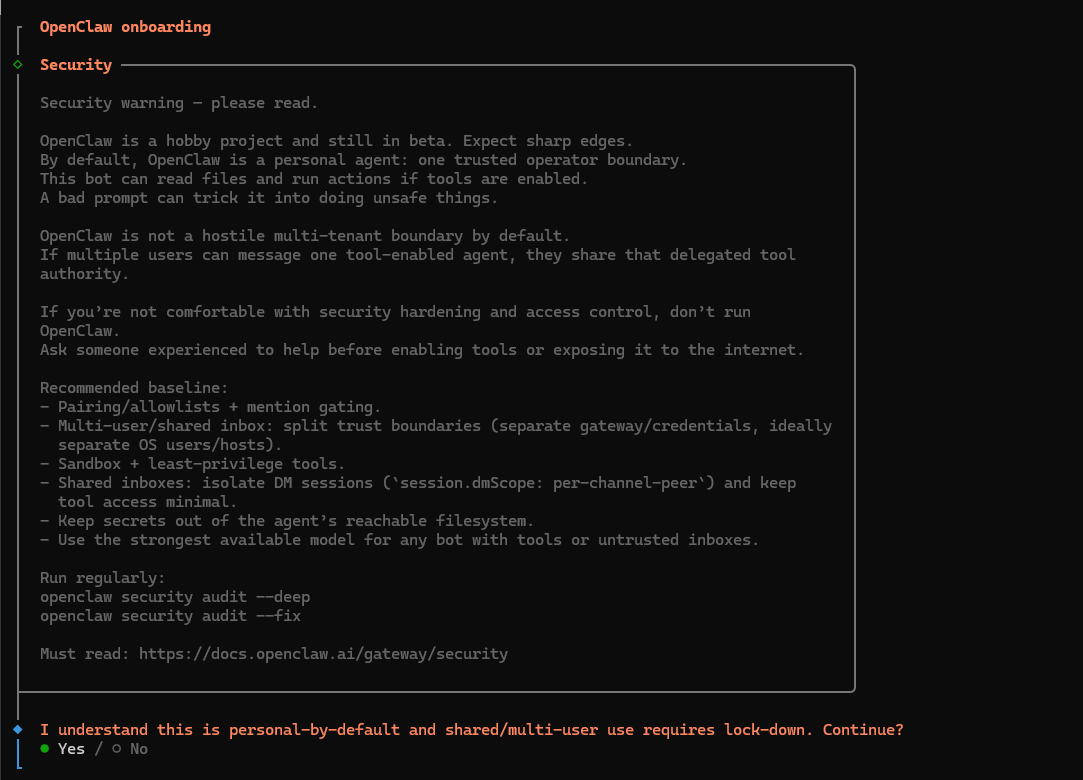
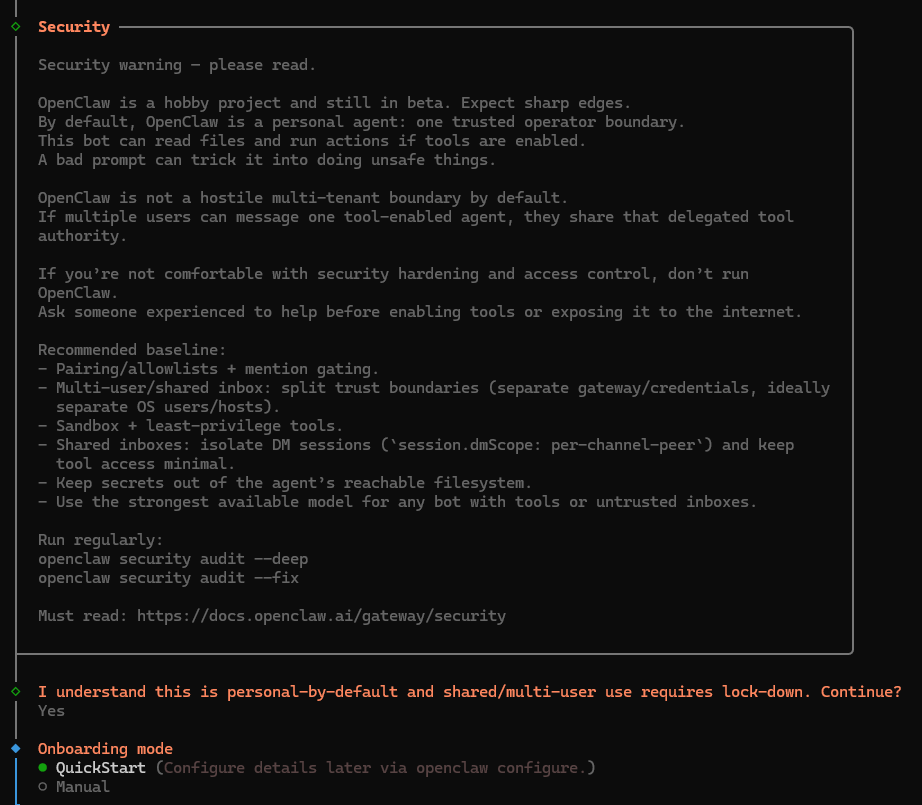
- 选择确认用户和共享设置(Yes)
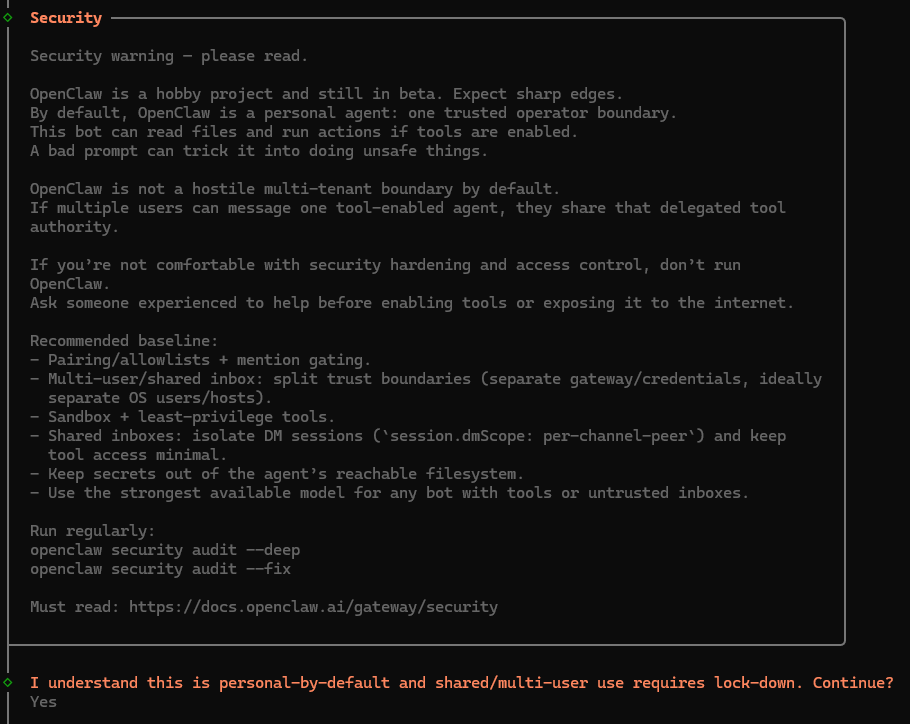
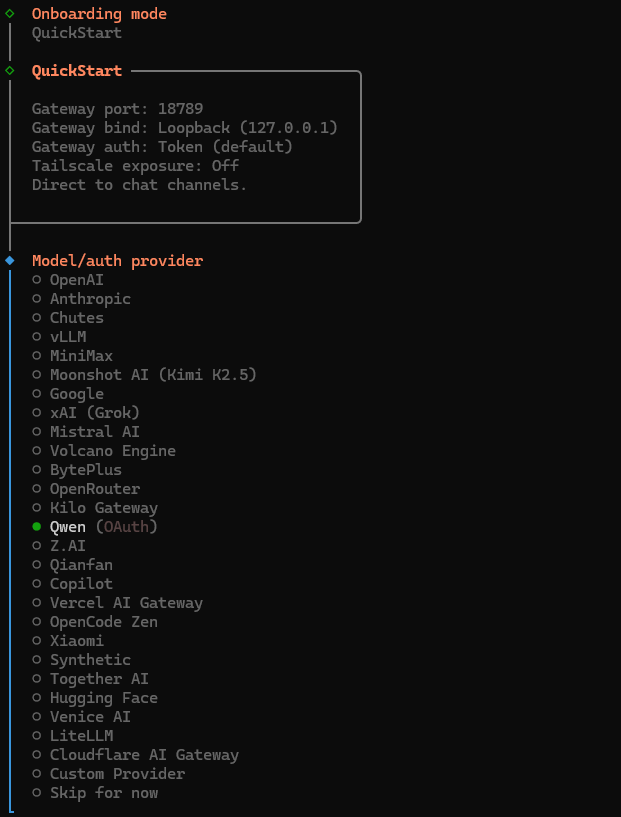
- 选择Onboarding 的模式
- 设置AI大模型
第六步:验证安装
- 查看版本
bash
openclaw --version
- 查看帮助
bash
openclaw --help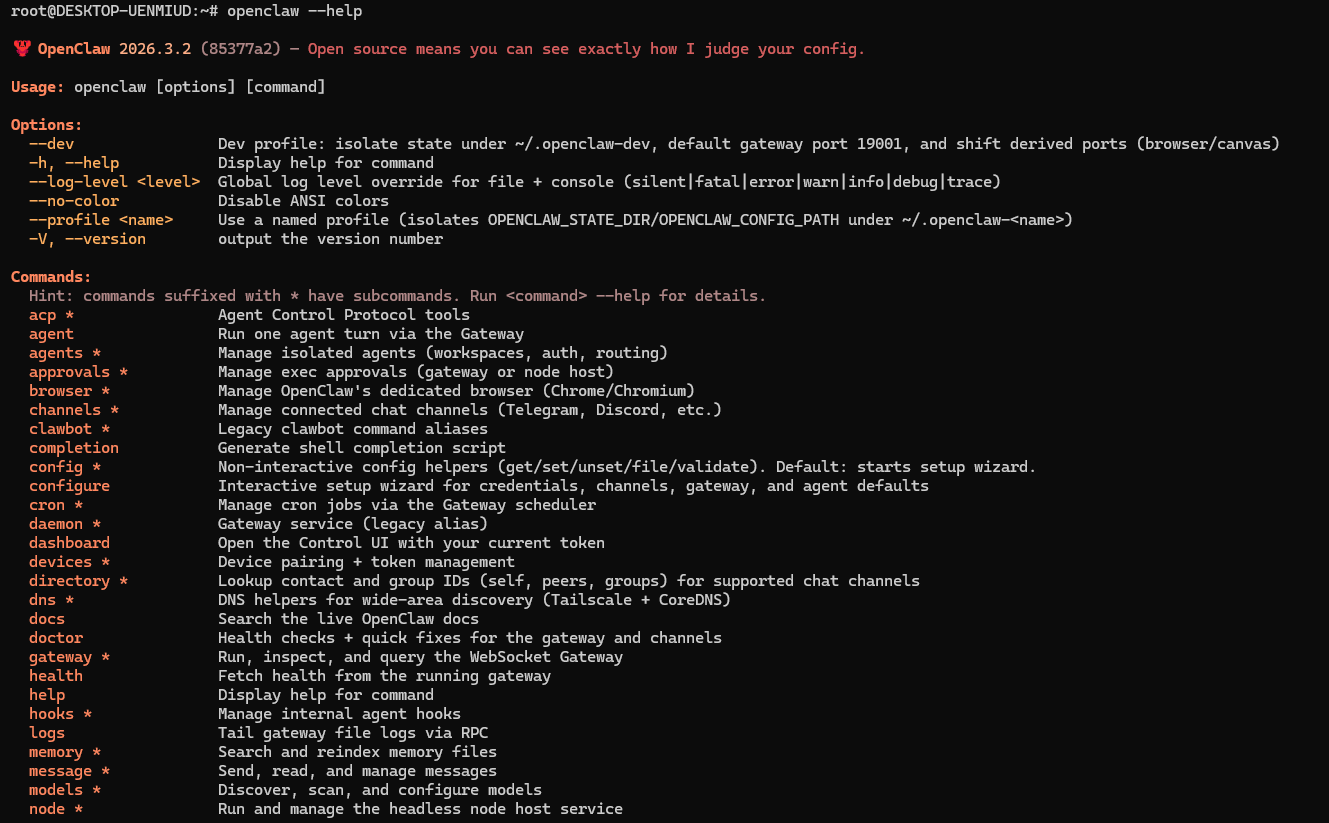
- 查看系统状态
bash
openclaw status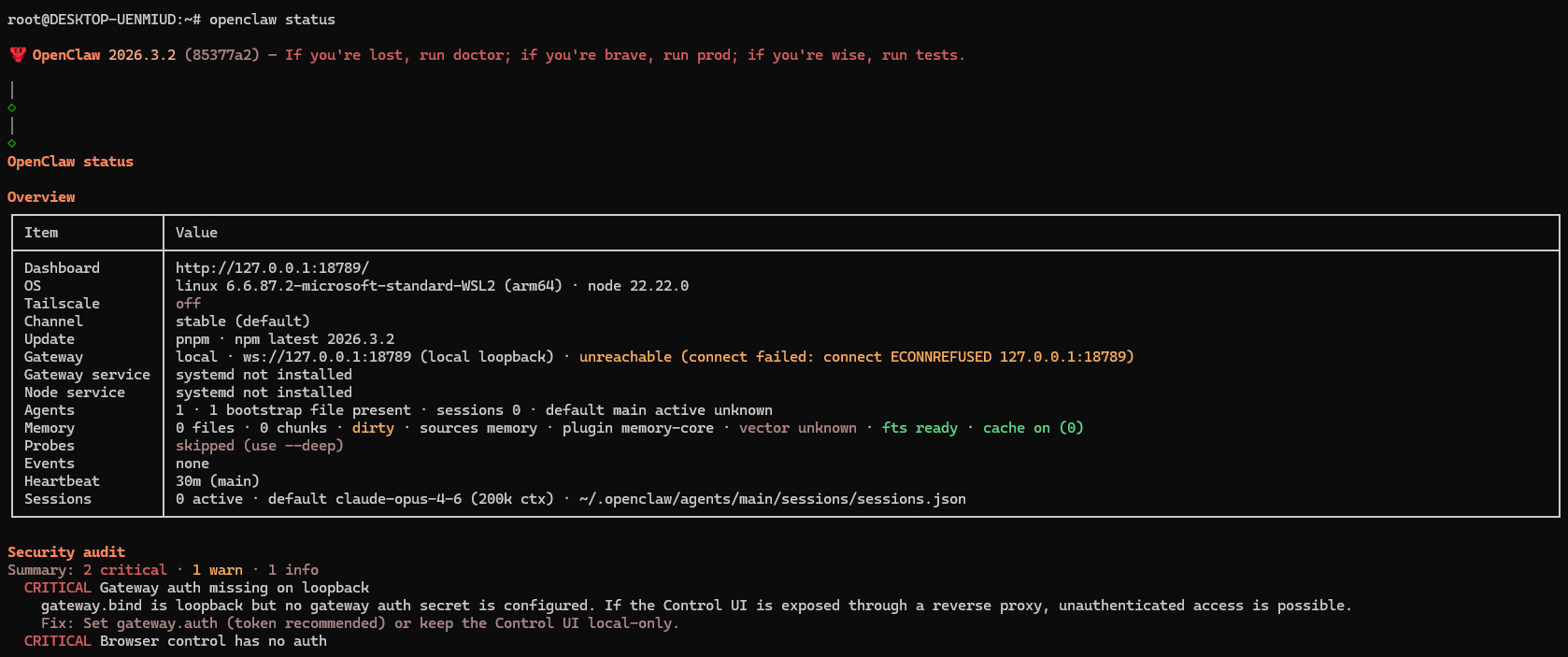
第七步:配置Windows访问WSL2服务
由于需要配置端口转发以便Windows访问运行于WSL2的OpenClaw。
- 创建启动脚本 start-openclaw.bat
bash
@echo off
echo Starting OpenClaw Gateway in WSL2...
wsl -d Ubuntu-22.04 -u root service openclaw start
timeout /t 3
start http://localhost:18789
-- 直接在Ubuntu的系统界面启动
bash
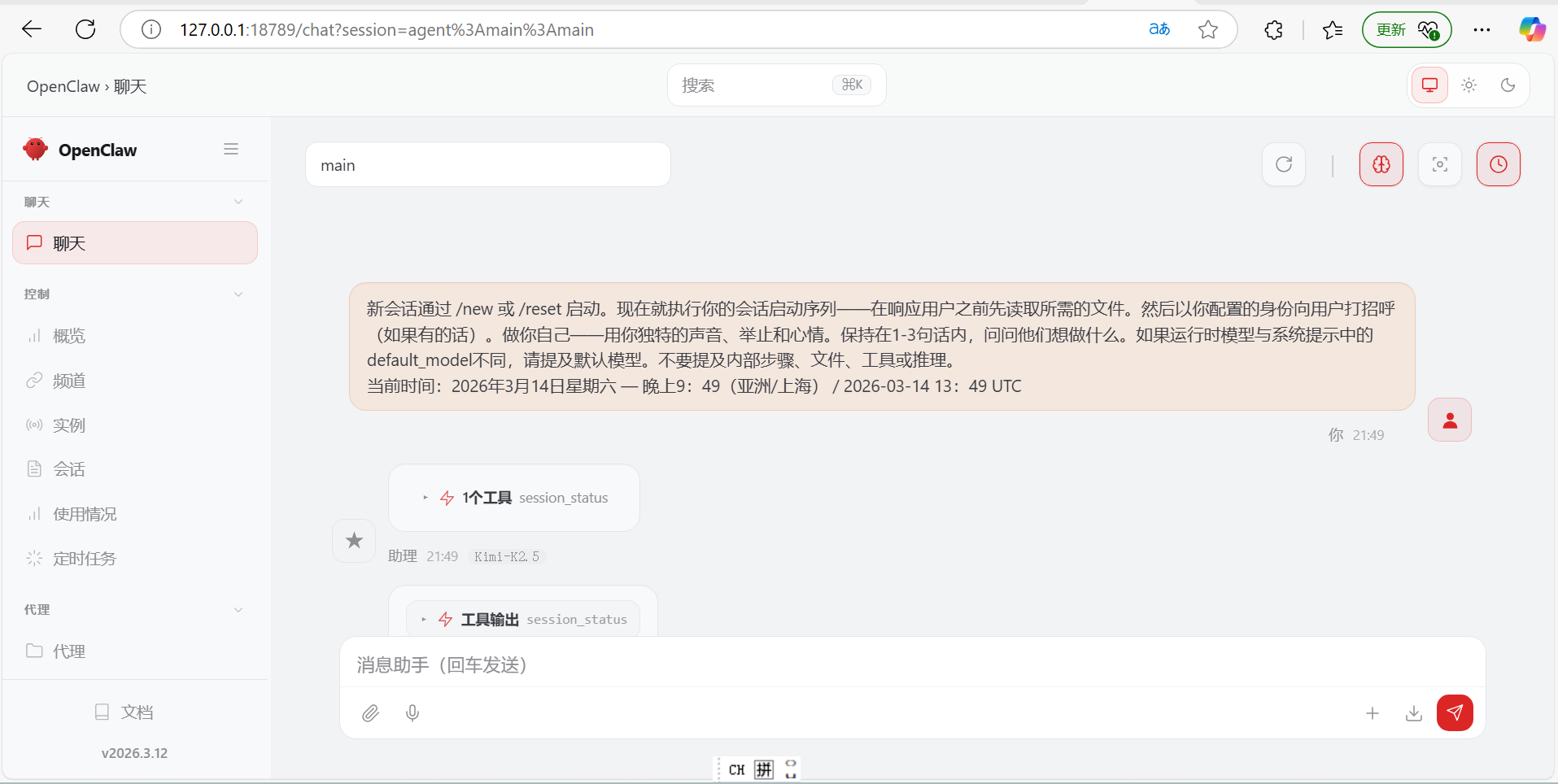
openclaw gateway run --port 18789运行后,打开浏览器,输入如下网址:http://127.0.0.1:18789,出现如下结果,表明运行服务成功。
参考文献: