简介
el-tag 标签是 Element UI 提供的组件,可以用来展示一些可操作的,交互的列表数据。
本文结合一个场景,介绍 el-tag 标签的使用。
场景
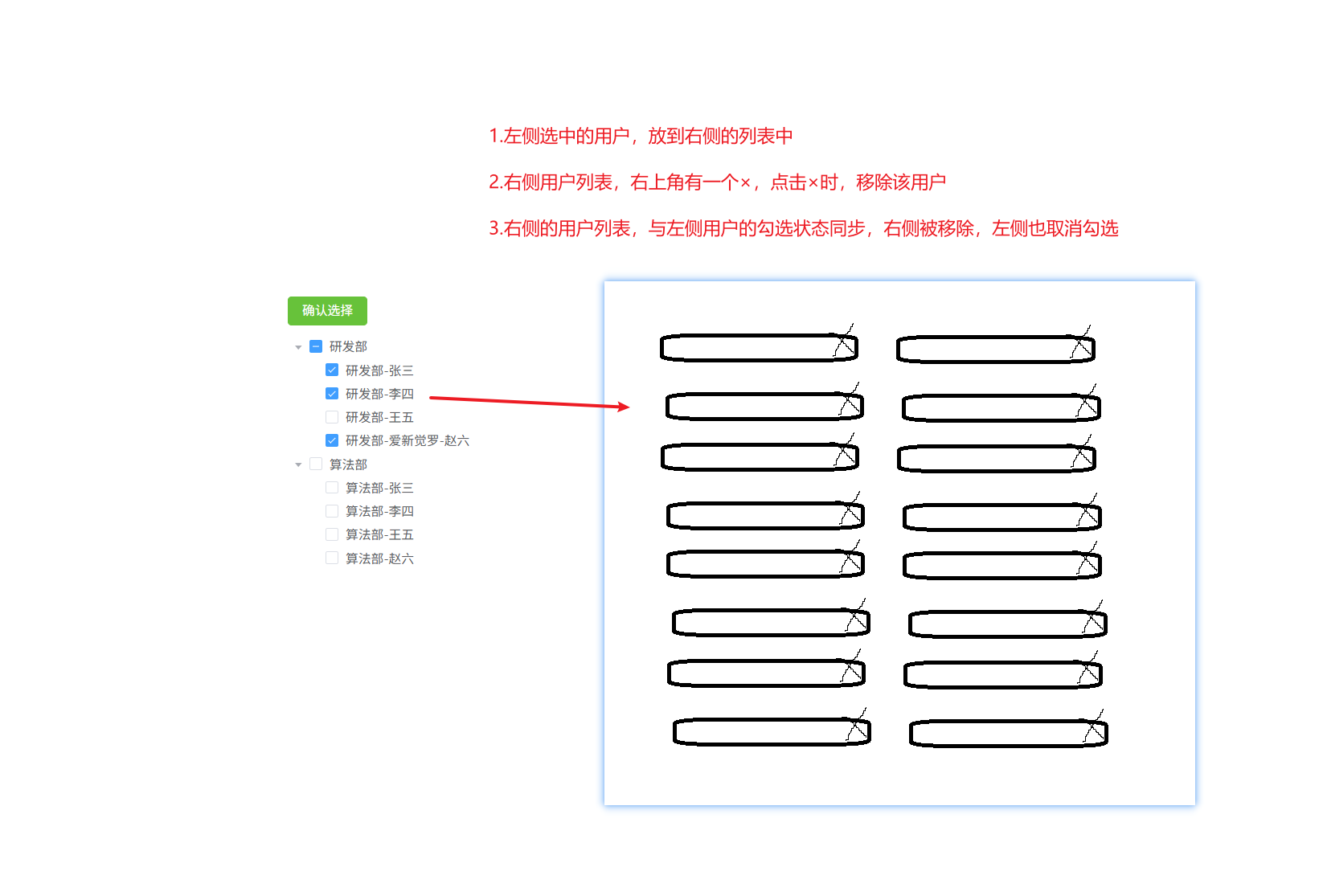
如下,需要实现这样一个场景。
实现
如下,使用 el-tag 标签,绑定 v-for 语句,closable 属性,绑定 @close 事件实现与勾选框同步的逻辑
html
    <!-- 已选择的用户框 -->
    <div class="right-section">
      <h3>已选择的用户</h3>
      <div class="selected-users">
        <el-tag
            v-for="user in selectedUsers"
            :key="user.userId"
            closable
            @close="removeUser(user.userId)"
            style="margin: 5px;">
          {{ user.userName }}
        </el-tag>
        <div v-if="selectedUsers.length === 0" class="empty-tip">
          暂无选择的用户
        </div>
      </div>
    </div>
完整代码如下
html
<template>
  <div class="container">
    <!-- 加一个按钮 显示/隐藏 树状框 -->
    <el-button type="primary" @click="toggleTreeVisibility" style="margin-bottom: 10px; margin-right: 10px;">
      {{ treeVisible ? '隐藏树状框' : '显示树状框' }}
    </el-button>

    <!-- 树状框 -->
    <div class="left-section">
      <el-button type="success" @click="openDialog" v-if="treeVisible" style="margin-bottom: 10px;">
        确认选择
      </el-button>

      <el-tree
          ref="tree"
          v-if="treeVisible"
          :props="props"
          :data="treeData"
          show-checkbox
          node-key="userId"
          @check-change="handleCheckChange"
          style="width: 300px;">
      </el-tree>
    </div>

    <!-- 已选择的用户框 -->
    <div class="right-section">
      <h3>已选择的用户</h3>
      <div class="selected-users">
        <el-tag
            v-for="user in selectedUsers"
            :key="user.userId"
            closable
            @close="removeUser(user.userId)"
            style="margin: 5px;">
          {{ user.userName }}
        </el-tag>
        <div v-if="selectedUsers.length === 0" class="empty-tip">
          暂无选择的用户
        </div>
      </div>
    </div>

    <!-- 确认对话框 -->
    <el-dialog
        title="确认选择"
        v-model="dialogVisible"
        width="500px">
      <span>确定要提交选中的用户吗?</span>
      <template #footer>
        <span class="dialog-footer">
          <el-button @click="handleCancel">取消</el-button>
          <el-button type="primary" @click="handleConfirm">确认</el-button>
        </span>
      </template>
    </el-dialog>
  </div>
</template>

<script>
import axios from 'axios'

export default {
  data() {
    return {
      props: {
        label: function (node) {
          // 如果有 userVOList 属性,说明是部门节点,使用 departmentName
          // 如果没有 userVOList 属性,说明是用户节点,使用 userName
          return node.userVOList ? node.departmentName : node.userName;
        },
        children: 'userVOList'
      },
      treeData: [],
      dialogVisible: false,
      selectedUserIds: [],
      treeVisible: false,
      selectedUsers: []
    };
  },
  methods: {
    /**
     * 切换树状框的显示/隐藏状态
     */
    toggleTreeVisibility() {
      this.treeVisible = !this.treeVisible;
      if (this.treeVisible) {
        this.loadTreeData();
      }
    },

    /**
     * 处理节点勾选状态变化
     */
    handleCheckChange(data, checked) {
      // 只处理用户节点
      if (!data.userVOList) {
        if (checked) {
          // 勾选时添加到选中列表
          if (!this.selectedUsers.some(user => user.userId === data.userId)) {
            this.selectedUsers.push({
              userId: data.userId,
              userName: data.userName
            });
          }
        } else {
          // 取消勾选时从选中列表移除
          this.selectedUsers = this.selectedUsers.filter(user => user.userId !== data.userId);
        }
      }
    },

    /**
     * 从选中列表移除用户
     */
    removeUser(userId) {
      // 从选中列表移除用户
      this.selectedUsers = this.selectedUsers.filter(user => user.userId !== userId);

      // 同时取消树节点的勾选状态
      const tree = this.$refs.tree;
      if (tree) {
        // 直接使用 setChecked 方法,根据 userId 取消勾选
        tree.setChecked(userId, false, false);
      }
    },

    /**
     * 加载部门和用户数据到树结构
     */
    loadTreeData() {
      axios.post('http://localhost:8080/departments')
          .then(response => {
            if (response.data.status === 'success') {
              this.treeData = response.data.data;
            }
          })
          .catch(error => {
            console.error('加载数据失败:', error);
          });
    },

    /**
     * 打开确认对话框
     */
    openDialog() {
      this.dialogVisible = true;
    },

    /**
     * 处理确认提交选中的用户ID
     */
    handleConfirm() {
      // 从selectedUsers中提取用户ID
      this.selectedUserIds = this.selectedUsers.map(user => user.userId);

      // 调用后端接口
      this.uploadUsers();

      // 关闭对话框
      this.dialogVisible = false;
    },

    /**
     * 处理取消提交选中的用户ID
     */
    handleCancel() {
      this.dialogVisible = false;
    },

    /**
     * 提交选中的用户ID到后端
     */
    uploadUsers() {
      // 调用后端接口
      axios.post('http://localhost:8080/uploadUsers', {
        userIds: this.selectedUserIds
      })
          .then(response => {
            console.log('接口调用成功:', response.data);
            this.$message.success('提交成功');
          })
          .catch(error => {
            console.error('接口调用失败:', error);
            this.$message.error('提交失败');
          });
    }
  }
};
</script>

<style scoped>
.container {
  display: flex;
  gap: 20px;
  padding: 20px;
}

.left-section {
  flex: 0 0 300px;
}

.right-section {
  flex: 1;
  border: 1px solid #e4e7ed;
  border-radius: 4px;
  padding: 15px;
  min-width: 300px;
  min-height: 400px;
}

.right-section h3 {
  margin-top: 0;
  margin-bottom: 15px;
  font-size: 16px;
  font-weight: 500;
}

.selected-users {
  display: flex;
  flex-wrap: wrap;
  gap: 10px;
}

.empty-tip {
  color: #909399;
  font-size: 14px;
  margin-top: 10px;
}

/* 树节点样式,增加文本与复选框之间的间距 */
:deep(.el-tree-node__content) {
  padding: 4px 0;
}

/* 复选框与文本之间的间距 */
:deep(.el-checkbox__inner) {
  margin-right: 8px;
}
</style>
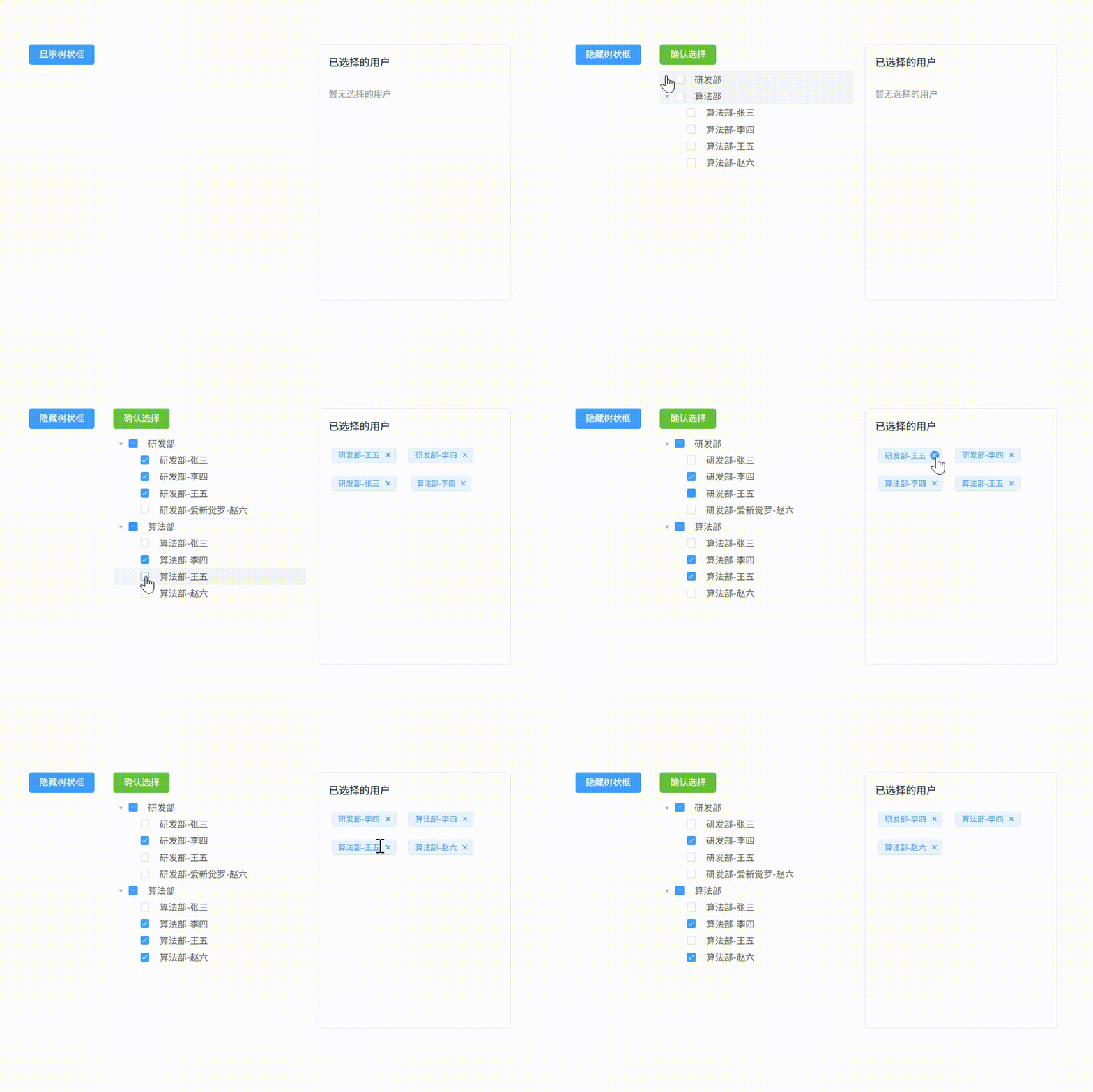
效果如下