在时间追踪类应用中,活动标签是核心数据之一。本文将讲解如何使用 HarmonyOS ArkUI 实现一个完整的活动标签管理页面,包含标签列表展示、新增标签对话框、删除确认对话框等功能。
功能概述
活动标签管理页面主要实现以下功能:
- 标签列表展示:区分预设标签和自定义标签
- 新增标签:包含名称输入、颜色选择、评分开关
- 删除标签:支持删除数据或转移数据两种方式
UI 布局实现
标题栏布局
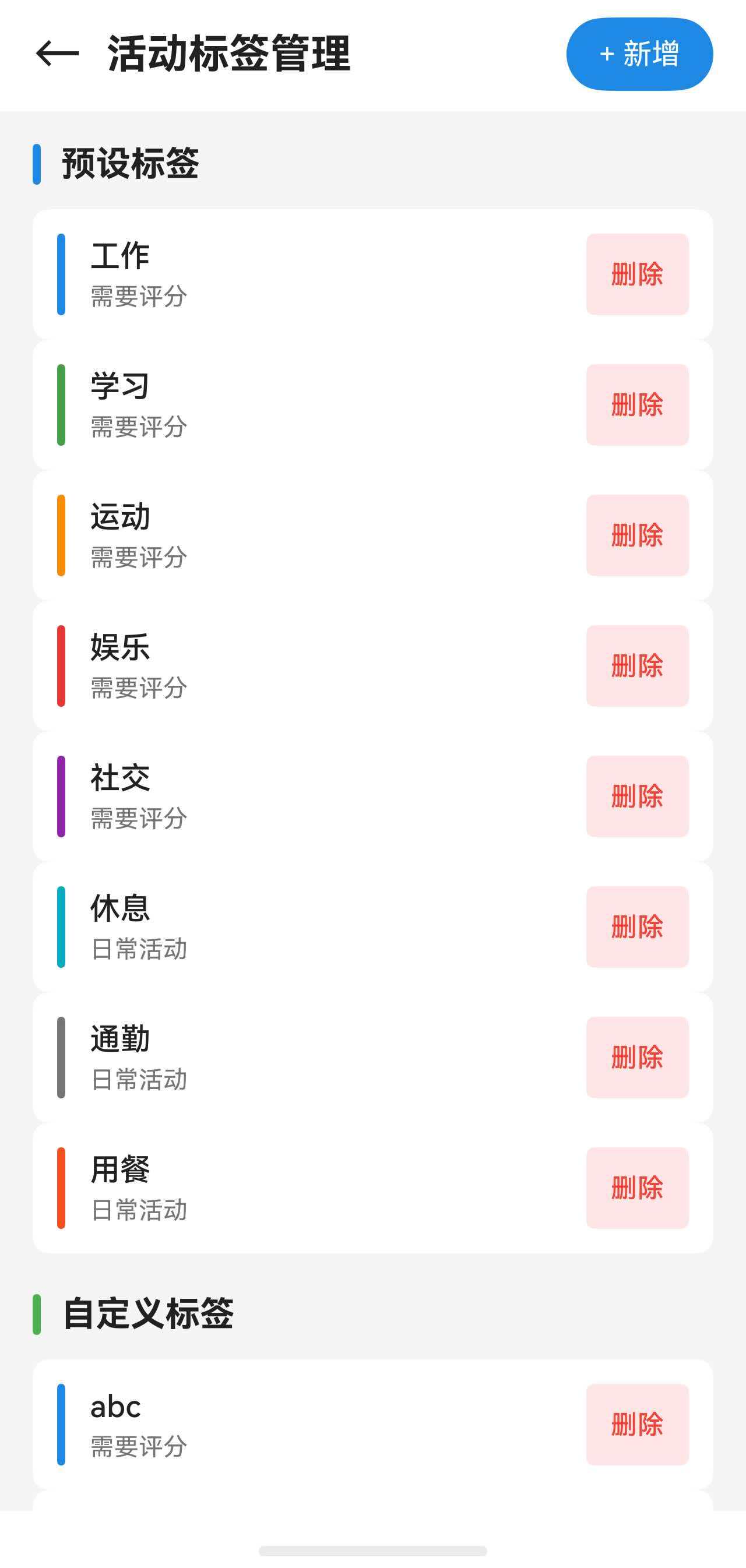
标题栏采用 Row 水平布局,包含返回按钮、标题文字和新增按钮:
typescript
Row() {
  Button() {
    Text('←')
      .fontSize(this.fs(24))
      .fontColor($r('app.color.text_primary'))
  }
  .backgroundColor(Color.Transparent)
  .onClick(() => {
    router.back()
  })

  Text('活动标签管理')
    .fontSize(this.fs(20))
    .fontWeight(FontWeight.Bold)
    .fontColor($r('app.color.text_primary'))
    .margin({ left: 12 })

  Blank()

  Button() {
    Text('+ 新增')
      .fontSize(this.fs(14))
      .fontColor(Color.White)
  }
  .backgroundColor($r('app.color.primary_color'))
  .borderRadius(20)
  .height(36)
  .padding({ left: 16, right: 16 })
  .onClick(() => {
    this.openAddTagDialog()
  })
}
.width('100%')
.height(56)
.padding({ left: 16, right: 16 })
.justifyContent(FlexAlign.Start)
.alignItems(VerticalAlign.Center)
.backgroundColor($r('app.color.card_background'))
这里使用 Blank() 组件占据中间空间,使新增按钮靠右对齐。
分类标题设计
预设标签和自定义标签的分类标题采用左侧色条设计,视觉上更加清晰:
typescript
Row() {
  Row()
    .width(4)
    .height(20)
    .backgroundColor($r('app.color.primary_color'))
    .borderRadius(2)

  Text('预设标签')
    .fontSize(this.fs(17))
    .fontWeight(FontWeight.Bold)
    .fontColor($r('app.color.text_primary'))
    .margin({ left: 10 })
}
.width('100%')
.margin({ bottom: 12 })
左侧添加一个 4px 宽的色条作为视觉标识,不同分类使用不同颜色。
标签项布局
每个标签项使用 @Builder 装饰器封装,便于复用:
typescript
@Builder
TagItem(tag: ActivityTag, canDelete: boolean) {
  Row() {
    // 颜色指示器
    Row()
      .width(4)
      .height(40)
      .backgroundColor(tag.color)
      .borderRadius(2)
      .margin({ right: 12 })

    Column({ space: 4 }) {
      Text(tag.name)
        .fontSize(this.fs(15))
        .fontColor($r('app.color.text_primary'))
        .fontWeight(FontWeight.Medium)

      Text(tag.requiresRating ? '需要评分' : '日常活动')
        .fontSize(this.fs(12))
        .fontColor($r('app.color.text_secondary'))
    }
    .alignItems(HorizontalAlign.Start)
    .layoutWeight(1)

    Button('删除')
      .fontSize(this.fs(13))
      .fontColor($r('app.color.error_color'))
      .backgroundColor('rgba(255, 0, 0, 0.1)')
      .padding({ left: 12, right: 12, top: 6, bottom: 6 })
      .borderRadius(4)
      .onClick(() => {
        this.openDeleteDialog(tag)
      })
  }
  .width('100%')
  .padding(12)
  .backgroundColor($r('app.color.card_background'))
  .borderRadius(8)
}
标签项的左侧显示颜色指示条,中间显示标签名称和类型,右侧显示删除按钮。
新增标签对话框
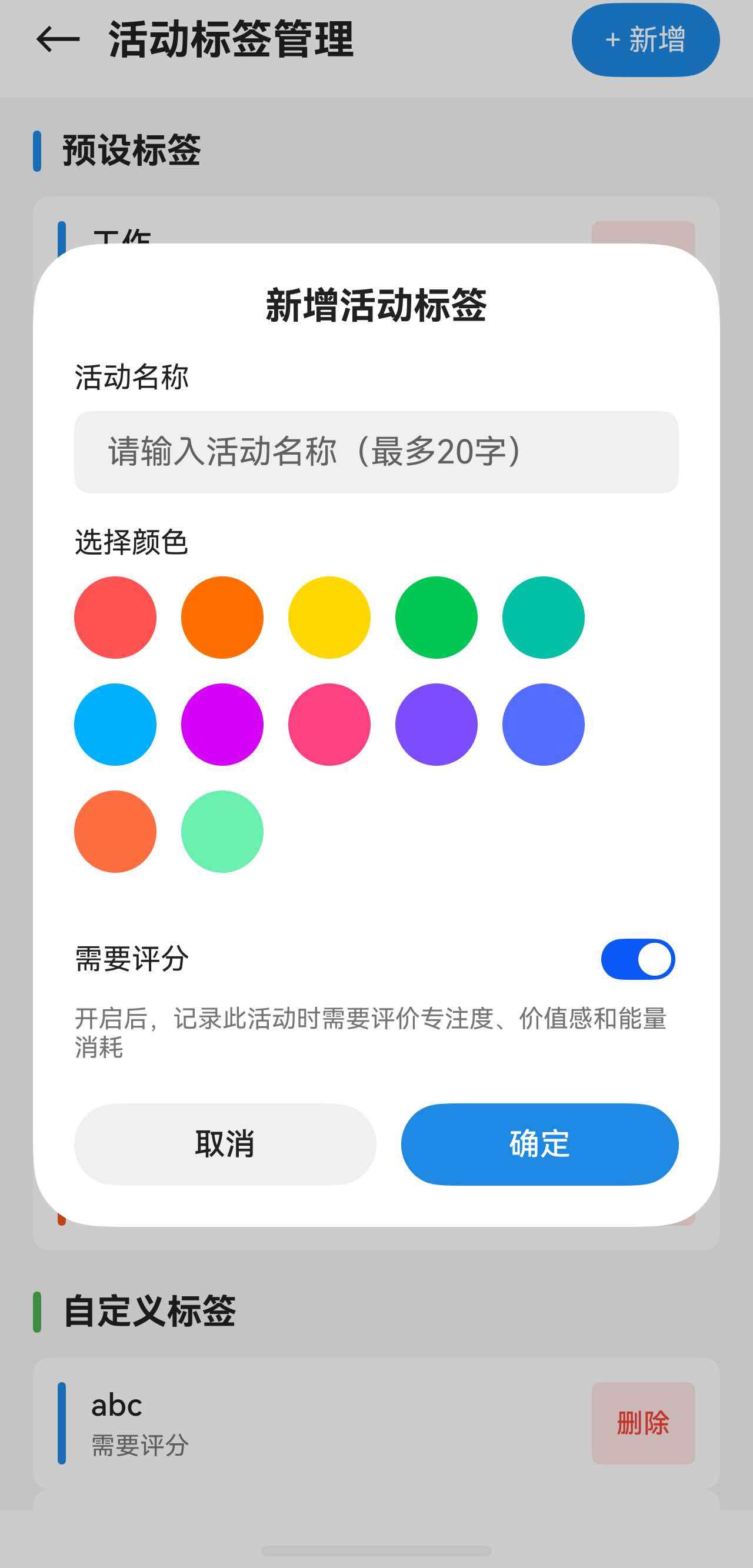
新增标签对话框使用 @CustomDialog 装饰器,包含名称输入、颜色选择和评分开关三个表单元素。
颜色选择器
颜色选择器通过预设颜色数组配合 ForEach 实现:
typescript
private readonly presetColors: string[] = [
  '#FF5252', '#FF6F00', '#FFD600', '#00C853',
  '#00BFA5', '#00B0FF', '#D500F9', '#FF4081',
  '#7C4DFF', '#536DFE', '#FF6E40', '#69F0AE'
]

Flex({ wrap: FlexWrap.Wrap, justifyContent: FlexAlign.Start }) {
  ForEach(this.presetColors, (color: string) => {
    Stack() {
      Row()
        .width(40)
        .height(40)
        .backgroundColor(color)
        .borderRadius(20)
        .border({
          width: this.tagColor === color ? 3 : 0,
          color: '#FFFFFF'
        })
        .shadow({
          radius: this.tagColor === color ? 8 : 0,
          color: color,
          offsetX: 0,
          offsetY: 0
        })

      if (this.tagColor === color) {
        Text('✓')
          .fontSize(this.fs(20))
          .fontColor('#FFFFFF')
          .fontWeight(FontWeight.Bold)
      }
    }
    .width(40)
    .height(40)
    .margin({ right: 12, bottom: 12 })
    .onClick(() => {
      this.tagColor = color
    })
  })
}
选中的颜色会显示白色边框和发光阴影效果,并叠加一个勾选图标。使用 Stack 组件实现图标叠加效果。
Toggle 开关组件
是否需要评分使用 Toggle 组件实现:
typescript
Row() {
  Text('需要评分')
    .fontSize(this.fs(14))
    .fontColor($r('app.color.text_primary'))
    .layoutWeight(1)

  Toggle({ type: ToggleType.Switch, isOn: this.requiresRating })
    .onChange((isOn: boolean) => {
      this.requiresRating = isOn
    })
}
ToggleType.Switch 表示开关类型,isOn 绑定当前状态。
打开对话框
在主页面中通过 CustomDialogController 打开对话框:
typescript
private openAddTagDialog(): void {
  this.addTagDialogController = new CustomDialogController({
    builder: AddTagDialogContent({
      allTags: this.activityTags,
      onConfirm: async (name: string, color: string, requiresRating: boolean) => {
        await this.handleAddTag(name, color, requiresRating)
      }
    }),
    autoCancel: true,
    alignment: DialogAlignment.Center
  })

  this.addTagDialogController.open()
}
builder 指定对话框内容,onConfirm 是回调函数,在用户点击确定后执行。
删除确认对话框
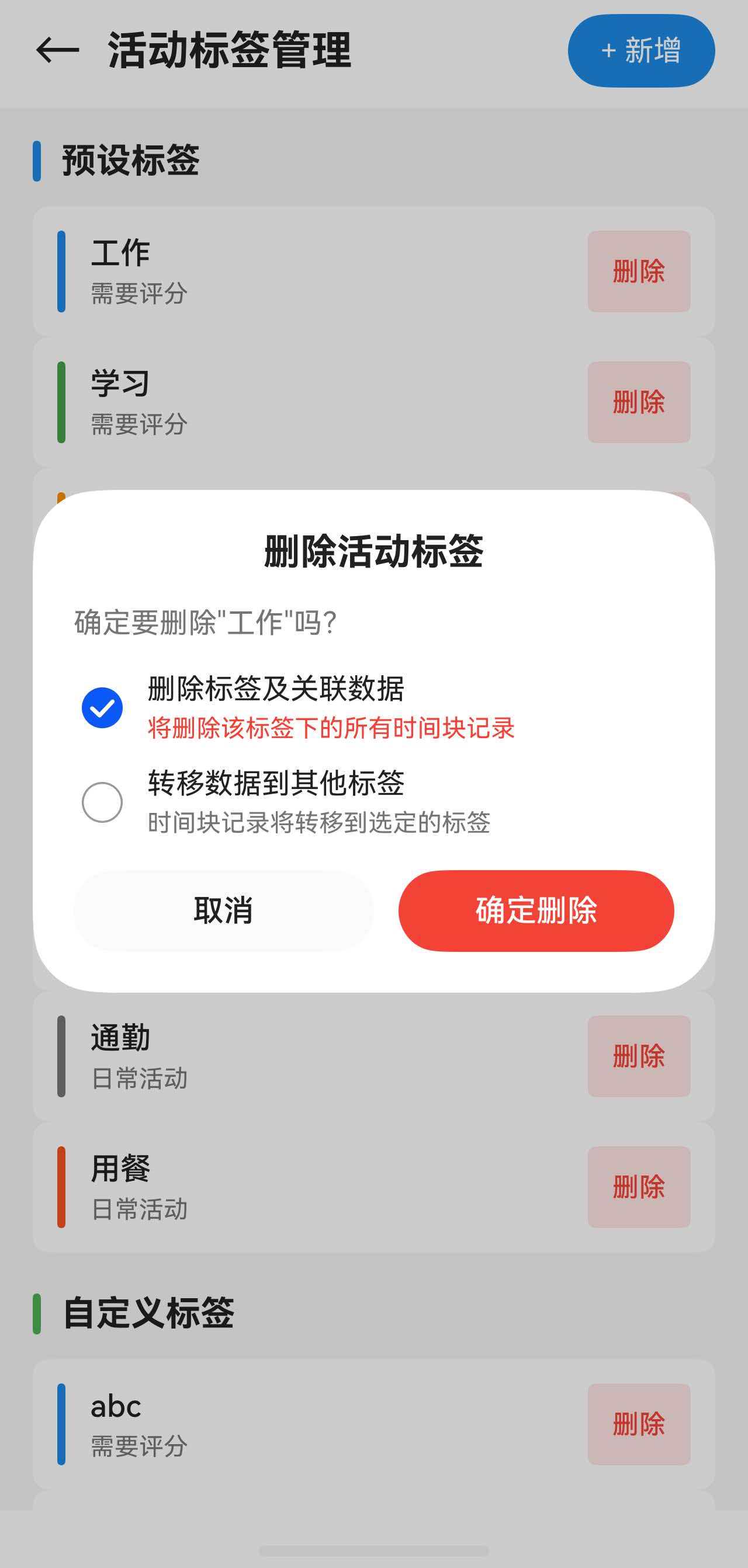
删除对话框提供两种处理方式:删除关联数据或转移到其他标签。
Radio 单选组件
使用 Radio 组件让用户选择删除方式:
typescript
Column({ space: 12 }) {
  Row() {
    Radio({ value: 'delete', group: 'deleteGroup' })
      .checked(this.deleteOption === 0)
      .onChange((isChecked: boolean) => {
        if (isChecked) {
          this.deleteOption = 0
        }
      })

    Column({ space: 4 }) {
      Text('删除标签及关联数据')
        .fontSize(this.fs(14))
        .fontColor($r('app.color.text_primary'))
      Text('将删除该标签下的所有时间块记录')
        .fontSize(this.fs(12))
        .fontColor($r('app.color.error_color'))
    }
    .alignItems(HorizontalAlign.Start)
    .margin({ left: 8 })
    .layoutWeight(1)
  }
  .width('100%')
  .onClick(() => {
    this.deleteOption = 0
  })

  Row() {
    Radio({ value: 'transfer', group: 'deleteGroup' })
      .checked(this.deleteOption === 1)
      .onChange((isChecked: boolean) => {
        if (isChecked) {
          this.deleteOption = 1
        }
      })

    Column({ space: 4 }) {
      Text('转移数据到其他标签')
        .fontSize(this.fs(14))
        .fontColor($r('app.color.text_primary'))
      Text('时间块记录将转移到选定的标签')
        .fontSize(this.fs(12))
        .fontColor($r('app.color.text_secondary'))
    }
    .alignItems(HorizontalAlign.Start)
    .margin({ left: 8 })
    .layoutWeight(1)
  }
  .width('100%')
  .onClick(() => {
    this.deleteOption = 1
  })
}
同一组 Radio 通过 group 参数关联,确保只能选中一个。点击整行也能触发选择。
数据处理逻辑
新增标签
新增标签需要检查名称是否重复,然后创建并保存:
typescript
private async handleAddTag(name: string, color: string, requiresRating: boolean): Promise<void> {
  try {
    // 检查名称是否已存在
    const exists = await this.activityTagRepo.nameExists(name.trim())
    if (exists) {
      this.errorMessage = '活动名称已存在'
      setTimeout(() => {
        this.errorMessage = ''
      }, 3000)
      return
    }

    // 创建新标签
    const newTag = new ActivityTag(
      `custom_${Date.now()}`,
      name.trim(),
      color,
      true,
      requiresRating,
      new Date()
    )

    const result = await this.activityTagRepo.save(newTag)
    if (result.success) {
      // 通知其他页面刷新
      setTimeout(() => {
        AppStorage.setOrCreate('needRefreshTimeline', Date.now())
        AppStorage.setOrCreate('needRefreshAnalysis', Date.now())
        AppStorage.setOrCreate('needRefreshProfile', Date.now())
      }, 50)

      await this.loadData()
      this.errorMessage = ''
    }
  } catch (error) {
    this.errorMessage = '新增失败'
  }
}
通过 AppStorage.setOrCreate 通知其他页面刷新数据。
删除标签
删除标签有两种处理方式:
typescript
private async handleDeleteTag(tag: ActivityTag, deleteData: boolean, targetTagId: string | null): Promise<void> {
  try {
    if (deleteData) {
      // 删除标签及其关联的时间块
      const blocks = await this.timeBlockRepo.findByActivityTagId(tag.id)
      for (let i = 0; i < blocks.length; i++) {
        await this.timeBlockRepo.delete(blocks[i].id)
      }
    } else if (targetTagId !== null) {
      // 转移时间块到目标标签
      const blocks = await this.timeBlockRepo.findByActivityTagId(tag.id)
      for (let i = 0; i < blocks.length; i++) {
        const block = blocks[i]
        const updatedBlock = new TimeBlock(
          block.id,
          block.startTime,
          block.endTime,
          targetTagId,
          block.focusLevel,
          block.valueLevel,
          block.energyCost,
          block.note,
          block.createdAt,
          new Date()
        )
        await this.timeBlockRepo.update(block.id, updatedBlock)
      }
    }

    await this.activityTagRepo.delete(tag.id)

    // 通知其他页面刷新
    setTimeout(() => {
      AppStorage.setOrCreate('needRefreshTimeline', Date.now())
      AppStorage.setOrCreate('needRefreshAnalysis', Date.now())
      AppStorage.setOrCreate('needRefreshProfile', Date.now())
    }, 50)

    await this.loadData()
  } catch (error) {
    this.errorMessage = '删除失败'
  }
}
如果选择转移数据,需要遍历所有关联的时间块,更新其标签 ID。
小结
本文介绍了 HarmonyOS 活动标签管理页面的实现,主要涉及以下技术点:
- @CustomDialog:自定义对话框组件
- @Builder:可复用的 UI 构建函数
- Radio:单选组件,通过 group 关联
- Select:下拉选择组件
- Toggle:开关组件
- CustomDialogController:对话框控制器
这些组件组合使用,可以构建出完整的表单交互界面。