⑴
Cling to the ideas from last week, wherein we talked about some of those fundamentals of functions and loops and conditionals, all of which are coming back today. Indeed, whereas last week, we focused on learning how to program with Scratch. Today, we focus on C instead. But along the way, we're going to focus, as always, frankly, on learning how to solve problems. But among the goals for today and really on an entire class like this, is just to give you week after week all the more tools for your toolkit. So to speak, via which to do exactly that. So for instance today, we'll learn how to solve problems all the more. So with functions, as per last week. We'll do the same with variables. We'll do the same with conditionals, with loops, and with more. But we'll also learn at the end of today's class, really how not to solve problems. It turns out as powerful as Macs, PCs, cell phones are nowadays, there's actually certain things that they can't do very well and information they can't represent very well. And that actually leads to a lot of real-world problems both past and surely future. So more on what we're not going to be able to do with programming before long.
⑵
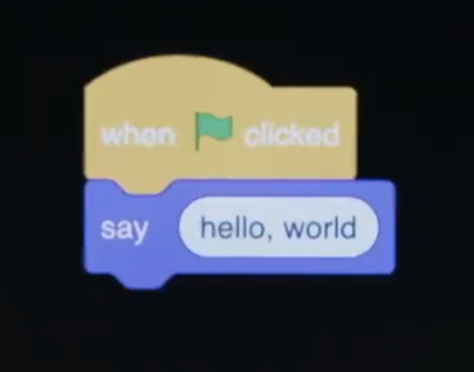
So this was the very first program that I wrote, that you write presumably in some form. And all it does is say " hello, world". But as promised today, this puzzle piece, or these puzzle pieces together
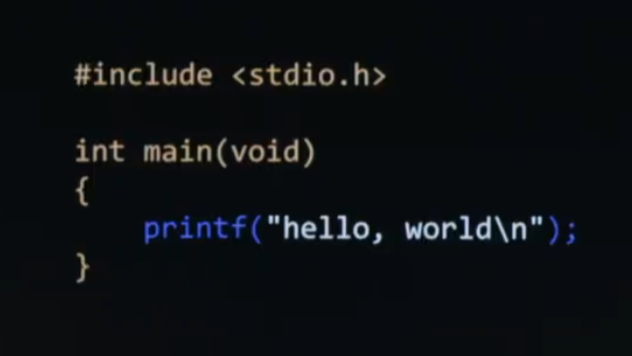
are going to very quickly start to look more like this. And I've deliberately color coded it in a way so that the text on the screen now kind of resembles the puzzle piece.
So if I go back, notice that we had this, when green flag clicked puzzle piece, mostly in yellow with the green flag, that sort of kicks off the whole process once you actually click the botton at top right of Scratch's user interface. And then there's the purple block which actually is the verb, the action, the function that does something.
So if I bring us back over to what we're about to see today, there's going to be some boilerplate, so to speak, some orange text here on the screen that for now you just type and take for granted like you need to write your code like that. But more interesting is going to be the purple. And we're going to see today that the function previously called " say " in Scratch is now called " printf " in this language called C. But in white here, you'll see similar text to our white oval, last week, whereby that's where user input, like your input, as the programmer can actually go. So there's a lot of distraction. And honestly, it's there kinds of things that tend to distract and get frustrating early on when learning to code for the first time. But the ideas, most importantly, are going to be the same.
⑶
So how are we going to go about using C.
Well, it turns out, like last week, you're going to start writing something called source code. So code as we know it, quote, unquote, is more technically called " source code ". That's what you and I as humans atually write. And indeed it might look a little something like we just saw.
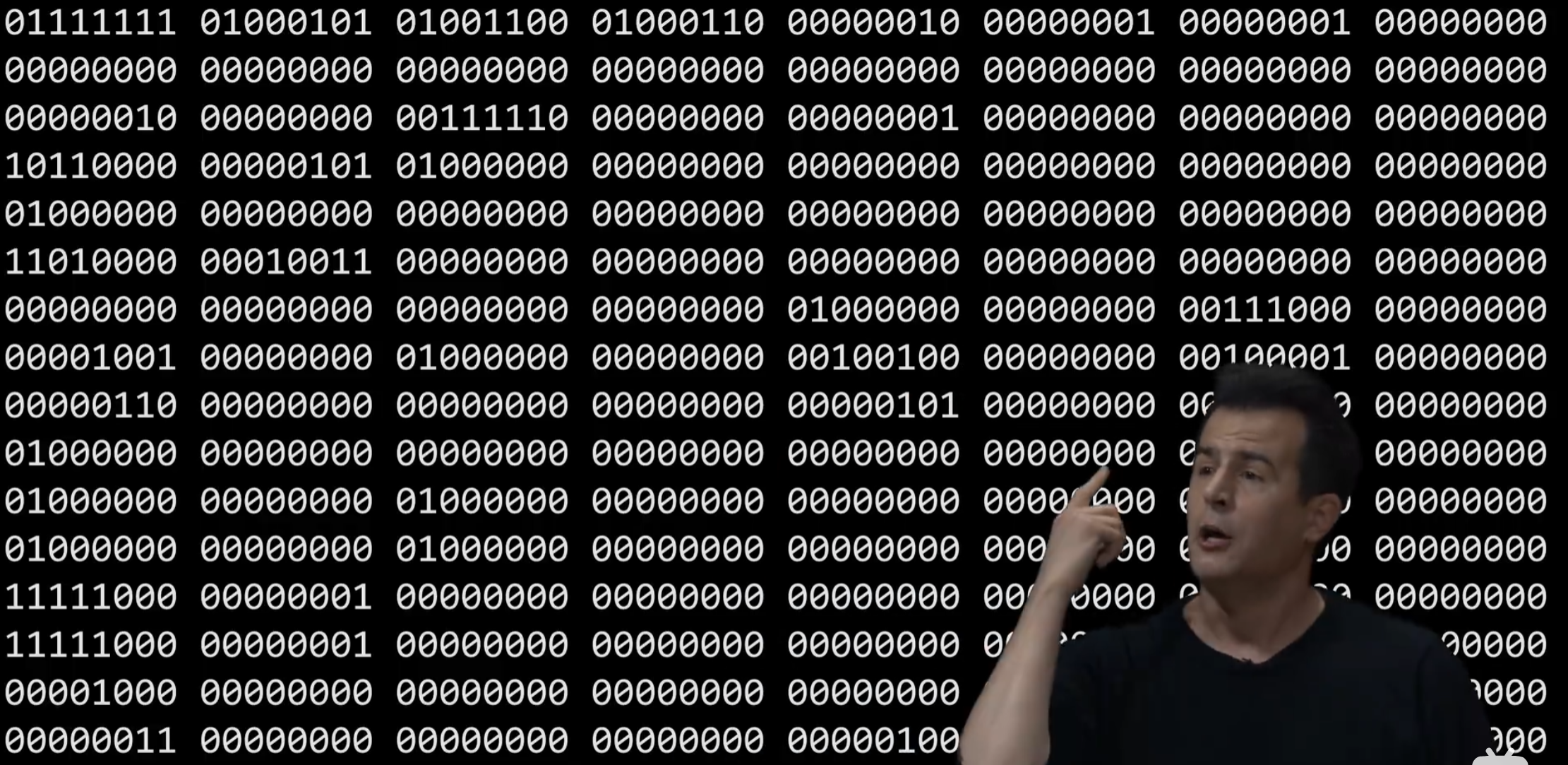
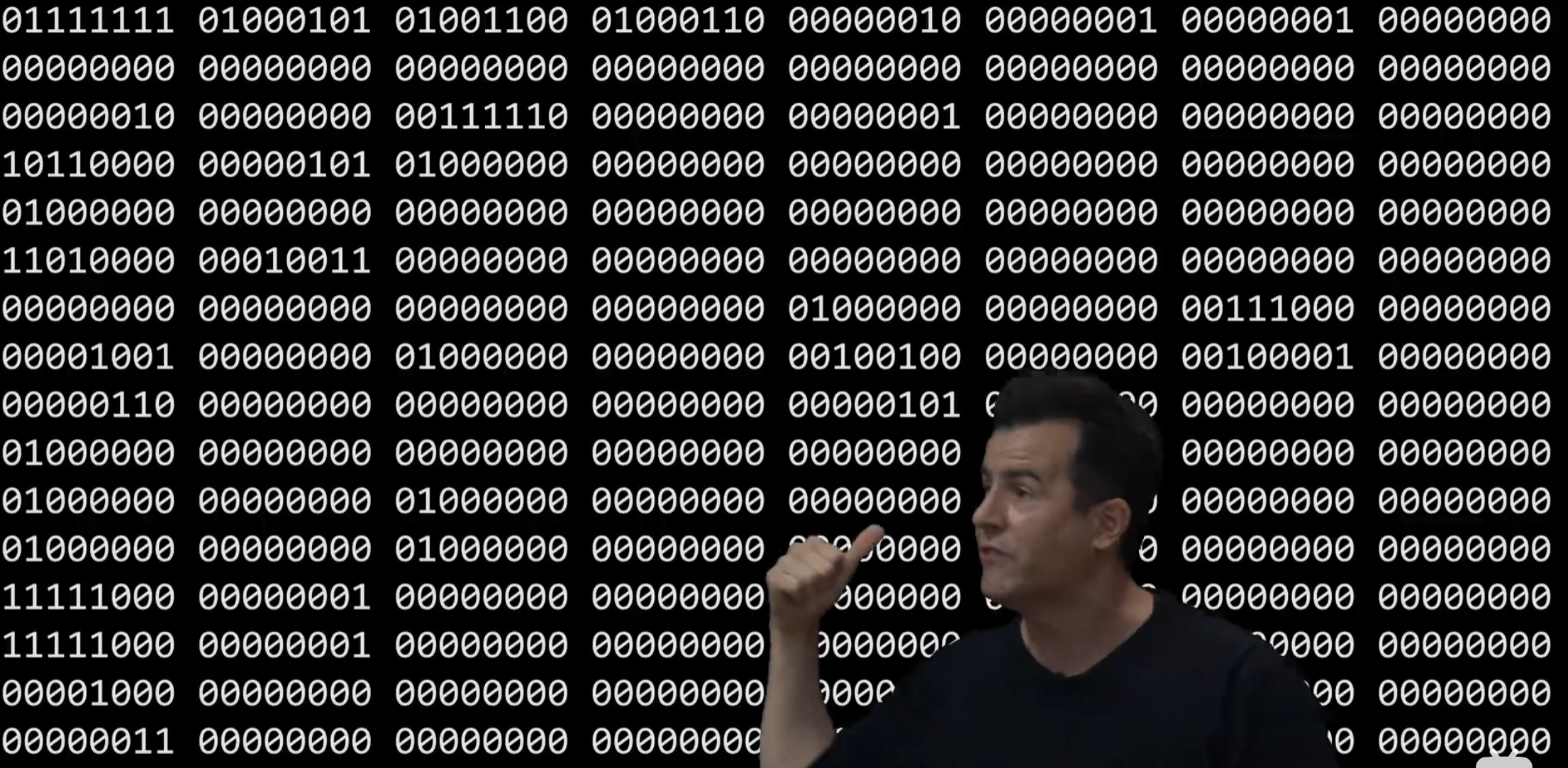
But unfortunately, computers only speak this, binary - - zeros and ones
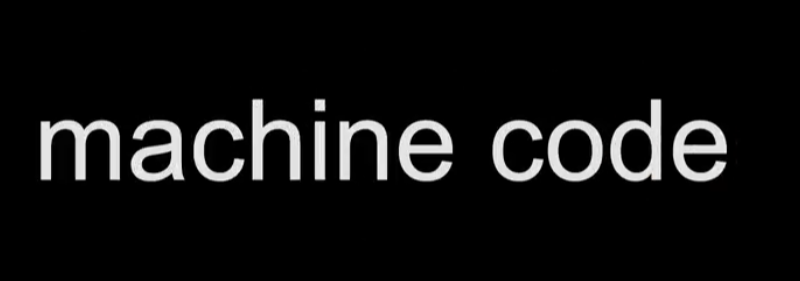
more properly known as machine code, in other worlds, those same patterns of zeros and ones last week, someone guessed, print out " hello, world " on the screen because one of those patterns is an H. Another pattern is an E, and L, and L, and an O, and so forth. And then other patterns of those zeros and ones are commands or instructions to the computer that literally say, show H-E-L-L-O comma " world " on the screen. But machine code would not be nearly as much fun to write if it were indeed in zeros and ones. Entirely for us, ideally, you and I are going to write source code, which conceptually is sort of up here, high level. But we're going to need a program to convert it to the lower-level machine code.
So that we don't spend our lives actually having to read and write zeros and ones, which back in the day, kind of in yesteryear, you kind of did with things called punch cards and holes on physical sheets of paper. We're beyond that because after years and years of innovation, folks have given us higher-level languages instead.
⑷
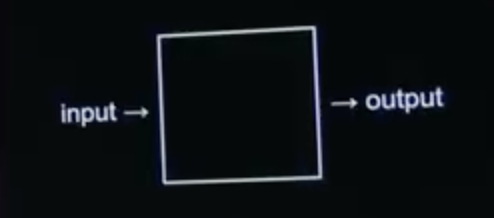
So here's what we're going to need to do today.
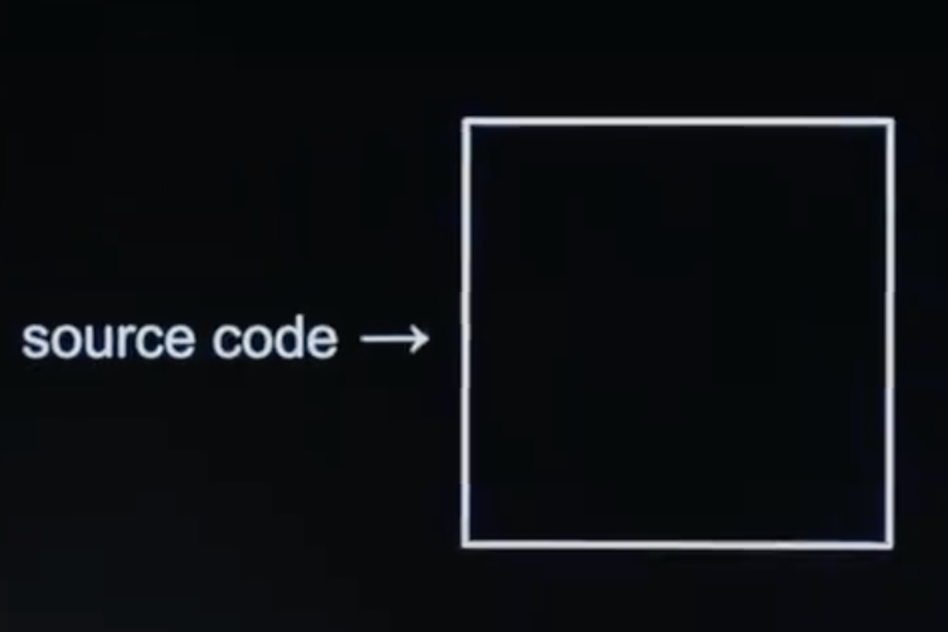
If at the end of the day you and I are writing source code,
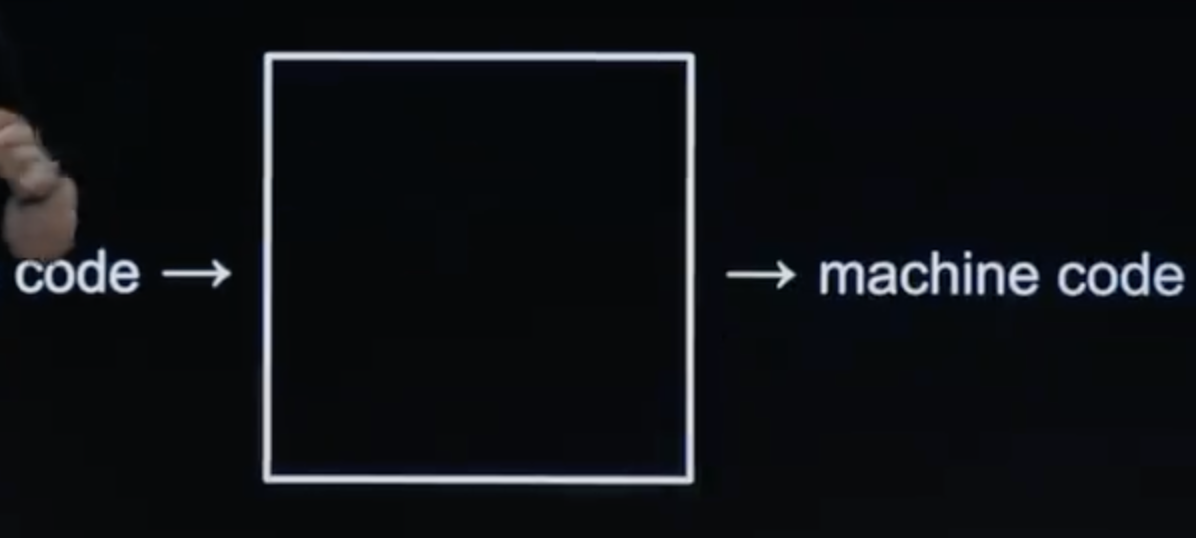
but we want machine code as output, we need something in the middle that's going to convert that source code to machine code. You and I are not going to have to learn or talk about really any more zeros and ones.
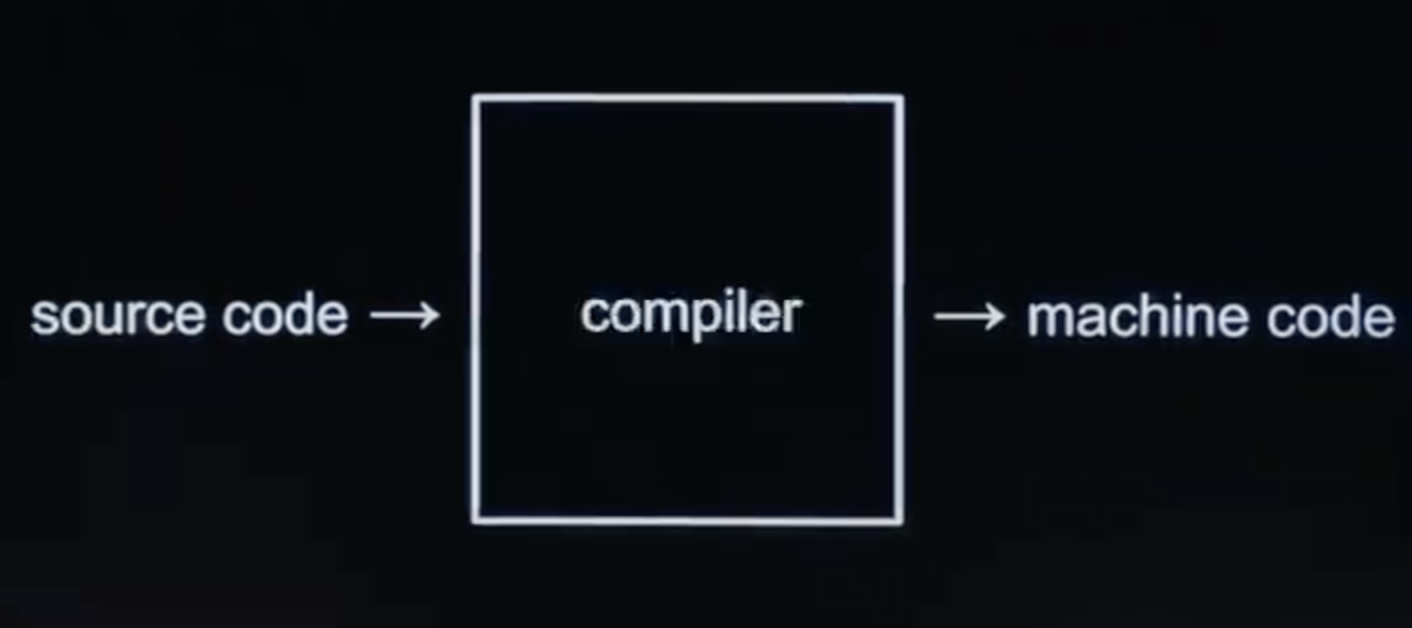
And the type of program we're going to start using today and introduce you to is called a compiler. So a compiler is a program that translates one language to another. And it can be any two languages. But today, and often, we'll take about it in the context of source code to machine code. So this is Apple or Google or Microsoft or folks from other companies or even volunteers who have written software that do this conversion. You and I are essentially going to download a free compiler and use it to actually get our computer to understand the source code that you and I write in these high-level languages.
⑸
So in just a bit, I'm going to go to that URL of the form https: // cs50.dev. myself on my computer.
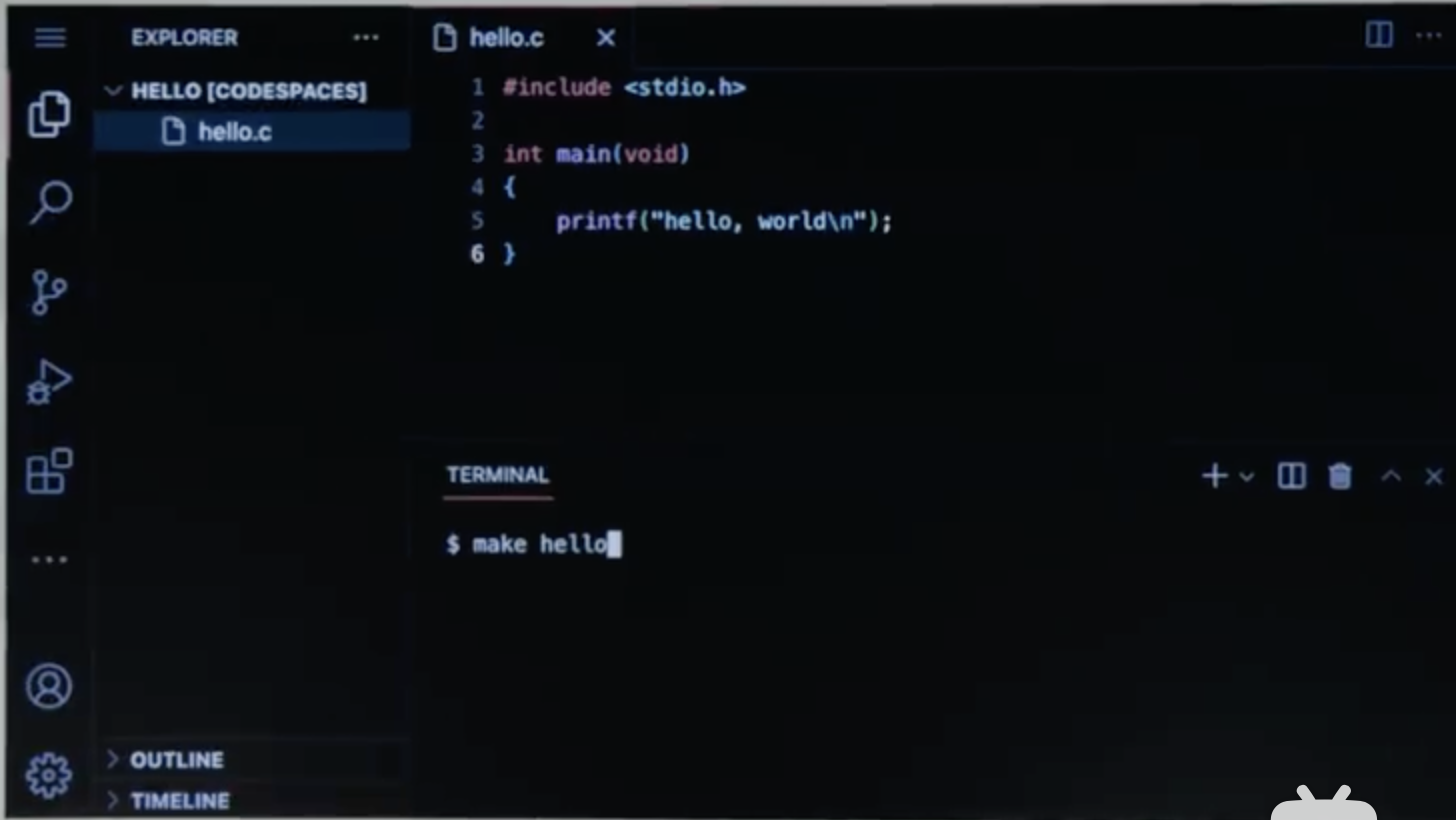
And I and you will see a user inter-face that looks a little something like this. The colors might be different based on your settings. Fonts might be different, and so forth. But in general, it consists of a few different regions.
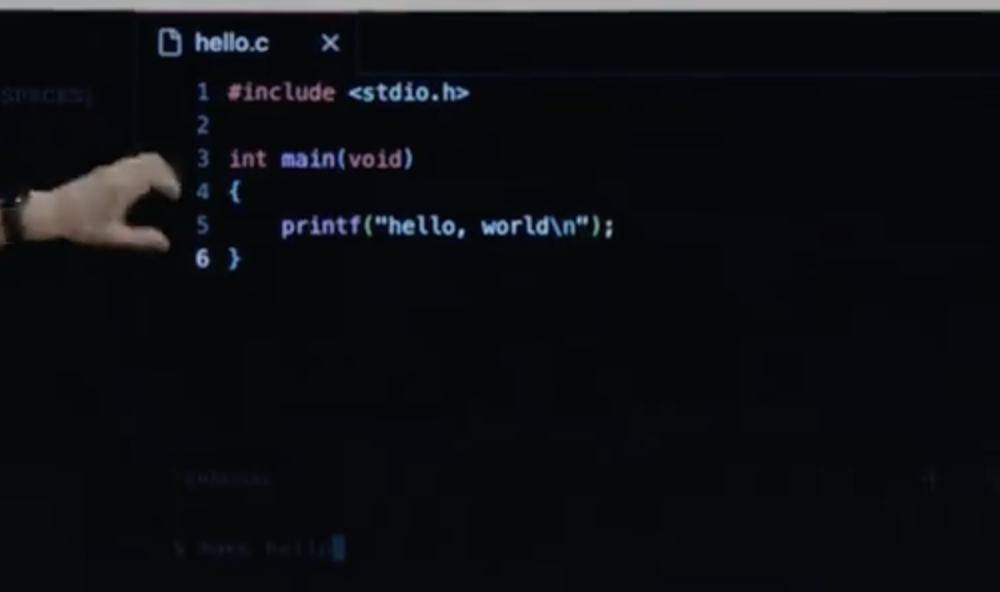
So over here at the top is where we are going to start writing code today. So it's a tabbed interface like any number of programs nowadays. And this is that same C code we saw a moment ago. So this is where, in a moment, I'm going to start to type it.
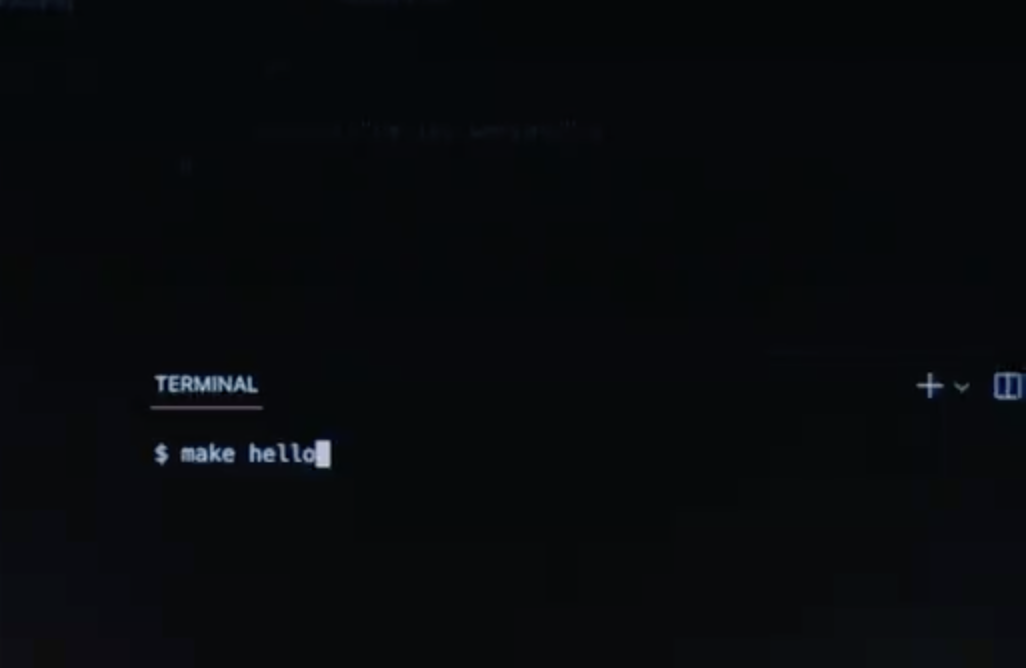
Over here at the bottom is what we're going to call a terminal window, or a console. And the terminal window is where we're going to type commands for compiling our code, for running our code. And we'll see today a contrast between a graphical-user interface, or GUI, which has menus and icons and things you click and are very familiar wirh, versus a command-line interface, or CLI. And so we're using both of these together. And command-line interface just means, down here, you only use your keyboard. You can click, click, click, click, if you want with your mouse. It's not going to generally do much because a command-line interface takes commands at the keyboard. So in weird sense, it's going to feel like taking a step backwards from the Macs, the PCs, the iPhones, and Android phones we all have, which are very graphical. But it turns out once you become a " computer " person or a programmer, you can be a lot more productive, a lot more efficient. I dare say, by learning to harness the command-line interface and using both types of interfaces for what each is good at. So more on that in just a bit.
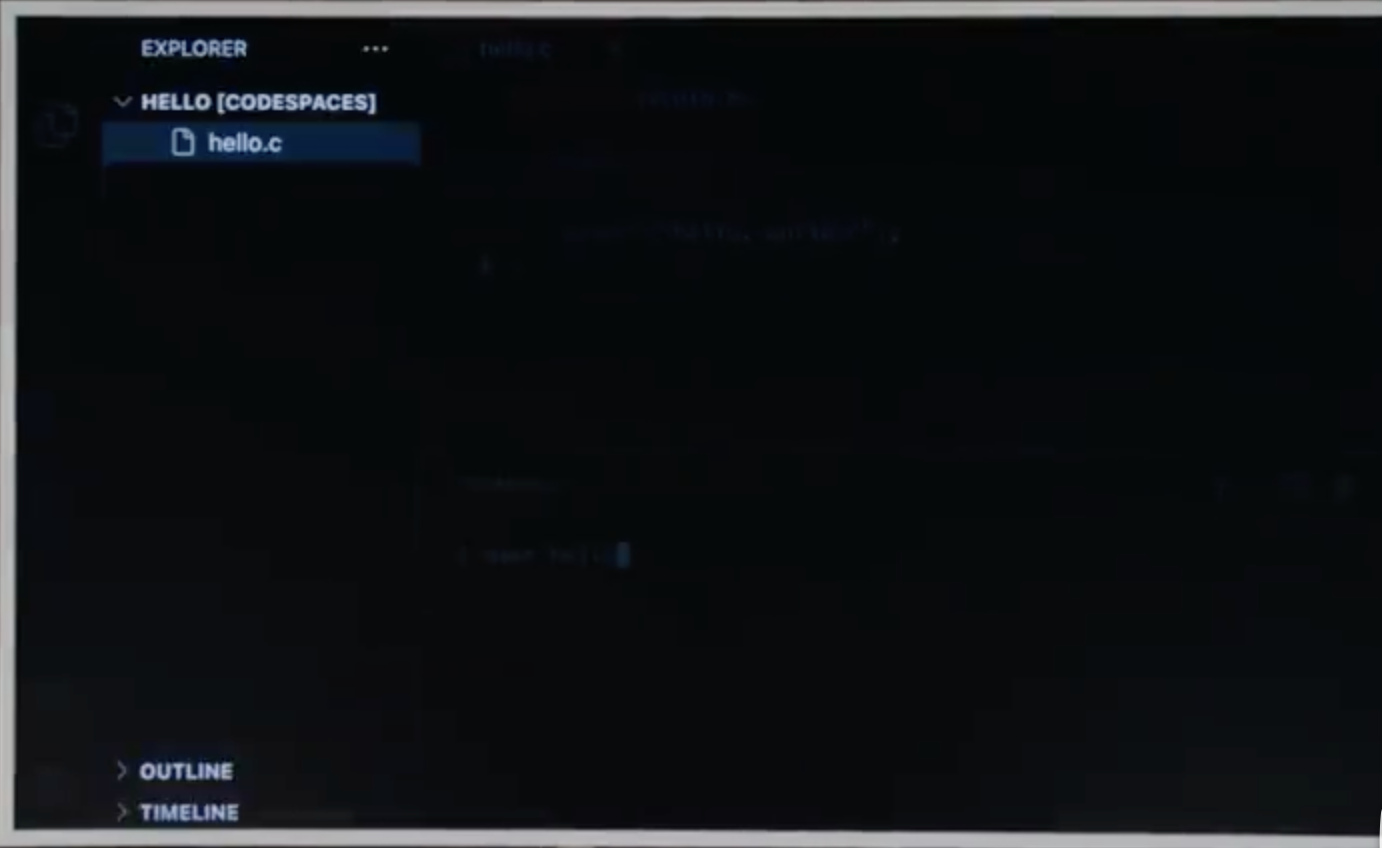
Over here at left, you're going to see soon a folder interface like Mac OS, or Windows where any of the fiels or folders we create in CS50 are going to end up, as well. So it gives you the best of both worlds. You can point and click on the left, or you can type commands at the bottom as we'll soon see.
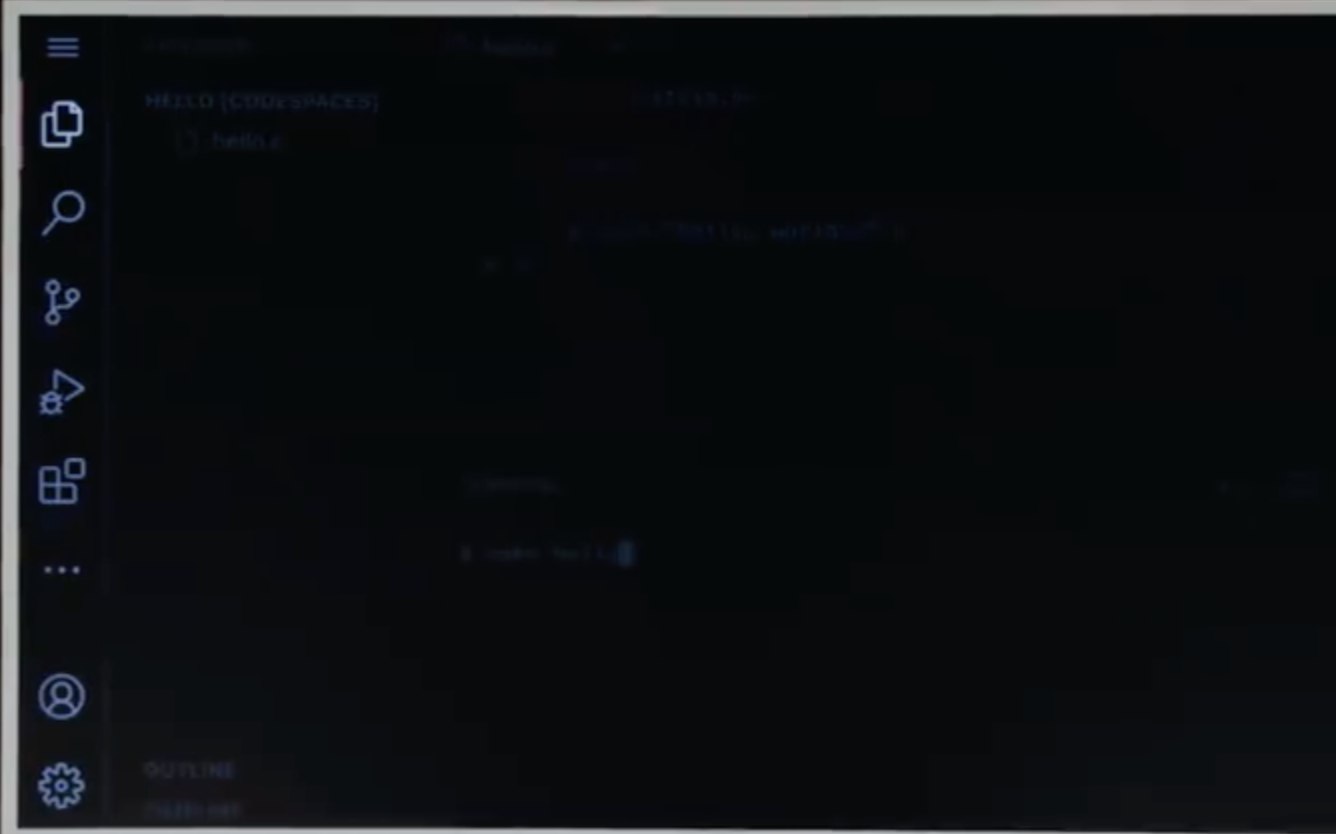
And then along here is the so-called activity bar, where there's just VS Code-specific features but also CS50-specific features. And if you're in your own version of CS50.dev,
you click through in the dot dot dot menu, or zoom out so you can see everything. You'll see CS50's own rubber duck, virtually speaking that will be there throughout the course to answer any and all of your questions, as well. So more on that soon, too.