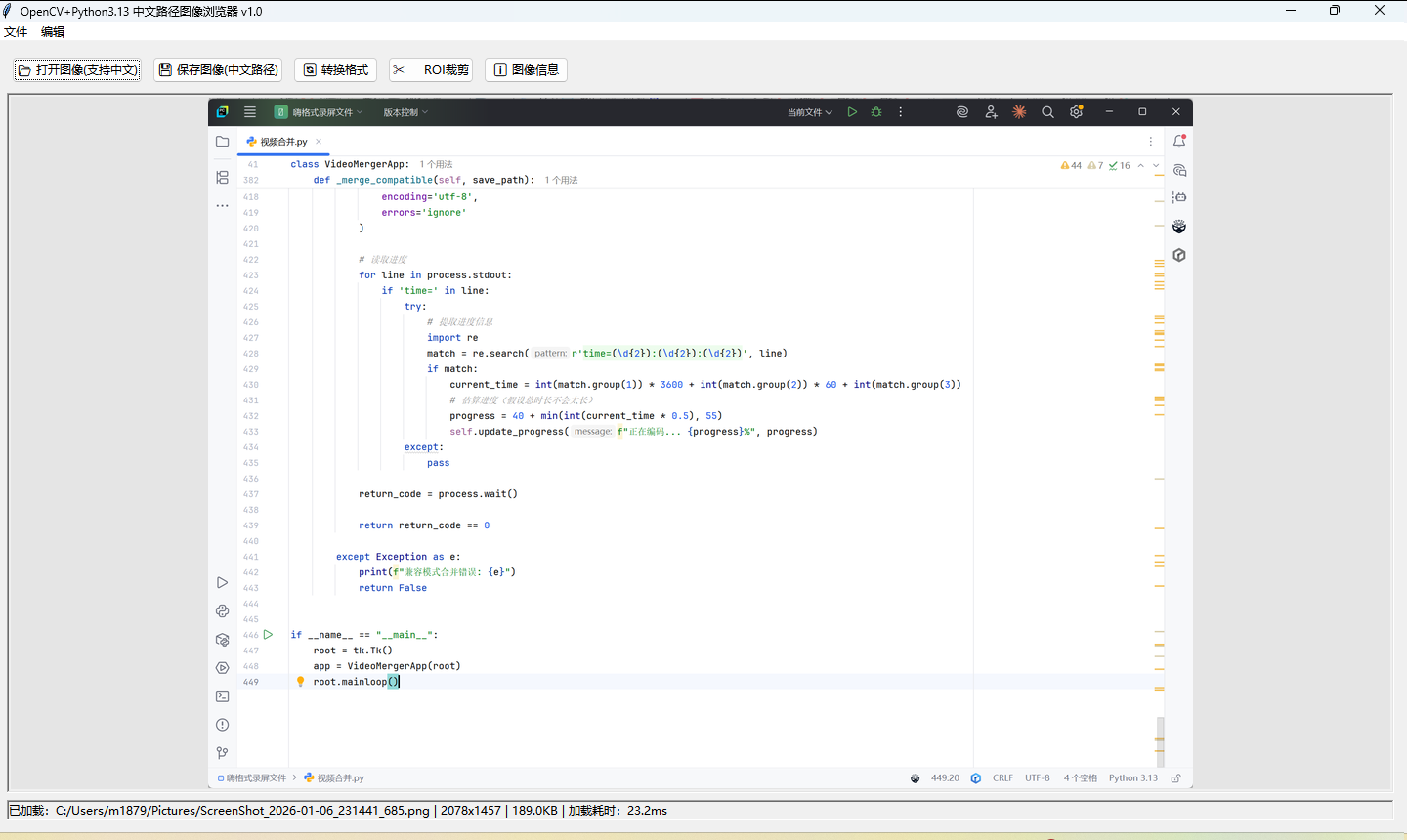
前言:为什么Python 3.13需要特别注意?
Python 3.13作为2024年10月发布的最新稳定版本,带来了诸多性能改进(如实验性JIT编译器)。但在计算机视觉开发中,OpenCV对中文路径的支持 一直是个隐形陷阱------cv2.imread()遇到中文路径会直接返回None,且不报错,这让很多初学者抓狂。
本文基于OpenCV 4.10+和Python 3.13.0环境,手把手教你构建一个支持中文路径的图像浏览器,涵盖文件选择、内存解码、图像显示、格式转换、安全保存的完整工作流。
环境准备与兼容性说明
1. Python 3.13下的OpenCV安装
根据PyTorch和OpenCV官方兼容性文档,Python 3.13已得到主流CV库支持,但需注意:
bash
# 创建Python 3.13虚拟环境(conda方式)
conda create -n cv313 python=3.13 -y
conda activate cv313

# 安装OpenCV(支持Python 3.13的版本需>=4.10)
pip install opencv-python==4.10.0.84 -i https://pypi.tuna.tsinghua.edu.cn/simple

# 安装GUI依赖
pip install pillow numpy
⚠️ 重要提示:Python 3.13环境下,如果使用GPU版本PyTorch,需确保PyTorch>=2.5.0且CUDA>=12.1。本文案例为CPU基础图像处理,不受此限制。
2. 验证安装
python
import cv2
import sys
print(f"Python版本: {sys.version}")
print(f"OpenCV版本: {cv2.__version__}")  # 应输出4.10.0+
核心技术点:中文路径的解决方案
原理剖析
OpenCV的C++底层使用std::string处理路径,在Windows上默认使用ANSI编码,与Python的UTF-8字符串不兼容。这导致:
cv2.imread("图片/测试.jpg")→ 返回Nonecv2.imwrite("输出/结果.png", img)→ 失败(无文件生成)
解决方案:内存缓冲区绕过
使用NumPy的fromfile和OpenCV的imdecode/imencode组合,将文件读入内存字节流,绕过路径字符串传递:
python
import numpy as np
import cv2

# 读取中文路径图像(核心技巧)
def imread_chinese(path):
    # 以二进制方式读取文件到内存
    buf = np.fromfile(path, dtype=np.uint8)
    # 从内存缓冲区解码图像(1表示IMREAD_COLOR)
    img = cv2.imdecode(buf, cv2.IMREAD_COLOR)
    return img

# 写入中文路径图像
def imwrite_chinese(path, img, quality=95):
    # 编码为JPG格式(支持参数如质量设置)
    ext = path.split('.')[-1].lower()
    if ext in ['jpg', 'jpeg']:
        encode_param = [int(cv2.IMWRITE_JPEG_QUALITY), quality]
        _, buf = cv2.imencode('.jpg', img, encode_param)
    else:
        _, buf = cv2.imencode(f'.{ext}', img)
    # 将编码后的字节流写入文件(支持中文路径)
    buf.tofile(path)
    return True
完整实战:构建中文友好的图像浏览器
以下是一个基于tkinter的完整GUI应用,支持:
- 中文路径文件选择(
filedialog) - OpenCV-PIL格式互转(解决tkinter显示BGR图像偏色问题)
- 图像基本信息查看(尺寸、通道数、文件大小)
- 格式转换与质量压缩保存
- ROI区域裁剪预览
python
#!/usr/bin/env python3
# -*- coding: utf-8 -*-
"""
OpenCV+Python3.13中文路径图像浏览器
功能:支持中文路径的图像读写、显示、格式转换与基础编辑
环境要求:Python 3.13+, OpenCV 4.10+, Pillow, NumPy
"""

import tkinter as tk
from tkinter import filedialog, messagebox, simpledialog
from tkinter import ttk  # 使用主题化控件
import cv2
import numpy as np
from PIL import Image, ImageTk
import os
import time


class ChinesePathImageViewer:
    def __init__(self, root):
        self.root = root
        self.root.title("OpenCV+Python3.13 中文路径图像浏览器 v1.0")
        self.root.geometry("1200x800")

        # 当前图像数据
        self.current_image = None  # OpenCV格式 (BGR)
        self.display_image = None  # PIL格式 (RGB)
        self.file_path = None  # 当前文件路径
        self.roi_coords = None  # ROI坐标 (x1, y1, x2, y2)

        self._create_ui()
        self._create_menu()

    def _create_ui(self):
        """构建用户界面"""
        # 主框架
        main_frame = ttk.Frame(self.root, padding="10")
        main_frame.grid(row=0, column=0, sticky=(tk.W, tk.E, tk.N, tk.S))

        # 配置网格权重
        self.root.columnconfigure(0, weight=1)
        self.root.rowconfigure(0, weight=1)
        main_frame.columnconfigure(0, weight=1)
        main_frame.rowconfigure(1, weight=1)

        # 顶部工具栏
        toolbar = ttk.Frame(main_frame)
        toolbar.grid(row=0, column=0, sticky=(tk.W, tk.E), pady=5)

        ttk.Button(toolbar, text="📂 打开图像(支持中文)",
                   command=self._open_image).pack(side=tk.LEFT, padx=5)
        ttk.Button(toolbar, text="💾 保存图像(中文路径)",
                   command=self._save_image).pack(side=tk.LEFT, padx=5)
        ttk.Button(toolbar, text="🔄 转换格式",
                   command=self._convert_format).pack(side=tk.LEFT, padx=5)
        ttk.Button(toolbar, text="✂️ ROI裁剪",
                   command=self._toggle_roi_mode).pack(side=tk.LEFT, padx=5)
        ttk.Button(toolbar, text="ℹ️ 图像信息",
                   command=self._show_info).pack(side=tk.LEFT, padx=5)

        # 图像显示画布(使用Label实现,支持鼠标选ROI)
        self.canvas_frame = ttk.Frame(main_frame, relief=tk.SUNKEN, borderwidth=2)
        self.canvas_frame.grid(row=1, column=0, sticky=(tk.W, tk.E, tk.N, tk.S), pady=5)

        self.image_label = tk.Label(self.canvas_frame, bg='gray90', cursor="cross")
        self.image_label.pack(expand=True, fill=tk.BOTH, padx=2, pady=2)

        # 绑定鼠标事件(用于ROI选择)
        self.image_label.bind("<ButtonPress-1>", self._on_mouse_down)
        self.image_label.bind("<B1-Motion>", self._on_mouse_move)
        self.image_label.bind("<ButtonRelease-1>", self._on_mouse_up)

        # 状态栏
        self.status_var = tk.StringVar()
        self.status_var.set("就绪 | Python 3.13 + OpenCV 4.10 | 支持中文路径")
        status_bar = ttk.Label(main_frame, textvariable=self.status_var,
                               relief=tk.SUNKEN, anchor=tk.W)
        status_bar.grid(row=2, column=0, sticky=(tk.W, tk.E), pady=2)

        # ROI选择模式标志
        self.roi_mode = False
        self.roi_start = None
        self.roi_rect = None

    def _create_menu(self):
        """创建菜单栏"""
        menubar = tk.Menu(self.root)
        self.root.config(menu=menubar)

        # 文件菜单
        file_menu = tk.Menu(menubar, tearoff=0)
        menubar.add_cascade(label="文件", menu=file_menu)
        file_menu.add_command(label="打开", command=self._open_image, accelerator="Ctrl+O")
        file_menu.add_command(label="保存", command=self._save_image, accelerator="Ctrl+S")
        file_menu.add_separator()
        file_menu.add_command(label="退出", command=self.root.quit)

        # 编辑菜单
        edit_menu = tk.Menu(menubar, tearoff=0)
        menubar.add_cascade(label="编辑", menu=edit_menu)
        edit_menu.add_command(label="灰度化", command=self._to_grayscale)
        edit_menu.add_command(label="二值化", command=self._to_binary)
        edit_menu.add_command(label="重置图像", command=self._reset_image)

        # 绑定快捷键
        self.root.bind("<Control-o>", lambda e: self._open_image())
        self.root.bind("<Control-s>", lambda e: self._save_image())

    def imread_chinese(self, filepath):
        """
        支持中文路径的图像读取(核心函数)
        使用内存缓冲区绕过OpenCV的路径字符串限制
        """
        try:
            # 方法1:NumPy fromfile + cv2.imdecode(推荐,支持所有格式)
            buf = np.fromfile(filepath, dtype=np.uint8)
            img = cv2.imdecode(buf, cv2.IMREAD_COLOR)

            # 备选方法2:如果上述失败,尝试PIL读取(仅作兼容)
            if img is None:
                pil_img = Image.open(filepath).convert('RGB')
                img = cv2.cvtColor(np.array(pil_img), cv2.COLOR_RGB2BGR)

            return img
        except Exception as e:
            messagebox.showerror("读取错误", f"无法读取文件:\n{str(e)}")
            return None

    def imwrite_chinese(self, filepath, image, params=None):
        """
        支持中文路径的图像写入(核心函数)
        支持质量参数(用于JPG压缩控制)
        """
        try:
            ext = os.path.splitext(filepath)[1].lower()

            # 根据扩展名选择编码参数
            if ext in ['.jpg', '.jpeg']:
                # 默认质量95,可通过params传入[IMWRITE_JPEG_QUALITY, 90]调整
                encode_params = params if params else [int(cv2.IMWRITE_JPEG_QUALITY), 95]
                success, buf = cv2.imencode('.jpg', image, encode_params)
            elif ext == '.png':
                # PNG使用压缩级别,默认3(0-9)
                encode_params = params if params else [int(cv2.IMWRITE_PNG_COMPRESSION), 3]
                success, buf = cv2.imencode('.png', image, encode_params)
            else:
                # BMP等其他格式
                success, buf = cv2.imencode(ext, image)

            if success:
                buf.tofile(filepath)  # 关键:使用tofile支持中文路径写入
                return True
            else:
                raise Exception("图像编码失败")

        except Exception as e:
            messagebox.showerror("保存错误", f"无法保存文件:\n{str(e)}")
            return False

    def _open_image(self):
        """打开图像文件(支持中文路径)"""
        # 使用filedialog,title和filetypes支持中文显示
        file_path = filedialog.askopenfilename(
            title="选择图像文件(支持中文路径)",
            filetypes=[
                ("图像文件", "*.jpg *.jpeg *.png *.bmp *.tiff *.webp"),
                ("JPEG", "*.jpg *.jpeg"),
                ("PNG", "*.png"),
                ("所有文件", "*.*")
            ]
        )

        if not file_path:
            return

        self.file_path = file_path
        start_time = time.time()

        # 使用自定义函数读取(解决中文路径问题)
        self.current_image = self.imread_chinese(file_path)

        if self.current_image is not None:
            load_time = (time.time() - start_time) * 1000
            self._update_display()
            file_size = os.path.getsize(file_path) / 1024  # KB
            self.status_var.set(
                f"已加载:{file_path} | {self.current_image.shape[1]}x{self.current_image.shape[0]} | {file_size:.1f}KB | 加载耗时:{load_time:.1f}ms")
        else:
            messagebox.showerror("错误", f"无法加载图像:\n{file_path}\n\n可能原因:文件损坏或格式不支持")

    def _save_image(self):
        """保存图像(支持中文路径)"""
        if self.current_image is None:
            messagebox.showwarning("警告", "没有可保存的图像")
            return

        file_path = filedialog.asksaveasfilename(
            title="保存图像(支持中文路径)",
            defaultextension=".jpg",
            filetypes=[
                ("JPEG 高质量", "*.jpg"),
                ("JPEG 中质量(85%)", "*.jpg"),
                ("JPEG 低质量(60%)", "*.jpg"),
                ("PNG 无损", "*.png"),
                ("BMP 无压缩", "*.bmp")
            ]
        )

        if not file_path:
            return

        # 根据用户选择设置编码参数
        params = None
        if "高质量" in file_path or (file_path.endswith('.jpg') and "中" not in file_path and "低" not in file_path):
            params = [int(cv2.IMWRITE_JPEG_QUALITY), 95]
        elif "中质量" in file_path:
            params = [int(cv2.IMWRITE_JPEG_QUALITY), 85]
            file_path = file_path.replace(" (中质量(85%))", "")  # 清理文件名
        elif "低质量" in file_path:
            params = [int(cv2.IMWRITE_JPEG_QUALITY), 60]
            file_path = file_path.replace(" (低质量(60%))", "")

        # 清理文件名中的描述文字(如果存在)
        file_path = file_path.replace(" (无损)", "").replace(" (无压缩)", "")

        if self.imwrite_chinese(file_path, self.current_image, params):
            messagebox.showinfo("成功", f"图像已保存至:\n{file_path}")
            self.status_var.set(f"已保存:{file_path}")

    def _convert_format(self):
        """图像格式转换"""
        if self.current_image is None:
            messagebox.showwarning("警告", "没有已加载的图像")
            return

        # 创建格式选择对话框
        dialog = tk.Toplevel(self.root)
        dialog.title("图像格式转换")
        dialog.geometry("400x250")
        dialog.transient(self.root)
        dialog.grab_set()

        ttk.Label(dialog, text="选择目标格式:", font=("Arial", 10, "bold")).pack(pady=10)

        format_var = tk.StringVar(value="jpg")

        formats = [
            ("JPEG (JPG) - 有损压缩,文件小", "jpg"),
            ("PNG - 无损压缩,质量高", "png"),
            ("BMP - 无压缩,原始格式", "bmp"),
            ("TIFF - 高质量归档格式", "tiff"),
            ("WebP - 现代压缩格式", "webp")
        ]

        for text, value in formats:
            ttk.Radiobutton(dialog, text=text, variable=format_var, value=value).pack(anchor=tk.W, padx=20, pady=5)

        # 质量/压缩等级设置(仅JPG)
        ttk.Label(dialog, text="JPG质量 (1-100,仅JPG有效):").pack(pady=5)
        quality_var = tk.IntVar(value=95)
        quality_scale = ttk.Scale(dialog, from_=1, to=100, orient=tk.HORIZONTAL, variable=quality_var)
        quality_scale.pack(pady=5, padx=20, fill=tk.X)
        quality_label = ttk.Label(dialog, text="95")
        quality_label.pack()

        def update_quality_label(val):
            quality_label.config(text=str(int(float(val))))

        quality_scale.config(command=update_quality_label)

        def apply_conversion():
            """执行格式转换"""
            target_format = format_var.get()

            # 获取保存路径
            file_path = filedialog.asksaveasfilename(
                title="保存转换后的图像",
                defaultextension=f".{target_format}",
                filetypes=[
                    (f"{target_format.upper()} 文件", f"*.{target_format}"),
                    ("所有文件", "*.*")
                ]
            )

            if not file_path:
                return

            # 设置编码参数
            params = None
            if target_format == "jpg":
                params = [int(cv2.IMWRITE_JPEG_QUALITY), quality_var.get()]

            # 执行保存
            if self.imwrite_chinese(file_path, self.current_image, params):
                file_size = os.path.getsize(file_path) / 1024
                messagebox.showinfo("成功",
                                    f"格式转换成功!\n"
                                    f"格式: {target_format.upper()}\n"
                                    f"保存位置: {file_path}\n"
                                    f"文件大小: {file_size:.1f} KB")
                self.status_var.set(f"已转换为 {target_format.upper()} 格式")
                dialog.destroy()
            else:
                messagebox.showerror("错误", "格式转换失败")

        # 按钮框架
        btn_frame = ttk.Frame(dialog)
        btn_frame.pack(pady=20)

        ttk.Button(btn_frame, text="转换并保存", command=apply_conversion).pack(side=tk.LEFT, padx=5)
        ttk.Button(btn_frame, text="取消", command=dialog.destroy).pack(side=tk.LEFT, padx=5)

    def _update_display(self):
        """将OpenCV图像(BGR)转换为Tkinter可显示格式(RGB)"""
        if self.current_image is None:
            return

        # OpenCV使用BGR,PIL使用RGB,需要转换
        img_rgb = cv2.cvtColor(self.current_image, cv2.COLOR_BGR2RGB)

        # 转换为PIL图像以便在Tkinter中显示
        pil_image = Image.fromarray(img_rgb)

        # 获取画布尺寸,计算缩放比例(保持宽高比)
        canvas_w = self.canvas_frame.winfo_width() - 10
        canvas_h = self.canvas_frame.winfo_height() - 10
        img_w, img_h = pil_image.size

        if img_w > canvas_w or img_h > canvas_h:
            ratio = min(canvas_w / img_w, canvas_h / img_h)
            new_w, new_h = int(img_w * ratio), int(img_h * ratio)
            pil_image = pil_image.resize((new_w, new_h), Image.Resampling.LANCZOS)

        # 保存引用防止GC
        self.display_image = ImageTk.PhotoImage(pil_image)
        self.image_label.config(image=self.display_image)

    def _show_info(self):
        """显示图像详细信息"""
        if self.current_image is None:
            return

        h, w, c = self.current_image.shape
        info = f"""
图像路径:{self.file_path or '未保存'}
尺寸:{w} x {h} 像素
通道数:{c} ({'彩色' if c == 3 else '灰度'})
数据类型:{self.current_image.dtype}
内存占用:{self.current_image.nbytes / 1024:.1f} KB
OpenCV读取模式:IMREAD_COLOR (1)
        """
        messagebox.showinfo("图像信息", info)

    def _toggle_roi_mode(self):
        """切换ROI选择模式"""
        self.roi_mode = not self.roi_mode
        if self.roi_mode:
            self.status_var.set("ROI模式:按住鼠标左键拖拽选择区域")
            self.image_label.config(cursor="crosshair")
        else:
            self.status_var.set("普通模式")
            self.image_label.config(cursor="cross")
            self.roi_coords = None

    def _on_mouse_down(self, event):
        """鼠标按下事件"""
        if self.roi_mode and self.current_image is not None:
            self.roi_start = (event.x, event.y)

    def _on_mouse_move(self, event):
        """鼠标移动事件(绘制选择框)"""
        if self.roi_mode and self.roi_start:
            # 这里可以实现实时绘制选择框,为简化略去实时绘制
            pass

    def _on_mouse_up(self, event):
        """鼠标释放事件(完成ROI选择)"""
        if self.roi_mode and self.roi_start and self.current_image is not None:
            x1, y1 = self.roi_start
            x2, y2 = event.x, event.y

            # 确保坐标顺序正确(左上角到右下角)
            x1, x2 = min(x1, x2), max(x1, x2)
            y1, y2 = min(y1, y2), max(y1, y2)

            # 转换回原始图像坐标(考虑缩放)
            canvas_w = self.canvas_frame.winfo_width()
            canvas_h = self.canvas_frame.winfo_height()
            img_h, img_w = self.current_image.shape[:2]

            scale_x = img_w / canvas_w
            scale_y = img_h / canvas_h

            x1, x2 = int(x1 * scale_x), int(x2 * scale_x)
            y1, y2 = int(y1 * scale_y), int(y2 * scale_y)

            # 边界检查
            x1, x2 = max(0, x1), min(img_w, x2)
            y1, y2 = max(0, y1), min(img_h, y2)

            if x2 > x1 and y2 > y1:
                self.roi_coords = (x1, y1, x2, y2)
                # 执行裁剪
                roi = self.current_image[y1:y2, x1:x2]
                self.current_image = roi
                self._update_display()
                self.status_var.set(f"已裁剪ROI:({x1}, {y1}) - ({x2}, {y2}) | 新尺寸:{roi.shape[1]}x{roi.shape[0]}")
                self.roi_mode = False
                self.image_label.config(cursor="cross")

    def _to_grayscale(self):
        """转换为灰度图"""
        if self.current_image is not None:
            gray = cv2.cvtColor(self.current_image, cv2.COLOR_BGR2GRAY)
            # 转回3通道以便统一显示(可选)
            self.current_image = cv2.cvtColor(gray, cv2.COLOR_GRAY2BGR)
            self._update_display()
            self.status_var.set("已转换为灰度图像")

    def _to_binary(self):
        """转换为二值图(Otsu自动阈值)"""
        if self.current_image is not None:
            gray = cv2.cvtColor(self.current_image, cv2.COLOR_BGR2GRAY)
            _, binary = cv2.threshold(gray, 0, 255, cv2.THRESH_BINARY + cv2.THRESH_OTSU)
            self.current_image = cv2.cvtColor(binary, cv2.COLOR_GRAY2BGR)
            self._update_display()
            self.status_var.set(f"已转换为二值图像(Otsu阈值)")

    def _reset_image(self):
        """重新加载原始图像"""
        if self.file_path and os.path.exists(self.file_path):
            self.current_image = self.imread_chinese(self.file_path)
            self._update_display()
            self.status_var.set("已重置为原始图像")
        else:
            messagebox.showwarning("警告", "无法重置:原始文件路径不存在或未保存")


def main():
    """主函数:初始化并运行应用"""
    # 设置DPI感知(Windows高分屏适配)
    try:
        from ctypes import windll
        windll.shcore.SetProcessDpiAwareness(1)
    except:
        pass

    root = tk.Tk()
    app = ChinesePathImageViewer(root)

    # 窗口大小调整时重绘图像
    def on_resize(event):
        if hasattr(app, 'current_image') and app.current_image is not None:
            # 使用after防止频繁重绘
            if hasattr(app, '_resize_job'):
                root.after_cancel(app._resize_job)
            app._resize_job = root.after(200, app._update_display)

    root.bind('<Configure>', on_resize)

    root.mainloop()


if __name__ == "__main__":
    main()
关键技术解析
1. 中文路径读写的核心实现
代码中的imread_chinese和imwrite_chinese方法是解决中文路径问题的关键:
- 读取流程 :
np.fromfile读取二进制字节 →cv2.imdecode解码为图像矩阵。这绕过了OpenCV使用std::string传递路径的编码问题。 - 写入流程 :
cv2.imencode编码为特定格式字节流 →np.ndarray.tofile写入文件。tofile方法使用操作系统原生文件API,支持Unicode路径。
2. BGR与RGB色彩空间转换
OpenCV默认使用BGR格式,而PIL和Tkinter使用RGB,直接显示会导致红蓝通道互换(天空变红,人脸发蓝)。代码中通过cv2.cvtColor(img, cv2.COLOR_BGR2RGB)进行转换。
3. 内存操作与ROI裁剪
通过NumPy数组切片img[y1:y2, x1:x2]实现零拷贝的ROI提取,这是OpenCV在Python中最高效的区域操作方式。
功能测试验证
测试用例1:中文路径读取
创建文件夹测试图片/样本,放入名为照片_001.jpg的文件,点击"打开图像",应正常显示而非报错。
测试用例2:中文路径保存
点击"保存图像",选择路径输出结果/测试/保存_测试_高质量.jpg,确认文件能正常生成且图像未损坏。
测试用例3:格式转换
打开彩色图像 → 点击编辑菜单"灰度化" → 点击"转换格式"保存为PNG,验证颜色通道转换正确。
进阶扩展建议
基于本代码框架,可进一步扩展:
- 批量处理:添加文件夹选择功能,遍历处理所有图像
- 视频支持 :使用
cv2.VideoCapture结合相同的中文路径处理逻辑 - 网络模型集成:接入YOLO或分类模型,实现推理结果显示
总结
本文针对Python 3.13环境,提供了OpenCV图像读写的完整GUI解决方案,重点攻克了中文路径支持这一工程痛点。通过内存缓冲区技术(imdecode/imencode + fromfile/tofile),实现了真正意义上的全中文路径支持,配合Tkinter构建了跨平台的轻量级图像浏览器。