第一部分:开篇与基础理论
1.1 现代化GUI开发需求与ttk的价值定位
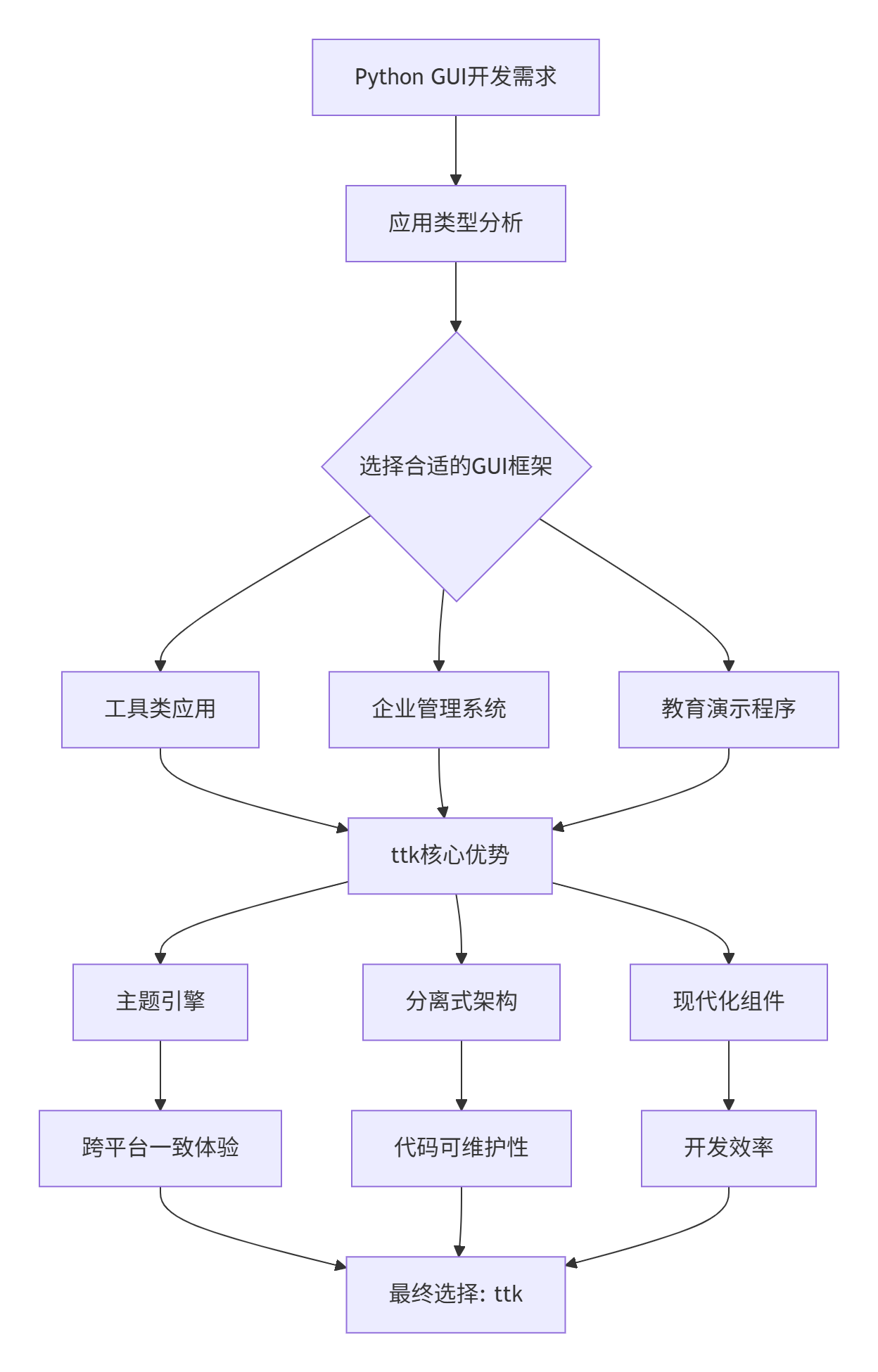
在当今的Python GUI开发领域,开发者面临着诸多选择:PyQt/PySide的成熟生态、wxPython的跨平台特性、Kivy的移动端适配能力。然而,对于许多应用场景,特别是工具类应用、内部管理系统和教育演示程序,tkinter的ttk模块提供了一个独特而强大的解决方案。
**ttk(Themed Tkinter)** 是tkinter的现代化扩展,它引入了三大核心改进:
-
主题引擎:支持系统原生外观,提供跨平台一致的用户体验
-
分离式架构:将逻辑、布局和样式完全分离
-
现代化组件:提供了Treeview、Notebook、Combobox等现代GUI必备组件
1.2 技术栈全景:tkinter vs ttk vs 其他GUI框架
要理解ttk的价值,我们需要将其放在完整的Python GUI生态中审视:
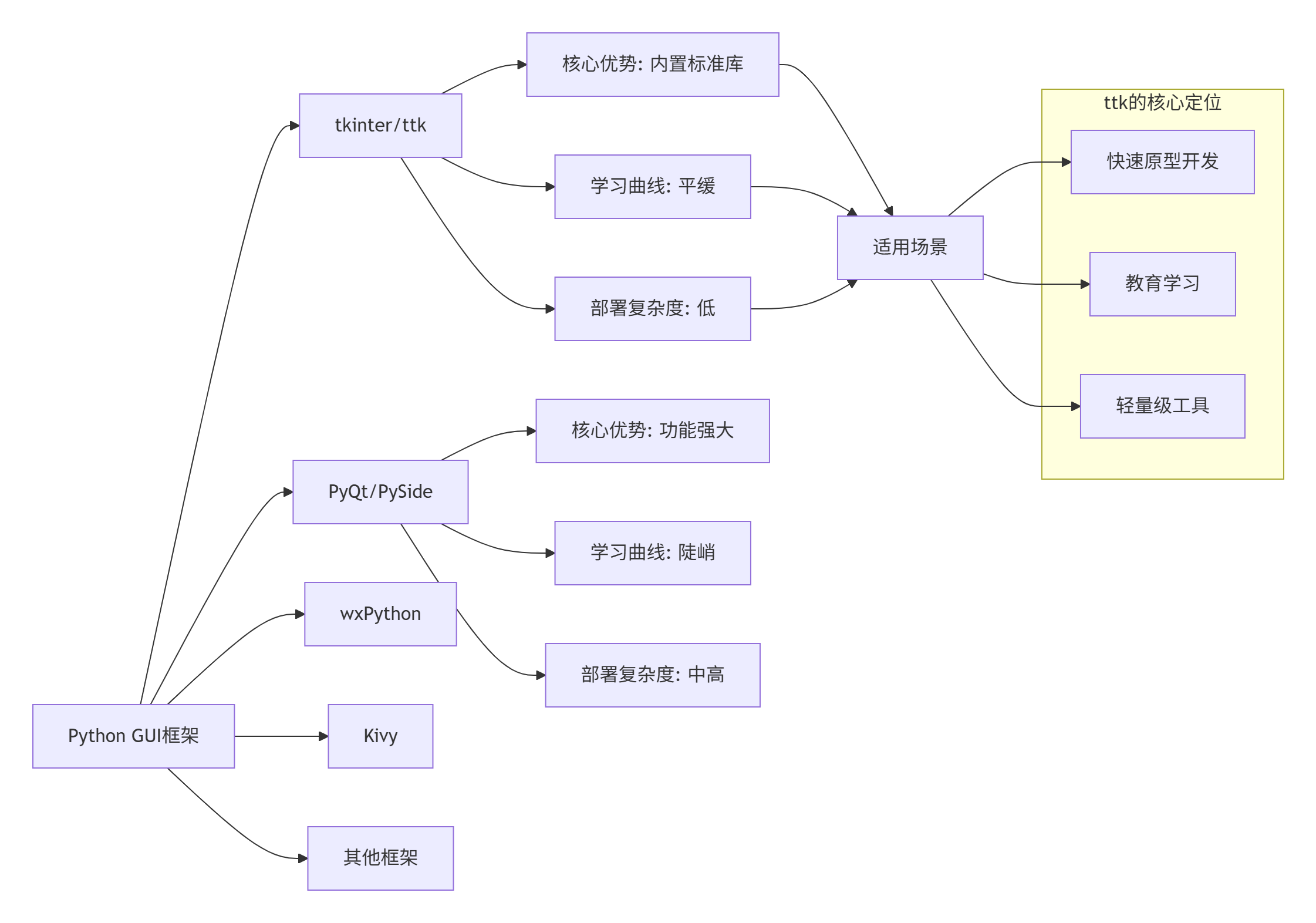
关键点分析:ttk不是要取代其他框架,而是在特定场景下提供最佳平衡点。对于需要快速开发、零外部依赖、跨平台一致性的应用,ttk是最佳选择。
1.3 环境搭建与开发工具链
在开始ttk开发前,我们需要建立完整的开发环境。ttk作为Python标准库的一部分,无需额外安装,但正确的工具配置能极大提升开发效率。
推荐开发环境:
-
Python 3.8+(确保完整的类型提示支持)
-
VS Code + Python扩展(提供优秀的代码补全和调试支持)
-
或 PyCharm Professional(专业的GUI设计工具)
项目结构模板:
ttk-demo-project/
├── src/
│ ├── init.py
│ ├── main.py # 应用入口
│ ├── models/ # 数据模型
│ ├── views/ # 视图组件
│ ├── controllers/ # 控制器
│ └── utils/ # 工具函数
├── resources/
│ ├── icons/ # 图标资源
│ ├── themes/ # 主题文件
│ └── locales/ # 多语言文件
├── tests/ # 单元测试
├── docs/ # 文档
├── requirements.txt # 依赖管理
└── README.md # 项目说明
1.4 ttk核心哲学:主题、样式与关注点分离
ttk的设计哲学建立在三个核心概念之上:
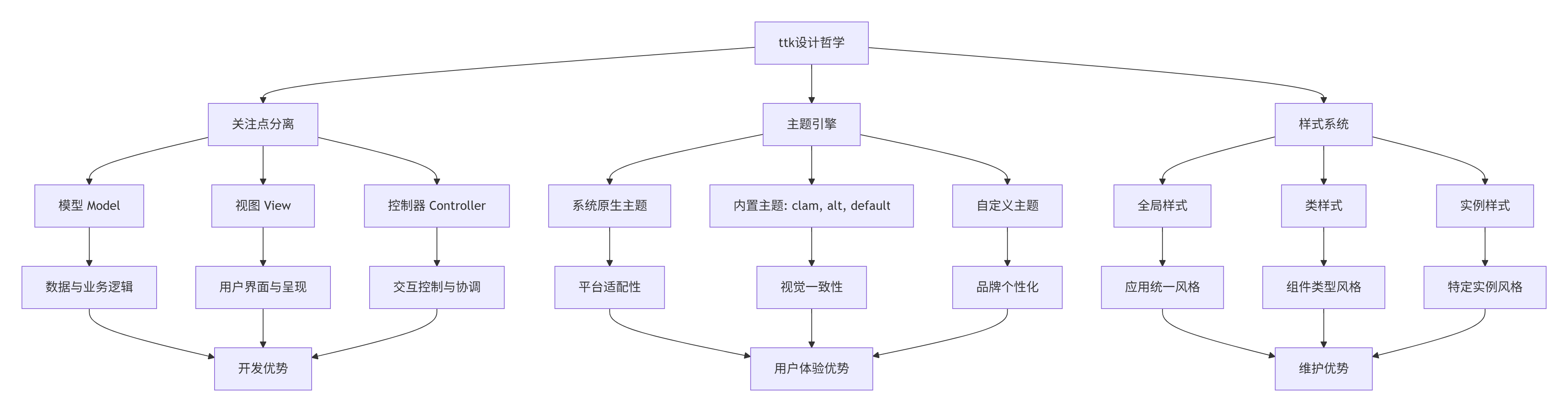
键概念解析:
-
主题(Themes):ttk的核心创新,允许应用在不同操作系统上自动适配原生外观
-
样式(Styles):通过三级配置系统实现样式的精细控制
-
关注点分离:鼓励开发者将界面逻辑、业务逻辑和用户交互逻辑分离
这种设计哲学使得ttk应用具有以下优势:
-
可维护性:样式与逻辑分离,便于独立修改
-
可扩展性:主题系统支持轻松切换外观
-
一致性:在不同平台上提供一致的用户体验
-
性能:主题引擎优化了渲染性能
第二部分:基础组件深度解析
2.1 Demo 1:现代化任务管理应用
现在,让我们通过第一个完整的示例来深入理解ttk。这个任务管理应用将展示ttk核心组件的实际应用,并提供一个可直接运行、功能完备的代码基础。
项目目标:
-
展示ttk基本组件(Treeview、Notebook、Combobox、Button、Entry等)的最佳实践组合
-
实现一个完整的CRUD(创建、读取、更新、删除)界面
-
演示数据绑定、事件处理和样式配置的实际应用
-
提供可扩展的代码架构模板
功能特性:
-
任务列表的增删改查
-
任务分类和优先级标记
-
搜索和过滤功能
-
数据持久化(JSON格式)
-
响应式布局设计
技术架构:
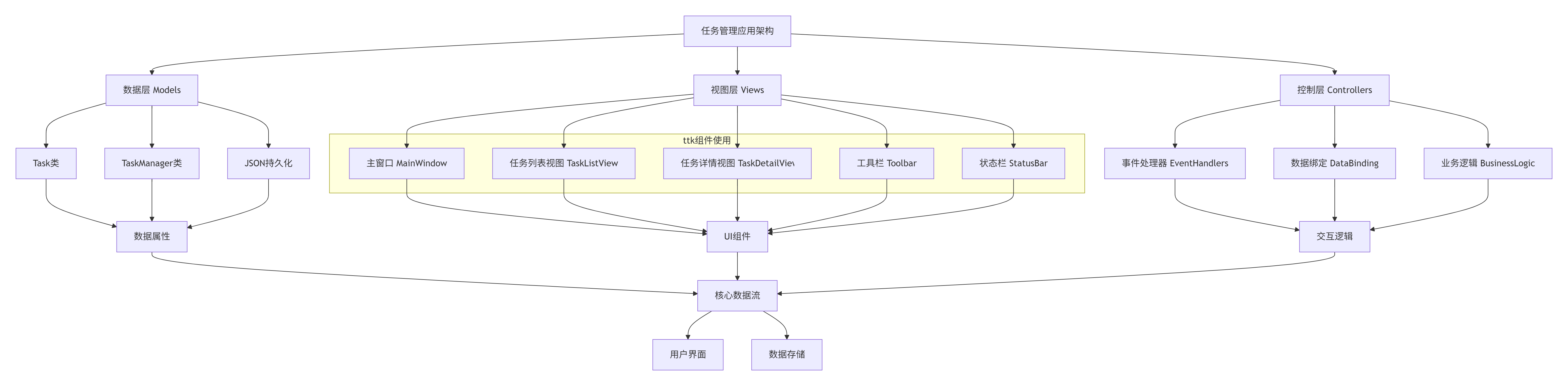
UI布局设计:
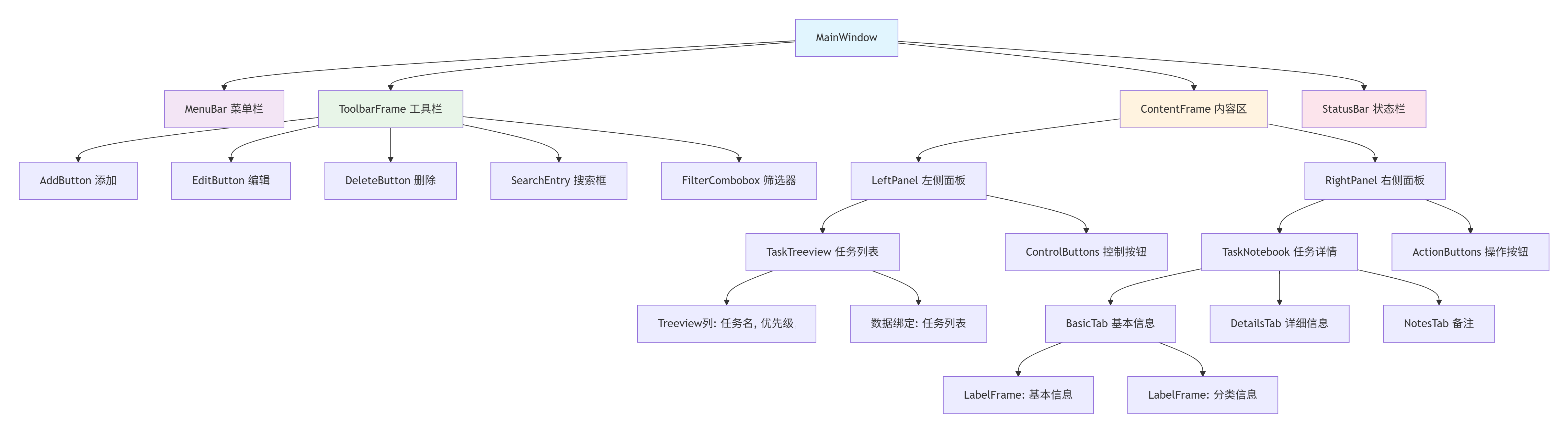
代码实现(task_manager.py):
python
#!/usr/bin/env python3
"""
现代化任务管理应用 - 基于ttk的完整示例
功能:任务CRUD、分类筛选、数据持久化
作者:ttk开发指南
版本:1.0.0
"""
import os
import json
import tkinter as tk
from tkinter import ttk, messagebox, filedialog
from datetime import datetime
from typing import List, Dict, Optional, Any
from dataclasses import dataclass, asdict, field
from enum import Enum
# ==================== 数据模型层 ====================
class Priority(Enum):
"""任务优先级枚举"""
LOW = "低"
MEDIUM = "中"
HIGH = "高"
URGENT = "紧急"
class Status(Enum):
"""任务状态枚举"""
TODO = "待办"
IN_PROGRESS = "进行中"
REVIEW = "审核中"
DONE = "已完成"
CANCELLED = "已取消"
@dataclass
class Task:
"""任务数据模型"""
id: int
title: str
description: str = ""
priority: Priority = Priority.MEDIUM
status: Status = Status.TODO
category: str = "未分类"
due_date: Optional[str] = None
created_at: str = field(default_factory=lambda: datetime.now().strftime("%Y-%m-%d %H:%M"))
updated_at: str = field(default_factory=lambda: datetime.now().strftime("%Y-%m-%d %H:%M"))
tags: List[str] = field(default_factory=list)
notes: str = ""
def to_dict(self) -> Dict[str, Any]:
"""转换为字典(用于JSON序列化)"""
data = asdict(self)
data['priority'] = self.priority.value
data['status'] = self.status.value
return data
@classmethod
def from_dict(cls, data: Dict[str, Any]) -> 'Task':
"""从字典创建任务实例"""
data_copy = data.copy()
data_copy['priority'] = Priority(data_copy['priority'])
data_copy['status'] = Status(data_copy['status'])
return cls(**data_copy)
class TaskManager:
"""任务管理器(业务逻辑层)"""
def __init__(self, data_file: str = "tasks.json"):
self.data_file = data_file
self.tasks: List[Task] = []
self.next_id = 1
self.load_tasks()
def load_tasks(self) -> None:
"""从文件加载任务"""
if os.path.exists(self.data_file):
try:
with open(self.data_file, 'r', encoding='utf-8') as f:
data = json.load(f)
self.tasks = [Task.from_dict(task_data) for task_data in data]
if self.tasks:
self.next_id = max(task.id for task in self.tasks) + 1
except Exception as e:
messagebox.showerror("错误", f"加载任务数据失败: {e}")
self.tasks = []
def save_tasks(self) -> None:
"""保存任务到文件"""
try:
with open(self.data_file, 'w', encoding='utf-8') as f:
json.dump([task.to_dict() for task in self.tasks], f, ensure_ascii=False, indent=2)
except Exception as e:
messagebox.showerror("错误", f"保存任务数据失败: {e}")
def add_task(self, task_data: Dict[str, Any]) -> Task:
"""添加新任务"""
task_data['id'] = self.next_id
task = Task(**task_data)
self.tasks.append(task)
self.next_id += 1
self.save_tasks()
return task
def update_task(self, task_id: int, task_data: Dict[str, Any]) -> Optional[Task]:
"""更新任务"""
for i, task in enumerate(self.tasks):
if task.id == task_id:
task_data['id'] = task_id
task_data['updated_at'] = datetime.now().strftime("%Y-%m-%d %H:%M")
self.tasks[i] = Task.from_dict(task_data)
self.save_tasks()
return self.tasks[i]
return None
def delete_task(self, task_id: int) -> bool:
"""删除任务"""
for i, task in enumerate(self.tasks):
if task.id == task_id:
del self.tasks[i]
self.save_tasks()
return True
return False
def get_task(self, task_id: int) -> Optional[Task]:
"""获取指定任务"""
for task in self.tasks:
if task.id == task_id:
return task
return None
def get_filtered_tasks(self,
category: Optional[str] = None,
priority: Optional[Priority] = None,
status: Optional[Status] = None,
search_text: str = "") -> List[Task]:
"""获取筛选后的任务列表"""
filtered = self.tasks
if category and category != "全部":
filtered = [t for t in filtered if t.category == category]
if priority:
filtered = [t for t in filtered if t.priority == priority]
if status:
filtered = [t for t in filtered if t.status == status]
if search_text:
search_text = search_text.lower()
filtered = [
t for t in filtered
if search_text in t.title.lower() or search_text in t.description.lower()
]
return filtered
def get_categories(self) -> List[str]:
"""获取所有分类"""
categories = set(task.category for task in self.tasks)
return ["全部"] + sorted(categories)
# ==================== 视图层 ====================
class StyledButton(ttk.Button):
"""自定义样式按钮"""
def __init__(self, parent, style_name="", **kwargs):
super().__init__(parent, **kwargs)
if style_name:
self.configure(style=f"{style_name}.TButton")
class TaskListView(ttk.Frame):
"""任务列表视图"""
def __init__(self, parent, task_manager: TaskManager, on_select=None):
super().__init__(parent)
self.task_manager = task_manager
self.on_select = on_select
self.selected_task_id = None
self.setup_ui()
self.refresh()
def setup_ui(self):
"""设置UI组件"""
# 创建Treeview
columns = ("id", "title", "priority", "status", "category", "due_date")
self.tree = ttk.Treeview(
self,
columns=columns,
show="headings",
selectmode="browse"
)
# 配置列
self.tree.heading("id", text="ID", anchor=tk.W)
self.tree.heading("title", text="任务名称", anchor=tk.W)
self.tree.heading("priority", text="优先级", anchor=tk.CENTER)
self.tree.heading("status", text="状态", anchor=tk.CENTER)
self.tree.heading("category", text="分类", anchor=tk.W)
self.tree.heading("due_date", text="截止日期", anchor=tk.W)
# 设置列宽度
self.tree.column("id", width=50, minwidth=50)
self.tree.column("title", width=200, minwidth=150)
self.tree.column("priority", width=80, minwidth=80, anchor=tk.CENTER)
self.tree.column("status", width=80, minwidth=80, anchor=tk.CENTER)
self.tree.column("category", width=100, minwidth=80)
self.tree.column("due_date", width=100, minwidth=100)
# 添加滚动条
scrollbar = ttk.Scrollbar(self, orient=tk.VERTICAL, command=self.tree.yview)
self.tree.configure(yscrollcommand=scrollbar.set)
# 布局
self.tree.grid(row=0, column=0, sticky=(tk.W, tk.E, tk.N, tk.S))
scrollbar.grid(row=0, column=1, sticky=(tk.N, tk.S))
# 配置网格权重
self.grid_columnconfigure(0, weight=1)
self.grid_rowconfigure(0, weight=1)
# 绑定事件
self.tree.bind("<<TreeviewSelect>>", self.on_tree_select)
def on_tree_select(self, event):
"""树形视图选择事件"""
selection = self.tree.selection()
if selection:
item = selection[0]
task_id = int(self.tree.item(item, "values")[0])
self.selected_task_id = task_id
if self.on_select:
self.on_select(task_id)
def refresh(self, tasks: Optional[List[Task]] = None):
"""刷新任务列表"""
# 清空现有项
for item in self.tree.get_children():
self.tree.delete(item)
# 获取任务列表
if tasks is None:
tasks = self.task_manager.tasks
# 添加任务到树形视图
for task in tasks:
values = (
task.id,
task.title,
task.priority.value,
task.status.value,
task.category,
task.due_date or "无"
)
item = self.tree.insert("", tk.END, values=values)
# 根据优先级设置标签
if task.priority == Priority.URGENT:
self.tree.item(item, tags=("urgent",))
elif task.priority == Priority.HIGH:
self.tree.item(item, tags=("high",))
# 配置标签样式
self.tree.tag_configure("urgent", background="#ffcdd2")
self.tree.tag_configure("high", background="#ffecb3")
def get_selected_task_id(self) -> Optional[int]:
"""获取选中的任务ID"""
return self.selected_task_id
class TaskDetailView(ttk.Notebook):
"""任务详情视图(使用Notebook实现标签页)"""
def __init__(self, parent, task_manager: TaskManager):
super().__init__(parent)
self.task_manager = task_manager
self.current_task: Optional[Task] = None
# 创建标签页
self.basic_tab = ttk.Frame(self)
self.details_tab = ttk.Frame(self)
self.notes_tab = ttk.Frame(self)
self.add(self.basic_tab, text="基本信息")
self.add(self.details_tab, text="详细信息")
self.add(self.notes_tab, text="备注")
# 设置各标签页UI
self.setup_basic_tab()
self.setup_details_tab()
self.setup_notes_tab()
def setup_basic_tab(self):
"""设置基本信息标签页"""
# 任务标题
ttk.Label(self.basic_tab, text="任务标题:", font=("Arial", 10, "bold")).grid(
row=0, column=0, padx=10, pady=(10, 5), sticky=tk.W
)
self.title_var = tk.StringVar()
self.title_entry = ttk.Entry(self.basic_tab, textvariable=self.title_var, width=40)
self.title_entry.grid(row=0, column=1, padx=10, pady=(10, 5), sticky=(tk.W, tk.E))
# 任务描述
ttk.Label(self.basic_tab, text="任务描述:", font=("Arial", 10, "bold")).grid(
row=1, column=0, padx=10, pady=5, sticky=tk.NW
)
self.desc_text = tk.Text(self.basic_tab, width=40, height=5)
self.desc_text.grid(row=1, column=1, padx=10, pady=5, sticky=(tk.W, tk.E))
# 滚动条
desc_scrollbar = ttk.Scrollbar(self.basic_tab, command=self.desc_text.yview)
self.desc_text.configure(yscrollcommand=desc_scrollbar.set)
desc_scrollbar.grid(row=1, column=2, sticky=(tk.N, tk.S))
# 配置网格权重
self.basic_tab.grid_columnconfigure(1, weight=1)
self.basic_tab.grid_rowconfigure(1, weight=1)
def setup_details_tab(self):
"""设置详细信息标签页"""
# 优先级选择
ttk.Label(self.details_tab, text="优先级:").grid(
row=0, column=0, padx=10, pady=10, sticky=tk.W
)
self.priority_var = tk.StringVar(value=Priority.MEDIUM.value)
priority_combo = ttk.Combobox(
self.details_tab,
textvariable=self.priority_var,
values=[p.value for p in Priority],
state="readonly",
width=15
)
priority_combo.grid(row=0, column=1, padx=10, pady=10, sticky=tk.W)
# 状态选择
ttk.Label(self.details_tab, text="状态:").grid(
row=1, column=0, padx=10, pady=10, sticky=tk.W
)
self.status_var = tk.StringVar(value=Status.TODO.value)
status_combo = ttk.Combobox(
self.details_tab,
textvariable=self.status_var,
values=[s.value for s in Status],
state="readonly",
width=15
)
status_combo.grid(row=1, column=1, padx=10, pady=10, sticky=tk.W)
# 分类
ttk.Label(self.details_tab, text="分类:").grid(
row=2, column=0, padx=10, pady=10, sticky=tk.W
)
self.category_var = tk.StringVar()
self.category_entry = ttk.Entry(self.details_tab, textvariable=self.category_var, width=20)
self.category_entry.grid(row=2, column=1, padx=10, pady=10, sticky=tk.W)
# 截止日期
ttk.Label(self.details_tab, text="截止日期 (YYYY-MM-DD):").grid(
row=3, column=0, padx=10, pady=10, sticky=tk.W
)
self.due_date_var = tk.StringVar()
ttk.Entry(self.details_tab, textvariable=self.due_date_var, width=15).grid(
row=3, column=1, padx=10, pady=10, sticky=tk.W
)
# 标签
ttk.Label(self.details_tab, text="标签 (用逗号分隔):").grid(
row=4, column=0, padx=10, pady=10, sticky=tk.W
)
self.tags_var = tk.StringVar()
ttk.Entry(self.details_tab, textvariable=self.tags_var, width=30).grid(
row=4, column=1, padx=10, pady=10, sticky=tk.W
)
def setup_notes_tab(self):
"""设置备注标签页"""
self.notes_text = tk.Text(self.notes_tab, width=50, height=10)
self.notes_text.grid(row=0, column=0, padx=10, pady=10, sticky=(tk.W, tk.E, tk.N, tk.S))
# 滚动条
notes_scrollbar = ttk.Scrollbar(self.notes_tab, command=self.notes_text.yview)
self.notes_text.configure(yscrollcommand=notes_scrollbar.set)
notes_scrollbar.grid(row=0, column=1, sticky=(tk.N, tk.S))
# 配置网格权重
self.notes_tab.grid_columnconfigure(0, weight=1)
self.notes_tab.grid_rowconfigure(0, weight=1)
def load_task(self, task: Task):
"""加载任务数据到表单"""
self.current_task = task
# 基本信息
self.title_var.set(task.title)
self.desc_text.delete(1.0, tk.END)
self.desc_text.insert(1.0, task.description)
# 详细信息
self.priority_var.set(task.priority.value)
self.status_var.set(task.status.value)
self.category_var.set(task.category)
self.due_date_var.set(task.due_date or "")
self.tags_var.set(", ".join(task.tags))
# 备注
self.notes_text.delete(1.0, tk.END)
self.notes_text.insert(1.0, task.notes)
def clear_form(self):
"""清空表单"""
self.current_task = None
self.title_var.set("")
self.desc_text.delete(1.0, tk.END)
self.priority_var.set(Priority.MEDIUM.value)
self.status_var.set(Status.TODO.value)
self.category_var.set("")
self.due_date_var.set("")
self.tags_var.set("")
self.notes_text.delete(1.0, tk.END)
def get_form_data(self) -> Dict[str, Any]:
"""从表单获取数据"""
tags_text = self.tags_var.get().strip()
tags = [tag.strip() for tag in tags_text.split(",") if tag.strip()] if tags_text else []
due_date = self.due_date_var.get().strip()
if not due_date:
due_date = None
return {
"title": self.title_var.get().strip(),
"description": self.desc_text.get(1.0, tk.END).strip(),
"priority": Priority(self.priority_var.get()),
"status": Status(self.status_var.get()),
"category": self.category_var.get().strip() or "未分类",
"due_date": due_date,
"tags": tags,
"notes": self.notes_text.get(1.0, tk.END).strip()
}
# ==================== 控制层 ====================
class TaskManagerController:
"""任务管理器控制器"""
def __init__(self, view, task_manager: TaskManager):
self.view = view
self.task_manager = task_manager
self.current_category = "全部"
self.current_search = ""
self.setup_handlers()
def setup_handlers(self):
"""设置事件处理器"""
# 视图组件引用
self.task_list_view = self.view.task_list_view
self.detail_view = self.view.detail_view
# 绑定事件
self.task_list_view.on_select = self.on_task_select
self.view.add_btn.configure(command=self.on_add_task)
self.view.edit_btn.configure(command=self.on_edit_task)
self.view.delete_btn.configure(command=self.on_delete_task)
self.view.save_btn.configure(command=self.on_save_task)
self.view.cancel_btn.configure(command=self.on_cancel_edit)
self.view.search_entry.bind("<KeyRelease>", self.on_search)
self.view.filter_combo.bind("<<ComboboxSelected>>", self.on_filter)
def on_task_select(self, task_id: int):
"""任务选择事件"""
task = self.task_manager.get_task(task_id)
if task:
self.detail_view.load_task(task)
self.view.set_edit_mode(True)
def on_add_task(self):
"""添加新任务"""
self.detail_view.clear_form()
self.view.set_edit_mode(False)
self.detail_view.title_entry.focus()
def on_edit_task(self):
"""编辑任务"""
task_id = self.task_list_view.get_selected_task_id()
if task_id:
task = self.task_manager.get_task(task_id)
if task:
self.detail_view.load_task(task)
self.view.set_edit_mode(False)
self.detail_view.title_entry.focus()
def on_delete_task(self):
"""删除任务"""
task_id = self.task_list_view.get_selected_task_id()
if not task_id:
messagebox.showwarning("警告", "请先选择要删除的任务")
return
if messagebox.askyesno("确认删除", "确定要删除选中的任务吗?"):
if self.task_manager.delete_task(task_id):
messagebox.showinfo("成功", "任务删除成功")
self.refresh_task_list()
self.detail_view.clear_form()
self.view.set_edit_mode(True)
else:
messagebox.showerror("错误", "删除任务失败")
def on_save_task(self):
"""保存任务"""
form_data = self.detail_view.get_form_data()
# 验证数据
if not form_data["title"]:
messagebox.showwarning("警告", "任务标题不能为空")
self.detail_view.title_entry.focus()
return
# 保存或更新任务
if self.detail_view.current_task:
# 更新现有任务
task_id = self.detail_view.current_task.id
updated_task = self.task_manager.update_task(task_id, form_data)
if updated_task:
messagebox.showinfo("成功", "任务更新成功")
self.refresh_task_list()
self.detail_view.load_task(updated_task)
self.view.set_edit_mode(True)
else:
# 添加新任务
new_task = self.task_manager.add_task(form_data)
if new_task:
messagebox.showinfo("成功", "任务添加成功")
self.refresh_task_list()
self.detail_view.load_task(new_task)
self.view.set_edit_mode(True)
def on_cancel_edit(self):
"""取消编辑"""
task_id = self.task_list_view.get_selected_task_id()
if task_id:
task = self.task_manager.get_task(task_id)
if task:
self.detail_view.load_task(task)
self.view.set_edit_mode(True)
def on_search(self, event=None):
"""搜索任务"""
self.current_search = self.view.search_var.get()
self.refresh_task_list()
def on_filter(self, event=None):
"""筛选任务"""
self.current_category = self.view.filter_var.get()
self.refresh_task_list()
def refresh_task_list(self):
"""刷新任务列表"""
tasks = self.task_manager.get_filtered_tasks(
category=self.current_category if self.current_category != "全部" else None,
search_text=self.current_search
)
self.task_list_view.refresh(tasks)
# 更新筛选器分类列表
current_filter = self.view.filter_var.get()
categories = self.task_manager.get_categories()
self.view.filter_combo.configure(values=categories)
# 如果当前分类不在新列表中,重置为"全部"
if current_filter not in categories:
self.view.filter_var.set("全部")
self.current_category = "全部"
# ==================== 主视图 ====================
class TaskManagerApp:
"""任务管理应用主窗口"""
def __init__(self, root):
self.root = root
self.root.title("任务管理器 - ttk示例")
self.root.geometry("1000x700")
# 初始化管理器
self.task_manager = TaskManager()
# 设置样式
self.setup_styles()
# 创建UI
self.setup_ui()
# 初始化控制器
self.controller = TaskManagerController(self, self.task_manager)
# 初始刷新
self.controller.refresh_task_list()
def setup_styles(self):
"""设置应用样式"""
style = ttk.Style()
# 使用clam主题(更现代化)
style.theme_use("clam")
# 自定义按钮样式
style.configure("Primary.TButton",
padding=10,
font=("Arial", 10, "bold"))
style.configure("Success.TButton",
padding=10,
font=("Arial", 10, "bold"))
style.configure("Danger.TButton",
padding=10,
font=("Arial", 10, "bold"))
# 配置Treeview样式
style.configure("Treeview",
rowheight=25,
font=("Arial", 10))
style.configure("Treeview.Heading",
font=("Arial", 10, "bold"),
padding=5)
# 配置状态栏样式
style.configure("Status.TLabel",
padding=5,
background="#f0f0f0",
relief=tk.SUNKEN)
def setup_ui(self):
"""设置用户界面"""
# 创建菜单栏
self.setup_menu()
# 主容器
main_container = ttk.Frame(self.root, padding="10")
main_container.grid(row=0, column=0, sticky=(tk.W, tk.E, tk.N, tk.S))
# 配置根窗口网格权重
self.root.grid_columnconfigure(0, weight=1)
self.root.grid_rowconfigure(0, weight=1)
# 创建工具栏
self.setup_toolbar(main_container)
# 创建内容区
self.setup_content(main_container)
# 创建状态栏
self.setup_statusbar(main_container)
def setup_menu(self):
"""设置菜单栏"""
menubar = tk.Menu(self.root)
self.root.config(menu=menubar)
# 文件菜单
file_menu = tk.Menu(menubar, tearoff=0)
menubar.add_cascade(label="文件", menu=file_menu)
file_menu.add_command(label="导入任务", command=self.import_tasks)
file_menu.add_command(label="导出任务", command=self.export_tasks)
file_menu.add_separator()
file_menu.add_command(label="退出", command=self.root.quit)
# 视图菜单
view_menu = tk.Menu(menubar, tearoff=0)
menubar.add_cascade(label="视图", menu=view_menu)
view_menu.add_command(label="刷新", command=self.refresh_all)
# 帮助菜单
help_menu = tk.Menu(menubar, tearoff=0)
menubar.add_cascade(label="帮助", menu=help_menu)
help_menu.add_command(label="关于", command=self.show_about)
def setup_toolbar(self, parent):
"""设置工具栏"""
toolbar = ttk.Frame(parent)
toolbar.grid(row=0, column=0, columnspan=2, sticky=(tk.W, tk.E), pady=(0, 10))
# 操作按钮
self.add_btn = StyledButton(toolbar, text="添加任务", style_name="Primary",
command=lambda: self.controller.on_add_task())
self.add_btn.grid(row=0, column=0, padx=(0, 5))
self.edit_btn = StyledButton(toolbar, text="编辑任务", style_name="Success",
command=lambda: self.controller.on_edit_task())
self.edit_btn.grid(row=0, column=1, padx=5)
self.delete_btn = StyledButton(toolbar, text="删除任务", style_name="Danger",
command=lambda: self.controller.on_delete_task())
self.delete_btn.grid(row=0, column=2, padx=5)
# 保存/取消按钮(初始隐藏)
self.save_btn = StyledButton(toolbar, text="保存", style_name="Success")
self.cancel_btn = StyledButton(toolbar, text="取消", style_name="Danger")
# 搜索框
ttk.Label(toolbar, text="搜索:").grid(row=0, column=3, padx=(20, 5))
self.search_var = tk.StringVar()
self.search_entry = ttk.Entry(toolbar, textvariable=self.search_var, width=20)
self.search_entry.grid(row=0, column=4, padx=5)
# 筛选器
ttk.Label(toolbar, text="分类:").grid(row=0, column=5, padx=(20, 5))
self.filter_var = tk.StringVar(value="全部")
self.filter_combo = ttk.Combobox(
toolbar,
textvariable=self.filter_var,
values=self.task_manager.get_categories(),
state="readonly",
width=15
)
self.filter_combo.grid(row=0, column=6, padx=5)
# 配置工具栏网格权重
toolbar.grid_columnconfigure(7, weight=1)
def setup_content(self, parent):
"""设置内容区域"""
# 左侧任务列表
left_panel = ttk.Frame(parent)
left_panel.grid(row=1, column=0, sticky=(tk.W, tk.E, tk.N, tk.S), padx=(0, 5))
ttk.Label(left_panel, text="任务列表", font=("Arial", 12, "bold")).grid(
row=0, column=0, sticky=tk.W, pady=(0, 5)
)
self.task_list_view = TaskListView(left_panel, self.task_manager)
self.task_list_view.grid(row=1, column=0, sticky=(tk.W, tk.E, tk.N, tk.S))
# 右侧任务详情
right_panel = ttk.Frame(parent)
right_panel.grid(row=1, column=1, sticky=(tk.W, tk.E, tk.N, tk.S))
ttk.Label(right_panel, text="任务详情", font=("Arial", 12, "bold")).grid(
row=0, column=0, sticky=tk.W, pady=(0, 5)
)
self.detail_view = TaskDetailView(right_panel, self.task_manager)
self.detail_view.grid(row=1, column=0, sticky=(tk.W, tk.E, tk.N, tk.S))
# 配置网格权重
parent.grid_columnconfigure(0, weight=1)
parent.grid_columnconfigure(1, weight=1)
parent.grid_rowconfigure(1, weight=1)
left_panel.grid_columnconfigure(0, weight=1)
left_panel.grid_rowconfigure(1, weight=1)
right_panel.grid_columnconfigure(0, weight=1)
right_panel.grid_rowconfigure(1, weight=1)
def setup_statusbar(self, parent):
"""设置状态栏"""
statusbar = ttk.Frame(parent)
statusbar.grid(row=2, column=0, columnspan=2, sticky=(tk.W, tk.E), pady=(10, 0))
# 状态信息
self.status_label = ttk.Label(
statusbar,
text="就绪 | 任务总数: 0",
style="Status.TLabel"
)
self.status_label.grid(row=0, column=0, sticky=(tk.W, tk.E))
# 版权信息
copyright_label = ttk.Label(
statusbar,
text="© 2023 ttk示例应用 | 基于Python tkinter/ttk",
style="Status.TLabel"
)
copyright_label.grid(row=0, column=1, sticky=tk.E)
# 配置状态栏网格权重
statusbar.grid_columnconfigure(0, weight=1)
def set_edit_mode(self, view_mode: bool = True):
"""设置编辑/查看模式"""
if view_mode:
# 查看模式
self.add_btn.grid()
self.edit_btn.grid()
self.delete_btn.grid()
self.save_btn.grid_remove()
self.cancel_btn.grid_remove()
else:
# 编辑模式
self.add_btn.grid_remove()
self.edit_btn.grid_remove()
self.delete_btn.grid_remove()
self.save_btn.grid(row=0, column=0, padx=(0, 5))
self.cancel_btn.grid(row=0, column=1, padx=5)
def update_status(self, message: str):
"""更新状态栏"""
task_count = len(self.task_manager.tasks)
self.status_label.config(text=f"{message} | 任务总数: {task_count}")
def refresh_all(self):
"""刷新所有数据"""
self.controller.refresh_task_list()
self.update_status("已刷新")
def import_tasks(self):
"""导入任务"""
file_path = filedialog.askopenfilename(
title="选择任务文件",
filetypes=[("JSON文件", "*.json"), ("所有文件", "*.*")]
)
if file_path:
# 这里可以扩展为实际的导入逻辑
messagebox.showinfo("导入", f"从 {file_path} 导入任务")
def export_tasks(self):
"""导出任务"""
file_path = filedialog.asksaveasfilename(
title="保存任务文件",
defaultextension=".json",
filetypes=[("JSON文件", "*.json"), ("所有文件", "*.*")]
)
if file_path:
# 这里可以扩展为实际的导出逻辑
messagebox.showinfo("导出", f"任务已导出到 {file_path}")
def show_about(self):
"""显示关于对话框"""
about_text = """
任务管理器 - ttk示例应用
版本: 1.0.0
作者: ttk开发指南
描述: 这是一个基于Python tkinter/ttk的现代化GUI示例应用,
展示了ttk组件的实际应用和最佳实践。
功能特性:
• 任务的增删改查(CRUD)
• 分类和优先级筛选
• 数据持久化(JSON格式)
• 现代化UI设计
• 响应式布局
"""
messagebox.showinfo("关于", about_text)
# ==================== 应用入口 ====================
def main():
"""应用主函数"""
root = tk.Tk()
# 设置窗口图标(如果有的话)
try:
root.iconbitmap("task_manager.ico")
except:
pass
# 创建应用实例
app = TaskManagerApp(root)
# 初始状态
app.update_status("就绪")
# 启动主循环
root.mainloop()
if __name__ == "__main__":
main()2.2 应用架构与控制流程分析
这个任务管理应用展示了ttk在实际项目中的完整应用。让我们通过流程图来理解其核心控制流程:
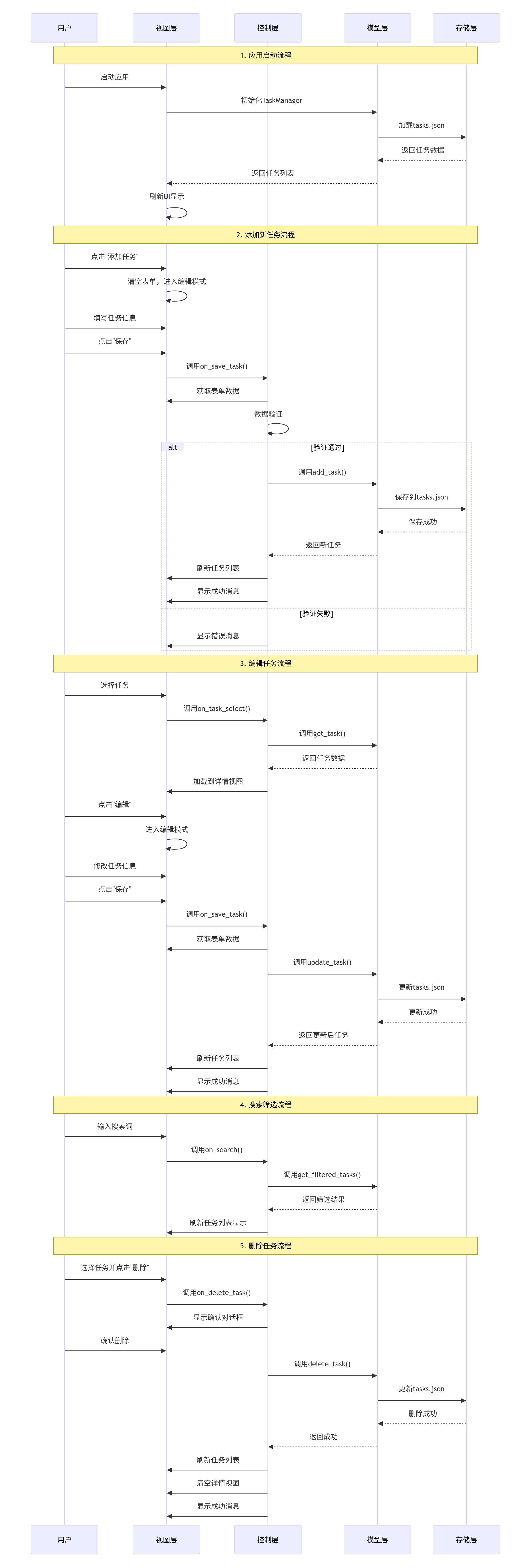
2.3 关键技术点解析
2.3.1 Treeview的高级应用
在这个示例中,我们深度使用了ttk.Treeview组件,它不仅仅是简单的列表显示,还实现了:
-
多列数据展示:配置了ID、标题、优先级、状态、分类、截止日期等列
-
条件样式 :通过
tag_configure为不同优先级的任务设置不同的背景色 -
数据绑定:将Task对象与Treeview项关联
-
选择事件处理 :通过
<<TreeviewSelect>>事件实现视图联动
2.3.2 Notebook的标签页设计
ttk.Notebook组件提供了现代化的标签页界面:
python
# 创建Notebook实例
self.notebook = ttk.Notebook(parent)

# 添加标签页
self.basic_tab = ttk.Frame(self.notebook)
self.details_tab = ttk.Frame(self.notebook)
self.notes_tab = ttk.Frame(self.notebook)

self.notebook.add(self.basic_tab, text="基本信息")
self.notebook.add(self.details_tab, text="详细信息")
self.notebook.add(self.notes_tab, text="备注")
这种设计模式使得复杂表单可以分门别类地组织,提高用户体验。
2.3.3 样式系统实践
我们通过三级样式系统来管理应用外观:
python
# 1. 全局样式配置
style = ttk.Style()
style.theme_use("clam")  # 使用clam主题

# 2. 类样式定义
style.configure("Primary.TButton",
               padding=10,
               font=("Arial", 10, "bold"))

# 3. 实例样式应用
self.add_btn = ttk.Button(parent, text="添加", style="Primary.TButton")
2.3.4 数据绑定与验证
表单数据绑定采用MVVM(Model-View-ViewModel)的思想:
python
# ViewModel: 通过tk变量绑定
self.title_var = tk.StringVar()
self.title_entry = ttk.Entry(parent, textvariable=self.title_var)

# 验证逻辑
def validate_form(self):
    if not self.title_var.get().strip():
        messagebox.showwarning("警告", "任务标题不能为空")
        return False
    return True
.4 扩展与定制指南
这个示例应用提供了良好的扩展基础:
2.4.1 添加新功能
-
任务提醒功能:添加定时检查,接近截止日期的任务高亮显示
-
数据统计:添加统计面板,显示任务完成情况
-
导入导出:支持更多格式(CSV、Excel)的导入导出
-
多用户支持:添加登录系统和用户权限管理
2.4.2 界面美化
-
自定义主题:创建自己的ttk主题文件
-
图标集成:为按钮添加图标
-
动画效果:添加平滑的过渡动画
-
响应式改进:更好的小屏幕适配
2.4.3 性能优化
-
虚拟滚动:对于大量任务实现虚拟滚动
-
数据缓存:缓存频繁访问的数据
-
懒加载:延迟加载非关键资源
-
后台处理:将文件操作移到后台线程
2.5 最佳实践总结
从这个示例中,我们可以总结出ttk开发的几个最佳实践:
-
关注点分离:将数据、视图、控制逻辑分离
-
样式与逻辑分离:通过样式系统管理外观,保持代码整洁
-
响应式设计:使用网格布局的权重配置实现自适应
-
错误处理:对用户输入和文件操作进行适当的验证和错误处理
-
可访问性:为组件提供适当的标签和提示
-
代码组织:按功能模块组织代码,提高可维护性
这个完整的示例应用不仅可以直接运行使用,更重要的是它展示了ttk在实际项目中的完整应用模式。在下一部分中,我们将深入探讨ttk的样式系统和主题机制,并创建更复杂的自定义组件。
第三部分:高级布局与自定义组件
3.1 样式系统深度解析
ttk的样式系统是其最强大的特性之一,它通过分离外观与逻辑,实现了真正的主题化界面开发。让我们深入了解其工作机制。
3.1.1 样式系统三层架构
ttk的样式系统采用三层架构,每层都有其特定的作用域和优先级:
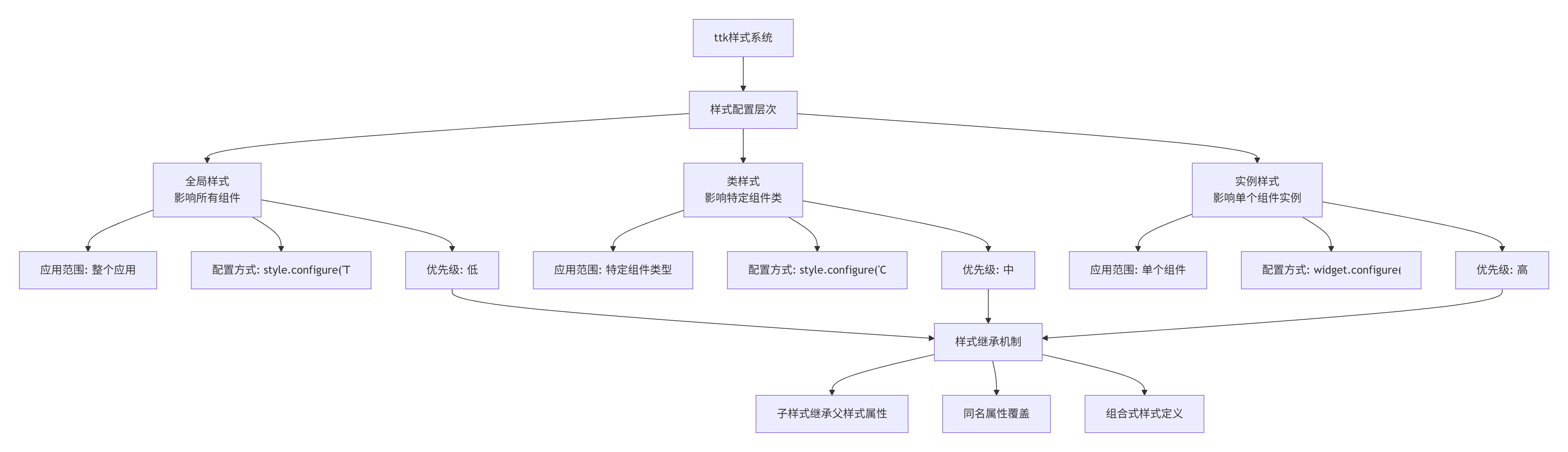
关键概念解析:
-
样式继承:样式可以继承自其他样式,形成层次结构
-
属性覆盖:子样式可以覆盖父样式的属性
-
动态更新:样式修改会实时反映到已创建的组件
3.1.2 样式配置实战
让我们通过一个完整的示例来演示样式系统的使用:
python
"""
样式系统深度示例 - style_system_demo.py
展示ttk样式系统的完整功能和最佳实践
"""

import tkinter as tk
from tkinter import ttk
from typing import Dict, Any

class StyleSystemDemo:
    """样式系统演示应用"""

    def __init__(self, root):
        self.root = root
        self.root.title("ttk样式系统深度解析")
        self.root.geometry("800x600")

        # 创建样式管理器
        self.style = ttk.Style()

        # 设置主题
        self.setup_themes()

        # 创建UI
        self.setup_ui()

        # 初始样式配置
        self.apply_global_styles()

    def setup_themes(self):
        """设置可用主题"""
        self.available_themes = self.style.theme_names()
        self.current_theme = tk.StringVar(value=self.style.theme_use())

    def apply_global_styles(self):
        """应用全局样式配置"""

        # 1. 全局按钮样式
        self.style.configure("TButton",
                           padding=8,
                           relief="flat")

        # 2. 全局标签样式
        self.style.configure("TLabel",
                           font=("Microsoft YaHei UI", 10))

        # 3. 全局输入框样式
        self.style.configure("TEntry",
                           fieldbackground="white",
                           borderwidth=2,
                           relief="solid")

        # 4. 全局框架样式
        self.style.configure("TFrame",
                           background="#f5f5f5")

    def setup_ui(self):
        """设置用户界面"""
        # 主容器
        main_container = ttk.Frame(self.root, padding="20")
        main_container.pack(fill=tk.BOTH, expand=True)

        # 主题选择区
        self.setup_theme_selector(main_container)

        # 样式演示区
        self.setup_style_demo(main_container)

        # 自定义样式区
        self.setup_custom_styles(main_container)

        # 动态样式区
        self.setup_dynamic_styles(main_container)

    def setup_theme_selector(self, parent):
        """设置主题选择器"""
        frame = ttk.LabelFrame(parent, text="主题选择", padding="10")
        frame.pack(fill=tk.X, pady=(0, 10))

        # 主题切换
        ttk.Label(frame, text="当前主题:").grid(row=0, column=0, sticky=tk.W, padx=(0, 10))

        theme_combo = ttk.Combobox(frame,
                                  textvariable=self.current_theme,
                                  values=self.available_themes,
                                  state="readonly",
                                  width=20)
        theme_combo.grid(row=0, column=1, sticky=tk.W)
        theme_combo.bind("<<ComboboxSelected>>", self.on_theme_changed)

        # 主题描述
        self.theme_desc = tk.Text(frame, height=3, width=50, wrap=tk.WORD)
        self.theme_desc.grid(row=1, column=0, columnspan=2, pady=(10, 0), sticky=(tk.W, tk.E))
        self.update_theme_description()

        # 配置网格权重
        frame.grid_columnconfigure(1, weight=1)

    def setup_style_demo(self, parent):
        """设置样式演示区"""
        frame = ttk.LabelFrame(parent, text="样式层级演示", padding="10")
        frame.pack(fill=tk.BOTH, expand=True, pady=(0, 10))

        # 创建三列布局
        left_panel = ttk.Frame(frame)
        left_panel.pack(side=tk.LEFT, fill=tk.BOTH, expand=True, padx=(0, 10))

        center_panel = ttk.Frame(frame)
        center_panel.pack(side=tk.LEFT, fill=tk.BOTH, expand=True, padx=10)

        right_panel = ttk.Frame(frame)
        right_panel.pack(side=tk.LEFT, fill=tk.BOTH, expand=True, padx=(10, 0))

        # 1. 全局样式演示
        self.setup_global_style_demo(left_panel)

        # 2. 类样式演示
        self.setup_class_style_demo(center_panel)

        # 3. 实例样式演示
        self.setup_instance_style_demo(right_panel)

    def setup_global_style_demo(self, parent):
        """设置全局样式演示"""
        ttk.Label(parent, text="全局样式配置", font=("Arial", 11, "bold")).pack(anchor=tk.W, pady=(0, 10))

        # 演示文本
        demo_text = """
全局样式影响应用中所有组件。
例如配置TButton会影响所有按钮。
        """
        ttk.Label(parent, text=demo_text, wraplength=200).pack(anchor=tk.W, pady=(0, 10))

        # 全局样式按钮示例
        ttk.Button(parent, text="默认按钮").pack(pady=5)
        ttk.Button(parent, text="全局样式按钮").pack(pady=5)

        # 代码示例
        code_frame = ttk.LabelFrame(parent, text="配置代码", padding="5")
        code_frame.pack(fill=tk.X, pady=10)

        code_text = """# 全局按钮样式配置
style.configure("TButton",
                padding=8,
                relief="flat")"""

        code_label = tk.Text(code_frame, height=4, width=30, font=("Consolas", 9))
        code_label.insert(1.0, code_text)
        code_label.configure(state="disabled", background="#f0f0f0")
        code_label.pack(fill=tk.X)

    def setup_class_style_demo(self, parent):
        """设置类样式演示"""
        ttk.Label(parent, text="类样式配置", font=("Arial", 11, "bold")).pack(anchor=tk.W, pady=(0, 10))

        # 创建类样式
        self.create_class_styles()

        # 演示文本
        demo_text = """
类样式允许为特定类型的组件
创建不同的视觉变体。
        """
        ttk.Label(parent, text=demo_text, wraplength=200).pack(anchor=tk.W, pady=(0, 10))

        # 类样式按钮示例
        ttk.Button(parent, text="主要按钮", style="Primary.TButton").pack(pady=5)
        ttk.Button(parent, text="成功按钮", style="Success.TButton").pack(pady=5)
        ttk.Button(parent, text="警告按钮", style="Warning.TButton").pack(pady=5)
        ttk.Button(parent, text="危险按钮", style="Danger.TButton").pack(pady=5)

        # 代码示例
        code_frame = ttk.LabelFrame(parent, text="配置代码", padding="5")
        code_frame.pack(fill=tk.X, pady=10)

        code_text = """# 类样式配置
style.configure("Primary.TButton",
                background="#007bff",
                foreground="white")

style.configure("Success.TButton",
                background="#28a745",
                foreground="white")"""

        code_label = tk.Text(code_frame, height=5, width=30, font=("Consolas", 9))
        code_label.insert(1.0, code_text)
        code_label.configure(state="disabled", background="#f0f0f0")
        code_label.pack(fill=tk.X)

    def setup_instance_style_demo(self, parent):
        """设置实例样式演示"""
        ttk.Label(parent, text="实例样式配置", font=("Arial", 11, "bold")).pack(anchor=tk.W, pady=(0, 10))

        # 演示文本
        demo_text = """
实例样式允许为单个组件
创建唯一的样式配置。
        """
        ttk.Label(parent, text=demo_text, wraplength=200).pack(anchor=tk.W, pady=(0, 10))

        # 实例样式示例
        self.setup_instance_styles(parent)

        # 代码示例
        code_frame = ttk.LabelFrame(parent, text="配置代码", padding="5")
        code_frame.pack(fill=tk.X, pady=10)

        code_text = """# 实例样式配置
custom_btn = ttk.Button(
    parent,
    text="自定义按钮",
    style="Custom.TButton"
)
# 动态修改
custom_btn.configure(background="red")"""

        code_label = tk.Text(code_frame, height=6, width=30, font=("Consolas", 9))
        code_label.insert(1.0, code_text)
        code_label.configure(state="disabled", background="#f0f0f0")
        code_label.pack(fill=tk.X)

    def setup_custom_styles(self, parent):
        """设置自定义样式创建区"""
        frame = ttk.LabelFrame(parent, text="自定义样式创建", padding="10")
        frame.pack(fill=tk.X, pady=(0, 10))

        # 样式配置表单
        ttk.Label(frame, text="样式名称:").grid(row=0, column=0, sticky=tk.W, pady=5)
        self.style_name_var = tk.StringVar(value="MyStyle.TButton")
        ttk.Entry(frame, textvariable=self.style_name_var, width=20).grid(row=0, column=1, sticky=tk.W, pady=5, padx=(5, 0))

        ttk.Label(frame, text="前景色:").grid(row=1, column=0, sticky=tk.W, pady=5)
        self.foreground_var = tk.StringVar(value="white")
        ttk.Entry(frame, textvariable=self.foreground_var, width=20).grid(row=1, column=1, sticky=tk.W, pady=5, padx=(5, 0))

        ttk.Label(frame, text="背景色:").grid(row=2, column=0, sticky=tk.W, pady=5)
        self.background_var = tk.StringVar(value="#007bff")
        ttk.Entry(frame, textvariable=self.background_var, width=20).grid(row=2, column=1, sticky=tk.W, pady=5, padx=(5, 0))

        ttk.Label(frame, text="字体:").grid(row=3, column=0, sticky=tk.W, pady=5)
        self.font_var = tk.StringVar(value="Arial 10 bold")
        ttk.Entry(frame, textvariable=self.font_var, width=20).grid(row=3, column=1, sticky=tk.W, pady=5, padx=(5, 0))

        # 创建按钮
        ttk.Button(frame, text="创建样式", command=self.create_custom_style).grid(row=4, column=0, columnspan=2, pady=10)

        # 结果展示
        self.custom_btn = ttk.Button(frame, text="自定义按钮预览", style="")
        self.custom_btn.grid(row=5, column=0, columnspan=2, pady=(0, 5))

    def setup_dynamic_styles(self, parent):
        """设置动态样式修改区"""
        frame = ttk.LabelFrame(parent, text="动态样式修改", padding="10")
        frame.pack(fill=tk.X)

        # 动态修改演示
        ttk.Label(frame, text="修改主按钮颜色:").grid(row=0, column=0, sticky=tk.W, pady=5)

        self.color_var = tk.StringVar(value="#007bff")
        color_entry = ttk.Entry(frame, textvariable=self.color_var, width=15)
        color_entry.grid(row=0, column=1, sticky=tk.W, pady=5, padx=(5, 0))

        ttk.Button(frame, text="应用颜色", command=self.update_button_color).grid(row=0, column=2, padx=(10, 0))

        # 动态按钮展示
        self.dynamic_btn = ttk.Button(frame, text="动态样式按钮", style="Dynamic.TButton")
        self.dynamic_btn.grid(row=1, column=0, columnspan=3, pady=10)

    def create_class_styles(self):
        """创建类样式"""
        # 主要按钮样式
        self.style.configure("Primary.TButton",
                           background="#007bff",
                           foreground="white",
                           borderwidth=1,
                           focusthickness=3,
                           focuscolor="#007bff",
                           padding=10)

        # 成功按钮样式
        self.style.configure("Success.TButton",
                           background="#28a745",
                           foreground="white",
                           borderwidth=1,
                           focusthickness=3,
                           focuscolor="#28a745",
                           padding=10)

        # 警告按钮样式
        self.style.configure("Warning.TButton",
                           background="#ffc107",
                           foreground="#212529",
                           borderwidth=1,
                           focusthickness=3,
                           focuscolor="#ffc107",
                           padding=10)

        # 危险按钮样式
        self.style.configure("Danger.TButton",
                           background="#dc3545",
                           foreground="white",
                           borderwidth=1,
                           focusthickness=3,
                           focuscolor="#dc3545",
                           padding=10)

        # 动态按钮样式
        self.style.configure("Dynamic.TButton",
                           background="#007bff",
                           foreground="white",
                           padding=8)

    def setup_instance_styles(self, parent):
        """设置实例样式"""
        # 创建一个完全自定义的按钮
        custom_btn = tk.Button(parent,  # 注意:使用tk.Button而不是ttk.Button
                               text="tk.Button实例样式",
                               bg="#6f42c1",  # 紫色
                               fg="white",
                               font=("Arial", 10, "bold"),
                               padx=20,
                               pady=10,
                               relief="raised",
                               bd=2)
        custom_btn.pack(pady=5)

        # 另一个实例样式
        custom_btn2 = tk.Button(parent,
                               text="圆角按钮",
                               bg="#20c997",  # 绿色
                               fg="white",
                               font=("Arial", 10),
                               padx=15,
                               pady=8,
                               relief="flat",
                               bd=0,
                               cursor="hand2")
        custom_btn2.pack(pady=5)

    def create_custom_style(self):
        """创建自定义样式"""
        style_name = self.style_name_var.get()
        foreground = self.foreground_var.get()
        background = self.background_var.get()
        font = self.font_var.get()

        try:
            # 创建新样式
            self.style.configure(style_name,
                               foreground=foreground,
                               background=background,
                               font=font,
                               padding=10)

            # 更新预览按钮
            self.custom_btn.configure(style=style_name)

            # 显示成功消息
            self.show_message("成功", f"样式 '{style_name}' 创建成功!")

        except Exception as e:
            self.show_message("错误", f"创建样式失败: {e}")

    def update_button_color(self):
        """更新按钮颜色"""
        try:
            color = self.color_var.get()
            self.style.configure("Dynamic.TButton", background=color)
            self.dynamic_btn.configure(style="Dynamic.TButton")
        except Exception as e:
            self.show_message("错误", f"颜色更新失败: {e}")

    def on_theme_changed(self, event):
        """主题切换事件"""
        theme = self.current_theme.get()
        self.style.theme_use(theme)

        # 重新应用类样式
        self.create_class_styles()
        self.update_theme_description()

        # 重新配置动态按钮
        self.style.configure("Dynamic.TButton",
                           background=self.color_var.get(),
                           foreground="white",
                           padding=8)

        self.show_message("主题已切换", f"当前主题: {theme}")

    def update_theme_description(self):
        """更新主题描述"""
        theme = self.current_theme.get()

        theme_descriptions = {
            "clam": "clam主题:现代化平面设计主题,支持丰富的样式配置",
            "alt": "alt主题:简洁的替代主题,外观简洁明快",
            "default": "default主题:tkinter的默认主题,兼容性最好",
            "vista": "vista主题:Windows Vista风格主题(仅Windows)",
            "xpnative": "xpnative主题:Windows XP原生风格主题(仅Windows)",
            "winnative": "winnative主题:Windows原生风格主题(仅Windows)"
        }

        description = theme_descriptions.get(theme, "未知主题")
        self.theme_desc.delete(1.0, tk.END)
        self.theme_desc.insert(1.0, f"主题: {theme}\n\n{description}")
        self.theme_desc.configure(state="disabled")

    def show_message(self, title, message):
        """显示消息"""
        messagebox.showinfo(title, message)

def main():
    """主函数"""
    root = tk.Tk()
    app = StyleSystemDemo(root)
    root.mainloop()

if __name__ == "__main__":
    main()
3.2 样式系统工作机制深度解析
3.2.1 样式继承与组合
ttk的样式系统支持复杂的继承和组合机制:

样式继承规则:
-
子样式继承父样式的所有属性
-
子样式可以覆盖父样式的属性
-
样式名使用
.分隔表示继承关系 -
属性查找从具体到一般
3.2.2 主题系统架构
主题系统是ttk样式系统的核心,其架构如下:

主题加载流程:
-
系统检测当前平台
-
加载对应平台的主题实现
-
解析主题文件中的样式定义
-
构建样式数据库
-
注册到主题引擎
3.2.3 样式属性详解
ttk支持丰富的样式属性,主要分为以下几类:
python
# 颜色属性
style.configure("Custom.TButton",
    background="#007bff",      # 背景色
    foreground="white",        # 前景色(文字颜色)
    bordercolor="#0056b3",    # 边框颜色
    lightcolor="#66b0ff",     # 高亮颜色
    darkcolor="#0056b3",      # 阴影颜色
    focuscolor="#007bff",     # 焦点颜色
    selectcolor="#0056b3",     # 选中颜色
)

# 边框属性
style.configure("Custom.TButton",
    borderwidth=2,            # 边框宽度
    relief="raised",           # 边框样式:flat, raised, sunken, groove, ridge
    padding=(10, 5),           # 内边距
)

# 字体属性
style.configure("Custom.TButton",
    font=("Arial", 10, "bold"),  # 字体
    justify="center",            # 文字对齐:left, center, right
    wrap=tk.WORD,               # 文字换行
)

# 状态属性
style.map("Custom.TButton",
    background=[("active", "#0056b3"),    # 鼠标悬停
                ("disabled", "#cccccc")],  # 禁用状态
    foreground=[("active", "white"),
                ("disabled", "#888888")],
    relief=[("pressed", "sunken")]        # 按下状态
)
3.3 自定义组件开发
ttk的强大之处在于其可扩展性。我们可以创建自定义组件来满足特定需求。下面创建一个现代化的进度条组件,支持多种样式和动画效果。
3.3.1 自定义进度条组件
python
"""
自定义进度条组件 - custom_progressbar.py
演示如何创建基于ttk的自定义组件
"""

import tkinter as tk
from tkinter import ttk
from typing import Optional, Tuple, Dict, Any
import math

class ModernProgressBar(ttk.Frame):
    """
    现代化进度条组件
    功能特性:
    1. 多种样式:线性、环形、半环形
    2. 动画效果:平滑过渡
    3. 自定义颜色:支持渐变
    4. 文字标签:显示进度百分比
    5. 多状态:成功、警告、错误
    """

    STYLE_LINEAR = "linear"
    STYLE_CIRCULAR = "circular"
    STYLE_SEMICIRCULAR = "semicircular"

    STATE_NORMAL = "normal"
    STATE_SUCCESS = "success"
    STATE_WARNING = "warning"
    STATE_ERROR = "error"

    def __init__(self, parent,
                 style: str = STYLE_LINEAR,
                 width: int = 200,
                 height: int = 20,
                 value: float = 0.0,
                 maximum: float = 100.0,
                 show_text: bool = True,
                 **kwargs):
        """
        初始化进度条

        参数:
            parent: 父容器
            style: 进度条样式 (linear, circular, semicircular)
            width: 宽度
            height: 高度
            value: 当前值
            maximum: 最大值
            show_text: 是否显示文字
        """
        super().__init__(parent, **kwargs)

        # 配置参数
        self.style = style
        self.width = width
        self.height = height
        self._value = value
        self.maximum = maximum
        self.show_text = show_text
        self.state = self.STATE_NORMAL
        self.animation_id = None

        # 颜色配置
        self.colors = {
            "normal": {"bg": "#e9ecef", "fg": "#007bff", "text": "#212529"},
            "success": {"bg": "#d4edda", "fg": "#28a745", "text": "#155724"},
            "warning": {"bg": "#fff3cd", "fg": "#ffc107", "text": "#856404"},
            "error": {"bg": "#f8d7da", "fg": "#dc3545", "text": "#721c24"}
        }

        # 动画相关
        self.animated_value = value
        self.animation_speed = 5.0  # 动画速度(值/秒)
        self.last_animation_time = None

        # 创建Canvas
        self.canvas = tk.Canvas(self, width=width, height=height,
                               highlightthickness=0, bg=self.colors["normal"]["bg"])
        self.canvas.pack(fill=tk.BOTH, expand=True)

        # 绘制初始状态
        self.draw()

    @property
    def value(self) -> float:
        """获取当前值"""
        return self._value

    @value.setter
    def value(self, new_value: float):
        """设置当前值(带动画)"""
        new_value = max(0.0, min(new_value, self.maximum))
        if new_value != self._value:
            self._value = new_value
            self.start_animation()

    def set_value(self, new_value: float, animate: bool = True):
        """设置当前值"""
        new_value = max(0.0, min(new_value, self.maximum))
        if new_value != self._value:
            self._value = new_value
            if animate:
                self.start_animation()
            else:
                self.animated_value = new_value
                self.draw()

    def set_state(self, state: str):
        """设置状态"""
        if state in [self.STATE_NORMAL, self.STATE_SUCCESS,
                    self.STATE_WARNING, self.STATE_ERROR]:
            self.state = state
            self.draw()

    def set_colors(self, state: str, bg: str, fg: str, text: str = None):
        """设置颜色"""
        if state in self.colors:
            self.colors[state]["bg"] = bg
            self.colors[state]["fg"] = fg
            if text:
                self.colors[state]["text"] = text
            self.draw()

    def start_animation(self):
        """开始动画"""
        if self.animation_id:
            self.after_cancel(self.animation_id)
        self.last_animation_time = None
        self.animate()

    def animate(self):
        """执行动画"""
        current_time = self.winfo_tkinter().tk.call("clock", "milliseconds")

        if self.last_animation_time is None:
            self.last_animation_time = current_time
            elapsed = 0
        else:
            elapsed = (current_time - self.last_animation_time) / 1000.0

        # 计算动画增量
        diff = self._value - self.animated_value
        if abs(diff) < 0.1:  # 接近目标值
            self.animated_value = self._value
            self.draw()
            return

        # 计算新值
        increment = self.animation_speed * elapsed
        if diff > 0:
            self.animated_value = min(self.animated_value + increment, self._value)
        else:
            self.animated_value = max(self.animated_value - increment, self._value)

        self.last_animation_time = current_time
        self.draw()

        # 继续动画
        self.animation_id = self.after(16, self.animate)  # 约60fps

    def draw(self):
        """绘制进度条"""
        self.canvas.delete("all")

        # 获取当前状态颜色
        colors = self.colors.get(self.state, self.colors["normal"])

        # 计算进度百分比
        percentage = self.animated_value / self.maximum if self.maximum > 0 else 0

        # 根据样式绘制
        if self.style == self.STYLE_LINEAR:
            self.draw_linear(percentage, colors)
        elif self.style == self.STYLE_CIRCULAR:
            self.draw_circular(percentage, colors)
        elif self.style == self.STYLE_SEMICIRCULAR:
            self.draw_semicircular(percentage, colors)

        # 绘制文字
        if self.show_text:
            self.draw_text(percentage, colors)

    def draw_linear(self, percentage: float, colors: Dict[str, str]):
        """绘制线性进度条"""
        padding = 2
        inner_width = self.width - 2 * padding
        inner_height = self.height - 2 * padding

        # 绘制背景
        self.canvas.create_rectangle(
            padding, padding,
            self.width - padding, self.height - padding,
            fill=colors["bg"], outline=colors["fg"], width=1
        )

        # 绘制进度
        if percentage > 0:
            progress_width = inner_width * percentage
            self.canvas.create_rectangle(
                padding, padding,
                padding + progress_width, self.height - padding,
                fill=colors["fg"], outline="", width=0
            )

    def draw_circular(self, percentage: float, colors: Dict[str, str]):
        """绘制环形进度条"""
        center_x = self.width // 2
        center_y = self.height // 2
        radius = min(center_x, center_y) - 5

        # 绘制背景圆
        self.canvas.create_oval(
            center_x - radius, center_y - radius,
            center_x + radius, center_y + radius,
            fill=colors["bg"], outline=colors["fg"], width=2
        )

        # 绘制进度弧
        if percentage > 0:
            start_angle = 90  # 从12点方向开始
            extent = -360 * percentage  # 顺时针方向

            self.canvas.create_arc(
                center_x - radius, center_y - radius,
                center_x + radius, center_y + radius,
                start=start_angle, extent=extent,
                fill=colors["fg"], outline="", width=0
            )

    def draw_semicircular(self, percentage: float, colors: Dict[str, str]):
        """绘制半环形进度条"""
        center_x = self.width // 2
        center_y = self.height
        radius = min(center_x, center_y) - 5

        # 绘制背景半圆
        self.canvas.create_arc(
            center_x - radius, center_y - radius,
            center_x + radius, center_y + radius,
            start=0, extent=180,
            fill=colors["bg"], outline=colors["fg"], width=2
        )

        # 绘制进度弧
        if percentage > 0:
            start_angle = 180  # 从9点方向开始
            extent = -180 * percentage  # 顺时针方向

            self.canvas.create_arc(
                center_x - radius, center_y - radius,
                center_x + radius, center_y + radius,
                start=start_angle, extent=extent,
                fill=colors["fg"], outline="", width=0
            )

    def draw_text(self, percentage: float, colors: Dict[str, str]):
        """绘制文字"""
        text = f"{percentage * 100:.1f}%"

        if self.style == self.STYLE_LINEAR:
            # 线性进度条文字在中间
            self.canvas.create_text(
                self.width // 2, self.height // 2,
                text=text, fill=colors["text"],
                font=("Arial", 10)
            )
        else:
            # 环形进度条文字在中心
            self.canvas.create_text(
                self.width // 2, self.height // 2,
                text=text, fill=colors["text"],
                font=("Arial", 12, "bold")
            )


class ProgressBarDemo:
    """进度条演示应用"""

    def __init__(self, root):
        self.root = root
        self.root.title("自定义进度条组件演示")
        self.root.geometry("600x500")

        self.setup_ui()

    def setup_ui(self):
        """设置用户界面"""
        # 主容器
        main_container = ttk.Frame(self.root, padding="20")
        main_container.pack(fill=tk.BOTH, expand=True)

        # 标题
        title = ttk.Label(main_container, text="自定义进度条组件演示",
                          font=("Arial", 16, "bold"))
        title.pack(pady=(0, 20))

        # 控制面板
        control_frame = ttk.LabelFrame(main_container, text="控制面板", padding="15")
        control_frame.pack(fill=tk.X, pady=(0, 20))

        self.setup_controls(control_frame)

        # 进度条演示区
        demo_frame = ttk.LabelFrame(main_container, text="进度条样式演示", padding="15")
        demo_frame.pack(fill=tk.BOTH, expand=True)

        self.setup_demos(demo_frame)

    def setup_controls(self, parent):
        """设置控制面板"""
        # 进度控制
        ttk.Label(parent, text="进度值:").grid(row=0, column=0, sticky=tk.W, pady=5)

        self.progress_var = tk.DoubleVar(value=50.0)
        progress_scale = ttk.Scale(parent, from_=0, to=100,
                                   variable=self.progress_var, orient=tk.HORIZONTAL)
        progress_scale.grid(row=0, column=1, sticky=tk.W+tk.E, padx=10, pady=5)

        progress_label = ttk.Label(parent, textvariable=self.progress_var, width=5)
        progress_label.grid(row=0, column=2, padx=(0, 20), pady=5)

        # 样式选择
        ttk.Label(parent, text="样式:").grid(row=0, column=3, sticky=tk.W, pady=5)

        self.style_var = tk.StringVar(value="linear")
        style_combo = ttk.Combobox(parent, textvariable=self.style_var,
                                  values=["linear", "circular", "semicircular"],
                                  state="readonly", width=12)
        style_combo.grid(row=0, column=4, padx=(5, 20), pady=5)
        style_combo.bind("<<ComboboxSelected>>", self.update_progress_bars)

        # 状态选择
        ttk.Label(parent, text="状态:").grid(row=1, column=0, sticky=tk.W, pady=5)

        self.state_var = tk.StringVar(value="normal")
        state_frame = ttk.Frame(parent)
        state_frame.grid(row=1, column=1, columnspan=2, sticky=tk.W, pady=5)

        states = [("normal", "正常"), ("success", "成功"),
                 ("warning", "警告"), ("error", "错误")]

        for i, (value, text) in enumerate(states):
            btn = ttk.Radiobutton(state_frame, text=text, value=value,
                                 variable=self.state_var, command=self.update_states)
            btn.pack(side=tk.LEFT, padx=(0, 10))

        # 动画开关
        self.animate_var = tk.BooleanVar(value=True)
        animate_check = ttk.Checkbutton(parent, text="启用动画",
                                       variable=self.animate_var)
        animate_check.grid(row=1, column=3, columnspan=2, sticky=tk.W, pady=5)

        # 更新按钮
        update_btn = ttk.Button(parent, text="更新进度条", command=self.update_progress_bars)
        update_btn.grid(row=2, column=0, columnspan=5, pady=(10, 0))

        # 网格配置
        parent.grid_columnconfigure(1, weight=1)

    def setup_demos(self, parent):
        """设置演示区"""
        # 创建三个不同样式的进度条
        demo_container = ttk.Frame(parent)
        demo_container.pack(fill=tk.BOTH, expand=True)

        # 线性进度条
        linear_frame = ttk.LabelFrame(demo_container, text="线性进度条", padding="10")
        linear_frame.pack(side=tk.LEFT, fill=tk.BOTH, expand=True, padx=(0, 10))

        self.linear_progress = ModernProgressBar(linear_frame,
                                                 style="linear",
                                                 width=200,
                                                 height=30,
                                                 value=50.0)
        self.linear_progress.pack(pady=20)

        linear_desc = ttk.Label(linear_frame, text="适用于大多数场景的标准进度条",
                                wraplength=150)
        linear_desc.pack()

        # 环形进度条
        circular_frame = ttk.LabelFrame(demo_container, text="环形进度条", padding="10")
        circular_frame.pack(side=tk.LEFT, fill=tk.BOTH, expand=True, padx=10)

        self.circular_progress = ModernProgressBar(circular_frame,
                                                  style="circular",
                                                  width=150,
                                                  height=150,
                                                  value=50.0)
        self.circular_progress.pack(pady=20)

        circular_desc = ttk.Label(circular_frame, text="适用于仪表盘和数据可视化",
                                  wraplength=150)
        circular_desc.pack()

        # 半环形进度条
        semicircular_frame = ttk.LabelFrame(demo_container, text="半环形进度条", padding="10")
        semicircular_frame.pack(side=tk.LEFT, fill=tk.BOTH, expand=True, padx=(10, 0))

        self.semicircular_progress = ModernProgressBar(semicircular_frame,
                                                     style="semicircular",
                                                     width=200,
                                                     height=100,
                                                     value=50.0)
        self.semicircular_progress.pack(pady=20)

        semicircular_desc = ttk.Label(semicircular_frame, text="适用于空间有限的界面",
                                      wraplength=150)
        semicircular_desc.pack()

    def update_progress_bars(self, event=None):
        """更新所有进度条"""
        value = self.progress_var.get()
        style = self.style_var.get()
        animate = self.animate_var.get()

        # 更新样式
        self.linear_progress.style = style
        self.circular_progress.style = style
        self.semicircular_progress.style = style

        # 更新值
        self.linear_progress.set_value(value, animate)
        self.circular_progress.set_value(value, animate)
        self.semicircular_progress.set_value(value, animate)

    def update_states(self):
        """更新所有进度条状态"""
        state = self.state_var.get()

        self.linear_progress.set_state(state)
        self.circular_progress.set_state(state)
        self.semicircular_progress.set_state(state)


def main():
    """主函数"""
    root = tk.Tk()
    app = ProgressBarDemo(root)
    root.mainloop()


if __name__ == "__main__":
    main()
3.4 自定义组件架构设计
通过上面的进度条组件,我们可以总结出创建自定义ttk组件的核心架构:

3.4.1 属性系统设计
自定义组件的属性系统应该遵循ttk的约定:
python
class CustomWidget(ttk.Frame):
    def __init__(self, parent, **kwargs):
        super().__init__(parent, **kwargs)
        self._value = 0
        self._maximum = 100
        self._on_change = None

    @property
    def value(self) -> float:
        """获取当前值"""
        return self._value

    @value.setter
    def value(self, new_value: float):
        """设置当前值"""
        # 数据验证
        new_value = max(0, min(new_value, self._maximum))

        if new_value != self._value:
            old_value = self._value
            self._value = new_value

            # 触发变更事件
            if self._on_change:
                self._on_change(old_value, new_value)

            # 重绘组件
            self.draw()

    def configure(self, **kwargs):
        """配置组件属性(保持与ttk一致)"""
        if 'value' in kwargs:
            self.value = kwargs.pop('value')

        # 调用父类配置
        super().configure(**kwargs)

    def bind_change(self, callback):
        """绑定变更事件"""
        self._on_change = callback
3.4.2 事件系统设计
自定义组件应该支持标准的事件系统:
python
class CustomWidget(ttk.Frame):
    def __init__(self, parent, **kwargs):
        super().__init__(parent, **kwargs)
        self._event_handlers = {}

    def bind_event(self, event_type, handler):
        """绑定事件"""
        if event_type not in self._event_handlers:
            self._event_handlers[event_type] = []
        self._event_handlers[event_type].append(handler)

    def trigger_event(self, event_type, **event_data):
        """触发事件"""
        if event_type in self._event_handlers:
            for handler in self._event_handlers[event_type]:
                handler(event_data)
3.5 复杂布局与响应式设计
在真实的应用中,复杂的布局管理是必不可少的。ttk提供了多种布局管理器和容器组件来实现复杂的界面设计。
3.5.1 高级布局管理器
python
"""
高级布局管理器示例 - advanced_layout_demo.py
演示ttk的高级布局技术
"""

import tkinter as tk
from tkinter import ttk
from typing import Dict, List, Tuple

class AdvancedLayoutDemo:
    """高级布局管理器演示"""

    def __init__(self, root):
        self.root = root
        self.root.title("高级布局管理器演示")
        self.root.geometry("1000x700")

        # 设置最小窗口大小
        self.root.minsize(800, 600)

        # 创建UI
        self.setup_ui()

        # 初始布局
        self.on_resize()

        # 绑定窗口大小变化事件
        self.root.bind("<Configure>", self.on_resize)

    def setup_ui(self):
        """设置用户界面"""
        # 主容器 - 使用网格布局
        self.main_container = ttk.Frame(self.root)
        self.main_container.pack(fill=tk.BOTH, expand=True, padx=10, pady=10)

        # 配置主容器网格权重
        self.main_container.grid_columnconfigure(0, weight=1)
        self.main_container.grid_rowconfigure(1, weight=1)

        # 1. 标题栏
        self.setup_header(self.main_container)

        # 2. 内容区域 - 使用PanedWindow
        self.setup_content(self.main_container)

        # 3. 状态栏
        self.setup_footer(self.main_container)

    def setup_header(self, parent):
        """设置标题栏"""
        header = ttk.Frame(parent, relief=tk.RAISED, borderwidth=1)
        header.grid(row=0, column=0, sticky=(tk.W, tk.E), pady=(0, 10))

        # 标题
        title = ttk.Label(header, text="高级布局管理器演示",
                         font=("Arial", 16, "bold"))
        title.pack(side=tk.LEFT, padx=10, pady=10)

        # 工具栏
        toolbar = ttk.Frame(header)
        toolbar.pack(side=tk.RIGHT, padx=10, pady=10)

        # 工具栏按钮
        buttons = [
            ("文件", self.on_file),
            ("编辑", self.on_edit),
            ("视图", self.on_view),
            ("帮助", self.on_help)
        ]

        for text, command in buttons:
            btn = ttk.Button(toolbar, text=text, command=command, width=8)
            btn.pack(side=tk.LEFT, padx=2)

        # 搜索框
        search_frame = ttk.Frame(toolbar)
        search_frame.pack(side=tk.LEFT, padx=(20, 0))

        ttk.Label(search_frame, text="搜索:").pack(side=tk.LEFT)
        search_entry = ttk.Entry(search_frame, width=20)
        search_entry.pack(side=tk.LEFT, padx=5)

    def setup_content(self, parent):
        """设置内容区域"""
        # 创建PanedWindow(可调整分割的面板)
        self.paned_window = ttk.PanedWindow(parent, orient=tk.HORIZONTAL)
        self.paned_window.grid(row=1, column=0, sticky=(tk.W, tk.E, tk.N, tk.S))

        # 左侧面板
        self.left_panel = ttk.Frame(self.paned_window, relief=tk.SUNKEN, borderwidth=1)
        self.paned_window.add(self.left_panel, weight=1)

        # 右侧面板
        self.right_panel = ttk.Frame(self.paned_window, relief=tk.SUNKEN, borderwidth=1)
        self.paned_window.add(self.right_panel, weight=2)

        # 设置左右面板内容
        self.setup_left_panel()
        self.setup_right_panel()

    def setup_left_panel(self):
        """设置左侧面板"""
        # 左侧面板使用垂直PanedWindow
        left_paned = ttk.PanedWindow(self.left_panel, orient=tk.VERTICAL)
        left_paned.pack(fill=tk.BOTH, expand=True, padx=5, pady=5)

        # 上部分:树形视图
        tree_frame = ttk.LabelFrame(left_paned, text="目录树", padding="5")
        left_paned.add(tree_frame, weight=1)

        # 创建树形视图
        self.tree = ttk.Treeview(tree_frame, show="tree")
        self.tree.pack(fill=tk.BOTH, expand=True, padx=5, pady=5)

        # 添加示例数据
        for i in range(5):
            parent = self.tree.insert("", "end", text=f"目录{i+1}", open=True)
            for j in range(3):
                self.tree.insert(parent, "end", text=f"文件{j+1}")

        # 下部分:工具面板
        tool_frame = ttk.LabelFrame(left_paned, text="工具", padding="10")
        left_paned.add(tool_frame, weight=0)

        # 工具按钮
        tools = ["新建", "打开", "保存", "删除"]
        for tool in tools:
            btn = ttk.Button(tool_frame, text=tool, width=10)
            btn.pack(fill=tk.X, pady=2)

    def setup_right_panel(self):
        """设置右侧面板"""
        # 右侧面板使用Notebook(标签页)
        self.notebook = ttk.Notebook(self.right_panel)
        self.notebook.pack(fill=tk.BOTH, expand=True, padx=5, pady=5)

        # 标签页1:网格布局示例
        tab1 = ttk.Frame(self.notebook)
        self.notebook.add(tab1, text="网格布局")
        self.setup_grid_layout_tab(tab1)

        # 标签页2:表单布局示例
        tab2 = ttk.Frame(self.notebook)
        self.notebook.add(tab2, text="表单布局")
        self.setup_form_layout_tab(tab2)

        # 标签页3:卡片布局示例
        tab3 = ttk.Frame(self.notebook)
        self.notebook.add(tab3, text="卡片布局")
        self.setup_card_layout_tab(tab3)

    def setup_grid_layout_tab(self, parent):
        """设置网格布局标签页"""
        # 创建网格布局示例
        for i in range(3):
            for j in range(3):
                frame = ttk.Frame(parent, relief=tk.RAISED, borderwidth=1)
                frame.grid(row=i, column=j, padx=5, pady=5, sticky=(tk.W, tk.E, tk.N, tk.S))

                # 配置网格权重
                parent.grid_columnconfigure(j, weight=1)
                parent.grid_rowconfigure(i, weight=1)

                # 添加内容
                label = ttk.Label(frame, text=f"Cell ({i},{j})",
                                font=("Arial", 10, "bold"))
                label.pack(pady=5)

                # 添加一个进度条
                progress = ttk.Progressbar(frame, length=100,
                                         mode='determinate',
                                         value=(i*3+j+1)*10)
                progress.pack(pady=5, padx=10)

    def setup_form_layout_tab(self, parent):
        """设置表单布局标签页"""
        form_frame = ttk.Frame(parent, padding="20")
        form_frame.pack(fill=tk.BOTH, expand=True)

        # 表单字段
        fields = [
            ("用户名:", ttk.Entry),
            ("密码:", lambda master: ttk.Entry(master, show="*")),
            ("邮箱:", ttk.Entry),
            ("国家:", lambda master: ttk.Combobox(master,
                                                 values=["中国", "美国", "英国", "日本"])),
            ("性别:", lambda master: ttk.Combobox(master,
                                                 values=["男", "女", "其他"])),
        ]

        for i, (label_text, widget_class) in enumerate(fields):
            # 标签
            label = ttk.Label(form_frame, text=label_text, width=10, anchor=tk.E)
            label.grid(row=i, column=0, padx=(0, 10), pady=5, sticky=tk.E)

            # 输入组件
            widget = widget_class(form_frame)
            widget.grid(row=i, column=1, pady=5, sticky=(tk.W, tk.E))

            # 配置网格权重
            form_frame.grid_columnconfigure(1, weight=1)

        # 按钮区域
        button_frame = ttk.Frame(form_frame)
        button_frame.grid(row=len(fields), column=0, columnspan=2, pady=20)

        buttons = [("提交", "primary"), ("重置", "secondary"), ("取消", "danger")]
        for i, (text, style) in enumerate(buttons):
            btn = ttk.Button(button_frame, text=text, width=10)
            if style == "primary":
                btn.configure(style="Accent.TButton")
            btn.pack(side=tk.LEFT, padx=5)

    def setup_card_layout_tab(self, parent):
        """设置卡片布局标签页"""
        # 使用Canvas和Frame创建卡片布局
        canvas = tk.Canvas(parent, highlightthickness=0)
        scrollbar = ttk.Scrollbar(parent, orient=tk.VERTICAL, command=canvas.yview)
        scrollable_frame = ttk.Frame(canvas)

        scrollable_frame.bind(
            "<Configure>",
            lambda e: canvas.configure(scrollregion=canvas.bbox("all"))
        )

        canvas.create_window((0, 0), window=scrollable_frame, anchor=tk.NW)
        canvas.configure(yscrollcommand=scrollbar.set)

        # 添加卡片
        cards = [
            {"title": "卡片1", "content": "这是第一个卡片的内容", "color": "#e3f2fd"},
            {"title": "卡片2", "content": "这是第二个卡片的内容", "color": "#f3e5f5"},
            {"title": "卡片3", "content": "这是第三个卡片的内容", "color": "#e8f5e8"},
            {"title": "卡片4", "content": "这是第四个卡片的内容", "color": "#fff3e0"},
            {"title": "卡片5", "content": "这是第五个卡片的内容", "color": "#fce4ec"},
        ]

        for i, card in enumerate(cards):
            card_frame = ttk.Frame(scrollable_frame, relief=tk.RAISED, borderwidth=1)
            card_frame.pack(fill=tk.X, padx=20, pady=10, ipady=10)

            # 标题
            title = ttk.Label(card_frame, text=card["title"],
                            font=("Arial", 12, "bold"))
            title.pack(anchor=tk.W, padx=10, pady=(5, 0))

            # 内容
            content = ttk.Label(card_frame, text=card["content"],
                               wraplength=300, justify=tk.LEFT)
            content.pack(anchor=tk.W, padx=10, pady=(0, 5))

            # 使用configure方法设置背景色
            card_frame.configure(style="Card.TFrame")

        # 配置Canvas和滚动条
        canvas.pack(side=tk.LEFT, fill=tk.BOTH, expand=True)
        scrollbar.pack(side=tk.RIGHT, fill=tk.Y)

    def setup_footer(self, parent):
        """设置状态栏"""
        footer = ttk.Frame(parent, relief=tk.SUNKEN, borderwidth=1)
        footer.grid(row=2, column=0, sticky=(tk.W, tk.E), pady=(10, 0))

        # 状态信息
        self.status_label = ttk.Label(footer, text="就绪")
        self.status_label.pack(side=tk.LEFT, padx=10, pady=5)

        # 窗口大小信息
        self.size_label = ttk.Label(footer, text="")
        self.size_label.pack(side=tk.RIGHT, padx=10, pady=5)

        # 进度条
        self.progress = ttk.Progressbar(footer, mode='indeterminate', length=100)
        self.progress.pack(side=tk.RIGHT, padx=10, pady=5)

    def on_resize(self, event=None):
        """窗口大小变化事件"""
        width = self.root.winfo_width()
        height = self.root.winfo_height()
        self.size_label.configure(text=f"{width} × {height}")

        # 根据窗口大小调整布局
        if width < 900:
            self.status_label.configure(text="小屏模式")
        else:
            self.status_label.configure(text="正常模式")

    def on_file(self):
        """文件菜单回调"""
        self.status_label.configure(text="文件菜单被点击")

    def on_edit(self):
        """编辑菜单回调"""
        self.status_label.configure(text="编辑菜单被点击")

    def on_view(self):
        """视图菜单回调"""
        self.status_label.configure(text="视图菜单被点击")

    def on_help(self):
        """帮助菜单回调"""
        self.status_label.configure(text="帮助菜单被点击")

def main():
    """主函数"""
    root = tk.Tk()

    # 创建样式
    style = ttk.Style()
    style.theme_use("clam")

    # 定义卡片样式
    style.configure("Card.TFrame", background="#f5f5f5")

    # 定义强调按钮样式
    style.configure("Accent.TButton",
                   background="#007bff",
                   foreground="white")
    style.map("Accent.TButton",
             background=[("active", "#0056b3")])

    app = AdvancedLayoutDemo(root)
    root.mainloop()

if __name__ == "__main__":
    main()
3.6 响应式设计原理
响应式设计是现代GUI应用的重要特性。ttk通过其灵活的布局管理器和网格权重系统,可以轻松实现响应式界面。让我们深入了解响应式设计的核心原理:
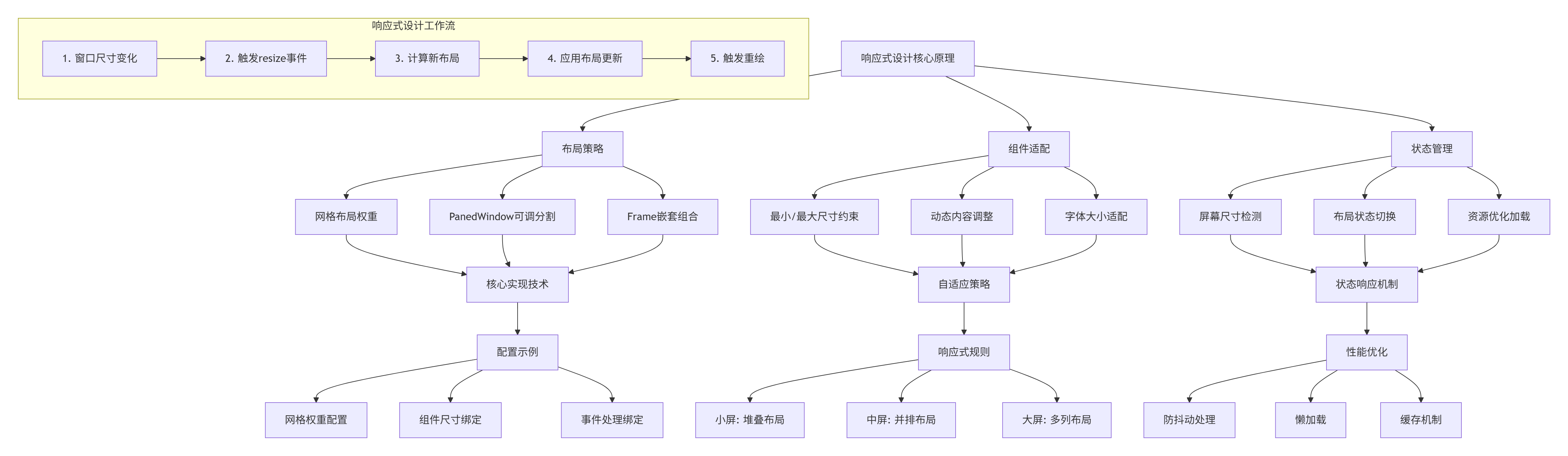
3.6.1 网格权重系统
ttk的网格布局通过权重系统实现响应式设计:
python
class ResponsiveLayout:
    """响应式布局示例"""

    def setup_responsive_grid(self, parent):
        """设置响应式网格布局"""

        # 三列布局
        for i in range(3):
            parent.grid_columnconfigure(i, weight=1)
        parent.grid_rowconfigure(0, weight=1)

        # 创建三个面板
        for i in range(3):
            frame = ttk.Frame(parent, relief=tk.RAISED, borderwidth=1)
            frame.grid(row=0, column=i, padx=5, pady=5, sticky="nsew")

            # 内部也使用响应式网格
            frame.grid_columnconfigure(0, weight=1)
            frame.grid_rowconfigure(0, weight=1)

            # 添加内容
            label = ttk.Label(frame, text=f"面板{i+1}",
                            font=("Arial", 12, "bold"))
            label.pack(pady=10)

            # 添加可调整的内容
            self.add_responsive_content(frame, i)

    def add_responsive_content(self, frame, index):
        """添加响应式内容"""
        if index == 0:
            # 文本内容
            text = tk.Text(frame, wrap=tk.WORD, height=10)
            text.pack(fill=tk.BOTH, expand=True, padx=10, pady=10)
            text.insert(1.0, "这是一个响应式文本区域,会根据容器大小自动换行。")

        elif index == 1:
            # 列表内容
            listbox = tk.Listbox(frame)
            listbox.pack(fill=tk.BOTH, expand=True, padx=10, pady=10)

            for i in range(20):
                listbox.insert(tk.END, f"列表项 {i+1}")

        else:
            # 表单内容
            form_frame = ttk.Frame(frame)
            form_frame.pack(fill=tk.BOTH, expand=True, padx=10, pady=10)

            for i in range(5):
                ttk.Label(form_frame, text=f"字段{i+1}:").grid(
                    row=i, column=0, sticky=tk.W, pady=2)
                ttk.Entry(form_frame).grid(
                    row=i, column=1, sticky=(tk.W, tk.E), pady=2, padx=(5, 0))

            form_frame.grid_columnconfigure(1, weight=1)
3.6.2 动态布局切换
对于更复杂的响应式需求,我们可以实现动态布局切换:
python
class DynamicLayoutSwitcher:
    """动态布局切换器"""

    def __init__(self, root):
        self.root = root
        self.current_layout = "desktop"  # desktop, tablet, mobile
        self.setup_ui()
        self.bind_resize_events()

    def bind_resize_events(self):
        """绑定窗口大小变化事件"""
        self.root.bind("<Configure>", self.on_window_resize)

        # 防抖动处理
        self.resize_timeout = None

    def on_window_resize(self, event):
        """窗口大小变化处理(带防抖动)"""
        if self.resize_timeout:
            self.root.after_cancel(self.resize_timeout)

        self.resize_timeout = self.root.after(200, self.update_layout)

    def update_layout(self):
        """更新布局"""
        width = self.root.winfo_width()

        # 确定布局模式
        if width < 600:
            new_layout = "mobile"
        elif width < 900:
            new_layout = "tablet"
        else:
            new_layout = "desktop"

        # 如果布局模式改变,重新布局
        if new_layout != self.current_layout:
            self.current_layout = new_layout
            self.apply_layout(new_layout)

    def apply_layout(self, layout_mode):
        """应用指定布局"""
        # 清除当前内容
        for widget in self.main_frame.winfo_children():
            widget.destroy()

        # 应用新布局
        if layout_mode == "desktop":
            self.create_desktop_layout()
        elif layout_mode == "tablet":
            self.create_tablet_layout()
        else:  # mobile
            self.create_mobile_layout()

        # 更新状态
        self.status_label.configure(text=f"当前布局: {layout_mode}模式")

    def create_desktop_layout(self):
        """创建桌面布局(三列)"""
        # 左侧边栏
        sidebar = ttk.Frame(self.main_frame, width=200, relief=tk.RAISED)
        sidebar.pack(side=tk.LEFT, fill=tk.Y, padx=(0, 5))

        # 主内容区
        content = ttk.Frame(self.main_frame, relief=tk.SUNKEN)
        content.pack(side=tk.LEFT, fill=tk.BOTH, expand=True, padx=5)

        # 右侧边栏
        rightbar = ttk.Frame(self.main_frame, width=150, relief=tk.RAISED)
        rightbar.pack(side=tk.RIGHT, fill=tk.Y, padx=(5, 0))

        # 填充内容
        self.fill_sidebar(sidebar)
        self.fill_content(content)
        self.fill_rightbar(rightbar)

    def create_tablet_layout(self):
        """创建平板布局(两列)"""
        # 上方面板
        top_panel = ttk.Frame(self.main_frame, height=100, relief=tk.RAISED)
        top_panel.pack(side=tk.TOP, fill=tk.X, pady=(0, 5))

        # 主要内容区
        main_panel = ttk.Frame(self.main_frame, relief=tk.SUNKEN)
        main_panel.pack(side=tk.LEFT, fill=tk.BOTH, expand=True, padx=(0, 5))

        # 侧边栏
        sidebar = ttk.Frame(self.main_frame, width=200, relief=tk.RAISED)
        sidebar.pack(side=tk.RIGHT, fill=tk.Y)

        # 填充内容
        self.fill_top_panel(top_panel)
        self.fill_content(main_panel)
        self.fill_sidebar(sidebar)

    def create_mobile_layout(self):
        """创建移动布局(单列)"""
        # 顶部导航
        navbar = ttk.Frame(self.main_frame, height=50, relief=tk.RAISED)
        navbar.pack(side=tk.TOP, fill=tk.X, pady=(0, 5))

        # 可折叠侧边栏
        self.sidebar_visible = False
        self.sidebar = ttk.Frame(self.main_frame, width=0, relief=tk.RAISED)

        # 主内容区
        content = ttk.Frame(self.main_frame, relief=tk.SUNKEN)
        content.pack(side=tk.TOP, fill=tk.BOTH, expand=True)

        # 底部导航
        bottombar = ttk.Frame(self.main_frame, height=50, relief=tk.RAISED)
        bottombar.pack(side=tk.BOTTOM, fill=tk.X, pady=(5, 0))

        # 填充内容
        self.fill_navbar(navbar)
        self.fill_content(content)
        self.fill_bottombar(bottombar)
第四部分:工程化实践
4.1 Demo 3:配置管理器应用
现在让我们创建一个完整的、可用于实际项目的配置管理器应用。这个应用展示了ttk在真实项目中的最佳实践,包括模块化设计、配置管理、多语言支持和打包部署。
python
"""
配置管理器应用 - config_manager.py
一个完整的ttk应用示例,展示工程化实践
"""
import os
import json
import configparser
import tkinter as tk
from tkinter import ttk, messagebox, filedialog
from typing import Dict, Any, Optional, List
from dataclasses import dataclass, asdict, field
from datetime import datetime
import sys
from pathlib import Path
# ==================== 数据模型层 ====================
@dataclass
class ConfigSection:
"""配置段落"""
name: str
description: str = ""
options: Dict[str, str] = field(default_factory=dict)
order: int = 0
def to_dict(self) -> Dict[str, Any]:
"""转换为字典"""
return asdict(self)
@classmethod
def from_dict(cls, data: Dict[str, Any]) -> 'ConfigSection':
"""从字典创建"""
return cls(**data)
@dataclass
class ConfigFile:
"""配置文件"""
name: str
path: str
format: str # json, ini, env
sections: List[ConfigSection] = field(default_factory=list)
last_modified: str = field(default_factory=lambda: datetime.now().isoformat())
is_active: bool = True
def to_dict(self) -> Dict[str, Any]:
"""转换为字典"""
data = asdict(self)
data['sections'] = [section.to_dict() for section in self.sections]
return data
@classmethod
def from_dict(cls, data: Dict[str, Any]) -> 'ConfigFile':
"""从字典创建"""
sections_data = data.pop('sections', [])
sections = [ConfigSection.from_dict(sd) for sd in sections_data]
return cls(sections=sections, **data)
class ConfigManager:
"""配置管理器"""
def __init__(self, data_dir: str = ".config_manager"):
self.data_dir = Path.home() / data_dir
self.data_dir.mkdir(exist_ok=True)
self.config_file = self.data_dir / "manager_config.json"
self.configs: List[ConfigFile] = []
self.load_configs()
def load_configs(self) -> None:
"""加载配置列表"""
if self.config_file.exists():
try:
with open(self.config_file, 'r', encoding='utf-8') as f:
data = json.load(f)
self.configs = [ConfigFile.from_dict(item) for item in data.get('configs', [])]
except Exception as e:
print(f"加载配置失败: {e}")
self.configs = []
def save_configs(self) -> None:
"""保存配置列表"""
try:
data = {
'configs': [config.to_dict() for config in self.configs],
'updated_at': datetime.now().isoformat()
}
with open(self.config_file, 'w', encoding='utf-8') as f:
json.dump(data, f, ensure_ascii=False, indent=2)
except Exception as e:
messagebox.showerror("错误", f"保存配置失败: {e}")
def add_config(self, config: ConfigFile) -> None:
"""添加配置文件"""
self.configs.append(config)
self.save_configs()
def remove_config(self, config_name: str) -> bool:
"""删除配置文件"""
for i, config in enumerate(self.configs):
if config.name == config_name:
del self.configs[i]
self.save_configs()
return True
return False
def get_config(self, config_name: str) -> Optional[ConfigFile]:
"""获取配置文件"""
for config in self.configs:
if config.name == config_name:
return config
return None
def update_config(self, config: ConfigFile) -> bool:
"""更新配置文件"""
for i, existing_config in enumerate(self.configs):
if existing_config.name == config.name:
self.configs[i] = config
self.save_configs()
return True
return False
# ==================== 工具函数 ====================
def validate_json(content: str) -> bool:
"""验证JSON格式"""
try:
json.loads(content)
return True
except:
return False
def validate_ini(content: str) -> bool:
"""验证INI格式"""
try:
parser = configparser.ConfigParser()
parser.read_string(content)
return True
except:
return False
def format_content(content: str, format_type: str) -> str:
"""格式化内容"""
if format_type == "json":
try:
data = json.loads(content)
return json.dumps(data, indent=2, ensure_ascii=False)
except:
return content
return content
# ==================== 视图组件 ====================
class ConfigEditor(ttk.Frame):
"""配置编辑器"""
def __init__(self, parent, on_save=None, on_validate=None):
super().__init__(parent)
self.on_save = on_save
self.on_validate = on_validate
self.current_format = "json"
self.setup_ui()
def setup_ui(self):
"""设置UI"""
# 格式选择
format_frame = ttk.Frame(self)
format_frame.pack(fill=tk.X, pady=(0, 10))
ttk.Label(format_frame, text="格式:").pack(side=tk.LEFT, padx=(0, 10))
self.format_var = tk.StringVar(value="json")
format_combo = ttk.Combobox(format_frame,
textvariable=self.format_var,
values=["json", "ini", "env", "text"],
state="readonly",
width=10)
format_combo.pack(side=tk.LEFT)
format_combo.bind("<<ComboboxSelected>>", self.on_format_changed)
# 操作按钮
button_frame = ttk.Frame(format_frame)
button_frame.pack(side=tk.RIGHT)
ttk.Button(button_frame, text="验证",
command=self.on_validate_clicked).pack(side=tk.LEFT, padx=2)
ttk.Button(button_frame, text="格式化",
command=self.on_format_clicked).pack(side=tk.LEFT, padx=2)
ttk.Button(button_frame, text="保存",
command=self.on_save_clicked, style="Primary.TButton").pack(side=tk.LEFT, padx=2)
# 编辑器
editor_frame = ttk.Frame(self)
editor_frame.pack(fill=tk.BOTH, expand=True)
# 行号
self.line_numbers = tk.Text(editor_frame, width=4, padx=5, pady=5,
takefocus=0, border=0, background="#f0f0f0",
state="disabled")
self.line_numbers.pack(side=tk.LEFT, fill=tk.Y)
# 主编辑器
self.text_editor = tk.Text(editor_frame, wrap=tk.NONE, undo=True,
font=("Consolas", 10))
self.text_editor.pack(side=tk.LEFT, fill=tk.BOTH, expand=True)
# 滚动条
y_scrollbar = ttk.Scrollbar(editor_frame, orient=tk.VERTICAL,
command=self.on_scroll)
y_scrollbar.pack(side=tk.RIGHT, fill=tk.Y)
x_scrollbar = ttk.Scrollbar(self, orient=tk.HORIZONTAL,
command=self.text_editor.xview)
x_scrollbar.pack(side=tk.BOTTOM, fill=tk.X)
# 配置滚动
self.text_editor.configure(yscrollcommand=self.on_text_scroll,
xscrollcommand=x_scrollbar.set)
# 绑定事件
self.text_editor.bind("<KeyRelease>", self.on_text_changed)
self.text_editor.bind("<MouseWheel>", self.on_mouse_wheel)
# 初始更新行号
self.update_line_numbers()
def on_scroll(self, *args):
"""滚动事件"""
self.text_editor.yview(*args)
self.update_line_numbers()
def on_text_scroll(self, *args):
"""文本滚动事件"""
self.line_numbers.yview_moveto(args[0])
self.update_line_numbers()
def on_mouse_wheel(self, event):
"""鼠标滚轮事件"""
self.text_editor.yview_scroll(int(-1 * (event.delta / 120)), "units")
self.update_line_numbers()
return "break"
def on_text_changed(self, event=None):
"""文本变化事件"""
self.update_line_numbers()
def update_line_numbers(self):
"""更新行号"""
# 获取当前可见行
first_line = int(self.text_editor.index("@0,0").split('.')[0])
last_line = int(self.text_editor.index("end-1c").split('.')[0])
# 生成行号文本
line_numbers_text = "\n".join(str(i) for i in range(1, last_line + 1))
# 更新行号显示
self.line_numbers.configure(state="normal")
self.line_numbers.delete(1.0, tk.END)
self.line_numbers.insert(1.0, line_numbers_text)
self.line_numbers.configure(state="disabled")
def on_format_changed(self, event):
"""格式变化事件"""
self.current_format = self.format_var.get()
def on_validate_clicked(self):
"""验证按钮点击"""
content = self.get_content()
format_type = self.format_var.get()
if format_type == "json":
is_valid = validate_json(content)
elif format_type == "ini":
is_valid = validate_ini(content)
else:
is_valid = True
if is_valid:
messagebox.showinfo("验证", "格式验证通过!")
else:
messagebox.showerror("验证", f"{format_type.upper()}格式无效!")
if self.on_validate:
self.on_validate(is_valid)
def on_format_clicked(self):
"""格式化按钮点击"""
content = self.get_content()
format_type = self.format_var.get()
formatted = format_content(content, format_type)
self.set_content(formatted)
def on_save_clicked(self):
"""保存按钮点击"""
if self.on_save:
self.on_save()
def get_content(self) -> str:
"""获取编辑器内容"""
return self.text_editor.get(1.0, tk.END).strip()
def set_content(self, content: str):
"""设置编辑器内容"""
self.text_editor.delete(1.0, tk.END)
self.text_editor.insert(1.0, content)
self.update_line_numbers()
class ConfigBrowser(ttk.Treeview):
"""配置浏览器"""
def __init__(self, parent, on_select=None):
columns = ("name", "format", "modified", "status")
super().__init__(parent, columns=columns, show="tree headings")
self.on_select = on_select
# 配置列
self.heading("#0", text="", anchor=tk.W)
self.heading("name", text="名称", anchor=tk.W)
self.heading("format", text="格式", anchor=tk.CENTER)
self.heading("modified", text="修改时间", anchor=tk.W)
self.heading("status", text="状态", anchor=tk.CENTER)
# 设置列宽
self.column("#0", width=50, minwidth=50)
self.column("name", width=150, minwidth=100)
self.column("format", width=80, minwidth=80, anchor=tk.CENTER)
self.column("modified", width=120, minwidth=120)
self.column("status", width=80, minwidth=80, anchor=tk.CENTER)
# 绑定选择事件
self.bind("<<TreeviewSelect>>", self.on_item_select)
# 添加上下文菜单
self.setup_context_menu()
def setup_context_menu(self):
"""设置上下文菜单"""
self.context_menu = tk.Menu(self, tearoff=0)
self.context_menu.add_command(label="新建配置", command=self.on_new_config)
self.context_menu.add_command(label="复制配置", command=self.on_copy_config)
self.context_menu.add_command(label="删除配置", command=self.on_delete_config)
self.context_menu.add_separator()
self.context_menu.add_command(label="刷新", command=self.on_refresh)
self.bind("<Button-3>", self.show_context_menu)
def show_context_menu(self, event):
"""显示上下文菜单"""
self.context_menu.post(event.x_root, event.y_root)
def on_item_select(self, event):
"""项目选择事件"""
selection = self.selection()
if selection and self.on_select:
item = selection[0]
config_name = self.item(item, "values")[0]
self.on_select(config_name)
def on_new_config(self):
"""新建配置"""
pass
def on_copy_config(self):
"""复制配置"""
pass
def on_delete_config(self):
"""删除配置"""
pass
def on_refresh(self):
"""刷新"""
pass
def add_config(self, config: ConfigFile):
"""添加配置"""
tags = ()
if config.is_active:
tags = ("active",)
values = (
config.name,
config.format.upper(),
config.last_modified[:19],
"✓" if config.is_active else "✗"
)
item = self.insert("", tk.END, text="📄", values=values, tags=tags)
return item
def refresh(self, configs: List[ConfigFile]):
"""刷新配置列表"""
# 清空现有项
for item in self.get_children():
self.delete(item)
# 添加新项
for config in configs:
self.add_config(config)
# 配置标签样式
self.tag_configure("active", background="#e8f5e8")
# ==================== 主应用 ====================
class ConfigManagerApp:
"""配置管理器主应用"""
def __init__(self, root):
self.root = root
self.root.title("配置管理器 - ttk工程化示例")
self.root.geometry("1200x800")
# 设置图标
self.set_icon()
# 初始化管理器
self.manager = ConfigManager()
# 设置样式
self.setup_styles()
# 创建UI
self.setup_ui()
# 加载初始数据
self.load_initial_data()
# 绑定事件
self.setup_bindings()
def set_icon(self):
"""设置窗口图标"""
try:
# 尝试设置图标
icon_path = Path(__file__).parent / "icon.ico"
if icon_path.exists():
self.root.iconbitmap(str(icon_path))
except:
pass
def setup_styles(self):
"""设置样式"""
style = ttk.Style()
style.theme_use("clam")
# 主样式配置
style.configure("Primary.TButton",
padding=8,
font=("Arial", 10, "bold"))
style.configure("Header.TLabel",
font=("Arial", 12, "bold"),
padding=5)
style.configure("Status.TLabel",
background="#f0f0f0",
relief=tk.SUNKEN,
padding=5)
style.configure("Card.TFrame",
relief=tk.RAISED,
borderwidth=1)
def setup_ui(self):
"""设置用户界面"""
# 主容器
self.main_container = ttk.Frame(self.root, padding="10")
self.main_container.pack(fill=tk.BOTH, expand=True)
# 标题栏
self.setup_header(self.main_container)
# 主内容区
self.setup_content(self.main_container)
# 状态栏
self.setup_footer(self.main_container)
# 配置网格权重
self.main_container.grid_columnconfigure(0, weight=1)
self.main_container.grid_rowconfigure(1, weight=1)
def setup_header(self, parent):
"""设置标题栏"""
header = ttk.Frame(parent)
header.grid(row=0, column=0, sticky=(tk.W, tk.E), pady=(0, 10))
# 标题
title = ttk.Label(header, text="⚙️ 配置管理器",
font=("Arial", 18, "bold"))
title.pack(side=tk.LEFT)
# 工具栏
toolbar = ttk.Frame(header)
toolbar.pack(side=tk.RIGHT)
# 工具栏按钮
tools = [
("📁 导入", self.on_import),
("💾 导出", self.on_export),
("🆕 新建", self.on_new),
("🔍 搜索", self.on_search),
]
for text, command in tools:
btn = ttk.Button(toolbar, text=text, command=command)
btn.pack(side=tk.LEFT, padx=2)
def setup_content(self, parent):
"""设置主内容区"""
# 使用PanedWindow分割左右面板
self.paned = ttk.PanedWindow(parent, orient=tk.HORIZONTAL)
self.paned.grid(row=1, column=0, sticky=(tk.W, tk.E, tk.N, tk.S))
# 左侧面板 - 配置列表
self.setup_left_panel()
# 右侧面板 - 编辑器
self.setup_right_panel()
def setup_left_panel(self):
"""设置左侧面板"""
left_frame = ttk.LabelFrame(self.paned, text="配置列表", padding="10")
self.paned.add(left_frame, weight=1)
# 搜索框
search_frame = ttk.Frame(left_frame)
search_frame.pack(fill=tk.X, pady=(0, 10))
ttk.Label(search_frame, text="搜索:").pack(side=tk.LEFT, padx=(0, 5))
self.search_var = tk.StringVar()
search_entry = ttk.Entry(search_frame, textvariable=self.search_var)
search_entry.pack(side=tk.LEFT, fill=tk.X, expand=True, padx=(0, 5))
search_entry.bind("<KeyRelease>", self.on_search_key)
# 配置浏览器
browser_frame = ttk.Frame(left_frame)
browser_frame.pack(fill=tk.BOTH, expand=True)
# 创建树形视图
columns = ("name", "type", "modified")
self.tree = ttk.Treeview(browser_frame, columns=columns, show="tree headings")
# 配置列
self.tree.heading("#0", text="", anchor=tk.W)
self.tree.heading("name", text="名称", anchor=tk.W)
self.tree.heading("type", text="类型", anchor=tk.W)
self.tree.heading("modified", text="修改时间", anchor=tk.W)
# 设置列宽
self.tree.column("#0", width=30)
self.tree.column("name", width=150)
self.tree.column("type", width=80)
self.tree.column("modified", width=120)
# 滚动条
tree_scroll = ttk.Scrollbar(browser_frame, orient=tk.VERTICAL,
command=self.tree.yview)
self.tree.configure(yscrollcommand=tree_scroll.set)
# 布局
self.tree.pack(side=tk.LEFT, fill=tk.BOTH, expand=True)
tree_scroll.pack(side=tk.RIGHT, fill=tk.Y)
# 绑定选择事件
self.tree.bind("<<TreeviewSelect>>", self.on_tree_select)
# 按钮面板
button_frame = ttk.Frame(left_frame)
button_frame.pack(fill=tk.X, pady=(10, 0))
buttons = [
("➕ 添加", self.on_add_config, "Primary.TButton"),
("✏️ 编辑", self.on_edit_config),
("🗑️ 删除", self.on_delete_config, "Danger.TButton"),
("🔄 刷新", self.on_refresh_list),
]
for text, command, *style in buttons:
btn_style = style[0] if style else None
btn = ttk.Button(button_frame, text=text, command=command, style=btn_style)
btn.pack(side=tk.LEFT, padx=2, fill=tk.X, expand=True)
def setup_right_panel(self):
"""设置右侧面板"""
right_frame = ttk.LabelFrame(self.paned, text="配置编辑器", padding="10")
self.paned.add(right_frame, weight=2)
# 配置信息
info_frame = ttk.Frame(right_frame)
info_frame.pack(fill=tk.X, pady=(0, 10))
ttk.Label(info_frame, text="名称:", width=8).pack(side=tk.LEFT)
self.name_var = tk.StringVar()
name_entry = ttk.Entry(info_frame, textvariable=self.name_var)
name_entry.pack(side=tk.LEFT, fill=tk.X, expand=True, padx=(0, 20))
ttk.Label(info_frame, text="格式:", width=6).pack(side=tk.LEFT)
self.format_var = tk.StringVar(value="json")
format_combo = ttk.Combobox(info_frame, textvariable=self.format_var,
values=["json", "ini", "env", "yaml"],
state="readonly", width=10)
format_combo.pack(side=tk.LEFT)
# 编辑器
self.editor = ConfigEditor(right_frame,
on_save=self.on_save_config,
on_validate=self.on_validate_config)
self.editor.pack(fill=tk.BOTH, expand=True)
# 状态显示
self.status_var = tk.StringVar(value="就绪")
status_label = ttk.Label(right_frame, textvariable=self.status_var,
style="Status.TLabel")
status_label.pack(fill=tk.X, pady=(10, 0))
def setup_footer(self, parent):
"""设置状态栏"""
footer = ttk.Frame(parent)
footer.grid(row=2, column=0, sticky=(tk.W, tk.E), pady=(10, 0))
# 状态信息
self.footer_var = tk.StringVar(value="就绪 | 配置数量: 0")
footer_label = ttk.Label(footer, textvariable=self.footer_var,
style="Status.TLabel")
footer_label.pack(side=tk.LEFT, fill=tk.X, expand=True)
# 版本信息
version_label = ttk.Label(footer, text="v1.0.0 | ttk示例应用",
style="Status.TLabel")
version_label.pack(side=tk.RIGHT)
def setup_bindings(self):
"""设置事件绑定"""
# 快捷键
self.root.bind("<Control-n>", lambda e: self.on_new())
self.root.bind("<Control-s>", lambda e: self.on_save_config())
self.root.bind("<Control-o>", lambda e: self.on_import())
self.root.bind("<Control-f>", lambda e: self.on_search())
def load_initial_data(self):
"""加载初始数据"""
# 添加示例数据
sample_configs = [
ConfigFile(
name="应用设置",
path="app_settings.json",
format="json",
sections=[
ConfigSection(
name="database",
description="数据库配置",
options={
"host": "localhost",
"port": "5432",
"database": "app_db"
}
),
ConfigSection(
name="server",
description="服务器配置",
options={
"host": "0.0.0.0",
"port": "8080",
"debug": "true"
}
)
]
),
ConfigFile(
name="系统配置",
path="system.ini",
format="ini",
sections=[
ConfigSection(
name="paths",
description="路径配置",
options={
"data_dir": "/var/data",
"log_dir": "/var/log"
}
)
]
)
]
for config in sample_configs:
self.manager.add_config(config)
# 刷新列表
self.refresh_config_list()
def refresh_config_list(self):
"""刷新配置列表"""
# 清空现有项
for item in self.tree.get_children():
self.tree.delete(item)
# 添加配置项
for config in self.manager.configs:
# 转换为树形视图格式
sections_text = f"{len(config.sections)} 个段落"
self.tree.insert("", tk.END,
text="📄" if config.format == "json" else "📝",
values=(config.name,
config.format.upper(),
config.last_modified[:19]),
tags=("active" if config.is_active else "inactive",))
# 更新状态
self.footer_var.set(f"就绪 | 配置数量: {len(self.manager.configs)}")
def on_tree_select(self, event):
"""树形视图选择事件"""
selection = self.tree.selection()
if not selection:
return
item = selection[0]
config_name = self.tree.item(item, "values")[0]
# 加载配置
config = self.manager.get_config(config_name)
if config:
self.load_config_into_editor(config)
def load_config_into_editor(self, config: ConfigFile):
"""加载配置到编辑器"""
self.name_var.set(config.name)
self.format_var.set(config.format)
# 根据格式生成内容
if config.format == "json":
content = self.config_to_json(config)
elif config.format == "ini":
content = self.config_to_ini(config)
else:
content = self.config_to_text(config)
self.editor.set_content(content)
self.status_var.set(f"已加载: {config.name}")
def config_to_json(self, config: ConfigFile) -> str:
"""配置转换为JSON"""
data = {}
for section in config.sections:
data[section.name] = section.options
return json.dumps(data, indent=2, ensure_ascii=False)
def config_to_ini(self, config: ConfigFile) -> str:
"""配置转换为INI"""
content = []
for section in config.sections:
content.append(f"[{section.name}]")
if section.description:
content.append(f"# {section.description}")
for key, value in section.options.items():
content.append(f"{key} = {value}")
content.append("")
return "\n".join(content)
def config_to_text(self, config: ConfigFile) -> str:
"""配置转换为文本"""
content = []
for section in config.sections:
content.append(f"=== {section.name} ===")
if section.description:
content.append(f"描述: {section.description}")
for key, value in section.options.items():
content.append(f"{key}: {value}")
content.append("")
return "\n".join(content)
def on_save_config(self):
"""保存配置"""
config_name = self.name_var.get().strip()
if not config_name:
messagebox.showwarning("警告", "请输入配置名称")
return
# 获取编辑器内容
content = self.editor.get_content()
format_type = self.format_var.get()
# 验证格式
if format_type == "json" and not validate_json(content):
messagebox.showerror("错误", "JSON格式无效")
return
# 创建或更新配置
config = self.manager.get_config(config_name)
if not config:
config = ConfigFile(
name=config_name,
path=f"{config_name}.{format_type}",
format=format_type
)
# 更新配置内容
try:
if format_type == "json":
data = json.loads(content)
config.sections = [
ConfigSection(name=key, options=value)
for key, value in data.items()
]
elif format_type == "ini":
parser = configparser.ConfigParser()
parser.read_string(content)
config.sections = [
ConfigSection(name=section, options=dict(parser[section]))
for section in parser.sections()
]
config.last_modified = datetime.now().isoformat()
# 保存
if self.manager.get_config(config_name):
self.manager.update_config(config)
else:
self.manager.add_config(config)
# 刷新列表
self.refresh_config_list()
self.status_var.set(f"已保存: {config_name}")
messagebox.showinfo("成功", "配置保存成功")
except Exception as e:
messagebox.showerror("错误", f"保存失败: {e}")
def on_validate_config(self, is_valid: bool):
"""验证配置"""
if is_valid:
self.status_var.set("格式验证通过")
else:
self.status_var.set("格式验证失败")
def on_add_config(self):
"""添加配置"""
# 清空编辑器
self.name_var.set("")
self.format_var.set("json")
self.editor.set_content("{\n \n}")
self.status_var.set("新建配置")
def on_edit_config(self):
"""编辑配置"""
selection = self.tree.selection()
if not selection:
messagebox.showwarning("警告", "请先选择一个配置")
return
def on_delete_config(self):
"""删除配置"""
selection = self.tree.selection()
if not selection:
messagebox.showwarning("警告", "请先选择一个配置")
return
item = selection[0]
config_name = self.tree.item(item, "values")[0]
if messagebox.askyesno("确认删除", f"确定要删除配置 '{config_name}' 吗?"):
if self.manager.remove_config(config_name):
self.refresh_config_list()
self.on_add_config() # 清空编辑器
messagebox.showinfo("成功", "配置已删除")
else:
messagebox.showerror("错误", "删除失败")
def on_refresh_list(self):
"""刷新列表"""
self.refresh_config_list()
self.status_var.set("列表已刷新")
def on_import(self):
"""导入配置"""
file_path = filedialog.askopenfilename(
title="选择配置文件",
filetypes=[
("JSON文件", "*.json"),
("INI文件", "*.ini"),
("所有文件", "*.*")
]
)
if file_path:
try:
with open(file_path, 'r', encoding='utf-8') as f:
content = f.read()
# 自动检测格式
if file_path.endswith('.json'):
format_type = "json"
elif file_path.endswith('.ini'):
format_type = "ini"
else:
format_type = "text"
# 创建配置
config_name = Path(file_path).stem
config = ConfigFile(
name=config_name,
path=file_path,
format=format_type
)
# 加载到编辑器
self.name_var.set(config_name)
self.format_var.set(format_type)
self.editor.set_content(content)
self.status_var.set(f"已导入: {config_name}")
except Exception as e:
messagebox.showerror("错误", f"导入失败: {e}")
def on_export(self):
"""导出配置"""
if not self.name_var.get():
messagebox.showwarning("警告", "请先创建或选择配置")
return
file_path = filedialog.asksaveasfilename(
title="保存配置文件",
defaultextension=f".{self.format_var.get()}",
filetypes=[
("JSON文件", "*.json"),
("INI文件", "*.ini"),
("所有文件", "*.*")
]
)
if file_path:
try:
content = self.editor.get_content()
with open(file_path, 'w', encoding='utf-8') as f:
f.write(content)
messagebox.showinfo("成功", f"配置已导出到: {file_path}")
except Exception as e:
messagebox.showerror("错误", f"导出失败: {e}")
def on_new(self):
"""新建"""
self.on_add_config()
def on_search(self):
"""搜索"""
search_text = self.search_var.get()
if search_text:
# 这里可以添加搜索逻辑
self.status_var.set(f"搜索: {search_text}")
def on_search_key(self, event):
"""搜索键释放"""
self.on_search()
def main():
"""主函数"""
root = tk.Tk()
app = ConfigManagerApp(root)
root.mainloop()
if __name__ == "__main__":
main()4.2 工程化架构总结
这个配置管理器应用展示了ttk在真实项目中的完整工程化实践。让我们通过架构图来总结其设计:
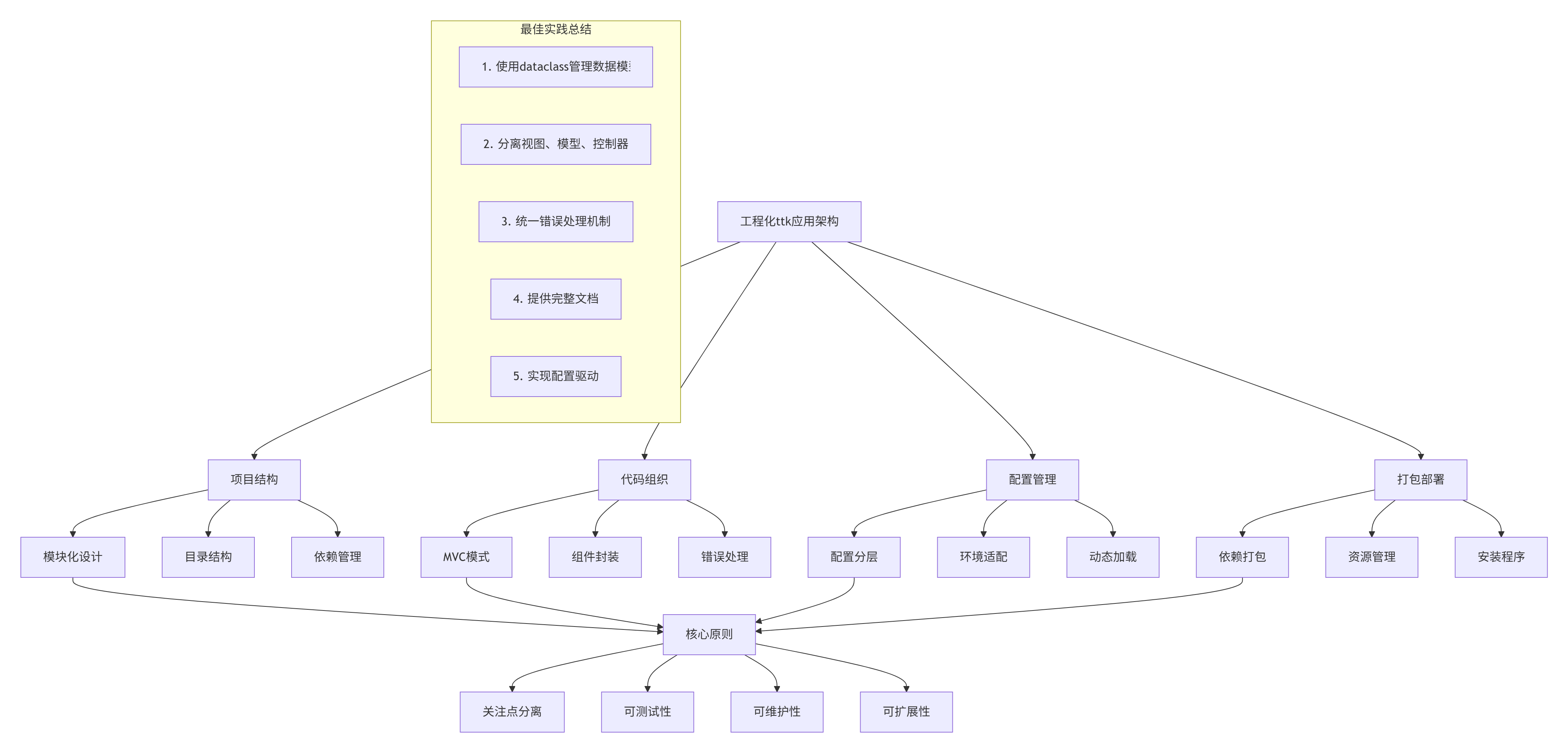
4.2.1 项目组织最佳实践
- 模块化结构:
project/
├── src/ # 源代码
│ ├── models/ # 数据模型
│ ├── views/ # 视图组件
│ ├── controllers/ # 控制器
│ ├── services/ # 业务服务
│ ├── utils/ # 工具函数
│ └── main.py # 应用入口
├── tests/ # 单元测试
├── docs/ # 文档
├── resources/ # 资源文件
├── requirements.txt # Python依赖
├── setup.py # 安装配置
└── README.md # 项目说明
2. 配置管理
python
# config.py
import os
from dataclasses import dataclass
from pathlib import Path

@dataclass
class AppConfig:
    """应用配置"""

    # 路径配置
    BASE_DIR: Path = Path.home() / ".myapp"
    DATA_DIR: Path = BASE_DIR / "data"
    LOG_DIR: Path = BASE_DIR / "logs"

    # 应用配置
    APP_NAME: str = "My App"
    VERSION: str = "1.0.0"

    # 界面配置
    WINDOW_SIZE: tuple = (1200, 800)
    THEME: str = "clam"

    def __post_init__(self):
        """初始化后创建必要目录"""
        self.DATA_DIR.mkdir(parents=True, exist_ok=True)
        self.LOG_DIR.mkdir(parents=True, exist_ok=True)
3. 错误处理统一
python
class AppError(Exception):
    """应用基础异常"""
    pass

class ConfigError(AppError):
    """配置异常"""
    pass

def handle_error(func):
    """错误处理装饰器"""
    def wrapper(*args, **kwargs):
        try:
            return func(*args, **kwargs)
        except AppError as e:
            # 应用级错误,显示友好消息
            messagebox.showerror("应用错误", str(e))
        except Exception as e:
            # 未知错误,记录日志
            logging.error(f"未知错误: {e}", exc_info=True)
            messagebox.showerror("系统错误", "发生未知错误,请查看日志")
    return wrapper
4.3 打包与部署
ttk应用可以轻松打包为独立可执行文件:
python
# setup.py - 打包配置
from setuptools import setup, find_packages

setup(
    name="config-manager",
    version="1.0.0",
    packages=find_packages(),
    install_requires=[
        # 通常ttk是内置的,不需要额外依赖
    ],
    entry_points={
        'console_scripts': [
            'config-manager=src.main:main',
        ],
    },
    package_data={
        '': ['resources/*', 'resources/icons/*', 'resources/themes/*'],
    },
    python_requires='>=3.8',
)
bash
# .spec file for PyInstaller
# config_manager.spec

block_cipher = None

a = Analysis(['src/main.py'],
             pathex=['.'],
             binaries=[],
             datas=[('resources', 'resources')],
             hiddenimports=[],
             hookspath=[],
             runtime_hooks=[],
             excludes=[],
             win_no_prefer_redirects=False,
             win_private_assemblies=False,
             cipher=block_cipher,
             noarchive=False)

pyz = PYZ(a.pure, a.zipped_data,
             cipher=block_cipher)

exe = EXE(pyz,
          a.scripts,
          a.binaries,
          a.zipfiles,
          a.datas,
          [],
          name='ConfigManager',
          debug=False,
          bootloader_ignore_signals=False,
          strip=False,
          upx=True,
          upx_exclude=[],
          runtime_tmpdir=None,
          console=False,  # 设置为True显示控制台窗口
          icon='resources/icon.ico')
第五部分:总结与最佳实践
5.1 ttk开发的核心优势总结
通过本系列的学习和实践,我们可以看到ttk作为Python GUI开发框架的独特优势:
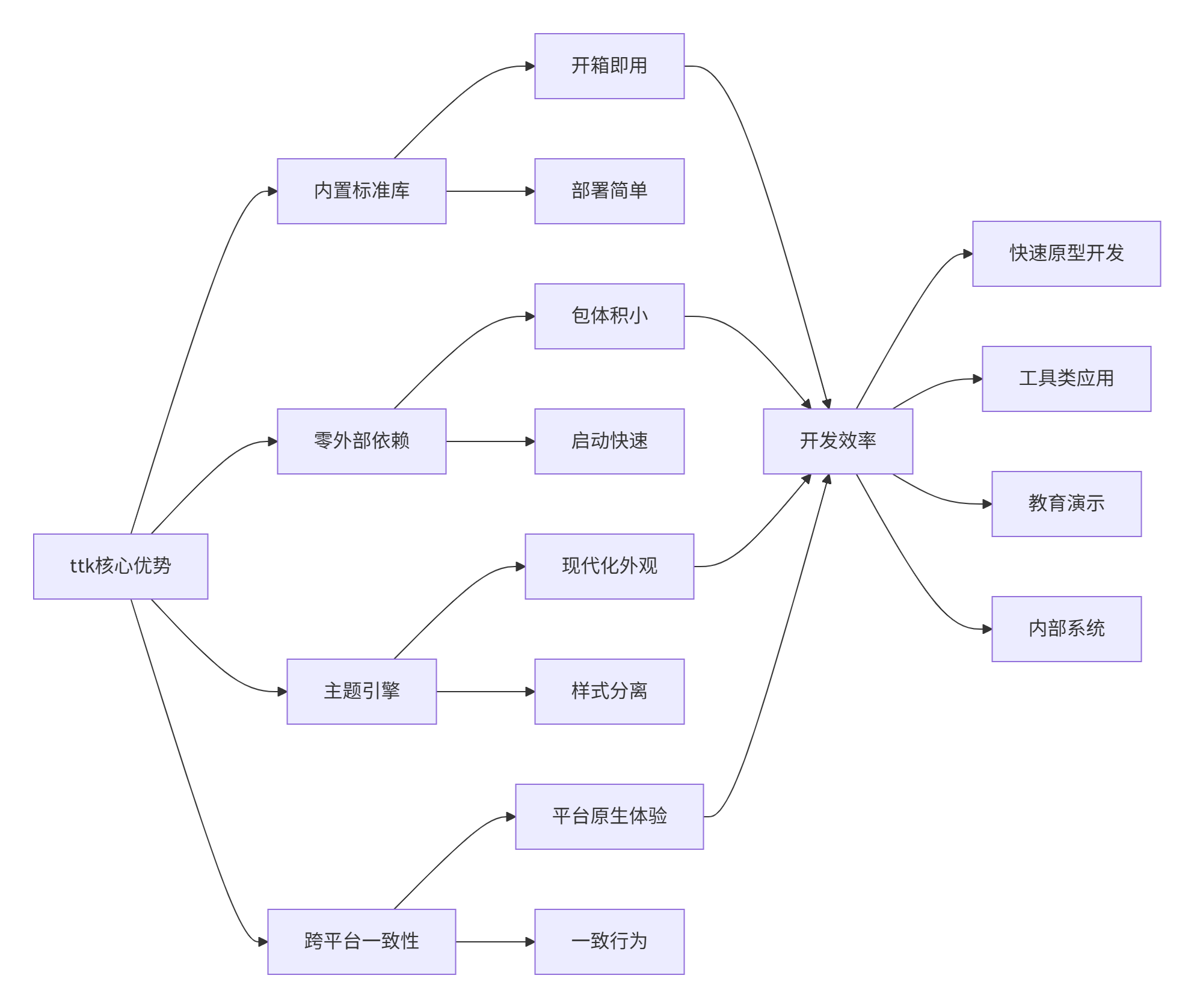
5.2 开发检查清单
在开发ttk应用时,建议遵循以下检查清单:
✅ 架构设计
-
使用MVC/MVVM模式分离关注点
-
合理规划模块结构
-
设计可扩展的接口
-
考虑错误处理策略
✅ 界面设计
-
选择合适的主题
-
设计响应式布局
-
保持界面一致性
-
考虑可访问性
✅ 代码质量
-
遵循PEP 8编码规范
-
添加类型提示
-
编写单元测试
-
提供完整文档
✅ 性能优化
-
懒加载大数据集
-
缓存频繁访问数据
-
优化事件处理
-
减少不必要的重绘
✅ 用户体验
-
提供清晰的反馈
-
实现撤销/重做功能
-
支持快捷键
-
设计直观的导航
5.3 常见问题与解决方案
问题1:布局在不同平台上表现不一致
解决方案:
python
def setup_cross_platform_layout():
    """跨平台布局设置"""
    import platform

    system = platform.system()

    if system == "Windows":
        # Windows特定设置
        style.configure("TButton", padding=(8, 4))
    elif system == "Darwin":  # macOS
        # macOS特定设置
        style.configure("TButton", padding=(10, 6))
    else:  # Linux
        # Linux特定设置
        style.configure("TButton", padding=(6, 3))
问题2:Treeview性能问题
解决方案:
python
class OptimizedTreeview(ttk.Treeview):
    """优化后的Treeview"""

    def __init__(self, *args, **kwargs):
        super().__init__(*args, **kwargs)
        self._virtual_data = []  # 虚拟数据存储
        self._visible_range = (0, 50)  # 可见范围
        self.setup_virtual_scroll()

    def setup_virtual_scroll(self):
        """设置虚拟滚动"""
        self.bind("<MouseWheel>", self.on_virtual_scroll)
        self.bind("<Configure>", self.on_resize)

    def on_virtual_scroll(self, event):
        """虚拟滚动处理"""
        # 计算新的可见范围
        # 更新显示的数据
        self.refresh_visible_data()

    def refresh_visible_data(self):
        """刷新可见数据"""
        # 只加载可见范围内的数据
        pass
问题3:样式不生效
解决方案:
python
def debug_style_problems():
    """调试样式问题"""

    # 1. 检查可用主题
    print("可用主题:", style.theme_names())

    # 2. 检查当前主题
    print("当前主题:", style.theme_use())

    # 3. 检查组件选项
    print("按钮选项:", style.layout("TButton"))

    # 4. 检查样式映射
    print("样式映射:", style.map("TButton"))
5.4 学习资源推荐
官方文档
-
Python官方tkinter文档
-
ttk组件参考
优秀项目参考
-
IDLE - Python自带的IDE,使用tkinter开发
-
Thonny - Python IDE,现代化tkinter界面
-
Porcupine - 现代化的Python编辑器
学习路径建议
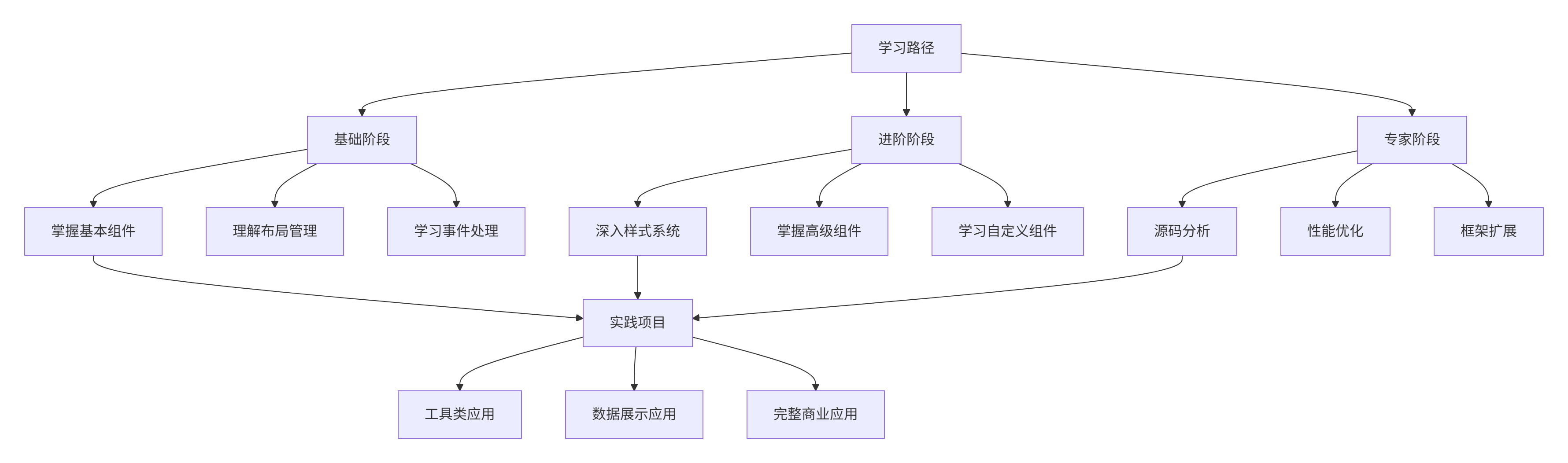
5.5 结语
ttk作为Python内置的GUI框架,虽然在功能丰富性上可能不如PyQt等第三方框架,但其零依赖、跨平台、现代化的特性使其成为许多场景下的最佳选择。通过本指南的学习,你应该已经掌握了:
-
基础组件的使用和最佳实践
-
样式系统的深度配置和主题定制
-
高级布局的实现和响应式设计
-
自定义组件的开发方法
-
工程化实践的完整流程
ttk的真正价值在于其平衡性:在提供现代化GUI功能的同时,保持了Python标准库的简洁和稳定。无论是快速原型开发、内部工具制作,还是教育资源展示,ttk都是一个值得深入学习和使用的重要工具。
希望本指南能够帮助你在Python GUI开发的道路上更进一步,创造出更多优秀的应用!