文章目录
图文混排是指图片与文字混合排列,文字可展示于图片四周。此排列方式能够直观呈现页面信息,增强视觉冲击力,使页面展示效果更加多样化。
使用Span和ImageSpan实现图文混排
通过设置Text组件textVerticalAlign属性和设置ImageSpan组件verticalAlign为ImageSpanAlignment.FOLLOW_PARAGRAPH,实现商品价格优惠信息展示的应用场景。
TypeScript
Text() {
  // 请将$r('app.media.hot_sale')替换为实际资源文件
  ImageSpan($r('app.media.hot_sale'))
    .width(50)
    .height(30)
    .borderRadius(5)
    .verticalAlign(ImageSpanAlignment.FOLLOW_PARAGRAPH)
  // 请将$r('app.string.surprise_price')替换为实际资源文件,在本示例中该资源文件的value值为"惊喜价 ¥1299"
  Span($r('app.string.surprise_price'))
    .fontSize(25)
    .fontColor(Color.Red)
  Span('1599')
    .decoration({
      type: TextDecorationType.LineThrough,
      color: Color.Grey,
      style: TextDecorationStyle.SOLID
    })
    .fontSize(16)
}.textVerticalAlign(TextVerticalAlign.CENTER)
代码逻辑走读:
- 创建一个
Text组件,作为文本布局的容器。 - 在
Text组件内部,首先使用ImageSpan来插入一个图片,设置了图片的宽度、高度、圆角和对齐方式。 - 接着使用
Span来插入一段文本,并设置了字体大小和颜色。 - 再次使用
Span来插入另一段文本,并在这段文本上应用了删除线装饰,设置了字体大小和颜色。 - 最后,设置了文本在垂直方向上的对齐方式为居中。

使用属性字符串实现图文混排
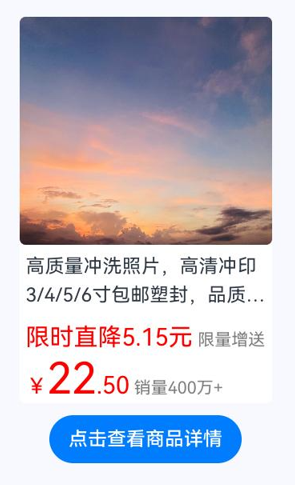
通过ImageAttachment添加图片,TextStyle设置多种文本样式,实现商品详情信息展示的应用场景。
TypeScript
// resourceGetString封装工具,从资源中获取字符串
import resourceGetString from '../../common/resource';
import { image } from '@kit.ImageKit';
import { LengthMetrics } from '@kit.ArkUI';
import { hilog } from '@kit.PerformanceAnalysisKit';

const TAG = '[Sample_Textcomponent]';
const DOMAIN = 0xF811;
const BUNDLE = 'Textcomponent_';

@Entry
@Component
struct styled_string_demo {
  @State message: string = 'Hello World';
  imagePixelMap: image.PixelMap | undefined = undefined;
  @State imagePixelMap3: image.PixelMap | undefined = undefined;
  mutableStr: MutableStyledString = new MutableStyledString('123');
  controller: TextController = new TextController();
  mutableStr2: MutableStyledString = new MutableStyledString('This is set decoration line style to the mutableStr2', [{
    start: 0,
    length: 15,
    styledKey: StyledStringKey.DECORATION,
    styledValue: new DecorationStyle({
      type: TextDecorationType.Overline,
      color: Color.Orange,
      style: TextDecorationStyle.DOUBLE
    })
  }]);

  async aboutToAppear() {
    hilog.info(DOMAIN, TAG, BUNDLE + 'aboutToAppear initial imagePixelMap');
    // $r('app.media.sky')需要替换为开发者所需的资源文件。
    this.imagePixelMap = await this.getPixmapFromMedia($r('app.media.sky'));
  }

  private async getPixmapFromMedia(resource: Resource) {
    let unit8Array = await this.getUIContext().getHostContext()?.resourceManager?.getMediaContent(resource.id);
    let imageSource = image.createImageSource(unit8Array?.buffer?.slice(0, unit8Array?.buffer?.byteLength));
    let createPixelMap: image.PixelMap = await imageSource.createPixelMap({
      desiredPixelFormat: image.PixelMapFormat.RGBA_8888
    });
    await imageSource.release();
    return createPixelMap;
  }

  leadingMarginValue: ParagraphStyle = new ParagraphStyle({
    leadingMargin: LengthMetrics.vp(5),
    maxLines: 2,
    overflow: TextOverflow.Ellipsis,
    textVerticalAlign: TextVerticalAlign.BASELINE
  });
  //行高样式对象
  lineHeightStyle1: LineHeightStyle = new LineHeightStyle(new LengthMetrics(24));
  //Bold样式
  boldTextStyle: TextStyle = new TextStyle({ fontWeight: FontWeight.Bold });
  //创建含段落样式的对象paragraphStyledString1
  paragraphStyledString1: MutableStyledString =
    // 请将$r('app.string.print_photo')替换为实际资源文件,在本示例中该资源文件的value值为"\n高质量冲洗照片,高清冲印3/4/5/6寸包邮塑封,品质保证,"
    new MutableStyledString(resourceGetString.resourceToString($r('app.string.print_photo')), [
      {
        start: 0,
        length: 28,
        styledKey: StyledStringKey.PARAGRAPH_STYLE,
        styledValue: this.leadingMarginValue
      },
      {
        start: 11,
        length: 4,
        styledKey: StyledStringKey.LINE_HEIGHT,
        styledValue: this.lineHeightStyle1
      }
    ]);
  // 请将$r('app.string.limited_time_discount')替换为实际资源文件,在本示例中该资源文件的value值为"\n限时直降5.15元 限量增送"
  paragraphStyledString2: MutableStyledString = new MutableStyledString(resourceGetString.resourceToString($r('app.string.limited_time_discount')), [
    {
      start: 0,
      length: 5,
      styledKey: StyledStringKey.PARAGRAPH_STYLE,
      styledValue: this.leadingMarginValue
    },
    {
      start: 0,
      length: 4,
      styledKey: StyledStringKey.LINE_HEIGHT,
      styledValue: new LineHeightStyle(new LengthMetrics(40))
    },
    {
      start: 0,
      length: 9,
      styledKey: StyledStringKey.FONT,
      styledValue: this.boldTextStyle
    },
    {
      start: 1,
      length: 9,
      styledKey: StyledStringKey.FONT,
      styledValue: new TextStyle({ fontSize: LengthMetrics.vp(20), fontColor: Color.Red })
    },
    {
      start: 11,
      length: 4,
      styledKey: StyledStringKey.FONT,
      styledValue: new TextStyle({ fontColor: Color.Grey, fontSize: LengthMetrics.vp(14) })
    }
  ]);
  // 请将$r('app.string.sales_volume')替换为实际资源文件,在本示例中该资源文件的value值为"\n¥22.50 销量400万+"
  paragraphStyledString3: MutableStyledString = new MutableStyledString(resourceGetString.resourceToString($r('app.string.sales_volume')), [
    {
      start: 0,
      length: 15,
      styledKey: StyledStringKey.PARAGRAPH_STYLE,
      styledValue: this.leadingMarginValue
    },
    {
      start: 0,
      length: 7,
      styledKey: StyledStringKey.LINE_HEIGHT,
      styledValue: new LineHeightStyle(new LengthMetrics(40))
    },
    {
      start: 0,
      length: 7,
      styledKey: StyledStringKey.FONT,
      styledValue: this.boldTextStyle
    },
    {
      start: 1,
      length: 1,
      styledKey: StyledStringKey.FONT,
      styledValue: new TextStyle({ fontSize: LengthMetrics.vp(18), fontColor: Color.Red })
    },
    {
      start: 2,
      length: 2,
      styledKey: StyledStringKey.FONT,
      styledValue: new TextStyle({ fontSize: LengthMetrics.vp(36), fontColor: Color.Red })
    },
    {
      start: 4,
      length: 3,
      styledKey: StyledStringKey.FONT,
      styledValue: new TextStyle({ fontSize: LengthMetrics.vp(20), fontColor: Color.Red })
    },
    {
      start: 7,
      length: 9,
      styledKey: StyledStringKey.FONT,
      styledValue: new TextStyle({ fontColor: Color.Grey, fontSize: LengthMetrics.vp(14) })
    }
  ]);

  build() {
    Row() {
      Column({ space: 10 }) {
        Text(undefined, { controller: this.controller })
          .copyOption(CopyOptions.InApp)
          .draggable(true)
          .backgroundColor('#FFFFFF')
          .borderRadius(5)
          .width(210)
        // 请将$r('app.string.textImageMixedLayout_content')替换为实际资源文件,在本示例中该资源文件的value值为"点击查看商品详情"
        Button($r('app.string.textImageMixedLayout_content'))
          .onClick(() => {
            if (this.imagePixelMap !== undefined) {
              this.mutableStr = new MutableStyledString(new ImageAttachment({
                value: this.imagePixelMap,
                size: { width: 210, height: 190 },
                verticalAlign: ImageSpanAlignment.BASELINE,
                objectFit: ImageFit.Fill,
                layoutStyle: {
                  borderRadius: LengthMetrics.vp(5)
                }
              }));
              this.paragraphStyledString1.appendStyledString(this.paragraphStyledString2);
              this.paragraphStyledString1.appendStyledString(this.paragraphStyledString3);
              this.mutableStr.appendStyledString(this.paragraphStyledString1);
              this.controller.setStyledString(this.mutableStr);
            }
          })
      }
      .width('100%')
    }
    .height('100%')
    .backgroundColor('#F8F8FF')
  }
}
代码逻辑走读:
- 导入模块 :
- 导入了
resourceGetString工具用于从资源中获取字符串。 - 导入了
image和LengthMetrics用于图像处理和长度度量。 - 导入了
hilog用于日志记录。
- 导入了
- 定义常量和组件 :
- 定义了日志标签
TAG、日志域DOMAIN和资源包BUNDLE。 - 使用
@Entry和@Component装饰器定义了一个名为styled_string_demo的组件。
- 定义了日志标签
- 状态变量 :
- 定义了多个状态变量,包括
message、imagePixelMap、imagePixelMap3、mutableStr和controller。
- 定义了多个状态变量,包括
- 生命周期方法 :
aboutToAppear方法在组件即将显示时调用,用于初始化图像资源。
- 图像处理 :
getPixmapFromMedia方法用于从媒体资源中获取图像数据并创建PixelMap。
- 样式定义 :
- 定义了多个样式对象,如
leadingMarginValue、lineHeightStyle1、boldTextStyle等。
- 定义了多个样式对象,如
- StyledString的使用 :
- 创建了多个
MutableStyledString实例,并为特定文本片段设置了样式。
- 创建了多个
- 构建UI :
- 在
build方法中,使用Row和Column布局组件构建了用户界面。 - 使用
Text组件显示文本,并通过Button组件触发事件,将图像和文本混合显示。
- 在