欢迎关注我的CSDN:https://spike.blog.csdn.net/
免责声明:本文来源于个人知识与公开资料,仅用于学术交流,欢迎讨论,不支持转载。
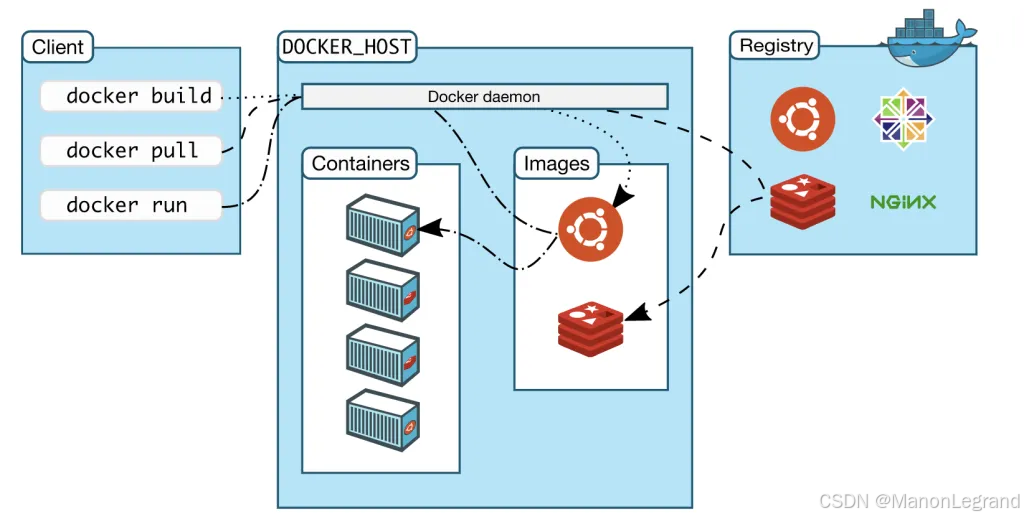
在 CentOS 上安装与配置 Docker 的核心流程主要包括环境修复、组件安装和网络优化。由于 CentOS 7 已停更,首先需将系统基础 yum 源替换为阿里云历史存档源,以解决依赖下载报错问题。接着,添加 Docker 的国内仓库并安装最新版核心组件,配置服务开机自启。最后,为避免拉取官方镜像超时,必须在配置文件中添加国内镜像加速器并重启服务,即可完成稳定 Docker 环境的搭建。
1. 修改 Docker 配置
安装依赖:
bash
# 1. 备份原有的 yum 源配置文件(以防万一)
sudo yum install -y yum-utils
sudo yum-config-manager \
    --add-repo \
    http://mirrors.aliyun.com/docker-ce/linux/centos/docker-ce.repo

sudo mkdir -p /etc/yum.repos.d/bak
sudo mv /etc/yum.repos.d/CentOS-*.repo /etc/yum.repos.d/bak/

# 2. 下载阿里云的 CentOS 7 基础源
sudo curl -o /etc/yum.repos.d/CentOS-Base.repo https://mirrors.aliyun.com/repo/Centos-7.repo

# 3. 将源地址替换为 Vault 存档源(因为普通镜像节点也已清理了 CentOS 7 的数据)
sudo sed -i 's/mirrors.aliyun.com\/centos/mirrors.aliyun.com\/centos-vault/g' /etc/yum.repos.d/CentOS-Base.repo
sudo sed -i 's/$releasever/7.9.2009/g' /etc/yum.repos.d/CentOS-Base.repo
清空缓存:
bash
sudo yum clean all
sudo yum makecache
2. 安装 Docker
执行安装 Docker 命令:
bash
sudo yum install docker-ce docker-ce-cli containerd.io docker-buildx-plugin docker-compose-plugin -y配置 Docker:
bash
sudo systemctl start docker
sudo systemctl enable docker
3. 配置 Docker 源
添加镜像加速器:
bash
sudo mkdir -p /etc/docker
sudo tee /etc/docker/daemon.json <<-'EOF'
{
  "registry-mirrors": [
    "https://docker.m.daocloud.io",
    "https://docker.1panel.live",
    "https://hub.rat.dev",
    "https://dockerpull.com",
    "https://docker.anyhub.us.kg"
  ]
}
EOF
重启配置:
bash
sudo systemctl daemon-reload
sudo systemctl restart docker
验证是否安装成功:
bash
sudo docker run hello-world输出:
bash
Hello from Docker!
This message shows that your installation appears to be working correctly.

To generate this message, Docker took the following steps:
 1. The Docker client contacted the Docker daemon.
 2. The Docker daemon pulled the "hello-world" image from the Docker Hub.
    (amd64)
 3. The Docker daemon created a new container from that image which runs the
    executable that produces the output you are currently reading.
 4. The Docker daemon streamed that output to the Docker client, which sent it
    to your terminal.

To try something more ambitious, you can run an Ubuntu container with:
 $ docker run -it ubuntu bash

Share images, automate workflows, and more with a free Docker ID:
 https://hub.docker.com/

For more examples and ideas, visit:
 https://docs.docker.com/get-started/
Docker 版本:
bash
# docker --version
Docker version 26.1.4, build 5650f9b