文章目录
- 前置准备
- [制作 Ubuntu 20.04 ARM 根文件系统](#制作 Ubuntu 20.04 ARM 根文件系统)
-
- 创建工作目录
- [下载 Ubuntu20.04 armhf 最小系统](#下载 Ubuntu20.04 armhf 最小系统)
- [拷贝 qemu 模拟器](#拷贝 qemu 模拟器)
- [进入 ARM 环境完成系统配置](#进入 ARM 环境完成系统配置)
- 配置系统
- [打包成 QEMU 能用的 rootfs.img](#打包成 QEMU 能用的 rootfs.img)
-
- [创建 4G 空镜像文件](#创建 4G 空镜像文件)
- [格式化为 ext4](#格式化为 ext4)
- 挂载镜像拷贝系统
- 替换镜像并运行
上一篇:【imx6ul 学习笔记】Docker 运行百问网 imx6ul_qemu
前置准备
cd ubuntu-18.04_imx6ul_qemu_system/备份原文件:先把 imx6ull-system-image/rootfs.img 重命名备份
bash
sudo apt update
sudo apt install -y debootstrap qemu-user-static binfmt-support
制作 Ubuntu 20.04 ARM 根文件系统
在主机 Linux 执行
创建工作目录
随便找个地方
bash
mkdir ubuntu_imx6ull && cd ubuntu_imx6ull下载 Ubuntu20.04 armhf 最小系统
bash
# --arch=armhf 适配 i.MX6ULL,focal=Ubuntu20.04
sudo debootstrap --arch=armhf --foreign focal ubuntu_rootfs http://ports.ubuntu.com/ubuntu-ports/
拷贝 qemu 模拟器
让 x86 主机能运行 ARM 程序
bash
sudo cp /usr/bin/qemu-arm-static ubuntu_rootfs/usr/bin/进入 ARM 环境完成系统配置
bash
sudo chroot ubuntu_rootfs /bin/bash进入后命令行变成
bash
groups: cannot find name for group ID 0
I have no name!@xxx:/#
配置系统
系统初始化
在 chroot 后的 ARM Ubuntu 终端 执行以下命令:
bash
/debootstrap/debootstrap --second-stage设置 root 密码
bash
passwd root
# 输入两次密码
开启串口登录
i.MX6ULL QEMU 用 ttymxc0 串口
bash
# 1. 创建串口登录服务软链接 让系统开机自动启动 ttymxc0 串口
ln -s /lib/systemd/system/serial-getty@.service /etc/systemd/system/getty.target.wants/serial-getty@ttymxc0.service

# 2. 允许 root 用户通过串口 ttymxc0 登录
echo "ttymxc0" >> /etc/securetty
配置软件源
bash
cat > /etc/apt/sources.list << EOF
deb http://mirrors.tuna.tsinghua.edu.cn/ubuntu-ports/ focal main restricted universe multiverse
deb http://mirrors.tuna.tsinghua.edu.cn/ubuntu-ports/ focal-updates main restricted universe multiverse
deb http://mirrors.tuna.tsinghua.edu.cn/ubuntu-ports/ focal-security main restricted universe multiverse
EOF
安装基础工具
按需安装
bash
apt update
apt install -y net-tools iputils-ping vim ssh
退出 chroot 环境
bash
exit打包成 QEMU 能用的 rootfs.img
打包成 raw 格式 ext4 镜像
创建 4G 空镜像文件
bash
sudo dd if=/dev/zero of=rootfs.img bs=1G count=4格式化为 ext4
bash
sudo mkfs.ext4 rootfs.img挂载镜像拷贝系统
bash
# 创建挂载目录
sudo mkdir mnt
# 挂载镜像
sudo mount -o loop rootfs.img mnt
# 拷贝所有 Ubuntu 文件
sudo cp -rp ubuntu_rootfs/* mnt/
# 卸载镜像
sudo umount mnt
替换镜像并运行
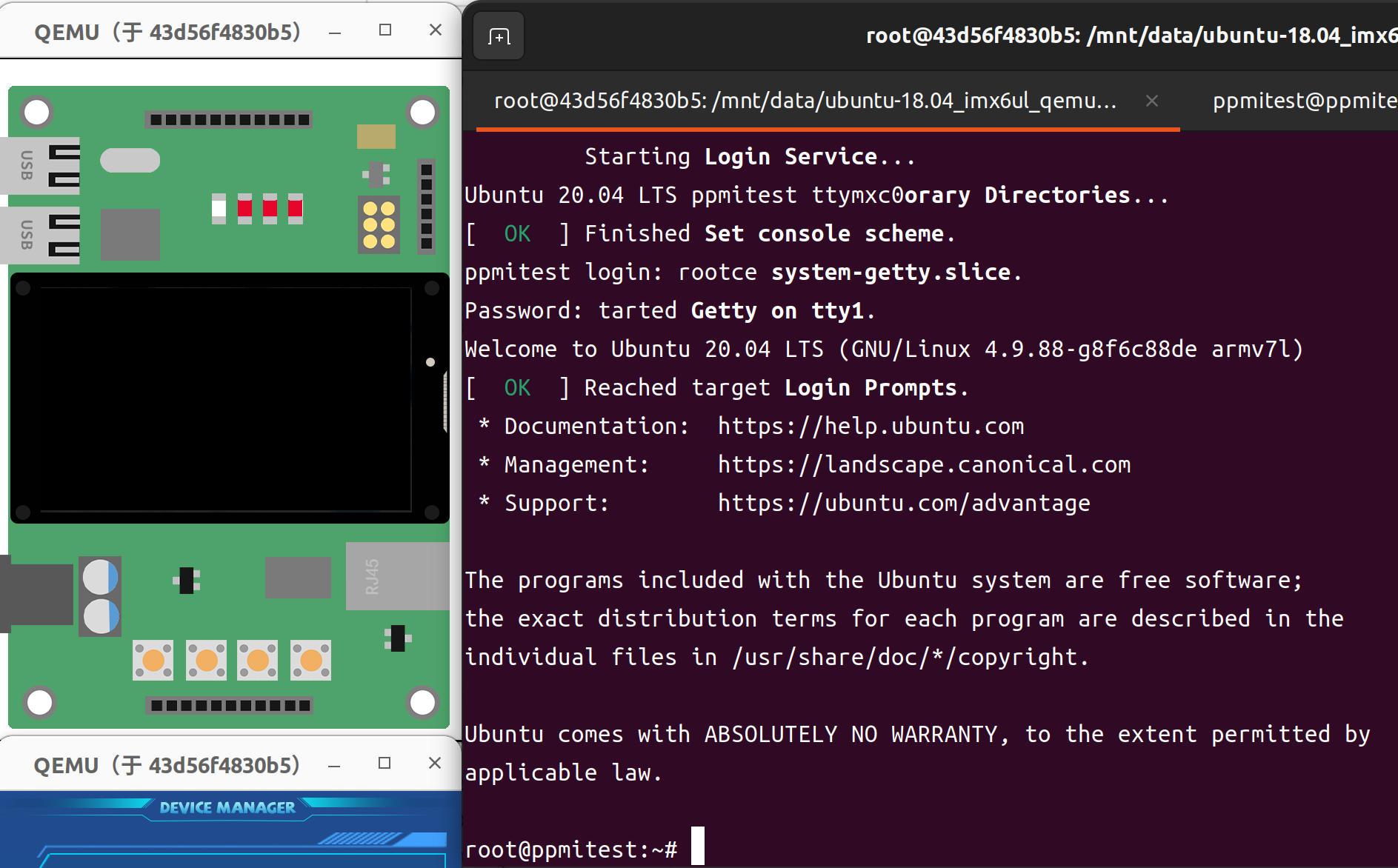
把刚做好的 rootfs.img复制到 imx6ull-system-image/ 覆盖原文件
使用原有的启动脚本
bash
./qemu-imx6ull-gui.sh