文章目录
UITableView
tableView 的本质是 一个高性能的滚动列表容器
基本协议方法
必须要实现两个协议:
objc
<UITableViewDataSource>
<UITableViewDelegate>
DataSource (数据源) 表示的是 "显示什么"
必须实现两个协议 (@required)
- (NSInteger)tableView:(UITableView *)tableView numberOfRowsInSection:(NSInteger)section; 决定了每组有多少行的内容
objc
// 设置每个section 有多少行
- (NSInteger) tableView: (UITableView*)tableView numberOFRowsInsection: (NSInteger) section {
    return 10;
}
- (UITableViewCell*) tableView: (UITableView*) tableView cellForRowAtIndexPath:(NSIndexPath *)indexPath; 设置单元格内容
objc
- (UITableViewCell *)tableView:(UITableView *)tableView cellForRowAtIndexPath:(NSIndexPath *)indexPath {
    UITableViewCell *cell = [tableView dequeueReusableCellWithIdentifier:@"CellID"
                                                            forIndexPath:indexPath];
    cell.textLabel.text = self.dataArray[indexPath.row];
    return cell;
}
Cell 的详细内容, 下文会详细讲解
可选实现:
objc
// 设置组数
// 默认是 1
- (NSInteger) numberOfSectionsInTableView:(UITableView *)tableView {
    return 2;
}
设置行高, 这里指的还是每一个cell的高度
objc
// 设置行高
- (CGFloat) tableView:(UITableView *)tableView heightForRowAtIndexPath:(NSIndexPath *)indexPath {
    return 100;
}
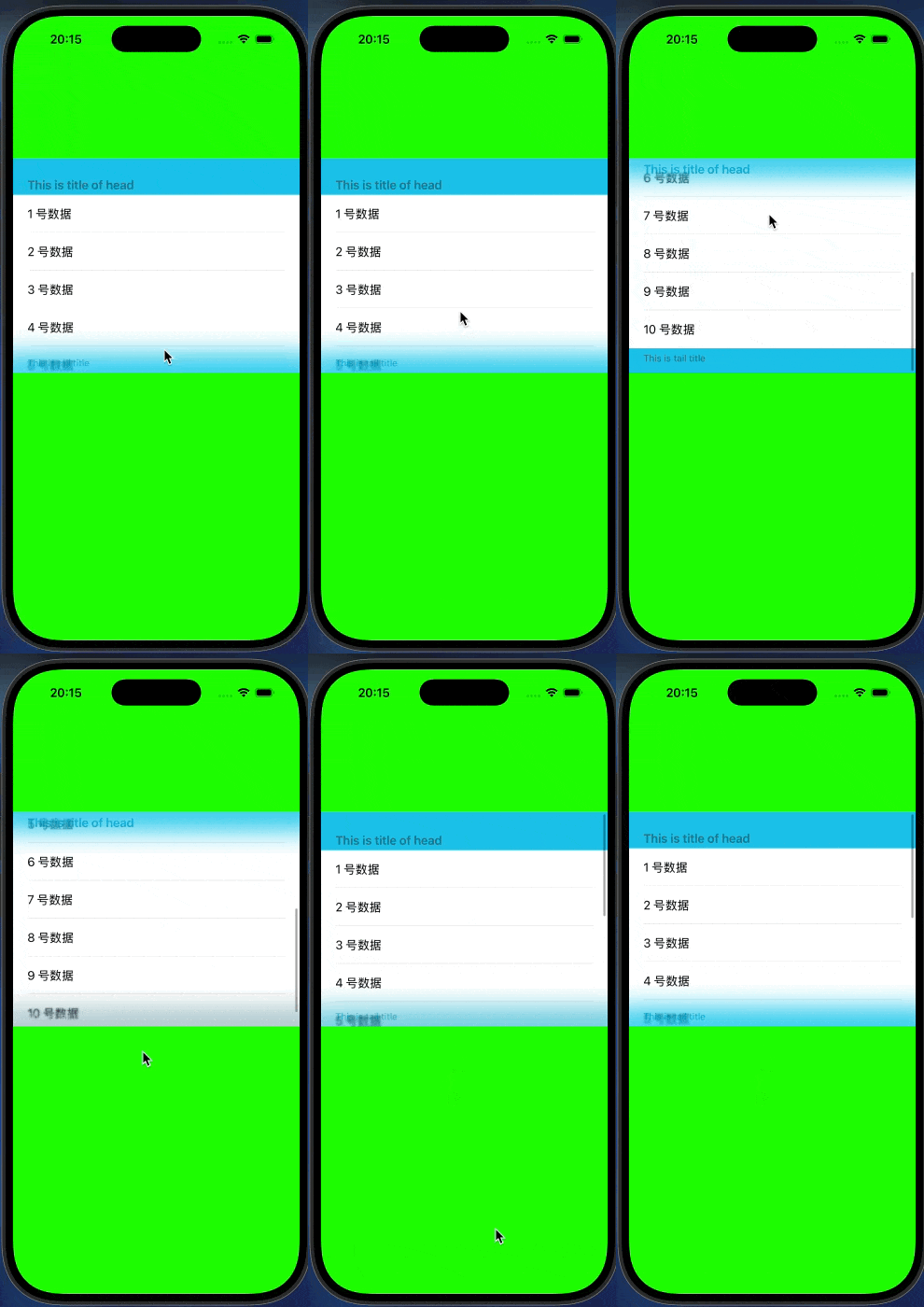
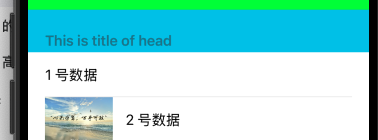
设置头标题
objc
// 头标题
- (NSString*) tableView:(UITableView *)tableView titleForHeaderInSection:(NSInteger)section {
    return @"title of head";
}
效果图:
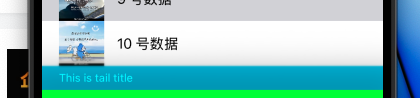
设置尾标题
objc
// 尾标题
- (NSString*) tableView:(UITableView *)tableView titleForFooterInSection:(NSInteger)section {
    return @"title of tail";
}
效果如下
另外,和可以调整头部标题和尾部标题的高度
objc
// 获取头部高度
- (CGFloat) tableView: (UITableView*) tableView heightForHeaderInSection:(NSInteger)section {
    return 100;
}

// 尾部高度
- (CGFloat) tableView:(UITableView *)tableView heightForFooterInSection:(NSInteger)section {
    return 200;
}
DataSource = 提供数据 + 创建 Cell
Delegate (代理) 决定的是 "怎么交互"
常用的方法有:
objc
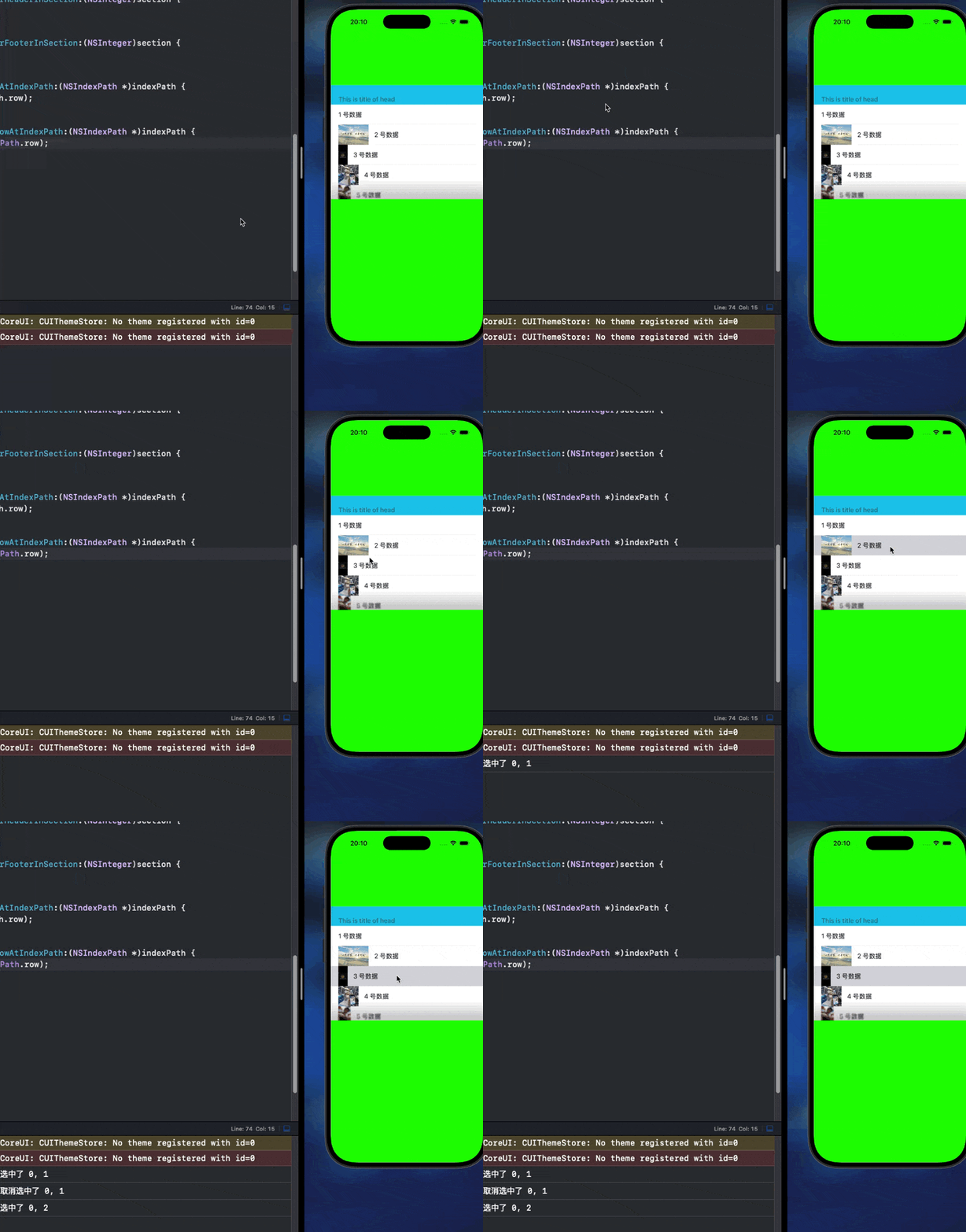
// 行被点击的时候调用的方法
- (void) tableView:(UITableView *)tableView didSelectRowAtIndexPath:(nonnull NSIndexPath *)indexPath {
    NSLog(@"选中了 %ld %ld", indexPath.section, indexPath.row);
}

// 取消选中(切换选中时调用)
- (void) tableView:(UITableView *)tableView didDeselectRowAtIndexPath:(nonnull NSIndexPath *)indexPath {
    NSLog(@"取消选中单元格: %ld %ld", indexPath.section, indexPath.row);
}
效果如下
添加图片(Image)
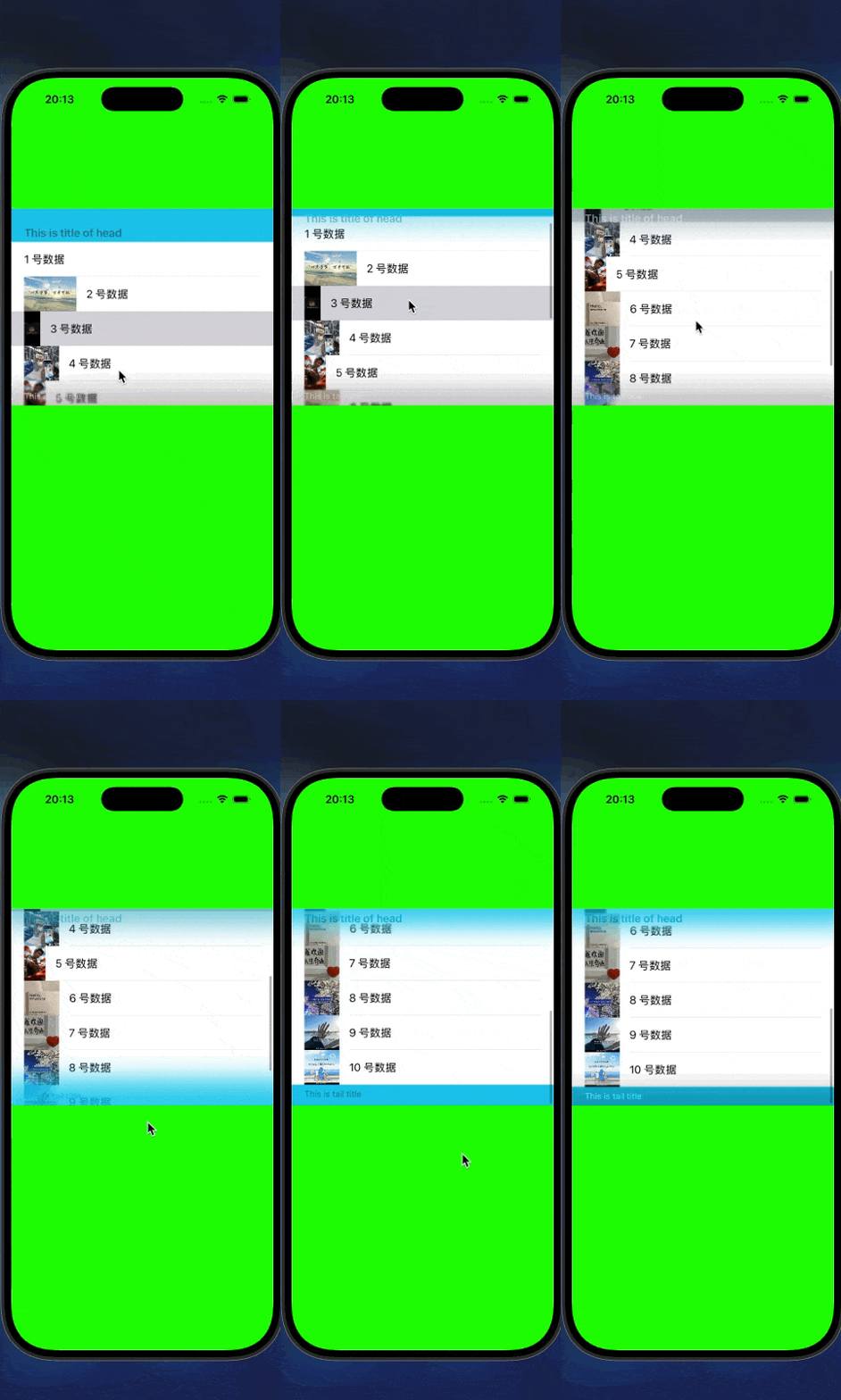
需要在- (UITableViewCell*) tableView: (UITableView*) tableView cellForRowAtIndexPath:(NSIndexPath *)indexPath;方法中先创建一个Image对象,然后用创建的Image对象赋值给UITableView的ImageView.image;
objc
- (nonnull UITableViewCell *)tableView:(nonnull UITableView *)tableView cellForRowAtIndexPath:(nonnull NSIndexPath *)indexPath {

    UITableViewCell* cell = [tableView dequeueReusableCellWithIdentifier: @"cellID" forIndexPath: indexPath];
    cell.textLabel.text = _dataArray[indexPath.row];
    UIImage* image = [UIImage imageNamed: [NSString stringWithFormat: @"%ld.jpg", indexPath.row]];
    cell.imageView.image = image;
    return cell;
}
折叠Cell
添加一个isExpand 属性用来记录cell的展开状态
objc
@interface ViewController ()
@property (nonatomic) BOOL isExpanded; // 记录展开状态
@end然后需要修改- (NSInteger)tableView:(**nonnull** UITableView *)tableView numberOfRowsInSection:(NSInteger)section方法的实现部分, 根据cell是否展开来动态调整行数
objc
// 展开返回真实数量, 折叠返回 0
- (NSInteger)tableView:(nonnull UITableView *)tableView numberOfRowsInSection:(NSInteger)section {
    return _isExpanded == YES ? _dataArray.count : 0;
}
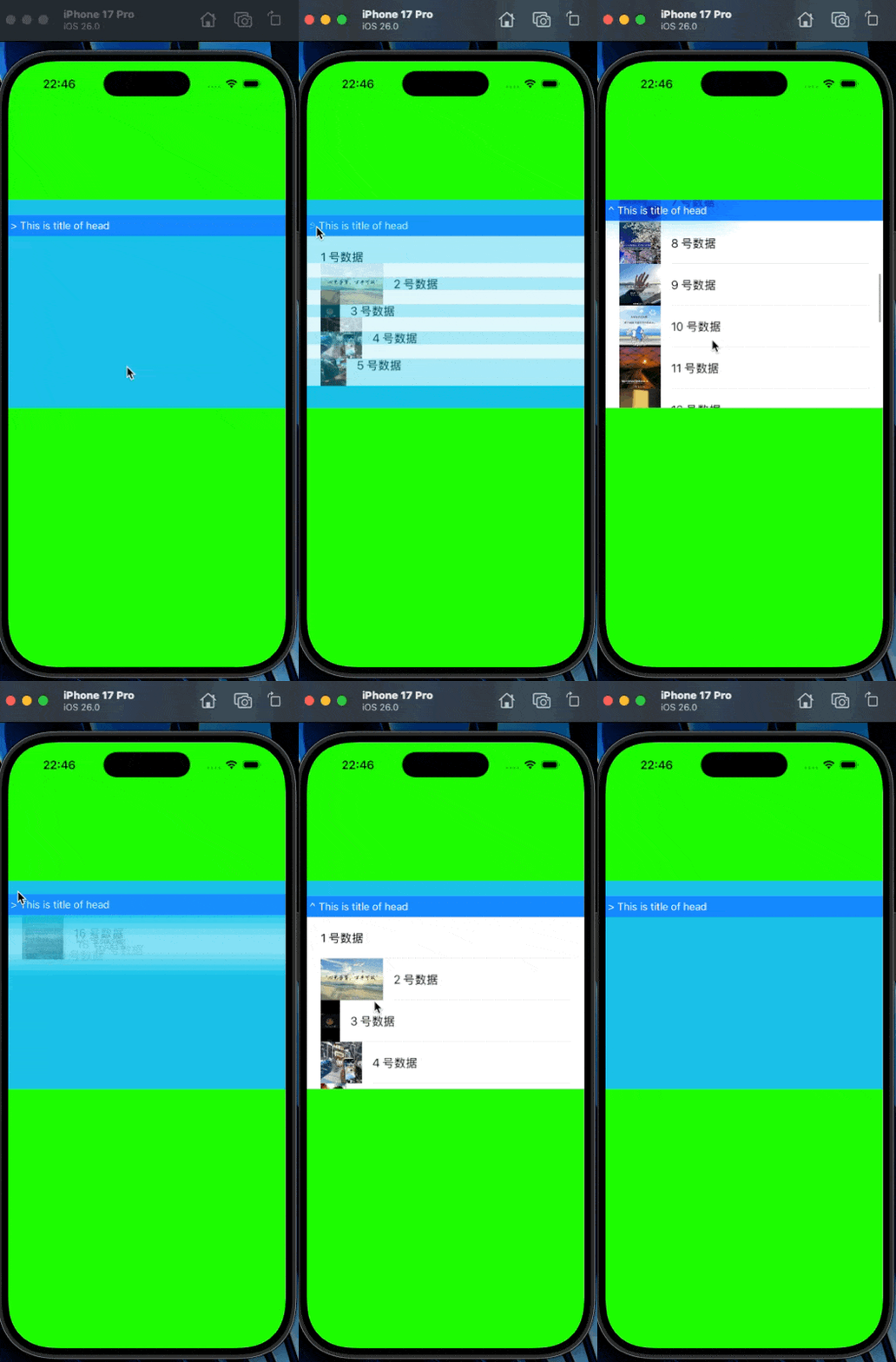
自定义head, 替换原来的titleForHeaderInSection, 将HeadView 设置为一个button, 可以直接通过按钮调用事件来控制cell的展开
objc
- (UIView*) tableView:(UITableView *)tableView viewForHeaderInSection:(NSInteger)section {
    UIButton* btn = [UIButton buttonWithType: UIButtonTypeSystem];
    btn.backgroundColor = [UIColor systemBlueColor];
    // 对齐方式: 左对齐
    btn.contentHorizontalAlignment  = UIControlContentHorizontalAlignmentLeft;

    // 箭头跟着状态改变
    NSString* arrow = _isExpanded ? @" ^ " : @" > ";    // 点击head切换状态
    [btn setTitle: [NSString stringWithFormat: @"%@This is title of head", arrow] forState: UIControlStateNormal];
    [btn setTitleColor: [UIColor whiteColor] forState: UIControlStateNormal];

    [btn addTarget: self action: @selector(headerTapped:) forControlEvents: UIControlEventTouchUpInside];
    return btn;
}
按钮事件, 每次点击都改变 isExpanded, 然后重新加载每一组的内容, 并且刷新cell的内容
objc
- (void) headerTapped: (UIButton*) sender {
    _isExpanded = !_isExpanded;

//    刷新 UITableView 的第 0 组(第一组)数据,并且用淡入淡出的动画效果更新
    [_tableView reloadSections: [NSIndexSet indexSetWithIndex: 0] withRowAnimation: UITableViewRowAnimationFade];
}
运行效果如下: