在文档编辑和排版过程中,文本颜色是一项重要的视觉元素。通过合理使用颜色,可以突出重点内容、区分不同层级的信息、增强文档的可读性,甚至传达特定的情感或品牌形象。无论是制作商业报告、教学材料还是营销文档,掌握文本颜色的设置技巧都能让你的文档更具表现力和专业性。
本文将详细介绍如何使用 Spire.Doc for Python 库为 Word 文档中的文本设置颜色。我们将涵盖基本的颜色设置方法、批量修改文本颜色、以及结合其他字体属性的综合应用,帮助你轻松实现丰富多彩的文档效果。
环境准备
在开始之前,你需要安装 Spire.Doc for Python 库。可以使用 pip 命令进行安装:
bash
pip install Spire.Doc安装完成后,你就可以在 Python 项目中使用该库来操作 Word 文档的文本格式了。
理解文本颜色的应用场景
在实际工作中,为文本设置颜色有多种应用场景:
- 强调重点:使用醒目的颜色标注关键信息或重要数据
- 分类标识:用不同颜色区分不同类型的内容,如评论、注释、正文等
- 品牌一致性:使用企业标准色保持文档与品牌形象的统一
- 提高可读性:通过适当的颜色对比度改善阅读体验
- 视觉层次:利用颜色深浅建立内容的层级关系
Spire.Doc for Python 提供了灵活的 API 来控制文本颜色,让你能够精确地实现各种设计需求。
设置单个段落的文本颜色
最基本的文本颜色设置是针对特定段落或文本范围进行操作。以下示例展示了如何为文档中的第二个段落设置文本颜色:
python
from spire.doc import *
from spire.doc.common import *

def ChangeFontColor():
    """为 Word 文档中的文本设置颜色"""
    inputFile = "/input/示例文档.docx"
    outputFile = "/output/ChangeFontColor.docx"

    # 加载 Word 文档
    doc = Document()
    doc.LoadFromFile(inputFile)

    # 获取第一个节和第一个段落
    section = doc.Sections[0]

    # 获取第二个段落
    p2 = section.Paragraphs[1]

    # 遍历第二个段落的所有子对象
    for i in range(p2.ChildObjects.Count):
        childObj = p2.ChildObjects.get_Item(i)
        if isinstance(childObj, TextRange):
            # 将文本颜色设置为深绿色
            tr = childObj if isinstance(childObj, TextRange) else None
            tr.CharacterFormat.TextColor = Color.get_DarkGreen()

    # 保存文档
    doc.SaveToFile(outputFile, FileFormat.Docx)
    doc.Close()

if __name__ == "__main__":
    ChangeFontColor()
在这个示例中,我们通过遍历段落中的 TextRange 对象来访问每个文本片段,然后通过 CharacterFormat.TextColor 属性设置颜色。Color 类提供了多种预定义的颜色选项,如 get_RosyBrown()、get_DarkGreen() 等,可以直接使用。
这种方法适用于需要精确控制每个段落或文本片段颜色的场景。通过遍历 ChildObjects,我们可以确保段落中的所有文本都被正确着色。
使用 CharacterFormat 统一设置文本格式
当需要对大量文本应用相同的格式时,使用 CharacterFormat 对象会更加高效。这种方式允许你一次性设置多个格式属性(包括颜色、字体、字号等),然后应用到目标文本上。以下是具体实现:
python
from spire.doc import *
from spire.doc.common import *

def SetTextFormatWithColor():
    """使用 CharacterFormat 统一设置文本颜色和格式"""
    inputFile = "/input/示例文档.docx"
    outputFile = "/output/SetTextFormat.docx"

    # 加载文档
    doc = Document()
    doc.LoadFromFile(inputFile)

    # 获取第一个节
    section = doc.Sections[0]

    # 获取目标段落
    paragraph = section.Paragraphs[1]

    # 创建 CharacterFormat 对象并设置格式
    characterFormat = CharacterFormat(doc)
    characterFormat.FontName = "Arial"           # 设置字体
    characterFormat.FontSize = 16                # 设置字号
    characterFormat.TextColor = Color.get_Blue() # 设置文本颜色为蓝色

    # 遍历段落中的所有文本范围并应用格式
    for i in range(paragraph.ChildObjects.Count):
        childObj = paragraph.ChildObjects.get_Item(i)
        if isinstance(childObj, TextRange):
            tr = childObj if isinstance(childObj, TextRange) else None
            tr.ApplyCharacterFormat(characterFormat)

    # 保存文档
    doc.SaveToFile(outputFile, FileFormat.Docx)
    doc.Close()

if __name__ == "__main__":
    SetTextFormatWithColor()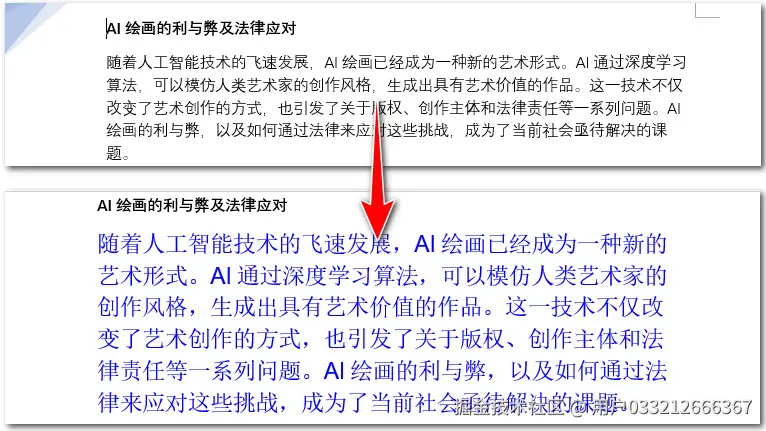
这个示例展示了如何使用 CharacterFormat 对象来批量应用格式。通过创建一个格式模板,然后使用 ApplyCharacterFormat() 方法将其应用到所有目标文本,可以大大提高效率。这种方法特别适合需要保持一致格式的文档,如企业模板、标准化报告等。
实用技巧与高级应用
使用自定义颜色
除了预定义的颜色外,你还可以使用 RGB 值创建自定义颜色,以实现更精确的色彩控制:
python
from spire.doc import *
from spire.doc.common import *

def SetCustomTextColor():
    """使用自定义 RGB 颜色设置文本"""
    inputFile = "./Data/Sample.docx"
    outputFile = "CustomTextColor.docx"

    # 加载文档
    doc = Document()
    doc.LoadFromFile(inputFile)

    # 获取第一个节和段落
    section = doc.Sections[0]
    paragraph = section.Paragraphs[0]

    # 创建自定义颜色(RGB值)
    customColor = Color.FromArgb(255, 128, 0)  # 橙色

    # 遍历并设置文本颜色
    for i in range(paragraph.ChildObjects.Count):
        childObj = paragraph.ChildObjects.get_Item(i)
        if isinstance(childObj, TextRange):
            tr = childObj if isinstance(childObj, TextRange) else None
            tr.CharacterFormat.TextColor = customColor

    # 保存文档
    doc.SaveToFile(outputFile, FileFormat.Docx)
    doc.Close()
    print(f"已设置自定义颜色的文档保存至: {outputFile}")

if __name__ == "__main__":
    SetCustomTextColor()
使用 Color.FromArgb() 方法,你可以指定红、绿、蓝三个通道的值(0-255),创造出几乎任何颜色。这对于匹配企业品牌色或实现特定设计效果非常有用。
批量处理文档中的特定文本
在实际应用中,你可能需要根据特定条件批量修改文本颜色。以下是一个实用的工具类,可以搜索并高亮显示文档中的关键词:
python
from spire.doc import *
from spire.doc.common import *

class TextColorManager:
    """文本颜色管理器"""

    def __init__(self, input_file):
        """初始化并加载文档"""
        self.document = Document()
        self.document.LoadFromFile(input_file)
        self.input_file = input_file

    def highlight_keyword(self, keyword, color, case_sensitive=False):
        """高亮显示文档中的关键词"""
        # 查找所有匹配的文本
        matches = self.document.FindAllString(keyword, case_sensitive, False)

        for match in matches:
            # 为每个匹配项设置颜色
            text_range = match.GetAsOneRange()
            if text_range:
                text_range.CharacterFormat.TextColor = color
                # 可选:添加背景色以增强高亮效果
                text_range.CharacterFormat.HighlightColor = Color.get_Yellow()

        print(f"已高亮显示 {len(matches)} 处 '{keyword}'")

    def set_section_color(self, section_index, color):
        """为指定节的所有文本设置颜色"""
        if section_index < len(self.document.Sections):
            section = self.document.Sections[section_index]

            for paragraph in section.Paragraphs:
                for childObj in paragraph.ChildObjects:
                    if isinstance(childObj, TextRange):
                        childObj.CharacterFormat.TextColor = color

            print(f"第 {section_index + 1} 节文本颜色已设置")

    def save(self, output_file):
        """保存文档"""
        self.document.SaveToFile(output_file, FileFormat.Docx)
        self.document.Close()
        print(f"文档已保存至: {output_file}")

def main():
    input_file = "./Data/Sample.docx"

    # 创建文本颜色管理器
    manager = TextColorManager(input_file)

    # 高亮显示关键词
    manager.highlight_keyword("重要", Color.get_Red())
    manager.highlight_keyword("注意", Color.get_Orange())

    # 保存结果
    manager.save("HighlightedDocument.docx")

if __name__ == "__main__":
    main()
这个工具类提供了更高级的文本颜色管理功能,包括关键词高亮和按节设置颜色。通过封装常用操作,你可以在项目中重复使用这些功能,提高工作效率。
常见颜色选择建议
在选择文本颜色时,考虑以下建议以确保文档的专业性和可读性:
商务文档
- 深蓝色(
Color.get_Navy()):专业、稳重 - 深灰色(
Color.FromArgb(64, 64, 64)):现代、中性 - 暗红色(
Color.get_DarkRed()):用于强调警告或重要信息
教育材料
- 深绿色(
Color.get_DarkGreen()):平和、有助于集中注意力 - 紫色(
Color.get_Purple()):创意、激发思考 - 橙色(
Color.FromArgb(255, 140, 0)):活力、吸引年轻读者
营销文档
- 品牌标准色:保持品牌一致性
- 鲜艳的对比色:吸引眼球
- 渐变色组合:创造视觉层次感
注意事项
在使用文本颜色时,需要注意以下几点:
- 对比度:确保文本颜色与背景有足够的对比度,保证可读性
- 打印效果:某些屏幕显示良好的颜色在打印后可能不够清晰
- 色彩一致性:整个文档应保持色彩使用的连贯性
- 无障碍设计:考虑色盲用户的需求,避免仅依靠颜色传达信息
- 适度使用:过多的颜色会让文档显得杂乱,建议限制在3-5种主要颜色
综合应用示例
下面是一个完整的示例,展示如何创建一个具有多层次颜色设置的文档格式化系统:
python
from spire.doc import *
from spire.doc.common import *

class DocumentColorFormatter:
    """文档颜色格式化器"""

    def __init__(self, input_file):
        self.document = Document()
        self.document.LoadFromFile(input_file)

    def format_headings(self, heading_color=Color.get_DarkBlue()):
        """为标题设置统一颜色"""
        for section in self.document.Sections:
            for paragraph in section.Paragraphs:
                # 检查是否为标题样式
                if paragraph.StyleName in ["Heading 1", "Heading 2", "Heading 3"]:
                    for childObj in paragraph.ChildObjects:
                        if isinstance(childObj, TextRange):
                            childObj.CharacterFormat.TextColor = heading_color

        print("标题颜色已设置")

    def format_body_text(self, body_color=Color.FromArgb(51, 51, 51)):
        """为正文字体设置颜色"""
        for section in self.document.Sections:
            for paragraph in section.Paragraphs:
                if paragraph.StyleName not in ["Heading 1", "Heading 2", "Heading 3"]:
                    for childObj in paragraph.ChildObjects:
                        if isinstance(childObj, TextRange):
                            childObj.CharacterFormat.TextColor = body_color

        print("正文颜色已设置")

    def add_emphasis(self, keywords, emphasis_color=Color.get_Red()):
        """为关键词添加强调色"""
        for keyword in keywords:
            matches = self.document.FindAllString(keyword, False, False)
            for match in matches:
                text_range = match.GetAsOneRange()
                if text_range:
                    text_range.CharacterFormat.TextColor = emphasis_color
                    text_range.CharacterFormat.Bold = True

        print(f"已为 {len(keywords)} 个关键词添加强调")

    def save(self, output_file):
        self.document.SaveToFile(output_file, FileFormat.Docx)
        self.document.Close()
        print(f"文档已保存至: {output_file}")

def main():
    formatter = DocumentColorFormatter("./Data/Report.docx")

    # 设置标题颜色
    formatter.format_headings(Color.get_DarkBlue())

    # 设置正文颜色
    formatter.format_body_text(Color.FromArgb(51, 51, 51))

    # 强调关键词
    formatter.add_emphasis(["重要", "注意", "警告"], Color.get_DarkRed())

    # 保存
    formatter.save("FormattedReport.docx")

if __name__ == "__main__":
    main()
这个格式化器展示了如何在实际项目中组织和管理文本颜色设置。通过模块化的方法,你可以轻松扩展功能,适应不同的文档格式化需求。
总结
本文介绍了使用 Spire.Doc for Python 为 Word 文档设置文本颜色的多种方法。通过这些技术,你可以根据实际需求灵活控制文档的视觉效果。
- 使用
CharacterFormat.TextColor属性设置单个文本的颜色 - 通过
CharacterFormat对象可以批量应用统一的格式 - 使用
Color.FromArgb()创建自定义 RGB 颜色 - 封装工具类可以实现关键词高亮和批量处理
- 选择合适的颜色需要考虑对比度、打印效果和无障碍设计
掌握了这些技能后,你可以将其应用于自动化文档生成、报告格式化、内容审核标记等实际场景中,大幅提升工作效率和文档的专业度。