文章目录
- [1. 本节目标](#1. 本节目标)
- [2. 在Windows下安装MySQL数据库](#2. 在Windows下安装MySQL数据库)
- [3. 在CentOS下安装MySQL数据库](#3. 在CentOS下安装MySQL数据库)
-
- [3.1 确认当前的系统版本](#3.1 确认当前的系统版本)
- [3.2 添加 MySQL Yum 源](#3.2 添加 MySQL Yum 源)
-
- [3.2.1 访问MySQL开发者专区](#3.2.1 访问MySQL开发者专区)
- [3.2.2 根据当前系统选择对应的发布包](#3.2.2 根据当前系统选择对应的发布包)
- [3.2.3 下载后上传到Linux服务器](#3.2.3 下载后上传到Linux服务器)
- [3.2.4 安装发布包](#3.2.4 安装发布包)
- [3.3 选择发布系列](#3.3 选择发布系列)
- [3.4 安装 MySQL](#3.4 安装 MySQL)
- [3.5 启动 MySQL 服务器](#3.5 启动 MySQL 服务器)
- [3.6 查看MySQL 服务状态](#3.6 查看MySQL 服务状态)
- [3.7 开启自启动](#3.7 开启自启动)
- [3.8 登录MySQL](#3.8 登录MySQL)
- [3.9 修改密码](#3.9 修改密码)
-
- [3.9.1 默认密码策略](#3.9.1 默认密码策略)
- [3.9.2 设置简单密码](#3.9.2 设置简单密码)
- [4. 在ubuntu下安装MySQL数据库](#4. 在ubuntu下安装MySQL数据库)
-
- [4.1 查看操作系统版本](#4.1 查看操作系统版本)
- [4.2 添加 MySQL APT 源](#4.2 添加 MySQL APT 源)
-
- [4.2.1 访问下载页面并下载发布包](#4.2.1 访问下载页面并下载发布包)
- [4.2.2 安装发布包](#4.2.2 安装发布包)
- [4.2.3 安装发布包](#4.2.3 安装发布包)
- [4.3 安装MySQL](#4.3 安装MySQL)
- [4.4 查看MySQL状态](#4.4 查看MySQL状态)
- [4.5 开启自启动](#4.5 开启自启动)
- [4.6 登录MySQL](#4.6 登录MySQL)
1. 本节目标
- 掌握在
Windows下安装MySQL数据库- 掌握在
CentOS下安装MySQL数据库- 掌握在
ubuntu下安装MySQL数据库
MySQL版本:8.0.x安装之前先确保没有
MySQL服务正在运行,建议在没有安装过MySQL的机器上进行全新的安装。
2. 在Windows下安装MySQL数据库
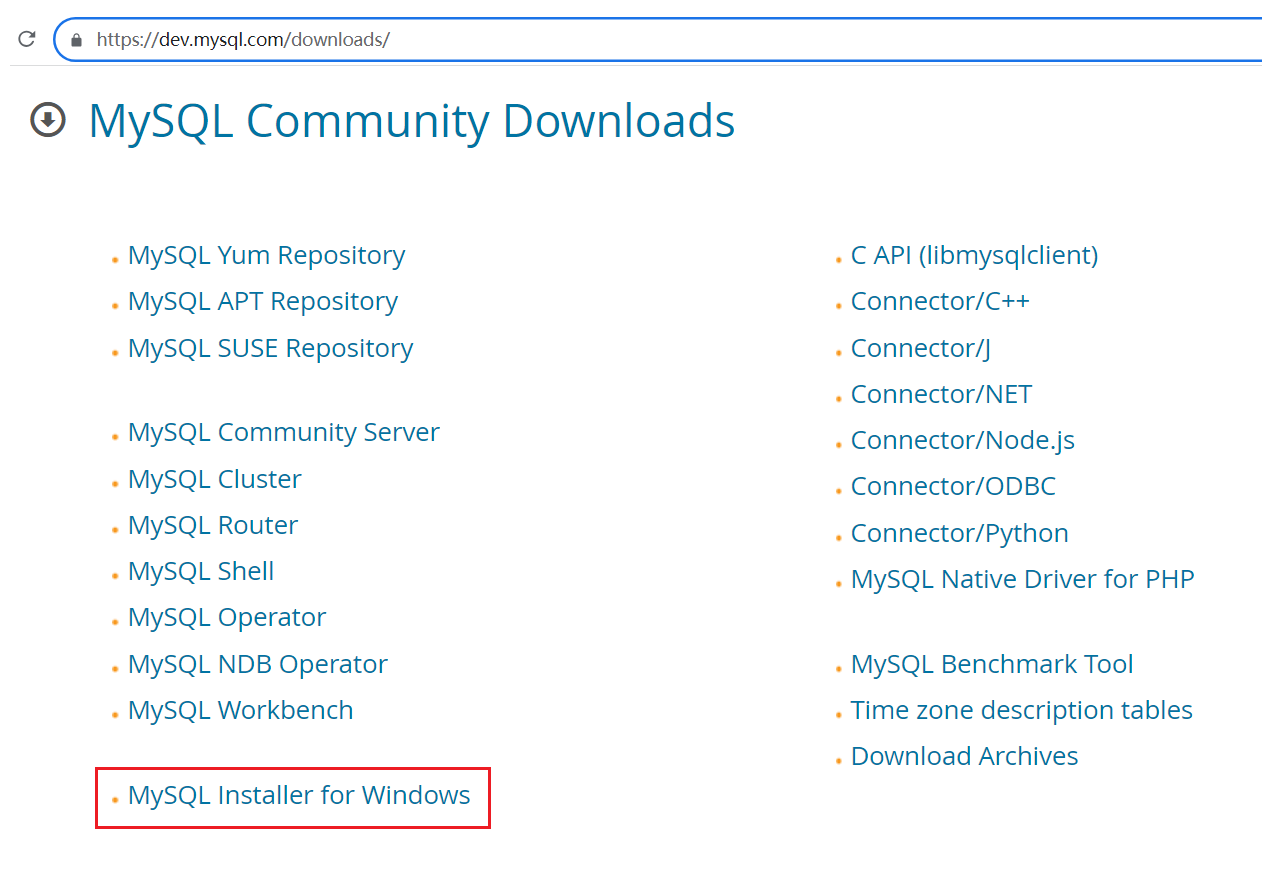
Windows下推荐使用安装程序进行安装,根据安装程序提示成安装即可
安装程序下载地址:https://dev.mysql.com/downloads/
3. 在CentOS下安装MySQL数据库
操作系统版本为
CentOS 7使用
MySQL Yum仓库在Linux上安装MySQL
3.1 确认当前的系统版本
- 登录系统并切换至root账号,否则执行命令时需要用sudo命令,并按提示输入密码
- 在终端中运行以下命令,查看系统版本。如下所示,当前系统版本为CentOS Linux release 7.9.2009
mysql
[root@mini-001 ~]# cat /etc/redhat-release
CentOS Linux release 7.9.2009 (Core)
3.2 添加 MySQL Yum 源
3.2.1 访问MySQL开发者专区
3.2.2 根据当前系统选择对应的发布包
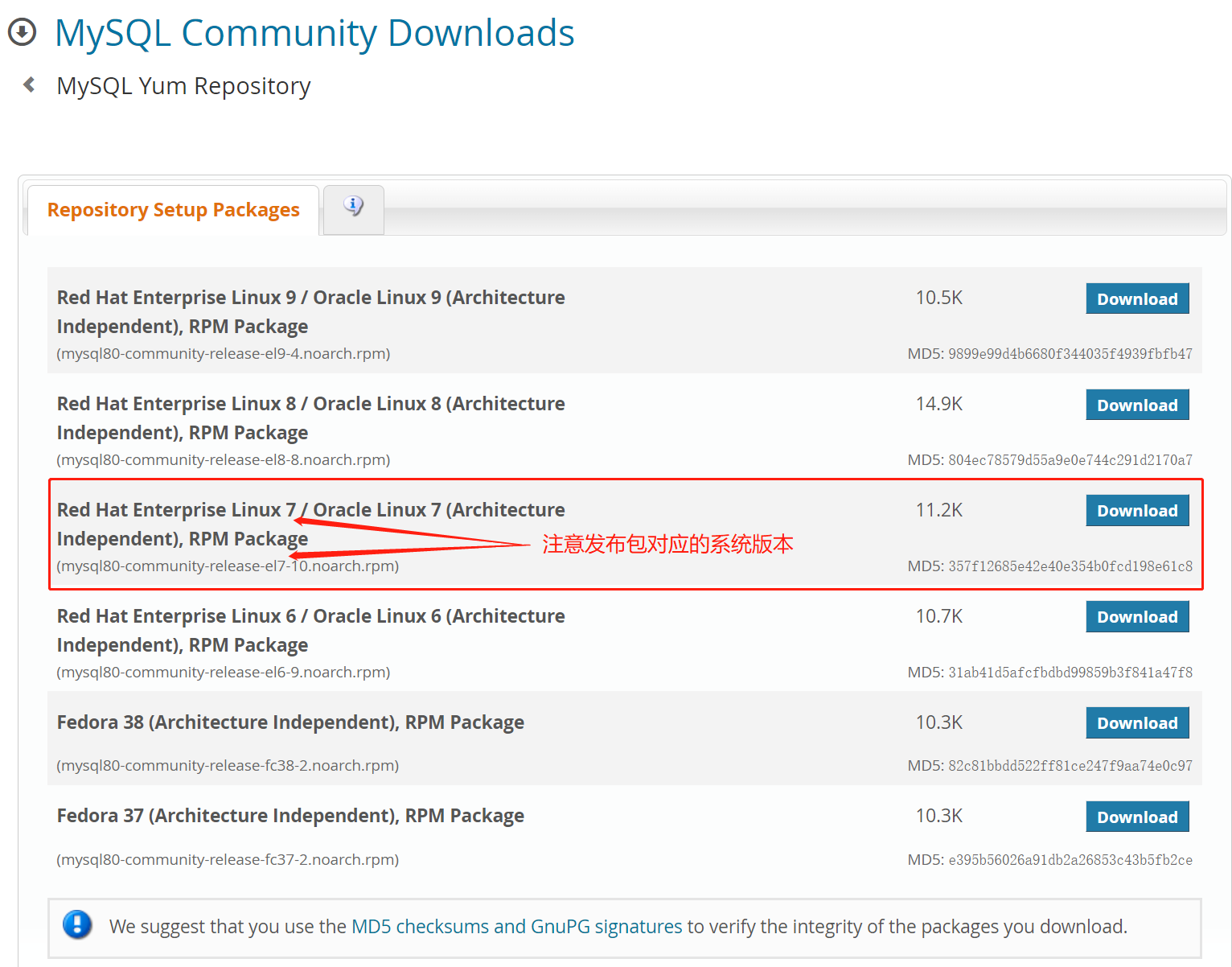
TIPS:
- 发布包命名规则:
{mysql80}-community-release-{platform}-{version-number}.noarch.rpm
{mysql80}:MySQL版本号
{platform}:平台(系统)号,用来描述系统的版本
{version-number}:MySQL仓库配置RPM包的版本号
- 如下所示:
mysql80-community-release-el7-10.noarch.rpm
mysql80:MySQL版本号,默认是MySQL8.0版本
el7: 其中el是Enterprise Linux的编写,7表示Linux大版本号,比如el6表示Linux6, el7表示
Linux7, e8表示Linux8,el9表示Linux9, 'fc'则表示Fedora
el7-10:表示MySQL仓库配置RPM包的第10次更新
选择方式:
针对当前演示系统版本
Linux7,以及我们要安装的MySQL数据库版本8.0,选择对应RPM包的最近一次更新,所以下载mysql80-community-release-el7-10.noarch.rpm即可其他版本
如果默认下载页面没有你所需要的
RPM包,可以通过http://repo.mysql.com/查找
3.2.3 下载后上传到Linux服务器
TIPS: 安装 rz 插件以支持拖拽上传
mysql
[root@mini-001 ~]# yum -y install lrzsz上传完成后查看是否成功
mysql
[root@centos-001 ~]# ll
-rwxrw-rw-. 1 root root 11472 Aug 25 01:12 mysql80-community-release-el7-10.noarch.rpm
3.2.4 安装发布包
在终端执行:yum -y install mysql80-community-release-el7-10.noarch.rpm
mysql
[root@centos-001 ~]# yum -y install mysql80-community-release-el7-10.noarch.rpm
Loaded plugins: fastestmirror, langpacks
Examining mysql80-community-release-el7-10.noarch.rpm: mysql80-communityrelease-el7-10.noarch
Marking
mysql80-community-release-el7-10.noarch.rpm to be installed
Resolving Dependencies
--> Running transaction check
---> Package mysql80-community-release.noarch 0:el7-10 will be installed
--> Finished Dependency Resolution
Dependencies Resolved
===============================================================================
===============================================================================
===============================
 Package Arch
 Version Repository
 Size
===============================================================================
===============================================================================
===============================
Installing:
 mysql80-community-release noarch
 el7-10 /mysql80-community-release-el7-10.noarch
 12 k
Transaction Summary
===============================================================================
===============================================================================
===============================
Install 1 Package
Total size: 12 k
Installed size: 12 k
Downloading packages:
Running transaction check
Running transaction test
Transaction test succeeded
Running transaction
 Installing : mysql80-community-release-el7-10.noarch

 1/1
 Verifying : mysql80-community-release-el7-10.noarch

 1/1
Installed:
 mysql80-community-release.noarch 0:el7-10


Complete!
通过以下命令检查是否已成功添加 MySQL Yum 源
在终端执行: yum repolist enabled | grep mysql.*-community
mysql
[root@centos-001 ~]# yum repolist enabled | grep mysql.*-community
mysql-connectors-community/x86_64 MySQL Connectors Community
227
mysql-tools-community/x86_64 MySQL Tools Community
100
mysql80-community/x86_64 MySQL 8.0 Community Server
426 # 说明已安装
3.3 选择发布系列
- 在终端执行
yum repolist all | grep mysqlmysql80-community/x86_64、mysql-connectors-community/x86_64、mysql-toolscommunity/x86_64为启用状态
mysql
[root@centos-001 ~]# yum repolist all | grep mysql
mysql-cluster-7.5-community/x86_64 MySQL Cluste disabled
mysql-cluster-7.5-community-source MySQL Cluste disabled
mysql-cluster-7.6-community/x86_64 MySQL Cluste disabled
mysql-cluster-7.6-community-source MySQL Cluste disabled
mysql-cluster-8.0-community/x86_64 MySQL Cluste disabled
mysql-cluster-8.0-community-debuginfo/x86_64 MySQL Cluste disabled
mysql-cluster-8.0-community-source MySQL Cluste disabled
mysql-cluster-innovation-community/x86_64 MySQL Cluste disabled
mysql-cluster-innovation-community-debuginfo/x86_64 MySQL Cluste disabled
mysql-cluster-innovation-community-source MySQL Cluste disabled
mysql-connectors-community/x86_64 MySQL Connec enabled:
227 #启用
mysql-connectors-community-debuginfo/x86_64 MySQL Connec disabled
mysql-connectors-community-source MySQL Connec disabled
mysql-innovation-community/x86_64 MySQL Innova disabled
mysql-innovation-community-debuginfo/x86_64 MySQL Innova disabled
mysql-innovation-community-source MySQL Innova disabled
mysql-tools-community/x86_64 MySQL Tools enabled:
100 #启用
mysql-tools-community-debuginfo/x86_64 MySQL Tools disabled
mysql-tools-community-source MySQL Tools disabled
mysql-tools-innovation-community/x86_64 MySQL Tools disabled
mysql-tools-innovation-community-debuginfo/x86_64 MySQL Tools disabled
mysql-tools-innovation-community-source MySQL Tools disabled
mysql-tools-preview/x86_64 MySQL Tools disabled
mysql-tools-preview-source MySQL Tools disabled
mysql57-community/x86_64 MySQL 5.7 Co disabled
mysql57-community-source MySQL 5.7 Co disabled
mysql80-community/x86_64 MySQL 8.0 Co enabled:
426 #启用
mysql80-community-debuginfo/x86_64 MySQL 8.0 Co disabled
mysql80-community-source MySQL 8.0 Co disabled
3.4 安装 MySQL
在终端执行:
yum install mysql-community-server安装过程提示是否继续,选y即可
- 将安装
MySQL服务器包 (mysql-community-server) 以及运行服务器所需的组件,包括:- 客户端包 (
mysql-community-client)- 客户端和服务器常见错误消息和字符集 (
mysql-community-common)- 共享客户端库 (
mysql-community-libs)
mysql
[root@centos-001 ~]# yum install mysql-community-server
# ....省略
 6/6
Installed: # 服务器程序
 mysql-community-server.x86_64 0:8.0.34-1.el7


Dependency Installed: # 相关依赖
 mysql-community-client.x86_64 0:8.0.34-1.el7
 mysql-community-client-plugins.x86_64 0:8.0.34-1.el7
 mysql-community-common.x86_64 0:8.0.34-1.el7
 mysql-community-icu-data-files.x86_64 0:8.0.34-1.el7
 mysql-community-libs.x86_64 0:8.0.34-1.el7
Complete!
3.5 启动 MySQL 服务器
在终端执行: systemctl start mysqld
mysql
[root@centos-001 ~]# systemctl start mysqld3.6 查看MySQL 服务状态
在终端执行: systemctl status mysqld
mysql
[root@centos-001 ~]# systemctl status mysqld
● mysqld.service - MySQL Server
 Loaded: loaded (/usr/lib/systemd/system/mysqld.service; enabled; vendor
preset: disabled)
 Active: active (running) since Tue 2023-08-29 00:39:04 PDT; 2min 6s ago
 Docs: man:mysqld(8)
 http://dev.mysql.com/doc/refman/en/using-systemd.html
 Process: 4080 ExecStartPre=/usr/bin/mysqld_pre_systemd (code=exited,
status=0/SUCCESS)
 Main PID: 4107 (mysqld)
 Status: "Server is operational"
 Tasks: 37
 CGroup: /system.slice/mysqld.service
 └─4107 /usr/sbin/mysqld
Aug 29 00:39:00 centos-001 systemd[1]: Starting MySQL Server...
Aug 29 00:39:04 centos-001 systemd[1]: Started MySQL Server.
可以使用 systemctl [stop| start| restart| status] mysqld命令,对MySQL服务进行[停止| 启动|重启|查看服务状态]操作
3.7 开启自启动
在终端执行:systemctl enable mysqld
mysql
[root@centos-001 ~]# systemctl enable mysqld #设置自启动
[root@centos-001 ~]# systemctl list-unit-files|grep mysqld #查看状态
mysqld.service enabled
3.8 登录MySQL
首次安装成功,MySQL把root用户的默认密码保存在错误日志中
可以通过在终端执行:grep 'temporary password' /var/log/mysqld.log 进行查看
mysql
[root@centos-001 log]# grep 'temporary password' /var/log/mysqld.log
2023-08-25T08:32:10.905479Z 6 [Note] [MY-010454] [Server] A temporary password
is generated for root@localhost: IRDMJQ_.v566 #这个就是默认生成的密码
使用密码进行登录
mysql
[root@centos-001 log]# mysql -uroot -p
Enter password:
Welcome to the MySQL monitor. Commands end with ; or \g.
Your MySQL connection id is 10
Server version: 8.0.34 MySQL Community Server - GPL
Copyright (c) 2000, 2023, Oracle and/or its affiliates.
Oracle is a registered trademark of Oracle Corporation and/or its
affiliates. Other names may be trademarks of their respective
owners.
Type 'help;' or '\h' for help. Type '\c' to clear the current input statement.
mysql>
3.9 修改密码
validate_password组件是默认安装的,实现的默认密码策略,要求密码至少包含1个大写字母、1个小写字母、1个数字和1个特殊字符,密码总长度至少为8个字符。
3.9.1 默认密码策略
密码策略分为
LOW、MEDIUM(默认)和STRONG,分别用0,1(默认),2表示。0表示只校验密码长度,长度最小为8,所以以后要设置简单密码时还需要修改密码的长度限制。
他们分别用两个系统变量
validate-password.policy(查看当前密码策略)和validate_password.length(查看当前密码长度限制)表示在MySQL客户端运行以下命令查看当前设置
mysql
mysql> show variables like 'validate_password.policy'; # 查看当前密码策略
+--------------------------+--------+
| Variable_name | Value |
+--------------------------+--------+
| validate_password.policy | MEDIUM | # 中等
+--------------------------+--------+
1 row in set (0.00 sec)
mysql> show variables like 'validate_password.length'; # 查看当前密码长度限制
+--------------------------+-------+
| Variable_name | Value |
+--------------------------+-------+
| validate_password.length | 8 | # 最小为8个字符
+--------------------------+-------+
1 row in set (0.00 sec)
3.9.2 设置简单密码
如果我们要在开发环境设置如123456的简单密码那么就要修改默认密码策略,我们只需要设置validate-password.policy和validate_password.length对应的值即可。
在终端执行以下命令:
mysql
mysql> set global validate_password.policy=0; # 策略设置为LOW
Query OK, 0 rows affected (0.00 sec)
mysql> set global validate_password.length=4; # 密码长度最少为4位(系统限制不能小于4位)
Query OK, 0 rows affected (0.00 sec)
重新查看系统变量的值:
mysql
mysql> show variables like 'validate_password.policy';
+--------------------------+-------+
| Variable_name | Value |
+--------------------------+-------+
| validate_password.policy | LOW | # LOW级
+--------------------------+-------+
1 row in set (0.00 sec)
mysql> show variables like 'validate_password.length';
+--------------------------+-------+
| Variable_name | Value |
+--------------------------+-------+
| validate_password.length | 4 | # 最小长度为4
+--------------------------+-------+
1 row in set (0.00 sec)
设置新密码:
mysql
mysql> ALTER USER 'root'@'localhost' IDENTIFIED BY '123456';
ALTER USER 'root'@'localhost' IDENTIFIED BY 'Qs1!Ed3#';
Query OK, 0 rows affected (0.03 sec)
恢复密码策略与密码长度限制并检查:
mysql
# 恢复密码策略
mysql> set global validate_password.policy=1;
mysql> set global validate_password.length=8;
# 查看设置是否成功
mysql> show variables like 'validate_password.policy';
mysql> show variables like 'validate_password.length';用新密码重新登录MySQL
4. 在ubuntu下安装MySQL数据库
操作系统版本为
Ubuntu 22.04.3 LTS
4.1 查看操作系统版本
mysql
guangchen@guangchen-vm:~$ lsb_release -a
No LSB modules are available.
Distributor ID: Ubuntu
Description: Ubuntu 22.04.3 LTS
Release: 22.04
Codename: jammy
4.2 添加 MySQL APT 源
4.2.1 访问下载页面并下载发布包
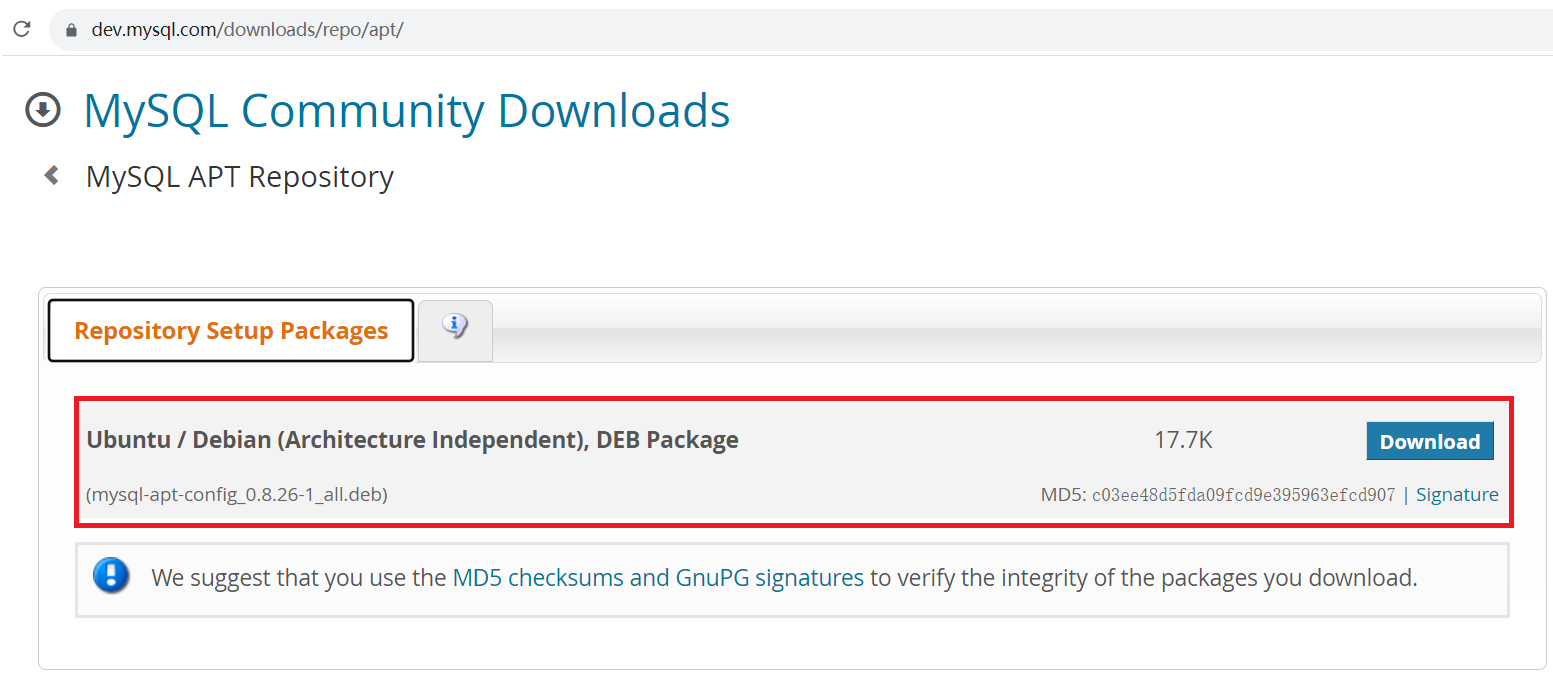
课堂演示版本为mysql-apt-config_0.8.26-1_all.deb,也可以通过http://repo.mysql.com/查找并下载
4.2.2 安装发布包
发布包的命名格式:mysql-apt-config_w.x.y-z_all.deb
可以在支持APT打包工具的Debian和Ubuntu 系统中使用相同的发布包
使用切换到root用户
mysql
guangchen@guangchen-vm:~$ sudo su # 切换成root用户
root@guangchen-vm:/home/guangchen# cd ~ # 进行root的home目录
root@guangchen-vm:~# ll # 列出目录内容
安装 rz 工具
mysql
root@guangchen-vm:~# apt install lrzsz #安装rz工具拖拽上传发布包并查看
mysql
root@guangchen-vm:~# ll #列出目录内容
-rw-r--r-- 1 root root 18088 8月 29 18:05 mysql-apt-config_0.8.26-1_all.deb
4.2.3 安装发布包
执行安装命令
mysql
root@guangchen-vm:~# dpkg -i mysql-apt-config_0.8.26-1_all.deb
Selecting previously unselected package mysql-apt-config.
(Reading database ... 143288 files and directories currently installed.)
Preparing to unpack mysql-apt-config_0.8.26-1_all.deb ...
Unpacking mysql-apt-config (0.8.26-1) ...
Setting up mysql-apt-config (0.8.26-1) ... # 发布包安装完成从MySQL APT 源更新包信息
mysql
root@guangchen-vm:~# apt-get update
Get:1 http://security.ubuntu.com/ubuntu jammy-security InRelease [110 kB]
Get:2 http://repo.mysql.com/apt/ubuntu jammy InRelease [20.3 kB]
Get:3 http://repo.mysql.com/apt/ubuntu jammy/mysql-8.0 Sources [963 B]
Hit:4 http://cn.archive.ubuntu.com/ubuntu jammy InRelease

Get:5 http://repo.mysql.com/apt/ubuntu jammy/mysql-apt-config amd64 Packages
[565 B]
Get:6 http://cn.archive.ubuntu.com/ubuntu jammy-updates InRelease [119 kB]

Get:7 http://repo.mysql.com/apt/ubuntu jammy/mysql-apt-config i386 Packages
[565 B]
Get:8 http://repo.mysql.com/apt/ubuntu jammy/mysql-8.0 amd64 Packages [12.7
kB]
Get:9 http://repo.mysql.com/apt/ubuntu jammy/mysql-tools amd64 Packages [8,011
B]
Get:10 http://repo.mysql.com/apt/ubuntu jammy/mysql-tools i386 Packages [457 B]
Get:11 http://cn.archive.ubuntu.com/ubuntu jammy-backports InRelease [109 kB]
Fetched 381 kB in 6s (62.6 kB/s)

Reading package lists... Done # 更新完成
4.3 安装MySQL
执行安装命令
mysql
root@guangchen-vm:~# apt-get install mysql-server #输入安装命令
Reading package lists... Done
Building dependency tree... Done
Reading state information... Done
The following additional packages will be installed:
 libmecab2 mecab-ipadic mecab-ipadic-utf8 mecab-utils mysql-client mysqlcommon
mysql-community-client
 mysql-community-client-core mysql-community-client-plugins mysql-communityserver
mysql-community-server-core
The following NEW packages will be installed:
 libmecab2 mecab-ipadic mecab-ipadic-utf8 mecab-utils mysql-client mysqlcommon
mysql-community-client
 mysql-community-client-core mysql-community-client-plugins mysql-communityserver
mysql-community-server-core
 mysql-server
0 upgraded, 12 newly installed, 0 to remove and 6 not upgraded.
Need to get 37.6 MB of archives.
After this operation, 273 MB of additional disk space will be used.
Do you want to continue? [Y/n] y # 输入y确认
emitting matrix : 100% |###########################################|
done! # 成功
update-alternatives: using /var/lib/mecab/dic/ipadic-utf8 to provide
/var/lib/mecab/dic/debian (mecab-dictionary) in auto mode
Setting up mysql-community-client (8.0.34-1ubuntu22.04) ...
Setting up mysql-client (8.0.34-1ubuntu22.04) ...
Setting up mysql-community-server (8.0.34-1ubuntu22.04) ...
update-alternatives: using /etc/mysql/mysql.cnf to provide /etc/mysql/my.cnf
(my.cnf) in auto mode
Created symlink /etc/systemd/system/multi-user.target.wants/mysql.service →
/lib/systemd/system/mysql.service.
Setting up mysql-server (8.0.34-1ubuntu22.04) ...
Processing triggers for man-db (2.10.2-1) ...
Processing triggers for libc-bin (2.35-0ubuntu3.1) ...确认安装的MySQL版本为8.0
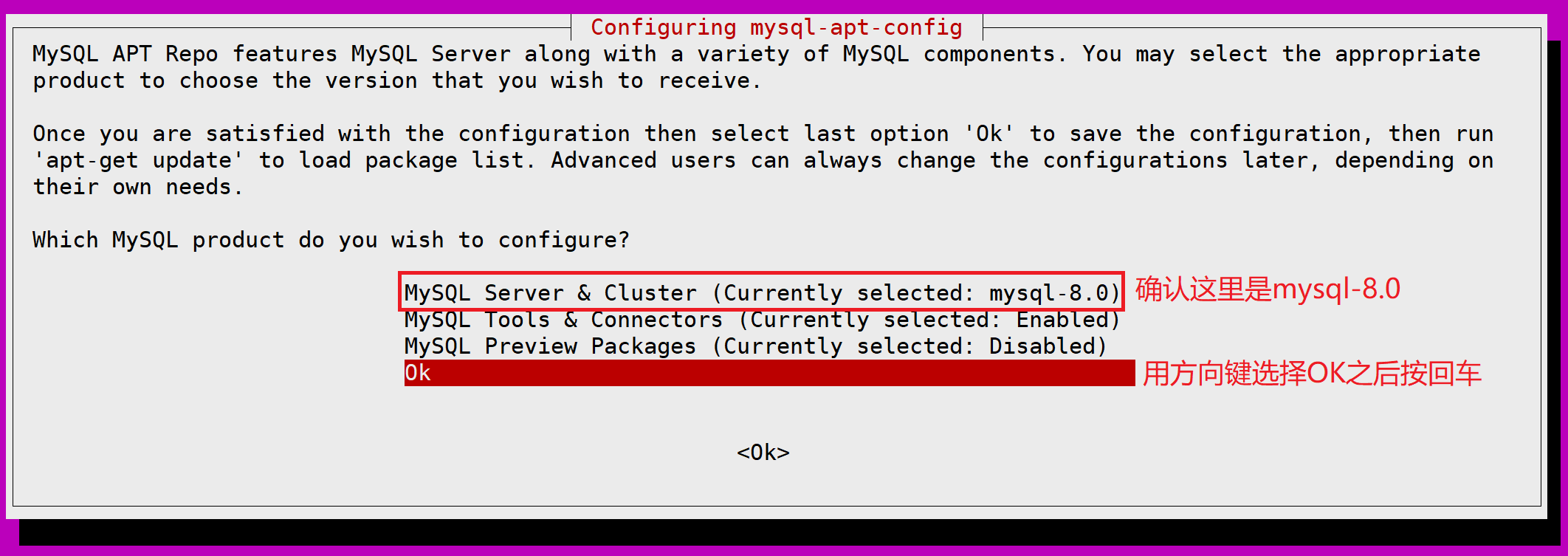
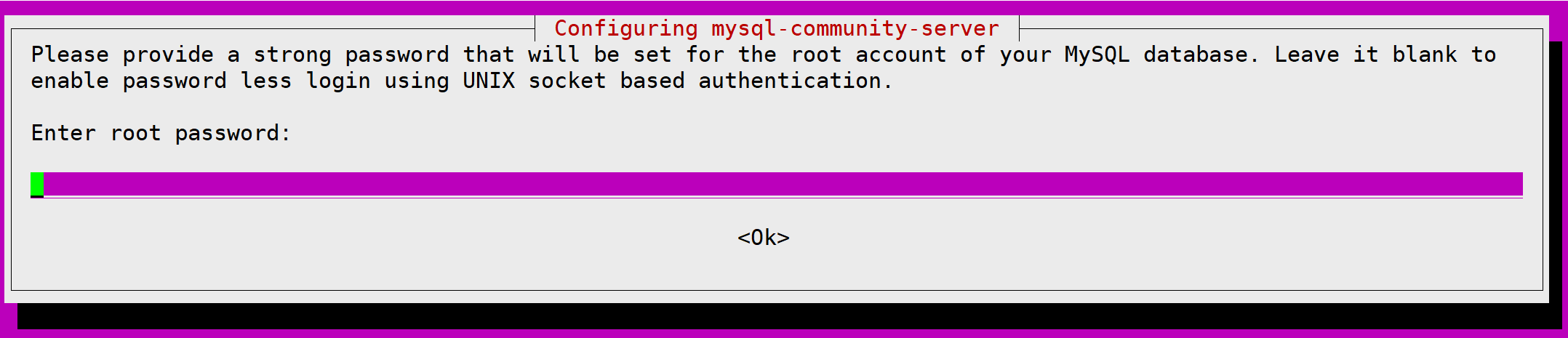
在安装过程中要求输入root用户的密码和确认密码,可以输入类似123456的简单密码
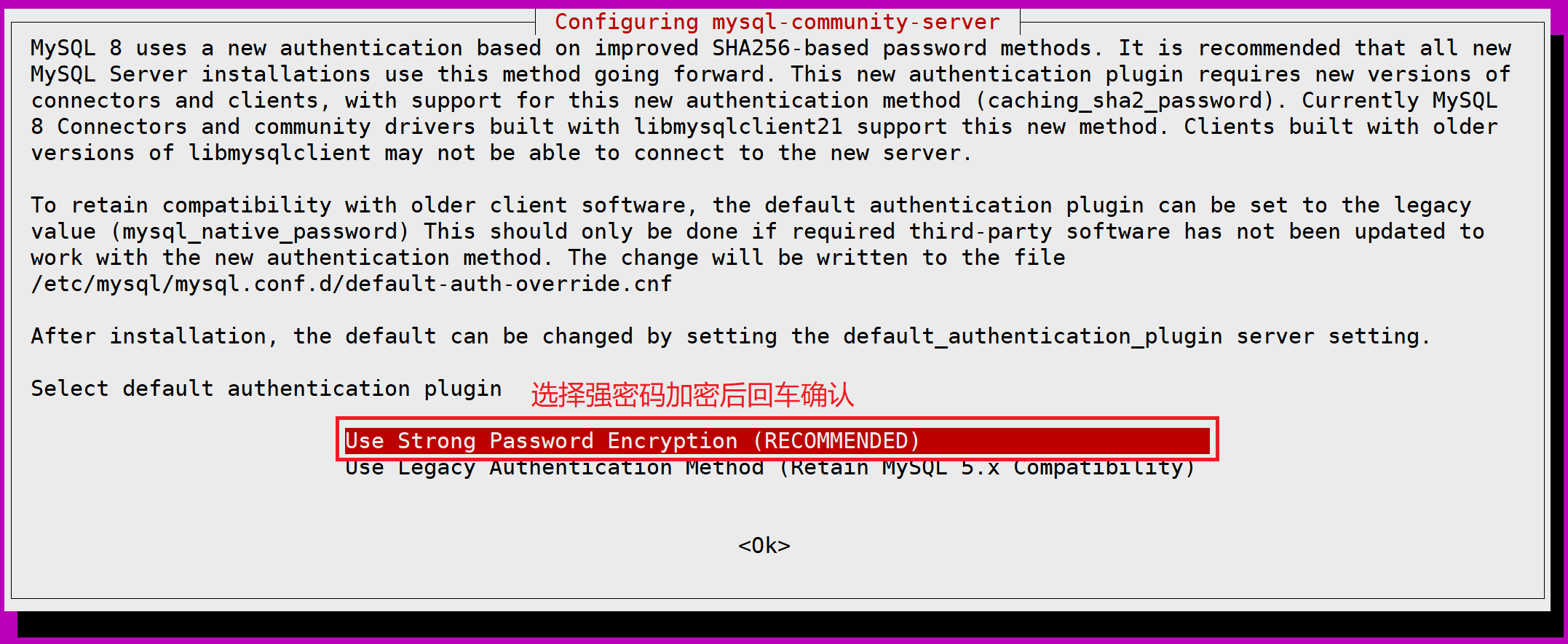
选择密码策略
安装完成后,将会在服务器上安装MySQL服务、客户端工具和其他公共组件
4.4 查看MySQL状态
安装完成后MySQL服务会自动启动
mysql
root@guangchen-vm:~# systemctl status mysql #查看mysql服务状态
● mysql.service - MySQL Community Server
 Loaded: loaded (/lib/systemd/system/mysql.service; enabled; vendor
preset: enabled)
 Active: active (running) since Tue 2023-08-29 18:46:42 CST; 8min ago
 Docs: man:mysqld(8)
 http://dev.mysql.com/doc/refman/en/using-systemd.html
 Main PID: 5097 (mysqld)
 Status: "Server is operational"
 Tasks: 37 (limit: 4542)
 Memory: 361.5M
 CPU: 2.581s
 CGroup: /system.slice/mysql.service
 └─5097 /usr/sbin/mysqld
8月 29 18:46:41 guangchen-vm systemd[1]: Starting MySQL Community Server...
8月 29 18:46:42 guangchen-vm systemd[1]: Started MySQL Community Server.
可以使用 systemctl [stop| start| restart| status] mysql, 命令对MySQL服务进行[停止| 启动|重启|查看服务状态]操作。
4.5 开启自启动
mysql
root@guangchen-vm:~# systemctl enable mysql #设置自启动
root@guangchen-vm:~# systemctl list-unit-files|grep mysql #查看状态
mysql.service enabled enabled
mysql@.service disabled enabled
4.6 登录MySQL
mysql
root@guangchen-vm:~# mysql -uroot -p
Enter password:
Welcome to the MySQL monitor. Commands end with ; or \g.
Your MySQL connection id is 8
Server version: 8.0.34 MySQL Community Server - GPL
Copyright (c) 2000, 2023, Oracle and/or its affiliates.
Oracle is a registered trademark of Oracle Corporation and/or its
affiliates. Other names may be trademarks of their respective
owners.
Type 'help;' or '\h' for help. Type '\c' to clear the current input statement.
mysql> show databases;
+--------------------+
| Database |
+--------------------+
| information_schema |
| mysql |
| performance_schema |
| sys |
+--------------------+
4 rows in set (0.01 sec)