Day 5 我们完成了鸿蒙端 AgenUI HAR 的本地编译与依赖引入。今天深入解析 AGenUI Playground 官方示例项目,理解其 JSON 驱动 UI 渲染的核心架构,掌握自定义组件(Markdown / Chart / Lottie)的完整开发流程。
0. 今日目标
| 事项 | 内容 |
|---|---|
| 架构理解 | Playground 项目的目录结构与核心设计思想 |
| 测量机制 | 同步/异步测量组件的实现原理与场景选择 |
| 自定义组件 | Markdown / Chart / Lottie 三大组件的完整实现 |
| 工具函数 | Toast / OpenUrl 等宿主能力的注入方式 |
| 生命周期 | Surface 创建 → 更新 → 销毁的完整流转 |
| 实战演练 | 基于示例代码快速搭建自己的 AG-UI 页面 |
一、项目概述与目录结构
AGenUI Playground 是一个基于 HarmonyOS 的 JSON 驱动 UI 渲染引擎演示项目,核心特性:
- 声明式 UI:通过 AG-UI 协议 JSON 描述界面,服务端下发即渲染
- 自定义组件:支持扩展 Markdown、Chart、Lottie 等富媒体组件
- 测量系统:Yoga 布局引擎 + 异步测量机制,解决内容高度不确定问题
- 主题切换:内置亮色/暗色模式,一键切换
- JSON 编辑器:内置实时编辑预览,便于调试 AG-UI 协议
完整目录结构
entry/src/main/ets/
├── pages/
│   └── Index.ets                     # 主页面:Surface 管理、菜单导航、JSON 编辑器
├── components/
│   ├── MeasurementComponent.ets       # 测量基类:定义 measure() 抽象方法
│   ├── ChartMeasurementComponent.ets  # Chart 测量:按图表类型返回占位高度
│   ├── LottieMeasurementComponent.ets # Lottie 测量:同步返回固定/约束尺寸
│   ├── MarkdownMeasurementComponent.ets # Markdown 测量:异步,高度为 0 等待回调
│   ├── CustomChartComponent.ets       # Chart 渲染:饼图/折线图/柱状图
│   ├── CustomLottieComponent.ets      # Lottie 渲染:动画加载与控制
│   └── CustomMarkdownComponent.ets    # Markdown 渲染:文本/文件/沙盒三种加载模式
├── functions/
│   ├── ToastFunction.ets              # Toast 提示函数
│   └── OpenUrlFunction.ets            # 系统浏览器打开链接
└── utils/
    ├── ResourceCopyUtil.ets           # rawfile → 沙盒资源复制工具
    └── PlaygroundRuntimeLogger.ets    # AGenUI 引擎日志转发(hilog + 文件)
二、核心设计:测量机制(Measurement)
AGenUI 基于 Yoga 布局引擎 ,但 Yoga 无法预知自定义组件(如 Markdown、Chart)的渲染后尺寸。因此引入 测量组件(MeasurementComponent) 机制,分为 同步 与 异步 两种模式:
| 模式 | calcType | 适用场景 | 典型组件 |
|---|---|---|---|
| 同步 | 0 | 尺寸确定或可由约束直接计算 | Lottie(固定 200×200) |
| 异步 | 1 | 尺寸依赖异步加载/渲染完成后才能确定 | Markdown(文本高度未知)、Chart(数据解析后布局) |
2.1 测量基类:MeasurementComponent.ets
typescript
import { MeasurementHandler, MeasureResult } from '@agenui/agenui';

/**
 * 测量基类,不依赖 A2UIComponent
 * 子类重写 measure() 方法,通过 asMeasurementHandler() 注册到 MeasurementManager
 */
export abstract class MeasurementComponent {
  /**
   * 测量方法,子类必须重写
   * @returns { width, height, calcType? }
   *   calcType: 0=同步(默认) 1=异步(先返回{0,0},加载完成后 markDirty 重新布局)
   */
  abstract measure(
    paramJson: string,
    widthMode: number,   // 0=Undefined 1=Exactly 2=AtMost
    maxWidth: number,
    heightMode: number,
    maxHeight: number
  ): MeasureResult;

  /** 便捷方法:返回绑定后的 MeasurementHandler,可直接传给 register() */
  asMeasurementHandler(): MeasurementHandler {
    return this.measure.bind(this);
  }
}
2.2 Markdown 异步测量
Markdown 文本高度在渲染前无法预知,因此采用 异步测量:
typescript
export class MarkdownMeasurementComponent extends MeasurementComponent {
  measure(
    _paramJson: string,
    widthMode: number,
    maxWidth: number,
    _heightMode: number,
    _maxHeight: number
  ): MeasureResult {
    // 宽度:有 Yoga 约束时用约束值,否则占位 0(Yoga 会分配 '100%')
    const w = (widthMode === 1 || widthMode === 2) && maxWidth > 0 ? maxWidth : 0;

    // 高度:先返回 0,等待 onSizeChange → reportContentHeight → markDirty 重新布局
    return { width: w, height: 0, calcType: 1 };
  }
}
异步测量完整链路:
1. measure() 返回 {w, 0, calcType: 1}
2. Yoga 分配宽度,高度暂为 0
3. 组件渲染完成,触发 onSizeChange
4. 调用 reportContentHeight(realHeight, realWidth)
5. 引擎标记节点 dirty,触发重新布局
6. 组件获得正确高度,完整显示
2.3 Chart 异步测量
Chart 需要解析数据后才知道真实高度,但可先按图表类型返回 合理的占位高度:
typescript
export class ChartMeasurementComponent extends MeasurementComponent {
  private static readonly HEIGHT_PIE = 300;   // 饼图/环形图
  private static readonly HEIGHT_LINE = 250;  // 折线图
  private static readonly HEIGHT_BAR = 300;   // 柱状图

  measure(paramJson: string, ...): MeasureResult {
    // 从 paramJson 解析 chartType
    let chartType = '';
    try {
      const param = JSON.parse(paramJson);
      chartType = param.attributes?.chartType ?? '';
    } catch (_e) {}

    // 根据图表类型返回占位高度
    const defaultH = chartType === 'line' ? 250 : 300;

    // calcType=1:异步,图表渲染完成后 markDirty 重新布局
    return { width: maxWidth, height: defaultH, calcType: 1 };
  }
}
2.4 Lottie 同步测量
Lottie 动画有固定默认尺寸,且不会在加载后调用 reportContentHeight,因此采用 同步测量:
typescript
export class LottieMeasurementComponent extends MeasurementComponent {
  private static readonly DEFAULT_SIZE = 200;

  measure(...): MeasureResult {
    // 有 Yoga 约束时用约束值,否则用默认 200
    const w = (widthMode === 1 || widthMode === 2) && maxWidth > 0 ? maxWidth : DEFAULT_SIZE;
    const h = (heightMode === 1 || heightMode === 2) && maxHeight > 0 ? maxHeight : DEFAULT_SIZE;

    // calcType=0:同步,直接返回确定尺寸
    return { width: w, height: h, calcType: 0 };
  }
}
关键区别 :若 Lottie 误用
calcType: 1,引擎会丢弃测量结果并等待reportContentHeight,但 Lottie 永远不会调用它,导致节点永远为 0×0。
三、自定义渲染组件
3.1 Markdown 组件:CustomMarkdownComponent.ets
核心能力:
- 三种加载模式:
text(直接文本)、rawfile(应用资源)、sandbox(沙盒文件) - 样式动态更新:文本颜色、字号、行高、链接颜色、代码块主题等
- 异步高度报告:
onSizeChange→reportContentHeight
typescript
@Builder
function buildCustomMarkdown(view: CustomView): void {
  Scroll() {
    Column() {
      Markdown({
        controller: (view as CustomMarkdownComponent).controller,
        context: (view as CustomMarkdownComponent).mdContext,
        mode: (view as CustomMarkdownComponent).loadMode,
        text: (view as CustomMarkdownComponent).markdownContent,
        rawfilePath: (view as CustomMarkdownComponent).rawfilePath
      })
    }
    .width('100%')
    .onSizeChange((_old, newValue) => {
      // 关键:渲染完成后报告真实高度,触发重新布局
      const reportH = capHeight > 0 && newH > capHeight ? capHeight : newH;
      (view as A2UIComponent).reportContentHeight(reportH, newValue.width);
    })
  }
  .width(view.getProperty().getViewWidth() <= 0 ? '100%' : view.getProperty().getViewWidth())
  .height(view.getProperty().getViewHeight() <= 0 ? undefined : view.getProperty().getViewHeight())
}

export class CustomMarkdownComponent extends A2UIComponent {
  controller: MarkdownController = new MarkdownController();
  markdownContent: string = '';
  rawfilePath: string = '';
  loadMode: "text" | "rawfile" | "sandbox" = 'text';
  sizeReported: boolean = false;

  // 样式状态(支持动态更新)
  private textColor: string = '#000000';
  private fontSize: number = 16;
  private lineHeight: number = 24;
  // ... 更多样式属性

  constructor(surfaceId, nodeId, componentType, viewStatePtr) {
    super(..., wrapBuilder<[CustomView]>(buildCustomMarkdown));
  }

  /** 属性更新入口:引擎下发新属性时触发 */
  protected onUpdateProperties(properties: A2UIComponentProps): void {
    // 处理样式变更
    const textColor = properties['textColor'];
    if (textColor !== undefined && textColor !== this.textColor) {
      this.textColor = textColor;
      stylesChanged = true;
    }
    // ... 其他样式属性同理

    if (stylesChanged) {
      this.initController();  // 应用新样式
    }

    // 处理内容加载:优先 content,其次 src
    const content = properties['content'];
    if (content !== undefined) {
      this.loadMarkdownContent(content);
      return;
    }

    const src = properties['src'];
    if (src !== undefined) {
      if (src.startsWith('rawfile/')) {
        this.loadMarkdownFromRawfile(src.substring(8));
      } else {
        this.loadMarkdownFromFile(src);
      }
    }
  }

  /** 直接加载文本内容 */
  public loadMarkdownContent(content: string): void {
    this.loadMode = 'text';
    this.markdownContent = content;
    this.sizeReported = false;  // 重置高度报告状态
    this.initController();
    this.updateArkUI();  // 触发重新渲染
  }

  // ... loadMarkdownFromRawfile / loadMarkdownFromFile 同理
}
3.2 Chart 组件:CustomChartComponent.ets
核心能力:
- 三种图表类型:Donut(环形图)、Line(折线图)、Bar(柱状图)
- 数据驱动渲染:通过
chartType+data+colors三个独立字段 - 防抖渲染:150ms 防抖,避免频繁数据更新导致闪烁
- 流式动画:数据变化时平滑过渡动画
数据结构与颜色注入:
typescript
interface ChartDataPoint {
  value: number;
  label: string;
  color: string;
}

interface ChartSeriesItem {
  name: string;
  data: ChartDataPoint[];
  color: string;
}

// 颜色注入逻辑:单系列按数据点分配,多系列按系列分配
private injectColors(dataObj: RawChartData): void {
  const series = dataObj.series;
  if (series.length === 1) {
    // 单系列:每个数据点一个颜色
    series[0].data.forEach((point, i) => {
      point.color = this.getColor(i);
    });
  } else {
    // 多系列:每个系列一个颜色
    series.forEach((s, i) => {
      s.color = this.getColor(i);
    });
  }
}
防抖渲染:
typescript
private scheduleRender(): void {
  if (this.renderTimerId !== -1) {
    clearTimeout(this.renderTimerId);
  }
  this.renderTimerId = setTimeout(() => {
    this.renderTimerId = -1;
    this.tryRenderChart();
  }, CustomChartComponent.RENDER_DEBOUNCE_MS);  // 150ms
}
流式动画(数据变化时平滑过渡):
typescript
private playStreamRenderAnimation(previousPayload, nextPayload): void {
  const animator = uiContext.createAnimator({
    duration: 280,      // 动画时长
    easing: 'linear',   // 缓动函数
    begin: 0,
    end: 1
  });

  animator.onFrame = (value) => {
    // 插值计算当前帧的数据
    const animatedPayload = createAnimatedChartPayload(previousPayload, nextPayload, value);
    this.renderPayload(animatedPayload);
  };
  animator.onFinish = () => {
    this.renderPayload(nextPayload);
    this.displayedPayload = cloneChartPayload(nextPayload);
  };

  animator.play();
}
3.3 Lottie 组件:CustomLottieComponent.ets
核心能力:
- 多种播放控制:play / pause / stop / resume / cancel
- 范围播放:
playSegments([startFrame, endFrame]) - 进度跳转:
goToAndStop(progress * totalFrames) - 资源来源优先级:
__src_local_path__>__loading_path__>src>url - 远程资源自动下载缓存
资源解析优先级:
typescript
private resolveSourcePath(properties: A2UIComponentProps): string {
  // 1. 本地绝对路径(最高优先级)
  const localSource = properties['__src_local_path__'];
  if (localSource?.length > 0) return localSource;

  // 2. 加载中路径
  const loadingSource = properties['__loading_path__'];
  if (loadingSource?.length > 0) return loadingSource;

  // 3. src 属性
  const src = properties['src'];
  if (src?.length > 0) return src;

  // 4. url 属性(最低优先级)
  const url = properties['url'];
  if (url?.length > 0) return url;

  return this.sourcePath;  // 保持当前值
}
远程资源下载缓存:
typescript
private async prepareRemoteSource(source: string, version: number): Promise<void> {
  const cachePath = this.getRemoteCachePath(source);

  if (!this.fileExists(cachePath)) {
    // 下载并缓存
    await this.downloadRemoteSource(source, cachePath);
  }

  this.applyResolvedSource(cachePath, version);
}

private async downloadRemoteSource(source: string, targetPath: string): Promise<void> {
  const httpRequest = http.createHttp();
  const response = await httpRequest.request(source, {
    method: http.RequestMethod.GET,
    expectDataType: http.HttpDataType.ARRAY_BUFFER,
    readTimeout: 15000,
    connectTimeout: 15000
  });

  // 写入沙盒缓存
  const file = fileIo.openSync(targetPath, fileIo.OpenMode.CREATE | fileIo.OpenMode.WRITE_ONLY);
  fileIo.writeSync(file.fd, response.result as ArrayBuffer);
  fileIo.closeSync(file);
}
四、工具函数注入
AGenUI 支持通过 AGenUI.registerFunction() 向引擎注册宿主能力,供 AG-UI JSON 中的 onClick 等事件调用。
4.1 Toast 函数
typescript
export class ToastFunction implements IFunctionCall {
  constructor() {
    this.config = new FunctionConfig();
    this.config.name = 'toast';  // JSON 中通过 "function": "toast" 调用
  }

  execute(_context: FunctionCallContext, paramsJson: string): FunctionResult {
    const args = JSON.parse(paramsJson);
    const message = args['value'];      // 消息内容
    const duration = args['duration'];  // 'short' | 'long'

    promptAction.showToast({
      message: message,
      duration: duration === 'long' ? 3500 : 2000
    });

    return FunctionResult.createSuccess({ success: true });
  }
}
AG-UI JSON 中使用:
json
{
  "component": "Button",
  "text": "点击提示",
  "onClick": {
    "function": "toast",
    "params": {
      "value": "Hello AGenUI!",
      "duration": "short"
    }
  }
}
4.2 OpenUrl 函数
typescript
export class OpenUrlFunction implements IFunctionCall {
  constructor(private context: common.UIAbilityContext) {
    this.config.name = 'openUrl';
  }

  execute(_context: FunctionCallContext, paramsJson: string): FunctionResult {
    const args = JSON.parse(paramsJson);
    const url = args['url'];

    const want: Want = {
      action: 'ohos.want.action.viewData',
      uri: url
    };
    this.context.startAbility(want);  // 唤起系统浏览器

    return FunctionResult.createSuccess({ success: true });
  }
}
五、主页面生命周期与 Surface 管理
5.1 核心状态
typescript
@Entry
@Component
struct Index {
  @State menuItems: MenuItem[] = [];           // 两级导航菜单
  @State currentSurfaceId: string = '';         // 当前 Surface ID
  @State surfaceVersion: number = 0;           // 强制重建计数器
  @State isDarkMode: boolean = false;           // 暗色模式
  @State isEditorOpen: boolean = false;          // JSON 编辑器开关
  @State errorBannerText: string = '';          // 错误横幅

  private surfaceManager: SurfaceManager | null = null;
  private measurementManager: MeasurementManager | null = null;
}
5.2 Surface 生命周期流转
用户点击菜单项
    ↓
selectSecondLevel()
    ↓
1. 加载 updateComponents.json + updateDataModel.json
    ↓
2. 提取 surfaceId
    ↓
3. surfaceManager.deleteSurface(旧 surfaceId)  ← 销毁旧 Surface
    ↓
4. surfaceManager.createSurface(新 surfaceId, API_VERSION, CATALOG_URL)  ← 创建新 Surface
    ↓
5. surfaceManager.pushJsonMessage(surfaceId, 'updateComponents', componentsJson)  ← 推送组件树
    ↓
6. surfaceManager.pushJsonMessage(surfaceId, 'updateDataModel', dataModelJson)  ← 推送数据模型
    ↓
SurfaceListenerImpl.onCreateSurface() 被回调
    ↓
addAGenUIContainer(surfaceId) → currentSurfaceId = surfaceId, surfaceVersion++
    ↓
ForEach 重建 AGenUIContainer,渲染新界面
5.3 组件注册(aboutToAppear)
typescript
aboutToAppear() {
  // 1. 初始化日志
  this.runtimeLogger = new PlaygroundRuntimeLogger(context);
  AGenUI.setCustomLogger(this.runtimeLogger);

  // 2. 创建 SurfaceManager 和 MeasurementManager
  this.surfaceManager = new SurfaceManager(context);
  this.measurementManager = new MeasurementManager(engineId);

  // 3. 注册测量 + 组件工厂(成对注册)
  const registerWithMeasure = (type, measurement, factory) => {
    this.measurementManager.register(type, measurement.asMeasurementHandler());
    AGenUI.registerComponent(type, factory);
  };

  registerWithMeasure('Markdown', new MarkdownMeasurementComponent(),
    (sid, nid, type, ptr) => new CustomMarkdownComponent(sid, nid, type, ptr));

  registerWithMeasure('Chart', new ChartMeasurementComponent(),
    (sid, nid, type, ptr) => new CustomChartComponent(sid, nid, type, ptr));

  registerWithMeasure('Lottie', new LottieMeasurementComponent(),
    (sid, nid, type, ptr) => new CustomLottieComponent(sid, nid, type, ptr));

  // 4. 注册工具函数
  AGenUI.registerFunction(new ToastFunction());
  AGenUI.registerFunction(new OpenUrlFunction(context));

  // 5. 复制 rawfile 资源到沙盒
  copyRawfileDirToSandbox(context, 'ui_templates', 'data/ui_templates');
  copyRawfileDirToSandbox(context, 'icons', 'data/icons');

  // 6. 加载故事菜单
  this.loadStoriesFromRawfile();
}
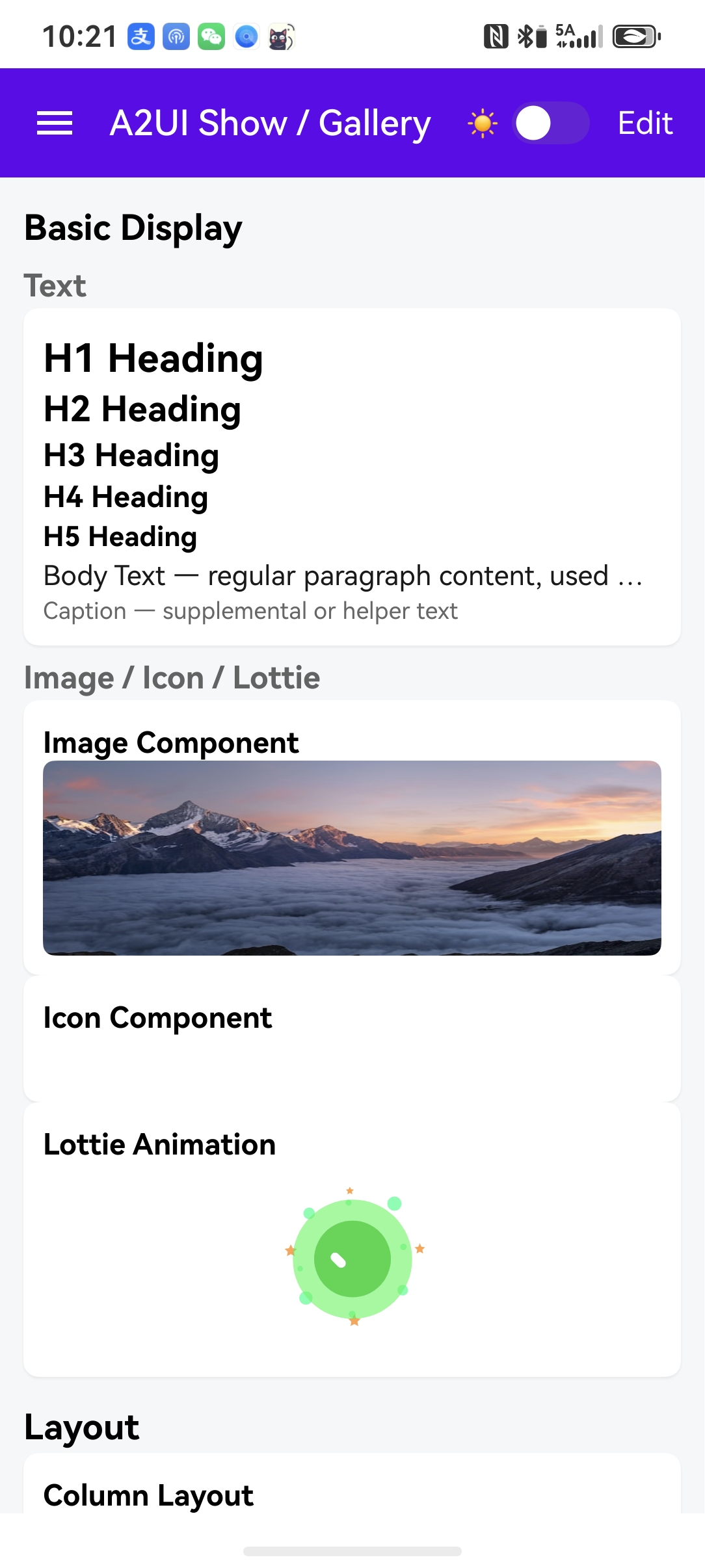
实现效果:
六、关键技术点总结
| 技术点 | 说明 |
|---|---|
| 测量机制 | 同步(calcType=0)直接返回尺寸;异步(calcType=1)先返回占位,渲染后 reportContentHeight 触发重新布局 |
| 组件注册 | measurementManager.register() + AGenUI.registerComponent() 成对调用,缺一不可 |
| Surface 生命周期 | deleteSurface → createSurface → updateComponents → updateDataModel,严格顺序执行 |
| 资源处理 | rawfile 资源启动时复制到沙盒;Lottie 远程资源自动下载缓存到 filesDir/a2ui_lottie_cache/ |
| 日志系统 | IAGenUILogger 接口将引擎日志转发到 hilog,同时支持文件持久化 |
| 主题切换 | setColorMode() 设置系统主题 + AGenUI.setDayNightMode() 设置引擎主题,双管齐下 |
七、Day 6 小结
| 完成项 | 状态 |
|---|---|
| Playground 项目架构与目录结构理解 | ✅ |
| 同步/异步测量机制原理与实现 | ✅ |
| Markdown 组件(三种加载模式 + 异步高度报告) | ✅ |
| Chart 组件(三种图表 + 防抖渲染 + 流式动画) | ✅ |
| Lottie 组件(播放控制 + 远程缓存 + 资源优先级) | ✅ |
| Toast / OpenUrl 工具函数注入 | ✅ |
| Surface 生命周期完整流转 | ✅ |
| 主题切换与日志系统 | ✅ |
八、下一步(Day 7 预告)
- 对接后端 :将 Playground 的静态 JSON 替换为后端
/chat/streamSSE 流式数据 - 动态渲染:实现 AI 返回的 AG-UI JSON 实时解析与组件更新
- Flutter 端:基于 Android 已集成的 AGenUI SDK,实现 Dart 层调用与流式对话 UI
提示:
onSizeChange回调中务必调用reportContentHeight,否则异步测量组件永远无法获得正确高度- Chart 组件的
RENDER_DEBOUNCE_MS可根据实际需求调整,数据频繁变化时建议增大防抖时间- Lottie 远程资源缓存路径基于
lottieId哈希命名,确保同一资源不会重复下载
AGenUI代码仓库:https://github.com/AGenUI/AGenUI