HarmonyOS NEXT 实战:开发一个精美的随机颜色生成器
本文详细记录了使用 HarmonyOS NEXT 开发随机颜色生成器的完整过程,涵盖颜色算法设计、Grid 网格布局、状态管理、交互设计等核心技术点,适合初学者入门实战参考。
一、项目背景
作为设计师或开发者,我们经常需要寻找合适的配色方案。有时候灵感枯竭,需要一个工具来随机生成颜色,激发创意灵感。虽然网上有很多在线配色工具,但一个简洁的手机应用可以随时随地使用,更加方便。
本文将带领大家使用 HarmonyOS NEXT 开发一个功能完善的随机颜色生成器应用,最终实现:
- ✅ 一键生成随机颜色
- ✅ 显示 HEX 和 RGB 两种颜色值
- ✅ 颜色历史记录(最多保存 12 个)
- ✅ 点击历史色块快速应用
- ✅ 清空历史记录
- ✅ 精美的 UI 设计(Material 风格)
二、开发环境
| 项目 | 版本 |
|---|---|
| DevEco Studio | 5.0.3.403 |
| HarmonyOS SDK | API 23(6.1.0) |
| 设备类型 | Phone |
| 项目模型 | Stage 模型 |
三、项目结构
MyApplication/
├── AppScope/
│   └── app.json5                    # 应用全局配置
├── entry/
│   ├── src/main/
│   │   ├── ets/
│   │   │   ├── entryability/
│   │   │   │   └── EntryAbility.ets # 应用入口
│   │   │   └── pages/
│   │   │       └── Index.ets        # 主页面(核心代码)
│   │   ├── resources/
│   │   │   └── base/
│   │   │       ├── element/
│   │   │       │   └── string.json  # 字符串资源
│   │   │       └── media/           # 图片资源
│   │   └── module.json5             # 模块配置
│   ├── build-profile.json5          # 构建配置
│   └── oh-package.json5             # 依赖配置
├── build-profile.json5              # 项目构建配置
└── hvigorfile.ts                    # 构建脚本
四、核心功能设计
4.1 需求分析
随机颜色生成器需要实现以下功能:
| 功能 | 说明 |
|---|---|
| 生成随机色 | 点击按钮或预览区生成随机颜色 |
| 颜色值显示 | 同时显示 HEX 和 RGB 格式 |
| 历史记录 | 保存最近生成的颜色(最多 12 个) |
| 快速应用 | 点击历史色块可应用该颜色 |
| 清空历史 | 一键清空所有历史记录 |
4.2 状态变量设计
typescript
@Entry
@Component
struct Index {
  @State currentColor: string = '#FF6200EE';   // 当前显示颜色(带透明度)
  @State hexValue: string = '#6200EE';          // HEX 颜色值
  @State rValue: number = 98;                   // R 分量
  @State gValue: number = 0;                    // G 分量
  @State bValue: number = 238;                  // B 分量
  @State colorHistory: string[] = [];           // 颜色历史数组
  @State copyFeedback: string = '';             // 操作反馈提示

  private maxHistory: number = 12;              // 最大历史记录数
}
五、核心算法实现
5.1 随机颜色生成算法
typescript
generateColor(): void {
  // 生成鲜艳的随机颜色(RGB 值范围 30-230)
  let r = Math.floor(Math.random() * 200) + 30;
  let g = Math.floor(Math.random() * 200) + 30;
  let b = Math.floor(Math.random() * 200) + 30;

  this.rValue = r;
  this.gValue = g;
  this.bValue = b;

  // 格式化为 HEX
  let hexR = r.toString(16).padStart(2, '0').toUpperCase();
  let hexG = g.toString(16).padStart(2, '0').toUpperCase();
  let hexB = b.toString(16).padStart(2, '0').toUpperCase();

  this.hexValue = `#${hexR}${hexG}${hexB}`;
  this.currentColor = `#FF${hexR}${hexG}${hexB}`;

  // 自动加入历史
  this.addToHistory();
}算法说明:
为什么用 Math.random() * 200 + 30?
如果直接使用 Math.random() * 255,生成的颜色可能会太亮(接近白色)或太暗(接近黑色),视觉效果不好。
typescript
// ❌ 不推荐:可能生成太亮或太暗的颜色
let r = Math.floor(Math.random() * 256);

// ✅ 推荐:生成鲜艳的颜色
let r = Math.floor(Math.random() * 200) + 30;  // 范围: 30-230
这样生成的颜色亮度适中,更加鲜艳美观。
HEX 格式转换
typescript
let hexR = r.toString(16).padStart(2, '0').toUpperCase();toString(16):将数字转为 16 进制字符串padStart(2, '0'):不足两位前面补 0(如F→0F)toUpperCase():转大写(如ff→FF)
示例:
- R = 98 →
62 - G = 0 →
00 - B = 238 →
EE - 结果:
#6200EE
5.2 颜色历史管理
typescript
addToHistory(): void {
  // 去重:如果已存在相同颜色,先移除
  let index = this.colorHistory.indexOf(this.hexValue);
  if (index >= 0) {
    this.colorHistory.splice(index, 1);
  }

  // 插入到最前(最新的在最前面)
  this.colorHistory.unshift(this.hexValue);

  // 限制历史数量(最多保存 12 个)
  if (this.colorHistory.length > this.maxHistory) {
    this.colorHistory.pop();
  }

  // 强制刷新数组(触发 UI 更新)
  this.colorHistory = [...this.colorHistory];
}设计要点:
- 去重:相同的颜色只保留一个,新的放在最前面
- 限制数量:最多保存 12 个,超过时移除最旧的
- 强制刷新:使用展开运算符创建新数组,确保 UI 更新
5.3 应用历史颜色
typescript
applyColor(color: string): void {
  this.hexValue = color;
  this.currentColor = '#FF' + color.substring(1);

  // 解析 RGB 值
  this.rValue = parseInt(color.substring(1, 3), 16);
  this.gValue = parseInt(color.substring(3, 5), 16);
  this.bValue = parseInt(color.substring(5, 7), 16);

  this.showFeedback('✅ 已应用颜色');
}
HEX 转 RGB:
typescript
// HEX: #6200EE
// substring(1, 3) = "62" → R
// substring(3, 5) = "00" → G
// substring(5, 7) = "EE" → B

this.rValue = parseInt("62", 16);  // 98
this.gValue = parseInt("00", 16);  // 0
this.bValue = parseInt("EE", 16);  // 238
六、UI 界面设计
6.1 整体布局结构
typescript
build() {
  Column() {
    // 1. 颜色预览区(占据 4/7 高度)
    Column() { ... }
      .layoutWeight(4)

    // 2. 颜色历史区域(占据 3/7 高度)
    Column() { ... }
      .layoutWeight(3)

    // 3. 底部工具栏
    Row() { ... }

    // 4. 操作反馈提示
    if (this.copyFeedback) { ... }
  }
  .width('100%')
  .height('100%')
  .backgroundColor('#FFF2F2F7')
}
6.2 颜色预览区
typescript
Column() {
  // 颜色值显示
  Column() {
    Text(this.hexValue)
      .fontSize(36)
      .fontWeight(FontWeight.Bold)
      .fontColor(Color.White)

    Text(`RGB(${this.rValue}, ${this.gValue}, ${this.bValue})`)
      .fontSize(16)
      .fontColor('#DDFFFFFF')
      .margin({ top: 6 })
      .fontWeight(FontWeight.Medium)
  }
  .alignItems(HorizontalAlign.Center)
  .justifyContent(FlexAlign.Center)
  .width('100%')
  .layoutWeight(1)

  // 提示文字
  Text('点击任意位置生成新颜色')
    .fontSize(14)
    .fontColor('#99FFFFFF')
    .margin({ bottom: 30 })
}
.width('100%')
.layoutWeight(4)
.backgroundColor(this.currentColor)
.onClick(() => {
  this.generateColor();
})设计亮点:
- 颜色预览区背景色动态变化
- 点击预览区任意位置即可生成新颜色
- 同时显示 HEX 和 RGB 两种格式
6.3 颜色历史区域
标题栏
typescript
Row() {
  Text('颜色历史')
    .fontSize(16)
    .fontWeight(FontWeight.Medium)
    .fontColor('#CC000000')

  Blank()

  Text(`${this.colorHistory.length}`)
    .fontSize(14)
    .fontColor('#66000000')

  if (this.colorHistory.length > 0) {
    Text('清空')
      .fontSize(14)
      .fontColor('#FF007AFF')
      .margin({ left: 12 })
      .onClick(() => {
        this.colorHistory = [];
      })
  }
}
.width('100%')
.padding({ left: 16, right: 16, bottom: 8 })
历史色块网格
typescript
if (this.colorHistory.length > 0) {
  Grid() {
    ForEach(this.colorHistory, (color: string, index: number) => {
      GridItem() {
        Column() {
          // 色块
          Row()
            .width('100%')
            .layoutWeight(1)
            .backgroundColor(color)
            .borderRadius(8)
            .onClick(() => {
              this.applyColor(color);
            })

          // 颜色标签
          Text(color.length > 7 ? color.substring(0, 7) : color)
            .fontSize(10)
            .fontColor('#66000000')
            .margin({ top: 2 })
            .maxLines(1)
            .textOverflow({ overflow: TextOverflow.Ellipsis })
        }
        .width('100%')
        .height(70)
      }
    })
  }
  .columnsTemplate('1fr 1fr 1fr 1fr')  // 4 列
  .rowsTemplate('1fr 1fr 1fr')          // 3 行
  .columnsGap(6)
  .rowsGap(6)
  .padding({ left: 16, right: 16, bottom: 8 })
  .width('100%')
  .layoutWeight(1)
}
Grid 布局说明:
columnsTemplate('1fr 1fr 1fr 1fr'):4 列等宽rowsTemplate('1fr 1fr 1fr'):3 行等高- 最多显示 12 个颜色(4 × 3)
空状态提示
typescript
else {
  Column() {
    Text('点击上方生成颜色\n历史记录将显示在这里')
      .fontSize(14)
      .fontColor('#66000000')
      .textAlign(TextAlign.Center)
      .lineHeight(22)
  }
  .width('100%')
  .layoutWeight(1)
  .justifyContent(FlexAlign.Center)
}
6.4 底部工具栏
typescript
Row() {
  // 生成随机色按钮
  Button({ type: ButtonType.Capsule, stateEffect: true }) {
    Row() {
      Text('🎲')
        .fontSize(18)
      Text(' 生成随机色')
        .fontSize(16)
        .fontColor(Color.White)
        .fontWeight(FontWeight.Medium)
    }
    .alignItems(VerticalAlign.Center)
  }
  .width(180)
  .height(48)
  .backgroundColor('#FF6200EE')
  .onClick(() => {
    this.generateColor();
  })

  // 保存到历史按钮
  Button({ type: ButtonType.Circle, stateEffect: true }) {
    Text('+')
      .fontSize(24)
      .fontColor('#FF6200EE')
      .fontWeight(FontWeight.Bold)
  }
  .width(48)
  .height(48)
  .backgroundColor('#FFE8DEF8')
  .margin({ left: 16 })
  .onClick(() => {
    this.addToHistory();
  })
}
.width('100%')
.justifyContent(FlexAlign.Center)
.padding({ top: 8, bottom: 16 })
.backgroundColor(Color.White)两个按钮功能:
| 按钮 | 类型 | 功能 |
|---|---|---|
| 🎲 生成随机色 | 胶囊按钮 | 生成新的随机颜色 |
| + | 圆形按钮 | 手动添加当前颜色到历史 |
注意:生成随机色时会自动添加到历史,所以圆形按钮主要用于手动保存喜欢的颜色。
6.5 圆角卡片效果
历史区域使用圆角卡片设计:
typescript
Column() {
  // 历史内容...
}
.width('100%')
.layoutWeight(3)
.backgroundColor(Color.White)
.borderRadius({ topLeft: 20, topRight: 20 })
.margin({ top: -20 })
.padding({ top: 16 })设计要点:
- 只设置顶部圆角(
topLeft、topRight) margin({ top: -20 }):向上偏移,与预览区重叠- 形成悬浮卡片效果
七、完整代码
typescript
@Entry
@Component
struct Index {
  @State currentColor: string = '#FF6200EE';
  @State hexValue: string = '#6200EE';
  @State rValue: number = 98;
  @State gValue: number = 0;
  @State bValue: number = 238;
  @State colorHistory: string[] = [];
  @State copyFeedback: string = '';

  private maxHistory: number = 12;

  aboutToAppear(): void {
    this.generateColor();
  }

  build() {
    Column() {
      // 颜色预览区
      Column() {
        Column() {
          Text(this.hexValue)
            .fontSize(36)
            .fontWeight(FontWeight.Bold)
            .fontColor(Color.White)

          Text(`RGB(${this.rValue}, ${this.gValue}, ${this.bValue})`)
            .fontSize(16)
            .fontColor('#DDFFFFFF')
            .margin({ top: 6 })
            .fontWeight(FontWeight.Medium)
        }
        .alignItems(HorizontalAlign.Center)
        .justifyContent(FlexAlign.Center)
        .width('100%')
        .layoutWeight(1)

        Text('点击任意位置生成新颜色')
          .fontSize(14)
          .fontColor('#99FFFFFF')
          .margin({ bottom: 30 })
      }
      .width('100%')
      .layoutWeight(4)
      .backgroundColor(this.currentColor)
      .onClick(() => {
        this.generateColor();
      })

      // 颜色历史区域
      Column() {
        Row() {
          Text('颜色历史')
            .fontSize(16)
            .fontWeight(FontWeight.Medium)
            .fontColor('#CC000000')

          Blank()

          Text(`${this.colorHistory.length}`)
            .fontSize(14)
            .fontColor('#66000000')

          if (this.colorHistory.length > 0) {
            Text('清空')
              .fontSize(14)
              .fontColor('#FF007AFF')
              .margin({ left: 12 })
              .onClick(() => {
                this.colorHistory = [];
              })
          }
        }
        .width('100%')
        .padding({ left: 16, right: 16, bottom: 8 })

        if (this.colorHistory.length > 0) {
          Grid() {
            ForEach(this.colorHistory, (color: string, index: number) => {
              GridItem() {
                Column() {
                  Row()
                    .width('100%')
                    .layoutWeight(1)
                    .backgroundColor(color)
                    .borderRadius(8)
                    .onClick(() => {
                      this.applyColor(color);
                    })

                  Text(color.length > 7 ? color.substring(0, 7) : color)
                    .fontSize(10)
                    .fontColor('#66000000')
                    .margin({ top: 2 })
                    .maxLines(1)
                    .textOverflow({ overflow: TextOverflow.Ellipsis })
                }
                .width('100%')
                .height(70)
              }
            })
          }
          .columnsTemplate('1fr 1fr 1fr 1fr')
          .rowsTemplate('1fr 1fr 1fr')
          .columnsGap(6)
          .rowsGap(6)
          .padding({ left: 16, right: 16, bottom: 8 })
          .width('100%')
          .layoutWeight(1)
        } else {
          Column() {
            Text('点击上方生成颜色\n历史记录将显示在这里')
              .fontSize(14)
              .fontColor('#66000000')
              .textAlign(TextAlign.Center)
              .lineHeight(22)
          }
          .width('100%')
          .layoutWeight(1)
          .justifyContent(FlexAlign.Center)
        }
      }
      .width('100%')
      .layoutWeight(3)
      .backgroundColor(Color.White)
      .borderRadius({ topLeft: 20, topRight: 20 })
      .margin({ top: -20 })
      .padding({ top: 16 })

      // 底部工具栏
      Row() {
        Button({ type: ButtonType.Capsule, stateEffect: true }) {
          Row() {
            Text('🎲')
              .fontSize(18)
            Text(' 生成随机色')
              .fontSize(16)
              .fontColor(Color.White)
              .fontWeight(FontWeight.Medium)
          }
          .alignItems(VerticalAlign.Center)
        }
        .width(180)
        .height(48)
        .backgroundColor('#FF6200EE')
        .onClick(() => {
          this.generateColor();
        })

        Button({ type: ButtonType.Circle, stateEffect: true }) {
          Text('+')
            .fontSize(24)
            .fontColor('#FF6200EE')
            .fontWeight(FontWeight.Bold)
        }
        .width(48)
        .height(48)
        .backgroundColor('#FFE8DEF8')
        .margin({ left: 16 })
        .onClick(() => {
          this.addToHistory();
        })
      }
      .width('100%')
      .justifyContent(FlexAlign.Center)
      .padding({ top: 8, bottom: 16 })
      .backgroundColor(Color.White)

      // 操作反馈
      if (this.copyFeedback) {
        Text(this.copyFeedback)
          .fontSize(13)
          .fontColor(Color.White)
          .backgroundColor('#CC000000')
          .borderRadius(16)
          .padding({ left: 16, right: 16, top: 6, bottom: 6 })
          .margin({ bottom: 8 })
          .transition({ type: TransitionType.Insert, opacity: 0 })
      }
    }
    .width('100%')
    .height('100%')
    .backgroundColor('#FFF2F2F7')
  }

  generateColor(): void {
    let r = Math.floor(Math.random() * 200) + 30;
    let g = Math.floor(Math.random() * 200) + 30;
    let b = Math.floor(Math.random() * 200) + 30;

    this.rValue = r;
    this.gValue = g;
    this.bValue = b;

    let hexR = r.toString(16).padStart(2, '0').toUpperCase();
    let hexG = g.toString(16).padStart(2, '0').toUpperCase();
    let hexB = b.toString(16).padStart(2, '0').toUpperCase();

    this.hexValue = `#${hexR}${hexG}${hexB}`;
    this.currentColor = `#FF${hexR}${hexG}${hexB}`;

    this.addToHistory();
  }

  addToHistory(): void {
    let index = this.colorHistory.indexOf(this.hexValue);
    if (index >= 0) {
      this.colorHistory.splice(index, 1);
    }

    this.colorHistory.unshift(this.hexValue);

    if (this.colorHistory.length > this.maxHistory) {
      this.colorHistory.pop();
    }

    this.colorHistory = [...this.colorHistory];
  }

  applyColor(color: string): void {
    this.hexValue = color;
    this.currentColor = '#FF' + color.substring(1);
    this.rValue = parseInt(color.substring(1, 3), 16);
    this.gValue = parseInt(color.substring(3, 5), 16);
    this.bValue = parseInt(color.substring(5, 7), 16);
    this.showFeedback('✅ 已应用颜色');
  }

  showFeedback(msg: string): void {
    this.copyFeedback = msg;
    setTimeout(() => {
      this.copyFeedback = '';
    }, 2000);
  }
}
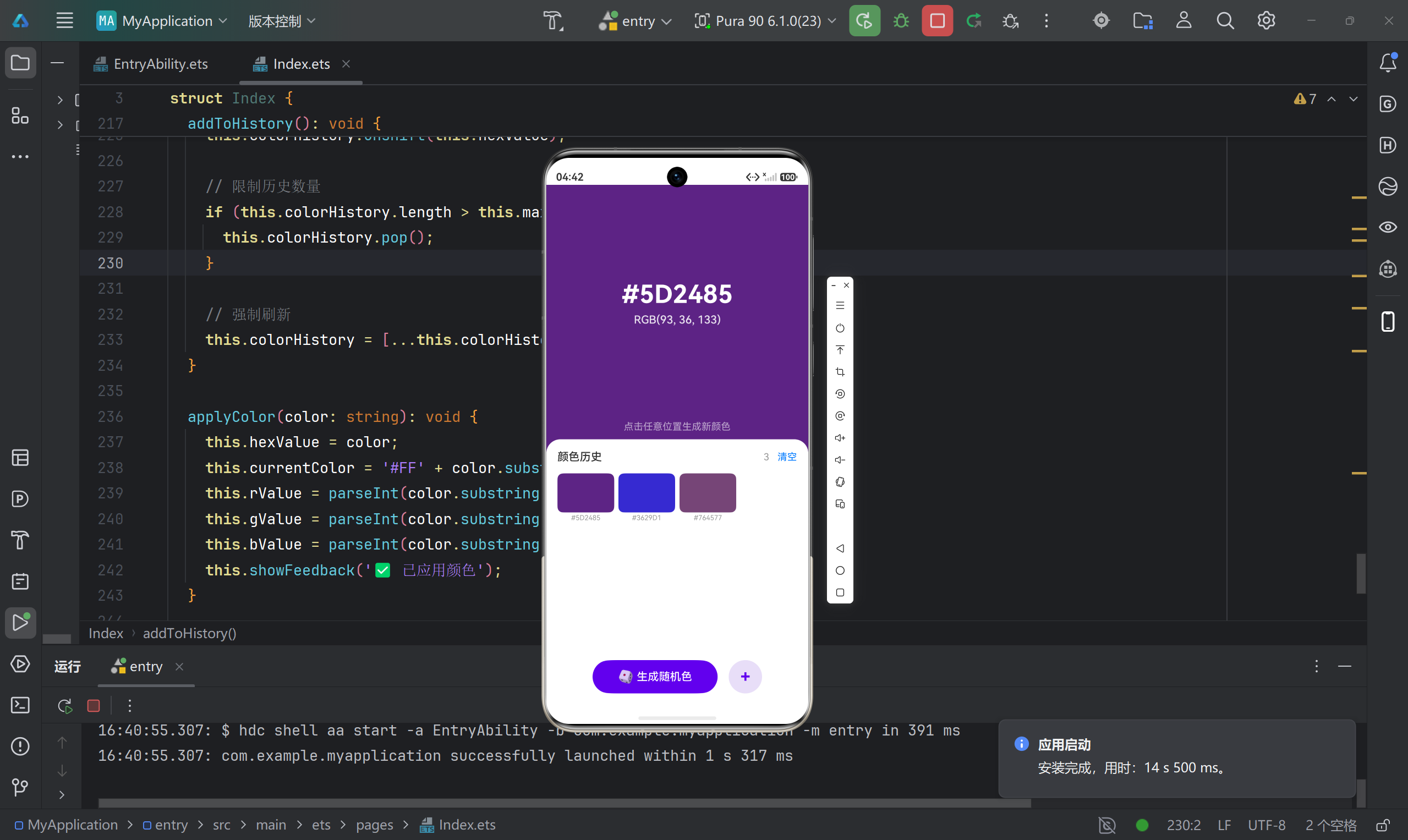
八、运行效果
九、踩坑记录
9.1 颜色格式问题
问题:设置背景色时,HEX 格式需要带透明度。
原因 :ArkUI 的 backgroundColor 要求 #AARRGGBB 格式(AA 为透明度)。
解决:
typescript
// ❌ 错误:缺少透明度
this.currentColor = '#6200EE';

// ✅ 正确:添加 FF 透明度(完全不透明)
this.currentColor = '#FF6200EE';
9.2 数组更新不触发 UI 刷新
问题:修改数组后,Grid 列表没有更新。
原因:直接修改数组元素不会触发响应式更新。
解决:创建新数组替换
typescript
// ❌ 错误:直接修改不会触发更新
this.colorHistory.push(color);

// ✅ 正确:创建新数组
this.colorHistory = [...this.colorHistory];
9.3 Grid 布局间距问题
问题:Grid 子项之间没有间距,挤在一起。
解决 :使用 columnsGap 和 rowsGap 属性
typescript
Grid() {
  // ...
}
.columnsGap(6)
.rowsGap(6)
9.4 圆角卡片遮盖问题
问题:历史区域的圆角卡片遮住了预览区底部。
解决:使用负边距让卡片向上偏移
typescript
.borderRadius({ topLeft: 20, topRight: 20 })
.margin({ top: -20 })  // 向上偏移
十、总结与扩展
10.1 项目亮点
- 智能颜色生成:避免生成太亮或太暗的颜色
- 历史管理:去重、限制数量、最新的在最前
- Grid 网格布局:整齐展示 12 个颜色
- 圆角卡片设计:现代感 UI
- 多种交互方式:点击预览区、点击按钮、点击历史色块
10.2 可扩展功能
- 复制颜色值到剪贴板
- 颜色收藏功能
- 导出配色方案
- 深色模式适配
- 颜色名称显示(如 "薰衣草紫")
- 支持更多颜色格式(HSL、CMYK)
10.3 学习收获
| 知识点 | 在项目中的应用 |
|---|---|
| @State 装饰器 | 响应式状态管理 |
| Math.random() | 随机数生成 |
| toString(16) | 进制转换 |
| Grid 组件 | 网格布局 |
| ForEach | 列表渲染 |
| Button 类型 | 胶囊/圆形按钮 |
十一、参考资料
如果这篇文章对你有帮助,欢迎点赞、收藏、评论!有任何问题也可以留言讨论~ 🎨