✨ 零基础学 ArkUI 动画(专题一):从 animateTo 到 Lottie,一篇吃透全部
博主说: 一个 App 有没有「高级感」,90% 取决于动画做得好不好。ArkUI 的动画系统非常强大------从最简单的属性变化过渡,到复杂的路径动画、粒子特效,全部原生支持。今天这篇专题我会用 7 个从易到难的实战案例,带你把 ArkUI 动画体系一次性摸透。
📱 为什么要学动画?
| 动画的作用 | 例子 |
|---|---|
| ✅ 提升用户体验 | 按钮点击有反馈,不「愣」 |
| ✅ 引导注意力 | 新功能入口闪烁提示 |
| ✅ 平滑状态切换 | 列表增删有过渡,不「闪跳」 |
| ✅ 传递品牌质感 | 加载动画彰显设计品味 |
⚙️ 运行环境
| 项目 | 要求 |
|---|---|
| DevEco Studio | 5.0.3.800+ |
| HarmonyOS SDK | API 12+ |
| 开发语言 | ArkTS |
🛠️ 7 个案例吃透 ArkUI 动画
🎯 案例 1:animateTo 显式动画 --- 最基础也最常用
场景: 点击按钮,让方块从左上角移动到右下角。
typescript
@Entry
@Component
struct Demo1_AnimateTo {
  @State offsetX: number = 0;
  @State offsetY: number = 0;
  @State opacity: number = 1;
  @State rotate: number = 0;

  build() {
    Column() {
      Column()
        .width(80).height(80)
        .backgroundColor('#007AFF')
        .borderRadius(12)
        .opacity(this.opacity)
        .rotate({ angle: this.rotate })
        .offset({ x: this.offsetX, y: this.offsetY })
        .animation({ duration: 800, curve: Curve.EaseInOut }) // 属性动画

      Button('▶ 执行动画')
        .margin({ top: 40 })
        .onClick(() => {
          animateTo({ duration: 1000, curve: Curve.ElasticInOut }, () => {
            this.offsetX = 150;
            this.offsetY = 100;
            this.opacity = 0.5;
            this.rotate = 360;
          });
        })

      Button('↺ 重置')
        .margin({ top: 12 })
        .backgroundColor('#E5E5EA').fontColor('#333')
        .onClick(() => {
          animateTo({ duration: 500 }, () => {
            this.offsetX = 0;
            this.offsetY = 0;
            this.opacity = 1;
            this.rotate = 0;
          });
        })
    }
    .width('100%').height(300)
  }
}
核心解析:
animateTo({ duration, curve, delay }, () => {
  // 在这个闭包中修改 @State 变量
  // 框架自动捕捉变化并生成动画
})| 参数 | 说明 | 常用值 |
|---|---|---|
duration |
时长(毫秒) | 300~1000 |
curve |
缓动曲线 | Curve.EaseInOut / ElasticInOut / Bounce |
delay |
延迟(毫秒) | 0~500 |
iterations |
播放次数 | -1 = 无限循环 |
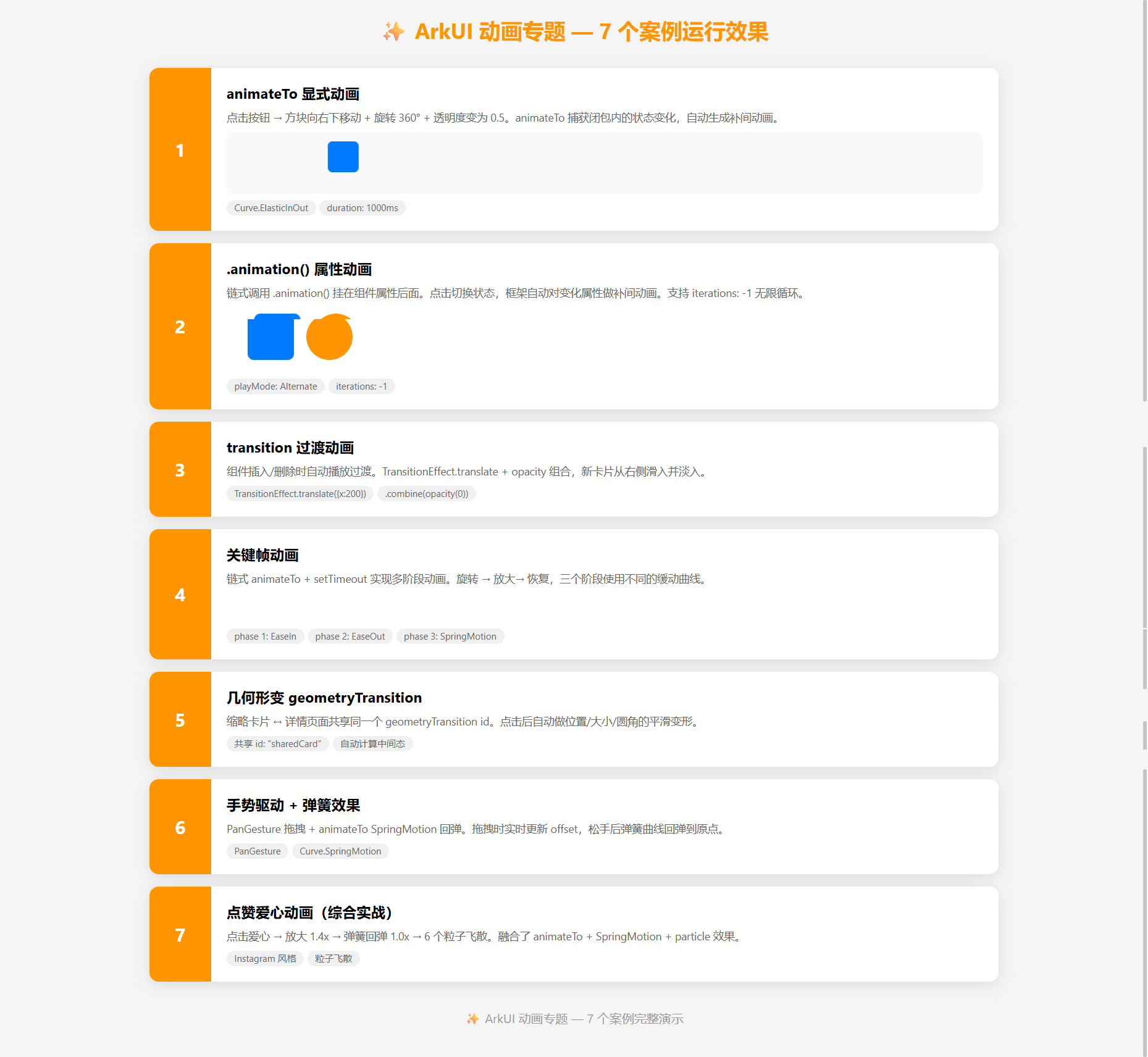
运行结果:方块从左上角平滑移动到右下角,同时旋转 360° + 透明度减半。
🎯 案例 2:.animation() 属性动画 --- 链式调用的优雅写法
场景: 鼠标悬停(或点击)时按钮放大 + 变色。
typescript
@Component
struct Demo2_PropertyAnimation {
  @State scale: number = 1;
  @State bgColor: Color = Color.Blue;

  build() {
    Button('悬浮放大变色')
      .width(200).height(56)
      .backgroundColor(this.bgColor)
      .scale({ x: this.scale, y: this.scale })
      .animation({
        duration: 400,
        curve: Curve.FastOutSlowIn,
        iterations: -1,        // 无限循环
        playMode: PlayMode.Alternate // 往返
      })
      .onClick(() => {
        // 仅需修改状态,animation 自动处理过渡
        this.scale = this.scale === 1 ? 1.2 : 1;
        this.bgColor = this.bgColor === Color.Blue ? Color.Red : Color.Blue;
      })
  }
}
区别对比:
| 方式 | 写法 | 适用场景 |
|---|---|---|
animateTo() |
函数调用包裹状态修改 | 一次性过渡、复杂的多属性联动 |
.animation() |
链式调用挂在组件上 | 持续性的交互动画、循环动画 |
🎯 案例 3:transition 过渡动画 --- 组件的「入场/离场」
场景: 点击添加卡片,新卡片优雅滑入;点击删除,卡片淡出。
typescript
@Entry
@Component
struct Demo3_Transition {
  @State items: number[] = [1, 2, 3];
  private nextId: number = 4;

  build() {
    Column() {
      Button('➕ 添加卡片')
        .onClick(() => {
          animateTo({ duration: 300 }, () => {
            this.items.unshift(this.nextId++);
          });
        })

      List({ space: 8 }) {
        ForEach(this.items, (item: number) => {
          ListItem() {
            Row() {
              Text(`卡片 #${item}`).fontSize(18)
              Button('✕').fontColor('#FF3B30')
                .backgroundColor('transparent')
                .onClick(() => {
                  animateTo({ duration: 300 }, () => {
                    const idx = this.items.indexOf(item);
                    if (idx > -1) this.items.splice(idx, 1);
                  });
                })
            }
            .padding(20)
            .backgroundColor('#F0F4FF')
            .borderRadius(12)
            .width('90%')
          }
          // 过渡动画:入场从右侧滑入 + 淡入
          .transition(
            TransitionEffect.translate({ x: 200 })
              .combine(TransitionEffect.opacity(0))
              .animation({ duration: 400, curve: Curve.EaseOut })
          )
        }, (item: number) => item.toString())
      }
      .width('100%')
    }
  }
}
TransitionEffect 可选效果:
| 效果 | 用途 |
|---|---|
TransitionEffect.opacity(0) |
淡入淡出 |
TransitionEffect.translate({ x: 200 }) |
从右侧滑入 |
TransitionEffect.scale({ x: 0, y: 0 }) |
缩放出现 |
TransitionEffect.rotate({ angle: 90 }) |
旋转进入 |
.combine() |
组合多种效果 |
🎯 案例 4:关键帧动画 --- 多阶段连续动画
场景: 加载图标------旋转 + 缩放 + 变色三段循环。
typescript
@Entry
@Component
struct Demo4_Keyframe {
  @State angle: number = 0;
  @State scale: number = 1;
  @State color: Color = Color.Blue;

  build() {
    Column() {
      Circle()
        .width(60).height(60)
        .fill(this.color)
        .scale({ x: this.scale, y: this.scale })
        .rotate({ angle: this.angle })

      Button('▶ 播放关键帧动画')
        .margin({ top: 20 })
        .onClick(() => {
          // 第一阶段:旋转 360°
          animateTo({ duration: 600, curve: Curve.EaseIn }, () => {
            this.angle = 360;
            this.color = Color.Orange;
          });
          // 第二阶段:放大 + 变色(等第一阶段结束)
          setTimeout(() => {
            animateTo({ duration: 400, curve: Curve.EaseOut }, () => {
              this.scale = 1.5;
              this.color = Color.Red;
            });
          }, 600);
          // 第三阶段:恢复原状
          setTimeout(() => {
            animateTo({ duration: 300 }, () => {
              this.angle = 0;
              this.scale = 1;
              this.color = Color.Blue;
            });
          }, 1000);
        })
    }
    .width('100%').height(200)
  }
}
🎯 案例 5:几何形变动效 --- 不同组件间的平滑过渡
场景: 列表卡片点击展开为详情页。
typescript
@Entry
@Component
struct Demo5_GeometryTransition {
  @State expanded: boolean = false;
  @State private id: string = 'sharedCard';

  build() {
    Column() {
      if (!this.expanded) {
        // 缩略卡片
        Row() {
          Circle().width(40).height(40).fill('#007AFF')
          Column() {
            Text('点击展开').fontSize(16).fontWeight(FontWeight.Bold)
            Text('查看详细信息...').fontSize(13).fontColor('#999')
          }.margin({ left: 12 })
        }
        .padding(16)
        .width('90%')
        .backgroundColor('#F0F4FF')
        .borderRadius(12)
        .geometryTransition(this.id)  // 共享同一个 id
        .onClick(() => {
          animateTo({ duration: 400 }, () => { this.expanded = true; });
        })
      } else {
        // 详情卡片
        Column() {
          Circle().width(80).height(80).fill('#007AFF')
          Text('详细信息').fontSize(22).fontWeight(FontWeight.Bold)
            .margin({ top: 12 })
          Text('这里是点击展开后的详情内容,篇幅可以很长...')
            .fontSize(15).fontColor('#555')
            .margin({ top: 8 }).lineHeight(24)
          Button('收起').margin({ top: 20 })
            .onClick(() => {
              animateTo({ duration: 400 }, () => { this.expanded = false; });
            })
        }
        .padding(24)
        .width('90%')
        .backgroundColor('#F0F4FF')
        .borderRadius(16)
        .geometryTransition(this.id)
      }
    }
    .width('100%').height('100%')
    .padding(16)
  }
}
🎯 案例 6:手势驱动动画 --- 拖拽 + 弹簧效果
场景: 拖拽卡片,松手后弹簧回弹。
typescript
@Entry
@Component
struct Demo6_GestureAnimation {
  @State offsetX: number = 0;
  @State offsetY: number = 0;

  build() {
    Column() {
      Column()
        .width(100).height(100)
        .backgroundColor('#FF9500')
        .borderRadius(16)
        .offset({ x: this.offsetX, y: this.offsetY })
        .gesture(
          PanGesture({ distance: 10 })
            .onActionStart(() => {
              // 拖拽开始:取消正在执行的动画
            })
            .onActionUpdate((event: GestureEvent) => {
              this.offsetX = event.offsetX;
              this.offsetY = event.offsetY;
            })
            .onActionEnd(() => {
              // 松手后弹簧回弹
              animateTo({
                duration: 600,
                curve: Curve.SpringMotion  // 弹簧曲线
              }, () => {
                this.offsetX = 0;
                this.offsetY = 0;
              });
            })
        )
        .shadow({ radius: 10, color: '#40000000', offsetY: 4 })

      Text('拖拽我,松手回弹').fontSize(14).fontColor('#999').margin({ top: 12 })
    }
    .width('100%').height(400)
    .justifyContent(FlexAlign.Center)
  }
}
🎯 案例 7:完整实战 --- 点赞爱心动画
场景: Instagram 风格的点赞动画------点击爱心,图标放大 + 变色 + 粒子飞散。
typescript
@Entry
@Component
struct Demo7_LikeAnimation {
  @State liked: boolean = false;
  @State scale: number = 1;
  @State particles: { id: number; x: number; y: number }[] = [];

  build() {
    Column() {
      Text(this.liked ? '❤️' : '🤍')
        .fontSize(64)
        .scale({ x: this.scale, y: this.scale })
        .onClick(() => {
          this.liked = !this.liked;
          // 点赞动画:先放大再回弹
          animateTo({ duration: 200, curve: Curve.EaseOut }, () => {
            this.scale = 1.4;
          });
          setTimeout(() => {
            animateTo({ duration: 300, curve: Curve.SpringMotion }, () => {
              this.scale = 1.0;
            });
          }, 200);

          // 粒子效果(用 Stack 叠加多个小圆点飞散)
          if (this.liked) {
            for (let i = 0; i < 6; i++) {
              const angle = (i / 6) * 360;
              setTimeout(() => {
                this.particles.push({
                  id: Date.now() + i,
                  x: Math.cos(angle * Math.PI / 180) * 60,
                  y: Math.sin(angle * Math.PI / 180) * 60
                });
                // 1 秒后移除粒子
                setTimeout(() => { this.particles.shift(); }, 1000);
              }, i * 50);
            }
          }
        })

      // 粒子渲染
      Stack() {
        ForEach(this.particles, (p) => {
          Circle().width(8).height(8).fill('#FF3B30')
            .position({ x: 32 + p.x, y: 32 + p.y })
            .opacity(0.6)
        }, (p) => p.id.toString())
      }
      .width(100).height(100)
      // 把 Stack 定位到心形上方
      .position({ x: '50%', y: '50%' })
      .translate({ x: -50, y: -50 })

      Text('点击爱心点赞').fontSize(14).fontColor('#999').margin({ top: 40 })
    }
    .width('100%').height(300)
    .justifyContent(FlexAlign.Center)
  }
}
📊 ArkUI 动画体系总览
ArkUI 动画
├── 显式动画 animateTo()
│   ├── 基础过渡
│   ├── 多属性联动
│   └── 弹簧效果 (SpringMotion)
├── 属性动画 .animation()
│   ├── 持续循环
│   └── 往返 (Alternate)
├── 过渡动画 TransitionEffect
│   ├── 入场 (opacity/translate/scale/rotate)
│   └── 离场 (同上)
├── 几何形变 geometryTransition
│   └── 组件 A ↔ 组件 B 共享 ID
├── 关键帧动画(链式 animateTo)
│   └── 多阶段连续动画
├── 路径动画 motionPath
│   └── 沿贝塞尔曲线运动
└── 手势驱动动画
    └── PanGesture + 弹簧回弹
⚠️ 避坑指南
| 坑 | 原因 | 正确做法 |
|---|---|---|
| 动画不执行 | 修改的不是 @State 变量 |
确保变量有 @State 装饰 |
| 动画闪烁 | animateTo 中改了太多状态 |
拆分多个 animateTo 调用 |
| transition 无效 | 忘了给组件设置 transition 属性 |
.transition(TransitionEffect.opacity(0)) |
| geometryTransition 不联动 | 两个组件的 id 不一致 |
确保共享同一个 id 字符串 |
| 循环动画卡顿 | .animation({ iterations: -1 }) 滥用 |
减少动画组件数量,用 Canvas 替代 |
| 弹簧效果没弹性 | 没用 Curve.SpringMotion |
普通 Curve 没有回弹效果 |
🔥 最佳实践
- 动画时长黄金法则:UI 反馈 ≤ 200ms,过渡动画 300~400ms,强调动画 600~1000ms
- 缓动曲线选择 :入门用
EaseInOut,进阶用FastOutSlowIn(Material Design 标准) - 少即是多:不要每个交互都加动画------只动画化「用户会注意到的变化」
- 配合手势:拖拽 + 弹簧回弹效果让 App 有「物理感」
- 性能监控:复杂动画用 DevEco Studio 的 Profile 工具检测帧率(目标 60fps)
- 降级方案 :低端设备自动关闭动画(通过
@ohos.settings读取设备等级)
官方文档: HarmonyOS 应用开发文档
- 开发者社区: 华为开发者论坛
- 欢迎加入开源鸿蒙跨平台社区: https://openharmonycrossplatform.csdn.net/